Download Phenochart Help
Transcript
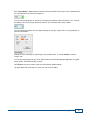
2. Use the +/- buttons on the Navigation Toolbar.
3. Use your mouse wheel to zoom in and out on the slide, as mentioned above. When you use the
Navigation Toolbar to zoom, the zoom is centered on your field of view. When you use the mouse
wheel, the zoom is centered on your mouse cursor. At all times the text to the right of the 40x button
will update to show the current resolution.
At any time, you can select Fit (also located on the Navigation Toolbar), which will fit the entire scanned
image to the application window. (Note: In general, the Vectra 3 scanning software will scan at either 4x
or 10x. However, whenever you load a slide, it is shown ‘fit’ to your screen).
3.2
Magnifier
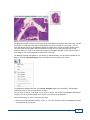
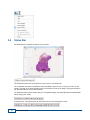
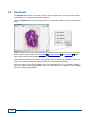
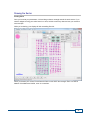
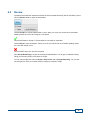
The Magnifier is the window in the upper left corner of your screen:
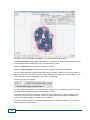
The Magnifier shows a magnified (zoomed in) view of the slide centered on your cursor. This lets you
quickly inspect individual regions in more detail without changing the overall zoom.
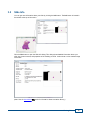
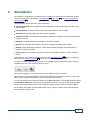
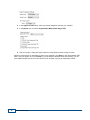
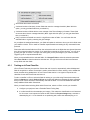
The Magnifier window is displayed on your screen by default. You can hide this window at any time by
unchecking Show Magnifier in the Gear Menu at the top right of your screen:
10
Phenochart Help