1
GlobalDAT™
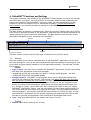
changes you have made in the window, choose in the drop-down menu Save window
properties.
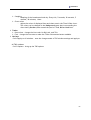
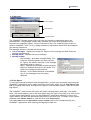
i Show/Hide toolbar – Choose to view or not view the toolbar. This is a space saving feature
to save your working place on the screen.
i Toolbar actions – When you choose to hide the toolbars, and so you do not view the
action buttons, you can use this drop-down menu to handle the Market window.
Show/Hide Toolbar and Toolbar Actions are available in every GlobalDAT™ window.
i Options
–
–
–
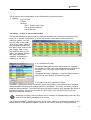
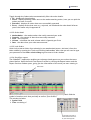
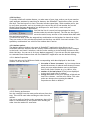
Market grid – Columns (decide which columns will be displayed in the window),
Color (change the colors of every window part as you like), Font, Grid
Indices grid – Columns, Color, Font, Grid
Toolbar – choose to view/not view:
the toolbar and so to diminish the window size;
the button description (Captions) and where should the
–
description be placed (under the button symbol or at the
right side of the button symbol).
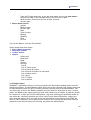
Hot keys (described in detail in 4.20 section)
Ctrl+C Connect
Ctrl+I Indices
Ctrl+1 Level I
Ctrl+2 Level II
Ctrl+K Ticker
Ctrl+L Library
Ctrl+O Top Ten
Ctrl+T Toolbar show/hide
Ctrl+P Window Options
(Indices part is described in detail in section 4.4. Indices)
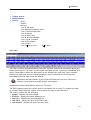
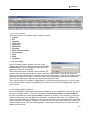
4.3 Top Ten
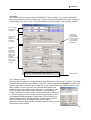
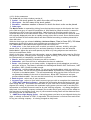
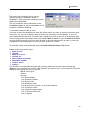
This tool allows you to watch the top ten Most Active, % Gainers,
% Losers, Net Change Gainers and Net Change Losers from the
following sources:
- Amex, Amex Options
- Boston
- CBOE, Chicago
- Cincinnati
- NASDAQ BB, NASDAQ NMS, NASDAQ SC
- NYSE, NYSE Options
- Pacific, Pacific Options
- Philadelphia, Philadelphia Options
21