1
Section 6: Using the Console
Reference
To do this...
do this
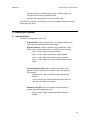
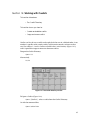
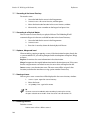
Select a cell
Click in the cell. You can use the cursor keys below the
Trackball to change which cell is selected.
Select a range of cells
You can click and drag across a range of cells to select
them all. Alternatively, you can click in the first cell, press
Thru, and click in the last cell; this is useful if you want to
select a large range and need to scroll the window.
Edit the contents of
cells
Click in the cell and press Set, or double-click in the cell.
Type in the new value, and press Enter. This works for
both a single selected cell and a range.
6.4 Working with Editors
Editors are windows where you can set the parameter values of fixtures. There are
editors for cues, scenes and palettes, and the Programmer is also an editor, and
editing parameter values works in essentially the same way for all of them; see
Selecting Fixtures and Modifying Parameters (Reference, Section 8).
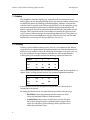
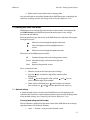
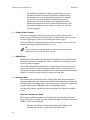
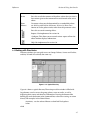
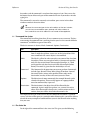
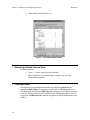
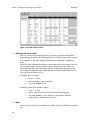
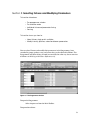
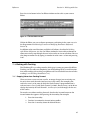
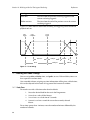
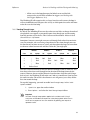
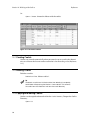
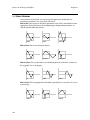
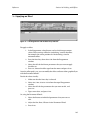
Figure 6-1. A Typical Editor
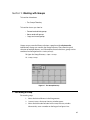
Figure 6-1 shows a typical editor. The main part of the window shows the fixture
parameter values in a spreadsheet view, with each row representing a single fixture;
see Working with Spreadsheets (Reference, 6.3).
There is a row of buttons along the top of the window, most of which are common
to all editors:
36
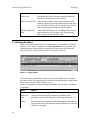
Button
Purpose
Value, Fade,
Delay and
Path
Use these buttons to display the different kinds of information
associated with the fixture’s parameters in addition to the
parameter value. See Working with Fade Timings (Reference, 13.1).
Source
Press the this to see which part of the Wholehog III is determining
the parameter value. This might be the Programmer or a cuelist on
a Master, for example.