1
b) Restore to Default: With this option, the software application resets all settings back to factory
default and reload the firmware. Warning that all current settings will be lost and there are no ways
to be able to recover them.
c) If in any doubt, click the Help button to refresh your memory on these choices or click Cancel to
be able to go back to the offline mode.
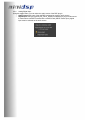
In either synchronization steps, the following dialog box will pop-up. It’s very important that you do
not un-plug the board in the middle of a firmware upgrades or you may corrupt the configuration.
7. Once the board fully synchronized, a “Successful connection to the board” message pops
up. From this point on, all changes to the configuration will be real time and live, therefore
giving you the chance to hear the effect of your equalization, filtering, tuning…
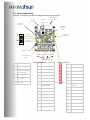
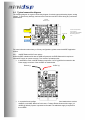
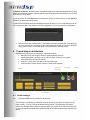
4 Typical plug-in architecture
Depending on your plug-in, the software is organized as below:
•
•
•
•
•
Main tab: Gives you access to Audio or System settings sections
Synchronize button: Allows you to go online and gain control of your system
Audio Mute: Mute all inputs & outputs
Help link: A quick link to get back to the main help page
Control toolbar: Click to access controls of each audio algorithm
Connect &
Synchronize
Main Tab
Master Mute
Help link
Control toolbar
4.1
Audio settings
4.1.1
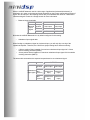
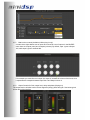
Inputs and RMS meters (Available in all plug-ins)
The first step in configuring your MiniDSP consists in making sure audio is being fed to the
input correctly. To do so, click on the button labeled “inputs”. The RMS meter will quickly
indicate the average value of the input signal in dBFS (i.e. relative to the full scale of the ADC
or 24bit I2S signal). Individual faders control the digital gain at the input and per channel mute
status.