1
IP Camera User Manual
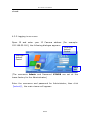
(1) Auto-Installation
(2) Download Installation
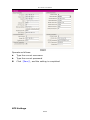
The details are described in the manual.
Q: Why can not I access IP Camera through IE web browser?
A: There are many possible scenarios regarding this problem.
1. If it is an error of network connection, do the following steps:
Connect PC to network to test whether they work normally or
not.
2. If it is the trouble from IP address, do the following steps:
Cut off the connection of IP Camera and network, connect IP
Camera and PC, then set IP address again according to
recommendatory operation.
3. If IP address lies in different subnet, do the following steps:
Check the IP and subnet mask, test the settings of gateway.
4. If the physical address of network conflict with IP Camera,
please modify the physical address of IP Camera.
5. If the web port is modified by others, please contact
administrators of networks to obtain relevant port information.
6. When the causes can not found, please restore IP Camera to
default state, and connect IP Camera. (System default IP
address: 192.168.55.160, mask address: 255.255.255.0)
Q: Why can not I watch video via Video Server?
A: There are many possible scenarios.
1. If you just installed the Video Server and could not watch the
video, please check the video modulation on the Configuration
page.
2. If this is the first time to access Video Server via Internet
Explorer after Video Server is well installed, please adjust the
security level of Internet Explorer to allow installation of plug-ins.
3. If the problem still unsolved after adjusting, maybe the current
46/ 50