1
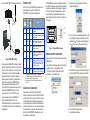
2. Connect the SMART-MR15 to a DB-9 serial port on the PC.
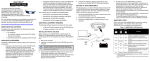
SMART-MR15 LEDS
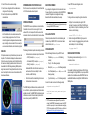
LEDs on the front of the SMART-MR15 provide basic receiver
status information. The operation of the LEDs on the
SMART-MR15 is summarized in the following table:
TNC connector
Red
Cellular
Antenna
Tyco 23-pin
connector
Yellow
Green
Condition
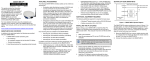
The SMART-MR15 cable provides a means of receiving power
from a battery. The bare power wires (red for positive and black
for negative) are connected to a battery capable of supplying at
least 5 W. A 5 A fuse must be installed between the positive
terminal of the battery (or power distribution point) and the
positive supply lead of the cable to protect the wiring from short
circuit damage.
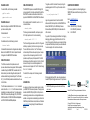
3. Select the New... in the Open dialog box. The Options |
Configuration dialog opens.
Refer to User Manual for
installation guidelines
Off
Off
Off
Power is not available or there has been a
hardware failure.
On
Off
Off
Power available but no satellites are being tracked.
No cellular connection.a
On
Flashing
Off
Tracking at least one satellite but not a valid
position. No cellular network connection.
On
On
Off
Position valid in basic autonomous mode. No
cellular network connection.
On
On
Flashing
SBAS tracking, but not enough data for enhanced
solution. Connected to cellular network but not
receiving RTK corrections.
On
On
On
Position valid in an enhanced accuracy modeb
(WAAS/EGNOS/MSAS/DGPS, OmniSTAR VBS/
XP/HP, or RTK). Connected to cellular network
and receiving RTK corrections.
COM1
User Supplied
5A Fuse
SMART-MR10: COM2
SMART-MR15: AUX
+
-
ER
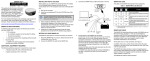
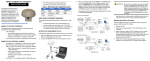
Figure 2: SMART-MR15 Cabling
3. Provide power to the SMART-MR15, as follows: (a) Connect
the cable’s red wire (PWR+, connector pin 1) to the positive
side of a 12 or 24 V vehicular power circuit (or equivalent)
that is protected by a 5 A fuse. NovAtel recommends an
automotive blade-type fuse, rated for 5 A and with an
operating voltage of more than 36 V (recommended fuse
part numbers can be found in the SMART-MR15 user
manual). (b) Connect the cable’s black wire (PWR-,
connector pin 9) to the negative side of the power circuit. If a
NovAtel-supplied SMART-MR15 cable is not used, a
minimum wire size of 0.5 mm/ 20 AWG is required.
4. Connect the cellular antenna to the SMART-MR15.
5. Obtain a valid data SIM and insert into the unit
(GPRS/HSDPA model only) or activate the product with
Verizon (CDMA model only). Refer to the cellular activation
guide for details.
On
Flashing
Flashing
Fixed position with bad integrity. Connected to
cellular network but not receiving RTK corrections.
a. If the SMART-MR15 NTRIP client is not active, LED operation will not
reflect the status of the cellular network. Refer to the Installation chapter in
the SMART-10/15 User Manual for further information.
b. When acting as a reference receiver, all lights on solid indicates a good
fixed position.
4. Click
at the top of the configurations selection box to add
a new configuration. To delete a configuration, select it from
the list and click
. To duplicate an existing configuration,
click
. You can select any name in the list and edit it.
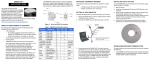
Figure 3: 23-pin and DB-9 Connectors
COMMUNICATING WITH THE SMART-MR15
To open a serial port to communicate with the receiver, complete
the following steps.
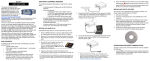
1. Launch CDU from the Start menu folder specified during the
installation process. The default location is Start |
All Programs | NovAtel PC Software | NovAtel CDU.
2. Select Open.... from the Device menu.
SMARTAG
5. Select Serial from the Type list and select the PC/laptop port
to which the SMART-MR15 is connected, from the Port list.
CONNECTING TO THE SMART-MR15
Cable connectors are illustrated in Figure 3. One DB-9
connector can be used to connect to a PC/laptop serial (RS-232)
communication port. The others can be connected to a modem
or radio transmitter to receive differential corrections (refer to
your user-supplied modem or radio transmitter information for its
connectors). In addition, there are a number of bare wires where
the outer insulation is cut away at the ends to expose tinned
wires. Refer to the SMART-MR10/15 User Manual for cable
pinouts. Cables are RoHS compliant.
6. Select 115200 from the Baud Rate list.
7. Cancel Hardware Handshaking.