1
B–2 Bonus Chapter: Troubleshooting
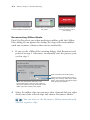
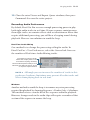
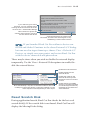
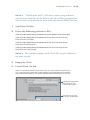
Offline clips in the Browser
have red slashes on their icons.
Offline clips in a sequence
turn white.
Offline clips in the Viewer
or Canvas display with a
red warning.
Reconnecting Offline Media
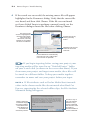
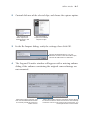
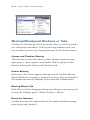
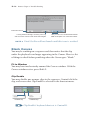
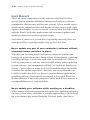
Final Cut Pro alerts you when media goes offline with the Offline
Files dialog. If you ignore this dialog, the clips will remain offline
until you reconnect them to their source media files.
1 If you see the Offline Files warning dialog, click Reconnect and
proceed to step 3. Otherwise, to manually start the process, proceed to step 2.
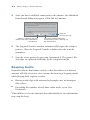
Opens the Reconnect Files dialog.
Select the appropriate checkbox in the
Forget Files section and save the project to
stop future offline warnings about the current
offline clips when opening the project.
Clicking Continue closes this warning
dialog. The currently offline clips remain
offline, and this dialog will appear again
when opening the project.
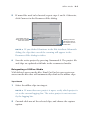
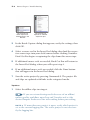
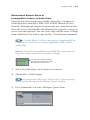
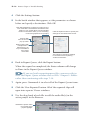
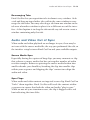
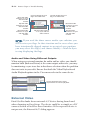
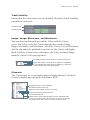
2 Select the offline clips to reconnect; then Control-click (or right-
click) one of the selected clips and choose Reconnect Media.
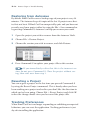
You can also use the Reconnect Media command with
selected sequence clips.