1
B–4 Bonus Chapter: Troubleshooting
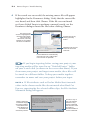
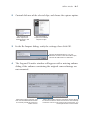
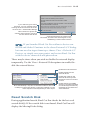
4 If the search was successful, the missing source file will appear
highlighted in the Reconnect dialog. Verify that the correct file
was found, and then click Choose. If the file was not found
or if you clicked Locate to perform a manual search, use the
Reconnect dialog to locate the file before clicking Choose.
The result of the
search is highlighted if
the automatic search
was successful;
otherwise, manually
navigate to and select
the source media file.
Preview the clip by
clicking the Play
button.
Deselect if the source
media file has been
renamed.
Leave selected to automatically
reconnect as many offline clips
in this search as possible.
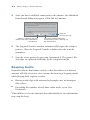
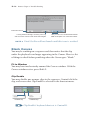
If you begin ingesting before saving your project, your
ingesting media will be stored in an “Untitled Project” folder
on your scratch disk (as shown in the screen shot above). If you
then name your project and ingest more media, these files will
be stored in a different folder. To keep your media together,
remember to name and save your project before you ingest.
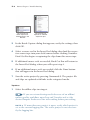
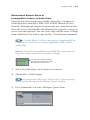
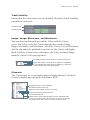
Note P If file attributes such as Reel or Media Start timecode
values in the chosen media files do not match what Final Cut
Pro was expecting for the selected offline clips, the File Attribute
Mismatch dialog will appear.
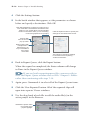
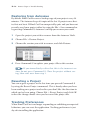
Clicking Continue
notates the clip(s)
as having conflicts
in the Reconnect
Files dialog and
continues the
reconnect process.
This error may or
may not indicate
that the wrong
source media file
was chosen. Click
Try Again to
choose a different
source media file.