1
Activity Generator Version 4 for Microsoft Train Simulator
Page 31
the limit of the track. Activity Generator can’t place any cars on a spur for the
player to pick up unless at least one of these “marker” cars is placed on the spur.
b. If you fill the spur with cars, Activity Generator can use the number of cars placed
on each spur to estimate how many cars will fit on the spur. However, with
Activity Generator version 4, it’s usually easier to place just one car on each spur.
Activity Generator can calculate the spur lengths for you. Also you can adjust the
calculated lengths later by manually editing the track .csv file, as described later,
to tell Activity Generator the maximum number of cars to place on that spur for
pickup or allow for setout. Note: with some large routes, filling all the spurs
with a lot of cars can cause errors after you save the Activity file in MSTS
Activity Editor and then try and reload it.
Important: You don’t have to place cars in ALL the spurs, but you should try and get
most of them if you ever want the player to have a pickup from a given spur. If you
don’t place a car (as a “marker”) in a spur, Activity Generator will be able to call for
SETOUTS to but not PICKUPS from that spur.
Note that when the activity is generated, Activity Generator may or may not actually
place one or more cars on the spurs where you’ve placed these “markers” when
creating your template – it will depend on whether work is being called for at that
spur, and how the end user of your template has set the “fill world” settings when
generating the activity, as described in Set Railcar Fill.
IMPORTANT -- Note on placing cars on spurs:
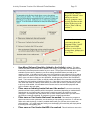
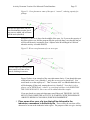
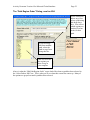
To place cars on spurs as markers, you open the MSTS Activity Editor, find the spur
you want to place one or more cars on. Hold down the right mouse button and move
your mouse towards you, or away from you, to zoom in and out on the track diagram
to better locate and isolate the spurs. When you’ve found the spur on which you’d
like to place one or more cars, right-click on that spur. From the pop-up menu that
comes up, choose “Place Consist”. You can then place any consist you want on the
track. I usually create a single-car consist to use to place as a marker, and name it just
“1” so it always comes up first in the list of consists to choose from. You can change
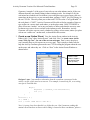
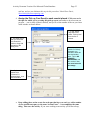
the type of cars actually placed on the track after placing the consists, by rightclicking on the car and selecting “Properties” from the pop-up menu. Now you can
change the type of car, and the number of cars, on that spur. You can also use
“change direction” to flip the car you placed to facing the other way. With AG4 it
isn’t necessary to change the car types, except, SOMEWHERE in your template you
need to place an “example” of at least one of each type of car that any of your
industries will ship out or receive. More on this in the section on editing the activity
.csv file.
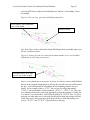
Important: When placing cars, if you intend to sometimes have the program fill the
whole spur with cars, be sure and place the car towards one or the other end of the
spur, and face the rear of the car into the spur. Then even if you place only one car,
and the program fills with more cars, it won’t fill past the limits of the spur, and thus