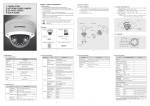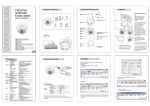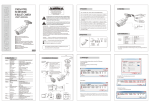
1
Chapter 2. Installation and Video Check
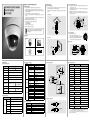
2.1 Installation
On the assumption that User PC and the camera are used under static IP, and
the camera is to be directly connected with User PC or Local Network.
The installation procedure is to be;
1) Connect the camera and PC with LAN Cable.
2) Power on camera.
※Use regulated 12V DC 500㎃ or 1A (Built-in IR LED Model)
※Use PoE(Power Over Ethernet) : The cable includes data and power, so it's
easy to install the camera. So, you can save time to install and cost. When you
connect the camera with PoE and DC adaptor, Only PoE is used.
3) Wait about 2 minute after power on camera, the system will be booted.
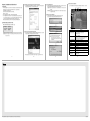
2.2.1 Change the setting value of PC network environment
Set IP Address, Subnet Mask and Gate-way of user's PC with 192.168.1.50 /
255.255.255.0 / 192.168.1.1 as shown on below picture.
2.2.5 Complete the installation
2.2.3 Input ID/Password
Shown the main page, input ID and Password and click on "Viewer" to see the
video feed.(Default administrator's ID &Password is 'admin'.)
Upon installation, Web Viewer appears and image of camera is to be seen.
⑦
<Caution> Please change default value of ID/Password into new ones after the
installation.
[Reference] Please refer to 5.3 Administrator's ID and Password Change regarding
'Change Administrator'.
⑧
⑨
⑩
①
2.2.4 Active-X auto installation
Click "install" on the security certificate to load the Active-X control.
If you choose "Don't install", the web viewer would not work.
②
③
④
⑤
⑥
2.2 Network Setting and Video Check
Default network setting value of the unit is to be;.
IP Address : 192.168.1.30
Subnet Mask : 255.255.255.0
Gateway
: 192.168.1.1
①
11
2.2.2 Connect the camera with web browser
To connect the unit in user's PC, change the setting value of PC network environment.
<Caution> Before changing the setting value, please memorize the previous setting
value on your PC.
Run web browser and input the default IP address(192.168.1.30) in URL line
and press "Enter". Then, below picture is to be shown.
Item
②
③
※If the page does not open, Please refer to "Chapter 11 appendix" in the CD.
9
※The specification is subject to change without any prior notice to improve the quality.
10
11
Description
①Stream selection
Select stream codec and resolution menu related to
live-view was defined only by the admin.
(H.264/MPEG/MJPEG)
②Window size
Default size is 640X480.
Adjust the screen to the optimal size(Recommendation :
Select the same size with stream resolution)
③Connection/Disconnection
④Recording
⑤Capture
⑥Saving path
⑦Camera name
⑧Date
⑨Time
Connect or disconnect to the stream
Saves the stream as a moving picture file in the .avi format
Saves the snapshot as an image file in the .bmp format
Specify the file saving path
Display camera title
Display the date
Display current time
⑩Status Icon
Display the site information such as Day/Night, Motion,
Alarm input/output
⑪Stream Info.
Display the stream information such as Audio and
recording condition
12
3B15757B