1
INKJET411
2. Service Station Caps - Cleaning Procedure
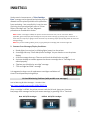
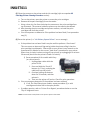
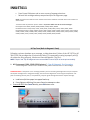
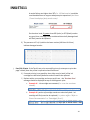
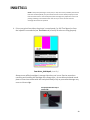
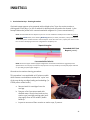
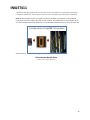
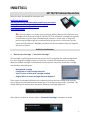
If printed output appears to be smeared with multiple colors* then the service station or
parking pad is likely dirty (i.e. full of residual ink buildup) and will need to be cleaned. In the
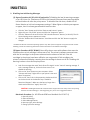
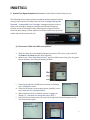
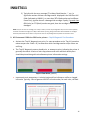
example below the yellow ink is contaminated with magenta ink (“cross contamination”).
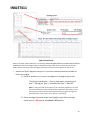
NOTE: The Extended Self-Test Report may be run on most C4200 thru C5200 printer models by pressing
and holding Cancel button, then selecting Black Copy button (or similar procedure). Many of the HP 7475 ink series printer models include a ‘Self-Test Report’ under the Tools menu; a quick print of the 4-color
bars can aid in identifying which color is degraded or completely out.
Extended Self-Test
Report (partial)
NOTE: Ensure that paper thickness/paper weight does not exceed manufacturers suggested printer
specifications…the majority of consumer inkjet printers can only handle up to 24 lb plain paper thickness
or up to 260 gsm photo paper weight.**
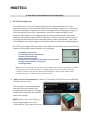
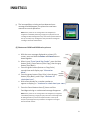
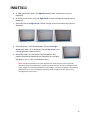
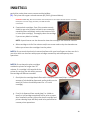
General service station cleaning procedure:
This procedure is not applicable to HP printer models
which feature a maintenance station that ‘cycles’ out
of the way during cartridge loading and unloading (i.e.
C5200 printer model series ).
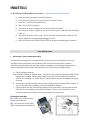
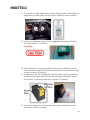
a. Remove both ink cartridges from the
carriage.
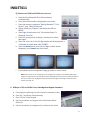
b. Dampen a lint free cotton swab with
distilled water. Gently clean both service
station caps (cartridge parking pads) until
thoroughly clean of ink residue / debris
build-up.
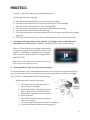
c. Inspect to ensure no fibers remain on station caps, if present.
21