1
INKJET411
1. Disabling Low Ink Warning Messages
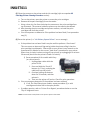
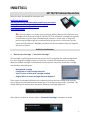
(1) Bypass Procedure #1 (PCs; Win XP and earlier*) Disabling the low ink warning messages
on an HP Printer (i.e. Photosmart C5250 in this example) removes future warnings about
ink levels before or after the print process. To eliminate low ink alerts, disable the HP
Status Monitor or ink level management settings*. When lighter or blotchy text appears
on paper, then it's almost guaranteed ink levels are low.
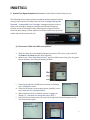
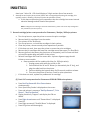
a. Click the "Start" button and click the "Devices and Printers" option.
b. Right-click your "HP C5250" printer and click the "Properties" option.
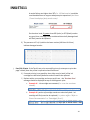
c. Click the "Advanced" tab and click the "HP PrinterPreferences" button (i.e. Win XP). The HP
Printer Settings screen appears on screen.
d. Click the "Disable HP Ink Level Monitor" check box and click the "OK" button to apply the
changes.
* Available on Win XP and earlier operating systems only. Win 7/8 do not appear to support ink level monitor
disabling. Lack of ink monitoring should not interfere with the use of refilled ink cartridges.
(2) Bypass Procedure #2 (PC & MAC): Some HP printers come with software that warn the
customer when an ink cartridge is almost out of ink. The printer's software communicates
with the ink cartridges in the printer to determine the amount of ink left. If the ink
cartridges in the printer have been refilled or are not genuine HP ink cartridges, the
printer's software will display a warning that the cartridge is almost out of ink. Disabling this
warning involves a short and simple process.
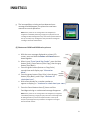
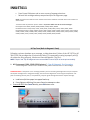
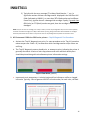
a. Look for a message that reads "Don't Show This Again" on the "low ink" warning message. If
such a message shows up, click on the box next to it to
disable the warning.
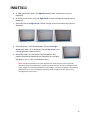
b. Click on the "Start" button on your computer. Select
"Printers and Faxes." Right-click on your printer's icon and
select "Properties."
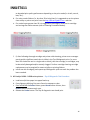
c. Click on the "Ports" tab in the properties window and click
on the check mark in the box that says "Enable BiDirectional Support." Make sure the box no longer has a
check mark and click on "Apply" then "OK."
CAUTION: Disabling Bi-directional communications support will cause many of the non-printing
functions to cease working (i.e. scanning/faxing, etc). This is not a suggested solution.
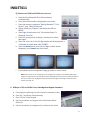
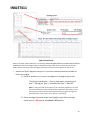
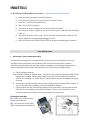
Macintosh Procedure (i.e. HP OfficeJet 6500 on a MacBook Pro OS 10.7.4)
1. Open HP Utility.
2. Select All Settings.
3. Select Message Center.
4. Near top right, select Settings.
5. Change your alert settings.
3