1
www.studyisland.com
800-419-3191
[email protected]
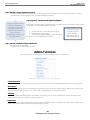
Parent Notifications
Parent Notifications are automatic emails designed to keep parent(s) involved in theirstudent(s) education process and to promote
bettercommunication between parents and teachers. With this feature, a teachercan keep parents informed oftheirstudents(s)
progress in the program by creating any ofseveral types ofParent Notification Requests. It is recommended that teachers entervalid
email addresses under“My Attributes” priorto creating new Notifications forthis feature to work properly. Please note
n ote that the admin
or teacher must set up “Parents” and “Parent Groups” before a new Notification can be created.
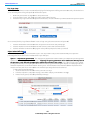
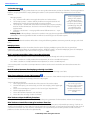
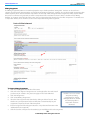
To Create a Parent for Parent Notifications:
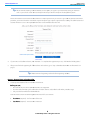
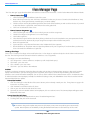
1. Click “Class Manager” on the left hand side ofthe screen.
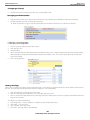
2. Locate the Class Title and click on the Parent Notification icon on the right side ofthe screen.
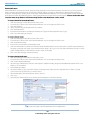
3. Click “Add a Parent.”
4. Select a student using the dropdown box by “Student.”
5. Click “Add New Parent.”
6. Entera Parent First Name, Last Name, Email Address and Type from the dropdown box by “Type.”
7. Click “Save” afteradding each parent.
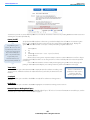
To Create a Parent Group:
1. Click “Class Manager” on the left hand side ofthe screen.
2. Locate the Class Title and click on the Parent Notification icon on the right side ofthe screen.
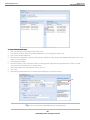
3. Click “Create Parent Group.”
4. Entera name and description forthe Parent Group.
5. Click each Parent Name on the left side ofthe box under“Available Parents” and use the arrows to add the selected Parents to
the group on the right side ofthe screen under“Parents in Group.” Also, you can click on “Move All Parents to Group” to move
all the “Available Parents” to the “Parents in Group” section on the right.
6. Click “Save” aftersetting up each Parent Group.
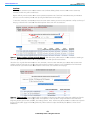
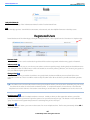
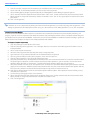
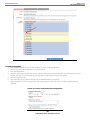
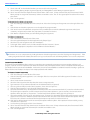
To Create a Parent Notification:
1. Click “Class Manager” on the left hand side ofthe screen.
2. Locate the Class Title and click on the Parent Notification icon on the right side ofthe screen.
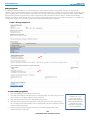
3. Click “Create a Parent Notification.”
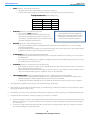
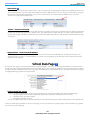
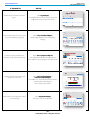
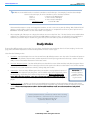
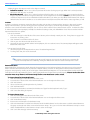
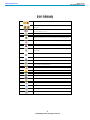
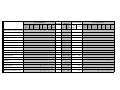
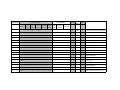
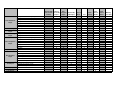
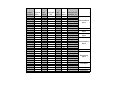
4. Select the type ofNotification. There are several options available including Assignment Due/ReminderAlert and Low Score
Warning. See chart below.
5. Entera Notification Name.
6. Select the Frequency, Time, Start and End Dates, and Program and Subject from the dropdown boxes. Please note that
options here may vary depending on answerchoices.
7.
8.
9.
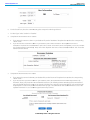
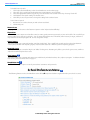
Select the Recipients from the dropdown box by “Send To.”
Click “Save.”
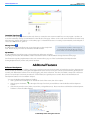
(Optional) Click “Preview Email” to see how the email will appearto selected recipient(s).
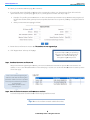
Tip: Look on the right side ofthe Notification box forexplanations!