1
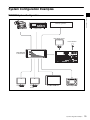
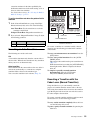
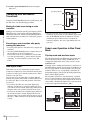
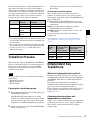
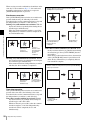
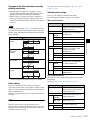
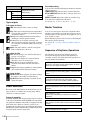
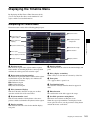
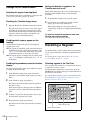
Multi Format Switcher System
MVS-3000 System (With ICP-3000 Control Panel)
MVS-3000 System
(With ICP-3000 Control Panel)
MVS-3000
MVS-3000 System
(SY)
4-444-918-11 (1)
Sony Corporation
Printed on recycled paper.
ICP-3000
MKS-6550
User’s Guide [English]
Printed in Japan
2012.09 32
© 2012
Software Version 1.00 and Later
1st Edition
NOTICE TO USERS
© 2012 Sony Corporation. All rights reserved. This
manual or the software described herein, in whole or
in part, may not be reproduced, translated or reduced
to any machine readable form without prior written
approval from Sony Corporation.
SONY CORPORATION PROVIDES NO
WARRANTY WITH REGARD TO THIS MANUAL,
THE SOFTWARE OR OTHER INFORMATION
CONTAINED HEREIN AND HEREBY EXPRESSLY
DISCLAIMS ANY IMPLIED WARRANTIES OF
MERCHANTABILITY OR FITNESS FOR ANY
PARTICULAR PURPOSE WITH REGARD TO THIS
MANUAL, THE SOFTWARE OR SUCH OTHER
INFORMATION. IN NO EVENT SHALL SONY
CORPORATION BE LIABLE FOR ANY
INCIDENTAL, CONSEQUENTIAL OR SPECIAL
DAMAGES, WHETHER BASED ON TORT,
CONTRACT, OR OTHERWISE, ARISING OUT OF
OR IN CONNECTION WITH THIS MANUAL, THE
SOFTWARE OR OTHER INFORMATION
CONTAINED HEREIN OR THE USE THEREOF.
Sony Corporation reserves the right to make any
modification to this manual or the information
contained herein at any time without notice.
The software described herein may also be governed
by the terms of a separate user license agreement.
Table of Contents
Chapter 1 Overview
Introduction ............................................... 12
Features ..................................................... 12
Basic Video Processing ........................... 13
Transitions................................................... 13
Keys ............................................................ 15
Wipes .......................................................... 15
DME Wipes ................................................ 15
Frame Memory............................................ 15
Color Backgrounds ..................................... 15
Copy and Swap ........................................... 16
Color Corrector ........................................... 16
Side Flags.................................................... 16
Creation of Special Effects and
Management of Data and
Operations .......................................... 16
Controlling External Devices...................... 16
Keyframes ................................................... 17
Snapshots .................................................... 17
Utilities........................................................ 17
Shotboxes.................................................... 17
Macros......................................................... 17
File Operations............................................ 17
Setup .......................................................... 18
System Configuration Examples ............. 19
MVS/ICP System Configuration ................ 19
Connection Example................................... 20
Chapter 2 Names and Functions of
Parts
Names and Functions of Parts of the
Control Panel ...................................... 21
Control Panel Configuration ....................... 21
Cross-Point Control Block .......................... 22
Transition Control Block ............................ 24
Device Control Block ................................. 26
Flexi Pad ..................................................... 28
Names and Functions of Parts of the
Menu.................................................... 30
Overview..................................................... 30
Top Menu List............................................. 30
Menu Screen ............................................... 30
Top Menu Window ..................................... 33
Numeric Keypad Window .......................... 34
Keyboard Window ...................................... 35
Color Palette Window................................. 36
Basic Menu Operations ............................ 36
Recalling Menus ......................................... 36
Selecting Menus.......................................... 37
Selecting List Items..................................... 37
Setting Parameters....................................... 37
Returning Parameters to Default Values..... 38
Operation with a Mouse.............................. 38
Using Shortcut Menus................................. 38
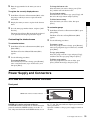
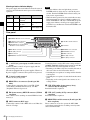
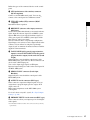
Power Supply and Connectors................ 39
MVS-3000 Multi Format Switcher
Processor............................................ 39
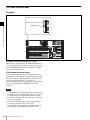
ICP-3000 Control Panel .............................. 42
Chapter 3 Signal Selection and
Transitions
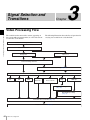
Video Processing Flow............................. 44
Signal Selection ........................................ 45
Basics of Signal Selection........................... 45
Bus Selection............................................... 45
Signal Assignment and Selection................ 45
Inhibiting Cross-Point Button
Operations.......................................... 46
Signal Name Display .................................. 47
Transitions................................................. 47
Transition Types ......................................... 47
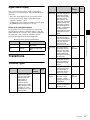
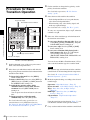
Procedure for Basic Transition
Operation ............................................ 48
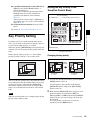
Key Priority Setting................................... 49
Setting the Key Priority in the Transition
Control Block .................................... 49
Setting the Key Priority by a Menu
Operation ........................................... 50
Table of Contents
3
Displaying the Key Output Status and Key
Priority............................................... 50
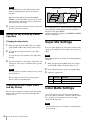
Super Mix Settings ....................................50
Color Matte Settings .................................50
Executing a Transition..............................51
Transition Indicator Function ..................... 52
Setting the Transition Rate ......................... 52
Pattern Limits.............................................. 53
Executing an Auto Transition..................... 55
Executing a Transition with the Fader Lever
(Manual Transition)........................... 55
Combining Auto and Manual
Transitions......................................... 56
Non-Sync State ........................................... 56
Fader Lever Operation in Bus Fixed
Mode ................................................. 56
Transition Preview ....................................57
Independent Key Transitions ...................57
Basic Independent Key Transition
Operations ......................................... 59
Setting the Independent Key Transition
Rate ................................................... 60
Fade-to-Black.............................................60
Chapter 4 Keys
Overview ....................................................62
Key Types................................................... 62
Key Modifiers............................................. 63
Key Memory............................................... 64
Key Default................................................. 64
Key Setting Operations Using Menus .....64
Key Setting Menus ..................................... 65
Key Type Setting ........................................ 65
Selecting the Key Fill and Key Source....... 66
Chroma Key Composition and Basic
Settings .............................................. 67
Key Adjustments (Menus) ........................68
Chroma Key Adjustments........................... 68
Key Edge Modifications ............................. 70
Mask ........................................................... 73
Key Modify Clear ....................................... 74
Blink Function ............................................ 74
4
Table of Contents
Key Adjustments (Flexi Pad).................... 74
Resizer ....................................................... 76
Two-Dimensional Transformations and
Rotation of Keys................................ 77
Resizer Interpolation Settings..................... 78
Resizer Crop/Border Settings ..................... 79
Applying Resizer Effects ............................ 80
Key Snapshots .......................................... 81
Key Snapshot Operations ........................... 81
Chapter 5 Wipes
Overview .................................................... 83
Basic Procedure for Wipe Settings ......... 83
Wipe Pattern Selection ............................... 83
Setting Wipe Modifiers............................... 83
Wipe Modify Clear ..................................... 87
Wipe Settings for Independent Key
Transitions .......................................... 87
Basic Procedure for Independent Key
Transition Wipe Settings ................... 88
Setting Independent Key Transition Wipe
Modifiers ........................................... 88
Wipe Snapshots ........................................ 89
Wipe Snapshot Operations with the
Menus ................................................ 89
Wipe Pattern Operations in the Flexi
Pad....................................................... 90
Recalling a Wipe Snapshot ......................... 90
Selecting the Wipe Pattern.......................... 90
Editing the Wipe Pattern............................. 91
Saving, Canceling, and Deleting Edited Wipe
Patterns .............................................. 92
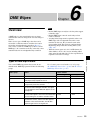
Chapter 6 DME Wipes
Overview .................................................... 93
Types of DME Wipe Pattern ...................... 93
DME Wipe Pattern Variations and
Modifiers ........................................... 94
Relation between DME Wipes and Other
Effects................................................ 94
Basic Procedure for DME Wipe
Settings ............................................... 95
DME Wipe Pattern Selection...................... 95
Setting DME Wipe Modifiers ..................... 95
DME Wipe Modify Clear ........................... 97
DME Wipe Settings for Independent Key
Transitions .......................................... 97
Basic Procedure for Independent Key
Transition DME Wipe Settings ......... 98
Setting Independent Key Transition DME
Wipe Modifiers.................................. 98
DME Wipe Snapshots ............................... 99
DME Wipe Snapshot Operations with the
Menus ................................................ 99
DME Wipe Pattern Operations in the Flexi
Pad....................................................... 99
Recalling a DME Wipe Snapshot ............... 99
Selecting the DME Wipe Pattern................ 99
Editing the DME Wipe Pattern ................. 100
Saving, Canceling, and Deleting DME Wipe
Snapshots......................................... 101
Clip Creation ............................................. 114
Creating and Handling Frame Memory
Folders ............................................. 114
Clip Output................................................ 114
Recording and Playback of Ancillary
Data.................................................. 115
Clip Transition Operations..................... 115
Image Data Management........................ 117
Pair File Processing................................... 117
Moving Files ............................................. 117
Deleting Files ............................................ 117
Renaming Files ......................................... 118
Using an External HDD........................... 118
HDD Formatting ....................................... 118
Saving Files............................................... 118
Recalling Files........................................... 119
Managing Images Using a DDR/VTR..... 119
Using a DDR/VTR for High-speed Backup
and Restoring................................... 119
Extracting Images from a Video Tape ...... 120
Chapter 7 Frame Memory
Chapter 8 Color Backgrounds, Copy
and Swap, and Other Settings
Overview .................................................. 102
Still Image Operations ............................ 103
Preparations............................................... 103
Interpreting the Frame Memory Menu ..... 103
Selecting an Input Image .......................... 105
Selecting Outputs and Target Frame
Memory ........................................... 106
Capturing and Saving an Input Image ...... 106
Recalling Still Images (Recall) ................. 107
Image Output ............................................ 108
Continuously Capturing Still Images
(Record)........................................... 109
Recalling a Continuous Sequence of Still
Images (Animation)......................... 110
Frame Memory Clip Function................. 111
Frame Memory Clip Operations............. 111
Preparations for Operation........................ 111
Recalling Clips.......................................... 112
Clip Playback ............................................ 112
Color Background................................... 122
Basic Color Background Setting
Operations........................................ 122
Copy and Swap ....................................... 123
Overview of Copy and Swap .................... 123
Copy and Swap Operations....................... 124
Misc Menu Operations............................ 125
Port Settings for Control from an External
Device.............................................. 125
Safe Title Settings ..................................... 125
Displaying a List of Transition Rates and
Changing the Settings...................... 126
AUX Menu Operations ............................ 126
AUX Bus Settings..................................... 126
Router Control Menu Operations .......... 127
Checking the List of Inputs for Each
Destination....................................... 127
Switching the Source for Each
Destination....................................... 127
Table of Contents
5
Chapter 9 Special Functions
Side Flags ................................................128
Overview................................................... 128
Side Flag Settings ..................................... 128
Wipe Action on Images with Side
Flags ................................................ 129
DME Wipe Action for an Image with Side
Flags ................................................ 129
Chapter 10 External Devices
Control of External Devices ...................131
Shared Functions for External Device
Control............................................. 131
Control of P-Bus Devices .......................132
Creating and Editing the P-Bus
Timeline .......................................... 132
P-Bus Trigger............................................ 133
Control of GPI Devices ...........................133
GPI Timeline Creation and Editing .......... 133
Control of VTRs, Extended VTRs, and Disk
Recorders..........................................134
Controlling the Tape/Disk Transport........ 135
Checking VTR/Disk Recorder/Extended VTR
Information...................................... 136
Cueup & Play............................................ 137
VTR/Disk Recorder/Extended VTR
Timeline .......................................... 139
Disk Recorder/Extended VTR File
Operations ....................................... 142
Chapter 11 Keyframes
Regions ....................................................144
Registers ..................................................144
Overview of Keyframes...........................145
Effects ....................................................... 145
Saving and Recalling Effects.................... 145
Effect Attributes........................................ 145
Effect Editing............................................ 145
Time Settings ............................................ 146
6
Table of Contents
Paths.......................................................... 147
Effect Execution ....................................... 148
Master Timelines ...................................... 148
Sequence of Keyframe Operations ........... 148
Displaying the Timeline Menu................ 149
Interpreting the Timeline Menu................ 149
Settings in the Timeline Menu.................. 150
Recalling a Register ................................ 150
Specifying the Region and Edit
Points ................................................ 152
Selecting the Region in which Editing
Applies ............................................ 152
Specifying an Edit Point ........................... 153
Creating and Editing Keyframes............153
Keyframe Creation and Editing in the Flexi
Pad................................................... 153
Creation..................................................... 154
Insertion .................................................... 154
Modification ............................................. 154
Deletion..................................................... 156
Movement ................................................. 156
Copying..................................................... 157
Pause ......................................................... 157
Keyframe Loop (Repeated Execution of a
Specified Range) ............................. 157
Undoing an Edit Operation ....................... 158
Duration Mode Setting ............................. 158
Time Settings........................................... 159
Setting the Keyframe Duration ................. 159
Setting the Effect Duration ....................... 159
Delay Setting ............................................ 159
Path Setting .............................................159
Basic Procedure for Path Settings............. 159
Executing Effects ....................................161
Executing an Effect in the Flexi Pad ........ 161
Setting the Run Mode ............................... 161
Saving Effects .........................................162
Creating and Saving a Master
Timeline .............................................162
Creating and Saving a Master Timeline in the
Flexi Pad.......................................... 162
Creating and Saving a Master Timeline with
the Menu.......................................... 163
Register Operations in the Menus......... 164
Effect Attribute Settings ........................... 164
Effect Status Display................................. 164
Effect Register Editing.............................. 164
Displaying a List of Effect Registers for
Editing ............................................. 166
Chapter 12 Snapshots
Overview .................................................. 167
Snapshot Types ......................................... 167
Snapshot Attributes ................................... 167
Snapshot Operations in the Flexi
Pad..................................................... 168
Banks and Registers .................................. 168
Saving and Recalling Snapshots ............... 169
Snapshot Operations in the Menus....... 171
Selecting a Region or Reference Region in a
Menu................................................ 171
Setting Snapshot Attributes....................... 171
Snapshot Status Display............................ 173
Setting Key Snapshot Attributes ............... 173
Creating and Saving a Master Snapshot ... 173
Editing Snapshot Registers ....................... 174
Displaying a List of Snapshot Registers for
Editing ............................................. 174
Operations in the Misc >Snapshot
Menu................................................ 174
Chapter 13 Utility/Shotbox
Utility Execution ...................................... 176
Executing a Utility with Cross-Point Buttons
in the 2nd Row................................. 176
Shotbox.................................................... 176
Shotbox Register Creation..................... 177
Creating a Shotbox Register in the Flexi
Pad ................................................... 177
Creating a Shotbox Register using the
Menus .............................................. 178
Shotbox Execution ................................. 179
Executing a Shotbox in the Flexi Pad ....... 179
Executing a Shotbox Function with CrossPoint Buttons in the 2nd Row.......... 179
Shotbox Register Editing ....................... 179
Chapter 14 Macros
Macros ..................................................... 180
Overview................................................... 180
Macro Creation and Editing...................... 180
Macro Execution ....................................... 182
Macro Operations in the Flexi Pad ........ 182
Recalling a Macro Register and Executing a
Macro............................................... 182
Creating and Editing a Macro ................... 183
Editing Macros using Menus ................. 186
Macro Register Editing ............................. 186
Online Editing of Macro Events ............... 186
Offline Editing of Macro Events............... 188
Macro Attachment Assigning ................ 190
Setting and Canceling a Macro
Attachment....................................... 191
Displaying the Macro Attachment List..... 193
Executing a Macro by Macro
Attachment....................................... 193
Menu Macros ........................................... 194
Recalling a Menu Macro Register and
Executing a Menu Macro ................ 194
Creating and Editing a Menu Macro......... 196
Menu Macro Register Editing................... 198
Macro Timeline........................................ 198
Creating and Editing a Macro Timeline.... 199
Chapter 15 Files
Overview of File Operations .................. 200
Operations on Individual Files............... 202
Viewing Detailed File Information ........... 202
Selecting Regions...................................... 203
Selecting a Device for Operations ............ 203
Saving Files............................................... 203
Loading Files............................................. 204
Table of Contents
7
Copying Files............................................ 204
Renaming Files ......................................... 205
Deleting Files............................................ 205
Saving the List of Frame Memory Files to a
Local Disk or Removable Disk ....... 206
File Batch Operations .............................206
Batch Saving Files .................................... 206
Batch Loading Files.................................. 207
Batch Copying Files ................................. 207
Importing and Exporting Files ...............207
Importing Frame Memory Data................ 207
Exporting Frame Memory Data................ 208
Directory Operations...............................208
Creating a New Directory......................... 208
Renaming a Directory............................... 209
Deleting a Directory ................................. 209
Copying Files between Different Unit
IDs ......................................................209
Saving Files Recalled by Autoload........209
Chapter 16 System Setup
Setup for the Whole System...................211
Network Settings .....................................211
Setting the Group ID................................. 211
Authenticating the IP Address
Automatically .................................. 211
Setting the Signal Format.......................211
Setting the Signal Format ......................... 211
Switching the Input Reference Signal for HD
System ............................................. 212
Setting Conversion Formats ..................... 212
Setting the Screen Aspect Ratio ............... 213
Selecting the State After Power-on .......213
Saving and Recalling Setup Data ............. 214
Selecting the State at Start-up................... 214
Saving User-Defined Settings................... 214
Setting Automatic Loading of Register Data at
Power On (Autoload Function) ....... 214
Reset and Initialization ...........................215
Installation and Device Setup ................215
Installing Software.................................... 215
8
Table of Contents
Saving a Frame Memory Clip with Ancillary
Data ................................................. 216
Setting the Number of Format Converter
Input/Outputs................................... 216
System Maintenance...............................216
Setting the Date and Time ........................ 216
Using Removable Disks ........................... 216
Carrying Out the Primary Setting ............. 216
Formatting a Local Disk ........................... 217
Locking the Setup Menu Settings............. 217
Locking File Loading Operations ............. 218
Chapter 17 Control Panel Setup
Overall Control Panel Settings .............. 219
Interchanging the Bank Order or Disabling
Operation......................................... 219
Linking Switcher Bus and Router
Destination ...................................... 219
Linking Transitions between Keyers ........ 220
Linking the Next Transition Selection
Buttons ............................................ 220
Assigning Regions to Region Selection
Buttons in the Flexi Pad .................. 220
Setting Transition Control Block Button
Assignments .................................... 221
Assigning Devices or Functions to the Region
Selection Buttons of the Device Control
Block (Trackball) ............................ 222
Inhibiting Utility Bus and Key
Operations ....................................... 222
Assigning Functions to the Buttons in the
Flexi Pad.......................................... 222
Cross-Point Settings...............................223
Creating Cross-Point Assign Tables ......... 223
Setting the Cross-point Button Color for Each
Signal............................................... 225
Copying Cross-Point Assign Tables ......... 225
Selecting Cross-Point Assign Tables........ 226
Exporting Source Names and Destination
Names.............................................. 226
Assigning a Cross-Point Button to Enable/
Disable Side Flags ........................... 226
Router Remote Control Settings ........... 226
Assigning a Destination to a Destination
Selection Button .............................. 226
Setting the Source Table ........................... 227
Assigning Levels to a Level Selection
Button .............................................. 227
Selecting a Destination Selection Button for a
Snapshot .......................................... 227
Setting Button Assignments.................. 227
Assigning Functions to User Preference
Buttons............................................. 227
Assigning a Function to 2nd Row Cross-Point
Buttons............................................. 229
Interfacing with External Devices.......... 230
Making Control Panel GPI Input
Settings ............................................ 230
Making Control Panel GPI Output
Settings ............................................ 231
Assigning a Parallel Output Port............... 232
Setting the Control Mode for P-Bus
Devices ............................................ 232
Associating a Port with a Device Selection
Button .............................................. 232
Serial Port Settings.................................... 232
Making Detailed Settings on the External
Device Connected to the Serial
Port .................................................. 232
Setting the AUX Bus Override Operating
Mode................................................ 235
Operation Settings .................................. 235
Setting the On-Air Tally ........................... 235
Assigning a Bus or Function to 1st Row
Buttons............................................. 235
Setting the Transition Rate Display
Mode................................................ 236
Making Settings Relating to Effects ......... 236
Setting the First Keyframe When a Rewind is
Executed .......................................... 236
Setting the Source and Destination
Names .............................................. 236
Settings for the Flexi Pad and Wipe Snapshot
Menus .............................................. 237
Setting the Button Operation Mode .......... 237
Setting the Operation Mode of the [ALL]
Button in the Transition Control
Block................................................ 237
Setting Trackball and Button Double-Click
Sensitivity ........................................ 238
Setting the Macro Execution Mode .......... 238
Screen Saver and Other Settings .......... 238
Using the Menu Display Screen Saver ..... 238
Using Panel Sleep Mode ........................... 238
Adjusting the Brightness........................... 238
Setting the Touch Operation Beep
Sound ............................................... 239
Calibrating the Touch Panel...................... 239
Setting the Menu to be Shown When the
Menus Are Started ........................... 239
Setting the Mouse Wheel Scrolling Direction
for Parameter Setting ....................... 239
Selecting the Mouse Button for the Parameter
Setting Buttons ................................ 239
Chapter 18 Switcher Setup
Settings for Switcher Configuration ..... 240
Adjusting the Reference Phase ................. 240
Specifying the Video Switching
Timing ............................................. 240
Setting the Operation Mode ...................... 240
Switching Backgrounds using DME
Wipes ............................................... 241
Setting User Regions................................. 241
Setting the Side Flag Video Material and
Operation ......................................... 241
Signal Input Settings .............................. 242
Making Through Mode Settings ............... 242
Configuring the Color Corrector............... 242
Enabling the Illegal Color Limiter ............ 243
Selecting the Primary Input to be Used in the
Format Converter............................. 243
Selecting the Input to which the Frame Delay
Function Applies.............................. 243
Selecting the Format Converter
Conversion....................................... 244
Signal Output Settings ........................... 246
Assigning Output Signals.......................... 246
Adjusting the Video Clip .......................... 247
Table of Contents
9
Making Vertical Blanking Interval
Adjustment and Through Mode
Settings ............................................ 247
Making Safe Title Settings ....................... 247
Cropping the Image to a 4:3 Aspect Ratio in an
HD System ...................................... 247
Selecting the Output to be Used as the Format
Converter......................................... 248
Setting the Format Converter Outputs...... 248
Making Settings for the Multi Viewer...... 248
Settings Relating to Video Switching....250
Selecting the Bank to Make the
Settings ............................................ 250
Settings Relating to Keys, Wipes, Frame
Memory and Color Correction.........251
Settings for the Show Key Function......... 251
Settings for Key Auto Drop Function....... 251
Automatically Naming and Saving to Frame
Memory ........................................... 251
Selecting the Bank to Make the
Settings ............................................ 251
Settings Relating to Function Links ......252
Setting a Cross-Point Button Link............ 252
Making Link Table Settings ..................... 253
Linking Cross-Point Buttons and GPI Output
Ports................................................. 253
Setting Links between M/E Banks ........... 253
Making a Link Setting for Key
Transition ........................................ 254
Interfacing with External Devices ..........254
Making 9-Pin Port Device Interface
Settings ............................................ 254
Making Switcher Processor GPI Input
Settings ............................................ 254
Making Switcher Processor GPI Output
Settings ............................................ 255
Enabling or Disabling AUX Bus
Control............................................. 256
Selecting the Mode for Turning Off Keys upon
Receiving the Editor Command ...... 256
10
Table of Contents
Chapter 19 Router Interface and
Tally Setup
Router Interface Settings ....................... 257
Assigning Switcher Inputs and Outputs to
S-Bus Space..................................... 257
Tally Group Settings ...............................257
Wiring Settings ........................................258
Making New Wiring Settings ................... 258
Changing Wiring Settings......................... 258
Deleting Wiring Settings .......................... 258
Sorting Wiring Settings ............................ 258
Tally Generation Settings ....................... 258
Making New Tally Generation
Settings ............................................ 258
Modifying Tally Generation ..................... 259
Deleting Tally Generation Settings .......... 259
Tally Copy Settings ................................. 259
Making New Tally Copy Settings ............ 259
Modifying Tally Copy Settings ................ 259
Deleting Tally Copy Settings.................... 259
Serial Tally Settings ................................ 259
Setting or Changing the Serial Tally
Settings ............................................ 259
Making the Serial Tally Source Address
Settings ............................................ 260
Chapter 20 User Setup
Source Patch ........................................... 261
Sequence of Source Patch Operations ...... 261
Exporting a User Source Name File to a
Removable Disk .............................. 261
Creating a Patch Table (Conversion
Table) .............................................. 261
Replacing Signal Pairs Using the Patch
Table................................................ 262
Chapter 21 Diagnosis
Checking the Communications
Status ................................................ 263
Communications Status Display ............... 263
Appendix
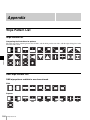
Wipe Pattern List..................................... 264
Wipe Pattern List ...................................... 264
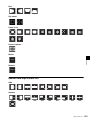
DME Wipe Pattern List ............................ 264
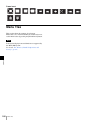
Resizer DME Wipe Pattern List ............... 265
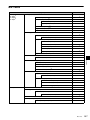
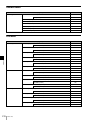
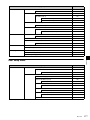
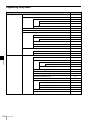
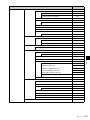
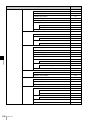
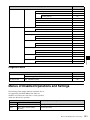
Menu Tree ................................................ 266
M/E-1 Menu.............................................. 267
PGM/PST Menu........................................ 269
Color Bkgd Menu ..................................... 270
AUX Menu................................................ 270
Frame Memory Menu ............................... 271
Copy/Swap Menu...................................... 271
Misc Menu ................................................ 272
Router Menu ............................................. 272
Device Menu............................................. 272
Macro Menu.............................................. 272
Key Frame Menu ...................................... 273
Effect Menu .............................................. 273
Snapshot Menu.......................................... 274
Shotbox Menu........................................... 276
File Menu .................................................. 276
User Setup Menu....................................... 277
Engineering Setup Menu........................... 278
Diagnostic Menu....................................... 281
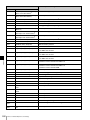
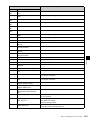
Menus of Disabled Operations and
Settings ............................................. 281
Menu Access by Pressing a Button
Twice ................................................. 286
Simple Connection of the MKS-8080/8082
AUX Bus Remote Panel ................... 288
Procedure for Simple Connection............. 288
Setting Status of the MKS-8080/8082 in
Simple Connection .......................... 288
Macro File Editing Rules ........................ 289
Macro File Syntax..................................... 289
Syntax of Event and Continue
Statements........................................ 289
File Name.................................................. 290
Saving and Recalling a File ...................... 290
Errors......................................................... 290
Correspondence between Events and
Symbols ........................................... 290
Symbols and Parameters ........................... 291
Example of File Contents.......................... 295
About the Macro Attachment List
Display .............................................. 295
M/E and PGM/PST Banks ........................ 295
Other Blocks ............................................. 296
Menu Operations Not Recorded in a Menu
Macro................................................. 296
Data Saved by [Setup Define] and [Initial
Status Define] ................................... 297
Data Saved by [Setup Define]................... 297
Data Saved by [Initial Status Define] ....... 298
Error Messages ....................................... 298
Error Messages Displayed in the Error Status/
Error Log Menu ............................... 299
Error Messages Appearing in a Message
Box................................................... 300
Error Messages Shown in the Error
Information Menu............................ 309
Maintenance ............................................ 309
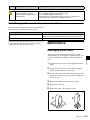
Exchanging Button Labels ........................ 309
Care of the Control Panel.......................... 310
Index ........................................................ 311
Table of Contents
11
Chapter 1 Overview
Overview
Chapter
System configuration flexibility
Introduction
This manual is the User’s Guide for the MVS-3000 Multi
Format Switcher system.
This manual principally describes operations when using
the ICP-3000 control panel.
Device and system nomenclature
Principal components and naming
The formal product names of the principal components of
the MVS-3000 system, and the terms used in this manual
are as follows.
Formal product name
Term used in this
manual
MVS-3000 Multi Format Switcher
Processor
Switcher and
switcher processor
ICP-3000 Control Panel
Control panel
System nomenclature
The following terms are used for systems, depending on
the combination of installed options, and the signal format.
System configuration and features
System
nomenclature
System with settings that support
HDTV format
HD system
System with settings that support
SDTV format
SD system
Features
The MVS-3000 Multi Format Switcher system boasts
extensible high performance and multifunctionality. The
following are some of the principal features of this system.
12
Introduction / Features
1
Multiformat support
This system supports both HDTV and SDTV signal
formats.
The format selection can be switched by a simple control
panel operation.
Powerful external device interfaces
By connecting to a Sony routing switcher or similar, a
large system can be built. It is also possible to operate other
equipment, including VTRs and disk recorders, from a
switcher via a 9-pin serial port.
Powerful tally system
The complete system, including the routing switcher,
provides an all-inclusive tally system. The system can be
adapted to different applications and settings using
multiple tally outputs, including both on-air and recording
tallies.
Format converter board mounting support
An optional MKS-6550 format converter can be installed
in the switcher to provide up-conversion, downconversion, and cross-conversion functions when
importing/exporting signals.
8-input/0-output or 4-input/2-output groupings are
supported.
Large-capacity data storage
The control panel is equipped with a flash memory drive
(called “local disk”) as standard for storing parameter data,
switcher frame memory static images and other material.
USB-compatible storage devices (called “removable
disks”) can also be connected to the control panel for
storing data.
Comprehensive video manipulation
M/E banks
Each M/E (mix/effects) bank and PGM/PST (program/
preset) bank is equipped with four keyers, and each keyer
is capable not only of chroma keying, but also independent
key transitions separate from the background transitions.
Changing the background
A background transition switches from the video currently
selected on the background A bus (the current video) to the
video selected on the background B bus (the new video).
Multi viewer function
Equipped with two-system multi viewer function, as
standard, for displaying a window split into 10
subwindows or 4 subwindows.
Designed for use in a live broadcasting
environment
High-performance user interface
• An organic EL display with high visibility is used for the
source name displays.
• The buttons in the Multifunction Flexi Pad (hereinafter
called “Flexi Pad”) and transition control blocks use
color backlit LCD displays. The signal names, and
graphical representations of the patterns associated with
buttons provide intuitive feedback, and allow the
immediate decisions that are required in a live operating
environment.
Backup power supply
Equipped with two backup power supplies, as standard.
This alleviates the risk of power supply problems for
improved reliability during live operations.
Chapter 1 Overview
Powerful frame memory functions
The frame memory can hold approximately 1000 frames in
an HDTV system (approximately 2000 frames in 720P/
59.94 format), approximately 5000 frames in an SDTV
system in 480i/59.94 format, or approximately 4000
frames in 576i/50 format, and allows eight frames to be
recalled simultaneously.
Transition
Background A
Background B
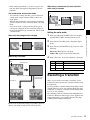
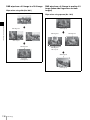
In the default selection of flip-flop mode (1 p. 56), the
background always switches in the direction from the A
bus to the B bus. When the transition completes, the crosspoint selections on the A and B buses are interchanged.
Inserting and deleting a key
You can insert one or more of the four keys (downstream
keys on the PGM/PST bank).
If you select a key which is already inserted, the transition
will delete the key.
A simultaneous combination of deleting and inserting keys
is also possible.
Key 1
Insert
Basic Video Processing
Delete
This section introduces basic functions used for video
processing on the switcher.
Transitions
In the M/E banks and PGM/PST bank, the switch from the
current video stream (appearing on the corresponding
program monitor) to a new video stream is referred to as a
transition.
In the M/E banks and PGM/PST bank, you can change one
of the images, the background, and keys 1 to 4
(downstream keys 1 to 4 in the PGM/PST bank), and also
vary combinations of these simultaneously.
Key 2
Inserting or deleting key 1 and key 2
Key 1
Transition
Key 2
The following are examples of transition.
Deleting key 1 and inserting key 2
Basic Video Processing
13
Simultaneously changing the background
and keys
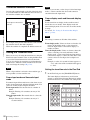
You can change one or more of the four keys (downstream
keys on the PGM/PST bank) and the background at the
same time.
By carrying out an independent key transition in
combination with a common transition, different transition
types can be used for the background and keys.
The following compares the independent key transition
with a common transition, taking a simultaneous change of
the background and key as an example.
Chapter 1 Overview
Video used in the transition
Key 1
Transition
Key 2
Background A
Background B
Key to insert
Changing the background and key 2 simultaneously
Key 1
Effect of a common transition
In the case shown in the previous illustration, carrying out
a common transition produces the following change in the
image.
Key 3
Transition type: Wipe
Transition
Key 2
Key 4
Changing the background and keys 1 to 4 simultaneously
Selecting the transition type determines the way in which
the transition occurs. The following transition types are
available.
• Mix
• NAM (non-additive mix)
• Super mix
• Preset color mix (color matte)
• Wipe
• DME wipe
• Clip transition
• Cut
Same wipe is applied to
background and key.
Effect of a common transition
Effect with use of an independent key transition
The key is inserted with an independent key transition as
the background changes with a common transition,
providing the following result.
Transition type: Wipe
There are two modes of executing a transition: an auto
transition by button operation or a manual transition using
the fader lever. It is also possible to combine these two
modes.
Independent key transitions
In addition to common transitions, it is possible to carry
out independent transitions on the keyers of the M/E banks
and PGM/PST bank. These are called “independent key
transitions.”
Independent key
transition type: Wipe
Different wipe patterns are
applied to the background
and key transitions.
Effect of a background transition and independent key transition
14
Basic Video Processing
For details, see Chapter 3 “Signal Selection and
Transitions” (1 p. 44).
Keys
Key modifiers
You can apply borders and other modifiers to the edge of
the key image.
Masks
A mask allows a part of the image to be masked by the
background or a key. If unwanted holes occur in the
background, or if a key is not the desired shape, you can
correct the problem with a mask.
Resizer
This function allows you to apply effects, such as zoom,
movement, or aspect ratio change to a part of a created key.
You can use the following operations.
• Two-dimensional transform of a key
• Rotation of keys
• Resizer interpolation settings
• Resizer crop/border settings
• Resizer effect settings (mosaic, defocus)
For details, see Chapter 4 “Keys” (1 p. 62).
You can also specify the wipe direction, or set the pattern
position, applying various changes and modifiers to the
selected wipe pattern.
For details, see Chapter 5 “Wipes” (1 p. 83).
Chapter 1 Overview
A key is an effect in which a part of the background image
is replaced by an image or superimposed text. The signal
determining how the background is cut out is termed “key
source,” and the signal that replaces the cut-out part is
termed “key fill.” The system component responsible for
processing a key is referred to as a “keyer.”
For the four keyers on each switcher bank, you can use the
following key types (i.e., methods of processing the key
source).
• Luminance key
• Linear key
• Color vector key
• Chroma key
• Key wipe pattern key
Changing the background by means of a wipe is referred to
as a “background wipe,” and inserting or deleting a key
with a wipe is termed a “key wipe.”
There are two types of wipe: those that can be selected in
a common transition, and those that can be selected in an
independent key transition.
DME Wipes
A DME wipe is a wipe transition that uses an image
transformation effect to change from one video image to
the next.
The patterns that can be used for a DME wipe are as
follows.
Slide, Squeeze, Door, Flip tumble, Frame in-out,
Picture-in-picture, Mosaic, and Defocus
You can also specify the wipe direction, or set the pattern
position, applying various changes and modifiers to the
selected DME wipe pattern.
Resizer DME wipes
Using the resizer, you can carry out key DME wipes.
For details, see Chapter 6 “DME Wipes” (1 p. 93).
Frame Memory
Frame memory is a function for using a still image or video
(frame memory clip) as material for editing.
You can create a still image by capturing a frame of input
video, or a clip by specifying a range of input video. The
created images and clips can be written to memory for
playback, editing, and output.
For details, see Chapter 7 “Frame Memory” (1 p. 102).
Notes
Resizer and key edge cannot be used on some keyers.
For details, 1 “Keyers that support resizer/key edge”
(p. 62).
Wipes
A wipe is a transition from the current video stream to a
new video stream, using a wipe pattern.
Color Backgrounds
This function can be used to obtain color background
video.
Two color signals generated from the dedicated generators
can be switched or mixed, and then output.
For details, see “Color Background” (1 p. 122) in
chapter 8.
Basic Video Processing
15
Copy and Swap
Chapter 1 Overview
This function can be used to copy and swap the settings
between switcher banks or between keyers.
The following settings can be copied or swapped.
• Settings for the M/E and PGM/PST banks
• Keyer settings
• Wipe settings in a transition control block
• Wipe settings in an independent key transition
• DME wipe settings in a transition control block
• DME wipe settings in an independent key transition
• Matte color settings (color 1, color 2, and how to
compose them)
• Color settings
• Format converter input settings (copy only)
• Format converter output settings (copy only)
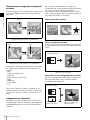
Image to fill the side flag
areas (selected from
utility bus)
Input source with 4:3
aspect ratio
Turn on the side
flag function
For details, see “Copy and Swap” (1 p. 123) in chapter
8.
Color Corrector
The color corrector enables video signal color correction
(black balance/white balance adjustment, gamma
correction, knee correction, etc.).
The color corrector includes the following adjustments.
• Input video processing
• Primary color correction
• RGB clip
For details, see “Configuring the Color Corrector”
(1 p. 242) in chapter 18.
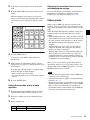
Side Flags
The term “side flags” refers to the areas to left and right of
an image with aspect ratio 4:3 embedded within a 16:9
frame, when these areas are filled with a separate image
selected from the utility bus.
Side flag area
Side flag area
For details, see “Side Flags” (1 p. 128) in chapter 9.
Creation of Special
Effects and Management
of Data and Operations
This section introduces functions used for creation of
special effects, control of external devices or switcher
operations, and data management.
Controlling External Devices
In this system, you can operate while controlling the
following types of external device:
• Devices supporting P-Bus (Peripheral II protocol)
• Devices supporting GPI
• VTRs
• Disk recorders (video disk communications protocol)
• Extended VTRs (Abekas A53 protocol)
For details about the devices that can be connected,
consult your Sony representative.
You can also control an external device by registering
timeline keyframes beforehand.
For details, see Chapter 10 “External Devices”
(1 p. 131).
16
Creation of Special Effects and Management of Data and Operations
Utilities
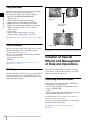
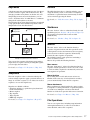
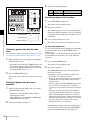
A keyframe represents an instantaneous state of an image;
it can be saved in a register and recalled for reuse. By
arranging a number of keyframes on the time axis, and
interpolating between successive keyframes, you can
create a “keyframe effect” in which there is a continuous
change from each keyframe to the next.
The following figure shows three keyframes created with
a wipe pattern (the circle) in different positions. This is
interpolated to create the effect shown.
The utility function refers to a function whereby you can
assign an arbitrary action or a shortcut for a frequently
used menu to a particular button, then instantly recall the
action or menu by pressing the button.
Background A
Interpolated images
Background B
For details, see “Utility Execution” (1 p. 176) in chapter
13.
Shotboxes
Chapter 1 Overview
Keyframes
The term “shotbox” refers to a function whereby for each
specified region (see “Regions” (1 p. 144) in chapter 11)
any snapshot or keyframe effect can be recalled
simultaneously.
For details, see “Shotbox” (1 p. 176) in chapter 13.
Keyframe 1
Keyframe 2
Keyframe 3
Macros
Execute effect
Example of keyframes and effect execution
You can save the sequence of keyframes representing a
single effect in a register. Then by recalling this register,
you can replay the same effect.
For details, see Chapter 11 “Keyframes” (1 p. 144).
Snapshots
The term “snapshot” refers to a function whereby the
various settings required to apply a particular effect to an
image are saved in a register as a set of data, for recall as
required, to recover the original state.
Snapshots are divided as follows.
• Snapshots applying to a particular region (functional
block of the switcher)
• Master snapshot
• Key snapshot
• Wipe snapshot
• DME wipe snapshot
For details, see Chapter 12 “Snapshots” (1 p. 167).
The term “macro” refers to the function whereby a
sequence of signal selections and other operations on the
control panel is saved as data in memory (macro register),
so that it can be recalled as required to automatically
execute the same sequence of operations.
The individual control panel operations constituting a
macro are termed “events.”
Macros also provide the following functions.
Menu macros
The term “menu macro” refers to the function whereby a
sequence of menu operations is saved as an event, so that
it can be recalled as required to automatically execute the
same sequence of operations.
Macro timelines
By recording macro recalls and execute actions on a
timeline, in the same way as for keyframes in an effect,
you can automatically execute them in a sequence.
Macro attachments
Macro attachment is a function whereby a macro register
is assigned to a control panel button or a particular position
of a fader lever, linking the execution of the button
function or a fader lever operation with a macro execution.
For details, see Chapter 14 “Macros” (1 p. 180).
File Operations
You can save register data, including setup information
and snapshot information, as a file on a local disk or
removable disk, and recall it as required.
Creation of Special Effects and Management of Data and Operations
17
Regarding frame memory, it is possible to capture image
data stored in an external device into frame memory. You
can also convert the format of image data in frame memory
into a different format and save it in an external device.
For details, see Chapter 15 “Files” (1 p. 200).
Chapter 1 Overview
Setup
Various settings are required, in order to operate the
switcher, control panel, external devices, and so on,
connected together in a single system.
This is referred to as “setup,” and you can carry out the
setup operations from the Engineering Setup menu. The
settings are grouped under the following headings.
System setup (System)
For details, see Chapter 16 “System Setup” (1 p. 211).
Panel setup (Panel)
For details, see Chapter 17 “Control Panel Setup”
(1 p. 219).
Switcher setup (Switcher)
For details, see Chapter 18 “Switcher Setup” (1 p. 240).
Router/tally setup (Router/Tally)
For details, see Chapter 19 “Router Interface and Tally
Setup” (1 p. 257).
User setup (User Setup)
For details, see Chapter 20 “User Setup” (1 p. 261).
18
Setup
System Configuration Examples
MVS/ICP System Configuration
Chapter 1 Overview
EJECT
F1
F2
ACCESS
F3
NETWORK
F4
CHAPTER
F5
EXPAND
VAR
MARK1
MENU
Character generator
LOCAL
REMOTE
LEVEL
PHONES
Camera
SUB
CLIP
THUMB
NAIL
CLIP
MENU
ESSENCE
MARK
SET
RESET
IN
OUT
JOG
PAGE DISPLAY
CH 1
CH 2
CH 3
CH 4
KEY INHI
VARIABLE
REC
PRESET
PB
SHIFT
PREV
TOP
MARK2
PLAY
F REV
NEXT
F FWD
END
STOP
REC
SHUTTLE
STANDBY
Playback VTR
Menu display monitor
Removable disk
MVS-3000 Multi
Format Switcher
ICP-3000 Control Panel
Preview monitor
Program output
monitor
Monitor for multi viewer
Recording VTR
System Configuration Examples
19
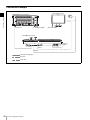
Connection Example
Menu display monitor
MVS-3000 Multi Format Switcher
Chapter 1 Overview
MVS
U
AC power supplies
AC power supply
ICP-3000 Control Panel
AC power
supplies
MVS
DVI-D
DEVICE
LAN cable (straight type)
DVI cable
USB cable
20
System Configuration Examples
U
Names and Functions of
Parts
Chapter
2
The MVS-3000 system is composed by the MVS-3000
switcher processor and the ICP-3000 control panel.
An external monitor connected to the control panel is
required to operate the menus.
For details about monitors that can be connected, consult
your Sony representative.
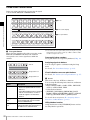
Control Panel Configuration
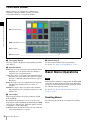
Flexi Pad (1 p. 28)
Chapter 2 Names and Functions of Parts
Names and Functions of Parts of the Control Panel
Device control block
(1 p. 26)
M/E-1
bank
PGM/PST
bank
Cross-point control block (1 p. 22)
Transition control block (1 p. 24)
Names and Functions of Parts of the Control Panel
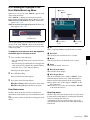
21
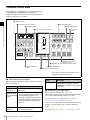
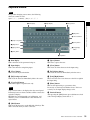
Cross-Point Control Block
In the cross-point control block, you can select the signals
to be used in the M/E bank or PGM/PST bank.
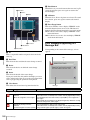
b 1st row
Chapter 2 Names and Functions of Parts
c Source name displays
a Cross-point buttons
a Cross-point buttons
These select the signals used for video processing on this
M/E bank or PGM/PST bank. Each row of buttons
corresponds to one or more signal buses within the
switcher.
2nd row
a) You can select the source signal of the key bus by selecting the cross-point
while holding down the button to which any of KEY1 to KEY4 or DSK1
to DSK4 is assigned in the 1st row.
Cross-point button numbers
Cross-point buttons are respectively numbered (1 p. 46).
Assigning signals to buttons
You can assign a signal to each button using the Setup
menu.
For details, 1 “Cross-Point Settings” (p. 223).
Background A row
Visual indications on cross-point buttons
For details, 1 “Colors of lit cross-point buttons” (p. 47).
Background B row
22
Name
Description
2nd row
• Use this to select the cross-point of the
bus that is specified with the 1st row
buttons.a)
• If the utility/shotbox function is selected
with the 1st row buttons, use this to
recall the register or to execute the
function.
Background A
row
Use this to select the signal as the
current background video on this M/E
bank or PGM/PST bank.
Background B
row
Use this to select the signal as the
background video after the transition on
this M/E bank or PGM/PST bank.
Names and Functions of Parts of the Control Panel
b 1st row
This selects a key bus, AUX bus, or function.
You can assign the following buses, functions, and buttons
in the Setup menu.
• KEY1 to KEY4, DSK1 to DSK4, UTIL1, EDIT PVW,
AUX1 to AUX24, FMS1, FMS2
• Utility/shotbox function
• [INH SET], [XPT HOLD], [PRE MCRO], [POST
MCRO], [MCRO ATTCH ENBL], [KEY], [1ST ROW
DSPLY], [2ND ROW DSPLY], [SHIFT] buttons
For details about assignments, 1 “Assigning a Bus or
Function to 1st Row Buttons” (p. 235).
Utility/shotbox function
Assign the function of the [UTIL/SBOX] button, and use
for utility/shotbox operations.
When you turn on the button to which [UTIL/SBOX] is
assigned, the buttons in the cross-point control block will
be used for utility/shotbox operations.
Description
SHIFT
Performs one of the following
functions, according to the setting
made in the Setup menu.
• Source name display shift
button
Displays the name of the signal
in shift mode in the source
name display.
• Bus shift button
Functions as the shift button for
all busses in the M/E (PGM/
PST) bank.
For details, 1 “Executing a Shotbox Function with
Cross-Point Buttons in the 2nd Row” (p. 179).
Assignable buttons
Name
Description
INH SET
(inhibit set)
Disables button operation.
To inhibit operation for a button,
press and hold the button
assigned with [INH SET], and
press the cross-point button
whose operation you wish to
inhibit.
XPT HOLD
(cross-point hold)
Recalls a keyframe or snapshot
while maintaining the current
cross-point selection conditions.
Available for background A row
and background B row.
The following function blocks can
be enabled, depending on
settings in the Setup menu.
• Background A and B rows
• Key bus
• Utility bus
PRE MCRO
(pre-macro)
Sets a macro attachment in premacro mode.
Simultaneously pressing this
button and the [POST MCRO]
button sets a macro attachment in
macro-only mode.
POST MCRO
(post-macro)
Sets a macro attachment in postmacro mode.
Simultaneously pressing this
button and the [PRE MCRO]
button sets a macro attachment in
macro-only mode.
MCRO ATTCH ENBL
(macro attachment
enable)
Enables the macro attachments
set for the buttons in the M/E
(PGM/PST) bank. In the Setup
menu, you can also set the
buttons to light whenever they are
enabled.
KEY
Pressing and holding this button
and then pressing a 2nd row
button selects the key signal.
1ST ROW DSPLY
(first row display)
Displays the name of the bus and
function currently assigned to the
1st row in the source name
display.
2ND ROW DSPLY
(second row display)
Displays the source name for the
bus currently selected in the 1st
row in the source name display. If
the [UTIL/SBOX] button is
selected in the 1st row, the
function name is displayed.
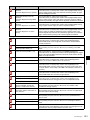
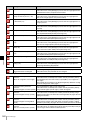
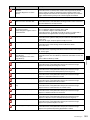
c Source name displays
These show the names of the signals (sources) or registers
which can be selected on the cross-point buttons, in fourcharacter mode or auto mode.
While the [SHIFT] button assigned to the 1st row or the
[SHIFT] button assigned to the cross-point button row is
enabled, the source name of the signal assigned to the
cross-point button in shift mode appears.
You can set the source name display mode in the Setup
menu.
The following displays may also appear, depending on the
status of the [1ST ROW DSPLY], [2ND ROW DSPLY],
and [KEY] buttons.
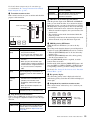
Button name
Chapter 2 Names and Functions of Parts
Name
Display
1ST ROW
DSPLY
2ND ROW
DSPLY
Off
Off
A/B bus signal names
On
Off
Bus names or function names
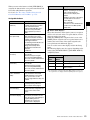
Off
On
Key/AUX bus signal names a) or
function names
a) Key signal names are displayed when the [KEY] button is pressed, and
video signal names are displayed when the [KEY] button is not pressed.
Names and Functions of Parts of the Control Panel
23
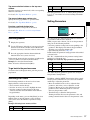
Transition Control Block
In the transition control block, you can modify the output
of the M/E bank or PGM/PST bank, and perform
transitions. Both common transition and independent key
transition operations are possible.
6 PRIOR SET button
1 Next transition selection buttons
9 Key delegation buttons
Chapter 2 Names and Functions of Parts
7 Key priority display
qs K-SS STORE button
2 Transition type selection buttons
qa Key snapshot
buttons
8 Independent key transition
execution section
q; Independent key transition type selection buttons
3 Transition execution
section
5 TRANS PVW button
4 Wipe direction selection buttons
Shown above is the right-hand type transition control
block (with the right-hand fader lever).
a Next transition selection buttons
These specify how the image will be changed as a result of
the next transition.
Name
Description
BKGD
(background)
The next transition will change the
background.
KEY1 to KEY4
• Press a button, turning it on, to make
(DSK1 to DSK4
the next transition insert or remove the
for the PGM/PST
corresponding key (keys 1 to 4).
bank)
• If the key is currently not inserted, the
transition will insert it, and if the key is
currently inserted, the transition will
delete it.
KEY PRIOR
(priority)
24
The priority setting of the key after the
next transition is enabled.
Names and Functions of Parts of the Control Panel
Name
Description
ALL
This turns on a preselected set of the
[BKGD], [KEY1] to [KEY4], and [KEY
PRIOR] buttons. Make this setting in the
Setup menu.
b Transition type selection buttons
These select the transition type (1 p. 47).
When multi-program mode is selected in the Setup menu,
two or more of the following buttons may light.
For details about the multi-program mode setting,
1 “Setting the Operation Mode” (p. 240).
You can also assign a function to these buttons that selects
whether or not the fader levers are used as keyframe
faders.
For details, 1 “Executing an effect manually” (p. 161).
For details about assignments for the transition type
selection buttons, 1 “Setting Transition Control Block
Button Assignments” (p. 221).
Name
Description
REV (reverse)
The wipe proceeds in the opposite
direction of [NORM].
c Transition execution section
This section is used to carry out a transition and check the
progress of the transition.
NORM/REV
The wipe direction alternates between
(normal/reverse) normal and reverse every time a
transition is executed.
Fader status display
Transition rate display
Name
Description
Fader status
display
• Displays the transition progress as a
bar (transition indicator).
• In a non-sync state, “Non Sync” and
“Sync” appear at the top and bottom.
Fader lever
• Move this up or down to carry out the
transition.
• When you press the transition type
selection button to which the KF button
function has been assigned and turn it
on, you can use this as a keyframe
fader.
Transition rate
display
This shows the “transition rate” (the time
from the beginning of a transition to its
completion) set for an auto transition, in
frames.
AUTO TRANS
(transition)
button
CUT button
• Pressing this button carries out an auto
transition of the set transition rate
(duration). The transition starts
immediately, and the button lights
amber.
• When the transition completes, the
button goes off.
f PRIOR (priority) SET button
While this button is held down, you can set the key
priority.
The setting mode when this button is pressed depends on
whether or not the [KEY PRIOR] button is lit, as follows.
• When the [KEY PRIOR] button is off, the current key
priority is set.
• When the [KEY PRIOR] button is lit, the key priority
after the next transition is set.
Press the [KEY PRIOR] button as required, to switch
between these two modes.
In either mode, hold down the [PRIOR SET] button, and
press the [KEY1] to [KEY4] ([DSK1] to [DSK4]) button
corresponding to the key you want to bring to the front.
Chapter 2 Names and Functions of Parts
Fader lever
e TRANS PVW (transition preview) button
With the preview output of the M/E bank and PGM/PST
bank, you can check the effect of a transition in advance.
During the preview, you can use the fader lever, [AUTO
TRANS] button, and [CUT] button. One of the following
functions of this button can be selected in a Setup mode.
• When the transition completes, the system returns to the
normal mode.
• The transition preview mode is maintained while this
button is pressed.
• Switching is made between the transition preview mode
and normal mode every time this button is pressed.
For details, 1 “Setting the Key Priority in the Transition
Control Block” (p. 49).
g Key priority display
The current key priority status is displayed on the left,
while the key priority status after the transition is displayed
on the right.
h Independent key transition execution section
This is used to insert or delete keys 1 to 4, and carry out
auto transitions.
Pressing this button carries out the
transition as a cut (i.e. instantaneously).
d Wipe direction selection buttons
When a wipe or DME wipe is selected as the transition
type, you can press to light these buttons to select the wipe
direction.
Name
Description
NORM (normal)
The wipe proceeds in the direction from
black to white or in the direction of the
arrows as shown in “Wipe Pattern List”
(1 p. 264).
Key source
name display
Names and Functions of Parts of the Control Panel
25
Name
Description
KEY1 ON to
• Press the corresponding one of these
KEY4 ON (DSK1
buttons to cut key 1 to key 4 in or out
ON to DSK4 ON
instantaneously.
for the PGM/PST • The button lights red when the
bank)
corresponding key appears in the final
program output, and lights amber when
the key does not.
Chapter 2 Names and Functions of Parts
KEY1 TRANS to Press these buttons to carry out an auto
KEY4 TRANS
transition.
(DSK1 TRANS
to DSK4 TRANS
for PGM/PST
banks)
Key source
name display
This displays the source name selected
on the corresponding keyer.
i Key delegation buttons
Assign the desired keyer, by pressing [KEY1] to [KEY4]
([DSK1] to [DSK4]) and turning them on.
While these buttons are held down, you can select a key
source with the cross-point buttons for the key bus.
Pressing one of these buttons twice in rapid succession
changes its state so that you can make cross-point
selections on the corresponding key bus.
The key delegation buttons can also be used for copying
keys.
For details, 1 “Copy and Swap Operations” (p. 124).
j Independent key transition type selection buttons
These select the independent key transition type.
For details, 1 “Basic Independent Key Transition
Operations” (p. 59).
k Key snapshot buttons
These correspond to registers 1 to 4 of the keyer selected
with the key delegation buttons, and pressing a button
saves or recalls a key snapshot.
l K-SS STORE (key snapshot store) button
Press the key snapshot button of the register you want to
save while holding this button to save the key snapshot.
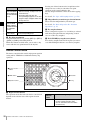
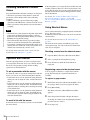
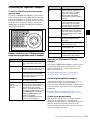
Device Control Block
The device control block is used for wipe pattern position
setting and for VTR/disk recorder/frame memory clip
operation.
1 Region selection
buttons
5 MENU button
3 Trackball
2 Operation buttons
4 Z-ring
a Region selection buttons
The operation mode allocated to the device control block
depends on the selection state of the region selection
buttons.
26
Names and Functions of Parts of the Control Panel
Region
selection
button
Overview of assigned operation
M/E1, P/P
• These enable the positioner (wipe pattern
position setting) operation mode.
• You can select more than one button
simultaneously.
Region
selection
button
Overview of assigned operation
Description
LOC
(location)
• Pressing this button and operating the
trackball or Z-ring moves, shrinks, or
magnifies a key to which the resizer
function is applied.
• When this button is held down, the
trackball or Z-ring operation is switched to
a finer control (fine mode).
DEV
• This enables the VTR/disk recorder/frame
memory operation mode.
• The operation applies to the [DEV1] to
[DEV12], [FM1 CLIP], [FM2 CLIP], and
[FM LOOP] buttons.
• You can also assign the [FM3 CLIP] to
[FM8 CLIP], [RECUE], and [LOOP]
buttons in the Setup menu.
RSZR
(resizer)
Press this button, turning it on, to enable the
resizer.
ROT
(rotation)
• Pressing this button, after pressing the
[RENB] button, and operating the trackball
or Z-ring rotates the key to which the
resizer function is applied or adjusts
perspective.
• When this button is held down, the
trackball or Z-ring operation is switched to
a finer control (fine mode).
b Operation buttons
These perform various operations. The function of each
button varies with the operation mode.
RENB
(rotation
enable)
Press this button, turning it on, to enable
rotation operation.
When the positioner operation mode is enabled
CLR WORK
BUFR (clear
work buffer)
• Pressing this button once returns the twodimensional transformation and rotation
settings to the defaults.
• Pressing the [CLR WORK BUFR] button
twice, or holding down [SHIFT] and
pressing the [CLR WORK BUFR] button
returns all resizer parameter values to the
defaults.
These restrict the axes affected by the
trackball and Z-ring to the x-, y- or z-axis.
RUN CTRL
This enables the keyframe operation mode.
RSZR CTRL
• This enables the resizer operation mode.
• Use the [M/E1] or [P/P] button to select the
target switcher bank.
• The operation applies to the [K1RSZ] and
[K2RSZ] buttons.
Name
K1 to K4
Description
a)
These enable wipe pattern position setting
for keys 1 to 4.
WIPEa)
This enables wipe pattern position setting for
normal transitions.
POS
(position)
This enables the trackball to move the wipe
pattern in the x-axis and y-axis directions.
X, Y, Z
X, Y
These restrict which axes the trackball can
control to the x- or y-axis.
CTR (center) • Pressing this button once changes the
two-dimensional transformation and
rotation settings to the closest detent
values.
• Pressing the [CTR] button twice, or holding
down [SHIFT] and pressing the [CTR]
button returns the two-dimensional
transformation and rotation settings to the
defaults.
CTR (center) This returns the pattern position to the center
of the screen.
CLR WORK
BUFR (clear
work buffer)
Press this twice in rapid succession to reset
all parameters on the target M/E or PGM/
PST to their initial values.
a) You can configure settings in the Setup menu to allow simultaneous
selection of multiple buttons.
When the VTR/disk recorder/frame memory
operation mode is enabled
The buttons are used for VTR control or playback of frame
memory clips.
For details, 1 “Controlling the Tape/Disk Transport”
(p. 135).
When the resizer operation mode is enabled
Name
Description
ASP (aspect) • Pressing this button and operating the
trackball or Z-ring changes the aspect ratio
of a key to which the resizer function is
applied.
• When this button is held down, the
trackball or Z-ring operation is switched to
a finer control (fine mode).
SHIFT
Chapter 2 Names and Functions of Parts
Name
Use this in combination with the [CTR
WORK BUFR] or [CTR] button.
c Trackball
The effect of operation depends on the operating mode as
follows.
When the positioner operation mode is enabled
By moving this, you can move the pattern in the x-axis and
y-axis directions.
When the resizer operation mode is enabled
By turning the trackball, you can move in the x and y
directions of the key to which the resizer is applied, change
the aspect ratio, and rotate around the x-axis and y-axis.
When the [ASP], [LOC], or [ROT] button is held down,
the operation is switched to a finer control (fine mode).
Names and Functions of Parts of the Control Panel
27
d Z-ring
The effect of operation depends on the operating mode as
follows.
When the keyframe operation mode is enabled
By turning the Z-ring, you can run the keyframe effect,
independent of the STOP NEXT KF, EFFECT LOOP, and
similar settings in the Flexi Pad.
Turn clockwise to run the effect in the normal direction,
and counterclockwise for the reverse direction.
Chapter 2 Names and Functions of Parts
When the VTR/disk recorder/frame memory
operation mode is enabled
Turning the Z-ring controls the tape transport/disk drive/
frame memory clip operations, at a speed determined by
the operating buttons. Turn clockwise for the normal
direction, and counterclockwise for the reverse direction.
When the resizer operation mode is enabled
By turning the ring, you can zoom the key to which the
resizer is applied, and change the aspect ratio and
perspective.
When the [ASP], [LOC], or [ROT] button is held down,
the operation is switched to a finer control (fine mode).
e MENU button
This enables adjustment of the menu parameters using the
trackball and Z-ring.
Pressing this button and turning it on in VTR/disk
recorder/frame memory operation mode makes it possible
to carry out timeline start/stop point setting operation for
the selected device (timeline setting mode).
Flexi Pad
The Flexi Pad is used for creating and recalling snapshots,
wipe snapshots, DME wipe snapshots, key snapshots,
effects, shotboxes, and macros, for setting the transition
rate, and for adjusting keys.
4 Alphanumeric display
1 Mode selection
buttons
2 EDIT ENBL button
7 Adjustment knobs
3 Region selection
buttons
6 Adjustment
knob displays
5 Memory recall section
a Mode selection buttons
These select the mode.
28
Name
Description
EFF (effect)
Press this to carry out effect creation/
recall/editing/execution/deletion.
SNAPSHOT
Press this to carry out snapshot creation/
recall/editing/deletion.
SHOTBOX
Press this to carry out shotbox creation/
recall/editing/execution/deletion.
MCRO (macro)
Press this to carry out macro creation/
editing/execution/deletion.
Names and Functions of Parts of the Control Panel
Name
Description
WIPE (wipe
snapshot)
Press this to carry out wipe snapshot
creation/recall/deletion and wipe
adjustments.
DME WIPE
(DME wipe
snapshot)
Press this to carry out DME wipe
snapshot creation/recall/deletion and
DME wipe adjustments.
TRANS RATE
(transition rate)
Press this to set the transition rate.
KEY ADJ (key
adjust)
Press this to carry out key adjustments
and set modifiers.
Description
Name
Description
KEY SS (key
snapshot)
Press this to carry out key snapshot
creation/recall/deletion.
By default, this is not assigned to a mode
selection button, so you must assign it to
a mode selection button in the Setup
menu before use.
MORE
• Displays buttons in the memory recall
section for regions not assigned to a
region selection button, so that they
can be selected.
• By default the following regions are
shown on the memory recall section
buttons:
MSTR (master snapshot, master
timeline registers), USER1 to 3,
USER5 to 8, MCRO (macro), DEV2
(device 2), PBUS, GPI, RTR (router)
• If there is a region selected in the
memory recall section, this is indicated
by the MORE button lighting green.
• To revert the button displays in the
memory recall section, press the
[MORE] button once more, or press the
[EXIT] button that appears in the
memory recall section.
• Note that except for the [ALL], [EXIT],
and [MORE] buttons, you can freely
change the region assignments in the
Setup menu.
b EDIT ENBL (edit enable) button
This enables the following operations.
• Effect creation/editing
• Snapshot attribute setting
• Shotbox creation/editing
• Macro creation/editing
• Wipe adjustments
• DME wipe adjustments
c Region selection buttons
These select the functional block (“region”) of the control
panel to which operations apply.
When the [EFF], [SNAPSHOT], [SHOTBOX], or
[MCRO] mode selection button is selected, you can select
multiple region selection buttons simultaneously. In this
case, the first button pressed lights green as the reference
region, and the other buttons pressed light amber (the
buttons for the regions shown in the memory recall section
are yellow).
Name
Description
ALL
• Selects all regions.
• If any region is selected, press this
button to unset the selection of all
regions.
M/E1, P/P
Select the M/E-1 and PGM/PST regions,
respectively.
USER4
Selects the USER4 region.
DEV1
Selects the device 1 region.
Chapter 2 Names and Functions of Parts
Name
d Alphanumeric display
This shows the selected region name, register number, and
entered numeric values.
e Memory recall section
This comprises 16 LCD buttons, each with a display that
changes according to the operating mode.
f Adjustment knob displays
Each of these shows the initial letter of the parameter that
can be adjusted with the knob to the right, and the setting
value (three digit places, including the minus sign).
g Adjustment knobs
Use these to adjust the parameters selected with the
memory recall section buttons.
Names and Functions of Parts of the Control Panel
29
Names and Functions of Parts of the Menu
Overview
Chapter 2 Names and Functions of Parts
In the MVS system, all detailed settings for basic
operations such as transitions, keys, and wipes are made in
menus. In addition, system management, data
management, and setup are all performed using menu
operations.
You can display menus on an external monitor, and
operate using a mouse or touch panel.
You select menus and items by pressing buttons and lists
displayed on the screen (touch operation) or by clicking
with the mouse.
For information about using the mouse, 1 “Operation
with a Mouse” (p. 38). For information about supported
monitors, contact your Sony representative.
Press each button to display the corresponding top menu in
the monitor screen.
Press the [Shutdown] button on the bottom right to shut
down the control panel.
Top Menu List
For details about shutting down the control panel,
1 “Shutting down the control panel” (p. 42).
When the control panel is powered on, the top menu list
appears as shown below.
Menu Screen
The menu screen consists of the following principal parts.
The section describes the M/E-1 >Key1 >Type menu
(1111) screen as an example.
30
Names and Functions of Parts of the Menu
qs b (previous) button and B (next) button
6 Function button area
5 Status area
2 Menu page number button
7 Parameter group button
1 Menu title button
0 Keyframe status
Chapter 2 Names and Functions of Parts
4 HF buttons
qa Default recall button
3 VF buttons
a Menu title button
This shows the title of the menu screen.
b Menu page number button
This shows the menu screen page number.
When you press this button, the top menu window
(1 p. 33) appears. You can enter the page number for the
desired menu, or press one of the top menu selection
buttons in the window, to display that menu.
While the system is accessing the local disk or external
HDD, the indicator lights red.
Indicator for frame memory external
HDD
Local disk indicator
9 Previous page button
8 Parameter setting buttons
Notes
When the indicator is lit, do not power off the switcher or
disconnect the USB cable1).
1) When an external HDD is connected
c VF buttons
These indicate the larger subdivisions (2nd level) of the
menu.
Depending on the selected item, the menu screen contents
change, including the HF button indications.
d HF buttons
These indicate the smaller subdivisions (3rd level) of the
menu.
Depending on the selected item, the menu indications
change.
Depending on the function, if any one is on, the status is
shown by an orange bar, as in the following figure.
Names and Functions of Parts of the Menu
31
i Previous page button
This shows the page number of the previously displayed
menu screen. Press it to go back to that page. When the
[Parent] indication appears, this displays the parent
directory (menu level).
Chapter 2 Names and Functions of Parts
e Status area
This shows the status of the settings items controlled by the
selected menu.
An orange frame appears around the parameter area
relating to the displayed menu. For each of the twelve
areas, pressing the display jumps to the related menu.
f Function button area
This shows the functions that can be operated in the
currently selected menu by means of buttons.
Each function button corresponds to a function which can
be set in the currently selected menu. Press a button to
enable the function, display a parameter group and adjust
the parameters, or execute the function.
These buttons are grouped by function. In the screen
example, the [Key Bus] and [Matte] function buttons
constitute the <Key Fill> group.
Pressing a button turns it on and lights it, showing the state.
Color
State
Pale blue
The function is enabled, and the
parameters can currently be
adjusted.
Orange
The function is enabled.
Purple
Execution button. Pressing the
button immediately executes the
function.
(Example: [Auto Start] button in
the Chroma Adjust menu)
When you press a function button that is
in this state, another menu appears.
(Example: [Chroma Adjust] button in the
Type menu)
g Parameter group button
This displays parameter group names for adjustments, the
current parameter setting page number, and the total
number of the parameter setting pages. (Example: Color
Vector 1/2)
When there are more than five parameters within the same
parameter group, press this button to display the sixth and
subsequent parameters, which can then be controlled.
h Parameter setting buttons
These show the parameters and their values. Pressing one
of these buttons displays the numeric keypad window
(1 p. 34), and you can then enter a new value for the
corresponding parameter with the numeric keypad.
32
Names and Functions of Parts of the Menu
j Keyframe status
This shows the keyframe status of the reference region.
Pressing this button switches the menu screen as follows.
When a menu other than the Key Frame menu is
currently shown: The menu screen switches to the
Key Frame menu.
When the Key Frame menu is currently shown: The
menu screen switches to the menu that was on the
screen immediately before the Key Frame menu.
In some menus, such as the File menu, this functions as a
“Region selection area” for selecting the region to which
operations apply.
k Default recall button
Press this button, and then press a VF button or parameter
setting button to return the parameters to their default
values, in the following groupings.
• Function grouping (functions of the HF buttons under
the VF button)
• Parameter grouping (values of the parameter setting
buttons)
This only appears in those menus for which the default
recall function is available.
For details about menus that can be returned to their
default states, 1 “Menu Tree” (p. 266).
l b (previous) button and B (next) button
The b button returns to the previous menu. Press the B
button to continue to the next menu.
Top Menu Window
1 Top menu selection buttons
2 [Shutdown] button
3 [Add Favorite] button
4 [Close] button
Chapter 2 Names and Functions of Parts
5 Page number entry section
a Top menu selection buttons
These display the selected menu.
b [Shutdown] button
Shuts down the control panel.
For details about shutting down the control panel,
1 “Shutting down the control panel” (p. 42).
c [Add Favorite] button
This registers the currently displayed menu to the Shortcut
menu (1 p. 38).
d [Close] button
This closes the top menu window.
e Page number entry section
Enter a page number and press the [Enter] button to open
that page. If the page number does not exist, the color of
the entered page will change. Pressing the [Clear] button
clears the entry.
Names and Functions of Parts of the Menu
33
Numeric Keypad Window
1 Item display
2 Max./min. value
indication
3 Input display
4 [Close] button
Chapter 2 Names and Functions of Parts
5 TC (timecode) button
6 – (minus) button
7 [Clear] button
8 [Trim] button
9 [Enter] button
a Item display
This is the name of the parameter being set in the numeric
keypad window.
b Max./min. (maximum/minimum) value indication
This shows the maximum and minimum values of the
parameter.
c Input display
This is the value being input into the numeric keypad
window.
d [Close] button
This closes the numeric keypad window.
e TC (timecode) button
When the numeric keypad window is opened for a setting
requiring a timecode value to be entered, this button
appears in a depressed state.
The range of timecode values you can enter varies as
follows depending on the signal format.
00:00:00:00 to 23:59:59:nn,
where nn = (number of frames per second) – 1.
f – (minus) button
This toggles the sign of the entered value.
g [Clear] button
This clears the input display. It does not change the
parameter setting.
34
Names and Functions of Parts of the Menu
h [Trim] button
After entering the difference from the current value, press
this button to confirm the numeric input.
i [Enter] button
This confirms the entered value.
If correctly set, the numeric keypad window closes.
If it is not correctly set, the input display changes color.
Keyboard Window
Notes
Except when changing source names, the following
characters cannot be used.
space, \, /, :, ;, , (comma), . (dot), <, >, *, ?, ", |
1 Item display
3 [Close] button
2 Input display
qs Line feed button
5 [Caps Lock] button
qa [Enter] button
6 [Shift] button
7 [Space] button
Chapter 2 Names and Functions of Parts
4 [BS] button
0 [Left]/[Right]
button
8 [Clear] button
9 [Del] button
a Item display
This is the name of the parameter being set.
g [Space] button
This enters a space character.
b Input display
This is the character string being input.
h [Clear] button
This clears all of the characters in the input string.
c [Close] button
This closes the keyboard window.
i [Del] (delete) button
This clears the character immediately after the cursor.
d [BS] (backspace) button
This clears the character immediately before the cursor.
j [Left]/[Right] button
These move the cursor one character to the left or right in
the input string.
e [Caps Lock] button
This enables input of capital letters only.
Notes
You can enter items to be displayed on the control panel
LCD using lowercase letters, but these will be converted to
capitals for display.
MS-DOS does not distinguish case in filenames, and
therefore you are recommended to enter filenames in
capital letters.
k [Enter] button
This sets the input string as a parameter value.
If correctly set, the keyboard window closes. If it is not
correctly set, the input display changes color.
l Line feed button
After pressing the [Shift] button, press this button to feed
a line. The input display shows this as “|”.
f [Shift] button
This selects the characters on the shift side of the keys. The
shift is released when you enter a character.
Names and Functions of Parts of the Menu
35
Color Palette Window
When parameters are assigned as a combination of
luminance, saturation, and hue, pressing a parameter
setting button displays a color palette window.
Chapter 2 Names and Functions of Parts
1 Color palette buttons
2 Operation buttons
3 Color display
4 Numeric keypad
a Color palette buttons
Press one of these to display the corresponding color in the
color display.
b Operation buttons
Set: If you press any color palette button with this button
held down, the color shown in the color display is
assigned to the color palette button.
Copy: If you press a color palette button with this button
held down, the color is used as the source for copying.
Next press a different color palette button to copy to
that button.
Swap: If you press two color palette buttons in sequence
with this button held down, the two colors are
swapped.
Default: If you press any color palette button with this
button held down, the color palette button is set to the
default color.
c Color display
This shows the setting color and its parameters (LUM,
SAT, and HUE).
By adjusting the parameters, you can create any color.
If a parameter value is outside the permitted range for RGB
(0 to 255), the “Illegal Color” indication appears, and this
is adjusted to a value within range.
Cancel: Pressing this button returns to the state when the
color palette window was opened.
36
Basic Menu Operations
d Numeric keypad
Use this to enter numeric values for parameters.
For details, 1 “Numeric Keypad Window” (p. 34).
Basic Menu Operations
Notes
Some functions and items not supported by the MVS-3000
system may be displayed in parts of the menu. These items
are ignored, even if selected and values specified, and are
not reflected in the system operation.
For details, 1 “Menus of Disabled Operations and
Settings” (p. 281).
Recalling Menus
The following three methods are available for recalling
menus.
Top menu selection buttons on the top menu
window
Open the top menu (1st menu level) of the corresponding
menu for each button.
For details, 1 “Top Menu Window” (p. 33).
Top menu window page number entry
Specify the menu page number to open the menu.
For details, 1 “Top Menu Window” (p. 33).
No.
Parameter
Adjustment
2
Num
Number to select
If the [No] parameter is set to “2” and the [Num] parameter
is set to “5,” five folders are selected starting from folder
number 2.
Setting Parameters
For details, 1 “Menu Access by Pressing a Button
Twice” (p. 286).
Selecting Menus
1
2
3
Display the top menu.
Use the VF buttons (right side of screen) to select the
2nd level of the menu, and then use the HF buttons
(bottom of screen) to select the 3rd level of the menu.
Press the appropriate function button within the
function button area (center of screen).
In this manual, menu selection operations are indicated as
“1st level >2nd level >3rd level (menu number).”
Example: To select the Shortcut menu
Home >Favorites >Shortcut menu (0021)
To go back to the previous menu
To return to the last displayed menu, press the previous
page button.
Selecting List Items
The following methods can be used to select items
displayed in lists on the menu screens.
• Press an item in the list directly.
• Press the arrow keys to scroll to highlight the item.
• Press the parameter settings button for the item
selection, and enter the item number in the numeric
keypad window.
Depending on the menu, you can click [Plural] to select
multiple items or the [All] button to select all items.
You can also select the number of parameters using
[Num].
Example: Selecting frame memory folders
No.
Parameter
Adjustment
1
No
Select folder
mark
The above mark on a function button indicates that there
are parameters which can be adjusted.
When you press such a button, you can set the parameters
using one of the following methods.
• Press the parameter setting button corresponding to the
parameter. This displays the numeric keypad window
allowing you to enter the desired value.
• Operation using the mouse (1 p. 38).
In this manual, the parameter setting operation is described
as shown below.
The “No.” column indicates the parameter setting button
position (1 to 5 from the top).
Example: To set the key wipe pattern key parameters
No.
Parameter
Adjustment
1
Size
Pattern size
2
Soft
Edge softness
3
Density
Key density
Chapter 2 Names and Functions of Parts
Pressing a particular button twice
Open the menu that corresponds to the button.
You adjust the [Size] parameter (pattern size) using the
first parameter setting button.
In addition, when the [MENU] button in the device control
block is pressed and turned on, you can use the trackball
and Z-ring to adjust the parameters.
• Move the trackball on the x-axis to adjust the first
parameter, and on the y-axis to adjust the second
parameter. Moving up or to the right increases the
parameter value, and moving down or to the left
decreases the parameter value.
• Turn the Z-ring to adjust the third parameter.
Turning clockwise increases the parameter value, and
turning counterclockwise decreases the parameter value.
Basic Menu Operations
37
Returning Parameters to Default
Values
Chapter 2 Names and Functions of Parts
Press the [Default Recall] button, turning it on, then press
a VF button or parameter setting button to return the
parameters to their default values, in the following
groupings.
• When a VF button is pressed: Function grouping
(functions of the HF buttons at the bottom of the screen)
• When a parameter setting button is pressed: Parameter
grouping
Notes
In the Setup menu, you can specify the scroll direction and
whether parameters increase or decrease in relation to the
mouse wheel rotation. You can also switch the functions of
the right and left mouse buttons during parameter setting
button adjustments.
For details, 1 “Setting the Mouse Wheel Scrolling
Direction for Parameter Setting” (p. 239) and
1 “Selecting the Mouse Button for the Parameter Setting
Buttons” (p. 239).
Using Shortcut Menus
Create a shortcut menu by grouping frequently used menus
into a “Favorites” menu.
In addition to menus, menu macros can also be saved to the
shortcut menu.
• The default state of the parameters depends on the initial
status mode specified in the Setup menu, as follows.
User: The state when [Initial Status Define] is executed.
Factory: Factory default settings
• The horizontal (H) and vertical (V) position settings
cannot be returned to their default states individually.
For example, returning the horizontal (H) position to its
default value also returns the vertical (V) position to its
default value automatically, and vice versa.
For details about menu macros, 1 “Menu Macros”
(p. 194).
For details about menus that can be returned to their
default states, 1 “Menu Tree” (p. 266).
Recalling a menu from the shortcut menu
The shortcut menu settings are handled as part of the
control panel setup. You can recall and save them in the
same way as setup data.
1
Open the Home >Favorites >Shortcut menu (0021).
Operation with a Mouse
2
Select a group in the <Group Select> group.
Instead of pressing buttons on screen (touch operation),
you can position the mouse cursor over a button and click
the mouse. The parameter setting and list scrolling
operations are described below.
3
Press the button to which the desired menu is
registered.
Registering a menu to the shortcut menu
To set a parameter with the mouse
To adjust the value of a parameter setting button with the
mouse, you can use one of the following three methods.
• Position the cursor over the parameter setting button for
which you want to adjust the value, and turn the mouse
wheel.
• Position the cursor over the parameter setting button for
which you want to adjust the value, then hold down the
right mouse button, and drag the bar showing the setting
to the desired value.
• Position the cursor over the parameter setting button for
which you want to adjust the value, then click the left
mouse button to open the numeric keypad window and
enter the desired value.
You can register 15 buttons to a single shortcut menu
group. The following two registration methods are
available.
To register by page number
1
2
38
Basic Menu Operations
Press [Button Edit].
The Home >Favorites >Button Edit menu (0023)
appears.
3
Select the position in which to display the button.
To change the content of an already displayed button,
press the button to select it.
To scroll a list with the mouse
Position the cursor over the list you want to scroll, and turn
the mouse wheel.
In the Home >Favorites >Shortcut menu (0021), select
the group to which you want to register the menu.
4
Press [Page Set].
5
To change the button color
Select the button you want to change, press [Color
Set], and then select the desired color.
Enter the page number for the menu you want to
register.
To register the currently displayed menu
1
2
In the Home >Favorites >Shortcut menu (0021), select
the group to which you want to register the menu
beforehand.
To delete button settings
Select the button you want to delete, then press
[Clear].
Display the menu you want to register in the shortcut
menu.
Press the menu page number button, and press [Add
Favorite].
To customize groups
1
The menu selected in step 2 is automatically registered
to an open button in the group selected in step 1.
Customizing the shortcut menu
To customize buttons
1
In the Home >Favorites >Shortcut menu (0021), press
[Button Edit].
The Home >Favorites >Button Edit menu (0023)
appears.
2
Use the following procedures.
To rename the button
Select the button you want to change, press [Rename],
enter a new button name (up to 24 characters), and
then press [Enter].
In the Home >Favorites >Shortcut menu (0021), press
[Group Edit].
The Home >Favorites >Group Edit menu (0022)
appears.
2
Use the following procedures.
To rename a group
Select the group you want to change, press [Rename],
enter a new group name (up to 24 characters), and then
press [Enter].
Chapter 2 Names and Functions of Parts
3
To copy button settings
Select the button you want to copy, press [Copy], and
then select the target button and press [Paste].
To copy group settings
Select the group you want to copy and press [Copy],
and then select the target group and press [Paste].
To delete group settings
Select the group button you want to delete, press
[Clear]. Check the message, then press [Yes].
Power Supply and Connectors
MVS-3000 Multi Format Switcher Processor
Front panel
POWER A, B switches and status indicators
POWER A, B switches and status indicators
The POWER switches turn the unit on and off. The unit is
powered on when the POWER switches are on the “ ? ”
side, and powered off when the POWER switches are on
the “a” side. The status indicators light in green when the
unit is powered on.
Operation continues as long as power supply is normal on
one unit.
Power Supply and Connectors
39
Meaning of status indicator display
The power supply unit status indicator shows the status if
an error is detected when the unit is powered on and during
operation.
Chapter 2 Names and Functions of Parts
Indicator Status
color
Description
Steps to take
Green
Lit
Operating
normally
–
Red
Lit
Power supply unit Exchange the fan
fan fault
unit.
–
Not lit
Power supply
fault
Exchange the
power supply unit.
Notes
• If a status indicator does not light when you turn a
POWER switch on, there may be a fault in the power
circuits. Turn the POWER switch off and contact your
Sony service representative.
• When the unit is powered on, the status indicators may
light momentarily in red and a whining sound may be
heard. If POWER A or B only is turned OFF, the power
supply status indicator for that power supply lights in
red. This is not a malfunction. Turn both POWER A and
B switches ON.
Rear panel
o PRIMARY INPUTS 1 to 32 connectors
n OUTPUTS 1 to 16 connectors
m SERIAL TALLY connector
l TALLY/GPI IN 1 to 18 and TALLY/
GPI OUT 1 to 48 connectors
a -AC IN A and B connectors
b U terminal
k REF INPUT connectors
c REMOTE 1 to 4 connectors
j UTIL (SW) connector
d FM DEVICE connector
i MVS connector
e S-BUS connector
h REMOTE S1 and S2 connectors
f UTIL (FM) connector
g UTIL (SCU) connector
a - AC IN (AC power input) A and B connectors
(3-pin)
Connect to 100 V to 240 V AC power supply with the
optional AC power cords.
The unit is equipped with two power supplies. When A or
B power supply is connected, unit operation can proceed.
b U (signal ground) terminal
Connect to the system ground.
c REMOTE 1 to 4 connectors (D-sub 9-pin, RS422A)
Connect devices supporting Sony 9-pin VTR, VDCP
(Video Disk Communications Protocol), or P-Bus
(Peripheral II Protocol) protocols.
d FM (frame memory) DEVICE connector (USB 2.0
compliant)
This connector is for attaching an external HDD for frame
memory.1)
e S-BUS connector (BNC-type)
Connect this connector with a BNC cable to an S-Bus data
link via a T bridge.
40
Power Supply and Connectors
Connecting devices such as IXS series routing switchers
and MKS-8080/8082 AUX bus remote panels via an S-Bus
data link enables the following kinds of control.
• Returning to the S-Bus, tally data created by this unit on
the basis of data received from other devices
• Switching the cross-points of a routing switcher from the
control panel
• Switching the cross-points of a switcher from the remote
panel
• Displaying on the control panel source names set on a
routing switcher
f UTIL (FM) (utility (frame memory data))
connector (RJ-45 compliant)
Intended for future expansion.
g UTIL (SCU) (utility (SCU)) connector (RJ-45
compliant)
Intended for future expansion.
h REMOTE S1 and S2 connectors (D-sub 9-pin, RS422A compliant)
These connectors are used to operate the MVS-3000
system from external devices or editing control systems
such as the BVE-9100.
Define the types of the connected devices on the control
panel.
i MVS (multi format video switcher) connector
(RJ-45 compliant)
Connect to an ICP-3000 control panel. You can also
connect to the control panel via an Ethernet switch.1)
j UTIL (SW) (utility (SW)) connector (RJ-45
compliant)
Intended for future expansion.
Chapter 2 Names and Functions of Parts
k REF INPUT (reference video input) connectors
(BNC-type)
If you wish to synchronize this unit to an external reference
signal, input the reference signal. For an HDTV system,
input an HD tri-level sync signal, black burst signal, or
analog sync signal. For an SDTV system, input a black
burst signal or analog sync signal.
The two connectors have a loop-through configuration.
Signal input to one connector can be output from the other
connector. If you will not be using the loop-through
output, be sure to terminate the unused connector with the
supplied 75 ohm terminator.
l TALLY/GPI IN (tally/ general purpose interface
input) 1 to 18 and TALLY/GPI OUT (tally/ general
purpose interface output) 1 to 48 connectors (D-sub
25-pin)
Output tally data created with the control panel of the
MVS-3000 system (open collector). These connectors can
also be used as GPI output ports.
You can also input trigger signals as GPI inputs.
Input and output settings are made on the control panel of
the MVS-3000 system.
m SERIAL TALLY connector (D-sub 9-pin,
RS-422A)
Output tally data created with the control panel of the
MVS-3000 system.
n OUTPUTS 1 to 16 connectors (BNC-type)
These connectors output serial digital signals. You can
assign them as program output, preview output, AUX
output, and so on.
Make output assignments on the MVS-3000 system
control panel.
For details about assignable signals, 1 “Signal Output
Settings” (p. 246).
o PRIMARY INPUTS 1 to 32 connectors (BNC-type)
These connectors allow you to input up to 32 serial digital
video signals.
1) For information about devices that can be connected, contact your Sony
representative.
Power Supply and Connectors
41
ICP-3000 Control Panel
Top panel
Status indicators A and B
Chapter 2 Names and Functions of Parts
POWER switch
POWER switch and status indicators A and B
When power is supplied to the AC IN A and B connectors
on the rear panel, the status indicators (green) light. If you
press the POWER switch under this condition, 1 lights
green and the panel turns on.
Shutting down the control panel
Press the [Shutdown] button in the top menu list or top
menu window, and follow the on-screen instructions. After
the menu screen goes fully black, check that the control
panel power switch indicator 1 has gone out.
You can forcibly turn off the power without shutting down
by pressing and holding the POWER for about five
seconds.
Notes
• If status indicator A or B does not light even when power
is supplied to the AC IN A and B connectors, there may
be a fault in the power circuits. Disconnect the cords
from the AC IN A/B connectors, and contact your Sony
service representative.
• If you force shutdown without performing shutdown
processing, setting data may not be saved.
• Shut down the control panel before turning off the AC
power supply (or disconnecting the power cord).
42
Power Supply and Connectors
Rear panel
d DVI-D connector
e U terminal
Chapter 2 Names and Functions of Parts
c DEVICE 1 to 4 connectors
f -AC IN A and B connectors
b MVS connector
a UTIL connector
a UTIL (utility) connector (RJ-45 compliant)
Intended for future expansion.
b MVS (multi format video switcher) connector (RJ45 compliant)
Connect to the MVS-3000. You can also connect to the
switcher processor via an Ethernet switch.1)
c DEVICE 1 to 4 connectors (USB 2.0 compliant,
USB Type-A)
Connect to a USB device.1)
d DVI-D connector
Connect to an external monitor.1)
e U (signal ground) terminal
Connect to the system ground.
f - AC IN (AC power input) A and B connectors
(3-pin)
Connect to 100 V to 240 V AC power supply with the
optional AC power cords.
The unit is equipped with two power supplies. When A or
B power supply is connected, unit operation can proceed.
1) For information about devices that can be connected, contact your Sony
representative.
Power Supply and Connectors
43
Signal Selection and
Transitions
Chapter
3
Video Processing Flow
Chapter 3 Signal Selection and Transitions
The switch from the current video stream (appearing on
the corresponding program monitor) to a new video stream
is referred to as a transition.
The following illustration shows the flow of operations for
carrying out a transition on a switcher bank.
Select current background video
Select next transition
Background
Keys 1 to 4
Select new background video
Make key settings (1 p. 62)
Select transition type
Cut
Mix
NAM
Super mix
Preset color mix
Wipe
DME wipe
Make wipe settings
(1 p. 83)
Make DME wipe settings
(1 p. 93)
Preview the effect of transition (1 p. 57)
Execute the transition (1 p. 51)
44
Video Processing Flow
Signal Selection
You carry out signal selection in the cross-point control
block of each bank.
2nd row
1st row
The following table illustrates the correspondence
between buses and cross-point button rows, and the
delegation operations.
Bus name Cross-point Delegation operation
button row
M/E-1
Background Background
A bus
A row
–
Background Background
B bus
B row
–
Key 1 bus
2nd row
In the 1st row, press
the button to which the
corresponding key
was assigned during
setup, turning it on.
Program
row
–
Key 2 bus
Key 3 bus
Key 4 bus
Background B row
PGM/
PST
Background A row
Source name display
Program
bus
Preset bus Preset row
–
DSK 1 bus 2nd row
In the 1st row, press
the button to which the
corresponding key
was assigned during
setup, turning it on.
DSK 2 bus
Cross-point control block
DSK 3 bus
DSK 4 bus
Basics of Signal Selection
Each of the switcher banks have 24 cross-point buttons in
their cross-point control blocks.
These buttons are identified by numbers common to all of
the banks and blocks, and a signal is assigned to each
number.
The basis of signal selection is to select, in a cross-point
button row, the cross-point button to which the desired
signal is assigned.
M/E reentry signal selection
A video signal created on the M/E bank can be imported as
an input signal on the PGM/PST bank. These signals are
referred to as “M/E reentry input” signals.
To select an M/E reentry input signal using the cross-point
buttons, the signal must be assigned beforehand in the
Setup menu (1 p. 223).
For example, if the program output from the M/E-1 block
(M/E1 OUT) is assigned to an arbitrary cross-point button,
the signal can be used as input material at any time.
Bus Selection
Each row of the 24 cross-point buttons is shared by
multiple buses.
M/E-1
PGM/
PST
Utility bus
AUX1 to
AUX24
buses
Frame
memory
source 1
and 2
buses
2nd row
Chapter 3 Signal Selection and Transitions
Bank
In the 1st row, press
the button to which
UTIL1 was assigned
during setup, turning it
on.
In the 1st row, press
the button to which the
corresponding bus
was assigned during
setup, turning it on.
Edit
preview
bus
Signal Assignment and Selection
Assigning signals to buttons
Each of the 24 cross-point buttons has a corresponding
button number, to which you assign a signal.
In addition to the signals input to the connectors at the rear
of the switcher processor, you can also select signals
generated within the switcher.
Each button has assigned to it a video signal and a key
signal, forming a pair. You can set these video and key
combinations in the Setup menu.
Signal Selection
45
Cross-point control block button numbers
Shift buttons
(first button numbers)
(second button
numbers)
Shift buttons
This setting applies to the cross-point buttons in each
switcher bank.
If you make the setting for one cross-point button, this
inhibits operation of all cross-point buttons with the same
number in the following buses.
The corresponding name also disappears from the source
name display.
• Background A, background B
• Keys 1 to 4
• Utility bus
Chapter 3 Signal Selection and Transitions
On each switcher bank, each cross-point button has two
button numbers, and you use the shift button to switch
between these numbers.
In the case of a 24-button layout, the button numbers are as
follows.
Assigning the function of disabling crosspoint button operation to a button
Cross-point control block button numbers
For details, 1 “Assigning a Bus or Function to 1st Row
Buttons” (p. 235).
Button
From the left end to
the 23rd button
Number when
the shift button
is not pressed
Number when
the shift button
is pressed
1 to 23
24 to 46
Notes
You can use the rightmost (24th) button as a [SIDE FLAG]
button. In this case, the shift button moves one to the left,
to the 23rd, and the button numbers are offset by one.
For details about the [SIDE FLAG] button, 1 “Assigning
a Cross-Point Button to Enable/Disable Side Flags”
(p. 226).
Switching button numbers
The rightmost (24th) button functions as a shift button.
(The shift button function can be disabled in the Setup
menu.)
When selecting the signals of button numbers 1 to 23,
press the cross-point button for the desired signal.
To select button numbers 24 to 46, hold down the shift
button, and press the cross-point button for the desired
signal.
Inhibiting Cross-Point Button
Operations
For each cross-point button, you can temporarily inhibit
operations.
Notes
This setting is cleared when you reset the control panel.
46
Buses for which operations can be
inhibited
Signal Selection
In the Setup menu, assign “Inhibit Set” to any of the
buttons in the 1st row.
Inhibiting operation of a cross-point button
Hold down the button to which “Inhibit Set” is assigned,
and press the cross-point button whose operation you want
to inhibit.
The button you pressed flashes amber, and its operation is
inhibited.
Notes
Even when you inhibit operation of a cross-point button,
macro attachment settings are still possible.
For details, 1 “Setting and Canceling a Macro
Attachment” (p. 191).
Clearing a cross-point button operation
inhibit setting
Hold down the button to which “Inhibit Set” is assigned,
and press the button whose operation is inhibited (flashing
amber).
This clears the operation inhibit setting for the button you
pressed.
Clearing all operation inhibit settings
Press the button to which “Inhibit Set” is assigned and the
button to which “Inhibit All Clear” is assigned
simultaneously.
Signal Name Display
You can attach a name (source name) to each signal
assigned to a cross-point button, with a maximum of 16
characters.
• The source name displays in the cross-point control
block show the source names of the video signals
assigned to numbers 1 to 23.
• To display the source names for numbers 24 to 62, press
the [SHIFT] button assigned to the 1st row.
Description
NAM (nonadditive mix)
The current video and Not
new video signals are selectable
compared, and the
signal with the higher
luminance level is
given priority in the
output. The signals are
compared at the midpoint of the transition
when both signals are
at 100%, at which point
the signal with the
higher luminance level
overpowers the other
signal.
–
Super mix
The current video is
Not
maintained at 100%
selectable
output for the first half
of the transition as the
new video is mixed
while increasing
progressively to 100%.
p. 50
Preset color
mix
The current video is
Not
replaced by the new
selectable
video in a two-stage
transition, with a color
matte (unpatterned
display) inserted during
the first stage.
p. 50
Wipe
The current video is
replaced by the new
video according to a
predetermined wipe
pattern.
Selectable
p. 83
DME wipe
Using an image
transformation effect,
the current video is
replaced by the new
video as in a wipe.
Selectable
p. 93
Clip
transition
Linked to a mix
(dissolve) or wipe
transition, a frame
memory clip (movie) is
played back.
Not
selectable
–
Cut
The new video quickly
cuts into and replaces
the current video.
Selectable
–
Meaning of colors of lit cross-point buttons
Color
State
Meaning
Amber
Low tally
Does not appear in final
output video.
Red
High tally
Appears in final output
video.
Transitions
Transition Types
Type
Description
Independent See
key
page
transition
Mix
The new video
progressively fades in
over the current video.
The sum of the two
video outputs is
maintained at a
constant, with the
output of each at 50%
at the mid-point of the
transition (i.e., when
the fader lever is in the
center position).
Selectable
–
Independent See
key
page
transition
Transitions
Chapter 3 Signal Selection and Transitions
Colors of lit cross-point buttons
In a particular row of cross-point buttons, only the last
pressed button is effective, and lights amber or red. The
amber indicates the “low tally” state, and the red indicates
the “high tally” state, to indicate whether or not the
selected signal appears in the final output video.
Type
47
Procedure for Basic
Transition Operation
3
For the transition to change the key priority, set the
priority for after the transition.
For details about operations, 1 “Key Priority
Setting” (p. 49).
4
Select the new video used for the transition.
• In the background B row of cross-point buttons,
select the new background video.
• When inserting a key, select the key signal, and
make any required settings.
Key priority display
Next transition selection buttons
For details about key settings, 1 “Keys” (p. 62).
To carry out a cut transition, skip to step 7; otherwise
continue to step 5.
Chapter 3 Signal Selection and Transitions
5
To carry out a dissolve to the new video: Press one
of the [MIX], [NAM], [SUPER MIX], and [PST
COLOR MIX] buttons, turning it on.
To carry out a wipe: Press the [WIPE] or [DME]
button, turning it on.
To carry out a transition while playing back a
frame memory clip: Press one of the buttons
corresponding to the clip to be used
(FM1&2CLIP, FM3&4CLIP, FM5&6CLIP, and
FM7&8CLIP), turning it on.
Transition type selection buttons
Transition rate display
Transition control block (M/E bank)
1
2
Notes
Select the way in which the transition will affect the
image, using the next transition selection buttons in the
transition control block.
For details about allocating a particular next
transition button to the [ALL] button function,
1 “Setting the Operation Mode of the [ALL] Button
in the Transition Control Block” (p. 237).
48
You can also use the Misc >Transition menu (1171) to
select a desired transition type for a switcher bank.
In the background A row of the cross-point control
block, select the background video.
To change the background: Press the [BKGD]
button, turning it on.
To insert or delete a key: Press one of the [KEY1] to
[KEY4] buttons (or [DSK1] to [DSK4] buttons in
the PGM/PST bank), turning it on.
To enable the key priority setting, which
determines the key overlay order after the
transition: Press the [KEY PRIOR] button,
turning it on.
You can press more than one button at the same
time.
To change preset keys and backgrounds
simultaneously: Press the [ALL] button.
Procedure for Basic Transition Operation
Select one of the transition type selection buttons in
the transition control block.
The transition type selection buttons in the transition
control block can be interchanged in the setup menu.
For details, 1 “Setting Transition Control Block
Button Assignments” (p. 221).
6
Make the required settings, according to the selected
transition type.
Super mix: “Super Mix Settings” (1 p. 50)
Preset color mix: “Color Matte Settings” (1 p. 50)
Wipe: “Basic Procedure for Wipe Settings”
(1 p. 83)
DME wipe: “Basic Procedure for DME Wipe
Settings” (1 p. 95)
Clip transition: “Clip Transition Operations”
(1 p. 115)
Using the transition preview function (1 p. 57), you
can check the transition on the preview monitor.
7
Carry out the transition in the transition control block.
For a gradual transition such as a mix (dissolve) or
wipe: Press the [AUTO TRANS] button, or
operate the fader lever.
To execute a transition by pressing the [AUTO
TRANS] button, first set the transition rate
(specified as the duration of the transition)
(1 p. 52).
When you have selected a wipe or DME wipe as
the transition type, you can also set the transition
range (1 p. 53).
For an instantaneous transition: Press the [CUT]
button.
Setting the Key Priority in the
Transition Control Block
Key priority display
KEY PRIOR button
Next transition selection buttons
For details, 1 “Executing a Transition” (p. 51).
If a number of keys are already inserted in the current
video, you can check or change the key priority, that is to
say, the order in which the keys are overlaid.
When a key priority ([KEY PRIOR]) is selected as the next
transition, you can also change the key priority in the new
video.
The key priority values go from 1 to 4, with a higher
priority key being “in front” as seen on the screen.
Chapter 3 Signal Selection and Transitions
Key Priority Setting
PRIOR SET button
Transition control block
Changing the key priority
[KEY1]
selected.
Key priority:
3, 1, 4, 2
Key priority:
1, 3, 4, 2
Priority sequence 1 to 4 on the screen
You can set the key priority for keys inserted in the current
screen and for keys after the transition. There are two ways
of setting the priority: either using the [PRIOR SET]
button in the transition control block, or using the Misc
menu to access the Key Priority menu for each switcher
bank.
Notes
When the operating mode is set to multi program, the key
priority setting cannot be made.
1
To target the currently inserted keys, press the [KEY
PRIOR] button to turn it on.
To target the keys after transition, hold down the
[PRIOR SET] button and press the [KEY PRIOR]
button to turn it on.
2
Hold down the [PRIOR SET] button, and press one of
the next transition selection buttons [KEY1] to
[KEY4] ([DSK1] to [DSK4] buttons in the PGM/PST
bank) for the key you want to bring to the front after
the transition.
To set the priority to be the same as before the
transition, press the [BKGD] button.
Key Priority Setting
49
Notes
CRNT
To change the priority of more than one key, repeat the
previous operation as required.
Chapter 3 Signal Selection and Transitions
Setting the Key Priority by a Menu
Operation
Changing the key priority
1
2
When operating from the M/E-1 bank, for example,
open the M/E-1 >Misc >Key Priority menu (1173).
To target the currently inserted keys, select [Key
Priority].
To target the keys after transition, select [Next Key
Priority].
3
For each of <Priority1>, <Priority2>, <Priority3>, and
<Priority4>, select a key to determine the key priority
sequence.
Notes
It is not possible to select the same key for two or more
priority numbers.
The keys appear in the set order on the program
monitor of the corresponding bank.
Displaying the Key Output Status
and Key Priority
The key status is displayed as follows in the key priority
display of the transition control block. (Example: K1
indicates key 1.)
NEXT
K4
K1
K3
K2
K2
When the next transition selection button [KEY
PRIOR] is on, the selected key appears on top on the
preview monitor. The priority of keys other than the
selected one does not change.
3
After transition
Before transition
The [BKGD] button is only effective when in the
mode for changing the key priority for after the
transition.
K3
K1
K4
Key priority display
The current priority (i.e., before transition) is displayed on
the left (CRNT), and the priority after the transition is
displayed on the right (NEXT).
After the transition is complete, the CURRENT and NEXT
displays switch places.
Super Mix Settings
You can set the output levels of the current and new video
signals at the mid-point of the transition, in the range 0 to
100%.
Notes
This transition type is not available for an independent key
transition.
1
When operating from the M/E-1 bank, for example,
open the M/E-1 >Misc >Transition menu (1171).
2
In the <Transition Type> group, select [Super Mix].
3
Adjust the output levels.
No.
Parameter
Adjustment
2
A Gain
Background A output level
3
B Gain
Background B output level
Color Matte Settings
You can specify the color matte that is inserted during
preset color mix by luminance, saturation, and hue values.
Also, in place of a color matte you can use an image
selected on the utility bus.
Notes
• This transition type is not available for an independent
key transition.
50
Super Mix Settings / Color Matte Settings
• In the multi-program mode, you can use a preset color
mix only when selecting the background for the next
transition.
When a key is selected for the next transition
while a key is inserted
Key
One-stroke mode and one-time mode
• You can make a setting such that a preset color mix is
carried out in a single transition. This is called “onestroke mode.”
When the bus fixed mode is selected in the Setup menu,
a preset color mix is always carried out in the one-stroke
mode.
• You can also make a setting such that when a preset
color mix is completed, the next transition switches to
the previous transition type automatically. This is called
“one-time mode.”
Setting the color matte
When only the background is changed
1
Key state
preserved
3
Current video
Color matte
New video
When operating from the M/E-1 bank, for example,
open the M/E-1 >Misc >Transition menu (1171).
Select [Preset Color Mix] in the <Transition Type>
group.
In the <Preset Color Mix Fill> group, select one of the
following.
Flat Color: Monochrome color matte
Utility 1 Bus: Signal selected on the utility bus
4
When a key is inserted
Key
Key fades out
When no key is selected
When a key is
selected as the
next transition
Key fades in
Chapter 3 Signal Selection and Transitions
2
Key fades out
When “Flat Color” is selected, adjust the color matte.
No.
Parameter
Adjustment
2
Luminance
Luminance
3
Saturation
Saturation
4
Hue
Hue
Executing a Transition
There are two modes of executing a transition: an auto
transition by button operation or a manual transition using
the fader lever.
It is also possible to combine both methods, taking control
with the fader lever of an auto transition which has partly
completed, or complete a transition started with the fader
lever as an auto transition.
By combining common transitions with independent key
transitions, different transition types can be applied to the
background and keys, for example allowing a key wipe
combined with a background dissolve.
By means of a Setup menu setting, it is possible to preserve
the key state while carrying out the color matte mix.
Executing a Transition
51
Transition Indicator Function
In each of the switcher banks, to the left of the fader lever
is a transition indicator. This indicator shows the state of
the transition, whether auto or manual.
Notes
Whereas you can enter a value of up to 999 in frame input
mode, a value not smaller than 10 seconds cannot be
entered in timecode input mode.
Frame display mode and timecode display
mode
A bar appears in the transition
indicator
For the transition rate display in the transition control
block, there are two modes: frame display mode and
timecode display mode. You can select one of these modes
in setup.
For details, 1 “Setting the Transition Rate Display
Mode” (p. 236).
Chapter 3 Signal Selection and Transitions
Notes
The setting is common to all banks of the switcher.
For example, in the previous illustration, it can be seen that
the transition is more than half completed.
When the transition is completed, the indicator turns off.
Setting the Transition Rate
There are two ways of setting the transition rate: using the
Flexi Pad to enter a numeric value, or using the Misc menu
to access the Transition menu for each switcher bank.
You can also display the transition rate, independent key
transition rate, and fade-to-black transition rate for each
bank, and change the settings (1 p. 126).
Notes
When a clip transition is selected as the transition type, it
is not possible to set the transition rate.
Frame input mode and timecode input
mode
For numeric input of the transition rate value, there are two
modes: frame input mode and timecode input mode. You
select one of these modes using the Flexi Pad.
Frame input mode: The entered value is a number of
frames.
Example: Entering 123 constitutes an entry of 123
frames
Timecode input mode: The entered value is a timecode
value.
Example: Entering 123 constitutes an entry of 1
second 23 frames.
52
Executing a Transition
Frame display mode: Values are shown as from 0 to 999
frames. In this display mode, a value entered in
timecode input mode is converted for display as a
number of frames.
Timecode display mode: Values are shown as timecode
values, consisting of seconds and frames. In this
display mode, a value entered in frame input mode is
converted for display as a timecode value. If the value
consists of four or more digits, the last digit is not
shown.
Example: A value of 9 seconds 23 frames appears as
“9.23” and a value of 10 seconds 01 frame appears
as “10.0.”
Setting the transition rate in the Flexi Pad
1
In the Flexi Pad, press the [TRANS RATE] button.
The button displays in the memory recall section
change as shown in the following illustration, and the
Flexi Pad switches to the transition rate setting mode.
2
3
In the region selection buttons, select the switcher
bank.
Displaying the transition rates in a menu
and changing the settings
Press the [TRNS SEL] button in the memory recall
section.
For each of the banks, you can display the transition rate,
independent key transition rate and fade-to-black
transition rate, and change the settings (1 p. 126).
The button displays in the memory recall section
change as shown in the following illustration, and you
can select the type of transition for which to set the
rate.
Press the [TRNS] button.
You can now set the M/E-1 bank background
transition rate.
5
While viewing the alphanumeric display, enter the
transition rate you want to set with the memory recall
section button.
If required, press the [TC] button to toggle the input
mode (frame input or timecode input).
• Enter a value of up to three digits.
• To cancel the input, press any of the mode selection
buttons.
6
Press the [ENTR] button.
Setting the transition rate by a menu
operation
1
2
3
When a wipe or DME wipe pattern is selected for the
transition, you can specify the range of movement of the
wipe pattern through the course of the transition, for each
bank.
When the pattern limit function is enabled, carrying out a
transition results in the following effect for example
settings.
• When the limit value is set to 50%, the effect at the end
of the transition is the same as when the fader lever is at
the center position in the normal case (with the pattern
limit function disabled); the wipe pattern does not
complete.
• When the limit value is set to 0%, the wipe effect is
completely disabled, and carrying out the transition
produces no change in the image.
• When the limit value is set to the maximum 100%, the
image changes in exactly the same way as when the
pattern limit function is off, but when the transition is
completed, the cross-point selections on the background
A and B buses do not interchange.
Chapter 3 Signal Selection and Transitions
4
Pattern Limits
There are two ways of setting a pattern limit: either by
operating the fader lever to save the fader position, or by
using the Wipe menu or DME Wipe menu to access the
Edge/Direction menu for each bank.
Notes
• A pattern limit only applies when a wipe or DME wipe
is selected as the transition type.
• A pattern limit cannot be applied to an independent key
transition (1 p. 57).
• In multi program mode, a pattern limit can be used only
when the background transition type is a wipe or DME
wipe. If a key is selected for the next transition, the
pattern limit setting is reflected in the wipe or DME wipe
selected by the background transition type.
When operating from the M/E-1 bank, for example,
open the M/E-1 >Misc >Transition menu (1171).
Select any transition type in the <Transition Type>
group.
Set the transition rate.
No.
Parameter
Adjustment
1
Transition Rate Transition rate
Executing a Transition
53
3
Adjust the following parameter.
No.
Parameter
Adjustment
1
Pattern Limit
Pattern limit
Executing a pattern limit transition
1
Press [PTN LIMIT], turning it on.
The button you pressed lights amber.
2
Chapter 3 Signal Selection and Transitions
The transition progresses as far as the set pattern limit.
Even if the transition completes, the cross-point button
assignments of the background A and B buses do not
interchange.
LIMIT SET button
PTN LIMIT button
TRANS PVW button
Execute the transition.
3
Carry out the transition once again.
The status before the previous transition is restored.
Transition control block
Setting the pattern limit with the fader
lever
For assignment of buttons for pattern limits, 1 “Setting
Transition Control Block Button Assignments” (p. 221).
1
Move the fader lever to the position corresponding to
a particular pattern size.
• First make sure that the [PTN LIMIT] button is off.
• To check the pattern size on the preview monitor,
first press the [TRANS PVW] button, to select the
transition preview mode (1 p. 57).
2
Press the [LIMIT SET] button.
This sets the current fader lever position as the pattern
limit.
Setting the pattern limit by a menu
operation
1
When operating from the M/E-1 bank, for example,
open the following menu.
• When wipe is selected, M/E-1 >Wipe >Edge/
Direction menu (1154).
• When DME wipe is selected, M/E-1 >DME Wipe
>Edge/Direction menu (1164).
2
Press [Pattern Limit], turning it on.
To cancel the pattern limit
To cancel the pattern limit after completion of step 3 in the
previous procedure, press the [PTN LIMIT] button,
turning it off.
If after carrying out step 2 in the previous procedure, the
pattern limit has been reached, carry out the following
procedure.
1
Press the [PTN LIMIT] button.
The button you pressed lights green.
2
Execute the transition.
The [PTN LIMIT] button turns off, and the pattern
limit state is released.
Depending on the way in which the transition was
executed, the action will be as follows.
• When you press the [CUT] button, the pattern limit
is immediately released, and the image switches
instantaneously.
• When you press the [AUTO TRANS] button, until
the state of the next transition, the transition is
carried out over the duration given by the transition
rate.
• When you move the fader lever, the transition is
carried out from the pattern limit state to the state
before the pattern limit transition was carried out.
Moving the fader lever even a little synchronizes the
fader lever position with the transition state, and you
can move the fader lever either in the forward
direction or in the reverse direction.
Depending on the Setup settings, the transition may be
executed at the instant you press the [PTN LIMIT]
button, and the button will turn off. In this case,
54
Executing a Transition
execution continues for the time specified by the
dedicated transition rate in the menu setting, as far as
the state of the next transition.
For details about settings, 1 “Selecting the Bank to
Make the Settings” (p. 251).
To set the transition rate when the pattern limit is
released
1
In the <Pattern Limit Release> group of the Edge/
Direction menu (1164), select one of the following.
Auto Trans Rate: Use the transition rate set in the
transition control block
Independ Trans Rate: Independent transition rate
If you selected “Independ Trans Rate” in step 1, adjust
the following parameter.
No.
Parameter
1
Transition Rate Independent transition rate
CUT button
Fader lever
AUTO TRANS button
Adjustment
Executing an Auto Transition
The following two modes can be used.
Cut
A cut switches instantaneously from the current video to
the new video. When the next transition is a key transition,
the key cuts in or out instantaneously.
Auto transition
The transition from the current video to the new video is
carried out automatically at a constant rate, using the
transition effect selected as the transition type.
You can set the transition rate in advance (1 p. 52).
Transition control block
To execute a transition on a switcher bank by a button
operation, use the following procedure in the transition
control block.
To carry out an instantaneous cut transition: Press the
[CUT] button.
To carry out a gradual transition: Press the [AUTO
TRANS] button.
This executes the transition at the preset transition rate
(1 p. 52).
While the transition is executing, the [AUTO TRANS]
button lights amber. When it completes the button
turns off.
To complete a partially executed transition
instantaneously: Press the [CUT] button.
The [AUTO TRANS] button turns off.
Chapter 3 Signal Selection and Transitions
2
Executing a Transition with the
Fader Lever (Manual Transition)
Using the fader lever, you can manually control the
progress of transition from the current video to the new
video using the transition effect selected as the transition
type. Moving the fader lever from one end of its travel to
the other completes the transition.
To execute a manual transition with the transition control
block fader lever, use the following procedure.
To carry out the transition completely: Move the lever
over the full range of its travel.
To pause a partly executed transition: Stop moving the
fader lever.
Executing a Transition
55
To resume a paused transition: Resume moving the
fader lever.
[Non Sync] indicator
Combining Auto and Manual
Transitions
Using the [AUTO TRANS] button, the [CUT] button, and
the fader lever, use the following procedures.
[Sync] indicator
Moving the fader lever during an auto
transition
Chapter 3 Signal Selection and Transitions
During an auto transition started by pressing the [AUTO
TRANS] button, operating the fader lever immediately
enables the fader lever, and the [AUTO TRANS] button
turns off. Thereafter, the fader lever controls the progress
of the transition.
Executing an auto transition after partly
moving the fader lever
• Press the [CUT] button to instantaneously complete the
transition.
• Press the [AUTO TRANS] button to complete the rest of
the transition at the preset transition rate.
If the transition rate is set to 100 frames, and the fader
lever has moved through 1/4 of the transition, then the
remaining 3/4 of the transition is carried out in 100
frames.
Non-Sync State
If the fader lever is in an intermediate position when a
transition is completed as an auto transition, then the lever
position no longer agrees with the transition state. This is
termed a “non-sync state.”
In a non-sync state, the [Non Sync] or [Sync] indicator
indicates the position from which a normal transition can
be carried out. This is at both end positions of the fader
lever travel.
• If you move the fader lever toward the [Non Sync]
indicator, transition is not executed, and the non-sync
state will be released and the [Non Sync] indicator will
disappear when you reach the end of the lever travel.
• If you move the fader lever toward the [Sync] indicator,
the transition resumes, and the [Sync] indicator will
disappear when you reach the end of the lever travel. In
this case, a 100% transition is executed in the remaining
section.
• Even in a non-sync state, you can carry out auto
transitions. If you execute an auto transition by pressing
the [AUTO TRANS] button, the indicators show the
transition progress in the usual way, but when the
transition completes, they once again indicate the nonsync state.
Fader Lever Operation in Bus Fixed
Mode
Flip-flop mode and bus fixed mode
The following describes the difference between flip-flop
mode and bus fixed mode, taking an M/E bank as an
example; the functionality is the same, however, on the
PGM/PST bank.
Normally, when a background transition is carried out on
the M/E bank, the signals selected on the A and B rows of
the cross-point buttons are interchanged at the end of the
transition. That is to say, except during a transition, the
background output is always from the background A bus.
This is called “flip-flop mode.”
The alternative is known as “bus fixed mode,” in which
there is no bus interchange. In this mode, when the fader
lever is at the top of its travel the output from the A bus is
always 100%, and when the fader lever is at the bottom of
its travel the output from the B bus is 100%.
Fader lever
Flip-flop mode
Lit buttons
Bus fixed mode
56
Executing a Transition
In the bus fixed mode there is a fixed relationship between
the position of the fader lever and the signal output on
background A bus and B bus. Depending on the direction
of the transition, the fader lever must therefore always be
moved in a particular direction, as shown in the following
table. This does not affect an auto transition, which is
executed regardless of the fader lever direction.
Transition
direction
Fader lever
movement
Background
AtB
Downward
BtA
Upward
On t Off
(delete)
Downward
Off t On
(insert)
Upward
Keys 1 to 4
• When a transition applies to a combination of more than
one of the background and keys, then the transition for
all of these must be in the same direction complying with
the above table.
• If as a result of an auto transition, for example, the fader
lever position does not agree with the signal output, this
is a non-sync state (1 p. 56) and the [Non Sync]
indicator will appear.
Transition Preview
With the preview output of the M/E bank and PGM/PST
bank, you can check the effect of a transition in advance.
To carry out a transition preview, press the [TRANS
PVW] button in the transition control block to enable
transition preview mode.
Notes
It is not possible to carry out a transition preview during
the following.
• Transitions in progress
• Multi-program mode
• Bus fixed mode
Carrying out a transition preview
1
In the transition control block of a switcher bank, press
the [TRANS PVW] button.
The [TRANS PVW] button lights green, and the
switcher is now in the transition preview mode. At this
point, the preview output is the same as the program
output before the [TRANS PVW] button was pressed.
2
Operate the fader lever, or press the [AUTO TRANS]
button or [CUT] button.
To terminate a transition preview
There are three modes for a transition preview. To
terminate a transition preview, carry out the operation
which depends on the mode, and press the [TRANS PVW]
button, turning it off.
Lock: Switching the [TRANS PVW] button on or off
switches between the transition preview mode and the
normal mode.
Hold: The preview mode is enabled only while the
[TRANS PVW] button is held down.
One Time: Each time a transition ends, it reverts to the
normal mode.
Set the transition preview mode in the following
combinations.
For details, 1 “Setting the Button Operation Mode”
(p. 237) and 1 “Setting the transition preview mode”
(p. 250).
Transition
preview
mode
Switcher setup
(Transition menu)
<Transition
Preview> group
Panel setup
(Operation >Custom
Button menu)
<Trans Pvw> group
Lock
Normal
Lock
Hold
Normal
Hold
One Time
One Time
–
Chapter 3 Signal Selection and Transitions
Next transition
On the preview monitor, you can check the effect of
the transition.
Independent Key
Transitions
What is an independent key transition?
In addition to common transitions, it is possible to carry
out independent transitions on the keyers of the M/E banks
and PGM/PST bank. These are called “independent key
transitions.”
By carrying out an independent key transition in
combination with a common transition, different transition
types can be used for the background and keys.
It is also possible to use different transition types for key
insertion and key deletion by means of a Setup menu
setting (1 p. 59).
Combining other transitions with
independent key transitions
When you set a common transition and a key independent
transition for the same key, you can apply two different
effects such as a wipe and mix (dissolve) to the key
simultaneously.
Transition Preview / Independent Key Transitions
57
When carrying out such a combination of transitions on the
same key as auto transitions (1 p. 55), the result varies
depending on the timing at which the two respective
[AUTO TRANS] buttons are pressed.
Chapter 3 Signal Selection and Transitions
Simultaneous execution
If the [AUTO TRANS] buttons for the two transitions are
pressed simultaneously, the following is the result.
Note that in both cases the common transition is a wipe and
the independent key transition is a mix (dissolve).
Deleting a key with simultaneous transitions: With the
key inserted, the key is gradually deleted using the two
transition types simultaneously.
When the common transition completes, even if the
independent key transition is still not completed, the
two end simultaneously.
Common transition (wipe)
The key is deleted, even
if the independent key
transition has not
completed.
Wipe and mix
(dissolve) are
carried out
simultaneously.
The key is
deleted, even if
the independent
key transition
has not
completed.
Inserting a key with simultaneous transitions: With the
key not inserted, the key is gradually inserted using the
two transition types simultaneously.
If the common transition or independent key transition
ends first, the other continues to completion.
Wipe and mix
(dissolve) are
carried out
simultaneously.
Independent Key Transitions
Independent key
transition (mix)
Time offset execution with the key not inserted: With
the key not inserted, the key is gradually inserted using
the transition type whose [AUTO TRANS] button is
pressed first.
Since the key is then in the inserted state, the transition
whose [AUTO TRANS] button is pressed later will
delete the key. When the key is completely deleted,
both transitions complete.
Example 1: When the independent key transition [AUTO TRANS]
button is pressed later
The transitions
continue until both
are completed.
Time offset execution
If the [AUTO TRANS] buttons for the two transitions are
pressed with a time offset, the following is the result.
Note that in both cases the common transition is a wipe and
the independent key transition is a mix (dissolve).
Time offset execution with the key inserted: With the
key inserted, the key is gradually deleted using two
transition types with a time offset.
Whichever button is pressed first, when the common
transition completes, even if the independent key
transition is still not completed, the two end
simultaneously.
58
Example: When the independent key transition [AUTO
TRANS] button is pressed later
Common transition (wipe)
The transition
completes with the
key deleted.
Independent key
transition (mix)
1
Example 2: When the common transition [AUTO TRANS]
button is pressed later
Select one or more of the delegation buttons [KEY1]
to [KEY4] ([DSK1] to [DSK4] in the PGM/PST
bank), turning them on.
You can press more than one button at the same time.
2
To fade a key in or out: Press the [MIX] button,
turning it on.
To insert or delete a key using a dedicated wipe
pattern: Press the [WIPE] button, turning it on.
To insert or delete a key using a dedicated DME
wipe pattern: Press the [DME] button, turning it
on.
Independent key
transition (mix)
If, in the Setup menus, you set insertion and deletion
as independent modes, make the following transition
settings.
Separate settings are required for both inserting a key
and deleting it. For example, with the key not inserted,
if you select the transition type and carry out a
transition, this will be the setting when inserting a key.
You can also use the Transition menu to select a
desired independent key transition type for each key
(see the next section).
Common
transition (wipe)
Basic Independent Key Transition
Operations
Switching keys with key independent
transitions
Independent key transition type selection buttons
Key delegation buttons
For details about wipe settings, 1 “Wipe Settings for
Independent Key Transitions” (p. 87).
Chapter 3 Signal Selection and Transitions
The transition
completes with the
key deleted.
Select the transition type.
For details about DME wipe settings, 1 “DME Wipe
Settings for Independent Key Transitions” (p. 97).
3
Execute the transition.
To insert or delete the key gradually with a mix or
wipe transition: Press one of the [KEY1 TRANS]
to [KEY4 TRANS] buttons.
For details about the transition rate, 1 “Setting the
Independent Key Transition Rate” (p. 60).
For details about operation together with a common
transition, 1 “Combining other transitions with
independent key transitions” (p. 57).
To cut the key in or out instantaneously: Press one
of the [KEY1 ON] to [KEY4 ON] buttons for each
keyer.
Notes
Key source name display
In an independent key transition, the pattern limit
function is not available.
Key snapshot buttons
Transition control block (right side)
To set independent transitions for the keyers on switcher
bank, use the transition control block.
Copying keys
To copy keys within the same block
Press the [KEY3] button while holding down the [KEY1]
button.
Information for key 1 is copied to key 3.
Independent Key Transitions
59
To copy keys between blocks
Press the [DSK3] button in the PGM/PST bank while
holding down the [KEY1] button in the M/E-1 bank.
Information for key 1 of M/E-1 is copied to key 3 of PGM/
PST.
6
Setting the independent key transition rate
by a menu operation
1
Setting the Independent Key
Transition Rate
Chapter 3 Signal Selection and Transitions
There are two ways of setting the independent key
transition rate: using the Flexi Pad to enter a numeric
value, or using the Misc menu to access the Transition
menu for each switcher bank.
You can also display the transition rate, independent key
transition rate, and fade-to-black transition rate for each
bank, and change the settings (1 p. 126).
If, in the Setup menus, you set insertion/deletion as
independent modes, you can set the transition rates for key
insertion and deletion independently. For example, with
the system in the state with the key not inserted, the
transition rate setting applies to key insertion.
Setting the independent key transition rate
in the Flexi Pad
For example, to set the independent key transition rate for
M/E-1 key 1, carry out the following procedures.
1
In the Flexi Pad, press the [TRANS RATE] button.
The Flexi Pad switches to the transition rate setting
mode.
2
3
In the region selection buttons, select the switcher
bank.
Press the [TRNS SEL] button in the memory recall
section.
You can select the type of transition for which to set
the rate.
4
While viewing the alphanumeric display, enter the
transition rate you want to set with the memory recall
section button.
If required, press the [TC] button to toggle the input
mode (frame input or timecode input).
• Enter a value of up to three digits.
• To cancel the input, press any of the mode selection
buttons.
60
2
For DSK1, for example, open the PGM/PST >Misc
>Transition menu (1471).
Select any transition type in the <Transition Type>
group.
If, in the Setup menus, you set insertion/deletion as
independent modes, make the settings for insertion in
the <On Transition Type> group, and the settings for
deletion in the <Off Transition Type> group.
3
Set the transition rate.
No.
Parameter
Adjustment
1
Transition Rate Transition rate
Displaying the independent key transition
rates in a menu and changing the settings
For each of the banks, you can display the transition rate,
independent key transition rate and fade-to-black
transition rate, and change the settings (1 p. 126).
Fade-to-Black
This function gradually darkens the program output video
of the PGM/PST bank, eventually cutting it to black.
Notes
• In multi-program mode, it is possible to carry out a fadeto-black on a number of programs simultaneously.
• Fade-to-black can be executed via GPI or a macro. It
cannot be executed from a control panel button.
Press the [KEY1] button.
This enables setting of the independent key transition
rate for key 1 of the M/E-1 bank.
5
Press the [ENTR] button.
Fade-to-Black
You can also make a Setup menu setting such that a fadeto-black does not apply to particular programs.
For details about settings, 1 “Enabling or disabling the
fade-to-black function” (p. 250).
Setting the fade-to-black transition rate
1
Open the PGM/PST >Misc >Transition menu (1471).
2
Select [FTB].
3
Set the fade-to-black transition rate.
No.
Parameter
Adjustment
1
Transition Rate Transition rate
Displaying the transition rates in a menu
and changing the settings
For each of the banks, you can display the transition rate,
independent key transition rate and fade-to-black
transition rate, and change the settings (1 p. 126).
Chapter 3 Signal Selection and Transitions
Fade-to-Black
61
Keys
Chapter
Overview
Chapter 4 Keys
A key is an effect in which a part of the background image
is replaced by an image or superimposed text. The signal
determining how the background is cut out is termed “key
source,” and the signal that replaces the cut-out part is
termed “key fill.” The system component responsible for
processing a key is referred to as a “keyer.”
Each switcher bank has four keyers.
Keyers that support resizer/key edge
The resizer and key edge functions can be used by
following keyers.
• Keys 1 and 2 of the M/E bank
• DSK1 and DSK2 of the PGM/PST bank
Key Types
Description
Type
Description
Luminance
key
The background is cut out
Can be
according to the luminance (Y) of used
the key source signal, and at the
same time the key fill signal is cut
out and then added to the
background signal.
Linear key
This is a type of luminance key,
Can be
but there is a reduced variability in used
gain, allowing more precise
adjustment.
Overview
Clean
mode
Color vector
key
The key signal is created from a
Can be
combination of the luminance and used
chrominance components of the
key source signal. When perfect
keying is not possible with a
luminance key, this allows a key
signal to be created even if the
luminance level is low, provided
that the colors have high
saturation.
Chroma key
A key signal based on a particular Cannot
color is used to cut out the
be used
background, and the key fill is
then inserted.
Key wipe
pattern key
This uses the wipe pattern
Cannot
selected for an independent key
be used
transition to cut out the
background and insert the key fill.
Clean mode
In a luminance key, linear key or color vector key, you can
turn clean mode on. When clean mode is on, key fill is
added to the background without cutting out with key
source. This improves the keyed image quality, but means
that the part of the key fill signal which is not to be inserted
must be completely black, or it will color the background.
You set the clean mode with the Type menu of the
respective keyer.
For details, 1 “Setting the key type in a menu” (p. 65).
The key type indicates the manner in which the key source
signal is used to cut out the background.
62
Type
Notes
If using a DME wipe with background selected for the next
transition on the M/E bank, KEY1 cannot be used.
Similarly, DSK1 cannot be used with DME wipes on the
PGM/PST bank. You select whether to enable KEY1
(DSK1) or DME wipes in the Setup menu (1 p. 241).
4
Clean
mode
Note that in the following situations, the clean mode is
turned off, and cannot be turned on.
• When the key type is a pattern key
• When key inversion is on
• When the key fill is a matte
• When the key edge is an outline
• When the key edge is normal with soft edge being on
• When fine key is on
• When the key positioner is on
Type
Key Modifiers
Edge modifiers
You can apply borders and other modifiers to the edge of
the key image (1 p. 70).
Notes
Key edge functions can only be used for keys 1 and 2
(DSK1 and DSK2 for the PGM/PST bank).
Type
Description
Normal
This is the state with
no key edge modifiers
applied.
Drop
border
This applies a uniform
width border to the
edge of the key. You
can adjust the border
width and density. You
can also enable the
separate edge
function, and adjust
the top, bottom, left,
and right border
widths separately.
This applies a border
below and to the right
of the key, for
example. You can
adjust the border
width, position, and
density.
Shadow This applies a shadow
below and to the right
of the key, for
example. You can
adjust the shadow
width, position, and
density.
Outline
This uses the outline
of the original key as
the key. You can adjust
the width and density
of the outline. You can
also enable the
separate edge
function, and adjust
the top, bottom, left,
and right outline
widths separately.
Image
Soft
edge
This softens the edge
of the key.
–
Zabton
This inserts a
–
translucent pattern
behind a key. You can
adjust the pattern size,
softness, density and
color.
Edge type and key fill/key source position
The key edge modification function has two modes: a
mode (“key drop ON mode”) in which the key fill/key
source position moves downward, and a mode (“key drop
OFF mode”) in which it does not move.
Key drop ON mode: The key fill/key source position
moves downward by eight scan lines or four scan lines.
When a drop border or shadow is selected, it is
possible to apply a border to the top edge of the key.
Key drop OFF mode: The key fill/key source position
does not move. When a drop border or shadow is
selected, it is not possible to apply a border to the top
edge of the key.
In the key drop ON mode, a menu setting selects between
the mode (“4H mode”) in which the key fill/key source
position is lowered by four scan lines, and the mode (“8H
mode”) in which the key fill/key source position is lowered
by eight scan lines.
When Fine Key is on, the edge width is forced to the range
0.00 to 4.00.
Chapter 4 Keys
Border
Image
Description
Emboss This applies an
–
embossing effect to
the outline of the key.
You can adjust the
width and position of
the embossing and the
density. You can adjust
the density separately
for key fill and key
edge. When
embossing is on, the
Fine Key and zabton
functions turn off.
Note that in the following situations, the key drop mode is
forcibly turned on.
• When the edge type is border, outline, or emboss
• When the edge type is normal with soft edge being on
• When fine key is on
To fix key fill / key source in key drop OFF mode
Switch frame delay mode on.
Regardless of the fine key and edge type settings, key fill
and key source are fixed in key drop off mode. In this mode
key image has a one-frame delay.
Overview
63
Notes
This function uses the resizer, and therefore the normal
effect of the setting is not obtained while using DME wipe
or other effect that uses the resizer.
Key Memory
Edge fill
When a border, drop border, or shadow modifier is
selected, you can select a signal to fill these edge effects
(“edge fill”).
The signal from the dedicated color matte generator is used
for the edge fill.
In the case of an outline, there is no edge fill signal
selection, because the key fill signal fills the outline, and
the rest of the image remains as the background.
For the emboss effect, in place of the edge fill signal, the
emboss fill matte 1 and emboss fill matte 2 signals are
used.
Chapter 4 Keys
Masks
A mask uses the background or a key to hide a part of the
image. If unwanted holes occur in the background, or if a
key is not the desired shape, you can correct the problem
with a mask.
For details about masking operations, 1 “Mask” (p. 73).
Key mask and background mask
There are two types of mask: a key mask and a background
mask.
Key mask: This masks out a part of the key, which will
result in the background appearing.
Background mask: This masks out a part of the
background, which will result in the key fill appearing.
Key mask
Masked
area (box)
Background mask
Main mask: This uses the signal from the dedicated box
generator provided on each keyer, or the signal from
the dedicated pattern generator as the mask source.
64
When the box generator is selected, a mask using a
rectangular signal is formed.
When the pattern generator is selected, you can select
the pattern and apply modifiers.
Key Setting Operations Using Menus
The key memory function allows the keyer settings on
each cross-point button to be automatically stored, so that
the next time the same cross-point button is selected these
settings are recalled automatically.
There are two modes for key memory: simple mode and
full mode.
The parameters stored in each mode are as follows.
Simple mode: Key type, clean mode (including the plane
setting for chroma keying), key position, key
inversion, and adjustment values for the particular key
type (Clip, Gain, Density, Filter, etc. This includes
color vector key, key wipe pattern key, and chroma
key. However, in the case of a chroma key, it excludes
color cancel, Y balance, foreground CCR, and
window.)
Full mode: All settings except transition (the same
parameters as simple mode, fine key, key modifiers,
mask settings, chroma key detailed settings, etc.)
For details about settings for these modes, 1 “Selecting
the key memory mode” (p. 251).
Key Default
With a simple operation, you can return the key adjustment
values to their defaults.
The adjustment values that can be returned to their default
values are as follows.
• Adjustment values for the particular key type (Clip,
Gain, Density, Filter, etc.)
In the case of chroma keying, all adjustment values
return to their default values.
• Key position
• Key inversion
• Clean mode
For details about the method of operation, 1 “Returning
Parameters to Default Values” (p. 38).
Key Setting Operations
Using Menus
There are two ways of making key settings: either using
menus, or using the Flexi Pad.
This section describes basic procedures for making key
settings using the menus, taking the M/E-1 >Key1 menu as
an example.
Operations in the Key menus are the same for each
switcher bank.
No.
Parameter
Adjustment
3
Density
Key density
4
Filter
Filter coefficienta)
a) Setting this value to 1, produces the “through” state in which no filter
is applied. The larger the value, the more strongly the filter is applied.
Key Setting Menus
When a chroma key is selected
The key setting menus for each bank are as follows.
Bank
Keys set
Menu
M/E-1
Keys 1 to 4
M/E-1 >Key1 to 4
PGM/
PST
Downstream keys 1 to
4
PGM/PST >DSK1 to 4
In the <Key Type> group, select the key type.
Key density
No.
Parameter
Adjustment
1
Y Clip
Reference level for creating
luminance signal
2
Y Gain
Luminance signal sensitivity
3
C Clip
Reference level for creating
chrominance signal
4
C Gain
Chrominance signal sensitivity
5
Density
Key density
No.
Parameter
Adjustment
1
Y Filter
Luminance signal filter coefficient
2
C Filter
Chrominance signal filter
coefficient
When key wipe pattern key is selected
Carry out the following settings as required,
depending on the key type selected in step 2.
To enable clean mode (1 p. 62) for a luminance
key, linear key, or color vector key: Select
[Clean Mode] to turn it on.
When clean mode is enabled, key fill is added to
the background without cutting out with key
source.
When chroma key is selected: Select [Chroma
Adjust] to access the Chroma Adjust menu
(1 p. 69), and make the required settings.
When a key wipe pattern key is selected: In the
M/E-1 >Key1 >Transition >Wipe Adjust menu
(1116.1) (1 p. 88), carry out pattern selection and
modifier setting, then return to the M/E-1 >Key1
>Type menu (1111).
4
Density
Parameter group [2/2]
Luminance: Luminance key
Linear: Linear key
Chroma: Chroma key
Color Vector: Color vector key
Key Wipe Pattern: Key wipe pattern key
3
3
Chapter 4 Keys
2
Adjustment
Parameter group [1/2]
Setting the key type in a menu
Open the M/E-1 >Key1 >Type menu (1111).
Parameter
When a color vector key is selected
Key Type Setting
1
No.
Set the parameters.
When a luminance key or linear key is selected
5
No.
Parameter
Adjustment
1
Size
Pattern size
2
Soft
Edge softness
3
Density
Key density
Make the following settings, as required.
To invert the black and white of the key source:
Press [Key Invert], turning it on.
To adjust the horizontal position or key source
width for a luminance key, linear key, or
chroma key: Press [Key Position], turning it on,
and set the parameters.
No.
Parameter
Adjustment
1
H Phase
Key horizontal position
2
Left
Key left edge position
3
Right
Key right edge position
No.
Parameter
Adjustment
To set the key priority: Press [Key Priority] or open
the M/E-1 >Misc >Key Priority menu (1173).
1
Clip
Reference level for generating
the key signal
For details, 1 “Setting the Key Priority by a Menu
Operation” (p. 50).
2
Gain
Key sensitivity
Key Setting Operations Using Menus
65
Selecting the Key Fill and Key
Source
6
• In the cross-point control block, press the button in
the 2nd row while holding down the [KEY1] button
in the 1st row.
• Press the button in the 2nd row of the cross-point
control block while holding down the [SPLIT]
button in the Flexi Pad.
• Press the button in the 2nd row while holding down
the [KEY1] key delegation button in the transition
control block.
• When [Split] is selected, the key memory function
(1 p. 64) is disabled.
Selecting the key fill and key source
To select the key fill and key source for key 1 on the M/E1 bank, use the following procedure.
1
2
Open the M/E-1 >Key1 >Type menu (1111).
In the <Key Fill> group, select either of the following
for use as the key fill.
Key Bus: Signal selected on the key 1 fill bus
Matte: Signal from the dedicated color matte
generator
3
Chapter 4 Keys
4
If you selected [Split] in step 5, select the key source
using any of the following methods.
Notes
To select a video signal that is assigned to a cross-point
button, the operation mode for the [KEY] button must
be set.
If you selected [Key Bus] in step 2, select the [KEY1]
button in the 1st row of the cross-point control block,
and select the key fill in the 2nd row.
For details, 1 “Setting the Button Operation Mode”
(p. 237).
If you selected [Matte] in step 2, in the same Type
menu, press the [Matte Adjust] button to display the
Matte Adjust menu, then adjust the single-color or
two-color combination color matte. Select whether to
use a single-color matte or a two-color combination in
the <Fill Matte> group.
Selecting the key source and key fill in the
menu
Flat Color: Adjust color 1 with the following
parameters.
1
No.
Parameter
Adjustment
1
Luminance
Luminance
2
Saturation
Saturation
3
Hue
Hue
Selecting the key source
To select the key source, use the following procedure.
2
In the <Key Fill> group of the M/E-1 >Key1 >Type
menu (1111), select [Key Bus].
Press [Signal Select].
The Signal Select menu (1111.3) appears.
Mix Color: Carry out a color mix. Adjust color 1 and
color 2, and select a mix pattern (see the next
section).
5
In the <Key Source> group, specify the key source
selection mode.
Self: The key fill bus signal is automatically selected
as the key source.
When the key type is selected as chroma key,
select [Self].
Auto Select: The signal allocated, being paired with
the key fill bus signal, to a cross-point button is
automatically selected as the key source.
The pairing settings are carried out in the Setup
menu.
For details, 1 “Cross-Point Settings” (p. 223).
Split: You can select a key source signal
independently of the key source automatically
selected in Auto Select mode.
66
Key Setting Operations Using Menus
3
4
In the <Target> group, press [Source].
In the <Key Source> group, specify the key source
selection mode (Self, Auto Select, or Split).
See step 5 in “Selecting the key fill and key source”
(1 p. 66).
5
6
7
If [Split] is selected, select the key source signal.
In the <Assign> group, select the video signal or key
signal from the V/K pair to assign to the key source.
Press [Set Xpt].
Selecting the key fill
To select the key fill, use the following procedure.
1
Chroma Key Composition and Basic
Settings
A key signal based on a particular color is used to cut out
the background, and the key fill is then inserted. The
inserted signal is also referred to as the foreground, and the
composite image is called a chroma key image.
In the status area of the Type menu, press “Fill.”
The Signal Select menu appears.
2
In the <Target> group, press [Fill].
3
Select the fill signal from the list on the right.
4
Press [Set Xpt].
Foreground
Background
When [Matte] is selected for the key fill, you can combine
color 1 and color 2 using the independent key transition
wipe pattern.
1
In the <Key Fill> group of the M/E-1 >Key1 >Type
menu (1111), select [Matte] and press [Matte Adjust].
The Matte Adjust menu appears.
2
Select [Mix Color] in the <Fill Matte> group.
3
Adjust the following parameters.
4
No.
Parameter
Adjustment
1
Size
Pattern size
2
Soft
Edge softness of the pattern
Return to the Type menu, and adjust color 1 and color
2.
To adjust colors 1 and 2, turn on [Color1] or [Color2]
respectively, then adjust the following parameters.
5
No.
Parameter
1
Luminance
Luminance
2
Saturation
Saturation
3
Hue
Hue
Chroma key image
Chapter 4 Keys
Carrying out a color mix for the key fill
For details about adjusting chroma key images,
1 “Chroma Key Adjustments” (p. 68).
In creating a chroma key image, either a normal mix or an
additive mix can be used.
Normal mix: The foreground is cut out with the key
signal, and then combined with the background, which
has also been cut out with the key signal.
Additive mix: The background, which has been cut out
with the key signal, is combined with the unshaped
foreground. This is effective for a natural-looking
composite when the scene includes glass or other
translucent objects.
Plane
In an additive mix, the foreground is not shaped by the key
signal, and variations in the (blue) background will appear
in the composite image. To prevent this, it is possible to set
a particular luminance level for the background, and any
parts below this level are cut forcibly.
Adjustment
To interchange color 1 and color 2, press the [Color
Invert] button, turning it on.
Composing an image by chroma keying
1
Open the M/E-1 >Key1 >Type menu (1111).
2
Select [Chroma] in the <Key Type> group.
It becomes possible to adjust the key density
(1 p. 65).
3
Select [Chroma Adjust].
The Chroma Adjust menu (1111.1) appears.
Key Setting Operations Using Menus
67
4
5
Carry out auto chroma key adjustments.
Also carry out manual adjustments (see next item), if
necessary, to obtain an optimum chroma key image.
In the <Mix Mode> group, select [Normal Mix] or
[Additive Mix] depending on the desired type of
chroma key composition.
When using an additive mix for chroma keying, the
(typically blue) background parts of the foreground video
must be converted to black. For this, use the color cancel
function (1 p. 69).
Using the plane function
In an additive mix, the foreground is not shaped by the key
signal, and variations in the (blue) background will appear
in the composite image. To prevent this, it is possible to set
a particular luminance level for the background, and any
parts below this level are cut forcibly.
Chapter 4 Keys
1
In the Chroma Adjust menu, set [Plane] on.
2
Adjust the following parameters.
No.
Parameter
Adjustment
1
Luminance
Luminance level
Key active
When this function is off, only the foreground is output
and you can make adjustments for color cancel (see the
next paragraph).
Color cancel
If the foreground image includes shades of the background
color, turn this function on to remove the color from the
foreground image.
Window
You can adjust the range over which the key signal is
determined as matching the specified hue. When this
function is off, the default range is used for the key.
Chroma keying generates a key signal based on a
particular color (reference color) in the foreground
(typically a plain blue background), and the “window”
refers to the range of colors which are regarded as
matching this specified reference color to create the key
signal.
As seen on a vectorscope (that is, in the hue-saturation
color space), the range for this matching corresponds to a
truncated sector. This range is specified by two
parameters: the “Angle” parameter, which determines the
range of the hue parameter, and the “Crop” parameter,
which determines the degree of truncation (see the
following figure).
Key Adjustments (Menus)
Anglea)
This section describes key adjustments made using menu
operations.
You can adjust the following functions using menu
operations.
• Chroma Key Adjustment (1 p. 68)
• Key Edge Modifications (1 p. 70)
• Masks (1 p. 73)
• Specifying the Key Output Destination
• Key Modify Clear (1 p. 74)
• Blink Function (1 p. 74)
Chroma Key Adjustments
Methods of adjusting the composite obtained from chroma
keying include automatic adjustment with the auto chroma
key function, and manual adjustment carrying out the
necessary processing separately. The optimum results will
be obtained by first carrying out adjustments with the auto
chroma key function, then making any fine adjustments as
required.
The following manual adjustments are possible.
68
Key Adjustments (Menus)
Cropa)
Range of colors remaining
as foreground
Reference
color
specified
by Hue
setting
Range of colors creating the key
signal (to be replaced by
background signal)
a) The Crop and Angle values do not change even if you use
the auto chroma key function.
Y balance
In normal chroma keying, the key signal is generated from
the chrominance component only, and all elements of the
foreground with the same hue are replaced by the
background. Using the Y balance function, you can specify
a luminance level range within which the key is active, and
replace the specified part by the background.
You can use the Y balance function independently on the
key signal for the composition and the key signal for the
color cancel function. When applied to the key signal for
the composition, this produces the foreground with the
color cancel effect applied. This can therefore be used to
provide an impression of smoke, for example.
When the Y balance function is applied to the color cancel
key, the relevant part is output in its original color without
canceling, and therefore it is possible to combine colors
which are the same color as the background (i.e. typically
blue) in the foreground.
Video signal adjustment
You can vary the foreground signal gain, or change the
hue. There are separate adjustments for the gain of the
overall video signal, and Y and C components.
Making auto chroma key adjustments
Auto chroma key is an automatic adjustment function
which allows you to specify a part of the foreground video
(for example, the blue background color) and use it as a
reference for creating the chroma key image.
2
Adjust the following parameters.
No.
Parameter
Adjustment
1
Clip
Chroma key reference level
2
Gain
Key gain
3
Hue
Hue
4
Density
Density
5
Filter
Filter coefficient
Making color cancel adjustments
If the background color is leaking into the foreground
video, turning the color cancel function on allows you to
eliminate this leakage.
1
In the M/E-1 >Key1 >Type >Chroma Adjust menu
(1111.1), set [Key Active] off.
Only the foreground image appears on the monitor.
In the <Key Type> group of the M/E-1 >Key1 >Type
menu (1111), select [Chroma].
2
In the <Color Cancel> group, set [Color Cancel] on.
Select [Chroma Adjust].
3
Adjust the following parameters.
The Chroma Adjust menu (1111.1) appears.
3
4
5
No.
Parameter
Adjustment
Select [Sample Mark] in the <Auto> group.
1
Luminance
Luminance
The foreground video only appears on the monitor,
with a white box-shaped sample selector.
2
Saturation
Saturation
3
Hue
Hue
5
Filter
Filter coefficient
Adjust the position and size of the sample selector, to
specify the color to be used as the basis of chroma
keying (typically a blue background).
No.
Parameter
Adjustment
1
Position H
Horizontal position
2
Position V
Vertical position
3
Size
Size
Press [Auto Start] in the <Auto> group.
This executes an auto chroma key based on the color
specified by the sample selector, and displays the
composite image on the monitor.
Making key active adjustments
4
In the M/E-1 >Key1 >Type >Chroma Adjust menu
(1111.1), set [Key Active] on.
Set [Key Active] on.
The chroma key composite image now appears in the
monitor.
Making key signal adjustments for color
cancel
When the color cancel function is set on, you can adjust the
key signal for color cancel.
1
2
In the <Color Cancel> group of the M/E-1 >Key1
>Type >Chroma Adjust menu (1111.1), set [Color
Cancel] on.
In the <Color Cancel> group, set [Cancel Key] on.
The cancel key is now on, and you can now adjust the
key signal for color cancel.
When the key active function is on, the composite image is
output to the monitor, and you can watch the monitor while
manually adjusting the keying.
When the key active function is off, only the foreground
image appears. Set this off when manually adjusting color
cancel (see the next section).
1
Chapter 4 Keys
1
2
3
No.
Parameter
Adjustment
1
Clip
Color cancel key reference level
2
Gain
Color cancel key gain
Make the following settings, as required, in the <Color
Cancel> group.
Key Adjustments (Menus)
69
When setting [Key Position] on and adjusting the
color cancel key edge position
No.
Parameter
Adjustment
1
H Phase
Move left and right edges of the
color cancel key simultaneously
2
Left
Move left edge of the color cancel
key
3
Right
Move right edge of the color
cancel key
When setting [Window] on and adjusting the
detection range of the color cancel key
No.
Parameter
Adjustment
1
Crop
Crop value
2
Angle
Angle value
No.
Parameter
Adjustment
1
Clip
Luminance range
2
Gain
Key gain
3
Luminance
Luminance
Adjusting the video signal
You can vary the foreground signal gain, or change the
hue. There are separate adjustments for the gain of the
overall video signal, and Y and C components.
1
2
In the M/E-1 >Key1 >Type >Chroma Adjust menu
(1111.1), set [FRGD CCR] on.
Adjust the following parameters.
Chapter 4 Keys
For details about the crop and angle parameters,
1 “Window” (p. 68).
No.
Parameter
Adjustment
1
Video Gain
Overall gain of video signal
When setting [Y Balance] on and adjusting the
ratio in which Y balance is added to the color cancel
key
2
Y Gain
Y signal gain
3
C Gain
C signal gain
4
Hue
Hue offset amount
No.
Parameter
Adjustment
1
Mixture
Ratio of Y balance key
Key Edge Modifications
Adjusting the window
Setting the window (1 p. 68) function on allows you to
adjust the detection range used to determine the key signal.
When this function is off, the default range is used for
image adjustment.
After making sure that the values of Clip, Gain, and Hue
are adjusted appropriately, use the following procedure to
make the window adjustment.
1
2
In the M/E-1 >Key1 >Type >Chroma Adjust menu
(1111.1), set [Window] on.
Notes
Key edge functions can only be used for keys 1 and 2
(DSK1 and DSK2 for the PGM/PST bank).
To modify the key edge of key 1 on the M/E-1 bank, use
the following procedure.
1
Open the M/E-1 >Key1 >Edge menu (1112).
2
Select the edge type (1 p. 63) in the <Edge> group.
Normal: Unadorned edge
Border: Edge with border applied
Drop Border: Edge with drop border applied
Shadow: Edge with shadow applied
Outline: Edge used as outline
Emboss: Embossing effect applied to edge
Adjust the following parameters.
No.
Parameter
Adjustment
1
Crop
Crop value
2
Angle
Angle value
If you select [Normal], skip to step 7.
Adjusting the Y balance
Setting the Y balance (1 p. 68) on allows you to specify
that, even if the hue is the same, only portions of a
particular luminance will be replaced by the background.
1
2
70
In the M/E-1 >Key1 >Type >Chroma Adjust menu
(1111.1), set [Y Balance] on.
Adjust the following parameters.
Key Adjustments (Menus)
3
Set the border width and other parameters.
When border or outline is selected: The setting
parameters depend on the key type and whether
the separate edge function is on or off.
To enable the separate edge function, press
[Separate Edge], setting it on.
You can select whether to use a single color matte or a
two-color combination color matte in the <Edge
Matte> group.
• When separate edge is off
No.
Parameter
Adjustment
1
Width
Width
3
Density
Density
• When separate edge is on
The left, right, top, and bottom border or outline
widths can be adjusted independently. The separate
edge function is only valid when a luminance key,
linear key, or chroma key is selected as the key type.
For the color mix operation, 1 “Carrying out a color
mix for the key edge fill matte” (p. 72).
5
When emboss is selected for the edge type, adjust the
color in the <Emboss Fill> group.
To adjust matte 1 and 2, press [Matte1] or [Matte2]
respectively, then adjust the following parameters.
No.
Parameter
Adjustment
No.
Parameter
Adjustment
1
Top
Top edge width
1
Luminance
Luminance
2
Left
Left edge width
2
Saturation
Saturation
3
Right
Right edge width
3
Hue
Hue
4
Bottom
Bottom edge width
5
Density
Density
6
No.
Parameter
Adjustment
1
Width
Width
2
Position
Position
3
Density
Density
When emboss is selected:
No.
Parameter
Adjustment
1
Width
Width
2
Position
3
a)
Density
No.
Parameter
Adjustment
1
Soft
Edge softness
For a normal edge, when [Soft Edge] is enabled, [Key
Drop] is kept on.
7
To make separate fine adjustments to the positions of
the left, right, top, and bottom of the source edge, press
[Fine Key], to set it on, and adjust the following
parameters.
Parameter group [1/2]
Position
No.
Parameter
Adjustment
Density
1
Top
Key top edge position
2
Left
Key left edge position
3
Right
Key right edge position
4
Bottom
Key bottom edge position
a) The Density adjustment only affects the key edge. This can be
adjusted separately from Key Density, and if Key Density is set to
0.00, only the embossed edge effect can be applied.
To make edge fill adjustments, carry out the settings in
step 6.
4
Press [Edge Matte], and adjust the color parameters for
the edge fill signal.
No.
Parameter
Adjustment
1
Luminance
Luminance
2
Saturation
Saturation
3
Hue
Hue
When the edge type is outline, in place of the edge fill
signal, the selected key fill signal fills the outline, and
elsewhere remains as the background.
You can also press the [Matte Adjust] button to display
the Matte Adjust menu, and adjust the single-color or
two-color combination color matte.
Chapter 4 Keys
When drop border or shadow is selected: The
setting parameter values depend on the on/off
setting of key drop and the selection of 4H mode/
8H mode (1 p. 63).
To make the edge soft, press [Soft Edge] to turn it on,
then adjust the softness.
Parameter group [2/2]
No.
Parameter
Adjustment
1
H Phase
Key horizontal position
2
V Phase
Key vertical position
Notes
• In the emboss function, it is not possible to set [Fine
Key] on.
• When the edge type is normal, drop border, or
shadow, enabling the [Fine Key] function keeps
[Key Drop] on.
To set the key drop mode
In the Edge >Key Delay Mode menu (1112.4), press [Key
Drop].
On: Key drop on mode
Key Adjustments (Menus)
71
Off: Key drop off mode
Notes
In key drop off mode, an edge can only be set below the
key if drop border or shadow is selected for the edge type.
Chapter 4 Keys
1
Open the Edge >Key Delay Mode menu (1112.4).
2
Press [Frame Delay], setting it to On.
Notes
This function uses the resizer, and therefore the
expected result of the setting may not be obtained if
conditions do not allow the resizer to be used.
Carrying out a color mix for the key edge
fill matte
When you select Matte for the edge fill of a border, drop
border, or shadow, you can create a combination of color
1 and color 2 using a wipe pattern generated by the
dedicated pattern generator.
1
2
3
72
In the <Edge Fill> group of the M/E-1 >Key1 >Edge
menu, select [Matte], then press [Matte Adjust].
In the <Edge Matte> group, select [Mix Color],
turning it on.
Adjust the following parameters.
Key Adjustments (Menus)
Adjustment
1
Size
Pattern size
2
Soft
Edge softness of the pattern
3
Pattern
Pattern numbera)
To select the pattern, display the Mix Pattern Select
menu by pressing [Mix Pattern] in the edge fill Matte
Adjust menu.
After selecting one of the patterns (patterns 1 to 24)
displayed in the Mix Pattern Select menu, you can
adjust the following parameters.
Notes
To fix key fill / key source in key drop OFF mode
Parameter
a) The pattern is the same as the wipe. For details, 1 “Wipe Pattern
List” (p. 264).
To switch between 4H mode and 8H mode
In the Edge >Key Delay Mode menu (1112.4), press [8H
Mode].
On: 8H mode
Off: 4H mode
• 4H mode
The edge width is 0.00 to 4.00 (excluding when key wipe
pattern key is selected for key type, and border or outline
is selected for the edge type).
• 8H mode
The edge width varies depending on the edge type.
- Border or outline (excluding when key wipe pattern is
selected for key type): The edge width is 0.00 to 8.00.
However, if fine key is turned on, the edge width is
0.00 to 4.00.
- Drop border or shadow: The edge width is 0.00 to
8.00. However, if the fine key is on, the edge width is
0.00 to 4.00.
- Emboss: The edge width is 0.00 to 4.00.
No.
4
No.
Parameter
Adjustment
1
Size
Pattern size
2
Soft
Edge softness of the pattern
Adjust color 1 and color 2.
To adjust colors 1 and 2, turn on [Color1] or [Color2]
respectively, then adjust the following parameters.
5
No.
Parameter
Adjustment
1
Luminance
Luminance
2
Saturation
Saturation
3
Hue
Hue
If required, set the pattern modifiers.
When turning [Position] on and setting the pattern
position
No.
Parameter
Adjustment
1
Position H
Horizontal positiona)
2
Position V
Vertical positiona)
a) 1 p. 85.
When turning [Multi] on and replicating the
pattern
No.
Parameter
Adjustment
1
H Multi
Number of repetitions of pattern
horizontally
2
V Multi
Number of repetitions of pattern
vertically
3
Invert Type
Replication layouta)
a) 1 p. 87.
When turning [Aspect] on and setting the aspect
ratio of the pattern
No.
Parameter
Adjustment
1
Aspect
Aspect ratioa)
a) 1 p. 86.
You can change this pattern by pressing [Pattern
Select] to open the menu for edge color mix
dedicated wipe pattern selection (Mix Pattern
Select menu), and make adjustments by pressing
[Pattern Adjust] to open the menu for pattern
adjustment (Matte Adjust menu).
Mask Pattern: Use the main mask Box or Pattern.
When turning [Angle] on in the <Rotation> group
and inclining the pattern
No.
Parameter
Adjustment
1
Angle
Rotation angle of patterna)
a) 1 p. 86.
When turning [Speed] on in the <Rotation> group
and rotating the pattern at a constant rate
No.
Parameter
Adjustment
1
Speed
Rotation speed of patterna)
a) 1 p. 86
6
You can also press [Pattern Select], and in the
corresponding pattern adjustment menu, change the
pattern.
5
To interchange color 1 and color 2, press the [Color
Invert] button, turning it on.
Applying the zabton effects
The zabton function and [Fine Key] (1 p. 71) cannot be
turned on at the same time.
1
2
In the M/E-1 >Key1 >Edge menu (1112), press
[Zabton], turning it on.
Adjustment
Luminance
Luminance
2
Saturation
Saturation
3
Hue
Hue
4
Density
Density
Mask
The mask function can be used to mask off unneeded parts
of a key or background, or to remove defects.
Using a mask
No.
Parameter
Adjustment
1
Size
Pattern size
2
Soft
Edge softness of the pattern
3
Density
Density
If in the pattern selection described below you select
“Mask Pattern,” and “Box” for the main mask, the
“Size” parameter here cannot be adjusted. Set “Size”
in the Main Mask menu.
For example, to perform settings for key 1 on the M/E-1
bank, use the following procedure.
1
Open the M/E-1 >Key1 >Main Mask menu (1113).
2
In the <Mask Type> group, select the mask type.
Key Mask: Masks a part of a key.
Bkgd Mask: Masks a part of a background.
3
In the <Zabton Pattern> group, select the pattern.
Key Wipe: Use a key wipe.
You can change this pattern by pressing [Pattern
Select] to open the menu for key wipe pattern
selection (Pattern Select menu), and make
adjustments by pressing [Pattern Adjust] to open
the menu for pattern adjustment (Wipe Adjust
menu).
Key Edge Pattern: Use a color mixing pattern for key
edge.
In the <Mask Source> group, select the mask source.
Box: Signal from the dedicated box generator
Pattern: Signal from the dedicated pattern generator
To adjust the pattern and color, press [Zabton Adjust].
The Zabton Adjust menu appears.
4
Parameter
1
Adjust the following parameters.
Notes
3
No.
Chapter 4 Keys
Notes
To adjust the color, press [Zabton Color] and adjust
the following parameters.
4
Set the mask source parameters.
When Box is selected
No.
Parameter
Adjustment
1
Top
Position of top side
2
Left
Position of the left side
3
Right
Position of the right side
4
Bottom
Position of the bottom side
5
Soft
Box softness
Key Adjustments (Menus)
73
When Pattern is selected
No.
Parameter
Adjustment
1
Size
Pattern size
2
Soft
Edge softness of the pattern
5
Pattern
Pattern numbera)
a) The pattern is the same as the wipe. See “Wipe Pattern List”
(1 p. 264).
To select the pattern, display the Mask Ptn Select
menu (1113.1) by pressing the [Mask Ptn Select]
button in the Main Mask menu.
After selecting one of the patterns (wipe patterns 1 to
24) displayed in the Mix Pattern Select menu, you can
adjust the following parameters.
Chapter 4 Keys
5
6
No.
Parameter
Adjustment
1
Size
Pattern size
2
Soft
Edge softness of the pattern
To invert the black and white of the mask source, press
the [Mask Invert] button, turning it on.
When a pattern is selected as the mask source, set the
pattern modifiers as required (see step 5 of “Carrying
out a color mix for the key edge fill matte” (1 p. 72)).
Key Modify Clear
A simple button operation or a menu operation returns the
key settings to the initial status settings.
Press [Default Recall] at the lower left of the menu screen,
turning it on, then press the corresponding VF button (VF1
to VF4) to return the key settings to their initial status.
Using the blink function
For example, to perform settings for key 1 on the M/E-1
bank, use the following procedure.
1
2
3
Open the M/E-1 >Key1 >Transition menu (1116).
In the <Blink> group, select [Key Blink] or [Edge
Blink] to set it on.
Set the blink parameters.
When key blink is selected
No.
Parameter
Adjustment
1
Blink Rate
Length of blink cycle
2
Duty
Proportion of cycle for which
original state holds
When edge blink is selected
No.
Parameter
Adjustment
1
Blink Rate
Length of blink cycle
2
Duty
Proportion of cycle for which key
inserted
Key Adjustments (Flexi
Pad)
EDIT ENBL button
Alphanumeric display
Mode selection buttons
Adjustment knobs
For details about initial status, 1 “Saving User-Defined
Settings” (p. 214).
Blink Function
With the blink function, you can obtain the following
effects.
Key blink: The key is alternately inserted and deleted at
regular intervals. You can set the period of blinking,
and the proportion of each cycle for which the key is
inserted.
Edge blink: The key fill and key edge fill are interchanged
at regular intervals. You can set the period of blinking,
and the proportion of each cycle for which the original
state holds.
The blink settings are in the Transition menu for each key.
74
Key Adjustments (Flexi Pad)
Region selection buttons
Memory recall section
Adjustment
knob displays
Selecting the bank and keyer
Before carrying out key adjustment, first select the key
adjust mode, then select the switcher bank and keyer.
For example, to adjust key 1 on M/E-1, proceed as follows.
1
In the Flexi Pad mode selection buttons, press [KEY
ADJ].
2
Press the [M/E1] region selection button.
3
In the memory recall section, press the [KEY1] button.
[PAGE 3/3]
The button displays in the memory recall section now
appear as shown in the following illustration. Pressing the
[PAGE 1/3] > [PAGE 2/3] > [PAGE 3/3] buttons further
changes the display as follows, then pressing [PAGE 3/3]
returns to the original display shown in the illustration.
[PAGE 1/3]
With these buttons in the memory recall section, you can
carry out the following key adjustment.
[LUM] button: Selects a luminance key.
[LIN] button: Selects a linear key.
[CRK] button: Selects a chroma key.
[WIPE PTN] button: Selects a key wipe pattern key.
Chapter 4 Keys
Selecting the key type
Adjust the parameters for each type with the adjustment
knobs.
[PAGE 2/3]
For details about the parameters, 1 “Setting the key type
in a menu” (p. 65).
Selecting the key source
[AUTO SEL] button: The signal assigned as a pair with
the key fill bus signal for the key row button in the
cross-point control block is automatically selected.
[SPLT] button: Select a different signal manually. To
make the selection, hold down this button, and press
the button assigned to the signal you want as key
source in the cross-point control block.
You can also use the same signal as the key fill selected on
the key fill bus as key source (SELF). Press the [AUTO
SEL] button and [SPLT] button simultaneously so that
both are off, to select the SELF mode.
Setting auto chroma key
[SMPL MARK] button: Toggles the sample mark
display on and off. When on, the monitor screen shows
the foreground video and a white box sample mark.
[AUTO STRT] button: Automatically adjusts the chroma
key. When the [SMPL MARK] button is off, pressing
this does not carry out automatic chroma key
adjustment.
You can adjust the display position and size of the sample
mark with the adjustment knobs.
Key Adjustments (Flexi Pad)
75
For details about these parameters, 1 “Making auto
chroma key adjustments” (p. 69).
Setting the show key function
[SHOW KEY] button: When this is pressed, the key
source signal to which key processing has been
applied is output from the specified output port (show
key mode).
For details about setup, 1 “Settings for the Show Key
Function” (p. 251).
Setting the resizer function
[RE SIZR] button: Enables and disables the resizer
function.
The parameters that can be adjusted with the knobs are on
two pages; to access the second page, press the [KNOB 1/
2] button.
Chapter 4 Keys
For details about the parameters, 1 “Menu operations
for key shrinking, magnification, rotation and movement”
(p. 77).
If you press this button at the same time as any of the
[KEY1] to [KEY4] buttons, you can switch the trackball to
the resizer setting mode.
[ROT X] button: When this is set to on, you can rotate the
key on the x-axis.
[ROT Y] button: When this is set to on, you can rotate the
key on the y-axis.
Inverting black and white in the key source
[KEY INV] button: When this is set to on, black and
white in the key source is inverted.
Applying modifiers to the key edge
[BDR] button: Applies a border to the edge.
[DROP BDR] button: Applies a drop border to the edge.
[SHDW] button: Applies a shadow to the edge.
For details about parameters, see step 3 in “Key Edge
Modifications” (1 p. 70).
Setting the degree of edge softening
[SOFT EDGE] button: Softens the key edge.
For details about parameters, see step 6 in “Key Edge
Modifications” (1 p. 70).
Returning the key adjustment values to
their defaults
Holding down a key type button ([LUM], [LIN], [CRK], or
[WIPE PTN]) recalls the key default values.
Key modify clear
When the [KEY ADJ] button is held down, holding down
the region selection button for the selected region together
returns all the key settings of the region to the initial status
settings.
When the [KEY ADJ] button is held down, holding down
the button for the selected key together returns the key
settings to the initial status settings.
For details about initial status, 1 “Saving User-Defined
Settings” (p. 214).
Resizer
Selecting the key fill signal
[FILL MAT] button: When this is on, the signal
generated by the dedicated color matte generator is
selected, and when it is off, the signal selected on the
key 1 fill bus is selected.
For details about parameters, 1 “Selecting the key fill
and key source” (p. 66).
Selecting the mask source
[MASK] button: Selects the mask source (box generated
by dedicated generator or pattern) to be selected in the
Main Mask menu for each M/E bank.
The parameters that can be adjusted with the adjustment
knobs are different for a box or a pattern. The box
parameters are on two pages; to access the second page,
press the [KNOB 1/2] button.
For details about parameters, 1 “Using a mask” (p. 73).
76
Resizer
Resizer allows you to apply effects such as image
shrinking, magnification and movement, rotation as well
as change of the aspect ratio, to the processed key.
You can use the following operations.
• Two-dimensional transformations of keys (1 p. 77)
• Key rotation on the x- or y-axis
• Resizer interpolation settings (1 p. 78)
• Resizer crop/border settings (1 p. 79)
• Resizer effect settings (1 p. 80)
(mosaic, defocus)
Notes
• Resizer can only be used for keys 1 and 2 (DSK1 and
DSK2 for the PGM/PST bank).
• The image of the key manipulated by resizer has a oneframe delay.
• DME wipes cannot be simultaneously used on keys
where resizer is enabled.
Two-Dimensional Transformations
and Rotation of Keys
For example, the upper
limit of the movement
range is here.
Center of image
Notes
When the screen aspect ratio is 4:3 in HD format, when the
resizer is used to shrink a video image, this is applied to the
16:9 screen including the added video on the left and right
sides. Use the crop function as required to extract the 4:3
image.
Menu operations for key shrinking,
magnification, rotation and movement
As an example, for key 1 of the M/E-1 bank, use the
following procedure.
1
Device control block operations for key
shrinking, magnification, rotation, and
movement
Adjust the following parameters.
Parameter group [1/2]
No.
Parameter
Adjustment
1
Location X
Move key horizontally
2
Location Y
Move key vertically
3
Size
Magnify or shrink key
RSZR CTRL button
Trackball
Delegation buttons
Chapter 4 Keys
2
In the M/E-1 >Key1 >Processed Key menu (1115),
press [Resizer], turning it on.
Functions that cannot be used with key rotation
When “Rotation Enable” is turned on, aspect ratio
parameters (Aspect X, Aspect Y, Aspect Ratio) cannot be
adjusted. In addition, defocus cannot be used.
Parameter group [2/2]
No.
Parameter
Adjustment
1
Aspect X
Change aspect ratio horizontally
2
Aspect Y
Change aspect ratio vertically
3
Aspect
Ratio
Change aspect ratio horizontally
and vertically at the same time
When [Rotation Enable] is turned on, the parameters
change as follows.
No.
Parameter
Adjustment
1
Location X
Move key horizontally
2
Location Y
Move key vertically
3
Size
Magnify or shrink key
4a)
Rotation X
Rotate key horizontally
4b)
Rotation Y
Rotate key vertically
5
Perspective
Perspective
a) [X] is turned on in the <Rotation> group of the Rotation menu.
b) [Y] is turned on in the <Rotation> group of the Rotation menu.
Notes
When “Rotation Enable” is turned on, the movement
range of the center of the image is limited to the top
and bottom edges of the image frame.
RENB
button
ROT
button
RSZR button
Z-ring
LOC button
ASP button
1
2
3
4
Press the [RSZR CTRL] button, turning it on.
Use the delegation buttons to select the key to which
you want to apply a resizer function.
Press the [RSZR] button, turning it on.
• To change the aspect ratio, turn on the [ASP] button.
• To shrink, magnify, or move the key, turn on the
[LOC] button.
• To rotate the key, turn on the [RENB] button and
then the [ROT] button. To specify the direction of
rotation, press [X] or [Y]. To adjust perspective,
press [Z].
Resizer
77
Hold the ASP, LOC, or ROT button down while
carrying out the operation of step 5 to enable fine
adjustment (fine mode).
5
Use the trackball for the operation.
Entering parameters
1
In the device control block, press the [X], [Y], or [Z]
button, turning it on.
The Flexi Pad enters a mode in which you can enter
parameters for the selected axis.
2
Chapter 4 Keys
3
Resizer Interpolation Settings
For example, to make the interpolation settings for key 1
of the M/E-1 bank, use the following procedure.
1
2
Press [Resizer Process].
The Resizer Process menu (1115.3) appears.
3
Enter a parameter value with the numeric keypad in
the memory recall section.
In the <Video Field/Frame Mode> group, select the
interpolation method for the video signal.
Notes
The number of significant digits after a decimal point
is 4.
The supported signal formats are 480i/59.94, 576i/50,
1080i/59.94, and 1080i/50.
Press the [ENTER] button.
Adaptive Y/C: Detect changes in the luminance and
chrominance components of the video signal
separately, and switch automatically between
fields and frames.
Adaptive Y: Detect changes in the luminance
component of the video signal separately, and
switch automatically between fields and frames.
Field: Perform interpolation in field units. This gives
natural movement, suitable for moving video.
Frame: Perform interpolation in frame units. This
gives higher image precision, suitable for still
pictures.
To enter a difference from the current value
You can enter difference values by pressing the [+/–]
button, entering the difference from the current value, and
pressing the [TRIM] button to confirm. The [+/–] button
toggles between “+” (plus) and “–” (minus) each time it is
pressed.
Resetting parameters
Pressing the [CTR] button in the device control block sets
the current three-dimensional parameter values to the
closest detent points.
To reset three-dimensional parameter values to the
defaults for the current transformation operation mode,
press the [CTR] button twice in rapid succession.
Clearing resizer effects
To clear two-dimensional transform and rotation
parameters only and set the initial state
In the device control block, press the [CLR WORK BUFR]
button in the operation buttons.
4
5
No.
Parameter
Adjustment
1
Mode
Degree of motion detection
In the <Key Field/Frame Mode> group, select the
interpolation method for the key signal.
The supported signal formats are 480i/59.94, 576i/50,
1080i/59.94, and 1080i/50.
Adaptive: Detect changes in the luminance
component of the key signal separately, and
switch automatically between fields and frames.
Field: Perform interpolation in field units. This gives
natural movement, suitable for moving video.
Frame: Perform interpolation in frame units. This
gives higher image precision, suitable for still
pictures.
For the initial state, you can select either the factory default
settings or user settings.
For details about the settings, 1 “Selecting the State at
Start-up” (p. 214).
6
Resizer
When you select Adaptive Y/C or Adaptive Y in step
3, set the following parameter.
Notes
To clear all resizer parameters, and set the initial
state
In the device control block, press the [CLR WORK BUFR]
button in the operation buttons, twice in rapid succession.
78
In the M/E-1 >Key1 >Processed Key menu (1115),
press [Resizer], turning it on.
When you select Adaptive in step 5, set the following
parameter.
7
No.
Parameter
Adjustment
Parameter
Entered value
Setting
1
Mode
Degree of motion detection
H
1.5
Left = –1.50
–1.5
Left = –1.50
Right = 1.50
In the <Filter Mode> group, select the method used to
show the picture reduced or expanded.
Mode1 (standard): Even when the picture is reduced,
add compensation so that it can be seen clearly.
Mode2 (soft): Suppress aliasing when expanding or
reducing the picture.
Mode3 (sharp): Do not suppress aliasing when
expanding or reducing the picture.
Right = 1.50
5
To soften the edges of the image, press [Edge Soft],
turning it on, and set the following parameter.
(Edges cannot be softened when the Crop effect is
disabled.)
Resizer Crop/Border Settings
No.
Parameter
Adjustment
1
Soft
Edge softness
Notes
Making a crop setting for a key for which
resizer is on
1
2
In the M/E-1 >Key1 >Processed Key menu (1115),
press [Resizer], turning it on.
Applying a border to a key for which
resizer is on
1
Press [Border/Crop].
The Border/Crop menu (1115.2) appears.
3
Press [Crop], turning it on.
4
Set the following parameters.
Parameter group [1/2]
No.
Parameter
Adjustment
1
H
Crop positions on left and right
sides
2
V
Crop positions on top and bottom
sides
3
All
Crop positions on all sides
2
Parameter
Adjustment
1
Top
Crop position on top side
2
Left
Crop position on left side
3
Right
Crop position on right side
4
Bottom
Crop position on bottom side
Signs of numeric settings
For H, V, and All settings, the sign (+/–) of the setting
need not be considered. For example, in the case of an
H setting, the value for Left is automatically regarded
as a negative value, and the value for Right as a
positive value, to display the image. The following is
an example of these settings.
In the M/E-1 >key1 >Processed Key menu (1115),
press [Resizer], turning it on.
Press [Border/Crop].
The Border/Crop menu appears.
3
Press [Border], turning it on.
4
Set the following parameters.
Parameter group [2/2]
No.
Chapter 4 Keys
For example, to make the crop settings for key 1 of the M/
E-1 bank, use the following procedure.
If mosaic is enabled, or if defocus is enabled and in the
<Defocus Mode> group you select Video/Key, then the
crop is disabled.
No.
Parameter
Adjustment
1
H
Simultaneously adjust width of
left and right borders
2
V
Simultaneously adjust width of
top and bottom borders
3
All
Simultaneously adjust width of all
four borders
4
Density
Border density
To apply color to a border
1
2
In the <Border Mode> group of the Border/Crop
menu, press [Flat Color].
Set the following parameters.
No.
Parameter
Adjustment
1
Luminance
Luminance
2
Saturation
Saturation
Resizer
79
No.
Parameter
Adjustment
No.
Parameter
Adjustment
3
Hue
Hue
2
Bound Soft
Border boundary softness
To soften the inner edge of a border
1
In the Border/Crop menu, press [Border Soft].
2
Set the following parameter.
No.
Parameter
Adjustment
1
Inner Soft
Border inner softness
To apply a beveled light edge
1
2
Applying Resizer Effects
For example, to make the effect settings for key 1 of the
M/E-1 bank, use the following procedure.
1
2
In the M/E-1 >Key1 >Processed Key menu (1115),
press [Resizer], turning it on.
Press [Enhanced Effect].
The Enhanced Effect (1115.4) menu appears.
In the <Border Mode> group of the Border/Crop
menu, press [Beveled Light Edge].
Set the following parameters.
Chapter 4 Keys
No.
Parameter
Adjustment
1
Top
Position of top side
2
Left
Position of the left side
3
Right
Position of the right side
4
Bottom
Position of the bottom side
5
All
Position of all four sides
3
Press [Border Soft].
4
Set the following parameters.
No.
Parameter
Adjustment
1
Inner Soft
Border inner softness
2
Bound Soft
Border boundary softness
Applying a mosaic
1
2
In the Enhanced Effect menu, press [Mosaic], turning
it on.
Set the following parameters.
To apply a beveled color edge
1
2
3
80
In the <Border Mode> group of the Border/Crop
menu, press [Beveled Color Edge].
In the <Color Adjust> group, select the edges for
adjustment among the [Top], [Left], [Right], and
[Bottom] edges. To select all the four edges, press
[All].
No.
Parameter
1
Size
Size of tiles
2
Aspect
Aspect ratio of tiles
Notes
If mosaic is enabled, crop is disabled.
Set the color parameters.
Defocusing
For details, 1 “To apply color to a border” (p. 79).
1
4
Press [Border Soft].
5
Set the following parameters.
2
No.
Parameter
Adjustment
1
Inner Soft
Border inner softness
Resizer
Adjustment
In the Enhanced Effect menu, press [Defocus], turning
it on.
In the <Defocus Mode> group, select the signal to
which to apply the mosaic effect.
Video/Key: Video signal and key signal
Video: Video signal only
3
Off: Nothing is saved in the register.
Lit: Settings are saved in the register.
For a register holding a snapshot, the register name is
shown as up to eight characters.
Set the following parameters.
No.
Parameter
Adjustment
1
H
Horizontal defocusing
2
V
Vertical defocusing
3
All
Horizontal and vertical
defocusing
Notes
If you save a key snapshot to a button to which settings
are already saved, the existing contents of the register
will be overwritten.
Notes
If defocus is enabled and in the <Defocus Mode>
group you select Video/Key, then crop is disabled.
Key Snapshots
Key Snapshot Operations
Key snapshot operations are carried out in the transition
control block or the Flexi Pad.
Recalling a key snapshot
For example, the following procedure recalls the state of
the M/E-1 key 1 settings.
1
2
Press the [KEY1] key delegation button in the M/E-1,
turning it on.
Press the key snapshot button (1 to 4) of the register
you want to recall.
Key snapshot operations in the Flexi Pad
By default, the [KEY SS] key snapshot mode selection
button does not appear in the Flexi Pad. To carry out key
snapshot saving and recall in this control block, it is first
necessary in the Engineering Setup >Panel >Config
>Multi Function Module >Mode Sel Assign menu
(7321.21) to assign the Key Snapshot mode to a mode
selection button.
Chapter 4 Keys
Key settings other than the key on/off status and the key
priority can all be instantaneously saved in a dedicated
register, for recall when required. A key snapshot
comprises three values: a cross-point button number, key
memory full mode, and independent key transition, and
can be called in any combination.
There are four key snapshot registers for each keyer.
The button you pressed lights yellow.
To save a key snapshot
For example, to save a key snapshot to register 1 of KEY1
of M/E-1, select the M/E1 region and KEY1, then use the
following procedure.
Key delegation buttons
1
Press the [KEY SS] button.
The button displays in the memory recall section
change as shown in the following illustration.
Key snapshot buttons
Transition control block
Saving a key snapshot
For example, the following procedure saves the state of the
M/E-1 key 1 settings.
1
2
Press the [KEY1] key delegation button in the M/E-1,
turning it on.
Press one of the key snapshot buttons (1 to 4) while
holding down the [K-SS STORE] (or KEY SS) button.
The color of the key snapshot button indicates the
following.
Key Snapshots
81
2
In the memory recall section, hold down the [STOR]
button, and press the button (any of [1] to [4]) for the
register in which you want to save the key snapshot.
To recall a key snapshot
For example, to recall a key snapshot for M/E-1 key 1
saved in register 1, select the M/E1 region and KEY1, then
proceed as follows.
1
2
Press the [KEY SS] button.
According to the information you want to recall, set
the following buttons on/off.
Chapter 4 Keys
[MOD ENBL] button: Recall the key adjustment
values and key modifier settings.
[TRNS ENBL] button: Recall independent key
transition settings.
If both are off, then key memory is enabled, and just
the saved key fill and key source signal selections are
recalled.
3
Press button [1] for the register you want to recall.
The [1] button lights yellow, and the key snapshot is
recalled.
To cancel the recall operation, press the [UNDO]
button.
To delete a key snapshot
For example, to delete a key snapshot saved to register 1 of
key 1 of M/E-1, select the M/E1 region and KEY1, then
use the following procedure.
1
2
Press the [KEY SS] button.
Holding down the [DEL] button, press the button [1]
of the register to which the key snapshot you want to
delete is saved.
To carry out an auto transition execution during
key snapshot operation
Press the [AUTO TRNS] button.
To instantly insert/remove a key
Press the [KEY ON] button.
To remove the key, while the key is inserted press the
[KEY ON] button.
82
Key Snapshots
Wipes
Overview
Chapter
5
Note that the available modifiers may depend on the
pattern you are using (1 p. 87).
Specifying the wipe direction (Direction)
A wipe is a transition from the current video stream to a
new video stream, using a wipe pattern.
Changing the background by means of a wipe is referred to
as a “background wipe,” and inserting or deleting a key
with a wipe is termed a “key wipe.”
There are two types of wipe: those that can be selected in
a common transition, and those that can be selected in an
independent key transition (1 p. 87).
You carry out wipe setting operations principally using the
Wipe menu for each of the switcher banks.
This section describes an example on the M/E-1 bank.
Wipe Pattern Selection
Normal
Wipe in the normal direction.
Reverse
Wipe in the opposite direction of
the normal direction.
Normal/reverse
The wipe direction alternates between normal and reverse
after each transition.
To specify the wipe direction in a menu
Selecting a wipe pattern by a menu
operation
1
1
2
Open the M/E-1 >Wipe >Main Pattern menu (1151).
For details about wipe patterns, 1 “Wipe Pattern
List” (p. 264).
2
Press the button to select the desired pattern.
The pattern appears on the screen.
Setting Wipe Modifiers
You can apply various modifiers to the wipe pattern:
setting the wipe direction, pattern position, etc.
Chapter 5 Wipes
Basic Procedure for Wipe
Settings
Specify the direction of the wipe effect.
Open the M/E-1 >Wipe >Edge/Direction menu
(1154).
In the <Direction> group, select the wipe direction.
To specify the wipe direction with a button in the
transition control block
In the transition control block of each switcher bank, press
the following direction selection buttons.
NORM: Normal
NORM/REV: Normal/reverse
REV: Reverse
Modifying the wipe pattern edge (Edge)
You can apply a border to the pattern or soften the edges.
Overview / Basic Procedure for Wipe Settings
83
4
Border
Applies a border to the pattern.
Utility 1 Bus: Signal selected on the utility bus
Matte: Signal from the dedicated color matte
generator
5
Soft
Soft Border
Softens the border applied to the
pattern.
Chapter 5 Wipes
1
2
3
Depending on the selection in step 4, carry out the
following operation.
When [Utility 1 Bus] is selected: Hold down the
[UTIL1] button in the 1st row of the cross-point
control block, and select the signal in the 2nd row.
When [Matte] is selected: In the Edge/Direction
menu, press [Matte Adjust] to display the Matte
Adjust menu (1154.1), then adjust the single-color
or two-color combination color matte. Select
whether to use a single-color matte or a two-color
combination in the <Edge Matte> group.
Flat Color: Adjust color 1 with the following
parameters.
Softens the pattern edges.
When a border or soft border is selected, the signal filling
the border is called edge fill. For the edge fill, you can use
a matte generated by the dedicated color matte generator,
or the signal selected on the utility bus. A matte can
include color 1 and color 2, and a combination of the two
colors (a “color mix”).
When you selected Border or Soft Border, select the
edge fill signal in the <Edge Fill> group.
No.
Parameter
Adjustment
1
Luminance
Luminance
2
Saturation
Saturation
3
Hue
Hue
Carrying out a color mix for the edge fill
matte
Open the M/E-1 >Wipe >Edge/Direction menu
(1154).
If you selected [Matte] for the border or soft border edge
fill, you can combine color 1 and color 2.
For the combination, you can use not only a normal wipe
generator pattern, but also the dedicated color mix pattern.
Select the edge type in the <Edge> group.
1
Depending on the selection in step 2, set the following
parameters.
When Border is selected
No.
Parameter
Adjustment
1
Width
Border width
In the <Edge Fill> group of the Edge/Direction menu,
select [Matte], and press [Matte Adjust].
The Matte Adjust menu (1154.1) appears.
2
3
In the <Edge Matte> group, press [Mix Color], turning
it on.
In the <Mix Pattern> group, make one of the following
selections.
When Soft (edge) is selected
No.
Parameter
Adjustment
1
Soft
Edge softness
When Soft Border is selected
84
No.
Parameter
Adjustment
1
Width
Border width
2
Inner Soft
Border inner softness
3
Outer Soft
Border outer softness
Basic Procedure for Wipe Settings
Wipe: Use the wipe pattern selected for the transition.
Pattern: Use the dedicated pattern.
4
Depending on the selection in step 3, set the following
parameters.
When Wipe is selected
No.
Parameter
Adjustment
1
Size
Pattern size
2
Soft
Edge softness
When Pattern is selected
No.
Parameter
Adjustment
1
Size
Pattern size
2
Soft
Edge softness
3
Pattern
Pattern numbera)
6
a) “Wipe Pattern List” (1 p. 264).
You can also select the pattern in the Matte Adjust
menu by pressing [Mix Pattern Select] and selecting
the pattern in the Mix Ptn Select menu (1154.2).
Press the desired pattern (1 to 24) to select it, and set
the Size and Soft parameters.
5
If you selected Pattern in step 4, if required, the
following modifiers can be added.
If a wipe mix was set, skip to step 6.
7
To adjust colors 1 and 2, turn on [Color1] or [Color2]
respectively, then adjust the following parameters.
No.
Parameter
Adjustment
1
Luminance
Luminance
2
Saturation
Saturation
3
Hue
Hue
To interchange color 1 and color 2, press the [Color
Invert] button, turning it on.
Setting the wipe position (Positioner)
Move the pattern to a desired position.
When turning [Position] on and setting the pattern
position
No.
Parameter
Adjustment
1
Position H
Horizontal positiona)
2
Position V
Vertical positiona)
When turning [Multi] on and using replications of
the same pattern
No.
Parameter
Adjustment
1
H Multi
Number of repetitions of pattern
horizontally
2
V Multi
Number of repetitions of pattern
vertically
3
Invert Type
Replication layouta)
1
Open the M/E-1 >Wipe >Main Modify menu (1155).
2
Press [Position] in the <Position> group, turning it on.
3
Set the following parameters.
a) 1 p. 87.
When turning [Aspect] on and setting the aspect
ratio of the pattern
No.
Parameter
Adjustment
1
Aspect
Aspect ratioa)
Positioner On
No.
Parameter
Adjustment
1
Position H
Horizontal position
• Negative values move to the
left.
• Positive values move to the
right.
2
Position V
Vertical position
• Negative values move down.
• Positive values move up.
Chapter 5 Wipes
a) 1 p. 85.
Positioner Off
To return the pattern position to the center of the
screen
In the <Position> group, press [Center].
a) 1 p. 86.
When turning [Angle] on in the <Rotation> group
and slanting the pattern
No.
Parameter
Adjustment
1
Angle
Rotation angle of patterna)
To move the pattern from its current position to
the center through the course of a transition
In the <Position> group, press [Auto Center], turning it on.
a) 1 p. 86.
To set the wipe position using the trackball
You can also set the wipe position using the trackball in the
device control block.
When turning [Speed] on in the <Rotation> group
and rotating the pattern at a constant rate
1
No.
Parameter
Adjustment
1
Speed
Rotation speed of patterna)
Press the [M/E1] button in the device control block,
turning it on.
The buttons in the device control block are assigned to
the wipe position setting as follows.
a) 1 p. 86.
Basic Procedure for Wipe Settings
85
Table 1: Buttons and assigned settings
2
3
Button
name
Setting
WIPE
Wipe position for common transition
Table 2: Buttons assigned to functions
Button
name
Function
POS
Toggle Position On/Off.
X, Y
Fix the operating direction.
CTR
Return the pattern position to the center of
the screen.
2
Press the [WIPE] button, turning it on.
3
Press the [POS] button, turning Position on.
4
Move the trackball to set the wipe position.
In the <Rotation> group, select the rotation type.
Depending on the selection in step 2, set the following
parameters.
When Angle is selected
No.
Parameter
Adjustment
1
Angle
Angle of pattern rotation
• A value of –100.00
corresponds to a rotation of
one turn counterclockwise.
• A value of +100.00
corresponds to a rotation of
one turn clockwise.
• A value of 0.00 corresponds to
no rotation.
When Speed is selected
No.
Parameter
Adjustment
1
Speed
Rotation rate of pattern
• A value of –100.00
corresponds to one
counterclockwise rotation per
second.
• A value of +100.00
corresponds to one clockwise
rotation per second.
• A value of 0.00 corresponds to
pause.
By pressing the [X] button, turning it on, you can
restrict movement to the horizontal direction, and by
pressing the [Y] button, turning it on, you can restrict
movement to the vertical direction.
Chapter 5 Wipes
Rotating the wipe pattern (Rotation)
You can rotate the pattern.
When Magnitude is selected
Angle
No.
Parameter
Adjustment
1
Angle
Angle of pattern at start of
transition
• A value of –100.00
corresponds to a rotation of
one turn counterclockwise.
• A value of +100.00
corresponds to a rotation of
one turn clockwise.
• A value of 0.00 corresponds to
no rotation.
2
Magnitude
Amount of rotation through
course of transition
• A value of –200.00
corresponds to a rotation of
two turns counterclockwise.
• A value of +200.00
corresponds to a rotation of
two turns clockwise.
• A value of 0.00 corresponds to
no rotation.
Angle On
Angle Off
This carries out a wipe with the pattern in a fixed angle.
Speed
Through the course of the
transition the wipe pattern rotates
at a fixed specified speed.
Magnitude
Through the course of the
transition the wipe pattern rotates
through the specified angle.
Setting the wipe pattern aspect ratio
(Aspect ratio)
You can freely change the aspect ratio of the pattern.
1
86
Open the M/E-1 >Wipe >Main Modify menu (1155).
Basic Procedure for Wipe Settings
Aspect Off
Aspect On
1
Open the M/E-1 >Wipe >Main Modify menu (1155).
2
Press [Aspect], turning it on.
3
Set the following parameter.
No.
Parameter
Adjustment
1
H Multi
Number of repetitions of pattern
horizontally
2
V Multi
Number of repetitions of pattern
vertically
3
Invert Type
Replication layout
Possible combinations of wipe patterns
and modifiers
Modifier
Wipe pattern (pattern number)
Available
Not available
Direction
1 to 24
–
No.
Parameter
Adjustment
Edge
1 to 24
–
1
Aspect
Aspect ratio
• Negative values expand
vertically.
• Positive values expand
horizontally.
Positioner
17, 18, 21 to 24
1 to 16, 19, 20
Rotation
1 to 24
–
Aspect ratio
9 to 16, 19 to 24
1 to 8, 17, 18
Multiplication
1 to 24
–
Replicating the wipe pattern
(Multiplication)
Wipe Modify Clear
Press [Default Recall] at the lower left of the menu screen,
turning it on, then press the [Wipe] VF5 button to return
the wipe settings to their initial status.
For details about initial status, 1 “Saving User-Defined
Settings” (p. 214).
Multi Off
Multi On
The [Invert Type] parameter allows you to select one of the
following four replication layouts.
Chapter 5 Wipes
The same pattern can be repeated horizontally and
vertically or both, up to 63 times.
Wipe Settings for
Independent Key
Transitions
You carry out independent key transition wipe setting
operations using the Wipe Adjust menu for each keyer.
This section describes an example using key 1 on the M/E1 bank.
1:
2:
3:
4:
All replications in the same orientation
Even-numbered rows staggered
Even-numbered columns and rows inverted
Even-numbered columns and rows inverted, and evennumbered rows staggered
1
Open the M/E-1 >Wipe >Main Modify menu (1155).
2
Press [Multi], turning it on.
3
Set the following parameters.
Open the M/E-1 >Key1 >Transition menu (1116), select
[Wipe Adjust], and display the Key1 Wipe Adjust menu
(1116.1).
For an overview of independent key transitions,
1 “Independent Key Transitions” (p. 57).
Wipe Settings for Independent Key Transitions
87
Basic Procedure for Independent
Key Transition Wipe Settings
Setting the wipe position (Positioner)
Selecting the independent key transition
wipe pattern
To set the wipe position using the trackball
You select the independent key wipe pattern from the list
of patterns displayed in the menu.
There are two methods of setting the wipe position: using
the device control block, or in a menu.
1
The buttons in the device control block are assigned to
the wipe position setting as follows.
To select a wipe pattern for independent key 1 on the M/E1 bank, use the following procedure.
1
2
Table 1: Buttons and assigned settings
In the Key1 Wipe Adjust menu, select [Pattern Select].
Button
name
Setting
The Pattern Select menu (1116.2) appears.
K1
Wipe position for independent key 1
transition
Press the button to select the desired pattern.
K2
Wipe position for independent key 2
transition
K3
Wipe position for independent key 3
transition
K4
Wipe position for independent key 4
transition
Setting Independent Key Transition
Wipe Modifiers
Table 2: Buttons assigned to functions
Chapter 5 Wipes
Available modifiers
You can use the following modifiers with an independent
key transition wipe.
However, the available modifiers may depend on the
pattern you are using.
• Direction
• Soft edge
• Positioner
• Rotation
• Aspect ratio
• Multiplication
2
In the <Direction> group of the Key1 Wipe Adjust menu,
make one of the following selections.
Normal: Regular direction
Normal/Reverse: Alternate between regular and reverse
for each transition
Reverse: Opposite direction of normal
2
In the Key1 Wipe Adjust menu, press [Soft], turning it
on.
Parameter
Adjustment
1
Soft
Edge softness
Wipe Settings for Independent Key Transitions
POS
Toggle Position On/Off.
X, Y
Fix the operating direction.
CTR
Return the pattern position to the center of
the screen.
Press the [K1] button, and select the setting item (key
1).
3
Press the [POS] button, turning Position on.
4
Move the trackball to set the wipe position.
By pressing the [X] button, turning it on, you can
restrict movement to the horizontal direction, and by
pressing the [Y] button, turning it on, you can restrict
movement to the vertical direction.
To set the wipe position by a menu operation
1
Set the following parameter.
No.
Function
You can also enable simultaneous selection of
multiple keys in the Setup menu.
Softening the wipe pattern edge (Soft
edge)
1
Button
name
Notes
Setting the wipe direction (Direction)
88
Press the [M/E1] button in the device control block,
turning it on.
2
In the Key1 Wipe Adjust menu, press [Position],
turning it on.
Set the following parameters.
No.
Parameter
Adjustment
1
Position H
Horizontal positiona)
2
Position V
Vertical positiona)
Replicating the wipe pattern
(Multiplication)
1
a) 1 p. 85.
To move the pattern from its current position to
the center through the course of a transition
Press [Auto Center], turning it on.
Rotating the wipe pattern (Rotation)
1
In the <Rotation> group of the Key1 Wipe Adjust
menu, select the rotation type.
Angle: Incline the pattern through a fixed angle.
Speed: Rotate at a speed rate.
Magnitude: Rotate the pattern through a fixed angle
during the course of the transition.
2
Depending on the selection in step 1, set the following
parameters.
When Angle is selected
Parameter
Adjustment
1
Angle
Rotation angle of patterna)
a) 1 p. 86.
When Speed is selected
No.
Parameter
Adjustment
1
Speed
Rotation speed of patterna)
a) 1 p. 86.
When Magnitude is selected
No.
Parameter
Adjustment
1
Angle
Angle of pattern at start of
transitiona)
2
Magnitude
Amount of rotation through
course of transitiona)
Set the following parameters.
No.
Parameter
Adjustment
1
H Multi
Number of repetitions of pattern
horizontally
2
V Multi
Number of repetitions of pattern
vertically
3
Invert Type
Replication layouta)
a) 1 p. 87.
Wipe Snapshots
You can snapshot and save a wipe pattern together with the
current settings of its modifiers and pattern limit in a
dedicated register for recall when required. There are 10
wipe snapshot registers on each bank.
Wipe snapshots can be saved or recalled using the Flexi
Pad or a menu operation.
For details about Flexi Pad operations, 1 “Wipe Pattern
Operations in the Flexi Pad” (p. 90).
Chapter 5 Wipes
No.
2
In the Key1 Wipe Adjust menu, press [Multi], turning
it on.
Wipe Snapshot Operations with the
Menus
Use the Wipe Adjust menu in each switcher bank.
When operating from the M/E-1 bank, for example, open
the M/E-1 >Wipe >Wipe Snapshot menu (1157).
a) 1 p. 86.
Setting the wipe pattern aspect ratio
(Aspect ratio)
1
2
In the Key1 Wipe Adjust menu, press [Aspect],
turning it on.
Set the following parameter.
No.
Parameter
Adjustment
1
Aspect
Aspect ratioa)
Memory recall buttons
a) 1 p. 86.
Wipe Snapshots
89
Button displays
In the Setup menu, you can select whether the memory
recall buttons show the pattern number or register name.
This switches the memory recall section to wipe
snapshot mode.
Adjustment knobs
For details, 1 “Settings for the Flexi Pad and Wipe
Snapshot Menus” (p. 237).
WIPE button
Alphanumeric display
Saving a wipe snapshot from the menu
1
2
3
Make the wipe settings that you want to save.
In the Wipe Snapshot menu, press [Store], lighting it
orange.
Press the memory recall button for the register in
which you want to save.
Notes
If you press a button which is already lit, this overwrites
the contents of the register.
Region selection
buttons
Recalling a wipe snapshot from the menu
Chapter 5 Wipes
In the Wipe Snapshot menu, press the memory recall
button for the wipe snapshot you want to recall.
This recalls the wipe snapshot, and the button you pressed
lights orange.
In the upper left is shown the currently recalled register
name or number.
Notes
You can change the indications for buttons [0] to [9] in
the memory recall section to pattern images, using the
Engineering Setup >Panel >Operation >Flexi Pad
Mode menu (7326.3).
2
3
A setting in the Setup menu determines whether register
names or pattern numbers appear.
2
Select the region for the wipe snapshot to be recalled
with the region selection buttons.
Press the button (lit orange) in the memory recall
section corresponding to the register in which the
desired wipe snapshot is stored.
The button you pressed lights yellow, and this recalls
the saved wipe snapshot.
The alphanumeric display shows the corresponding
pattern number or register name.
Deleting a wipe snapshot from the menu
1
Memory recall section
In the Wipe Snapshot menu, press [Delete].
Press the memory recall button for the wipe snapshot
you want to delete.
Selecting the Wipe Pattern
1
Wipe Pattern Operations
in the Flexi Pad
2
Press the [WIPE] button, and select the region with the
region selection buttons.
Press the [PTN NO.] button in the memory recall
section.
The [PTN NO.] button lights green.
Recalling a Wipe Snapshot
To recall a wipe snapshot in the Flexi Pad, use the
following operation.
1
90
Press the [WIPE] button in the Flexi Pad.
Wipe Pattern Operations in the Flexi Pad
3
Use the numeric keypad to enter the pattern number
consisting of up to three digits, and press the [ENTR]
button.
This confirms the input, and the pattern number
(1 p. 264) appears in the alphanumeric display.
The [PTN NO.] button light changes to orange, and the
system returns to wipe snapshot mode.
Editing the Wipe Pattern
By pressing the [EDIT ENBL] button to switch the
memory recall section to editing mode, you can edit the
selected wipe pattern.
To exit from the editing mode, press the [EDIT ENBL]
button again, or press the [EXIT] button.
When soft edge is selected
No.
Parameter
Adjustment
1
S
Edge softness
When edge matte is selected
No.
Parameter
Adjustment
1
L
Luminance
2
S
Saturation
3
H
Hue
Buttons for positioning the wipe pattern
Wipe pattern edge setting buttons
When border is selected
No.
Parameter
Adjustment
1
W
Border width
2
L
Luminance
3
S
Saturation
4
H
Hue
When soft border is selected
Parameter group [1/2]
No.
Parameter
Adjustment
1
W
Border width
2
I
Border inner softness
3
O
Border outer softness
Parameter group [2/2]
No.
Parameter
Adjustment
1
L
Luminance
2
S
Saturation
3
H
Hue
No.
Parameter
Adjustment
1
H
Horizontal position
2
V
Vertical position
Buttons for setting the wipe direction
NORM (normal): Sets wipe to normal (forward)
direction.
NORM/REV (normal/reverse): Sets the wipe direction
to alternate between normal and reverse for each
transition.
REV (reverse): Sets wipe to the opposite direction of
normal.
Chapter 5 Wipes
BDR (border): Applies a border to the wipe pattern.
SOFT BDR (soft border): Softens the applied border.
SOFT (soft edge): Softens the edge.
EDGE MAT (edge matte): Selects whether to fill the
edge with a color matte, or insert an image from the
utility bus. By default a color matte is selected.
You can adjust the parameters selected with these buttons
using the adjustment knobs, when the button is lit green.
POS (positioner): Adjusts the position of the wipe
pattern.
CNTR (center): Returns the wipe pattern position to the
center.
When you press the [POS] button, the alphanumeric
display first shows the name of the parameter, “H” or “V,”
and then the value of the parameter.
When the [POS] button is lit green, you can adjust the
position of the wipe pattern with the adjustment knobs.
Buttons for setting the wipe pattern limit
PTN LIMT (pattern limit): Enables setting of the pattern
limit using the adjustment knobs.
LIMT SET (limit set): If you change the pattern size with
the fader lever then press this button, this sets the
current size as the pattern limit.
No.
Parameter
Adjustment
1
P
Pattern limit range
Other buttons
EXIT: Exits the editing mode, and returns the memory
recall section to wipe snapshot mode.
KNOB 1/2: When the knob adjustments are on two pages,
this switches between parameter group [1/2] and
parameter group [2/2].
Wipe Pattern Operations in the Flexi Pad
91
Wipe modify clear
When the [WIPE] button is held down, holding down the
region selection button for the selected region together
returns all the wipe settings of the region to the initial
status settings.
For details about initial status, 1 “Saving User-Defined
Settings” (p. 214).
Saving, Canceling, and Deleting
Edited Wipe Patterns
Saving the edited wipe pattern as a
snapshot
Holding down the [WIPE] button, press the button in the
memory recall section for the register in which you want to
save.
The button you pressed lights yellow.
Buttons for registers in which wipe snapshots are already
saved light orange.
Canceling a saved wipe snapshot
Chapter 5 Wipes
Immediately after saving, hold down the [STOR STAT]
button and press the [UNDO] button.
Buttons for registers in which wipe snapshots are already
saved light orange.
Canceling the recall of a wipe snapshot
Press the [UNDO] button.
Deleting the data of a saved wipe snapshot
Holding down the [DEL] button, press the button for the
register in which the wipe snapshot you want to delete is
saved.
The register button you pressed turns off.
92
Wipe Pattern Operations in the Flexi Pad
DME Wipes
Chapter
6
Notes
Overview
A DME wipe is a wipe transition that uses an image
transformation effect to change from one video image to
the next.
There are two types of DME wipe: those that can be
selected in a common transition, and those that can be
selected in an independent key transition (1 p. 97).
You can use a resizer in a DME wipe (called a “resizer
DME wipe”) in a transition on the key selected by a next
transition button or in an independent key transition.
• Resizer DME wipes can only be set for keys that support
resizer/key edge.
• Resizer DME wipes cannot be used on keys where
resizer is enabled.
• A setting in the Setup menu is required in order to use
DME wipes with a background selected for a next
transition. In this case, Key1 cannot be used on the
corresponding bank. The setting is configured in the
Engineering Setup >Switcher >Config menu (7331)
(1 p. 241).
• When the screen aspect ratio is 4:3 in HD format, the
video shrinks to fit on a 16:9 screen, including added
video on the left and right sides. Use the crop function as
required to extract the 4:3 image.
You can use DME wipe patterns that execute in onechannel mode. DME wipe patterns fall into the following
groups.
Pattern group
For schematic patterns and numbers of each group,
1 “DME Wipe Pattern List” (p. 264) and 1 “Resizer
DME Wipe Pattern List” (p. 265).
Effect
Pattern numbers
Chapter 6 DME Wipes
Types of DME Wipe Pattern
Used in backgrounds Used in keys
Slide
The new video slides in over the old video.
1001 to 1008
7001 to 7008
Squeeze
The new video appears squeezed over the old video, 1021 to 1031
and progressively expands to cover it.
7021 to 7031
Door
The new video moves like a door closing, and
progressively covers the old video.
1041 to 1044
—
Flip tumble
The old video rotates about an axis and is replaced
by the new video. During the transition, the signal
from the utility bus of the M/E bank appears as the
background.
1101, 1102
—
Frame in-out
1201 to 1208, 1221
Completed in two transitions. In the first transition,
the new video appears, then on the second transition to 1224
the new video goes out and the old video returns.
7201 to 7208, 7221
to 7224
Picture-in-picture
Completes in two transitions. In the first transition,
the old video shrinks, and the new video appears
behind it. In the second transition, the old video
expands again until it is its original size.
—
1251
Overview
93
Pattern group
Effect
Pattern numbers
Used in backgrounds Used in keys
Mosaic
In the first half of the transition, a mosaic is gradually 1701
applied to the old video, then at the 50% point the
inner image changes to the new video. In the second
half, the mosaic effect on the new video is gradually
reduced, returning to the original image at 100%.
—
Defocus
In the first half of the transition, the old video is
1702
gradually defocused, then at the 50% point the inner
image changes to the new video. In the second half,
the defocusing effect on the new video is gradually
reduced, returning to the original image at 100%.
—
DME Wipe Pattern Variations and
Modifiers
You can modify the selected DME wipe pattern in the
same way as an ordinary wipe pattern, as follows.
For details about the method of operation, 1 “Setting
DME Wipe Modifiers” (p. 95).
Direction: You can set the DME wipe direction to normal,
reverse, or alternating normal/reverse (1 p. 95).
However, a key transition can only be specified when
the following patterns are selected.
Patterns: 7204, 7207, 7221 to 7224
Notes
Chapter 6 DME Wipes
If pattern number 1201, 1202, 1203, 1205, 1206, 1208,
1251, 1701, or 1702 is selected, direction cannot be
used.
Edge: You can apply a border or soft border (1 p. 95).
Notes
If pattern number 1701 or 1702 is selected, edge
cannot be used.
Positioner: You can move the DME wipe pattern or center
of the effect to an arbitrary position. Using the position
select function, you can also instantaneously move the
pattern.
• 1031, 7031
When this pattern number is selected, with the
progress of the transition the pattern center
automatically moves initially from the set position
toward the center of the screen (1 p. 96). In other
words, the effect obtained is the same as in a normal
wipe with the positioner set to [Auto Center].
• 1201 to 1208, 1221 to 1224, 1251, 7201 to 7208,
7221 to 7224
When these pattern numbers are selected, you can
set the pattern position when the first transition
completes.
94
Overview
Pattern limit: You can restrict the range of the transition
as desired. However, this is not available for an
independent key DME wipe in the transition control
block.
For details, 1 “Pattern Limits” (p. 53).
Size: You can set the size of the image. This can only be
used when one of the following pattern numbers is
selected.
• 1201 to 1208, 1221 to 1224, 1251, 7201 to 7208,
7221 to 7224
Crop: You can crop the image. It is also possible in 16:9
mode to crop both sides and convert the image to a 4:3
aspect ratio.
For the execution of the transition, you can select from
the following three possibilities.
• Cut
• Last 5%
• Linear
When [Last 5%] is selected, you can set the [Release
Transition] as follows.
• Last 30%
• Last 5%
• Off
Notes
When pattern numbers 1701 and 1702 are selected,
crop cannot be used.
Relation between DME Wipes and
Other Effects
The relations between DME wipes and other effects are as
follows.
Relation to ordinary wipes
• DME wipes do not use the wipe generator built into the
switcher. Therefore, during the execution of a DME
wipe, you can still use a pattern produced by the wipe
generator as the source for a pattern key or mask.
• A DME wipe pattern cannot be used as the source for a
pattern key or mask.
Specifying the DME wipe direction
(Direction)
You can specify the DME wipe direction (normal/reverse).
Basic Procedure for DME
Wipe Settings
You carry out DME wipe setting operations principally
using the DME Wipe menu for each bank.
This section describes an example on the M/E-1 bank.
To specify the DME wipe direction in a menu
1
2
Notes
For details about patterns that can be selected, see “Types
of DME Wipe Pattern” (1 p. 93). Other patterns cannot
be selected, even if displayed on the screen. Also, patterns
cannot be used in two-channel mode.
1
2
Open the M/E-1 >DME Wipe >1ch menu (1161).
Select the desired DME wipe pattern group with one of
the following buttons.
•
•
•
•
Slide/Squeeze: Slide and squeeze
Door: Door
Flip Tumble: Flip tumble
Frame I/O / P in P: Frame in/out and picture-inpicture
• Mosaic/Defocus: Mosaic and defocus
The patterns from the selected pattern group appear on
the screen.
3
Press the button to select the desired pattern number.
Setting DME Wipe Modifiers
You can apply various modifiers to the DME wipe pattern:
setting the DME wipe direction, pattern position, etc.
For an overview of modifiers, 1 “DME Wipe Pattern
Variations and Modifiers” (p. 94).
To specify the DME wipe direction with a button
in the transition control block
In the transition control block of each switcher bank, press
the following direction selection buttons.
NORM: Normal
NORM/REV: Normal/reverse
REV: Reverse
Modifying the DME wipe pattern edge
1
2
Open the M/E-1 >DME Wipe >Edge/Direction menu
(1164).
Select the edge type in the <Edge> group.
Border: Border
Soft Border: Soft border
3
Set the parameters according to the selection in step 2.
Chapter 6 DME Wipes
Selecting a DME wipe pattern by a menu
operation
In the <Direction> group, specify the DME wipe
direction.
Normal: Regular direction
Normal/Reverse: Alternate between regular and
reverse for each transition
Reverse: Opposite direction of normal
For details about independent key transition DME wipe
settings, 1 “DME Wipe Settings for Independent Key
Transitions” (p. 97).
DME Wipe Pattern Selection
Open the M/E-1 >DME Wipe >Edge/Direction menu
(1164).
When Border is selected
No.
Parameter
Adjustment
1
Width
Border width
3
Luminance
Luminance of border color
4
Saturation
Saturation
5
Hue
Hue
When Soft Border is selected
No.
Parameter
Adjustment
1
Width
Border width
2
Inner Soft
Border inner softness
3
Luminance
Luminance of border color
4
Saturation
Saturation
5
Hue
Hue
Basic Procedure for DME Wipe Settings
95
Setting the DME wipe position (Positioner)
2
In the <Crop Mode> group, press [Crop], turning it on.
1
Open the M/E-1 >DME Wipe >Modify menu (1165).
3
Set the following parameters.
2
Press [Position] in the <Position> group, turning it on.
3
Set the following parameters.
No.
Parameter
Adjustment
1
H
Horizontal position
2
V
Vertical position
Parameter group [1/2]
To return the DME wipe pattern position to the
center of the screen
In the <Position> group, press [Center].
Parameter
Adjustment
1
H
Crop the left and right of the
image
(“Left” value is displayed)
2
V
Crop the top and bottom of the
image
(“Top” value is displayed)
3
All
Crop the left, right, top, and
bottom of the image
(“Left” value is displayed)
Parameter group [2/2]
Displaying and moving the position of the
DME wipe pattern (position select)
No.
Parameter
Adjustment
1
Top
Crop the top of the image
1
2
Left
Crop the left of the image
3
Right
Crop the right of the image
4
Bottom
Crop the bottom of the image
Open the M/E-1 >DME Wipe >Modify menu (1165).
Among the [Top Left], [Top Right], [Bottom Left],
and [Bottom Right] buttons in the <Position Select>
group, the button that is on indicates the current
display position of the DME wipe pattern.
2
Chapter 6 DME Wipes
3
Press [Position] in the <Position> group, turning it on.
To move the position of the DME wipe pattern, press
the button where you want to move to, turning it on.
The DME wipe pattern displayed on the screen moves
to the position of the specified button.
Setting the DME wipe pattern size (Size)
1
Open the M/E-1 >DME Wipe >Modify menu (1165).
2
Press [Size], turning it on.
3
Set the following parameter.
No.
Parameter
Adjustment
1
Size
Effect sizea)
Adjusting the DME wipe pattern cropping
Notes
When pattern numbers 1701 and 1702 are selected, crop
cannot be used.
1
To crop to 4:3 aspect ratio in 16:9 mode
In the <Crop Mode> group, press [4:3 Crop], turning it on.
To set the action when a DME wipe crop
transition is executed
1
2
3
Open the M/E-1 >DME Wipe >Modify menu (1165).
In the <Crop Mode> group, press [Crop] or [4:3 Crop]
(to crop from 16:9 to 4:3 aspect ratio), turning it on.
In the <Crop Mode> group, press [Remove From
Begin].
The Remove From Begin menu (1165.1) appears.
a) The effect size when [Size] is off is taken as 100.00%.
96
No.
Open the M/E-1 >DME Wipe >Modify menu (1165).
Basic Procedure for DME Wipe Settings
4
In the <Crop Transition> group, select the execution
mode for the DME wipe crop transition.
Cut: Cut mode. The cropping does not change during
the transition, but at the end point of the transition,
the cropping is removed (enlarges).
Last 5%: The cropping is maintained for the first 95%
of the transition, and is progressively removed
during the last 5% of the transition (enlarges).
Linear: The cropping is removed linearly through the
whole course of the transition (enlarges).
“Dead Zone”
Transitions
Cropping
t: Transition execution
time
y: Change in transition
and cropping amount
To set the timing of transition completion
When the execution mode for a DME wipe crop transition
is set to [Last 5%], you can select the timing of transition
completion from 70% ([Last 30%]), 95% ([Last 5%]), and
100% ([Off]).
1
2
Open the M/E-1 >DME Wipe >Modify menu (1165).
The Remove From Begin menu (1165.1) appears.
3
In the <Release Transition> group, select the timing of
transition completion.
Last 30%: The transition completes at the end of 70%
of the transition execution time. The transition has
a dead zone from 70% to 95% of the transition
time.
Last 5%: The transition completes at the end of 95%
of the transition execution time. When the
transition completes, the cropping is removed
during the last 5% (enlarges).
Off: The transition completes at the end of the
transition execution time. During the last 5% of
the transition, the transition and cropping removal
proceed together.
t: Transition execution time
y: Change in transition and
cropping amount
DME Wipe Modify Clear
Press [Default Recall] at the lower left of the menu screen,
turning it on, then press the [DME Wipe] VF6 button to
return the DME wipe settings to their initial status.
For details about initial status, 1 “Saving User-Defined
Settings” (p. 214).
DME Wipe Settings for
Independent Key
Transitions
Chapter 6 DME Wipes
In the <Crop Mode> group, press [Remove From
Begin].
Transitions
Cropping
You can set independent key transition DME wipes in the
DME Wipe Adjust menu for each keyer.
This section describes an example using key 1 on the M/E1 bank.
Open the M/E-1 >Key1 >Transition menu (1116), select
[DME Wipe Adjust], and display the Key1 DME Wipe
Adjust menu (1116.3).
For an overview of independent key transitions,
1 “Independent Key Transitions” (p. 57).
DME wipe patterns that can be used in
independent key transitions
• Slide (pattern numbers: 7001 to 7008)
• Squeeze (pattern numbers: 7021 to 7031)
• Frame in-out (pattern numbers: 7201 to 7208, 7221 to
7224)
DME Wipe Settings for Independent Key Transitions
97
For details about image patterns and numbers, 1 “Resizer DME Wipe Pattern List” (p. 265).
Basic Procedure for Independent
Key Transition DME Wipe Settings
Selecting the independent key transition
DME wipe pattern
You select the independent key DME wipe pattern from
the list of patterns displayed in the menu.
To select an independent key transition DME wipe for key
1 on the M/E-1 bank, use the following procedure.
2
Vertical position
For details about applicable pattern numbers, see “Size”
in “DME Wipe Pattern Variations and Modifiers”
(1 p. 94).
1
In the Key1 DME Wipe Adjust menu, press [Size],
turning it on.
Set the following parameter.
No.
Parameter
Adjustment
1
Size
Effect sizea)
a) The effect size when [Size] is off is taken as 100.00%.
Press [1ch] in the <Pattern Select> group.
Cropping a DME wipe
The 1ch Pattern Select menu (1116.4).
1
Select [Resizer Slide/Squeeze] or [Resizer Frame I/O].
The selected group pattern appears on the screen.
Chapter 6 DME Wipes
3
Adjustment
V
Setting the DME wipe pattern size (Size)
For details about patterns that can be selected, see “DME
wipe patterns that can be used in independent key
transitions” (1 p. 97). Other patterns cannot be selected,
even if displayed on the screen. Also, patterns cannot be
used in two-channel mode.
1
Parameter
2
To return the pattern position to the center of the
screen
In the <Position> group, press [Center].
2
Notes
No.
2
In the <Crop Mode> group of the Key1 DME Wipe
Adjust menu, press [Crop], turning it on.
Set the following parameters.
Parameter group [1/2]
Press the button to select the desired pattern.
Setting Independent Key Transition
DME Wipe Modifiers
No.
Parameter
Adjustment
1
H
Crop the left and right of the
image
(“Left” value is displayed)
2
V
Crop the top and bottom of the
image
(“Top” value is displayed)
3
All
Crop the top, bottom, left, and
right of the image
(“Left” value is displayed)
You can add modifiers such as pattern position and size for
an independent key transition DME wipe.
For an overview of modifiers, 1 “DME Wipe Pattern
Variations and Modifiers” (p. 94).
Parameter group [2/2]
Setting the DME wipe position (Positioner)
For details about applicable pattern numbers, see
“Positioner” in “DME Wipe Pattern Variations and
Modifiers” (1 p. 94).
No.
Parameter
Adjustment
1
Top
Crop the top of the image
2
Left
Crop the left of the image
1
3
Right
Crop the right of the image
4
Bottom
Crop the bottom of the image
2
98
In the <Position> group of the Key1 DME Wipe
Adjust menu, press [Position], turning it on.
Set the following parameters.
No.
Parameter
Adjustment
1
H
Horizontal position
DME Wipe Settings for Independent Key Transitions
To crop to 4:3 aspect ratio in 16:9 mode
In the <Crop Mode> group, press [4:3 Crop], turning it on.
To set the operation for DME wipe crop transition
execution
Saving to and recalling these registers can be performed
using the Flexi Pad or a menu operation.
1
For details about Flexi Pad operations, 1 “DME Wipe
Pattern Operations in the Flexi Pad” (p. 99).
2
3
In the <Crop Mode> group of the Key1 DME Wipe
Adjust menu, press [Crop], turning it on.
In the <Crop Mode> group, press [Crop] or [4:3 Crop]
(to crop from 16:9 to 4:3 aspect ratio), turning it on.
In the <Crop Mode> group, press [Remove From
Begin].
The Remove From Begin menu (1116.7) appears.
For subsequent operations, see step 4 in “To set the
action when a DME wipe crop transition is executed”
(1 p. 96).
To set the timing of transition completion
1
2
In the <Crop Mode> group of the Key1 DME Wipe
Adjust menu, press [Crop], turning it on.
In the <Crop Mode> group, press [Remove From
Begin].
The Remove From Begin menu (1116.7) appears.
For subsequent operations, see step 3 in “To set the
timing of transition completion” (1 p. 97).
Applying a border to a DME wipe
Specifying DME wipe direction
You can save, recall, and delete in the same way as for
wipe snapshots.
For details about the method of operation, 1 “Wipe
Snapshot Operations with the Menus” (p. 89).
DME Wipe Pattern
Operations in the Flexi
Pad
Recalling a DME Wipe Snapshot
The operation of recalling a DME wipe snapshot in the
Flexi Pad is the same as the operation of recalling a wipe
snapshot (1 p. 90), except for pressing the [DME WIPE]
button to select DME wipe snapshot mode.
You can change the indications for buttons [0] to [9] in the
memory recall section to pattern images, using the
Engineering Setup >Panel >Operation >Flexi Pad Mode
menu (7326.3).
Chapter 6 DME Wipes
In the <Edge> group of the Key1 DME Wipe Adjust menu,
press [Border], turning it on.
For subsequent operations, use the same process as in step
3 in “Modifying the DME wipe pattern edge” (1 p. 95).
DME Wipe Snapshot Operations
with the Menus
For details about the corresponding pattern number,
1 “DME Wipe Pattern Variations and Modifiers”
(p. 94).
Select one of the following in the <Direction> group of the
DME Wipe Adjust menu for Key1.
Normal: Wipes in the normal direction.
Normal/Reverse: Switches between normal and reverse
for each transition.
Reverse: Wipes in the opposite direction to normal.
DME Wipe Snapshots
You can snapshot and save a DME wipe pattern together
with the current settings of its modifiers and pattern limit
in a dedicated register for recall when required.
There are 10 DME wipe snapshot registers for each of the
switcher banks.
Selecting the DME Wipe Pattern
The operation of selecting the DME wipe pattern in the
Flexi Pad is the same as the operation of selecting a wipe
pattern (1 p. 90), except for pressing the [DME WIPE]
button to select DME wipe snapshot mode.
DME Wipe Snapshots / DME Wipe Pattern Operations in the Flexi Pad
99
Note, however, that the pattern numbers for DME wipe
patterns have four digits (1 p. 264).
Editing the DME Wipe Pattern
By pressing the [EDIT ENBL] button to switch the
memory recall section to editing mode, you can edit the
selected DME wipe pattern.
To exit from the editing mode, press the [EDIT ENBL]
button again, or press the [EXIT] button.
The operation of the following buttons is the same as when
editing a wipe pattern.
• [EXIT] button
• [PTN LIMT], [LIMT SET] buttons
• [NORM], [NORM/REV], [REV] buttons
• [KNOB 1/2] button
Chapter 6 DME Wipes
For details about each button operation, 1 “Editing the
Wipe Pattern” (p. 91).
DME wipe pattern edge setting buttons
BDR (border): Applies a border to the DME wipe pattern.
SOFT BDR (soft border): Softens the applied border.
You can adjust the parameters selected with these buttons
using the adjustment knobs, when the button is lit green.
Parameter group [2/2]
No.
Parameter
Adjustment
1
L
Luminance
2
S
Saturation
3
H
Hue
Buttons for positioning the DME wipe
pattern
POS (positioner): Adjusts the position of the DME wipe
pattern.
CNTR (center): Returns the DME wipe pattern position
to the center.
When you press the [POS] button, the alphanumeric
display first shows the name of the parameter, “H” or “V,”
and then the value of the parameter.
When the [POS] button is lit green, you can adjust the
position of the pattern with the adjustment knobs.
No.
Parameter
Adjustment
1
H
Horizontal position
2
V
Vertical position
3
H (R)
Relative movement in the horizontal
direction
4
V (R)
Relative movement in the vertical
direction
Buttons for setting DME wipe pattern
cropping
CROP: Adjusts the DME wipe pattern cropping.
4:3 CROP: Crops a 16:9 image to 4:3.
When the [CROP] button is lit green, you can set the
cropping ratio of the DME wipe pattern with the
adjustment knobs.
Parameter group [1/2]
No.
Parameter
Adjustment
1
H
Crop the left and right of the image
Adjustment
2
V
Crop the top and bottom of the image
3
A
Crop the left, right, top, and bottom of
the image
When border is selected
No.
Parameter
1
W
Border width
2
L
Luminance
3
S
Saturation
4
H
Hue
When soft border is selected
Parameter group [1/2]
No.
Parameter
Adjustment
1
W
Border width
2
I
Border inner softness
Parameter group [2/2]
No.
Parameter
Adjustment
1
T
Crop the top of the image
2
L
Crop the left of the image
3
R
Crop the right of the image
4
B
Crop the bottom of the image
Button for specifying effect size
SIZE: Specifies the effect size.
100
DME Wipe Pattern Operations in the Flexi Pad
When the [SIZE] button is lit green, you can specify the
effect size with the adjustment knobs.
No.
Parameter
Adjustment
1
S
Effect sizea)
a) The effect size when SIZE is off is taken as 100.
DME wipe modify clear
With the [DME WIPE] button held down, pressing and
holding down the region selection button for the selected
region returns the DME wipe settings to their initial status.
For details about initial status, 1 “Saving User-Defined
Settings” (p. 214).
Saving, Canceling, and Deleting
DME Wipe Snapshots
The operations of saving, canceling, and deleting a DME
wipe pattern snapshot you have created are the same as the
operations of saving, canceling, and deleting a wipe
snapshot (1 p. 92).
Chapter 6 DME Wipes
DME Wipe Pattern Operations in the Flexi Pad
101
Frame Memory
Chapter
7
Types of image and terminology used
Overview
Frame memory is a function whereby a frame of input
video can be frozen and written to memory, for further use
as material for editing.
You can also play recorded frame memory clips (movies).
Frame capacity
The following tables show the maximum number of
images that can be written to the memory.
The following types of image are handled in frame
memory.
Freeze image: An input image that has been frozen, but
not saved to memory.
Still image: A freeze frame that has been saved to memory
as a file. Each file (still file) holds just one still image.
Frame memory clip: A clip consists of a sequence of still
images, which appears as a movie on playback. In this
manual this is also referred to simply as a “clip.” The
files (still files) constituting clips are referred to as a
“clip file.”
When the above distinctions are not being made, an image
is simply referred to as an “image.”
HD system:
Video format
1080i/50
Frame memory output
Memory capacity
Without
ancillary data
With ancillary
data
Approx. 1000
frames
Approx. 700
frames
Chapter 7 Frame Memory
1080i/59.94
Approx. 800
frames
1080PsF/23.976
Approx. 600
frames
1080PsF/24
720P/50
Approx. 2300
frames
720P/59.94
Approx. 1400
frames
Approx. 1700
frames
SD system:
Video format
Memory capacity
Without
ancillary data
With ancillary
data
480i/59.94
Approx. 5600
frames
Approx. 4700
frames
576i/50
Approx. 4800
frames
Approx. 3900
frames
For details about the method of operation, 1 “Still Image
Operations” (p. 103).
102
Overview
There are eight frame memory channels, FM1 to FM8, and
each channel independently allows a freeze image to be
saved or recalled.
By allocating FM1 to FM8 to cross-point buttons you can
use the still image output or clip output from each channel
as input material.
Correspondence between input and output
There are two buses for capturing frame memory material:
the frame memory source bus 1 and the frame memory
source bus 2.
These input buses are used by allocation to one of the pairs
of output, FM1&2, FM3&4, FM5&6, or FM7&8. You can
freeze a frame in each channel separately, or freeze in the
two channels simultaneously.
The source buses allocated to FM1 to FM8 are as follows.
Input
channel
Frame memory
source bus 1
Frame memory
source bus 2
Output
FM1
FM2
FM3
FM4
FM5
FM6
FM7
FM8
Pair mode
By enabling the pair mode, you can link FM1 and FM2,
FM3 and FM4, FM5 and FM6, and FM7 and FM8. For
example, when a freeze or image processing is carried out
on FM1, the same operation is carried out on FM2. The
same applies to the other pairs. When a pair of images are
captured in pair mode, the image frozen in FM1 (3, 5, or 7)
is referred to as the main file, and the other frozen in FM2
(4, 6, or 8) is referred to as the sub file.
Pair files and single files
A file that can be recalled in pair mode is termed a “pair
file.” A pair file can be created by setting pair mode and
capturing an image, or by using the coupling function
(1 p. 117) to combine two single files.
A file other than a pair file is termed a “single file.” A
single file can be created by switching off pair mode and
capturing an image, or by using the separation function
(1 p. 117) to split a pair file.
Operation modes
Frame memory folders
Still images and clips can be managed in a maximum of
twelve groups.
Such a group is called a “frame memory folder.” Folders
can be added or deleted, and can be given a name of up to
8 characters.
Notes
Still Image Operations
The frame memory function provides the following
functions for still image creation and saving.
• Capturing and Saving an Input Image (Store)
(1 p. 106)
• Recalling Still Images (Recall) (1 p. 107)
• Image Output (1 p. 108)
• Continuously Capturing Still Images (Record)
(1 p. 109)
• Recalling a Continuous Sequence of Still Images
(Animation) (1 p. 110)
Notes
During frame memory clip playback (1 p. 112) of the
pair assigned to either of the target FM selection buttons,
frame memory operations may not be performed properly.
Carry out frame memory operations after stopping clip
playback.
Preparations
Allocating the frame memory outputs (FM1
to FM8) to cross-point buttons
Chapter 7 Frame Memory
The frame memory has the following operation mode.
V/K mode: When the pair mode is active, the key signal is
automatically selected on frame memory source bus 2.
This is convenient for handling the video and key
signals together in frame memory. For example, when
you select a video signal on frame memory source bus
1, the key signal assigned to it is automatically
selected on frame memory source bus 2. You can also
use the signal automatically selected on frame memory
source bus 2 as a key signal when processing keyframe
memory 1.
To change the pair mode or operation mode, use the Frame
Memory menu.
• The following names cannot be used for folders.
Flash1, Flash2
CON, PRN, AUX, CLOCK$, NUL, COM0, COM1,
COM2, COM3, COM4, COM5, COM6, COM7, COM8,
COM9
LPT0, LPT1, LPT2, LPT3, LPT4, LPT5, LPT6, LPT7,
LPT8, LPT9
A folder named “Default” is provided, and this folder
cannot be renamed or deleted.
• Still images and clips in different frame memory folders
cannot have the same name.
To output a frame memory image to a monitor, for
example, the output signal from the frame memory (FM1
to FM8) must be allocated to a cross-point button. Carry
out this allocation in the Setup menu.
• When the system is powered off, the folder names are
deleted.
The folder names must be saved onto media.
Interpreting the Frame Memory Menu
The menu screen consists of the following principal parts.
The frame memory selection area display is the same for
all except the File (excluding Pair Recombination menu),
Folder, and External Device menus.
Still Image Operations
103
1 Auto store status display
2 Display of available image capacity
3Target FM selection buttons
4 Pair selection buttons
7 Frame memory
folder selection
area
Frame memory
selection area
5 [Pair] button
9 [Find]
button
6 File selection
area
a Auto store status display
Depending on the Setup menu settings, this appears when
the auto store function is enabled.
8 [Direct Recall]
button
c Target FM selection buttons
Display of ancillary data
Chapter 7 Frame Memory
b Display of available image capacity
This shows the remaining number of frames. When no
more frames can be stored, “1” or “0” appears in red in pair
mode, and “0” appears in red in single mode.
Status display
Reposition/Lock status display
The border color shows the status as follows:
Blue: Selected as the reference channel
Orange: Selected, but not as the reference channel
Black: Not selected
Still/duration display
Press one of these to select which of the selected outputs
(FM1 and FM2 in the example shown) the operation
applies to.
The following information appears on the button.
104
Still Image Operations
Status display
File name (e.g., image001) and thumbnail: File output in
progress
Black: Black signal output in progress
Through: Input image output in progress
Freeze: Freeze in progress
Record: Continuous image capture (i.e., recording) in
progress
f File selection area
You can select from the displayed still image files or clip
files.
File information detail display
Still/duration display
When a still image is selected, “Still” is shown. When a
clip is selected, a duration indication (e.g., “00:00:10”) is
shown.
Reposition/Lock status display
This shows “R” when the reposition function (1 p. 108)
is on, and “L” when the lock function (1 p. 109) is on.
Ancillary data-attached clip display
For a clip with ancillary data attached, an “A” appears.
d Pair selection buttons
Select the pair to be displayed in the target FM selection
buttons.
(In the following figure, the FM1 and FM2 pair is
selected.)
Status display
Selected file.
When a pair file is selected, each press switches
the front and the back.
Thumbnail indications
Still image files and clip files: Still image files are
displayed as gray buttons, and clip files are displayed
as yellow buttons.
Single files and pair files: Pair files are displayed with a
shadow, and single files are displayed with no shadow.
Selected file: Pale blue border. When more than one file is
selected, only the first is pale blue, and the remainders
are orange. If a pair file is selected, each press switches
the front and the back.
File information detail display
For the selected file, this shows the file name, “P” if a pair
file, “A” if an ancillary data attached clip, and the duration.
The border color shows the status as follows:
Blue: Selected as the reference channel
Orange: Selected, but not as the reference channel
Black: Not selected
The following information appears on the button.
Status display
For a pair, shows the status of the reference.
Thumbnail: File output in progress
Black: Black signal output in progress
Through: Input image output in progress
Freeze: Freeze in progress
Record: Continuous image capture (i.e., recording) in
progress
e [Pair] button
Press this button, turning it on, to enable pair mode.
h [Direct Recall] button
Toggle on and off the direct recall mode in which pressing
a thumbnail immediately recalls the file.
i [Find] button
Pressing this button displays a popup window, in which
you can enter a file name to carry out a search.
Chapter 7 Frame Memory
g Frame memory folder selection area
Select the frame memory folder to be displayed.
Selecting an Input Image
For the input image to be saved to frame memory, you can
use either the signal selected on one of the two frame
memory source buses or a dedicated color matte signal.
When using the signal on frame memory source bus 1 or 2
for the input image, select the signal as described below.
Still Image Operations
105
Selecting the signal on a frame memory
source bus
When [Pair] is On: Regardless of whether you press
FM1 or FM2, the pair is selected.
When [Pair] is Off: One of the targets must be
selected. However, in the Clip >Play menu, you
can select both FM1 and FM2.
This section describes an example of selecting the signal
on frame memory source bus 1.
1
In the 1st row of the cross-point control block, press
the button to which frame memory source bus 1 is
allocated, turning it on.
For details about 1st row bus assignments,
1 “Assigning a Bus or Function to 1st Row Buttons”
(p. 235).
2
In the 2nd row, select the signal you want to use as the
input image.
Selecting Outputs and Target Frame
Memory
Selecting outputs (FM) and target frame
memory
This section describes an example of selecting FM1&2.
1
In the Frame Memory menu, press one of the VF1 to
VF4 buttons, and select the required HF button menu.
The current status of frame memory appears
(1 p. 103).
2
From the pair selection buttons, press the buttons
corresponding to FM1 and FM2.
Chapter 7 Frame Memory
This assigns the signals to FM1 and FM2.
The FM1 and FM2 output status appears on the target
FM selection buttons (1 p. 104).
3
Capturing and Saving an Input
Image
As the input material for the frame memory, you can use
the signal selected on the frame memory source bus. You
can use a mask for this signal.
Allocating a frame memory source bus signal to one of
FM1 to FM8, then carrying out a freeze captures a still
image in the corresponding frame memory output image,
and saves it in temporary memory.
For a freeze, an image can be captured either as a video
frame (“frame freeze”) or a video field (“field freeze”).
Notes
When the system is powered off, any freeze images written
to temporary memory are lost.
Freezing an image and writing it to
memory
To freeze the signal selected as input material, and write it
to memory, use the following procedure.
1
On: Operate on FM1 (3, 5, 7) and FM2 (4, 6, 8) as a
pair.
Off: Operate on FM1 (3, 5, 7) and FM2 (4, 6, 8)
individually.
2
For details, 1 “Pair mode” (p. 103).
3
In the Pair Recombination menu, the [Pair] operation
is not possible.
106
Press a button in the frame memory folder selection area
(1 p. 105).
By pressing [More] to switch the display, you can select
from a maximum of 12 folders.
Thumbnails of the files within the selected folder appear.
If required, press [Pair], to select the FM operation
mode (pair mode).
Notes
4
Selecting a frame memory folder
Press the target FM selection button [FM1] or [FM2]
(1 p. 104) to select the FM to which operations
apply.
Still Image Operations
4
Open the Frame Memory >Still >Freeze/Store menu
(2512).
Select the target frame memory. For the procedure,
1 “Selecting outputs (FM) and target frame
memory” (p. 106).
To use V/K mode, press [V/K Mode], turning it on.
Press a button in the frame memory folder selection
area to select the folder to hold the freeze image
(1 p. 106).
Notes
The folder selected here is the destination folder for
saving the freeze image. After step 5 that follows, it
will not be possible to change the selected folder.
An orange bar appears on the selection button for the
destination folder.
5
Notes
The following names cannot be used:
CON, PRN, AUX, CLOCK$, NUL, COM0, COM1,
COM2, COM3, COM4, COM5, COM6, COM7,
COM8, COM9
LPT0, LPT1, LPT2, LPT3, LPT4, LPT5, LPT6, LPT7,
LPT8, LPT9
Press [Freeze Enable], turning it on.
The signals of frame memory source buses 1 and 2 are
assigned to the pair of FMs selected in step 2, and a
freeze is now possible.
6
7
If necessary, set the mask settings (1 p. 107) for the
selected signal.
3
This saves the still image file in memory.
The destination folder is the folder selected in step 4 of
“Freezing an image and writing it to memory”
(1 p. 106).
If the entered folder name already exists, a message to
confirm overwriting appears.
When the system is powered off, all the files saved in
memory are lost.
Press one of the following in the <Freeze> group to
write a freeze image to temporary memory.
Frame: Execute frame freeze.
Field: Execute field freeze.
Off: Release the freeze, and delete the recorded freeze
image.
To return to the state immediately before the
freeze after carrying out the freeze
In the <Freeze> group, press [Undo].
Notes
Saving a freeze image (Store)
To carry out a freeze and store simultaneously
(Freeze and Store)
Press [Freeze & Store], turning it on.
In this state, if you press [Frame] or [Field], this carries out
a freeze, and simultaneously stores a still image file.
Setting a mask
To apply a mask to the signal selected on a frame memory
source bus, use the following procedure in the Frame
Memory >Still >Freeze/Store menu (2512).
Masks can be set separately for frame memory source
buses 1 and 2. However, this section describes settings for
frame memory source bus 1 as an example.
1
Press [Box Mask], turning it on.
2
Set the following parameters.
You can use the freeze function to save an image that has
been written to temporary memory as a file. You can save
a single image to a single file.
A name of up to eight characters can be applied to a file.
Notes
When the system is powered off, all the files saved in
memory are lost.
3
No.
Parameter
Adjustment
1
Top
Position of top side
2
Left
Position of the left side
3
Right
Position of the right side
4
Bottom
Position of the bottom side
Chapter 7 Frame Memory
• When the system is powered off, any freeze images
written to temporary memory are lost.
• If you change the frame memory to use as in step 2
without saving, all the freeze images in temporary
memory will be lost. However, if the auto store function
is set to on in the Setup menu, freeze images will be
automatically saved whenever you change the selected
target frame memory.
• For the following signal formats, a field freeze is not
possible.
1080PsF/23.976, 1080PsF/24, 720P/50, 720P/59.94
Press [Enter].
To link the masks on frame memory source buses 1
and 2, press [Mask Link], turning it on.
To save a captured image as a still image file, use the
following procedure in the Frame Memory >Still >Freeze/
Store menu (2512)..
Recalling Still Images (Recall)
1
Press [Store].
You can recall an image file saved in memory, and allocate
it to any of the FM1 to FM8 outputs.
2
Enter a file name.
Still Image Operations
107
Recalling a still image
To search by file name
To recall a still image file saved in memory using the
thumbnails, and assign it to an FM output, use the
following procedure.
1
1
Press [Find].
The Find window appears.
Open the Frame Memory >Still >Recall menu (2511).
When [Pair] is on, only pair files (each consisting of a
main file and a sub file) are displayed.
When [Pair] is set to Off, both of single files and pair
files are shown (see following figure).
2
Press [Find].
3
Enter the string you want to search, and press [Enter].
This starts the search, and the indicator lights.
When the search ends, the found files are selected.
4
Sub file
Main file
2
Press outside the Find window on the menu screen.
In the frame memory selection area, select the frame
memory to be assigned (1 p. 106).
Image Output
3
If [Direct Recall] is on, press it to turn it off.
4
Select the desired folder in the folder selection area.
There are two functions related to image output: the
reposition function for moving the output image, and the
lock function for fixing the output image.
Chapter 7 Frame Memory
By pressing [More] to switch the display, you can
select from a maximum of 12 folders.
Thumbnails of the files within the selected folder
appear.
5
6
Press the thumbnail of the still image you want to
recall.
Press [Recall].
This recalls the still image file, which is assigned to the
FM you selected in step 2.
To recall in direct recall mode
Direct recall means that pressing a thumbnail immediately
recalls the file.
In this mode, only the front thumbnail file is recalled.
1
2
In step 6 of “Recalling a still image” (1 p. 108),
instead of pressing [Recall], press [Direct Recall].
Press the thumbnail for the file you want to recall.
To display the sub file in front
While direct recall mode is on, press [Sub Display],
turning it on.
108
5
To move through the selected files, press the [< Prev]
or [Next >] button.
Still Image Operations
Moving the output image (reposition
function)
For up to two channels of FM1 to FM8 (one from FM1,
FM3, FM5, and FM7 and the other from FM2, FM4, FM6,
and FM8), you can move the output image with respect to
the screen. The area of the screen around the image that has
been moved is filled with black.
There are two ways of carrying out this repositioning.
Normal mode: Movement in the horizontal direction in
two-pixel increments.
Black and white mode: Movement in the horizontal
direction in one-pixel increments, and for each pixel
moved the color is inverted.
Notes
• It is not possible to save an image moved with the
reposition function directly to frame memory.
• If the frame memory save mode is set to “Save with
ancillary data” on an HD system, then the reposition
function cannot be used.
1
Open the Frame Memory >Reposition/Lock
>Reposition menu (2531).
In this menu, you can also enable the frame memory
V/K mode (1 p. 106).
2
3
In the frame memory selection area, select the FM
output (1 p. 106).
In the <Reposition> group, select the movement
mode.
Normal: Move in normal mode.
Black&White: Move in black & white mode.
4
operation (up to four characters). This string can be
specified using a menu before carrying out the capture.
The first string is automatically used as the clip name
when the images are treated as a frame memory clip.
Second character string: A four-digit number (0000 or
greater), which is incremented each time a still image
is captured.
Notes
When using the record function to continuously capture
frames, it is not possible to use the mask function.
Set the following parameters.
No.
Parameter
Adjustment
1
Position H
Horizontal movementa)
2
Position V
Vertical movementa)
Continuously freezing input images and
writing to memory
1
a) 1 p. 85.
The surroundings of the moved image on the screen
are filled with black.
To center the image
Press [Center] in the <Reposition> group.
2
Select the desired frame memory (1 p. 106).
3
To use V/K mode, press [V/K Mode], turning it on.
4
Fixing the output image selection (lock
function)
3
The folder selected here is the destination folder for
saving the freeze image. After step 5 that follows, it
will not be possible to change the selected folder.
An orange bar appears on the selection button for the
destination folder.
5
In the frame memory selection area, select the FM
output (1 p. 106).
Press [Lock], turning it on.
This fixes the currently selected frame memory output
image.
To unlock, and press [Lock] again, turning it off.
Continuously Capturing Still Images
(Record)
You can continuously capture (freeze) a sequence of input
video frames, and store the sequence of the still images
over a specified time interval.
The name of each image recorded in this way consists of
two character strings.
First character string: A common name assigned to all
the still images captured in the same recording
Press [Record Enable], turning it on.
The signals of frame memory source buses 1 and 2 are
assigned to the pair of FMs selected in step 2, and the
recording function is now possible.
6
Input the file name if required.
Chapter 7 Frame Memory
2
Open the Frame Memory >Reposition/Lock >Lock
menu (2532).
Press a button in the frame memory folder selection
area to select the folder to hold the freeze image
(1 p. 106).
Notes
For the output of each of FM1 to FM8, this function fixes
the image at the current output. When this lock is enabled,
even if the output is recalled in a snapshot or keyframe, the
images output to FM1 to FM8 are preserved.
1
Open the Frame Memory >Still >Animation Record
menu (2514).
Press [File Name], and enter the first character string
(up to four characters) of the file name in the keyboard
window.
7
Set the recording time if required.
Press [Duration], and enter the recording time as a
timecode in the numeric keypad window.
If you set the recording time to 0, this uses all frame
memory in which storing is possible for recording.
8
Press [Record] to start recording.
If the recording time is set, recording stops once the
time has elapsed.
Still Image Operations
109
9
When [Pair] is off, both single files and pair files
appear.
Press [Stop] to stop recording.
Even if the recording time is set, you can still stop
recording before the set time has elapsed.
Recalling a Continuous Sequence of
Still Images (Animation)
You can use a continuous sequence of images captured
with the record function as keyframes to create an effect.
By executing this effect you can recall the continuous
sequence (animation).
Notes
• For example, to create an effect using FM1, FM1 must
be assigned to a user region.
• To execute the effect, you must assign the user region to
which FM1 is assigned to a region selection button in the
Flexi Pad.
2
The effect is created in the user region to which the
selected frame memory is assigned.
3
4
Chapter 7 Frame Memory
1
Open the Frame Memory >Still >Create Key Frame
menu (2515).
A thumbnail appears for each group of files having the
same characters, except for the last three characters, in
the file name.
When [Pair] is on, only pair files (each consisting of a
main file and a sub file) appear.
110
Still Image Operations
Parameter
Adjustment
5
Register
Effect register number
For details, 1 “Recalling a Register” (p. 150).
5
6
7
8
Select the thumbnail of the files to be used for the
keyframe.
If necessary, check the animation effect in the
thumbnail display.
No.
Parameter
Adjustment
3
Viewer
Current frame position
Using the region selection buttons in the Flexi Pad,
select the region to which the frame memory output
was assigned (User1 to User8).
Carry out either of the following.
• To clear the effect register selected in step 4 and
create a new effect, press [Create Key Frame].
• To add to the end of the effect register selected in
step 4, press [Append Key Frame].
In 720P systems, you can continuously recall images using
the frame memory in units of two frames only.
Creating an effect with still image files as a
keyframe
No.
Use the Flexi Pad to search for an open register for the
user region.
When creating the effect in pair mode (1 p. 103), the files
used must be main files and sub files with the same last
three (numeric) characters in the file name.
Notes
Select the register number of the user region.
Notes
Notes
To recall a continuous sequence of still images, create an
effect in the user region with the still image files as a
keyframe, and run the created effect.
Select the desired folder in the folder selection area.
By pressing [More] to switch the display, you can
select from a maximum of 12 folders.
Thumbnails of the files within the selected folder
appear.
For details, 1 “Assigning Regions to Region Selection
Buttons in the Flexi Pad” (p. 220).
In the Frame Memory menu, effect creation follows the
image file names. Of the characters in the file names, if
files have the same characters except for the last three
characters they are treated as an image file group, and the
effect is created with the last three (numeric) characters in
sequence.
In the frame memory selection area, select the frame
memory to be assigned (1 p. 106).
9
Check the message, then press [OK].
If there is an invalid condition for creating the effect,
an error message appears.
For details about error messages, 1 “Error
Messages” (p. 298).
The effect is created in the selected user region
register.
Notes
• The effect is built with the selected files, in increasing
order of the last three characters of the file name. If you
do not want to include some of these files in the effect,
first delete or rename them.
• A maximum of 99 keyframes can be included in a single
effect.
Recalling a sequence of still images
Run the effect created in the foregoing procedure.
The procedure for doing this is the same as for any other
effect.
For details, 1 “Executing Effects” (p. 161).
Frame Memory Clip
Function
• The frame memory saving mode is set to “save with
ancillary data.”
• Ancillary data is present in the saved or recalled frame
memory file.
• The system signal format is the same as the signal format
in the file.
When the frame memory saving mode is set to “save with
ancillary data,” the following ancillary data status
information is added to a frame memory clip.
• Disable:
In this state the ancillary data is not played. This is the
status when the [Ancillary Enable] button in the Frame
Memory >Clip >Ancillary Enable menu (2525) is set to
Off.
• Enable:
In this state, ancillary data is present, and can be played
back. This is the status when the [Ancillary Enable]
button in the Frame Memory >Clip >Ancillary Enable
menu (2525) is set to On. This is the status after a clip
recording operation.
This status information is saved in a file, and is followed
when the file is recalled.
Frame memory clip settings
Movies can be read into frame memory, and recalled and
played back. A movie held in frame memory is called a
“frame memory clip.”
A frame memory clip can be named using up to four
characters (1 p. 109).
Ancillary data
For frame memory clips, you can make the following
settings using a menu or device control block.
• Start point
• Stop point
• Loop On/Off
The above settings can be saved in a snapshot register as
snapshot attributes, and recalled.
In a frame memory clip, in addition to the video image,
you can also record and play back ancillary data which can
be used as embedded audio.
To record the ancillary data, the frame memory saving
mode in the Setup menu must be set to “save with ancillary
data.”
Frame Memory Clip
Operations
For details, 1 “Saving a Frame Memory Clip with
Ancillary Data” (p. 216).
Notes
• With this setting, the saving mode for still images also
changes to “save with ancillary data,” but when playing
back a still image the ancillary data is never played.
• When you change the saving mode, the frame memory is
initialized, and any existing recorded frame memory
data is lost.
Note on transferring ancillary data
Ancillary data is recorded when the frame memory saving
mode is set to “save with ancillary data,” and can be saved
to the local disk, removable disk, or other external devices,
and recalled. However, the ancillary data can only be
saved or recalled when all of the following conditions are
met.
Notes
During frame memory clip playback (1 p. 112) of the
pair assigned to either of the target FM selection buttons,
frame memory operations may not be performed properly.
Carry out frame memory operations after stopping clip
playback.
Chapter 7 Frame Memory
What is a frame memory clip?
Preparations for Operation
The preparations for using a frame memory clip (hereafter,
a “clip”) are the same as for a still image operation.
For details, 1 “Preparations” (p. 103) and
1 “Selecting Outputs and Target Frame Memory”
(p. 106).
Frame Memory Clip Function / Frame Memory Clip Operations
111
Recalling a clip
To recall in direct recall mode
Direct recall means that pressing a thumbnail immediately
recalls the file.
In this mode, only the front thumbnail file is recalled.
You can recall a clip from each of frame memories 1 to 8.
1
Recalling Clips
1
Open the Frame Memory >Clip >Recall menu (2521).
When [Pair] is on, only pair files (each consisting of a
main file and a sub file) are displayed.
When [Pair] is set to off, both single files and pair files
are shown.
Frame memory
selection area
Target selection buttons
Pair selection buttons
Frame memory folder
selection area
2
In step 6 of “Recalling a clip” (1 p. 112), instead of
pressing [Recall], press [Direct Recall].
Press the thumbnail for the file you want to recall.
To display the sub file in front
While direct recall mode is on, press [Sub Display],
turning it on.
To search the clip file by file name
Press the [Find] button . Perform the same operation as for
still images (1 p. 108).
Clip Playback
You can play a recalled clip by a menu operation or by
using the device control block.
Notes
With a pair file recalled, it is possible to set [Pair] to off
and carry out a single file operation, but if you then set
[Pair] to on again, the output of frame memory may be
black. In such cases, it is necessary to recall the pair file
once more.
Clip file selection area
[Direct Recall]
button
Chapter 7 Frame Memory
[Find] button
2
3
4
In the frame memory selection area, select the frame
memory to be assigned (1 p. 106).
If [Direct Recall] is on, press it to turn it off.
In the frame memory folder selection area, select the
desired folder.
By pressing [More] to switch the display, you can
select from a maximum of 12 folders.
5
Press the thumbnail of the clip you want to recall.
6
Press [Recall].
This recalls the clip file, which is assigned to the FM
you selected in step 2.
In pair mode, if a clip is selected, the main file is output
to FM1, and the sub file to FM2. In single mode, when
only one of FM1 and FM2 is selected, the front file on
the thumbnail is output.
112
Frame Memory Clip Operations
Playing a clip using the menu
1
Open the Frame Memory >Clip >Play menu (2522).
The status of the clip shown in the current target FM
selection buttons appears.
To delete the parts of a clip file other than the
playback part (trimming)
1
Set the playback start point and stop point.
2
Press [Trim].
3
Check the message, then press [Yes].
Using the device control block to play back
clips
Notes
Current position
(red bar)
Playback start point
(pale blue bar)
2
Status buttons
These show the timecode
values for the start point,
current position, and end point.
Playback end point
(yellow bar)
When [Pair] is off, press a target FM selection button
to select the target.
3
To set loop playback, press [Loop], turning it on.
4
Press [Play].
To stop playback, press [Stop].
A frame memory clip must first be recalled with a menu
operation.
1
Press the [DEV] button, and select the frame memory
clip for playback (FM1 CLIP to FM8 CLIP).
If the pair mode is on, both main and subsidiary FMs
light.
2
Press the [PLAY] button, turning it on.
To stop playback, press [STOP] or any of the [SHTL],
[JOG], [CUE], [REW], [FF], and [ALL STOP]
buttons.
To play the image at the beginning of the clip
(Clip Begin)
Press [Rewind].
To specify the playback start point
To make the current position the playback start point, press
the [START TC] button.
To play the image at the end of the clip (Clip End)
Press [FF].
To specify the playback stop point
Start playback, press the [STOP] button to stop playback
at the desired position, then press the [STOP TC] button.
To specify the playback start point
To set the current position as the playback start point, press
[Set] in the <Start TC> group. To set to any position, press
the [Start] status button, and enter a timecode value from
the numeric keypad window.
To specify the playback stop point
Start playback, press the [STOP] button to stop playback
at the desired position, then press [Set] in the <Stop TC>
group. To set to any position, press the [Stop] status
button, and enter a timecode value from the numeric
keypad window.
To change the current position
Press the [Current] status button, and enter a timecode
value from the numeric keypad window.
To apply a loop to a frame memory clip
Press the [FM LOOP] button.
Chapter 7 Frame Memory
To cue up
Press [Cue].
For details about the buttons in the device control block,
1 “Device Control Block” (p. 26) and 1 “Buttons used
when the VTR/disk recorder/frame memory operation
mode is enabled” (p. 135).
To carry out the variable speed playback
Press any of the [SHTL], [JOG], and [VAR] buttons, then
turn the Z-ring. The image changes in the forward
direction when you turn the Z-ring clockwise, and in the
reverse direction when you turn it counterclockwise.
When you pressed the [JOG] button: Playback is at a
speed corresponding to the turning speed of the Z-ring.
When you pressed the [SHTL] button: Playback is at a
speed corresponding to the rotation angle of the Zring.
When you pressed the [VAR] button: Playback is at a
speed corresponding to the rotation angle of the Zring, in the range –1 to +3 times normal speed.
Frame Memory Clip Operations
113
Creating a new folder
Clip Creation
You save a movie as a clip.
Notes
If the number of frame memory clips exceeds 100 single
files (50 pair files), an error appears.
Using the menu to record clips
1
1
Open the Frame Memory >Folder menu (2551).
2
Select [New].
3
Enter a folder name and press [Enter].
Changing the folder name
1
Open the Frame Memory >Clip >Record menu (2523).
Frame memory selection area
Folder selection area
Target selection buttons Pair selection buttons
Select the folder in the Frame Memory >Folder menu
(2551).
2
Press [Rename].
3
Enter the new folder name and press [Enter].
Notes
The following names cannot be used for folders:
Default, Flash1, Flash2
CON, PRN, AUX, CLOCK$, NUL, COM0, COM1,
COM2, COM3, COM4, COM5, COM6, COM7,
COM8, COM9
LPT0, LPT1, LPT2, LPT3, LPT4, LPT5, LPT6, LPT7,
LPT8, LPT9
Deleting a folder
1
2
Chapter 7 Frame Memory
3
When [Pair] is off, press a target FM selection button
to select the target.
In the folder selection area, select the folder containing
the clip to be recorded.
4
Press [Record Enable], turning it on.
5
To set the clip name, press [Name].
To select all folders, press [All].
2
Press [Delete].
3
Check the message, then press [Yes].
Notes
The “Default” folder cannot be deleted.
Input the clip name, and press [Enter].
6
To start recording, press [Record Start].
Clip Output
7
To end recording, press [Record Stop].
As with still image operation, you can use the reposition
and lock functions.
To set the clip duration
Press [Clip Duration], enter a timecode value or number of
frames, and press [Enter].
Creating and Handling Frame
Memory Folders
You can create, rename, and delete frame memory folders.
114
Select the folder in the Frame Memory >Folder menu
(2551).
Frame Memory Clip Operations
For details about the method of operation, 1 “Image
Output” (p. 108).
Recording and Playback of Ancillary
Data
Preparations
To record ancillary data, it is first necessary in the Setup
menu to select “save with ancillary data” as the frame
memory saving mode.
For details, 1 “Saving a Frame Memory Clip with
Ancillary Data” (p. 216).
Recording ancillary data
To record in a frame memory clip, use the Frame Memory
>Clip >Record menu (2523).
For details about the method of operation, 1 “Clip
Creation” (p. 114).
To check ancillary data during recording
If the ancillary data to be recorded is embedded audio, by
first setting the signal output to through mode, you can
listen while recording.
For details about the through mode setting, 1 “Making
Vertical Blanking Interval Adjustment and Through Mode
Settings” (p. 247).
Notes
When [Freeze Enable] or [Record Enable] is pressed,
turning them on/off, noise may occur. Also, with these
buttons in the on state, selecting the signal on the frame
memory source bus may result in noise.
You can play ancillary data recorded in a frame memory
clip by normal playback or an auto transition of the clip
transition.
To play the ancillary data, you must use the following
procedure to enable playback of the ancillary data.
For details about playback operations, 1 “Clip
Playback” (p. 112).
Notes
• After recording a frame memory clip, the ancillary data
state is enabled for playback.
• To play back the clip, set the signal output to through
mode.
For details about the through mode setting, 1 “Making
Vertical Blanking Interval Adjustment and Through
Mode Settings” (p. 247).
1
2
3
Open the Frame Memory >Clip >Ancillary Enable
menu (2525).
Select the frame memory folder and file to be played
back.
Press [Ancillary Enable], turning it on.
Clip Transition
Operations
Linked to a mix (dissolve) or wipe transition, a frame
memory clip (movie) is played back.
The following restrictions apply to the use of a clip
transition.
• Key frame capture is not possible.
• It is not possible to apply a pattern limit.
• Transitions executed in two strokes, such as a preset
color mix with the stroke mode set to Normal, or a DME
wipe with a picture-in-picture pattern, will not execute
correctly.
• It is not possible to vary the transition rate of a clip
transition.
• Transition preview cannot be used.
• No instantaneous state of a clip transition can be saved
as a snapshot.
• When recalling a snapshot including a clip transition
during execution of another clip transition, the follow-up
transition does not operate properly. Be sure to complete
the transition before recalling a snapshot.
Chapter 7 Frame Memory
Playing back ancillary data
• Only the AUX bus and edit preview bus can output
ancillary data.
• Carrying out file operations on a frame memory clip may
result in the ancillary data being discontinuous, or in
noise occurring. However, if the first or last frame of the
clip is deleted, noise will not occur.
• The audio sampling frequency is always 48 kHz.
• When you play back the recorded embedded audio,
depending on the device to be used, noise may occur at
the playback start point and end point. For details about
devices that are used for playback, contact your Sony
service or sales representative.
Notes
When a clip transition is selected as the transition type, if
one of the wipe direction selection buttons in the transition
control block is lit, it indicates the direction of clip
playback.
• When the reposition function is on, ancillary data cannot
be played back.
• Switching the reposition function between on and off
may cause noise.
Clip Transition Operations
115
7
Setting a clip transition
This section describes a clip transition using FM1&2 Clip
on the M/E-1 bank as an example.
• Move the fader lever to the desired position, and in
the <BKGD Transition Set Timing> group, press
[Start].
• Set the number of frames in the [BKGD Trans Start]
parameter. (The left end of the reference axis (see
following figure) is the position of frame 0.)
Notes
To use a clip transition effectively, the image from the
frame memory clip being played back during the clip
transition should be applied to the M/E-1 program output.
For example, inserting a key using frame memory output 1
and frame memory output 2.
1
2
Use either of the following methods to set the
background transition start point independently of the
clip playback timing.
Position of frame 0
Reference axis
In the M/E-1 >Misc >Transition menu (1171), and
select “FM1&2 Clip” in the <Transition Type> group.
Press [Clip Transition].
The Clip Transition menu (1176) appears.
Background transition
display area
Clip transition
display area
8
Using either of the following methods, set the end
point of the background transition.
• Move the fader lever to the desired position, and in
the <BKGD Transition Set Timing> group, press
[Stop].
• Set the number of frames in the [BKGD Trans Stop]
parameter.
9
If [Wipe] or [DME Wipe] is selected in the <BKGD
Transition Type> group, in the <BKGD Transition
Direction> group, select the background transition
direction.
Chapter 7 Frame Memory
10 In the <Select> group, press [FM1&2 Clip].
Clip display area
3
Press [Clip].
The status area shows a list of clips.
4
5
Select the clip to use in the clip transition.
Return to the Clip Transition menu, and in the <BKGD
Transition Type> group, select the background
transition type.
11 Using either of the following methods, set the start
point of the clip.
• Move the fader lever to the desired start point, and in
the <Clip Transition Set Timing> group, press
[Start].
• Set the number of frames in the [Clip Start]
parameter. (The left end of the reference axis (see
previous figure) is the position of frame 0.)
Notes
It is not possible to set the clip end point.
Notes
For details about the background transition selected
here, see the various adjustments in the M/E-1 >Misc
>Transition menu.
6
116
In the <Select> group, press [BKGD Transition].
Clip Transition Operations
12 In the <Clip Transition Direction> group, select the
playback direction of the clip.
To reset the start point and end point
Press [Timing Reset].
The background transition start point and end point, and
the clip start point are all reset.
Image Data Management
You can carry out the following operations on the files that
were created when images were saved.
• Pair File Processing (1 p. 117)
• Moving Files (1 p. 117)
• Deleting Files (1 p. 117)
• Renaming Files (1 p. 118)
Notes
During frame memory clip playback (1 p. 112) of the
pair assigned to either of the target FM selection buttons,
frame memory operations may not be performed properly.
Carry out frame memory operations after stopping clip
playback.
This section describes FM1 and FM2 as an example.
1
2
3
4
Creating a pair file from two single files
1
1
2
3
In the Frame Memory >Still >Recall menu (2511) or
Frame Memory >Clip >Recall menu (2521), recall the
two single files you want to convert to a pair file, to
FM1 and FM2.
Open the Frame Memory >File >Pair Recombination
menu (2541).
Press [Separate].
Open the Frame Memory >File >Move menu (2544).
2
Select the folder and file to be moved.
3
Select the destination folder and file.
4
Press [Move].
Deleting Files
1
Open the Frame Memory >File >Delete menu (2545).
In the status area, regardless of whether pair mode is
on or off, all of the saved files appear as thumbnails.
2
Select the folder which contains the file to be deleted.
3
Select the file to be deleted.
To select all folders, press [Select All], turning it on.
When a clip thumbnail is selected, the still image files
making up the clip are also selected for deletion.
4
Press [Couple].
If necessary, check the contents of the frame memory
clip in the thumbnail display.
No.
Parameter
Adjustment
3
Viewer
For a movie, the current frame
position. For a still image, no
effect.
Splitting a pair file into two single files
Notes
Carrying out the following operation automatically
switches [Pair] to off.
Chapter 7 Frame Memory
This section describes FM1 and FM2 as an example.
Open the Frame Memory >File >Pair Recombination
menu (2541).
The status area shows files to be moved in the upper
area, and destination files in the lower area.
Notes
Carrying out the following operation automatically
switches [Pair] to on.
Select the folder in which the file to be moved is
stored.
Moving Files
Pair File Processing
You can create a pair file from two single files. In the
reverse direction, you can split a pair file into two single
files.
Couple: You can create a pair file from two single still
image files or clip files.
Separate: You can also separate a pair file into two single
still image files or clip files.
In the Frame Memory >Still >Recall menu (2511) or
Frame Memory >Clip >Recall menu (2521), recall the
pair file.
5
Press [Delete].
6
Check the message, then press [Yes].
Image Data Management
117
properly.
Carry out frame memory operations after stopping clip
playback.
Renaming Files
1
Open the Frame Memory >File >Rename menu
(2546).
In the status area, regardless of whether pair mode is
on or off, all of the saved files appear as thumbnails.
2
3
Select the file to be renamed.
If necessary, check the contents of the frame memory
clip in the thumbnail display.
No.
Parameter
Adjustment
3
Viewer
For a movie, the current frame
position. For a still image, no
effect.
4
Press [Rename].
5
Enter the new file name and press [Enter].
For details about HDDs that can be connected, contact
your Sony service or sales representative.
HDD Formatting
When you connect an HDD for the first time, it is
necessary to format the HDD. This partitions the HDD,
creating 15 logical areas (FMHDD1 to FMHDD15).
1
To get the HDD information
Press [Refresh Status].
The Device item shows the product information for the
HDD.
2
Notes
The following names cannot be used:
CON, PRN, AUX, CLOCK$, NUL, COM0, COM1,
COM2, COM3, COM4, COM5, COM6, COM7,
COM8, COM9
LPT0, LPT1, LPT2, LPT3, LPT4, LPT5, LPT6, LPT7,
LPT8, LPT9
Using an External HDD
Chapter 7 Frame Memory
You can connect an HDD to the USB port of the switcher
processor, to carry out the following operations.
Format: Format the HDD.
Backup: Batch save files from frame memory to the HDD.
Restore: Restore frame memory from files saved on the
HDD.
Since image data saved in memory is lost when the system
is powered off, using an external HDD allows required
data to be preserved.
118
Using an External HDD
Press [Format].
Notes
Carrying out formatting erases any existing data on the
HDD.
3
Check the message, then press [Yes].
HDD formatting starts.
4
Check the message, then press [OK].
Saving Files
You can save all of the files from frame memory to the
external HDD.
Notes
When performing this operation for the first time, format
the HDD beforehand (1 p. 118).
1
Notes
• Only one HDD can be connected to a single switcher
processor.
• While the HDD is being accessed, frame memory
operations are not possible. This applies to all operations
for frame memory, including frame memory recall by a
snapshot operation.
• During frame memory clip playback (1 p. 112) of the
pair assigned to either of the target FM selection buttons,
frame memory operations may not be performed
Open the Frame Memory >External Device >Ext
HDD Format menu (2561).
Open the Frame Memory >External Device >Ext
HDD Backup/Restore menu (2562).
For each partition, a list of the directory names and
number of files appears.
To get the HDD information
Press [Refresh Status].
The Device item shows the product information for the
HDD, and the names of directories.
2
Select a logical drive (FMHDD1 to FMHDD15).
3
In the <Backup> group, perform one of the following.
Notes
• To replace the existing data, press [Replace].
• To save in addition to the existing data, press
[Append].
Notes
When you execute [Replace], all of the saved files in
the logical drive are erased immediately before the
saving operations.
4
Notes
The following names cannot be used:
CON, PRN, AUX, CLOCK$, NUL, COM0, COM1,
COM2, COM3, COM4, COM5, COM6, COM7, COM8,
COM9
LPT0, LPT1, LPT2, LPT3, LPT4, LPT5, LPT6, LPT7,
LPT8, LPT9
This starts the file recall operation.
4
Check the message, then press [OK].
Managing Images Using a
DDR/VTR
You can recall all of the saved files on the HDD into frame
memory.
Carry out steps 1 and 2 of “Saving Files” (1 p. 118).
Notes
Using a DDR/VTR for High-speed
Backup and Restoring
You can save all files currently held in frame memory as a
single backup data set, by high-speed recording on video
tape or other medium.
To restore the folder structure, it is necessary to save the
automatically generated file list (of file name, length of
clip, and so on) in memory.
Notes
At the beginning of this backup data a red or blue image is
automatically inserted when the data is created. Do not
delete this image, as it is required for restoring the data.
High-speed recording of backup data to
DDR or VTR
Notes
Before starting the backup, it is necessary to select the FM
output to record on an AUX bus, for example, and input
the AUX output to the DDR/VTR.
It is not possible to select a partition (FMHDD1 to
FMHDD15) of an HDD in which no file is saved.
1
In the <Restore> group, perform one of the following.
2
• To replace the existing data with the recalled data,
press [Replace].
• To add the recalled data to the existing data, press
[Append].
Open the Frame Memory >External Device >Backup
to DDR/VTR menu (2564).
To save with ancillary data, output the frame memory
output signal to the AUX bus.
3
Press [Backup Enable], turning it on.
4
Press [Backup Start].
5
Chapter 7 Frame Memory
Recalling Files
2
Check the message, then press [Yes].
Check the message, then press [OK].
To rename a directory
Select a directory in the list, and press [Rename].
In the keyboard window, enter the new directory name,
and press [Enter]. The name of a directory is limited to
eight characters.
1
3
Check the message, then press [Yes].
This starts the file saving operation. If there is no
directory, a directory is automatically created, and the
files are saved within it.
5
When you execute [Replace], any existing data in
frame memory is lost immediately before the recalling
operations.
Start recording on the external device, and
immediately after that press [Yes].
Managing Images Using a DDR/VTR
119
This starts the backup, and when completed a message
appears.
6
7
Stop the recording on the external device, and press the
[OK] button.
To save the file list in memory, press [File >File Name
Data].
The File >Frame Mem >File Name Data menu (7153)
appears.
The name of the file that is saved is fixed (FM_Bkup).
8
Stop the playback on the external device, and press the
[OK] button.
Extracting Images from a Video Tape
By recording a clip or still image stored on a video tape as
a single clip (single file) under certain rules, you can
automatically extract an image from the clip, and save as a
separate frame memory file.
For details, 1 “Overview of File Operations”
(p. 200).
Relation between recorded state of video
tape and files after extraction
Restoring backup data from DDR or VTR
The extraction is carried out according to the following
rules.
Notes
Before starting the restore operation, it is necessary to
select the DDR/VTR output on the FM input bus.
1
2
Chapter 7 Frame Memory
4
5
Press [File >File Name Data], to read the file list from
the File >Frame Mem >File Name Data menu (7153).
To restore the ancillary data, select any of FM1, FM3,
and FM5.
Press [Restore Enable], turning it on.
In the <Restore Type> group, select either of the
following.
Replace: Replace the existing frame memory data.
Append: Add to the existing frame memory data.
6
7
V: video
Red: red marker framea)
Open the Frame Memory >External Device >Restore
from DDR/VTR menu (2565).
For details, 1 “Overview of File Operations”
(p. 200).
3
Example 1: When only video signal clips and a
still images are recorded (single files)
Single video tape
Result of extraction:
Each section surrounded by red marker frames is extracted
as a clip (main file). If the red markers surround a single
frame, then it is extracted as a still image.
In the case above, two clip files (main files) and one still
image file are extracted.
Example 2: When a video signal clip is followed
by a key signal clip with the same number of
frames (pair file)
V: video
K: key
Red: red marker framea)
Blue: blue marker frameb)
Press [Restore Start].
Start playback on the external device, and immediately
after that press [Yes].
Single video tape
Notes
Make sure that the red or blue image inserted at the
beginning when the backup was made is included. If
this image is not found, the clip or still image will not
be played back correctly.
This starts the restore operation, and when completed
a message appears.
120
Managing Images Using a DDR/VTR
Result of extraction:
The section surrounded by red marker frames is extracted
as the main file, and the section surrounded by blue marker
frames is extracted as the sub file.
In the case above, one clip file (pair file) is extracted.
a) A red marker frame is a monochrome frame with the RGB signal levels at
100%, 0%, 0% respectively.
b) A blue marker frame is a monochrome frame with the RGB signal levels
at 0%, 0%, 100% respectively.
Notes
For extraction as a pair file, the main file and sub file must
have the same number of frames.
1
2
In the Frame Memory >Clip >Record menu (2523),
record the tape image as a clip (1 p. 114).
Open the Frame Memory >File >Auto Extraction
menu (2542).
3
Select a clip (single file) recorded from the tape.
4
Press [Extraction Start].
5
Check the message, then press [Yes].
This starts the extraction, analyzes the currently
selected single clip, and automatically extracts a
movie (Clip) or still image (Still). When there is key
data, a pair file is created.
To check the details of the images (still image/
clip)
Set and check the following parameters.
No.
Parameter
Adjustment
1
No
File number
3
Viewer
Timecode for selected image
Chapter 7 Frame Memory
Managing Images Using a DDR/VTR
121
Chapter 8 Color Backgrounds, Copy and Swap, and Other Settings
Color Backgrounds, Copy
and Swap, and Other Settings
Color Background
The dedicated generators generate color signals, and these
can be used as color backgrounds in video effects.
Color background selection
There are two color backgrounds, color background 1 and
color background 2, which you use by assigning to crosspoint buttons.
Color mix
The color generators can output the result of combining
two colors (color 1 and color 2).
Using a pattern from a dedicated pattern generator, color 1
and color 2 can be combined in the boundary region,
forming a color gradation. This is referred to as “color mix.”
You can also apply modifiers to the selected pattern.
When the color mix function is not used, the result is a flat
color, and color 1 is always output.
You carry out color background settings in the Color Bkgd
menu.
This section describes settings for color background 1 as
an example.
Basic Color Background Setting
Operations
8
No.
Parameter
Adjustment
3
Hue
Hue
Setting a color mix
To combine color 1 and color 2, use the following
procedure.
1
2
In the Color Bkgd >Color Bkgd1 menu (2210), press
[Mix Color] in the <Matte> group, turning it on.
Set the following parameters.
No.
Parameter
Adjustment
1
Size
Pattern size
2
Soft
Edge softness of the pattern
5
Pattern
Pattern numbera)
a) The patterns are the same as for a wipe (1 “Wipe Pattern List”
(p. 264)).
For the pattern selection, you can also press [Mix
Pattern Select] in the Color Bkgd1 menu, then use the
Mix Ptn Select menu (2210.1).
Press the desired pattern (1 to 24) to select it, and set
the Size and Soft parameters.
3
To adjust colors 1 and 2, turn on [Color1] or [Color2]
respectively, then adjust the following parameters.
No.
Parameter
Adjustment
Setting a single-color matte (Flat Color)
1
Luminance
Luminance
If you are not using the color mix function to combine two
colors, use the following procedure.
2
Saturation
Saturation
3
Hue
Hue
1
2
122
Chapter
In the Color Bkgd >Color Bkgd1 menu (2210), press
[Flat Color] in the <Matte> group, turning it on.
Set the following parameters.
4
If required, set the pattern modifiers.
When turning [Position] on and setting the pattern
position
No.
Parameter
Adjustment
No.
Parameter
Adjustment
1
Position H
Horizontal positiona)
1
Luminance
Luminance
2
Position V
Vertical positiona)
2
Saturation
Saturation
Color Background
a) 1 p. 85.
When turning [Multi] on and using replications of
the same pattern
Parameter
Adjustment
1
H Multi
Number of repetitions of pattern
horizontally
2
V Multi
Number of repetitions of pattern
vertically
3
Invert Type
Replication layouta)
To interchange color 1 and color 2, press the [Color
Invert] button, turning it on.
Copy and Swap
Overview of Copy and Swap
a) 1 p. 87.
When turning [Aspect] on and setting the aspect
ratio of the pattern
No.
Parameter
Adjustment
1
Aspect
Aspect ratioa)
a) 1 p. 86.
When turning [Pairing] on and making a wipe
pattern like a Venetian blind
No.
Parameter
Adjustment
1
Width
Width
When turning [Angle] on in the <Rotation> group
and slanting the pattern
No.
Parameter
Adjustment
1
Angle
Rotation angle of patterna)
You can copy or swap the settings among the switcher
banks or between keyers.
The following settings can be copied or swapped.
• Overall settings for the M/E and PGM/PST banks
• Keyer settings
• Wipe settings in a transition control block
• Independent key wipe settings in a transition control
block
• DME wipe settings in a transition control block
• Independent key DME wipe settings in a transition
control block
• Matte color settings (color 1, color 2, and how to
compose them)
• Color settings
• Format converter input settings (copy only)
• Format converter output settings (copy only)
You can carry out keyer copy operations by a simple
button operation.
Chapter 8 Color Backgrounds, Copy and Swap, and Other Settings
No.
5
a) 1 p. 86.
When turning [Speed] on in the <Rotation> group
and rotating the pattern at a constant rate
No.
Parameter
Adjustment
1
Speed
Rotation speed of patterna)
a) 1 p. 86.
M/E copy and M/E swap
You can copy and swap the overall bank settings among
the switcher banks.
Target bank
Target data
M/E-1
PGM/PST
Bank settings excluding the following
data items:
• Setup data
• Snapshots
• Keyframe effects
• Key snapshots
• Key memory
When selecting [H] (horizontal) or [V] (vertical) in
the <Modulation> group and applying waviness to
the pattern
Notes
When using 1080PsF mode in an HD system, the
modulation function is not available.
Keyer copy and keyer swap
You can carry out copy and swap operations among the
following keyers.
No.
Parameter
Adjustment
1
Amplitude
Amplitude of modulation
Target bank
Target keyer
Target data
2
Frequency
Frequency of modulation
M/E-1
Keys 1 to 4
3
Speed
Speed of waves
• Negative values create waves
in the down, left, and
counterclockwise directions.
• Positive values create waves in
the up, right, and clockwise
directions.
PGM/PST
Downstream
keys 1 to 4
Key settings excluding
the following data
items:
• Setup data
• Key snapshots
• Key memory
Copy and Swap
123
Wipe copy and wipe swap
Color data copy and swap
You can copy and swap the wipe settings among the banks
as follows.
You can copy or swap the color data among the following
color generators.
Chapter 8 Color Backgrounds, Copy and Swap, and Other Settings
Target bank
Target data
Target bank
Target keyer and data
M/E -1
PGM/PST
Wipe settings.
However, it is not possible to carry out
copy or swap involving independent key
transition wipe settings.
M/E -1
PGM/PST
Keys 1 to 4 and
downstream
keys 1 to 4
in each block
Wipe copy and wipe swap in the
independent key transition control block
You can copy and swap the wipe settings among the
following keyers.
Target bank
Target keyer
Target data
M/E -1
Keys 1 to 4
PGM/PST
Downstream
keys 1 to 4
Wipe settings in the
independent key
transition control
block.
DME wipe copy and DME wipe swap
You can copy and swap the DME wipe settings among the
banks as follows.
Target bank
Target data
M/E -1
PGM/PST
DME wipe settings.
However, it is not possible to carry out
copy or swap involving independent key
transition DME wipe settings.
DME wipe copy and DME wipe swap in the
independent key transition control block
You can copy and swap the DME wipe settings among the
following keyers.
Target bank
Target keyer
Target data
M/E -1
Keys 1 to 2
PGM/PST
Downstream
keys 1 to 2
DME wipe settings in
the independent key
transition control
block.
Matte data copy and swap
You can copy or swap the matte data among the following
color generators.
Target bank
Target keyer and data
M/E-1
PGM/PST
Keys 1 to 4 and
downstream
keys 1 to 4
in each bank
Color
background
• Matte data for key fill
• Matte data for key
edge filla)
Copy and Swap
Colors 1 and 2 for wipe border
Color data for preset color mix
Color
background
• Colors 1 and 2 for color background 1
• Colors 1 and 2 for color background 2
a) Only among keyers that support resizer and key edge.
Copying format converter data
You can copy data between format converter inputs.
Similarly, you can copy format converter data between
outputs.
Notes
The copy source and destination data must be in the same
signal format.
Copy and Swap Operations
Copy and Swap Using Menus
Copy and swap operations are performed using the Copy/
Swap menu.
Select the following targets for operation in the Copy/
Swap >Copy/Swap menu. (For format converter
operations, use the Copy/Swap >Copy menu.)
This section describes copy and swap operations for wipe
data as an example.
• M/E: Copying and swapping M/E data
• Key: Copying and swapping key data
• Wipe: Copying and swapping wipe data
• DME Wipe: Copying and swapping DME wipe data
• Matte: Copying and swapping matte data
• Color: Copying and swapping color data
• Format Converter: Copying format converter data
For an overview of copy and swap operations,
1 “Overview of Copy and Swap” (p. 123).
Copy and swap menu operations
Matte data for wipe border edge
To copy or swap wipe data, use the following procedure.
• Matte data for color background 1
• Matte data for color background 2
1
a) Only among keyers that support resizer and key edge.
124
• Colors 1 and 2 for
key fill
• Colors 1 and 2 for
key edge filla)
• “Zabton” color dataa)
Open the Copy/Swap >Copy/Swap >Wipe menu
(3113).
The status area shows lists for the copy/swap source on
the left, and the copy/swap destination on the right.
2
In the <Data Select> group, select either of the
following.
3
4
Enabling or disabling control from an
external device
1
The status area shows the setting status of each of the
following ports.
• Switcher Remote S1 to Remote S2 ports (RS-422A,
D-sub 9-pin)
• Switcher GPI port (parallel, 25-pin)
Select the copy/swap source data and copy/swap
destination data (1 p. 123).
Press [Copy] to copy, or press [Swap] to swap.
To undo a copy or swap
Press [Undo] to return to the state before the copy or swap
was carried out.
2
You can copy keyer data using the key delegation buttons
in the transition control block.
Notes
For AUX bus operations from the Remote S1 to
Remote S2 ports of the switcher, the setting (Enable/
Disable/Manual) in the Setup menu takes precedence.
The settings made in the Port Enable menu only apply
when the setting is set to “Manual.”
Basic button operation
The basic button operation is to hold down the copy source
button, then press the destination button.
You can undo the last operation using [Undo] in the menu
(1 p. 125).
Misc Menu Operations
In the Misc menu, you can carry out the following
operations.
• Enabling or disabling control from an external device.
• Enabling or disabling side flags for each background bus
of each of the switcher banks.
In the <Switcher> group, press on the name of the port
for which you want to disable control from an external
device, turning it off.
To re-enable control for the port, press on its name
again.
Copying using button operations
To copy from M/E-1 key 1 to PGM/PST key 2
While holding down the [KEY1] transition control block
button in the M/E-1 bank, press the [DSK2] transition
control block button in the PGM/PST bank.
Open the Misc >Enable >Port Enable menu (3211).
Chapter 8 Color Backgrounds, Copy and Swap, and Other Settings
Wipe: Applies operations to wipes in the transition
control block.
Key Wipe: Applies operations to wipes in the
independent key transition control block.
Port Settings for Control from an
External Device
For details, 1 “Enabling or Disabling AUX Bus
Control” (p. 256).
Safe Title Settings
Turning the safe title function on/off
1
Open the Misc >Safe Title menu (3221).
2
Select the signal to set.
You can select from Outputs 1 to 12.
Notes
For details about the side flag function, 1 “Side Flags”
(p. 128).
• Outputs 13 to 32 cannot be set.
• It is not possible to change the setting for the output
for which the safe title is set off in a Setup menu.
• The safe title function cannot be used for output
signals for which through mode is set to Enable in a
Setup menu.
• Switching the safe title function on or off for each
switcher output.
• Displaying the transition rate, independent key transition
rate, and fade-to-black transition rate for each of the
switcher banks, and changing the settings.
For details, 1 “Signal Output Settings” (p. 246).
3
Press [Safe Title], turning it on or off.
Misc Menu Operations
125
Displaying a List of Transition Rates
and Changing the Settings
Chapter 8 Color Backgrounds, Copy and Swap, and Other Settings
In the Misc >Transition >Key/ME/FTB menu (3231), for
each bank you can display a list of the M/E (or PGM/PST)
transition rates and independent key (or DSK) transition
rates, and change the settings.
These settings are linked to the other transition rate setting
operations.
You can also display and set the fade-to-black transition
rate.
2
3
Menu display
The display of the independent key transition rate in the
Misc >Transition Key/ME/FTB menu (3231) depends on
the selection in the <Key Transition> group of the
Engineering Setup >Switcher >Transition menu (7334) for
each of the switcher banks.
When [Same] (On direction and Off direction settings
are the same) is selected in the <Key Transition>
group: Only “Key” (or “DSK” in the PGM/PST bank)
appears.
When [Independ] (On direction and Off direction
settings are independent) is selected in the <Key
Transition> group: “Key(On)” and “Key(Off)” each
appear. In the PGM/PST bank, “DSK(On)” and
“DSK(Off)” appear.
For details, 1 “Settings Relating to Video Switching”
(p. 250).
In the status area if the Misc >Transition >Key/ME/
FTB menu (3231), press [M/E-1].
In the <Transition Rate> group, press [Key K1-K4].
To insert (on) or remove (off) keys individually, press
[Key(On) K1-K4] or [Key(Off) K1-K4].
Set the number of frames.
No.
Parameter
Adjustment
1
Key1 Trans Rate
Key 1 transition rate
2
Key2 Trans Rate
Key 2 transition rate
3
Key3 Trans Rate
Key 3 transition rate
4
Key4 Trans Rate
Key 4 transition rate
Setting the fade-to-black transition rate
1
2
In the Misc >Transition >Key/ME/FTB menu (3231),
press [FTB].
Set the number of frames.
No.
Parameter
Adjustment
1
Transition Rate
Transition rate
AUX Menu Operations
Setting the transition rate
AUX Bus Settings
To set the M/E transition rate
For example, to make the settings for the M/E-1 bank, use
the following procedure.
In the AUX menu, you can make color corrector settings
for an AUX bus.
1
Setting the AUX bus color corrector
In the status area if the Misc >Transition Key/ME/FTB
menu (3231), press [M/E-1].
2
In the <Transition Rate> group, press [Transition].
In the Engineering Setup >Switcher >Key/Wipe/FM/CCR
>CCR menu (7335.3), you can make settings for an AUX
bus for which color correction is enabled.
3
Set the number of frames.
1
No.
Parameter
Adjustment
1
Transition Rate
Transition rate
Notes
When a clip transition is selected as the transition type, it
is not possible to change the transition rate in this menu.
To set the independent key transition rate
For example, to make the settings for keys 1 to 4 in the
M/E-1 bank, use the following procedure.
126
1
AUX Menu Operations
In the Aux >Aux Bus menu (2311), select the AUX
bus to which the settings apply.
2
In the <CCR> group, press [CCR], turning it on.
3
Make the following settings, as required.
To set video processes: Turn on [Video Process] in
the <Video Process> group.
To set primary color correction: Turn on [Primary
CCR] in the <Primary CCR> group, and select the
item to set in the <Primary CCR Adjust> group.
To set an RGB clip: Turn on [RGB Clip] in the <RGB
Clip> group, and select the item to set in the <RGB
Clip Adjust> group.
4
Selecting the level
In the <Level Button No> group at the lower right in the
above illustration, press the level for switching.
Set the parameters.
To disable color correction
In the <CCR> group, press [CCR], turning it off.
To return the parameters to their default settings
Press [Unity].
Router Control Menu
Operations
Switching the Source for Each
Destination
You can switch the source for each destination with a
menu operation.
For the assignment of destinations and sources to buttons,
use the Engineering Setup >Panel >Router Remote >RTR
Mode Setting menu (7323.1).
For details, 1 “Router Remote Control Settings”
(p. 226).
1
The Change Xpt menu (5111.1) appears.
Destination Select buttons appear in groups of 16.
Source Select buttons appear by group (maximum 24
buttons).
You can control router switching in the Router Control
menu.
Checking the List of Inputs for Each
Destination
Open the Router >Router Control >Router Control menu
(5111).
A list of destination assignments appears on the left side of
the status area.
In the Router >Router Control >Router Control menu
(5111), press [Change Xpt].
2
Chapter 8 Color Backgrounds, Copy and Swap, and Other Settings
For details about the parameters, 1 “Configuring
the Color Corrector” (p. 242).
Press one of the Destination Select buttons, to select
the destination for which you want to switch the
source.
To change the group
Press one of the [1-16], [17-32], [33-48], and [49-64]
buttons.
3
Press one of the Source Select buttons, to select the
source you want to switch.
To change the group
Press one of the [1-24], [25-48], ... [97-120], and [121128] buttons.
If in the Engineering Setup >Panel >Router Remote >RTR
Mode Setting menu (7323.1), [Inhibit] is set to On for a
destination, the corresponding line appears in gray. Also,
if [PROT] (protect) is set to ON for a source, using a BKSR3xxx or R1xxx series Router remote control, a padlock
icon appears.
The right side of the status area shows the level assignment
status to the Level 1 to Level 4 buttons.
Router Control Menu Operations
127
Special Functions
Chapter 9 Special Functions
Side Flags
Overview
The term “side flags” refers to the areas to left and right of
an image with aspect ratio 4:3 embedded within a 16:9
frame, when these areas are filled with a separate image
selected from the utility bus.
You can adjust the width of the side flag area.
Side Flag Settings
Input source aspect ratio, auto side flags,
and auto crop settings
Aspect ratio 4:3 setting
Set the input signal to aspect ratio 4:3. If set to 16:9, the
side flags are disabled.
Auto side flag setting
This function automatically applies side flags when a 4:3
signal is selected in the cross-point control block.
Auto crop setting
When carrying out a DME wipe, this function
automatically crops the image during transition to 4:3.
Adjusting the width of the side flag area
You can set the left and right sides separately.
For details about the above setting, 1 “Setting the Side
Flag Video Material and Operation” (p. 241).
Enabling and disabling side flags with a
menu operation
You can enable or disable side flags for the backgrounds
(A and B) of each of the M/E and PGM/PST banks.
As an example, to enable side flags for background B row
on the M/E-1 bank, use the following procedure.
128
Side Flags
Chapter
1
9
Open the Misc >Enable >Side Flags menu (3213).
The status area shows the buttons for Bkgd A and
Bkgd B for each of the banks.
2
In the <M/E-1 Side Flags> group, press [Bkgd B].
To display a menu for the aspect ratio 4:3, auto
side flags, and auto crop settings
Press [Setup >SWER Side Flags].
To display a menu for assigning the side flags on/
off function to a cross-point button
Press [Side Flags Button Assign].
Enabling and disabling side flags with a
button operation
For example, to enable side flags for the background B row
of the M/E-1 bank, use the following procedure.
1
In the Setup menu, assign the rightmost cross-point
button to the [SIDE FLAG] button beforehand.
For details about the assignment, 1 “Assigning a
Cross-Point Button to Enable/Disable Side Flags”
(p. 226).
2
Press the [SIDE FLAG] button at the right end of the
background B row of the M/E-1 bank.
The button you pressed lights amber, and this enables
the side flags.
Notes
• The operations of enabling or disabling the side flags
by menu operation and by control panel button
operation are linked.
• When the auto side flags are on, selecting 4:3 video
material automatically lights the [SIDE FLAG]
button, but if you press this button, turning it off, the
side flags are temporarily disabled.
However, when you select different 4:3 video
material, the [SIDE FLAG] button automatically
lights once again, enabling the side flags.
Creating an image with side flags
For example, to create an image with side flags in the
background B row of the M/E-1 bank, use the following
procedure.
1
In the background B row, press the cross-point button
corresponding to the 4:3 video material.
At this point, if auto side flags are on, this
automatically adds side flags to the 4:3 video material.
For details, 1 “Setting the Side Flag Video Material
and Operation” (p. 241).
3
Side flag area
4:3 image
(side flags on)
The circles indicate the position
of the wipe pattern edge when
the transition is half finished.
Side flag area
Use either of the following methods to turn the side
flags on.
Chapter 9 Special Functions
2
In the 1st row of the cross-point control block of the
M/E-1 bank, hold down the [UTIL] button, and in the
2nd row, select the signal (utility bus signal) you want
to insert in the side flag areas.
Wipe from a 4:3 image to another 4:3
image (when side flags are on for both
images)
• Use the Misc >Enable >Side Flags menu (3213)
(1 p. 128).
• Use a cross-point button operation (1 p. 128).
This adds side flags to the 4:3 video material.
Wipe Action on Images with Side
Flags
DME Wipe Action for an Image with
Side Flags
When a wipe is carried out on an image with side flags, all
wipe patterns can be used.
The following show the action in a wipe.
When a DME wipe is carried out on an image with side
flags, all wipe patterns can be used.
Depending on the on/off setting of [Auto Crop] in the
Engineering Setup >Switcher >Config menu (7331), the
appearance of the 4:3 image changes.
Wipe from a 4:3 image to a 16:9 image
The following show the action in a DME wipe.
Side flag area
16:9 image
4:3 image
(side flags on)
Side Flags
129
DME wipe from a 4:3 image to a 16:9 image
Wipe action using slide (No. 1001)
DME wipe from a 4:3 image to another 4:3
image (when side flags are on for both
images)
Wipe action using squeeze (No. 1031)
16:9 image
Chapter 9 Special Functions
4:3 image
(side flags on)
Side flag area
Side flag area
Side flag area
Auto crop off
Auto crop on
Auto crop on
Side flag area
Side flag area
Auto crop off
Side flag area
4:3 image
(side flags on)
4:3 image
(side flags on)
130
Side Flags
10
External Devices
In this system, you can operate while controlling the
following types of external devices.
• Devices supporting P-Bus (Peripheral II protocol)
• GPI devices
• VTRs
• Disk recorders (video disk communications protocol)
• Extended VTRs (Abekas A53 protocol)
For details about the devices that can be connected,
consult your Sony representative.
Notes
• To operate P-Bus devices, VTRs, Extended VTRs, and
disk recorders, the following settings are required for the
Remote 1 to Remote 4 ports on the rear panel of the
switcher processor.
- Device type setting
- Device name
For details, 1 “Serial Port Settings” (p. 232) and
1 “Making Detailed Settings on the External Device
Connected to the Serial Port” (p. 232).
• When using a disk recorder or Extended VTR, always
use the Device >DDR/VTR >File List menu (5333) to
recall the file (1 p. 142).
Shared Functions for External
Device Control
Keyframe functions
There are 250 registers, numbered 1 to 250, holding
external device control data as keyframe data (1 p. 145)
(only 99 registers for the GPI timeline).
The following are the keyframe functions that can be used.
• RECALL (1-250), STORE (1-250), empty register
search, AUTO SAVE, RECALL MODE (RECALL,
RECALL & REWIND)
• EDIT ENABLE, EDIT UNDO
• CONST DUR, EFF DUR, KF DUR, DELAY, PAUSE,
INSERT BEFORE, INSERT AFTER, MODIFY,
DELETE, COPY, PASTE BEFORE, PASTE AFTER,
FROM TO, ALL
• PREV KF, NEXT KF, GOTO TC, GOTO KF, RUN,
REWIND, FF, STOP NEXT KF, NORMAL, JOG, KF
FADER
Notes
• Actions set in a keyframe are executed only when the
keyframe effect is executed in the normal direction. Take
care when executing simultaneously with a switcher or
keyframe effect, since the actions are not executed in the
reverse direction.
• The following keyframe functions cannot be used.
- KF LOOP, EFFECT LOOP, REVERSE, NORMAL/
REVERSE
- PATH
Chapter 10 External Devices
Control of External
Devices
Chapter
Saving to registers
Set the data for controlling external devices in the Device
menu. You can save the set data in keyframe, snapshot, or
shotbox registers (1 p. 144). You can manipulate data by
recalling the register in which it is saved and using the
Flexi Pad.
Register editing functions
You can carry out the following operations on the registers
in which the data for controlling external devices is saved.
• Copy
• Move
• Swap
• Merge (this cannot be carried out for registers containing
VTR, disk recorder, or Extended VTR control data.)
• Lock
• Name
File-related functions
You can save and recall files as effects data using the File
menu.
Control of External Devices
131
Two lists appear in the status area. The left list displays
the combinations of devices and actions. The settings
in this list will be saved as keyframe point data.
The right list is for selecting the action.
Control of P-Bus Devices
You can control P-Bus (Peripheral II protocol) devices
from this system through the switcher Remote 1 to Remote
4 ports.
2
Select the ID (0 to 23) of the device you want to set.
3
Select the action.
P-Bus device control modes
Chapter 10 External Devices
There are two modes of P-Bus device control, as follows.
Trigger: Operating a previously specified button outputs
the command for an action assigned to that button.
Timeline: Carrying out a keyframe effect under the
control of the control panel controls external devices.
In the Setup menu, select which of Trigger mode and
Timeline mode to use.
You can set the following actions (set what action
command is output to which device) in either mode.
• Store
• Recall
• Trigger
Creating and Editing the P-Bus
Timeline
At a keyframe point on the P-Bus timeline, you can set an
action. At any single keyframe point you can set actions
for a maximum of 24 devices.
For details about keyframe creation and editing
operations, 1 “Creating and Editing Keyframes”
(p. 153).
For the action setting (or P-Bus timeline editing), use the
Device menu.
You can save the data set in the Device menu in keyframe
effect registers. Recalling the register starts execution of
the keyframe effect, and when this reaches the keyframe
point at which actions are set, action commands are output
to external devices through the 9-pin serial port assigned to
P-Bus.
Notes
Using the P-Bus timeline function requires the P-Bus
control mode to be set to [Timeline]. Make this setting in
the Engineering Setup >Panel >Device Interface menu
(7325) (1 p. 232).
Setting an action
1
132
Open the Device >P-Bus Timeline >P-Bus Timeline
menu (5321).
Control of P-Bus Devices
You can select from 2 (Store), 3 (Recall), and 4
(Trigger).
4
Set the register number or trigger number.
The indication for the 3rd parameter changes to reflect
the selection of Store, Recall, or Trigger.
5
No.
Parameter
Adjustment
3
Store No
Register number for Store
3
Recall No
Register number for Recall
3
Trigger No
Trigger number
Press [Set].
Repeat steps 2 to 5 if setting other devices.
Testing an action command
Press [Test Fire].
The action command is output from the switcher Remote 1
to Remote 4 ports.
Clearing an action setting
To clear the setting for separate devices
Select the device, select action 1 (Off), then press [Set].
To clear the action settings for all devices in a
single operation
Press [All Off].
Setting the action for a rewind operation
On the P-Bus timeline, when the [REWIND] button in the
Flexi Pad is pressed, the action set for the first keyframe is
not executed; when the [RUN] button is pressed, then the
first keyframe action is executed.
To execute an action when the [REWIND] button is
pressed, it is necessary to set this action (Rewind Action).
To carry out this setting, press [Rewind Action] in the
Device >P-Bus Timeline >P-Bus Timeline menu (5321) to
recall the Rewind Action menu (5321.1). In this setting
screen, use the same setting method as in the screen for
setting an action on the P-Bus timeline.
Alternatively, you can select the reverse arrangement,
whereby when the [REWIND] button is pressed, this
executes the action set for the first keyframe, and when the
[RUN] button is pressed the first keyframe action is not
executed. In this case, the Rewind Action setting is still
valid.
For details, 1 “Setting the First Keyframe When a
Rewind is Executed” (p. 236).
4
Press the [ENTR] button.
Control of GPI Devices
Carrying out a Direct Store
You can carry out a Learn with the register number
specified for the device selected in the menu.
1
2
4
Notes
Enter the register number (1 to 250) for which you
want to carry out the Learn.
If using a switcher GPI output port, a controllable output
port must be assigned using the control panel.
Make this setting in the Engineering Setup >Panel
>Device Interface >Tally/GPI Output Config menu
(7325.12).
Press [Enter].
For details, 1 “Assigning a Parallel Output Port”
(p. 232).
Press [Direct Store].
P-Bus Trigger
“P-Bus trigger” is a function whereby a button operation in
the Flexi Pad outputs an action command to a P-Bus
device.
Notes
To use the P-Bus trigger function, the P-Bus control mode
must be set to [Trigger]. Make this setting in the
Engineering Setup >Panel >Device Interface menu (7325).
For details, 1 “Setting the Control Mode for P-Bus
Devices” (p. 232).
Action command for an operation in the Flexi Pad
• RCLL: Recall
• STOR: Store
This recalls the register specified in the numeric keypad
control block, and a Recall or Store is carried out,
according to the setting.
• RUN: Trigger 1
• REWIND: Trigger 4
• >> NEXT: Trigger 7
• << PREV: Trigger 8
Outputting an action command
GPI timeline
For a keyframe effect controlled from the control panel,
the GPI timeline allows you to set an action (setting a
trigger output from a particular GPI output port) at a
keyframe point on the GPI timeline. At any keyframe
point, you can make a maximum of eight GPI output port
settings.
GPI timeline actions
• Switcher GPI output port
The data set in the Device menu are saved in a keyframe
effect register. When you recall this register and start
execution of the keyframe effect, and advance the effect to
the keyframe point for which the GPI output is set, a
trigger pulse is output to the external device from the
specified GPI output port.
GPI Timeline Creation and Editing
This section describes how to set GPI output ports to be
registered at a keyframe point, and how to carry out
creation and editing of the GPI timeline.
For details about keyframe creation and editing
operations, 1 “Creating and Editing Keyframes”
(p. 153).
As an example, to output a Recall, use the following
procedure.
GPI output port settings
1
In the Flexi Pad, press the [EFF] button, turning it on.
2
Select [PBUS] using the region selection buttons.
Set the GPI output port number of the switcher which
outputs GPI pulses at a keyframe point on the GPI
timeline.
Use the following procedure to change the settings.
3
Enter the number of the register (1 to 250) to be
recalled with the numeric keypad buttons.
Chapter 10 External Devices
3
In the Device >P-Bus Timeline >P-Bus Timeline
menu (5321), select the device ID.
You can control GPI devices from this system, through the
GPI output port of the switcher.
1
Open the Device >GPI Timeline >GPI Timeline menu
(5311).
Control of GPI Devices
133
Two lists appear in the status area.
The “GPI Output” list on the left shows the relation
between ports 1 to 8 for the GPI timeline and the
trigger pulse output destination ports. The settings in
this list will be saved as keyframe point data.
The “GPI Port” list on the right is for selecting the GPI
trigger pulse output destination.
2
Select the GPI timeline port.
3
Select the trigger pulse output destination.
You can select 2 (SCU).
4
Set the port number.
Chapter 10 External Devices
No.
Parameter
Adjustment
3
SCU Port
No
SCU GPI port numbera)
a) Switcher GPI output port configured in the Setup menu for control
from the control panel.
Notes
For the output port you have set here, be sure to set the
trigger type to “Rising Edge,” “Falling Edge” or “Any
Edge.”
For details, 1 “Making Control Panel GPI Output
Settings” (p. 231).
5
Press [Set].
Repeat steps 2 to 5 if setting other GPI timeline ports.
Test firing the trigger
Press [Test Fire].
This outputs a pulse from the selected output port.
Clearing output port settings
To clear the setting for each port
1
In the list on the left of the status area, select the GPI
output port.
2
In the list on the right, select “Off.”
3
Press [Set].
To clear the settings for all ports
Press [All Off].
Setting the action for a rewind operation
On the GPI timeline, when the [REWIND] button in the
Flexi Pad is pressed, the action set for the first keyframe is
134
Control of VTRs, Extended VTRs, and Disk Recorders
not executed; when the [RUN] button is pressed, then the
first keyframe action is executed.
To execute an action when the [REWIND] button is
pressed, it is necessary to set this action (Rewind Action).
To carry out this setting, press [Rewind Action] in the
Device >GPI Timeline >GPI Timeline menu (5311) to
recall the Rewind Action menu (5311.1). In this setting
screen, use the same setting method as in the screen for
setting an action on the GPI timeline.
Alternatively, you can select the reverse arrangement,
whereby when the [REWIND] button is pressed, this
executes the action set for the first keyframe, and when the
[RUN] button is pressed the first keyframe action is not
executed. In this case, the Rewind Action setting is still
valid.
For details about the setting operation, 1 “Setting the
First Keyframe When a Rewind is Executed” (p. 236).
Control of VTRs,
Extended VTRs, and Disk
Recorders
In this system, for up to 12 VTRs, disk recorders or
Extended VTRs connected to a switcher, you can carry out
the following manual operations and timeline settings.
• Controlling manually from the device control block
- VTR, disk recorder or Extended VTR selection
- Tape and disk transport control
- Start point, stop point, and start delay time settings
- VTR/disk recorder recording
- Loop/recue setting
• Saving a start point, stop point, start delay time, variable
speed and so on in a data register, then recalling the
register to control automatically from the Flexi Pad
(Cueup & Play and VTR/disk recorder/Extended VTR
timeline).
To control a VTR, Extended VTR, or disk recorder in this
system, the following settings are required.
• Button assignment: For a VTR, Extended VTR, or disk
recorder connected to the switcher Remote 1 to Remote
4 ports, assign a button in the device control block.
• Timecode source: When using a VTR, specify a
reference signal used for determining the tape position.
For details, 1 “Associating a Port with a Device
Selection Button” (p. 232), 1 “Serial Port Settings”
(p. 232) and 1 “Making Detailed Settings on the
External Device Connected to the Serial Port” (p. 232).
Controlling the Tape/Disk Transport
To switch to VTR/disk recorder/frame memory
operation mode
To control a VTR/Extended VTR/disk recorder with the
device control block, press the [DEV] button in the device
control block, turning it on, to switch the device control
block to the VTR/disk recorder/frame memory operation
mode. The button assignment changes as follows (the
[SHIFT] button is disabled in VTR/disk recorder/frame
memory operation mode).
Button
Operation
DELAY
Press this button, turning it on, to
enter a delay value from the Flexi
Pad.
STB (standby) OFF
Press this button to switch to standby
off mode. This button cannot be used
for frame memory clip operations.
REC (record)
Press this button at the same time as
the [PLAY] button to start recording.
This button cannot be used for frame
memory clip operations.
STOP
Press this button to stop the tape,
disk or frame memory clip.
START TC (start
timecode)
STOP TC (stop
timecode)
Press these buttons to set the
timecode of the start and stop points
to the current time at those points.
When the device the operation
applies to is a VTR/disk recorder, the
start/stop point updated by the setting
of the [MENU] button is as follows.
• When the [MENU] button is On:
Point on the timeline
• When the [MENU] button is Off:
Point for cue-up and play
Operation
VAR (variable speed Press this button and turn the Z-ring
play)
to play or rewind the tape, disk or
frame memory clip at a variable
speed (–1 to +3 times normal
playback speed) and direction
proportional to the rotation angle of
the Z-ring.
SHTL (shuttle)
Press this button and turn the Z-ring
to play or rewind the tape, disk or
frame memory clip at a variable
speed and direction proportional to
the rotation angle of the Z-ring.
JOG
Press this button and turn the Z-ring
to frame advance the tape, disk or
frame memory clip at a speed and
direction proportional to the rotation
of the Z-ring.
CUE
Press this button to cue-up the start
point of the tape, disk or frame
memory clip.
REW (rewind)
Press this button to rewind the tape,
disk or frame memory clip.
PLAY
Press this button to play the tape, disk
or frame memory clip.
FF (fast forward)
Press this button to fast forward the
tape, disk or frame memory clip.
ALL STOP
Press this button to stop all tape, disk
or frame memory clip operations.
Chapter 10 External Devices
Buttons used when the VTR/disk recorder/
frame memory operation mode is enabled
Button
Selecting a VTR/Extended VTR/disk
recorder
To select the VTR/Extended VTR/disk recorder, press the
corresponding device buttons, turning them on, in the
device control block. You can turn on more than one
button at the same time.
For details about frame memory clip operations,
1 “Frame Memory Clip Operations” (p. 111).
Controlling the tape/disk transport
Using the buttons in the device control block, you can
control the tape transport or the disk transport.
You can operate a VTR, Extended VTR, or disk recorder
from the transition control block, when configured in the
Setup menu.
For details about the setting operation, 1 “Setting
Transition Control Block Button Assignments” (p. 221).
Variable-speed playback modes
With the device control block, you can play back the
material on an external device at variable speed.
Turning the Z-ring in the device control block controls the
direction and speed of playback in response to the
direction and angle of rotation. There are three operation
modes: jog, shuttle, and variable.
Control of VTRs, Extended VTRs, and Disk Recorders
135
Jog mode
Pressing the [JOG] button, lighting it amber, changes the
Z-ring to jog mode. In this mode, you can advance material
frame by frame at a speed proportional to the rotation angle
of the Z-ring. To show a still image, stop turning the Zring.
Reverse direction
Forward direction
Recording to VTRs and disk recorders
You can record to the VTR or disk recorder selected in the
device control block.
Notes
• Recording is not possible if the VTR or disk recorder is
not set to Recorder.
• The disk recorder type must be specified to use the video
disk communications protocol (1 p. 232).
• When using a disk recorder, recording is not possible
unless a new file name is specified.
For details about file name settings, 1 “Creating new
files” (p. 142).
Chapter 10 External Devices
Shuttle mode
Pressing the [SHTL] button, lighting it amber, changes the
Z-ring to shuttle mode. In this mode, the playback speed
varies in steps according to the rotation angle of the Z-ring,
up to a maximum of 50 times normal.
Low
speed
Still image
1
You can select more than one button.
The first button pressed lights green as the reference
device, and subsequently pressed buttons light amber.
2
Low
speed
Using the buttons of the device control block, select
the VTR or disk recorder to which you want to record.
While holding down the [REC] button in the device
control block, press the [PLAY] button.
Recording starts. During recording, the [REC] button
lights red and the [PLAY] button lights amber.
Reverse
direction
Forward
direction
Maximum
speed
Maximum
speed
Variable mode
Pressing the [VAR] button, lighting it amber, changes the
Z-ring to variable mode. In this mode, the playback speed
varies according to the rotation angle of the Z-ring from
–1 to +3 times normal speed.
Low
speed
Still image
Low
speed
Forward
direction
Reverse
direction
–1 times
3 times
+1 times
To disable the Z-ring and cancel variable mode, press the
[STOP] button. Alternatively, pressing any of the [REW],
[PLAY], [FF], [STB OFF], and [ALL STOP] editing
buttons cancels variable mode.
136
Control of VTRs, Extended VTRs, and Disk Recorders
Notes
Note the following points about recording to a disk
recorder.
• The maximum length of time that can be recorded in
one operation is 30 minutes.
• If you want to record to a different file than the file
used in the previous recording, use the Device
>DDR/VTR >File List menu (5333) to create a new
file.
• If you resume recording without executing [Unload]
from the Device >DDR/VTR >File List menu,
recording starts at the position in the same file where
recording was interrupted.
To stop recording
Press the [STOP] button or the [ALL STOP] button in the
device control block.
Checking VTR/Disk Recorder/
Extended VTR Information
You can check the following information using the Device
>DDR/VTR >Cueup & Play menu (5331).
DEV (device name): DEV1 to DEV12 represent
respectively device 1 to device 12.
Reg (register): Number of the register to which settings
apply.
Status: Status of each device.
Cueup & Play
When VTR is used When video disk
communications
or Extended
VTRis used
XXXX
Communications
with the device are
being carried out
normally, but status
information is not
received.
Not
communicating, or
communicating but
the device type
cannot be read.
Local
The REMOTE/
LOCAL switch of
the device is set to
LOCAL.
Port is not open.
Tape Out
No tape is loaded.
No file loaded.
Rec
Recording.
Recording.a)
Cue>
Cueing up in the
forward direction.
—
Cue<
Cueing up in the
reverse direction.
—
Eject
Ejecting cassette.
—
Stb Off
Stopped in standby —
off mode.
Stop
Stopped in standby Stopped.
on mode.
Play
Playing.
Playing.
FF
Fast forwarding.
—
Rewind
Rewinding.
—
Shtl>
Playing in the
forward direction in
shuttle mode.
—
Shtl<
Playing in the
reverse direction in
shuttle mode.
—
Var>
Playing in the
forward direction in
variable mode.
Playing in the
forward direction in
variable mode.
Var<
Playing in the
reverse direction in
variable mode.
Playing in the
reverse direction in
variable mode.
Jog>
Playing in the
forward direction in
jog mode.
Playing in the
forward direction in
jog mode.
Jog<
Playing in the
reverse direction in
jog mode.
Playing in the
reverse direction in
jog mode.
Playing still image.
—
Still
You can use the device control block or Device menu to
save Cueup & Play settings (start point timecode, stop
point timecode, start delay time, and so on) for a VTR, disk
recorder or Extended VTR in an effect register. By
recalling this register, you can operate the following
buttons in the Flexi Pad to automatically control the VTR,
disk recorder or Extended VTR.
[REWIND] button: Cue up to the start point timecode
[RUN] button: Play
With this function you can also stop the VTR, disk
recorder or Extended VTR used for playback at the stop
point timecode recalled from the same register.
Disk recorder (video disk communications
protocol) operation when loop /recue is set
When loop is set: Plays repeatedly between the start point
and stop point.
When recue is set: Automatically cues up the start point
when play reaches the stop point.
Notes
• In an effect register set on the VTR/disk recorder
timeline, Cueup & Play settings are not possible. To add
Cueup & Play settings to such a register, first clear the
VTR/disk recorder timeline setting before carrying out
the operation.
• When using a disk recorder with Cueup & Play, if you
carry out the following sequence of operations, the
system may freeze on the frame of the start point.
Press the [RUN] button to play to a point close to the end
of a file, stop playback, then press the [RUN] button
once more.
In such cases, first recall a different register, then carry
out the following sequence:
Recall the original register again, press the [REWIND]
button, then press the [RUN] button.
Making and saving settings relating to
Cueup & Play
1
2
In the Flexi Pad, press the [EFF] button, turning it on.
Press the button corresponding to the region you want
to select, turning it on.
You can select more than one button.
a) Not supported by Extended VTR.
Current: Shows timecode for current device position.
Start TC: Shows timecode for start point set on device.
Stop TC: Shows timecode for stop point set on device.
Variable: Shows the variable speed set for each device.
Delay: Shows start delay time set on device.
Mode: Shows operation mode (Loop or Recue) set for
each device.
Chapter 10 External Devices
Operating
status
display
For details about the method of region selection,
1 “Selecting regions in the Flexi Pad” (p. 150).
3
Enter the number of the register to be recalled with the
numeric keypad buttons.
To search for an empty register, instead of entering a
number, press the [.] (period) button.
Control of VTRs, Extended VTRs, and Disk Recorders
137
The entered register number or corresponding register
number appears in the alphanumeric display. If the
number is followed by a letter “e” or “E,” this indicates
the following.
e: Indicates the selected register is empty for the
regions selected in step 2 .
E: Indicates that the corresponding register is empty in
all selectable regions.
4
Pad. Alternatively, make the setting in the Cueup &
Play menu.
If no setting is required, continue to step 10.
10 Press the [STOR] button in the Flexi Pad.
11 Enter the register number to save with the numeric
keypad buttons.
Press the [ENTR] button.
When overwriting the settings in the register recalled
in step 3, entering a number is not required.
This recalls the register you specified in step 3.
5
When using the device control block, press the [DEV]
button, turning it on.
12 Press the [ENTR] button.
Automatically running cue up and play
Chapter 10 External Devices
Notes
Check that the [MENU] button is not lit. If it is lit,
press to turn it off.
6
With the buttons in the device control block, select the
VTR, Extended VTR, or disk recorder for which you
want to make the setting.
By recalling a register in which you have saved setting data
for Cueup & Play, you can control the VTR/Extended
VTR/disk recorder automatically in the same way as when
automatically executing a keyframe effect.
1
2
You can select more than one button.
The first button pressed lights green as the reference
device, and subsequently pressed buttons light amber.
7
Set the start point.
• Using the [START TC] button: Play the VTR,
Extended VTR or disk recorder by control from the
device control block. Find the desired start point,
and press the [START TC] button at that position.
Each time you press the button the start point
timecode is overwritten.
• Setting with the Cueup & Play menu: Set the start
point, stop point, and start delay duration
(1 p. 138).
8
9
138
To set a start delay time, press the [DELAY] button in
the device control block, and enter a value in the Flexi
Control of VTRs, Extended VTRs, and Disk Recorders
Press the button corresponding to the region you want
to select, turning it on.
You can select more than one button.
3
4
Enter the number of the register to be recalled with the
numeric keypad buttons.
Press the [REWIND] button.
The VTR/Extended VTR/disk recorder automatically
advances to the timecode value set as the start point.
While the VTR/Extended VTR/disk recorder is
operating, the [ALL STOP] button in the device
control block flashes amber, and when the start point
is reached lights green.
If the operating VTR/Extended VTR/disk recorder is
selected as the reference region in the device control
block, the [CUE] button also flashes and lights in the
same way as the [ALL STOP] button. Also, when the
start point is reached, the [STOP] button lights amber.
Set the stop point.
Setting the start point and stop point automatically
determines the duration.
• Using the [STOP TC] button:
Play the VTR, Extended VTR or disk recorder by
control from the device control block. Find the
desired stop point, and press the [STOP TC] button
at that point.
Each time you press the button the stop point
timecode is overwritten.
• Setting with the Cueup & Play menu:
Set the start point, stop point, and start delay
duration (1 p. 138).
In the Flexi Pad, press the [EFF] button, turning it on.
5
Press the [RUN] button.
The VTR/Extended VTR/disk recorder is now
controlled according to the keyframe data.
Setting the start point, stop point, and
start delay time in a menu
1
Open the Device >DDR/VTR >Cueup & Play menu
(5331).
The status area shows the device number, register
number, status information, current time, start point,
stop point, and start delay time.
2
Select the device.
3
Carry out any of the following operations as required.
• To set the start point, press [Set] in the <Start TC>
group.
• To set the stop point, press [Set] in the <Stop TC>
group.
• To set the start delay time, press [Set] in the <Delay>
group.
4
Notes
You can enter a start delay time in the range that
depends on the signal format as follows:
00:00 to 59:nn, where nn = (number of frames per
second) – 1 frame.
5
In the <Mode> group, press [Loop] or [Recue], turning
it on.
VTR/Disk Recorder/Extended VTR
Timeline
For a keyframe effect controlled from the control panel,
the timeline allows you to set a VTR, disk recorder or
Extended VTR action at a keyframe point on the timeline.
Timeline actions
• Start
• Stop
• Cue up
• Variable speed
Notes
• The timeline does not support loop and recue.
• For a disk recorder, the maximum number of files for a
single register is eight.
Press [Enter].
To clear the start point, stop point, and start delay
time settings in a menu
Select the device, then press [Clear] in the <Start TC>
group, <Stop TC> group, <Delay> group, as required.
Selecting Loop or Recue as the playback
mode
You can set the device operation mode to loop or recue.
Loop: Plays from the start point of a file to the stop point,
then repeats playback from the start point.
Recue: Plays from the start point of a file to the stop point,
then returns to the start point and stops.
Notes
• Loop and recue functions are only available when using
the video disk communications protocol.
• To use the loop or recue function, it is necessary to
enable the function in the Setup menu.
For details, 1 “Serial Port Settings” (p. 232) and
1 “Making Detailed Settings on the External Device
Connected to the Serial Port” (p. 232).
1
3
Select the device.
Chapter 10 External Devices
Set the timecode value for the start point, stop point, or
start delay time.
2
Open the Device >DDR/VTR >Cueup & Play menu
(5331).
The status area shows the device number, register
number, status information, current time, start point,
stop point, start delay time, and playback mode.
You can save the data set in the Device menu in keyframe
effect registers. When you recall this register and start
execution of the keyframe effect, and advance the effect to
the keyframe point for which the action is set, an action
command is output to the external device through the 9-pin
serial port assigned to the VTR, disk recorder or Extended
VTR.
Notes
When executing a timeline using a disk recorder or
Extended VTR, note the following points.
• It is not possible to use loop and recue on the timeline.
• When carrying out keyframe settings, be sure to recall
the file for operation first.
• If the duration of the recorded video clip is less than the
keyframe duration, after playback to the end of the clip,
the remainder of the keyframe duration is filled with a
still of the last frame of the clip (see figure below).
Example: When the recorded clip for keyframe 1 has a duration
of 15 frames
30 frames
30 frames
15
frames
15
frames
: Interval for which clip is recorded
: Interval in which still frame is displayed
Control of VTRs, Extended VTRs, and Disk Recorders
139
- Operation with no problems:
In this example, when keyframe 1 is executed, the first 15
frames consist of clip playback and the remaining 15
frames show the 15th frame as a still image.
When executing the timeline using a disk recorder, also
take note of the following points.
• Set the keyframe duration to at least 30 frames.
• From pressing the [RUN] button to the time when the
effect actually starts execution may take around one
second.
In order that pressing the [RUN] button after [REWIND]
make the effect start execution as soon as possible, set
cueing up of the file for operation as rewind operation1).
In the first keyframe2) to be executed with [RUN], for
the cued-up file, do not set the start point, but set only the
start command.
KF2 action
setting
Start
Playback
Start
KF1 action
setting
Operating
status of file A
KF2 action
setting
Start
Playback
Cueup
Variable Speed
set
Playback at
variable speed
Cueup
Cueup
Cueup
Cueup
Chapter 10 External Devices
- Partial operating limitation:
• To execute an effect, be sure to carry out a Rewind.
For example, when the start command only is set for a
keyframe, playback starts from the current position, in
the same way as with a VTR (no automatic cue-up).
• During file playback, to play the next keyframe at
variable speed, for the next keyframe set variable speed
only, and do not set the start point (see figure below).
KF1 action
setting
Operating
status of file A
KF2 action
setting
Start
Playback
Variable Speed
seta)
Variable Speed
set
Playback at
variable speed
Variable Speed
seta)
Cueup
Cueup
Variable Speed
seta)
a) Failure to operate when variable speed is set to minus value.
However, operates when the file B action is set to Start, and then
variable speed is set to minus after file B starts playing.
- Play does not switch from file A to file B:
Playback at set
variable speed
a) At keyframe 2, set variable speed only, and do not set the start
point.
• When using a disk recorder with the VTR/disk recorder
timeline, if you carry out the following sequence of
operations, the system may freeze on the frame of the
start point.
Press the [RUN] button to play to a point close to the
end of a file, stop playback, then press the [RUN]
button once more.
In such cases, first recall a different register, then carry
out the following sequence:
Recall the original register again, press the [REWIND]
button, then press the [RUN] button.
• Some operating limitations apply when the video disk
communications protocol is used. These are explained
with reference to the following figure, which illustrates
creation of a timeline that plays from the video of file A
to the video of file B.
Operating
status of file A
- Black video or still image appears momentarily when
play switches from file A to file B:
1) If the setting when the [REWIND] button is pressed is for the first
keyframe to be executed, then the first keyframe is executed, and
otherwise the setting for the Rewind Action is carried out.
2) If the setting when the [REWIND] button is pressed is for the first
keyframe to be executed, then the second keyframe is executed, and
otherwise the first keyframe is executed.
playback
KF1 action
setting
KF1 action
setting
Operating
status of file A
KF2 action
setting
Variable Speed
set
Playback at
variable speed
Start
Cueup
Cueup
Start
If play continues to show video of file A without
switching to file B, a Stop action is required in file A
in order to switch to file B.
VTR/disk recorder/Extended VTR timeline
editing
This section describes how to set an action at a keyframe
point, and how to edit the timeline.
For details about keyframe creation and editing
operations, 1 “Creating and Editing Keyframes”
(p. 153).
To set an action in the menu
1
Open the Device >DDR/VTR >Timeline menu
(5332).
Two lists appear in the status area. The upper list
shows the device number, register number, keyframe
number, and action type (start point, stop point, and
variable speed) set for the keyframe.
140
Control of VTRs, Extended VTRs, and Disk Recorders
The lower list is used for setting the action for the
device selected above. The list shows the port name,
current file, current time, status information, start
point, stop point, variable speed, and file name (for a
disk recorder or Extended VTR).
2
3
If not setting a stop point, skip to step 11.
9
Set the stop point as a timecode value.
10 Press [Enter].
To set the name of a file when using an Extended VTR
or disk recorder, recall the file using the Device
>DDR/VTR >File List menu (5333).
11 If setting a variable speed, in the <Variable Speed>
When not using an Extended VTR or disk recorder, or
when the file name has not been set for an Extended
VTR, skip to step 4.
In the <Action> group, select the action.
Cueup: Outputs a command to cue up to the currently
displayed start point.
Start: Outputs a Play command.
Notes
When the stop point and variable speed are both set,
the variable speed setting takes priority.
Stop: Outputs a Stop command.
Notes
Before executing the Stop command, if the timecode
for the set stop point has been reached, or on an
Extended VTR or disk recorder if the end of the file
has been reached, then at that point the device stops.
If setting a start point, in the <Start TC> group, press
the [Set] button.
If not setting a start point, skip to step 8.
Notes
For a disk recorder on which the start point is not set,
the file recalled in the disk recorder when the keyframe
point is passed is the subject of the action.
6
Set the start point as a timecode value.
7
Press [Enter].
group, carry out either of the following.
• Press [Fit].
Without setting a speed value, this automatically
carries out playback according to automatically
calculated values for the duration and keyframe
duration to fit the set start point and stop point.
• Press the [Set] button, and adjust the parameter.
No.
Parameter
Adjustment
2
Variable
Variable speed
Repeat steps 2 to 11 if setting other devices.
To carry out start point and stop point settings
and cueing up operations in the device control
block
With the following buttons in the device control block, you
can set the start point or stop point of a keyframe point on
the timeline, or carry out a cueing up operation.
Chapter 10 External Devices
• There is a limit of eight disk recorder files that can
set on a single timeline.
• If you have not set the file name when using an
Extended VTR, the file recalled in the Extended
VTR when the keyframe point is passed is the
subject of the action.
5
If setting a stop point, in the <Stop TC> group, press
the [Set] button.
Select the device.
Notes
4
8
Notes
Check that the [MENU] button is lit amber. If it is not lit,
press it, turning it on.
[START TC] button: Sets the start point of the keyframe
point to the current time.
[STOP TC] button: Sets the stop point of the keyframe
point to the current time.
[CUE] button: Cues up to the start point set for the
keyframe point.
To test an action command output
Select the desired device from the upper list in the status
area, and press [Test Fire].
The action command is output from the switcher Remote 1
to Remote 4 ports.
To clear the start point, stop point, and variable
speed settings
Select the device from the upper list in the status area, then
press [Clear] in the <Start TC> group, <Stop TC> group,
<Variable Speed> group, as required.
To set the action for a rewind operation
On the VTR/disk recorder/Extended VTR timeline, when
the [REWIND] button in the Flexi Pad is pressed the action
set for the first keyframe is not executed; when the [RUN]
Control of VTRs, Extended VTRs, and Disk Recorders
141
button is pressed, then the first keyframe action is
executed.
To execute an action when the [REWIND] button is
pressed, it is necessary to set this action (Rewind Action).
To carry out this setting, in the Device >DDR/VTR
>Timeline menu (5332), press [Rewind Action] to recall
the Rewind Action menu (5332.1). In this setting screen,
use the same setting method as in the screen for setting an
action on the VTR/disk recorder timeline.
Alternatively, you can select the reverse arrangement,
whereby when the [REWIND] button is pressed, this
executes the action set for the first keyframe, and when the
[RUN] button is pressed the first keyframe action is not
executed. In this case, the Rewind Action setting is still
valid.
Chapter 10 External Devices
For details about the setting operation, 1 “Setting the
First Keyframe When a Rewind is Executed” (p. 236).
Disk Recorder/Extended VTR File
Operations
Material held on a disk recorder/Extended VTR is
managed in units of files. You can recall a file to play it
back.
Recalling a file
Before playback and similar operations on a disk recorder/
Extended VTR, it is first necessary to display a list of the
files.
In the recalled list of files, select the file you want to play
back, and open the file.
• File update information is not shown when using the
video disk communications protocol.
• When using an Extended VTR, the length of file data
and file update information are not shown. For
Extended VTR, the register number is shown as the
file name.
2
Select the device.
3
Press the [File List Update] button.
File list sharing
You can share the recalled file list across serial ports
connected to the same disk recorder (1 p. 232).
Sorting files in the list
Select either [File Name], [File No], or [Update] in the
<Sort> group after step 2 above.
File Name: Sorts in alphabetical order of file name.
File No: Sorts in ascending file number order.
Update: Sorts in file update date order, newest first.
Notes
• Files cannot be sorted by the file update date and time
when using the video disk communications protocol.
• When using an Extended VTR, it is not possible to sort
files.
Loading Files
Notes
File list sharing
You can connect multiple switcher Remote 1 to Remote 4
ports to a single disk recorder/Extended VTR.
You can share the recalled list of files between serial ports
connected to the same disk recorder/Extended VTR.
Files cannot be recalled when the disk recorder is set to
Recorder.
1
Open the Device >DDR/VTR >File List menu (5333).
For details about file name settings, 1 “Sharing disk
recorder/extended VTR file lists” (p. 232).
2
Select the device.
3
Select the file you want to recall.
4
Press [Load].
Refreshing (recalling) the disk recorder/
Extended VTR file list
1
142
Notes
Open the Device >DDR/VTR >File List menu (5333).
Creating new files
Two lists appear in the status area.
The upper list shows the selected device name, and the
currently selected file name (register number), and set
file name.
The lower list shows a list of files for the selected
device in the upper list. In this list is shown the file
name (register number) set when the material was
recorded, the length of the file data (timecode value),
and the file update information.
A file name must be specified to record to a new file on a
disk recorder.
Control of VTRs, Extended VTRs, and Disk Recorders
Notes
• New files cannot be created when the disk recorder is set
to Player or Recorder/Player.
• In the case of Extended VTRs, new files cannot be
created.
1
Open the Device >DDR/VTR >File List menu (5333).
2
Press [New File].
3
Enter a file name and press [Enter].
You can enter up to eight characters (Fixed 8
Character mode) or 23 characters (Variable Length
mode).
For details about the file name character count mode
in the video disk communications protocol,
1 “Making Detailed Settings on the External Device
Connected to the Serial Port” (p. 232).
When the loaded file is not a target for recording
Open the Device >DDR/VTR >File List menu (5333).
2
Press [Unload].
Chapter 10 External Devices
1
Control of VTRs, Extended VTRs, and Disk Recorders
143
Keyframes
Regions
Chapter 11 Keyframes
The term “region” refers to a functional block of the
system.
When saving or recalling snapshot registers and effect
registers, or creating or editing effects, you first select the
region to which the operation applies. You can also select
multiple regions simultaneously.
Classification of the regions
The regions are classified as follows.
• Master region
• The following 32 regions
- Switcher: M/E-1, PGM/PST, User1 to User8
- External devices: P-Bus, Router, Device 1 to Device
12, GPI, Macro
Only the regions assigned to the region selection buttons of
the Flexi Pad and the memory recall buttons can be
selected simultaneously (1 p. 220).
Regions applicable to keyframe operations
All the regions above except Router.
Regions applicable to snapshot operations
Seventeen regions comprising the regions above, less the
external device regions P-Bus, Device 1 to Device 12, GPI,
and Macro.
“User” regions
You can optionally assign the following regions to the
regions User1 to User8 (1 p. 241). The User regions
shown in parenthesis are the default assignments.
• Color backgrounds 1 and 2 (User1)
• AUX1 to AUX24 (User2)
• Frame Memory 1 to 8 (User4)
Notes on saving or recalling a frame memory still
image for or by a snapshot/keyframe
• The saving and recalling of frame memory images for
snapshots and keyframes is restricted to the still images
or clips on the eight frame memory outputs. The settings
made for frame memory images in the Freeze menu or
other menus do not apply to snapshots or keyframes.
144
Regions / Registers
11
Chapter
• To reproduce a frame memory still image or a clip of
them by recalling a snapshot or keyframe, you must have
the same images that were present in the frame memory
when you saved the snapshot or keyframe. Therefore,
when saving a snapshot or keyframe using frame
memory, you must also save the images to a storage
media such as the local disk.
Reference region
When multiple regions are selected, only one region
appears in the displays for menu and numeric keypad
operations. This is called the “reference region.”
The reference region is determined according to the
following precedence.
M/E-1 >PGM/PST >User1 >User2 >User3 >User4
>User5 >User6 >User7 >User8 >Device1 >Device2
>Device3 >Device4 >Device5 >Device6 >Device7
>Device8 >Device9 >Device10 >Device11 >Device12
>P-Bus >GPI >Router >Macro
Master region
The regions saved in a master snapshot register or master
timeline register and the register numbers saved in such
regions can be recalled at a time as the master region.
The master region can be saved or recalled using the Flexi
Pad.
Registers
A register is an area of memory in a device which holds a
snapshot (1 p. 167), keyframe, macro (1 p. 180), and so
on.
Keyframe effect registers
Dedicated effect registers
There are 99 dedicated registers for keyframe effects in
each region, numbered 1 to 99.
P-Bus and Device registers
There are 250 registers for P-Bus and Device1 to Device12
in each region, numbered 1 to 250.
Work register
This is a temporary register used when editing keyframes.
When you recall an effect, it is read from the effect register
into the work register, and when you save, the contents of
the work register are written to the effect register.
Master timeline registers
There are 99 master timeline registers, numbered 1 to 99,
for each control panel. They store keyframe effect regions
and the register numbers saved in the regions.
Snapshot registers
These are registers for snapshots, and there are 99,
numbered 1 to 99 for each region.
Master snapshot registers
There are 99 master timeline registers, numbered 1 to 99,
for each control panel. They store snapshot regions and the
register numbers saved in the regions.
An individual effect may also have attached special
conditions relating to switcher operation when the effect is
recalled. These conditions are called “attributes” of the
effect, and can be added when the keyframe effect is saved
or recalled.
Types of attribute
Effect dissolve: The transition from the state before the
effect recall to the state at the effect start point is
carried out smoothly, by a dissolve. The dissolve
duration can be set in the Effect menu.
Temporary attributes
When a keyframe is recalled, independently of the
attributes held in the register, you temporarily enable or
disable attributes. These are called “temporary attributes.”
These temporary attributes are set when the keyframe
effect is recalled.
Effect Editing
A keyframe represents an instantaneous state of an image,
which can be saved and recalled for reuse.
Effects
By arranging a number of keyframes on the time axis, and
interpolating between successive keyframes, you can
create a result in which there is a continuous change from
each keyframe to the next. This result is called an effect.
You can save the sequence of keyframes representing a
single effect in a register (1 p. 144). Then by recalling
this register, you can replay the same effect.
Saving and Recalling Effects
To create a new effect, first recall an empty register, then
create the keyframes one at a time in this register. To run
an effect, it is also necessary to set the time and the path.
To edit an existing effect, recall the register holding the
effect, then make the changes.
When you have finished creating or editing the effect, save
it in the recalled register or another specified register.
Auto save function
When you recall an effect, the currently recalled effect is
automatically saved in a register. This is called the auto
save function. You can disable this function in a Setup
menu.
For editing operations such as to insert, delete, or modify a
keyframe, it is necessary to stop the effect at the
corresponding point on the time axis. This is termed an
“edit point.”
You can edit either on a keyframe within the effect, or at
any point between keyframes.
Insert: Inserts the current image as a keyframe. Inserting
a keyframe in an existing effect may change the
duration of the effect (1 p. 146).
Modify: Modifies a keyframe. You can modify a single
keyframe or a range of keyframes in the effect
together.
Delete: Deletes a keyframe. You can delete a single
keyframe or a range of keyframes in the effect
together.
Deleting keyframes from an effect reduces the
duration of the effect (1 p. 147).
After deleting a keyframe, you can reinsert the
keyframe with a paste operation.
Copy: Copies a keyframe. You can copy a single keyframe
or a range of keyframes in the effect together.
Paste: Pastes the keyframe last copied or deleted
anywhere within the effect.
Pause: You can set a pause on a particular keyframe, so
that when the effect is run it pauses on this keyframe.
You can make this setting on any number of
keyframes. To restart the paused effect, repeat the
operation to run the effect.
KF Loop: Executes the effect the specified number of
times through the keyframes in the specified range.
Overview of Keyframes
Chapter 11 Keyframes
Overview of Keyframes
Effect Attributes
145
Undo an edit operation: Undoes the effect of the last
operation to insert, modify, delete, or paste a
keyframe.
Keyframe
number
Duration modes
In keyframe editing, there are two duration modes; switch
between them in the Flexi Pad (1 p. 158).
Variable duration mode: In this mode, inserting or
deleting a keyframe increases or reduces the duration.
Constant duration mode: In this mode, inserting or
deleting a keyframe does not change the duration. This
is useful for keyframe editing of an effect with a fixed
duration.
In the variable and constant duration modes, the keyframes
to which a modify operation applies, and the effect of a
paste operation are different.
Difference in keyframes to which a modify
operation applies
Chapter 11 Keyframes
Effect position
Variable duration
mode
On a keyframe
Applies to currently Applies to currently
selected keyframe selected keyframe
Between two
keyframes
Applies to previous
keyframe
Constant duration
mode
Modify operation
not possiblea)
a) A new keyframe is inserted at the effect position.
Difference in the effect of a paste operation
Variable duration mode: The copied keyframe is
inserted at the specified position.
Constant duration mode: The copied keyframe is written
over the specified position.
Time Settings
Keyframe duration and effect duration
You can determine the execution time of an effect by
setting either the keyframe duration or the effect duration.
Keyframe duration: This is the time from the keyframe to
the next keyframe. You can set this time in the Flexi
Pad (1 p. 159).
In constant duration mode (1 p. 146), it is not
possible to change the keyframe duration setting.
Effect duration: This is the total execution time of the
effect, from the first keyframe to the last. You can set
this time in the Flexi Pad (1 p. 159).
When you change the effect duration, the keyframe
duration for each keyframe in the effect is
automatically recalculated proportionally.
146
Overview of Keyframes
Keyframe duration
Effect duration
Keyframe duration and effect duration
The effect duration may also be changed by inserting or
deleting keyframes.
Changes in the effect duration caused by
inserting a keyframe
• When the effect is stopped on a keyframe, inserting a
keyframe increases the effect duration by the duration of
the inserted keyframe.
• When the effect is stopped between two keyframes,
inserting a keyframe does not change the effect duration.
Notes
In constant duration mode (1 p. 146), the duration of the
current keyframe is reduced to zero, and the new keyframe
is inserted with the previous duration of the current
keyframe. Thus the effect duration does not change.
Insertion
position
Change in effect duration
Insertion
before the
first
keyframe
Insertion
between
two
keyframes
Insertion at
an existing
keyframe
Insertion at
the last
keyframe
Keyframe insertion position and the change in effect duration
Changes in the effect duration caused by
deleting a keyframe
• When the effect is stopped on a keyframe, a delete
operation deletes the keyframe, and reduces the effect
duration by the duration of the deleted keyframe.
• When the effect is stopped between two keyframes, a
delete operation deletes the preceding keyframe, and
reduces the effect duration by the duration of the deleted
keyframe.
Notes
In constant duration mode (1 p. 146), the duration of the
keyframe before the deleted keyframe is increased by the
duration of the deleted keyframe. Thus the effect duration
does not change.
Deletion position
For details about the path setting procedure, 1 “Path
Setting” (p. 159).
Switcher path settings
Carry out path settings in the Key Frame menu.
For each menu, the following settings are available.
M/E-1 and P/P menus
Item
Paths that can be set
M/E-1, P/P All
For each M/E and PGM/PST, path
settings for the following items are
made simultaneously.
Key1 to Key4
Overall path settings for items
relating to keys 1 to 4 are made
simultaneously.
Key1 All to
Key4 All
Change in effect duration
Deletion of the first
keyframe
Key source path for keys 1 to 4
Fill
Key fill path for keys 1 to 4
Proc
Proc path for keys 1 to 4
Trans
Transition path for keys 1 to 4
Bkgd/Util
Overall path settings for items
relating to the background and
Bkgd/Util All
utility buses are made
simultaneously.
Deletion of an
intermediate
keyframe
Deletion between
two keyframes
Bkgd A
Path for background A
Bkgd B
Path for background B
Util 1
Path for utility
Wipe/DME Wipe
Wipe/DME
Wipe All
Deletion of the last
keyframe
Keyframe deletion position and the change in effect duration
Delay setting
You can set the delay from the time of executing an
operation to run the effect, and the effect actually starting
(that is, the delay until the first keyframe). You make this
setting in the Flexi Pad.
Note that changing the delay does not alter the duration of
the effect.
Trans
Overall path settings for items
relating to wipes and DME wipes
are made simultaneously.
Wipe
Path for wipes
DME Wipe
Path for DME wipes
-
Transition path for each M/E and
PGM/PST bank
User1 to User8 menus
The items that can be adjusted depend on the settings in the
Setup menu.
For details, 1 “Setting User Regions” (p. 241).
Item
Paths that can be set
User1 All to User8
All
Overall path settings for the
following items for each “User” are
made simultaneously.
FM Still Store
Overall path settings for frame
memory freeze image output are
made simultaneously.
FM Still
Store All
FM Still
Store 1 to 8
Paths
The term “path” refers to the specification of how
interpolation is carried out from one keyframe to the next.
Images are interpolated from an edit point to the next one
according to the path setting.
Chapter 11 Keyframes
Source
Aux
Aux All
Aux 1 to 24
Paths for frame memory freeze
image outputs 1 to 8
Overall path settings for AUX buses
are made simultaneously.
Paths for Aux 1 to 24
Overview of Keyframes
147
Item
Paths that can be set
Color Bkgd
Overall path settings for color
backgrounds are made
simultaneously.
Color Bkgd
All
Color Bkgd 1 Paths for color background 1
Color Bkgd 2 Paths for color background 2
Run mode setting
You can select from the following run modes for when the
effect is executed.
DIRECTION: Specifies the effect execution direction.
STOP NEXT KF: Runs the effect, and stops at the next
keyframe.
EFFECT LOOP: Repeats the effect in an endless loop.
You make these settings in the Flexi Pad.
Types of path
For details, 1 “Setting the Run Mode” (p. 161).
Path types for Curve
OFF: Executing the effect causes no change.
Master Timelines
Chapter 11 Keyframes
Step: There is no interpolation between keyframes,
so that the effect parameters are updated each time
a keyframe is passed.
Linear: Linear interpolation between keyframes,
resulting in constant speed movement.
S-Curve: The rate of change accelerates and
decelerates before and after a keyframe, so that the
rate of change is maximum midway between two
keyframes.
Spline: The effect follows a smooth curved path
from each keyframe to the next.
Path types for Hue
CW: The hue changes in a clockwise direction as
seen on a Vectorscope.
CCW: The hue changes in a counterclockwise
direction as seen on a Vectorscope.
Short: The hue changes in whichever of the
clockwise and counterclockwise directions is
shorter.
Long: The hue changes in whichever of the clockwise
and counterclockwise directions is longer.
Path types for Xpt
Xpt Hold off: When replaying a keyframe, change
the inputs to the settings saved in memory.
Xpt Hold on: When replaying a keyframe, do not
change the inputs.
You can save the regions selected for a keyframe effect
and the register numbers saved in the regions in a master
timeline register so that operation can be applied to two or
more regions at a time.
Master timeline registers can be saved or recalled using the
Flexi Pad or a menu operation.
For details, 1 “Creating and Saving a Master Timeline”
(p. 162).
Sequence of Keyframe Operations
The following table shows the principal operations
involved in the sequence from creating keyframes to
executing an effect. For details about each operation, see
the page number in parenthesis.
Recalling a register (1 p. 150)
To create a new effect, recall an empty register; to edit an
effect, open the register containing it.
v
Specifying the region and edit points (1 p. 152)
Select the region in which editing applies, and set the edit
points.
v
Creating and editing keyframes (1 p. 153)
Create the keyframes that make up the effect, using
operations to create, insert, modify, or delete keyframes.
v
Effect Execution
By means of the [RUN] button in the Flexi Pad, you can
play an effect as a continuously varying image. This is
referred to as effect execution.
Range of execution
Each time the [RUN] button is pressed, the range of execution
of the effect is from timecode 01:00:00:00 or the current time
(the position at which the current effect is stopped) to the end
point of the effect. However, if there is a pause set on a
keyframe, the execution range is up to that point. Pressing the
[RUN] button again resumes the effect, which then runs to the
next pause point or the end of the effect.
148
Overview of Keyframes
Time settings (1 p. 159)
Set the overall duration of the effect or the duration of each
keyframe.
v
Path setting (1 p. 159)
Set the type of interpolation used between successive
keyframes.
v
Executing effects (1 p. 161)
This provides a smooth effect, based on the time and path
settings.
v
Saving effects (1 p. 162)
Save a completed effect in a register.
Displaying the Timeline Menu
By displaying the Key Frame >Time Line menu (6111),
you can view keyframe effects on the timeline for each
region, and the associated information.
Interpreting the Timeline Menu
The menu screen consists of the following principal parts.
1 Keyframe status
2 Region name and
register number
3 Delay (numerical
display)
qa Scrollable parameter
setting button
9 Total timeline length
8 Pause point
0 Effect duration
7 Delay (display on timeline)
5 Display start time
a Keyframe status
This shows the region name, register number, register
name, number of remaining keyframes, current position
and timecode with regard to the reference region.
b Region name and register number
This shows the region name and the number of the register
recalled in this region. The display color indicates the
region selection as follows.
Blue: Reference region
White: Selected region
Gray: Not selected region
c Delay (numerical display)
This shows the delay between carrying out an effect
operation, and the start of the actual effect.
d Keyframe number / total
This shows the number of the keyframe at the cursor
position, and the total number of keyframes in the register.
e Display start time
This shows the timecode value for the timeline display
start point.
Chapter 11 Keyframes
4 Keyframe number /total
6 Display end time
f Display end time
This shows the timecode value for the timeline display end
point.
g Delay (display on timeline)
When a delay is set, the interval is shown by a blue line.
h Pause point
A “P” appears where a pause is set.
i Total timeline length
The total time of delays and effect duration appears in
white.
j Effect duration
The total duration of the effect appears in orange.
k Scrollable parameter setting button
This button is used when scrolling the screen.
When the target region timeline is not displayed on the
screen, place the cursor over the parameter setting button
and turn the mouse scroll wheel.
Displaying the Timeline Menu
149
Settings in the Timeline Menu
Setting the display of regions in the
Timeline menu on or off
Selecting the region to be displayed
When [Active Region] is off, to select which regions are
displayed in the Timeline menu, use the following
procedure.
The Timeline menu shows a timeline for each region, but
you can also restrict the regions to be shown.
Recalling the Timeline Assign menu
1
Open the Key Frame >Timeline Assign menu (6115).
The right of the status area shows a list of the regions
(including the global region) assigned to the region
selection buttons in the Flexi Pad. The left shows the
regions in order of precedence, and whether each
region is shown on the Timeline menu.
Chapter 11 Keyframes
Deciding which regions appear on the
timeline
In the Timeline Assign menu, press [Active Region],
toggling it on or off.
On: The regions for which the region selection buttons in
the Flexi Pad are lit are shown in the precedence order
(1 p. 150) set in this menu, followed by the regions
for which the buttons are off, in the same order.
Off: The regions appear according to the precedence order
(1 p. 150) and display on/off setting (1 p. 150) set
in this menu.
Deciding the precedence order for timeline
display
To change the precedence order, insert and delete regions
in the list, in the desired order.
1
2
In the Timeline Assign menu, select the desired
precedence order position and the region you want to
insert.
1
2
In the Timeline Assign menu, select the region.
For no display, press [Display], turning it off. To
display, press once more, turning it on.
When [Active Region] is off, regions with the
“Display Off” setting are not displayed in the Timeline
menu.
To return to the default precedence order and
timeline menu display settings
Press [Default] in the <Priority> group.
Recalling a Register
Use the Flexi Pad to recall a register. For each region there
are 99 registers dedicated to keyframes, numbered from 1
to 99.
For details about regions and registers, 1 “Regions”
(p. 144) and 1 “Registers” (p. 144).
Selecting regions in the Flexi Pad
Press a region selection button or a button in the memory
recall section to select a region.
If using buttons in the memory recall section, press the
[MORE] button to display the region selection buttons in
the memory recall section.
For details about assigning region selection buttons in the
Flexi Pad, 1 “Assigning Regions to Region Selection
Buttons in the Flexi Pad” (p. 220).
In the <Priority> group, press [Insert].
This inserts the selected region before the specified
precedence order.
If the inserted region is already present in a different
precedence order, it is deleted from that precedence
order.
3
4
To delete a region from the precedence order, select
the precedence assigned to the region.
In the <Priority> group, press [Delete].
This deletes the selected region from the precedence
order list.
Memory recall section
Region selection buttons
150
Recalling a Register
Pressing the [MORE] button or the [EXIT] button in the
memory recall section restores the memory recall section
to the previous screen.
Pressing one of the amber or yellow lit buttons, while
holding down the [EFF] button, turns the button green
to indicate its corresponding region as the new
reference region.
Recalling a register from the Flexi Pad
For details about the precedence order for becoming
the reference region, 1 “Reference region” (p. 144).
EFF button
Alphanumeric display
The alphanumeric display shows the name of the
reference region and the number of the register
previously recalled for that region.
3
Region selection buttons
2
In the Flexi Pad, press the [EFF] button, turning it on.
Press the button corresponding to the region you want
to select, turning it on.
You can select more than one button.
[M/E1], [P/P]: Selects the M/E-1 and PGM/PST
regions, respectively.
[USER 1] to [USER 8]: Selects the User regions.
[PBUS]: Selects P-Bus.
[GPI]: Selects GPI.
[MCRO]: Selects Macro.
[DEV 1] to [DEV 12]: Selects devices.
[ALL]: Selects all regions.
[MSTR]: Selects the master timeline (1 “Creating
and Saving a Master Timeline in the Flexi Pad”
(p. 162)).
4
Chapter 11 Keyframes
To search for an empty register, instead of entering a
number, press the [.] (period) button. To search for an
empty register common to all currently selectable
regions, press the [.] button again.
To search for an empty register in the 100 range, press
[1], [0], [0], [.] (period) in this order.
To search for an empty register in the 200 range, press
[2], [0], [0], [.] (period) in that order.
The entered register number or corresponding register
number appears in the alphanumeric display. If the
number is followed by a letter “e” or “E,” this indicates
the following.
e: Indicates the selected register is empty for the
regions selected in step 2.
E: Indicates that the corresponding register is empty in
all selectable regions.
Memory recall section
1
Enter the number of the register to be recalled with the
numeric keypad buttons.
Press the [ENTR] button.
This recalls the specified register.
When the master timeline is recalled, the region
selection buttons light according to the saved region
information.
To recall the master timeline
1
In the Flexi Pad, press the [EFF] button, turning it on.
This switches the memory recall section to effect
operation mode.
For details about the method of region selection,
1 “Selecting regions in the Flexi Pad” (p. 150).
Notes
The regions that can be selected simultaneously are
those assigned to the region selection buttons and the
memory recall section buttons (1 p. 220).
When [MSTR] and other regions are selected
simultaneously, the master timeline takes precedence.
The first button pressed is lit green as the reference
region. Subsequently pressed buttons turn amber for
the region select buttons and yellow for the memory
recall section buttons.
2
Press the [MSTR RCLL] button.
Recalling a Register
151
This switches the memory recall section to the master
timeline recall mode.
Specifying the Region
and Edit Points
Selecting the Region in which
Editing Applies
Selecting by control panel
3
Press the [BANK SEL] button.
This switches the memory recall section to the bank
selection mode.
Select the region in which the editing is applied by the
effect consisting of keyframes, using the region selection
buttons in the Flexi Pad.
For details about the method of region selection,
1 “Selecting regions in the Flexi Pad” (p. 150).
Selecting by menus
Chapter 11 Keyframes
This is convenient for selecting some of the regions
assigned to the Flexi Pad, or changing the reference region.
Notes
4
Press the number of the desired bank.
This selects the bank, and the buttons in the memory
recall section show the register states as follows.
Lit yellow: Last recalled register
Lit orange: Register containing data
Off: Register in which nothing is saved
5
Press the number of the desired register.
The button you pressed lights yellow, and the master
timeline is recalled. The alphanumeric display shows
the selected register number.
152
Specifying the Region and Edit Points
The function of region selection buttons in the Flexi Pad is
linked to the menu. If you carry out region selection by
pressing a region selection button, then all the regions
assigned to that button are selected.
1
Open the Key Frame >Region Select menu (6117).
On the left of the status area, region selection buttons
appear.
You can switch the display of regions between those
assigned to the region selection buttons in the Flexi
Pad or the memory recall buttons by pressing the
[Region Sel Btn Area] or [Mem Rcl Btn Area] button,
respectively, in the <Flexi Pad Module> group.
Selection screen for regions assigned to region
selection buttons
Selection screen for regions assigned to buttons in
the memory recall section
• To move the edit point to a specified timecode, press the
[GOTO TC] button, then enter the timecode value, and
press the [ENTR] button to confirm.
To enter a difference value
When moving to a point specified with the [GOTO KF]
button or [GOTO TC] button, you can also enter the
difference from the current keyframe number or timecode
value.
Press the [+/–] button, and enter the difference, then press
the [TRIM] button. Each time you press the [+/–] button, it
toggles between plus (+) and minus (–).
2
Press a button indication on the left of the status area,
to select the button you want to assign.
Creating and Editing
Keyframes
Keyframe Creation and Editing in the
Flexi Pad
In the Flexi Pad, press the [EFF] button to switch to effect
operation mode, then press the [EDIT ENBL] button.
The [EDIT ENBL] button lights up, and the memory recall
section switches to effect editing mode.
EFF button
Chapter 11 Keyframes
Depending on the region selection state, the following
indications appear.
Green text: Indicates that the assigned regions include
the reference region.
Orange text: Indicates that one of the assigned
regions is selected.
White text: Indicates that no assigned region is
selected.
When any one or more of the regions assigned to the
region selection buttons is not selected, a red bar
appears within the button indication.
Alphanumeric display
The regions currently assigned to the button you
pressed appear on the right side of the status area.
3
4
In the <Region Select> group, press the button for the
region you want to select, turning it on.
In the <Ref Region Select> group, press the button
indication you want to make the reference region.
The button you pressed lights green.
Specifying an Edit Point
Use one of the following operations in the Flexi Pad.
For details about Flexi Pad operations, 1 “Keyframe
Creation and Editing in the Flexi Pad” (p. 153).
• To move the edit point to the keyframe immediately after
the current time (the position at which the effect is
currently stopped), press the [>> NEXT] button.
• To move the edit point to the keyframe immediately
before the current time, press the [<< PREV] button.
• To move the edit point to a keyframe specified by
number, press the [GOTO KF] button, then enter the
keyframe number with the numeric keypad, and press
the [ENTR] button to confirm.
Memory recall section
EDIT ENBL button
In effect editing mode, the memory recall section is
composed of two pages. You use the buttons displayed on
each page to create and edit keyframes.
Creating and Editing Keyframes
153
Page 1 button display
This inserts the current image as the second keyframe
after the first keyframe.
Repeat steps 4 and 5 to create the required number of
keyframes.
To insert a new keyframe before an existing
keyframe
Hold down the [SHFT] button and press the [INS] button,
to insert a new keyframe before the current keyframe.
• When the [PAGE 1/2] button is pressed, the display
switches to page 2.
Insertion
Page 2 button display
Inserting keyframes
To insert a keyframe in an existing effect, use the
following procedure.
1
Chapter 11 Keyframes
2
Stop the effect at the desired edit point.
3
Create the image for the keyframe you want to insert.
4
Press the [INS] button.
• When the [PAGE 2/2] button is pressed, the display
switches to page 1.
When the edit point is on a keyframe, to insert the new
keyframe before the existing keyframe, hold down the
[SHFT] button and press the [INS] button.
This inserts the current image as the new keyframe.
Inserting a keyframe may change the total duration of
the effect.
Creation
Creating new keyframes
For details, 1 “Time Settings” (p. 146).
To create new keyframes, recall an empty register and then
use the following procedure to create and insert each new
keyframe.
Modification
1
Modifying keyframes
Press the [EFF] button, then press the [EDIT ENBL]
button, turning it on.
This switches the memory recall section to effect
editing mode.
2
Create the image you want to be the first keyframe.
3
Press the [INS] button.
This takes the current image as the first keyframe.
You can make a setting in the Setup menu so that when
you recall an empty register, the system state at that
point is automatically captured as the first keyframe.
154
Press the [EFF] button, then press the [EDIT ENBL]
button, turning it on.
4
Create the image you want to be the next keyframe.
5
Press the [INS] button.
Creating and Editing Keyframes
1
2
Press the [EFF] button, then press the [EDIT ENBL]
button, turning it on.
Stop the effect at the desired edit point.
When the edit point is on a keyframe, this is what you
modify. If the edit point is between two keyframes, the
previous keyframe is what you modify.
Notes
In constant duration mode (1 p. 146), modification is
only possible when the edit point is on a keyframe.
3
4
Using image transformations or adding special effects,
modify the keyframe.
4
For the difference in the result, 1 “Differences in the
changes when a number of keyframes are modified”
(p. 155).
Press the [MOD] button.
Modifying more than one keyframe
simultaneously
Press the [MOD] button. Alternatively, hold down the
[SHFT] button and press the [MOD] button.
To modify the keyframes in a specified range
You can modify a number of keyframes simultaneously.
There are three different operating procedures.
• Modifying from the edit point to a particular keyframe
• Modifying all keyframes in the effect
• Modifying the keyframes in a specified range
The different procedures for these cases are now
described.
1
3
Carry out the necessary modifications.
To modify from the edit point to a particular
keyframe
4
Press the [FROM TO] button.
1
This switches the memory recall section to numeric
keypad entry mode.
The alphanumeric display shows the current keyframe
number and the indication “TO.”
Press the [EFF] button, then press the [EDIT ENBL]
button, turning it on.
Stop the effect at the first keyframe of the range to be
modified.
3
Carry out the necessary modifications.
4
Press the [FROM TO] button.
5
Enter the number of the last keyframe to be modified
from the numeric keypad and press the [ENTR] button
to confirm.
The [FROM TO] button lights green.
6
Press the [MOD] button. Alternatively, hold down the
[SHFT] button and press the [MOD] button.
For the difference in the result, 1 “Differences in the
changes when a number of keyframes are modified”
(p. 155).
To modify all keyframes in the effect
1
2
3
Press the [EFF] button, then press the [EDIT ENBL]
button, turning it on.
Carry out the necessary modifications on any
keyframe.
Carry out the following operations.
• To set the first keyframe in the range to be modified,
press the [CLR] button, then enter the keyframe
number using the numeric keypad buttons, and press
the [ENTR] button to confirm.
• To set the last keyframe in the range to be modified,
enter the keyframe number using the numeric
keypad, and press the [ENTR] button to confirm.
This switches the memory recall section to numeric
keypad entry mode.
The alphanumeric display shows the current keyframe
number and the indication “TO.”
5
Stop the effect at any keyframe within the range to be
modified.
Chapter 11 Keyframes
2
2
Press the [EFF] button, then press the [EDIT ENBL]
button, turning it on.
The [FROM TO] button lights green.
6
Press the [MOD] button. Alternatively, hold down the
[SHFT] button and press the [MOD] button.
For the difference in the result, 1 “Differences in the
changes when a number of keyframes are modified”
(p. 155).
Differences in the changes when a number
of keyframes are modified
When you select a number of keyframes to modify, and
press the [MOD] button alone or in combination with the
[SHFT] button, the result of the operation differs as shown
below.
Modifying the keyframes by pressing the [MOD]
button alone
The modified parameter values are taken as absolute
values, and applied to all of the selected keyframes.
Press the [ALL] button, turning it on green.
Creating and Editing Keyframes
155
Deletion
: Background A
: Background B
Deleting keyframes
Keyframe 1
Keyframe 2
Keyframe 3
Effect
execution
Modify keyframe 2.
(Changing the position of
background B in the horizontal
direction)
Select keyframes 1 to 3 and modify
simultaneously.
Keyframe 1
Keyframe 2
Keyframe 3
1
2
3
Chapter 11 Keyframes
For details about how to specify a range of keyframes,
1 “Modifying more than one keyframe
simultaneously” (p. 155).
4
Press the [DEL] button.
This deletes the keyframe.
Deleting a keyframe reduces the total duration of the
effect.
In constant duration mode (1 p. 146), however, the
duration does not change.
For details, 1 “Changes in the effect duration caused
by deleting a keyframe” (p. 147).
: Background A
: Background B
Keyframe 2
Keyframe 3
Effect
execution
Modify keyframe 2.
(Changing the position of
background B in the horizontal
direction)
Select keyframes 1 to 3 and
modify simultaneously.
Movement
Moving keyframes
1
2
3
Keyframe 1
To delete a number of keyframes in a single operation,
press the [FROM TO] button or the [ALL] button.
If you press the [FROM TO] button, specify the
keyframe range.
Modifying the keyframes by holding down the
[SHFT] button and pressing the [MOD] button
The modified parameter values are taken as relative
values, which modify all of the selected keyframes.
Keyframe 1
Stop the effect at the desired edit point.
When the edit point is on a keyframe, this is what you
delete. If the edit point is between two keyframes, the
previous keyframe is what you delete.
Effect
execution
Result:
The horizontal position of background B in keyframes 1
and 3 is now the same as that in keyframe 2.
In all keyframes, the vertical position remains unchanged
as the parameter is not changed.
Press the [EFF] button, then press the [EDIT ENBL]
button, turning it on.
Keyframe 2
Keyframe 3
Effect
execution
Result:
Background B of keyframes 1 and 3 is moved in the
horizontal direction by the same amount as in keyframe 2.
Press the [EFF] button, then press the [EDIT ENBL]
button, turning it on.
Stop the effect at the edit point you want to move.
To move a number of keyframes in a single operation,
press the [FROM TO] button and specify the keyframe
range.
For details about how to specify a range of keyframes,
1 “Modifying more than one keyframe
simultaneously” (p. 155).
4
Press the [DEL] button.
This deletes the specified keyframe and stores it in the
paste buffer.
156
Creating and Editing Keyframes
5
6
Move the edit point to the position to which you want
to move the keyframe.
Pause
Press the [PSTE] button.
To apply a pause to a keyframe, use the following
procedure.
This inserts the keyframe you have moved after the
current keyframe.
In constant duration mode, the moved keyframe
overwrites the edit point.
To insert the moved keyframe before a keyframe
Hold down the [SHFT] button, and press the [PSTE]
button to insert the moved keyframe before the current
keyframe.
Copying
Copying keyframes
2
3
Press the [EFF] button, then press the [EDIT ENBL]
button, turning it on.
Keyframe Loop (Repeated Execution
of a Specified Range)
By setting the range of the loop within the effect, and the
number of loop executions, you can execute the loop range
repeatedly.
Notes
To copy a number of keyframes in a single operation,
press the [FROM TO] button or the [ALL] button.
Creating a new keyframe loop
To specify the loop range and loop count, carry out the
following procedure.
1
2
Press the [COPY] button.
This copies the specified keyframe and stores it in the
paste buffer.
6
Press the [PAUS] button.
It is only possible to set one keyframe loop for each region.
For details about how to specify a range of keyframes,
1 “Modifying more than one keyframe
simultaneously” (p. 155).
5
3
Stop the effect on the keyframe to which you want to
apply a pause.
Stop the effect at the edit point you want to copy.
If you press the [FROM TO] button, specify the
keyframe range.
4
2
Press the [EFF] button, then press the [EDIT ENBL]
button, turning it on.
3
Press the [EFF] button, then press the [EDIT ENBL]
button, turning it on.
Stop the effect on the keyframe you want to make the
first of the loop range (start point). (Here, by way of
example, keyframe 2 is taken as the start point.)
Press the [KF LOOP] button.
This switches the memory recall section to numeric
keypad entry mode.
The alphanumeric display shows the start point
keyframe number.
Move the edit point to the position where you want to
insert the copied keyframe.
Press the [PSTE] button.
FM 2 TO
This inserts the keyframe you have copied after the
current keyframe.
In constant duration mode, the copied keyframe
overwrites the edit point.
To insert the copied keyframe before a keyframe
Hold down the [SHFT] button, and press the [PSTE]
button to insert the copied keyframe before the current
keyframe.
Chapter 11 Keyframes
1
1
The example shown means “from (keyframe) 2 to...,”
where the end keyframe is to follow.
4
Use the numeric keypad to enter the number of the last
keyframe in the loop range (end point). (Here, by way
of example, keyframe 5 is the end point.)
FM 2 TO 5
5
Press the [ENTR] button to confirm the entry.
Creating and Editing Keyframes
157
The display changes as follows, prompting you to
enter the loop count.
COUNT
6
Deletion
Enter the loop count. (Here, by way of example, “15”
is entered.)
To specify a loop count, enter a number in the range 1
to 99.
To specify an endless loop, enter “0” (zero).
COUNT
7
Press the [ENTR] button to confirm the entry.
Chapter 11 Keyframes
Press the [EXIT] button.
The [KF LOOP] button lights green.
: Loop range
Example 2: If keyframe 3 is added, the end point keyframe
number moves back.
Before
addition
Addition
After
addition
Before
deletion
Executing a keyframe loop
After
deletion
Canceling keyframe loop execution
Press the [REWIND] button.
Changes to the loop range caused by
keyframe insertion/deletion
When a keyframe is inserted or deleted within the loop
range, the loop range also changes. The following are
examples.
Example 1: If keyframe 3 is deleted, the loop end point
moves forward as follows.
Creating and Editing Keyframes
: Loop range
Example 3: If the keyframe at the end of the loop range
(the end point) is deleted, the keyframe loop settings
are all cleared, as follows. The same occurs if the first
keyframe in the loop range (the start point) is deleted.
To change the keyframe loop settings
While the [KF LOOP] button is lit green, press it, turning
it orange, and then change the loop range and count using
the same procedure as in “Creating a new keyframe loop”
(1 p. 157).
Press the [RUN] button.
The set loop range is executed repeatedly for the set loop
count number of times.
The total loop count and the number of loops remaining are
displayed in the timeline menu. (If the loop count is
infinite (inf), the remaining number is not shown.)
If the [REV] button is lit, the loop is played in the reverse
order.
158
After
deletion
15
The start point, end point, and loop count that you have
set are reflected in the Timeline menu. If you enter the
loop count as “0” (endless loop), the count is shown as
“inf” (infinity).
8
Before
deletion
Deletion
: Loop range
Undoing an Edit Operation
To undo a keyframe insert, modify, delete, or paste
operation immediately after execution, press the [UNDO]
button.
Duration Mode Setting
There are two keyframe duration modes: variable duration
mode, and constant duration mode in which the effect
duration is fixed (1 p. 146).
• To select variable duration mode, turn the [CNST DUR]
button off.
• To select constant duration mode, turn the [CNST DUR]
button on.
Time Settings
You can determine the execution time of an effect by
setting either the keyframe duration or the effect duration
(1 p. 146).
You make these settings in the Flexi Pad.
3
For example, to set 3 minutes 7 seconds and 15 frames,
enter 30715.
You can also use the [TRIM] button to enter a
difference value (1 p. 153).
4
For details about Flexi Pad operations, 1 “Keyframe
Creation and Editing in the Flexi Pad” (p. 153).
2
In addition to the above operation, the effect duration
may also be changed as a result of inserting or deleting
keyframes.
Press the [KF DUR] button, turning it on.
The alphanumeric display shows “KF DUR” followed
by the duration of the current keyframe
(seconds:frames).
4
1
2
Press the [ENTR] button to confirm the entry.
Press the [EFF] button, then press the [EDIT ENBL]
button, turning it on.
Press the [DLY] button, turning it on.
The alphanumeric display shows “DELAY” followed
by the current delay (minutes:seconds:frames).
3
Use the numeric keypad to enter the desired timecode
value as a maximum of four digits.
For example, to set 9 seconds and 20 frames, enter
920.
You can also use the [TRIM] button to enter a
difference value (1 p. 153).
5
Delay Setting
Chapter 11 Keyframes
The time from this keyframe to the following
keyframe is what you set.
3
For details, 1 “Time Settings” (p. 146).
Press the [EFF] button, then press the [EDIT ENBL]
button, turning it on.
Stop the effect on the keyframe for which you want to
set the duration.
Press the [ENTR] button.
Notes
Setting the Keyframe Duration
1
Use the numeric keypad to enter the desired timecode
value as a maximum of six digits.
Use the numeric keypad to enter the desired timecode
value as a maximum of four digits.
You can also use the [TRIM] button to enter a
difference value (1 p. 153).
4
Press the [ENTR] button to confirm the entry.
Path Setting
Notes
In addition to the above operation, the keyframe
duration may also be automatically changed as a result
of changing the effect duration.
For details, 1 “Time Settings” (p. 146).
Setting the Effect Duration
1
2
Press the [EFF] button, then press the [EDIT ENBL]
button, turning it on.
Press the [EFF DUR] button, turning it on.
The alphanumeric display shows “DUR” followed by
the effect duration (minutes:seconds:frames).
The term “path” (1 p. 147) refers to the specification of
how interpolation is carried out from one keyframe to the
next.
You set keyframe paths in the Key Frame >Path menu
(6113).
Basic Procedure for Path Settings
Selecting the category
From the buttons in the function button area, select the
category for which you want to make the setting.
1st row: Path settings for the switcher M/E-1 bank and
PGM/PST bank
2nd and 3rd rows: Path settings for User1 to User8
Time Settings / Path Setting
159
S-Curve: The rate of change accelerates and
decelerates before and after a keyframe, so
that the rate of change is maximum midway
between two keyframes.
Spline: The effect follows a smooth curved path
from each keyframe to the next.
The status area reflects the selected path type.
At this point, depending on the setting for Curve, the
effect for Hue and Xpt is also affected as shown in the
following table. In the menu, the Hue and Xpt settings
do not change, but the path type indication is dimmed
out.
A path cannot be set, even if a category is selected, using
the [M/E-2] button on the 1st row or buttons on the 4th
row.
Making switcher path settings
This section describes an example using key 1 on the M/E1 bank.
The area for the VF buttons shows the names of items.
A B sign by a button indicates that pressing it opens a more
detailed setting menu.
The status area shows the settings for Xpt, Hue, and Curve.
However, depending on the item, these parameters may or
may not be present.
Notes
Whenever you set a path or modify its setting, be sure to
press the [MOD] button in the Flexi Pad. The setting does
not become effective unless the [MOD] button is pressed.
4
Curve setting
Hue change
Xpt change
OFF
Does not change
Hold
Stop
Changes as with
the Step setting
Is not affected
If you selected [Spline] as the path type, set the
following parameters.
Chapter 11 Keyframes
No.
Parameter
Adjustment
1
Tens
Spline interpolation tension
2
Bias
Spline interpolation bias
3
Cont
Spline interpolation continuity
Changing the path type for Hue
1
In the Key Frame >Path >M/E-1 (6113.1), press the
[Hue] path type indicator for [Key1].
A path selection window appears.
Changing the path type for Curve
1
2
CW: The hue changes in a clockwise direction
as seen on a Vectorscope.
CCW: The hue changes in a counterclockwise
direction as seen on a Vectorscope.
Short: The hue changes in whichever of the
clockwise and counterclockwise directions is
shorter.
Long: The hue changes in whichever of the
clockwise and counterclockwise directions is
longer.
In the Key Frame >Path menu (6113), press [M/E-1].
The M/E-1 menu (6113.1) appears.
2
Press the Curve path type indication for the [Key1]
item that you want to change.
A path selection window appears.
3
Press the indication for the desired path type, to select
it.
OFF: Executing the effect causes no change.
Step: There is no interpolation between
keyframes, so that the effect parameters are
updated each time a keyframe is passed.
Linear: Linear interpolation between
keyframes, resulting in constant speed
movement.
160
Path Setting
Press the indication for the desired path type, to select
it.
Changing the path type for Xpt
1
In the Key Frame >Path >M/E-1 (6113.1), press the
[Xpt] path type indicator for [Key1].
A path selection window appears.
2
Press the indication for the desired path type, to select
it.
Xpt Hold off: When replaying a keyframe,
change the inputs to the settings saved in
memory.
Xpt Hold on: When replaying a keyframe, do
not change the inputs.
Executing Effects
2
Enter the number of the register in which the effect you
want to execute is saved, and press the [ENTR] button.
This recalls the effect saved in the register.
3
Press the [RUN] button.
The [RUN] button lights green and the effect is
executed automatically.
Executing an effect manually
By means of the [RUN] button in the Flexi Pad, you can
play an effect as a continuously varying image. This is
referred to as effect execution (1 p. 148).
It is also possible to execute an effect from the device
control block.
Executing an Effect in the Flexi Pad
EFF button
Alphanumeric display
To use the transition control block fader lever as
a keyframe fader
You can also assign the [KF] button functions to a
transition type selection button in the transition control
block (1 p. 221).
Press the [KF] button, turning it on, to execute a keyframe
effect with the fader lever.
Notes
• It is not possible for the [KF] button to be on for multiple
banks (M/E or PGM/PST) at the same time. If you press
the [KF] button in more than one bank, only the last
button pressed remains on.
• If a macro is assigned to the transition control block
fader lever, then while in use as a keyframe fader the
macro is not executed.
Chapter 11 Keyframes
In the Flexi Pad, press the [EFF] button to switch to effect
operation mode.
The [REWIND] button and [RUN] button are displayed in
the memory recall section.
In addition, the alphanumeric display shows the number of
the last recalled register.
In step 3 of the procedure in “Executing an effect
automatically” (1 p. 161), operate the fader lever in the
transition control block.
Moving to the first keyframe of the effect
Press the [REWIND] button.
Setting the Run Mode
Memory recall section
By pressing the [EXEC MODE] button to switch the
memory recall section to run mode setting mode, you can
set the operation mode when executing effects.
Region selection buttons
Specifying the effect execution direction
You use the [REWIND] button and [RUN] button in the
memory recall section to execute effects.
By pressing the [EXEC MODE] button to switch the
memory recall section to run mode setting mode, you can
set the operation mode when executing effects.
Executing an effect automatically
1
Press the region selection button corresponding to the
region for which you want to execute, turning it on
(1 p. 151).
To specify the effect execution direction, press the
[NORM] button or the [REV] button, turning it on. To
execute the effect so as to obtain the effects of the
[NORM] and [REV] buttons alternately, press the
[NORM/REV] button, turning it on.
When the [NORM] button is lit: The effect is executed
in the direction from the first keyframe to the last
keyframe.
When the [REV] button is lit: The effect is executed in
the direction from the last keyframe to the first
keyframe.
Executing Effects
161
When the [NORM/REV] button is lit: Each time the
effect is executed, the direction reverses.
4
5
Executing an effect up to the next
keyframe
1
Press the [STOP NEXT] button, turning it on.
2
Press the [RUN] button.
Repeating an effect
Press the [EFF LOOP] button, turning it on.
2
Press the [RUN] button.
Chapter 11 Keyframes
This executes the effect repeatedly, from the first
keyframe to the last keyframe.
When the [REV] button is lit, the effect is executed in
the reverse direction.
3
To stop the repeating effect, press the [EFF LOOP]
button, turning it off, or press the [REWIND] button.
Saving Effects
When you recall an effect, the currently recalled effect is
automatically saved in a register. This is called the auto
save function.
You can disable the auto save function in a Setup menu.
By means of the following operation, you can also specify
a register and save an effect in it.
6
Press the [ENTR] button.
This saves the effect in the specified register.
Creating and Saving a
Master Timeline
Creating and Saving a Master
Timeline in the Flexi Pad
Creating and saving a master timeline
You make register settings in the Flexi Pad.
You can save region information (information on any
regions, including the register numbers associated with the
regions) referred to as a master timeline in a dedicated
register. By recalling that register, you can manipulate the
regions and registers together.
1
Press the [EFF] button, turning it on.
Creating and saving a master timeline
This switches the memory recall section to effect
operation mode.
1
Saving an effect in a specified register
2
3
Press the region selection button corresponding to the
region for which you want to save the register, turning
it on (1 p. 151).
Saving Effects / Creating and Saving a Master Timeline
Press the [EFF] button, turning it on.
This switches the memory recall section to effect
operation mode.
2
Press the [EDIT ENBL] button, turning it on.
This switches the memory recall section to effect
editing mode.
162
Enter the register number to save with the numeric
keypad buttons.
To search for an empty register, instead of entering a
number, press the [.] (period) button. To search for an
empty register common to all currently selectable
regions, press the [.] button again.
To search for an empty register in the 100 range, press
[1], [0], [0], [.] (period) in this order.
To search for an empty register in the 200 range, press
[2], [0], [0], [.] (period) in that order.
The entered register number or corresponding register
number appears in the alphanumeric display. If the
number is followed by a letter “e” or “E,” this indicates
the following.
e: Indicates the selected register is empty for the
regions selected in step 2.
E: Indicates that the corresponding register is empty in
all selectable regions.
This executes the effect as far as the next keyframe.
When the [REV] button is lit, it is executed as far as
the previous keyframe.
1
Press the [STOR] button.
3
Recall the register number of the effect you want to
save on the master timeline for each region
(1 p. 151).
Press the buttons for the regions you want to save on
the master timeline, turning them on.
4
Press the region selection button [MSTR], turning it
on.
The display shows the number of the register last used
for master timeline register operation.
5
7
Press the [STOR] button.
With the numeric keypad buttons, enter the number of
the register in which you want to save the master
timeline.
Notes
The alphanumeric display shows the register number
last used for master timeline operation.
6
Changing a master timeline
7
8
Press the [STOR] button.
With the numeric keypad buttons, enter the number of
the register in which you want to save the master
timeline, and press the [ENTR] button.
This saves M/E-1 register 15 and P/P register 11 in the
master timeline register.
Creating and Saving a Master
Timeline with the Menu
1
2
This simultaneously recalls M/E-1 register 11 and P/P
register 11, and the [M/E-1] and [P/P] region selection
buttons light.
Turn on only the button for the region you want to
change (here, [M/E-1]), and recall the desired register
(here, Effect 15).
This recalls M/E-1 register 15, while on P/P register 11
remains selected.
If necessary, press one of the following buttons in the
status area to change the region display.
M/E, P/P: Indicates assignment of M/E-1 (ME1), P/P
(P/P).
User: Shows the allocations for User 1 (USR1) to User
8 (USR8).
DEV1-8: Indicates assignments for Device 1 (DEV1)
to Device 8 (DEV8).
DEV9-12: indicates assignments for Device9 (DEV9)
to Device12 (DEV12).
Misc: Indicates assignment for P-Bus (PBUS), GPI
(GPI), and Macro (MCRO).
Recall the master timeline register you want to change
(1 p. 151).
Press the region selection button [MSTR], turning it
off.
Open the Effect >Master Timeline >Store menu
(6211).
The status area shows the master timeline register
names, register lock status, register number for each
region, and so on.
As an example, if you want to change the M/E-1 register
from Effect 11 to Effect 15, use the following procedure.
3
Press the [EDIT ENBL] button, turning it on.
This switches the memory recall section to effect
editing mode.
Saving the master timeline does not carry out a save of
effects. Save the effects for each region first, then carry out
the master timeline save.
2
Press the region selection button [MSTR], turning it
on.
Press the [ENTR] button.
The regions selected in step 3 and the register numbers
recalled in those regions are saved in the master
timeline register.
1
Press the buttons for the regions you want to save on
the master timeline (here, [M/E-1] and [P/P]), turning
them on.
Chapter 11 Keyframes
To search for an empty register, instead of entering a
number, press the [.] (period) button.
The entered register number or corresponding register
number appears in the alphanumeric display. If the
number is followed by a letter “E,” the register is
empty.
8
5
Press the [EDIT ENBL] button, turning it on.
This switches the memory recall section to effect
editing mode.
6
4
3
4
Select the register in which you want to save the
master timeline.
Press [Edit].
The Edit menu (6211.1) appears.
You can also use the [Master Reg] parameter to select
the master timeline register in this menu.
The status area shows the status of each region in this
master timeline.
Creating and Saving a Master Timeline
163
5
2
Select a region.
You can select more than one region.
To select all regions, press [ALL]. To select all
switcher-related regions (M/E, P/P, User), press [SWR
ALL].
6
Press [Assign], turning it on.
If the selected register is locked, a confirmation
message appears asking whether or not to cancel the
operation. Press [OK] to return to the previous menu
display without carrying out the registration.
If the operation is carried out, the region selected in
step 5 is registered on the master timeline, and the
parameters are now valid.
7
Chapter 11 Keyframes
8
9
Press the region display in the upper part of the list,
and in the selection window select the region.
You can select more than one region.
To select all regions, press [ALL].
3
Press [OK].
4
Select a register.
To select all registers, press [ALL].
5
Press [Effect Dissolve], turning it on.
6
Set the duration.
Select the number of the effect register.
No.
Parameter
Adjustment
3
Effect Reg
Effect register number
Repeat steps 5 to 7 as required to set all regions and
register numbers to be saved on the master timeline.
In the <Store> group, press [Store].
To return to the state before saving the master
timeline content
In the <Store> group, press [Undo].
No.
Parameter
Adjustment
4
Eff Diss
Duration
Dissolve duration
Setting the duration for a temporary
attribute
Set the following parameter to set the duration for a
temporary attribute in the Flexi Pad.
No.
Parameter
Adjustment
5
Temp Dur
Temporary attribute dissolve
duration
Effect Status Display
Register Operations in
the Menus
Using the Effect menu, you can carry out the following
effect register operations.
• Effect Attribute Settings (1 p. 164)
• Effect Status Display (1 p. 164)
• Effect Register Editing (1 p. 164)
Here, the menu for dedicated effect registers 1 to 99 is
described as an example.
For registers for P-Bus and Device1 to Device12, carry out
similar operations using VF6 (DEV/PBUS Effect 1-250).
Effect Attribute Settings
Applying effect dissolve
To apply the “effect dissolve” attribute to a keyframe
effect, use the following procedure.
1
164
Open the Effect >Effect 1-99 >Attribute menu (6221).
Register Operations in the Menus
The Effect >Effect 1-99 menu displays the following
information.
Region name: The selected region name appears in the
upper part of the list.
Register number
Register name
Write-protected status: When the register is writeprotected, a letter “L” appears.
Empty status: When the register is empty, a letter “E”
appears.
Effect Register Editing
You can carry out the following editing on effect registers
and master timeline registers.
• Lock: Write-protect the contents of the register.
• Copy: Copy the contents of one register to another
register.
• Merge: Merges the data of two registers. It is not
possible to merge master timeline registers.
• Move: Move the contents of one register to another
register.
• Swap: Swap the contents of two registers.
• Delete: Delete the contents of a register.
• Name: Attach a name to a register.
Write-protecting the contents of the effect
register
Notes
To select all registers, press [ALL].
5
6
2
Open the Effect >Effect 1-99 >Lock menu (6222).
Press the region display in the upper part of the list,
and in the selection window select the region.
You can select more than one region.
To select all regions, press [ALL].
3
Press [OK].
4
Select a register.
Merging effect registers
1
To release the lock
Select the register you want to unlock, and press [Lock],
turning it off.
Copying, moving, and swapping data
between effect registers
This section describes the procedure for copying, as an
example. You can move or swap data using the similar
procedure.
1
Open the Effect >Effect 1-99 >Copy/Merge menu
(6223).
The left side of the status area shows the register
number of the copy source, and the right side shows
the register number of the copy destination.
2
2
You can select more than one region.
To select all regions, press [ALL].
3
4
5
Operation between regions
Operation between regions is possible in the following
cases.
• Between M/E-1 and P/P regions
• Between two of the User1 to 8 regions having the
same configuration
3
Press [OK].
4
Select the source and destination registers.
Press [OK].
Select the register to be at the back and the register to
be at the front after the merge.
Press [Merge].
Deleting data from effect registers
1
2
Press the region display in the upper part of the list,
and in the selection window select the region.
You can select more than one region.
To select all regions, press [ALL].
Press the region display in the upper part of the list,
and in the selection window select the region.
Chapter 11 Keyframes
Press [Lock], turning it on.
Open the Effect >Effect 1-99 >Copy/Merge menu
(6223).
The left side of the status area shows a list for the
register to be placed at the back when merged. The
right side shows a list for the register to be placed at the
front when merged.
To select all registers, press [ALL].
5
In the <Copy> group, press [Copy].
This carries out the copy.
If, for example, the copy destination register is writeprotected or the same register is specified both as the
copy source and destination registers, a confirmation
message appears.
Press [OK] to cancel the copy.
It is not possible to write-protect an empty register.
1
To copy without transferring the name, in the Copy
group, press [W/o Name], turning it on.
Open the Effect >Effect 1-99 >Delete menu (6226).
Press the region display in the upper part of the list,
and in the selection window select the region.
You can select more than one region.
To select all regions, press [ALL].
3
Press [OK].
4
Select a register.
To select all registers, press [ALL].
5
Press [Delete].
Register Operations in the Menus
165
Attaching a name to an effect register
1
2
Open the Effect >Effect 1-99 >Rename menu (6227).
Press the region display in the upper part of the list,
and in the selection window select the region.
Write-protecting the contents of the
register (lock function)
You can select more than one region.
To select all regions, press [ALL].
(This applies to all regions.)
3
Press [OK].
4
Select a register.
5
Press [Rename].
6
Enter a name of not more than 8 characters, and press
[Enter].
Notes
Chapter 11 Keyframes
The following names cannot be used:
CON, PRN, AUX, CLOCK$, NUL, COM0, COM1,
COM2, COM3, COM4, COM5, COM6,
COM7, COM8, COM9
LPT0, LPT1, LPT2, LPT3, LPT4, LPT5, LPT6, LPT7,
LPT8, LPT9
Displaying a List of Effect Registers
for Editing
You can display a list of effect registers including status
information (whether data is present and so on), then carry
out lock, copy, delete, and rename operations.
Displaying the list of effect registers with
status information
Press the menu title button at the top left of the Effect
menu.
The Effect >Status menu (6200) appears.
The status area shows a list of effect registers (1 to 99).
Register name display
For the same number, the register name for the M/E-1
region takes precedence.
If there is no data for the M/E-1 region, then the register
name appears in the sequence P/P > User 1 to 8 > Device
1 to 12 > P-Bus > GPI > Macro.
Indication colors
Each register has a color-coded border, indicating its
status.
Selected register: Pale blue border
166
Register containing data: Orange inner border. If,
however, there are one or more locked regions, the
display is in red.
Register Operations in the Menus
1
In the Effect >Status menu (6200), select the register.
2
Press [Lock].
The register is locked, and the background of the
register indication appears in red.
To release the lock
Press [Lock] once more, turning the contents of the frame
to orange.
Copying the contents of a register
(This applies to all regions.)
1
In the Effect >Status menu (6200), select the copy
source register.
2
In the <Copy> group, press [From __ ].
3
Select the copy destination register.
4
In the <Copy> group, press [To __ ].
Deleting the contents of a register
(This applies to all regions.)
1
In the Effect >Status menu (6200), select the register.
2
Press [Delete].
Renaming a register
(This applies to all regions.)
1
In the Effect >Status menu (6200), select the register.
2
Press [Rename].
3
Enter a name of not more than 8 characters, and press
[Enter].
12
Snapshots
Overview
The term “snapshot” refers to a function whereby the
various settings required to apply a particular effect to an
image are saved in memory as a set of data, for recall as
required, to recover the original state.
Use the following to operate the snapshot.
• Flexi Pad (1 p. 168)
• Menu (1 p. 171)
If the M/E bank has the Inhibit setting (1 p. 219), it is not
possible to recall a snapshot on that M/E bank.
Snapshot Types
Snapshots are divided as follows.
Snapshots applying to a particular region
(functional block of the switcher)
The term “snapshot” alone usually refers to this type of
snapshot. This only applies to regions assigned to region
selection buttons in the Flexi Pad.
For details about a region, 1 “Regions” (p. 144).
Master snapshot: This applies to the selected regions and
the register numbers saved in the regions.
A master snapshot can be saved and recalled using the
Flexi Pad.
Snapshots applying only to particular functions
This type of snapshot includes the following.
Key snapshot: This includes the key on/off state and all
key settings other than key priority for each keyer
(1 p. 81).
Wipe snapshot: This includes the wipe settings of each of
the banks (1 p. 89).
DME wipe snapshot: This includes the DME wipe
settings of each of the banks (1 p. 99).
The rest of this section describes the snapshots that apply
to a particular region or regions.
Snapshot Attributes
An individual snapshot may also have attached special
conditions relating to switcher operation when the
snapshot is recalled.
These conditions are called “attributes” of the snapshot,
and can be applied when the snapshot is saved or recalled.
Types of attribute
There are seven snapshot attributes, as follows.
Xpt Hold (cross-point hold): When the snapshot is
recalled, the cross-point button selection remains
unchanged. This can be set independently for each
bus.
Key Disable: When the snapshot is recalled, the key
settings remain unchanged.
This can be set independently for each keyer.
A Setup menu allows you to select whether or not the
key on/off state should also remain unchanged.
Chapter 12 Snapshots
Notes
Chapter
For details about the setting operation, 1 “Setting
the operation mode of the key bus [XPT HOLD]
button” (p. 251).
Effect Dissolve: The transition from the state before the
snapshot recall to the snapshot settings is carried out
smoothly, by a dissolve. The dissolve duration can be
set in the Snapshot menu.
Auto Transition: An auto transition starts the instant the
snapshot is recalled. The auto transition setting is valid
only for M/E-1 and PGM/PST.
Notes
If both effect dissolve and auto transition are selected
as attributes, the auto transition takes precedence.
GPI Output: A GPI output is sent to the allocated GPI
port the instant the snapshot is recalled.
The trigger type depends on the switcher GPI output
settings made in the Setup menu.
Overview
167
For details, 1 “Interfacing with External Devices”
(p. 254).
Clip Event: Recall a frame memory clip immediately after
the snapshot is recalled.
Auto Play: Play a frame memory clip immediately after
the snapshot is recalled.
Snapshot Operations in
the Flexi Pad
SNAPSHOT button
Table of available attributes
Alphanumeric display
The attributes that can be used depend on the region, as
follows.
Yes: Can be used
Attribute
No: Cannot be used
Region
M/E-1, PGM/PST
User 1 to 8
Cross-point hold
Yes
Yes
Key disable
Yes
No
Effect dissolve
Yes
Yes
Auto transition
Yes
No
GPI outputs
Yes
Yes
Clip event
No
Yes
Auto play
No
Yes
Memory recall section
Region selection buttons
Chapter 12 Snapshots
Attribute display
You can view the attributes of a snapshot in the Snapshot
menu (1 p. 171).
Banks and Registers
Temporary attributes
In order to support 99 registers, the Flexi Pad handles the
registers in groups. These groups are called “banks,” and
there are ten banks, numbered from 0 to 9.
The correspondence between banks and registers is shown
in the following table.
When recalling a snapshot, you can temporarily apply
attributes distinct from the attributes set for each register.
These are called “temporary attributes.”
You can set temporary attributes when recalling a
snapshot.
Bus override
If you recall a snapshot while holding down an A or B bus
button, the selection of the signal on the A or B bus does
not change when the snapshot is recalled. This function is
called “bus override.”
This function is effective when cross-point hold is off, and
you want to temporarily maintain the cross-point setting.
When cross-point hold is on, the above operation is not
necessary.
Bank number
Register numbers
Bank 0
1 to 10
Bank 1
11 to 20
Bank 2
21 to 30
Bank 3
31 to 40
Bank 4
41 to 50
Bank 5
51 to 60
Bank 6
61 to 70
Bank 7
71 to 80
Bank 8
81 to 90
Bank 9
91 to 99
Selecting banks in the Flexi Pad
You press buttons in the memory recall section to select
banks.
Pressing the [BANK SEL] button changes the memory
recall section display as follows, and then press a button in
the range [0] to [9].
168
Snapshot Operations in the Flexi Pad
button green to indicate its corresponding region as the
new reference region.
For details about the precedence order for becoming
the reference region, 1 “Reference region” (p. 144).
The alphanumeric display shows the name of the
reference region and the number of the register last
recalled for that region.
This selects the bank, and the buttons in the memory recall
section show the register states as follows.
Lit yellow: Last recalled register
Lit orange: Register containing a snapshot
Off: Register in which nothing is saved.
If you press the [SNAPSHOT] or [EFF] button on the Flexi
Pad, you can change the memory recall button indicators
to the register names using the Engineering Setup >Panel
>Operation >Flexi Pad Mode menu (7326.3).
4
Press the [BANK SEL] button, and select the desired
bank with the register you want to save.
For details about the method of bank selection,
1 “Banks and Registers” (p. 168).
5
Hold down the [SNAPSHOT] button, and press the
button in the memory recall section corresponding to
the register in which you want to save.
Notes
Saving and Recalling Snapshots
If you press a button which is lit orange or yellow, this
overwrites the contents of the corresponding register.
The button you pressed is lit yellow, and this
completes saving.
Saving a snapshot
1
2
In the M/E-1 bank, make the settings for the state you
want to save as a snapshot.
In the Flexi Pad, press the [SNAPSHOT] button,
turning it on.
This switches the memory recall section to snapshot
operation mode.
The alphanumeric display shows the number of the
last recalled register on the bank.
3
Press the region selection button corresponding to the
region for which you want to save, turning it on.
You can select more than one button.
For details about the method of region selection,
1 “Selecting regions in the Flexi Pad” (p. 150).
Notes
The regions that can be selected simultaneously are
those assigned to the region selection buttons and the
memory recall section buttons (1 p. 220).
The first button pressed is lit green as the reference
region. Subsequently pressed buttons are lit amber for
the region select buttons and yellow for the memory
recall section buttons.
Pressing one of the amber or yellow lit buttons, while
holding down the [SNAPSHOT] button, turns the
To enter the number of the register to save using
the numeric keypad
After step 3 in “Saving a snapshot” (1 p. 169), press the
[10 KEY] button in the memory recall section. This
switches the memory recall section to the numeric keypad
input mode, and after pressing the [STOR] button, lighting
it yellow, you can enter the desired register number from
the numeric keypad. The number you entered appears in
the alphanumeric display.
To find an empty register, press the [.] (period) button
without entering a number, and the number of an empty
register appears in the alphanumeric display.
Confirm the displayed number by pressing the [ENTR]
button. This saves the data in the specified register.
Chapter 12 Snapshots
As an example, to save a snapshot on the M/E-1 bank,
proceed as follows.
To cancel a snapshot save operation
Hold down the [STOR STAT] button and press the
[UNDO] button.
The color of the [STOR STAT] button changes to yellow.
Applying attributes
1
Press the [EDIT ENBL] button, turning it on.
The button display in the memory recall section
changes as shown below.
To cancel applying attributes, press the [EDIT ENBL]
button once more, or press the [EXIT] button.
Snapshot Operations in the Flexi Pad
169
For details about the method of region selection,
1 “Selecting regions in the Flexi Pad” (p. 150).
• When the reference region is M/E-1 or P/P
Notes
The regions that can be selected simultaneously are
those assigned to the region selection buttons and the
memory recall section buttons (1 p. 220).
It is not possible to select [MSTR] and other regions
simultaneously. If selected simultaneously, the master
snapshot takes precedence.
The first button pressed is lit green as the reference
region. Subsequently pressed buttons turn amber for
the region select buttons and yellow for the memory
recall section buttons.
Pressing one of the amber or yellow lit buttons, while
holding down the [SNAPSHOT] button, turns the
button green to indicate its corresponding region as the
new reference region.
• When the reference region is other than M/E-1 or P/
P, and effect dissolve settings are possible
For details about the precedence order for becoming
the reference region, 1 “Reference region” (p. 144).
Chapter 12 Snapshots
2
The alphanumeric display shows the name of the
reference region and the number of the register
previously recalled for that region.
Apply attributes (1 p. 167) with the following buttons.
[TEMP ATTR] button: Set a temporary attribute. Set
this to Off when setting an attribute.
[EFF DISS] button: Apply the effect dissolve
attribute.
[DUR xxx] button: Set the effect dissolve duration
(where “xxx” is the currently set value). When you
press this button, the memory recall section
switches to numeric keypad input mode, and you
can enter the setting value.
[AUTO TRNS] button: Apply the auto transition
attribute.
[XHLD xxx] button: Apply the bus cross-point hold
attribute (where “xxx” is the applicable bus).
Recalling a snapshot
As an example, to recall a snapshot on the M/E-1 bank, use
the following procedure.
1
In the Flexi Pad, press the [SNAPSHOT] button,
turning it on.
This switches the memory recall section to snapshot
operation mode.
The alphanumeric display shows the number of the
last recalled register on the bank.
2
Press the region selection button corresponding to the
region you want to recall, turning it on.
You can select more than one button.
170
Snapshot Operations in the Flexi Pad
3
Press the [BANK SEL] button, and select the desired
bank with the register you want to recall.
For details about the method of bank selection,
1 “Banks and Registers” (p. 168).
4
To apply a temporary attribute (1 p. 167), press the
[EDIT ENBL] button and then press the [TEMP
ATTR] button; you can now select the temporary
attribute with the following buttons.
[EFF DISS] button: Effect dissolve.
[DUR xxx] button: Effect dissolve duration (where
“xxx” is the currently set value).
[AUTO TRNS] button: Auto transition.
[XHLD xxx] button: Bus cross-point hold (where
“xxx” is the applicable bus).
To apply a temporary attribute with the cross-point
control block buttons, press the following buttons,
turning them on.
Temporary
attribute to be
applied
Button to press
A/B bus cross-point
hold
[XPT HOLD] button in the
background A/B bus
Key cross-point hold [XPT HOLD] button in the key
busa)
Key disable
[XPT HOLD] button in the key
busb)
The alphanumeric display shows the number of the
last recalled register on the bank.
a) When Xpt Hold mode is selected in the Setup menu.
b) When Key Disable mode is selected in the Setup menu.
For details about the operation mode of the [XPT
HOLD] button, 1 “Setting the operation mode of the
key bus [XPT HOLD] button” (p. 251).
2
For details about the method of bank selection,
1 “Banks and Registers” (p. 168).
Notes
• The cross-point hold and key disable settings are
maintained until you next press the [XPT HOLD]
button.
• Applying temporary attributes does not affect the
contents of the register.
• It is not possible to apply temporary attributes to a
master snapshot.
5
Press the button in the memory recall section
corresponding to the register you want to recall.
The button you pressed is lit yellow, and this recalls
the snapshot.
The alphanumeric display shows the selected register
number.
To cancel a snapshot recall operation
Press the [UNDO] button.
Notes
3
Hold down the [DEL] button, and press the button in
the memory recall section corresponding to the
applicable register.
The button you pressed goes off, and this deletes the
snapshot.
Snapshot Operations in
the Menus
Operations in the Snapshot menu
You use the Snapshot menu to make snapshot settings.
The Snapshot menu displays the status of each register,
and is used to perform operations, such as to set snapshot
attributes or copy/delete snapshot registers.
Operations in the Misc >Snapshot Menu
You can limit the snapshot setting to the M/E or PGM/PST
bank.
Selecting a Region or Reference
Region in a Menu
It is not possible to cancel recalling a master snapshot.
During snapshot operations, you can select a region in the
menu. This is convenient for selecting some of the regions
assigned to the Flexi Pad, or changing the reference region.
Creating and saving a master snapshot
For details about the operations, 1 “Selecting by menus”
(p. 152).
To create and save a master snapshot, refer to the
operations in “Creating and Saving a Master Timeline in
the Flexi Pad” (1 p. 162). Note, however, that in place of
the [EFF] button in the Flexi Pad, the [SNAPSHOT]
button is used.
Deleting a snapshot
As an example, to delete a snapshot on the M/E-1 bank,
proceed as follows.
1
Press the [SNAPSHOT] button in the Flexi Pad, then
press the region select button to select [M/E1] only.
This switches the memory recall section to snapshot
operation mode.
Chapter 12 Snapshots
To enter the number of the register to be recalled
using the numeric keypad
After step 1 in “Recalling a snapshot” (1 p. 170), press
the [10 KEY] button in the memory recall section. This
switches the memory recall section to the numeric keypad
input mode, and after pressing the [RCLL] button, lighting
it yellow, you can enter the desired register number from
the numeric keypad. Confirm the displayed number by
pressing the [ENTR] button.
Press the [BANK SEL] button, and select the bank for
the register with the saved snapshot you want to delete.
Setting Snapshot Attributes
Applying snapshot attributes
1
Open the Snapshot >Snapshot >Attribute menu
(6321).
The status area shows the region names, register
numbers and status, and attribute settings.
2
Press the region display in the upper part of the list,
and in the selection window select the region.
Snapshot Operations in the Menus
171
You can select more than one region.
To select all regions, press [ALL].
3
Press [OK].
4
Select a register.
To apply the effect dissolve attribute
1
Press [Effect Dissolve], turning it on.
2
Set the dissolve duration.
To select all levels, press [ALL].
5
In the <Attribute> group, press the buttons for the
attributes you want to apply, turning them on.
Carry out the following procedures for each of the
attributes.
For details about attributes and available attributes,
1 “Snapshot Attributes” (p. 167).
To apply cross-point hold attributes
Notes
Applying the key disable attribute (so the key state is not
reflected) to cross-point hold requires a setting in the Setup
menu.
Chapter 12 Snapshots
For details, 1 “Selecting the Bank to Make the Settings”
(p. 251).
1
2
4
Eff Diss
Duration
Dissolve duration
Parameter
Adjustment
5
Temp Dur
Temporary attribute dissolve duration
To apply the auto transition attribute
Press [Auto Transition], turning it on.
To apply the GPI output attribute
1
Press [GPI Output], turning it on.
2
Set the port number.
No.
Parameter
Adjustment
4
GPI Out
Port
GPI output port number
To apply the clip event attribute
Notes
The following operating procedure can be used only for
the frame memory channels assigned to a user region.
For details about the assignment, 1 “Setting User
Regions” (p. 241).
If the region is set to RTR (Router), press [RTR Level
Select].
If RTR (Router) is not selected, skip to step 5.
1
A window appears for selecting the router level.
2
Press [ON].
In the <Frame Memory Select> group, press the
desired button.
On the left of the status area, the name and content of
the selected region (for example, USER1) are shown.
On the right, the content of the clip of the current frame
memory is shown.
3
Press [Clip Event], turning it on.
The clip event attribute is applied.
4
Snapshot Operations in the Menus
Press [Clip Event].
The Clip Event menu (6321.2) appears.
Press the level for which you want to set the crosspoint hold, turning it on, and press [OK].
This enables cross-point hold on the selected bus or
buses.
172
3
No.
To select all levels, press [ALL].
5
Adjustment
Select a bus.
When the region is set to RTR (Router), select a
destination.
To select one or more buses/destinations, press
[Plural] and then select. To select all buses/
destinations, press [ALL].
3
Parameter
To set the duration for a dissolve set as a
temporary attribute effect
Set the following parameter to set the duration for a
dissolve set as a temporary attribute effect in the Flexi Pad.
Press [Xpt Hold].
The Xpt Hold (6321.1) menu appears.
The status area shows a list of the currently selected
regions and bus names.
No.
To select the clip of the current frame memory, press
[Set].
5
To play the clip as soon as it is recalled, press [Auto
Play], turning it on.
Snapshot Status Display
The Snapshot >Snapshot >Attribute menu (6321) displays
the following information.
Region name: The selected region name appears in the
upper part of the list.
Register number
Register name
Write-protected status: When the register is writeprotected, a letter “L” appears.
Empty status: When the register is empty, an “E” (for
“empty”) appears.
Attribute settings: The attributes set for a register are
shown by the following character codes.
• When the cross-point hold is set
Attributes set
A, B
Cross-point hold is set for the A or B
background bus.
1, 2, 3, 4
Cross-point hold is set for one of the
key 1 to 4 buses.
U1
Cross-point hold is set for the utility
bus.
Aux
Cross-point hold is set for one of the
AUX buses.
Fm1, Fm2
Cross-point hold is set for one of the
frame memory 1 and 2 buses.
RTR
Cross-point hold is set for the Router
region.
• When an effect dissolve is set
Displayed
character string
Attributes set
Duration value
The effect dissolve attribute is set,
with the displayed duration.
• When an auto transition is set
Displayed
character string
Attributes set
T
Auto transition is set.
Applying key snapshot attributes
1
The status area shows the region names, register
numbers, and whether the registers are locked or not.
2
Attributes set
Port number
GPI output is set for the port of the
displayed number.
• When a clip event is set
Displayed
character string
Attributes set
On
Clip event is set.
Press the region display in the upper part of the list,
and in the selection window select the region.
You can select more than one region.
3
Press [OK].
4
Select a register.
5
In the <Recall Mode> group, set the state for save and
recall operations.
XPT: Only the key material selection data is saved or
recalled.
Modifier: Only the key modifier settings are saved or
recalled.
Transition: Only the independent key transition
settings are saved or recalled.
Creating and Saving a Master
Snapshot
To save a master snapshot, recall the Snapshot >Master
Snapshot >Store menu (6311) and refer to the operation in
“Creating and Saving a Master Timeline with the Menu”
(1 p. 163).
Recalling the Store menu
1
Open the Snapshot >Master Snapshot >Store menu
(6311).
The status area shows the master snapshot register
names, register lock status, register number for each
region, and so on.
• When a GPI output is set
Displayed
character string
Open the Snapshot >Key Snapshot >Attribute menu
(6351).
Chapter 12 Snapshots
Displayed
character string
Setting Key Snapshot Attributes
2
If required, press the following buttons in the status
area to change the region display.
M/E, P/P: Indicates assignment of M/E-1 (ME1), P/P
(P/P).
User: Indicates the User1 (USR1) to User8 (USR8)
assignments.
Misc: Indicates the Router (RTR) assignment.
Snapshot Operations in the Menus
173
Editing Snapshot Registers
You can carry out the following editing on snapshot
registers.
(You can use similar procedures also on master snapshot,
wipe snapshot, DME wipe snapshot and key snapshot
registers.)
• Lock: Write-protect the contents of the register.
• Copy: Copy the contents of one register to another
register.
• Move: Move the contents of one register to another
register.
• Swap: Swap the contents of two registers.
• Delete: Delete the contents of a register.
• Name: Attach a name to a register.
For details about snapshot register operations, 1 “Effect
Register Editing” (p. 164).
Displaying a List of Snapshot
Registers for Editing
Chapter 12 Snapshots
You can display a list of snapshot registers including status
information (whether data is present and so on), then carry
out lock, copy, delete, and rename operations.
Displaying the list of snapshot registers
with status information
Press the menu title button at the top left of the Snapshot
menu.
The Snapshot >Status menu (6300) appears.
The status area shows a list of snapshot registers (1 to 99).
2
3
Press the button for the number or name you want to
recall.
This recalls the snapshot, and the button you pressed
lights green.
Saving a snapshot
1
Open the M/E-1 >Misc >Snapshot menu (1177).
2
Set the state you want to save as a snapshot.
3
Press [Store].
4
As required, press [Bank Sel] to change the bank.
5
Press the button for the number or name you want to
save.
For details about lock, copy, delete, and rename
operations, 1 “Displaying a List of Effect Registers for
Editing” (p. 166).
Applying attributes
Register name display
For the same number, the register name for the M/E-1
region takes precedence.
If there is no data for the M/E-1 region, then the register
name appears in the sequence P/P >User 1 to 8 >RTR.
1
To apply an attribute to the snapshot represented by a litgreen memory recall button, use the following procedure.
To limit the snapshot setting to the M/E or PGM/PST
bank, use the Misc menu for each bank.
This section describes an example on the M/E-1 bank.
Recalling a snapshot
1
Open the M/E-1 >Misc >Snapshot menu (1177).
Snapshot Operations in the Menus
To apply the cross-point hold attribute, in the
<Attribute Xpt Hold> group select the appropriate bus.
Notes
A setting in the Setup menu determines whether key
disable is applied to cross-point hold or not.
Operations in the Misc >Snapshot
Menu
174
As required, press [Bank Sel] to change the bank.
For details, 1 “Selecting the Bank to Make the
Settings” (p. 251).
2
Select the following attributes in the <Attribute>
group as required.
Effect Dissolve: Apply effect dissolve.
Auto Transition: Apply auto transition.
GPI Output: Apply GPI output. When selected, set
the GPI number.
Deleting a snapshot
1
2
3
Open the M/E-1 >Misc >Snapshot menu (1177) and
press [Delete].
As required, press [Bank Sel] to change the bank.
Press the button for the number or name you want to
delete.
Renaming a snapshot register
1
2
3
4
Open the M/E-1 >Misc >Snapshot menu (1177) and
press [Rename].
As required, press [Bank Sel] to change the bank.
Press the number or name button for the name you
want to change.
Enter the new name, and press [Enter].
Chapter 12 Snapshots
Snapshot Operations in the Menus
175
13
Utility/Shotbox
Utility Execution
The utility function refers to a function whereby you can
assign an arbitrary action or a shortcut for frequently used
menu to a particular button, then instantly recall the action
or menu by pressing the button.
The functions you can assign include menu shortcuts,
enabling/disabling functions (recalling utility commands),
and recalling (shotbox registers or macro registers).
You can execute the utility functions from the cross-point
control block.
Executing a Utility with Cross-Point
Buttons in the 2nd Row
Chapter 13 Utility/Shotbox
You can use the bank 2nd row for utility/shotbox
operations.
Notes
Chapter
To execute the assigned action
When the action is executing a shotbox register, follow the
procedure in “Executing a Shotbox Function with CrossPoint Buttons in the 2nd Row” (1 p. 179).
1
2
Press the [UTIL/SBOX] assigned to the 1st row,
turning it on.
Press the cross-point button to which the desired
action is assigned.
Shotbox
The term “shotbox” refers to a function whereby for each
specified region any snapshot or keyframe effect can be
recalled simultaneously.
The simultaneous recall setting data such as region names,
snapshot numbers and keyframe effect numbers are stored
in “registers.” There are 99 registers for each control panel.
To use this function, you must first assign the utility/
shotbox function switch button [UTIL/SBOX] to the 1st
row.
For details about the assignment, 1 “Assigning a Bus or
Function to 1st Row Buttons” (p. 235).
1st row
2nd row
Background A row
Background B row
You can assign any action to the cross-point buttons.
For details about the assignment, 1 “Assigning a
Function to 2nd Row Cross-Point Buttons” (p. 229).
176
Utility Execution / Shotbox
The previous figure shows schematically the settings in the
99 shotbox registers.
Each register may contain any combination of the regions
to which the register applies, with the snapshots or effects
to be recalled.
The Auto Run function is an attribute which can be set for
each register. When this is set to On, an effect recalled by
a shotbox operation is automatically run.
• When register 1 is executed, this recalls M/E-1 snapshot
1 and User2 effect 5. For register 1, auto run is On, and
therefore the User2 effect is run as soon as it has been
recalled.
• When register 3 is executed, M/E-1 effect 1, P/P effect
90, and User1 effect 1 are recalled. For register 3, auto
run is OFF, and therefore to run the recalled effects,
press the [RUN] button in the Flexi Pad.
Shotbox Register
Creation
number is followed by a letter “E,” the register is
empty.
8
This saves the region you turned on in step 6, and the
register number you recalled for that region as a
snapshot setting in a shotbox register, and the
[STORE] button changes color to orange. At the same
time, the [RCLL] button lights yellow.
You can create (save) shotbox registers using the Flexi Pad
or from the menu.
Creating a Shotbox Register in the
Flexi Pad
1
In the Flexi Pad, press the [SNAPSHOT] button,
turning it on.
This switches the memory recall section to snapshot
operation mode.
2
Specify the register number of the snapshot you want
to save in a shotbox register, and then recall it for each
region.
For details about the procedure for recalling a
snapshot, 1 “Recalling a snapshot” (p. 170).
3
Press the [SHOTBOX] button, turning it on.
4
Press the [EDIT ENBL] button, turning it on.
This switches the memory recall section to shotbox
editing mode.
5
Press the [STOR] button.
The [SNAPSHOT] button lights green.
If not lit, press the [SNAPSHOT] button to turn it on.
Notes
In shotbox editing mode, when you press the [STOR]
button, the [SNAPSHOT] button or [EFF] button
lights, to indicate that snapshot data will be saved in
the shotbox register, or that effect data will be saved.
6
7
Press the region selection button corresponding to the
snapshot region you want to save, turning it on.
9
Press the [EFF] button, turning it on.
10 Specify the register numbers to recall the keyframe
effects for each region that you want to save in the
shotbox register.
For details about the procedure for recalling a
keyframe effect, 1 “Recalling a register from the
Flexi Pad” (p. 151).
11 Referring to steps 3 to 6, carry out the procedure to
save the recalled keyframe effect data.
In step 5, however, press the [EFF] button instead of
[SNAPSHOT] button, lighting it on.
12 Enter the shotbox register number specified in step 7
using the numeric keypad buttons.
13 Press the [ENTR] button.
This saves the snapshot data, followed by the
keyframe effect data, in the specified shotbox register,
and the [STOR] button changes color to orange. At the
same time, the [RCLL] button lights yellow.
To change the contents of a shotbox register
After recalling the shotbox register you want to change,
refer to “Creating a Shotbox Register in the Flexi Pad”
(1 p. 177) and change the contents of the shotbox
register, and save.
Chapter 13 Utility/Shotbox
This switches the memory recall section to shotbox
operation mode.
Press the [ENTR] button.
To check the region saved in a shotbox register
After step 5 in “Creating a Shotbox Register in the Flexi
Pad” (1 p. 177), press the following buttons to continue.
To check the snapshot region: [SNAPSHOT] button
To check the keyframe effect region: [EFF] button
The buttons in the memory recall section change as
follows. For buttons corresponding to regions with stored
data, region select buttons are lit amber and memory recall
section buttons are lit yellow.
Enter the shotbox register number to save with the
numeric keypad buttons.
To search for an empty register, instead of entering a
number, press the [.] (period) button.
The entered register number or corresponding register
number appears in the alphanumeric display. If the
Shotbox Register Creation
177
The Edit menu (6411.1) appears.
You can also use the [Shotbox Reg] parameter to
select the register in this menu.
In the status area, the shotbox register status for each
region appears.
5
To recall an assigned effect and simultaneously
execute it
Press the [AUTO RUN] button, lighting it green, then save
the shotbox register.
You can select more than one region.
To select all regions, press [ALL]. To select all
switcher-related regions (M/E, P/P, User), press [SWR
ALL].
6
Chapter 13 Utility/Shotbox
2
If necessary, press one of the following buttons in the
status area to change the region display.
M/E, P/P: Indicates assignment of M/E-1 (ME1), P/P
(P/P).
User: Shows the allocations for User 1 (USR1) to User
8 (USR8).
DEV1-8: Shows the allocations for Device 1 (DEV1)
to Device 8 (DEV8).
DEV9-12: Shows the allocations for Device 9 (DEV9)
to Device 12 (DEV12).
Misc: Shows the allocations for P-Bus (PBUS), GPI
(GPI), Router (RTR), and Macro (MCRO).
178
If the selected register is locked, a confirmation
message appears asking whether or not to cancel the
operation. Press [OK] to return to the previous menu
display without carrying out the registration.
If the operation is carried out, the region selected in
step 5 is registered in the shotbox, and the parameters
are now valid.
Open the Shotbox >Register >Store/Recall menu
(6411).
In the status area, the settings for each register appear
as follows.
Region settings: Appear as “Sxxx” when a snapshot is
allocated, and as “Exxx” when an effect is
allocated (where xxx is the register number). The
register name also appears. If nothing is allocated,
nothing appears in the display.
Register lock setting: When the register is writeprotected, an “L” (for “lock”) appears.
Empty status: When the register is empty, an “E” (for
“empty”) appears.
Auto run setting: When this is enabled, so that an
effect is executed simultaneously with recall,
“AR” appears.
Shotbox register name: This shows the shotbox
register name.
3
Select a register.
4
Press [Edit].
Shotbox Register Creation
In the <Assign> group, select the snapshot or effect to
be allocated to the region.
Snapshot: Allocate a snapshot.
Effect: Allocate a keyframe effect.
Creating a Shotbox Register using
the Menus
1
Select a region.
7
Depending on the selection in step 6, set the following
parameters.
When a snapshot is selected
No.
Parameter
Adjustment
3
Snapshot
Snapshot register number
When an effect is selected
8
9
No.
Parameter
Adjustment
3
Effect
Keyframe effect register number
To run the allocated effect as soon as it is recalled,
press [Auto Run], turning it on.
Repeat steps 5 to 8 as required.
10 In the <Store> group, press [Store] to save the setting.
To return to the state before saving the setting
In the <Store> group, press [Undo].
To execute the settings to check them
Press [Recall] to execute the shotbox.
Shotbox Execution
You can recall (and run) shotbox registers from the
following control blocks.
This section describes the various methods of operation.
• Flexi Pad (1 p. 179)
• Cross-point control block (1 p. 176)
Executing a Shotbox in the Flexi Pad
1
In the Flexi Pad, press the [SHOTBOX] button,
turning it on.
This switches the memory recall section to shotbox
operation mode.
The alphanumeric display shows the number of the
last recalled register.
2
Using any of the following methods, select the bank.
To select bank 0: Press the [BANK0] button.
To select bank 1: Press the [BANK1] button.
To select any of banks 0 to 9: Press the [BANK SEL]
button, then press the desired bank button (any of
[0] to [9]).
This selects the bank, and the buttons in the memory
recall section show the register states as follows.
Lit yellow: Last executed register
Lit orange: Register containing shotbox settings
Off: Register in which nothing is saved
3
Press the button in the memory recall section
corresponding to the register you want to run.
To use this function, you must first assign the utility/
shotbox function switch button [UTIL/SBOX] to the 1st
row.
For details about the assignment, 1 “Assigning a Bus or
Function to 1st Row Buttons” (p. 235).
You can assign any shotbox register to the cross-point
buttons.
For details about the assignment, 1 “Assigning a
Function to 2nd Row Cross-Point Buttons” (p. 229).
1
2
Press the [UTIL/SBOX] assigned to the 1st row,
turning it on.
Press the cross-point button to which the desired
shotbox is assigned.
Shotbox Register Editing
You can carry out the following editing on shotbox
registers.
• Lock: Write-protect the contents of the register.
• Copy: Copy the contents of one register to another
register.
• Move: Move the contents of one register to another
register.
• Swap: Swap the contents of two registers.
• Delete: Delete the contents of a register.
• Name: Attach a name to a register.
The procedures for shotbox register editing are similar to
the procedures described in “Effect Register Editing”
(1 p. 164).
Unlike in effect register editing, however, it is not
necessary to specify a region in shotbox register editing.
Chapter 13 Utility/Shotbox
For details about the correspondence between banks
and registers, 1 “Banks and Registers” (p. 168).
Notes
The selected button lights yellow, and the shotbox
register is run.
The alphanumeric display shows the selected register
number.
If the selected shotbox register has auto run set, on
recall the effect is immediately executed.
When auto run is not set for the recalled register
Simply recalling the register does not run the effect. To
do this, press the [RUN] button.
Executing a Shotbox Function with
Cross-Point Buttons in the 2nd Row
You can use the bank 2nd row for utility/shotbox
operations.
Shotbox Execution / Shotbox Register Editing
179
14
Macros
Macros
Chapter
Control block
Event
Flexi Pad
Recalling the following data
• Effects
• Snapshots
• Shotbox
• Wipe snapshots
• DME wipe snapshots
• Key snapshots
Following operations
• Selection of effect execution, rewind,
fast forward, execution direction
• Auto transition and key on/off for
independent key transitiona)
• Pattern limit on/off
Device control
block
• VTR/disk recorder/Extended VTR /
frame memory clip playback, stop, fast
forward, rewind, cue-up, start point
setting
• VTR/disk recorder record
• Frame memory clip loop setting
Menu screen
• Disk recorder/Extended VTR file
recalling
• Execution of a menu macro
• Frame memory clip recalling
Overview
The term “macro” refers to the function whereby a
sequence of signal selections and other operations on the
control panel is saved as data in memory, so that it can be
recalled as required to automatically execute the same
sequence of operations.
To record menu operations in memory, use a menu macro
(1 p. 194).
Macro registers
The area of memory that holds a macro is termed a “macro
register.” For each control panel there are 250 macro
registers, numbered 1 to 250.
Events
Chapter 14 Macros
The individual control panel operations constituting a
macro are termed “events.” One macro can contain a
maximum of 99 events.
The following table shows the operations for each control
block of the control panel that can be saved as events in a
macro.
Control block
Event
Cross-point
control block
• Cross-point selection
• Recalling a function assigned to a 2nd
row key button
Transition control • Auto transition and cut for the transition
block
execution section
• Auto transition and key on/off for
independent key transitiona)
• Next transition setting
• Transition type selection
• Pattern limit on/off
• Key snapshot recall
• VTR/disk recorder/Extended VTR /
frame memory clip playback, stop, cueupb)
180
Macros
a) In the case of an event that inserts or deletes a key, the key state at the time
of event registration (inserted or not inserted) is also saved in the macro.
When the macro is executed, the event is only replayed if the key state
matches the saved state. (Example: For a macro with an event that inserts/
deletes a key, when the macro is executed, if the key was inserted it is
deleted, but otherwise nothing occurs as concerns keying.)
b) Function valid only when [PLAY], [STOP], and [CUE] have been set in
the Setup menu.
Macro Creation and Editing
You can create or edit a macro by recalling a macro
register.
To create a new macro, recall an empty macro register, and
create the desired sequence of events (by executing the
sequence of operations on the control panel that you want
to save as events in the macro).
To add an event to an existing macro, recall the register
holding the macro, and create the event you want to add.
While editing a macro, it is not possible to execute another
macro.
Auto insert mode on/off setting
You can switch on or off the mode (auto insert mode) in
which at the same time that a control panel operation is
carried out, the event is automatically saved in a macro.
Creating a macro
Editing a macro
To include all information associated with an
operation when registering a macro event
When registering an auto transition operation as an event,
you can register the auto transition event to include the
transition rate and background A/B bus selection status.
When registering an effect execution, rewind, or fast
forward as an event, you can also save the region to which
this applies.
Assign [UTIL/SBOX] to the 1st row in the cross-point
control block and the following functions to the 2nd row
beforehand.
You can carry out the following macro editing operations.
Notes
For details about assignments, 1 “Assigning a Bus or
Function to 1st Row Buttons” (p. 235) and 1 “Assigning
a Function to 2nd Row Cross-Point Buttons” (p. 229).
Events requiring adjustment when creating a
macro
The following events require time for execution to
complete, and therefore when executed within a macro
sequence, a pause event must be inserted to adjust the
timing.
• Rewinding effects involving external device control
• VTR/disk recorder/Extended VTR cue-up
For example, create a macro to cue up a VTR and then play
back as follows.
Event modification
Modify any event. You can modify all events within a
macro, or events within a specified range in a single
operation.
Event deletion
Delete any one event. You can delete all events within a
macro, or events within a specified range in a single
operation. You can then paste the deleted event using the
paste function.
Event copy
Copy any one event. You can copy all events within a
macro, or events within a specified range in a single
operation.
Event paste
Paste a copied or deleted event at a desired position within
a macro.
Undoing an edit operation
You can undo the last event insertion, modification,
deletion, or paste operation.
Macro merging
During macro editing, you can recall and copy another
register to merge it with the macro being edited.
For example, while editing macro register 2 you can recall
and copy register 1 to merge it as shown in the following
figure.
Chapter 14 Macros
To use this capability, press the button assigned with
[UTIL/SBOX] in the 1st row, then press the button with
the assigned function to use in the 2nd row, turning it on.
Macro AT with Rate (Macro Auto Trans Event with/
without Rate): When registering an auto transition
macro event in the transition control block, include the
transition rate.
Macro AT with A/B Bus (Macro Auto Trans Event
with/without A/B Bus): When registering an auto
transition macro event in the transition control block,
include the background A/B bus cross-point.
Macro TL with Region (Macro Timeline with Region):
When registering an effect execution, rewind, or fast
forward as a macro event, save the affected region
together in the macro.
Event insertion
Insert the control panel operation as an event in a macro.
Macro event execution order:
Macro events:
Macros
181
Recall macro register 2, and
move to another event.
Recall register 1.
You can carry out a macro take operation using a GPI input
on the control panel.
For details about GPI input settings, 1 “Making Control
Panel GPI Input Settings” (p. 230).
m
Macro being edited
(register 2)
Macro take operation using a GPI input
Newly recalled macro
(register 1)
m
Copy contents of register 1 and add after current event
(register 2).
Macro Operations in the
Flexi Pad
Memory recall section
MCRO button
DRCT MODE button
Contents of register 1
remain unchanged.
Macro Execution
To execute a macro, recall the register in which the macro
is held. Simultaneous with the register recall, all events
stored in the macro are played back (executed) in sequence
without pause.
Pausing and restarting macro execution
It is also possible to execute a macro in the following ways.
Chapter 14 Macros
Pause event
To adjust the execution timing of a particular event (to
delay the start of execution of the event by a particular time
interval), you can store a special event which pauses macro
execution. This event is called a “pause event.” When you
store a pause event, you can set the interval for which the
macro is paused (the pause length) to any value in the
range 1 to 999 frames. When the set time has elapsed, the
macro is automatically executed.
Pause zero event
By including a pause event with the time set to zero, you
can make macro execution pause at the pause event.
Step execution (requires a Setup menu setting)
By selecting step execution mode in the Setup menu, you
can make macro execution pause every time an event is
executed.
Take operation
When a paused macro is restarted, this is referred to as a
“Take” operation.
182
Macro Operations in the Flexi Pad
Recalling a Macro Register and
Executing a Macro
A macro operation is performed by recalling a macro
register.
You can edit a macro by recalling an empty register.
Recalling a register holding a macro executes the macro
immediately.
To recall a macro register, use the following procedure.
Recalling by entering a register number
1
Press the [MCRO] button, turning it on.
This switches the memory recall section to macro
mode.
2
Enter the number of the register (1 to 250) to be
recalled with the numeric keypad buttons.
To search for an empty register, instead of entering a
number, press the [.] (period) button.
The entered register number or corresponding register
number appears in the alphanumeric display. If the
number is followed by a letter “E,” the register is
empty.
3
To select any of banks 0 to 9: Press the [BANK SEL]
button, then press the desired bank button (any of
[0] to [9]).
Press the [ENTR] button.
Notes
This selects the bank, and the buttons in the memory
recall section show the macro register state as follows.
Lit yellow: Last recalled register
Lit orange: Register containing macro data
Off: Register in which nothing is saved
• It is not possible to execute more than one macro at a
time.
• If the same register is recalled again during macro
execution or when the macro is paused, the following
operation depends on a setting in the Setup menu.
For details, 1 “Setting the Macro Execution Mode”
(p. 238).
• Individual events stored in a macro are executed
according to the settings in the Setup menu. If you
change the settings in the Setup menu, a saved macro
may not have the expected effect.
• During macro execution, if you switch the control panel
to macro editing mode, the macro being executed stops.
• During macro editing it is not possible to execute a
macro.
• If you recall a macro from the Flexi Pad while executing
another macro using a button with a macro attachment,
the operation depends on a setting in the Setup menu.
For details, 1 “Setting the Macro Execution Mode”
(p. 238).
Recalling using a button in the memory
recall section
The buttons in the memory recall section can operate
registers 1 to 99. The 99 registers are grouped in banks 0
to 9.
For details about the correspondence between banks and
registers, 1 “Banks and Registers” (p. 168).
Press the [MCRO] button and then press the [DRCT
MODE] button in the memory recall section.
The memory recall section changes to direct recall
mode, enabling macros to be recalled using the
buttons.
2
Press the button in the memory recall section
corresponding to the register to recall.
The button you pressed lights yellow, and the macro
held in the corresponding register is recalled and
executed.
The button you pressed flashes yellow as the macro
execution starts, and returns to constantly lit yellow
when the execution ends.
The alphanumeric display shows the selected register
number.
Macro execution modes
You can execute a macro in normal execution mode or step
execution mode.
Normal execution mode: In this mode the macro events
are automatically executed in sequence. However, if
there is a pause event set at some point, execution
pauses at that point. Then pressing the [TAKE] button
in the memory recall section resumes execution.
Step execution mode: The macro events are executed one
at a time with pauses in between. Execute the events in
sequence by repeatedly pressing the [TAKE] button.
You can select normal execution mode or step execution
mode by a selection in the Setup menu (1 p. 238).
Creating and Editing a Macro
Chapter 14 Macros
1
3
To create or edit a macro, recall a register and then press
the [EDIT ENBL] button in macro operating mode.
The [MCRO] button and [EDIT ENBL] button light red,
and the memory recall section switches to macro editing
mode.
Use one of the following operations to select the bank.
To select bank 0: Press the [BANK0] button.
To select bank 1: Press the [BANK1] button.
Macro Operations in the Flexi Pad
183
Switching auto insert mode on/off
In auto insert mode, when creating or editing a macro, an
operation carried out on the control panel is automatically
registered as an event.
When this mode is off, it is necessary to press the [INS]
button in the memory recall section for each operation to
register an event.
To switch auto insert mode on or off, press the [AUTO
INS] button.
Creating a new macro
1
2
4
7
8
Press the [MCRO] button and then press the [EDIT
ENBL] button.
If required, press the [AUTO INS] button to toggle the
auto insert mode on or off.
Create the events (carry out the control panel
operations to be registered as events in the macro).
Press the [STOR] button.
Enter the register number to save with the numeric
keypad buttons.
There is no need to enter a number if saving into the
register recalled in step 1.
9
Press the [ENTR] button.
This saves the created macro in the register, and
editing ends. The [MCRO] button lights amber.
Recall an empty register (1 p. 182).
This switches the memory recall section to macro
editing mode.
3
This registers the events in the macro, in the order the
operations were carried out on the control panel.
To merge a macro for which a macro attachment
is set
While creating/editing a macro, if you press a button for
which a macro attachment is set, the macro in the register
assigned to the button is recalled, and the following occurs.
• When auto insert mode is on, it is merged with the macro
being edited. However, the macro assigned to the button
is not executed.
• When auto insert mode is off, it is stored in the paste
buffer. Pressing the [PSTE] button merges it with the
macro being edited.
You can include pause events (1 p. 186).
For details about events that can be registered,
1 “Events” (p. 180).
When auto insert mode (1 p. 184) is on, execution of
a control panel operation automatically registers an
event in the macro.
When auto insert mode is off, proceed to step 5.
1
2
Chapter 14 Macros
6
Recall the register for the macro (1 to 250) you want to
edit (1 p. 182).
Press the [EDIT ENBL] button, turning it on.
This switches the memory recall section to macro
editing mode.
Notes
5
184
Specifying an edit point
• During macro editing, if you press any of the mode
selection buttons in the Flexi Pad other than the
[MCRO] button ([WIPE] button, [DME WIPE]
button, and so on), the executed operation is also
registered as an event. In this case, the [MCRO]
button stays lit red.
• Even during macro editing, you can carry out
keyframe operations using the following buttons:
[EFF LOOP], [STOP NEXT], [NORM], [REV],
[NORM/REV], [REWIND], [RUN]
• During macro editing, if you press a button for
which a macro attachment is set, the outcome is as
described in “To merge a macro for which a macro
attachment is set” (1 p. 184).
3
When auto insert mode is off, press the [INS] button to
register the event.
Inserting an event
Repeat steps 4 and 5 to register the required events in
the macro.
Macro Operations in the Flexi Pad
Using any of the following methods, specify the edit
point.
• To move the edit point to the event immediately
following the current macro event, press the [>>
NEXT] button.
• To move the edit point to the event immediately
preceding the current macro event, press the [<<
PREV] button.
• To move to an edit point by specifying an event
number (the number showing the position of the
event in the macro execution sequence), press the
[GO TO EVNT] button, then enter the event number
and confirm with the [ENTR] button.
1
Specify the edit point (1 p. 184).
2
3
If required, press the [AUTO INS] button to toggle the
auto insert mode on or off.
Create the event.
When auto insert mode (1 p. 184) is on, the event is
automatically added to the macro.
When auto insert mode is off, proceed to step 4.
4
5
2
1
2
3
3
Create the event.
4
2
Press the [MOD] button.
Modifying a particular range of events
2
The [FROM TO] button lights green.
4
3
Press the [MOD] button.
Press the [DEL] button.
This deletes the specified events from the macro, and
stores them in the paste buffer.
4
5
Carry out the following operations.
• To set the first event in the range to be modified,
press the [CLR] button, then enter the event number
using the numeric keypad buttons, and press the
[ENTR] button to confirm.
• To set the last event in the range to be modified,
enter the event number using the numeric keypad,
and press the [ENTR] button to confirm.
To move a number of events in a single operation,
press the [FROM TO] button and specify the event
range.
Move to the edit point which is the destination within
the macro to which you want to move the events.
To insert the move target events after the edit point,
press the [PSTE] button.
To insert the move target events before the edit point,
hold down the [SHFT] button and press the [PSTE]
button.
Copying events
1
2
Specify the edit point for the start of the range to be
copied.
To copy a number of events in a single operation, press
the [FROM TO] button or the [ALL] button.
Modifying all events at the same time
If you press the [FROM TO] button, specify the event
range.
1
For how to specify a range of events, 1 “Modifying a
particular range of events” (p. 185).
2
Carry out steps 1 to 3 of the procedure in “Modifying
a single event” (1 p. 185).
Chapter 14 Macros
3
Specify the edit point for the start of the range to be
moved (1 p. 184).
For how to specify a range of events, 1 “Modifying a
particular range of events” (p. 185).
Press the [FROM TO] button.
This switches the memory recall section to numeric
keypad entry mode.
The alphanumeric display shows the current event
number and the indication “TO.”
Press the [DEL] button.
Moving events
1
Carry out steps 1 to 3 of the procedure in “Modifying
a single event” (1 p. 185).
To delete a number of events in a single operation,
press the [FROM TO] button or the [ALL] button.
For how to specify a range of events, 1 “Modifying a
particular range of events” (p. 185).
If the [AUTO INS] button is lit, press it to turn off the
insert mode.
1
Specify the edit point (1 p. 184).
If you press the [FROM TO] button, specify the event
range.
Repeat steps 3 and 4 to insert the required events in the
macro.
Specify the edit point (1 p. 184).
Press the [MOD] button.
Deleting an event
When auto insert mode is off, press the [INS] button.
Modifying a single event
1
3
Press the [ALL] button, turning it on green.
Macro Operations in the Flexi Pad
185
3
4
5
Press the [COPY] button.
Menu
Function
Operations
This copies the specified events and stores it in the
paste buffer.
Off Line Edit
menu
(offline editing of
macro events)
Edit events in a
macro register,
local disk, or
removable disk
using the menus.
• Inserting an
event
• Adding an event
• Deleting an event
• Creating a new
macro
Move to the edit point which is the destination within
the macro to which you want to copy the events.
To insert the copied events after the edit point, press
the [PSTE] button.
To insert the copied events before the edit point, hold
down the [SHFT] button and press the [PSTE] button.
Inserting a pause event
1
2
Press the [PAUS] button.
If required, press the [AUTO INS] button to toggle the
auto insert mode on or off.
3
Enter the pause duration (0 or 1 to 999 (frames)).
4
Press the [ENTR] button.
You can display the current state of a macro register using
the Macro >Register menu.
For details about the display, “Effect Status Display”
(1 p. 164). However, region names are not displayed.
The operations for macro register editing are the same as
those for effect register editing (1 p. 164).
However, it is not necessary to select a region in macro
register editing.
Online Editing of Macro Events
If auto insert mode (1 p. 184) is on, this sets the
pause duration, and inserts the pause event.
If auto insert mode is off, continue to step 5.
5
Macro Register Editing
If auto insert mode is off, press the [INS] button to
insert the pause event.
Undoing a macro edit operation
You use the On Line Edit menu to carry out online editing
of macro events.
In the On Line Edit menu, you can check the control panel
operating sequence in the menu. You can also carry out
editing using the control panel and menu.
To display the On Line Edit menu
1
To undo an event insert, modify, delete, or paste operation
immediately after execution, press the [UNDO] button.
Chapter 14 Macros
1) The Flexi Pad switches to macro editing mode (1 “Creating and
Editing a Macro” (p. 183)).
Editing Macros using
Menus
Using any of the menus in the following table, you can edit
macro registers and macro events.
186
Recall the macro register (1 to 250) you want to edit
with the control panel, and select the macro editing
mode.1)
Menu
Function
Operations
Register menu
(macro register
editing)
Carry out macro
register editing.
• Locking a register
• Copying a
register
• Deleting a
register
• Naming a register
On Line Edit
menu
(online editing of
macro events)
Edit events in a
macro register,
using the control
panel and menus.
• Inserting an
event
• Deleting an event
• Modifying an
event
Editing Macros using Menus
2
In any of the following menus, select the same register
as the register recalled in step 1, and press [On Line
Edit].
•
•
•
•
Macro >Register >Lock menu (5412)
Macro >Register >Delete menu (5416)
Macro >Register >Rename menu (5417)
File >Shotbox, Macro >Macro >File Edit menu
(7142.1)
The On Line Edit menu (7142.2) appears, and you can
now carry out online editing of the events held in the
recalled register. Meanwhile, the control block of the
control panel operated in step 1 is assigned to control
editing operations.
Notes
In the following cases, [On Line Edit] is disabled, and
it is not possible to display the On Line Edit menu.
• When the recalled register and the register selected
in the menu are different.
• When a device other than [Register] is selected
([Local Disk] or [Removable Disk]) in the File
>Shotbox, Macro >Macro >File Edit menu.
• If the recalled register is locked.
On Line Edit menu
e Macro register listing
When a macro is stored in the register, this shows a list of
the macro events. Each macro event consists of the
following components, which you can check in the list.
• Contents: Identifies this as an Event statement,
Continue statement, or event number
• Symbol: Type of event (ASCII character string)
• Data: Event details in the form of parameters and data
For details about the event components, 1 “Macro File
Editing Rules” (p. 289).
6 ALL button
5 Macro register listing
1 Register number
2 Register name
3 Event number
4 Remaining
Memory
The cursor shows the current event in the list, in reverse
video. You can use the [No] parameter to scroll the list,
without changing the cursor position.
Depending on the switcher status, the cursor color changes
as follows.
• Yellow: Macro editing mode
• Gray: When the editing mode is exited by a control
panel operation
• Blue: During macro execution
f ALL button
Selects all events in the macro register listing.
g Macro creation event list
Shows the event being created or executed in the control
panel.
h Insert Before button
Inserts a created event immediately before the selected
event in the macro register listing.
qd >Next button
qs <Prev button
qa Modify button
i Insert After button
Inserts a created event immediately after the selected event
in the macro register listing.
8 Insert Before button
7 Macro creation event list
a Register number
Shows the number of the register (1 to 250) being edited.
b Register name
Shows the name of the register being edited.
c Event number
Shows the current event number. When the [FROM TO]
button in the Flexi Pad is pressed to select a range of
events, this appears as a range, “From X To Y.”
The event number reflects the position of the cursor in the
macro register listing.
j Delete button
Deletes the selected event in the macro register listing.
k Modify button
Replaces the selected event in the macro register listing
with a created event.
Chapter 14 Macros
q; Delete button
9 Insert After button
l <Prev button
Moves the cursor to the event immediately before the
selected event in the macro register listing.
m >Next button
Moves the cursor to the event immediately after the
selected event in the macro register listing.
d Remaining Memory
Shows the percentage of memory still available for
recording events.
Editing Macros using Menus
187
Carrying out online editing of macro
events
2
Press [Delete].
Notes
Notes
If not in macro editing mode,1) [Delete] is disabled,
and it is not possible to delete the selected event.
It is not possible to save editing results using the On Line
Menu. Carry out the necessary control panel operations to
save the edited register.
To insert an event
1
2
3
4
On the control panel, if auto insert mode is on, switch
it off.
On the control panel, create a macro event.
1) While a macro is being executed on the control panel, when macro
saving has been executed, or when the [EXIT] button in the Flexi Pad
has been pressed
3
To modify an event
1
The created event appears in the macro creation event
list.
2
For details about the display, 1 “Macro File Editing
Rules” (p. 289).
3
To insert before the event selected in the list: Press
[Insert Before].
To insert after the event selected in the list: Press
[Insert After].
Chapter 14 Macros
In the following cases, [Insert Before] and [Insert
After] are disabled, and it is not possible to insert the
event.
• If the memory or register is full.
• The size of the created macro event is larger than the
memory or register space available.
• When multiple events are selected.
• When the number of events has reached 99.
• When not in macro editing mode.1)
1) While a macro is being executed on the control panel, when macro
saving has been executed, or when the [EXIT] button in the Flexi Pad
has been pressed
5
Operate the control panel to save the editing result.
To delete an event
1
In the macro register listing, press [<Prev] or [>Next]
to select the event you want to delete.
To select all events in the register, press [All].
188
Editing Macros using Menus
In the macro register listing, press [<Prev] or [>Next]
to select the event you want to modify.
On the control panel, create a macro event.
For details about the display, 1 “Macro File Editing
Rules” (p. 289).
4
Press [Modify].
Notes
If not in macro editing mode,1) [Modify] is disabled,
and it is not possible to modify the event.
This inserts the created event either before or after the
specified event.
Notes
On the control panel, if auto insert mode is on, switch
it off.
The modified event appears in the macro creation
event list.
In the macro register listing, press [<Prev] or [>Next]
to select the position where you want to insert the
created event.
Select any of the following.
Operate the control panel to save the editing result.
1) While a macro is being executed on the control panel, when macro
saving has been executed, or when the [EXIT] button in the Flexi Pad
has been pressed
5
Operate the control panel to save the editing result.
Offline Editing of Macro Events
You use the Off Line Edit menu to carry out offline editing
of macro events.
In the Off Line Edit menu, you can carry out editing in the
menu only, unrelated to operation of the control panel.
To display the Off Line Edit menu
In any of the following menus, select the register or device
holding the macro you want to edit, and press [Off Line
Edit].
• Macro >Register >Lock menu (5412)
• Macro >Register >Delete menu (5416)
• Macro >Register >Rename menu (5417)
• File >Shotbox, Macro >Macro >File Edit menu (7142.1)
The Off Line Edit menu (7142.3) appears, and the selected
macro register or macro file is recalled, enabling offline
editing.
Notes
If the selected register is locked, [Off Line Edit] is
disabled, and it is not possible to display the Off Line Edit
menu.
Off Line Edit menu
• Data: Parameters and data as set in the editing button
group
For details about the event components, 1 “Macro File
Editing Rules” (p. 289).
d Editing button group
This row of buttons shows the components of an event. To
carry out event editing: (1) press an editing button, then (2)
select an item from the list of macro editing candidates,
and repeat this process as required.
e Macro editing candidate list
Shows the list of editing candidates for the selection from
the editing button group.
4 Editing button group
1 Register or file number
f Insert Before button
Inserts immediately before the event selected in the macro
listing.
2 Register or file name
3 Macro listing
g Append button
Adds an empty row at the end of the macro listing.
h Delete button
Deletes the event selected in the macro listing.
i Set button
Reflects the item selected in the macro editing candidate
list, in the macro listing and editing buttons.
qa Exit button
j Store button
Saves the results of the macro register or macro file
editing.
q; Store button
9 Set button
7 Append button
6 Insert Before button
5 Macro editing candidate list
a Register or file number
Shows the number of the register or file being edited.
b Register or file name
Shows the name of the register or file being edited.
c Macro listing
Lists the macro events that are saved in the register or file.
The cursor moves to the selected event. Each macro event
consists of the following components, which you can
check in the list.
• Contents: Event statement, Continue statement,
comment (#), or event number, as selected in the editing
button group [Contents]
• Symbol: Event type (ASCII character string), as
selected in the editing button group [EVNT]
Carrying out offline editing of macro
events
Chapter 14 Macros
8 Delete button
k Exit button
Closes the Off Line Edit menu without saving the results
of the macro register or macro file editing, and returns to
the File Edit menu.
To insert an event
1
In the macro listing, select the event at the position
where you want to insert, and select one of the
following.
To insert before the event selected in the list: Press
[Insert Before].
To insert at the end of the list: Press [Append].
A blank row is added at the end of the macro listing.
2
Press [Contents] in the editing button group.
The following event types appear in the macro editing
candidate list.
Editing Macros using Menus
189
• Event: Event
• Continue: Event continuation
• #: Comment
For details about the items, 1 “Macro File Syntax”
(p. 289).
3
1
2
Select the desired item from the macro editing
candidate list, and press [Set].
The selected item appears at the event insertion
position in the macro listing, as an event component.
Additionally, in the leftmost blank position of the
editing button group (to the right of [Contents]), a
button appears, corresponding to the item in the macro
editing candidate list. For example, if “Event” is
selected, an [EVNT] button appears.
4
To delete an event
3
Chapter 14 Macros
At the event insertion position of the macro listing, the
selected item is added as an event component.
Additionally, in the next blank position of the editing
button group, a button appears, corresponding to the
item in the macro editing candidate list. For example,
if “MEAutoTransition” is selected, a button for the
parameters and data for the MEAutoTransition
appears.
6
Repeat steps 4 and 5, to edit the event components.
At the event insertion position of the macro listing, the
item is added as an event component.
To add further events, repeat steps 1 to 6.
7
8
Press [Store].
Enter the register number as required, and press
[Enter].
The current macro is stored in the register.
The menu screen switches to the menu that was on the
screen immediately before the offline editing.
190
Macro Attachment Assigning
Press [Store].
To create a new macro
1
From the list in any of the following menus, select an
empty register or file, and press [Off Line Edit].
•
•
•
•
In the editing button group, press the button that has
just appeared.
Select the desired item from the macro editing
candidate list, and press [Set].
Press [Delete].
This deletes the selected event.
If a deleted Event statement is followed by a Continue
statement, the Continue statement is converted to an
Event statement.
The item corresponding to the button appears in the
macro editing candidate list.
If you press the [EVNT] button, the symbol indicating
the event contents appears (1 p. 290).
5
In the macro listing, select the event you want to
delete.
Macro >Register >Lock menu (5412)
Macro >Register >Delete menu (5416)
Macro >Register >Rename menu (5417)
File >Shotbox, Macro >Macro >File Edit menu
(7142.1)
The Off Line Edit menu (7142.3) appears.
2
Carry out steps 2 to 7 of the procedure in “To insert an
event” (1 p. 189) to create an event.
To close the Off Line Edit menu without saving
the editing results
Press [Exit].
Macro Attachment
Assigning
Macro attachment is a function whereby a macro register
is assigned to a control panel button or a particular position
of a fader lever, linking the execution of the button
function or a fader lever operation with a macro execution.
Setting a macro attachment to a button
Select one of the following three linking modes to make
the macro attachment.
Pre-macro: Mode in which the button function is
executed after macro execution has completed
Post-macro: Mode in which the macro is executed after
carrying out the button function
Macro only: Mode in which the button function is not
executed, and the macro only is executed
The linking mode selection is performed in the cross-point
control block of the PGM/PST bank or M/E bank. For pre-
macro mode and post-macro mode, assign the function to
the 1st row, and make the selection by pressing the button.
For macro-only mode, press the pre-macro and post-macro
selection buttons simultaneously to make a selection.
You can assign any one of the 250 macro registers to a
button.
For a button whose function is switched by delegation, you
can make a separate macro attachment for each function.
For each control panel, you can make up to 1000 macro
attachment settings.
The macro attachment setting is possible for the following
bus buttons.
Block
Button
Cross-point
control block
• Background A row cross-point buttons
• Background B row cross-point buttons
• Cross-point buttons of the bus assigned to
the 2nd row.
• 2nd row buttons assigned by the utility/
shotbox functiona)
• Buttons set to “Inhibit”
Device
control block
Buttons assigned the function of the VTR/
disk recorder/frame memory operating mode
[PLAY], [CUE], [STOP], and [START TC]
buttons
Transition
control block
Fader and buttons assigned the following
functions
• Next transition selection
• Transition type selection
• Wipe direction selection
• Auto transition, cuts
• Device control (CUE, PLAY, STOP)
• Pattern limit On/Off
• Independent key transition type selection
• Independent key transition auto transition,
cutsb)
[AUTO TRNS]b), [KEY ON]b), [RUN],
[REWIND], [NORM], [REV], and [NORM/
REV] buttons
a) Shotbox recall, macro recall, some utility commands (Inhibit Set, Inhibit
All Clear, K-SS Store, and macro operating commands) cannot be set to
assigned buttons.
b) In the case of an event that inserts or deletes a key with an independent key
transition, the state (inserted or not inserted) prior to event registration is
also saved in the macro. When the macro is executed, the event is only
replayed if the key state matches the saved state. (Example: For a macro
with an event that inserts/deletes a key, when the macro is executed, if the
key was inserted it is deleted, but otherwise nothing occurs as concerns
keying.)
Notes
• After setting a macro attachment to a button for which
you can perform function replacement or function
assignment, if you change the function assignment to the
button, the macro attachment setting may disappear.
• After setting a macro attachment to a cross-point button
in the cross-point control block, if you change the
function assignment to the button, the macro attachment
setting disappears.
Setting and Canceling a Macro
Attachment
Setting a macro attachment to a button
This section describes an example of setting a macro
attachment to a background A row cross-point button.
For details about buttons that can have a macro
attachment, 1 “Setting a macro attachment to a button”
(p. 190).
Notes
The [PRE MCRO] and [POST MCRO] functions must be
assigned to buttons in the 1st row of the cross-point control
block. The assignment is carried out in the Engineering
Setup >Panel >Operation >Key/AUX/Function Assign
menu (7326.13) (1 p. 235).
1
2
Recall the macro register (1 to 250) that you want to
assign to the button (1 p. 182).
To set in pre macro mode, hold down the [PRE
MCRO] button assigned to the 1st row in the crosspoint control block, and to set in post macro mode,
hold down the [POST MCRO] button, and then press
the desired button in the background A row.
The cross-point button you pressed flashes amber, and
the register you recalled in step 1 is assigned to the
button.
Chapter 14 Macros
Flexi Pad
Enabling and disabling macro attachment
You can temporarily disable the macro attachment
settings. When a macro attachment is disabled, pressing
the button does not cause execution of the assigned macro.
You can enable and disable macro attachments for the
PGM/PST bank and M/E banks individually.
If you make both pre macro and post macro
settings for the same button
The later setting is valid.
To set a macro attachment without changing
cross-points
When you set a macro attachment to a cross-point button,
you can make the setting without changing the bus crosspoints. Carry out this selection in the Engineering Setup
>Panel >Operation >Macro menu (7326.6) (1 p. 238).
To make a macro attachment setting in macro
only mode
To make a macro attachment in macro only mode, use the
following procedure.
Macro Attachment Assigning
191
1
2
Recall the macro register (1 to 250) that you want to
assign to the button (1 p. 182).
Press and hold the [PRE MCRO] button and the
[POST MCRO] button assigned in the 1st row of the
cross-point control block simultaneously, and then
press the desired button in background A row.
The cross-point button you pressed flashes green, and
the register you recalled in step 1 is assigned to the
button.
To check macro attachment settings
Hold down the [PRE MCRO] button or [POST MCRO]
button assigned to the 1st row in the cross-point control
block. While it is held down, buttons for which macro
attachments are set flash as follows.
While the [PRE MCRO] button is held down:
• Buttons set in pre macro mode: flash amber
• Buttons set in macro only mode: flash green
While the [POST MCRO] button is held down:
• Buttons set in post macro mode: flash amber
• Buttons set in macro only mode: flash green
Setting a macro attachment to a fader lever
You can set a macro attachment to any particular position
of a fader lever in the transition control block.
Notes
In macro-only mode it is not possible to set a macro
attachment.
1
Chapter 14 Macros
2
3
Recall the macro register (1 to 250) that you want to
assign to the fader lever (1 p. 182).
Move the fader lever to the position where you want to
set the macro attachment.
Hold down the [PRE MCRO] button or [POST
MCRO] button1) assigned to the 1st row in the crosspoint control block, and press the [PRIOR SET] button
in the control block containing the fader lever operated
in step 2.
1) Only when setting a macro attachment to the start point or end point
of fader lever operation, use [PRE MCRO] and [POST MCRO] in
distinction, as follows.
To set the operation start point (0%): Hold down [PRE MCRO]
for the operation.
To set the operation end point (100%): Hold down [POST MCRO]
for the operation.
This assigns the register recalled in step 1 to the fader
lever position selected in step 2.
To check a macro attachment setting
Hold down the [PRE MCRO] button or [POST MCRO]
button assigned to the 1st row in the cross-point control
block. While it is held down, the fader lever position where
192
Macro Attachment Assigning
the macro attachment is set appears in the following
places.
• Fader status indicator in the transition execution
section: An arrow appears where the macro attachment
is set.
• Transition rate indication in the transition execution
section: This shows the fader lever position where the
macro attachment is set, as a percentage value. (Fader
lever start position as 0%, end position 100%)
Removing macro attachment settings
To cancel a macro attachment to a button
Hold down the [PRE MCRO] button or [POST MCRO]
button assigned to the 1st row in the cross-point control
block, and press the flashing button in the background A
row. The button for which the macro attachment is set
stops flashing and goes off, and this removes the setting.
To cancel a macro attachment to a fader lever
Hold down the [PRE MCRO] button or [POST MCRO]
button assigned to the 1st row in the cross-point control
block, and press the [PRIOR SET] button in the control
block containing the fader lever having the macro
attachment set.
To delete individual macro attachment settings
You can delete individual settings of a macro attachment
assigned to a button.
1
2
Open the Macro >Attachment menu (5421).
Select the macro attachment settings you want to
delete.
3
Press [Delete].
4
Check the message, then press [Yes].
To delete all macro attachment settings in a
single operation
1
Open the Macro >Attachment menu (5421).
2
Press [All Clear].
3
Check the message, then press [Yes].
Switching the macro attachment
assignment mode (button number mode/
pair number mode)
When assigning a macro attachment to a cross-point
button, you can select the mode as either by button number
or by pair number (video and key).
Notes
If you change the mode using the following procedure, all
macro attachment data relating to cross-point buttons is
lost.
1
2
Open the Macro >Attachment menu (5421).
In the <Xpt Attachment Mode> group, select one of
the following.
Button Mode: Button number mode. Assign an
attachment combination of bus and button
numbers.
Pair Mode: Pair number mode. Assign an attachment
combination of bus and pair numbers.
3
Moving within the list from one block to
another
You can move quickly from the current block to another
block to check the settings for that block by pressing the
following buttons in the <Block Select> group.
• P/P: Move to a block in the PGM/PST bank.
• M/E-1: Move to a block in the M/E-1 bank.
• Other: Move to a block in a location other than the
PGM/PST bank or M/E-1 bank
Executing a Macro by Macro
Attachment
Notes
Check the message, then press [Yes].
Notes
• In pair number mode, carry out operations as follows.
- When a single pair number is assigned to multiple
cross-point buttons, pressing any of them executes the
macros of all cross-point buttons to which the same
pair number is assigned. Further, if you delete any of
these assignments, this deletes all assignments to the
same pair number.
- If you reassign a pair number to a different cross-point
button, the attachment settings are also transferred to
the new cross-point button.
• When macro attachment data is loaded to overwrite
existing data, this also changes the button number mode
or pair number mode setting.
In the Macro >Attachment menu (5421), you can display
the macro attachment list to check the macro attachment
settings.
The macro attachment list includes the following columns.
• Block: Shows the names of control panel blocks.
• Button: Shows the names of macro attachment assigned
buttons (of up to 30 characters).
• Reg: Shows the names of assigned registers.
• Name: Shows the names of macro registers.
• Mode: Shows the names of macro modes (Pre/Post/
Only/---1)).
Above the list is shown the names of the block and macro
attachment assigned button currently selected in the list.
1) When no macro mode is set
For details about the macro modes, 1 “Setting a macro
attachment to a button” (p. 190).
For details about the macro attachment listing, 1 “About
the Macro Attachment List Display” (p. 295).
Executing a macro assigned to a button
1
2
Depending on the location of the button you want to
use, press the [MCRO ATTCH ENBL] button, turning
it on.
Press the desired button for which a macro attachment
has been set.
This recalls the macro register assigned to the button,
and the macro is executed as follows, according to the
operation mode.
Pre-macro mode: The macro is executed first, and
then the button function is executed.
Post-macro mode: The button function is executed
first, and then the macro is executed.
Macro only mode: The button function is not
executed, and the macro only is executed.
During macro execution, the button you pressed
flashes.
Chapter 14 Macros
Displaying the Macro Attachment
List
For execution on the M/E or PGM/PST bank, use the
[MCRO ATTCH ENBL] button assigned to the 1st row in
the cross-point control block. To execute a macro
according to a macro attachment set elsewhere, assign
[MCRO ATTCH ENBL] to the 2nd row using the utility/
shotbox function of the cross-point control block, then use
that button.
Notes
• It is not possible to execute more than one macro at a
time. Therefore, even if you simultaneously press
multiple buttons for which macro attachments are set,
only one macro is executed.
• If a button is pressed twice during macro execution or
when the macro is stopped, or if another macro is
recalled, the following operation (stop or continue)
depends on a setting in the Setup menu.
Macro Attachment Assigning
193
For details, 1 “Setting the Macro Execution Mode”
(p. 238).
• Individual events stored in a macro are executed
according to the settings in the Setup menu. If you
change the settings in the Setup menu, a saved macro
may not have the expected effect.
• During macro execution, if you switch the control panel
to macro editing mode, the macro being executed stops.
• During macro editing, pressing a button for which a
macro attachment is set does not execute the macro.
To disable macro attachment settings
Depending on the location of the button you want to
disable, press the [MCRO ATTCH ENBL] button, turning
it off.
In this state, pressing a button for which a macro
attachment is set does not execute the macro.
Executing a macro assigned to a fader
lever
1
2
In the cross-point control block for the fader lever on
which you want to execute the macro, press the
[MCRO ATTCH ENBL] button assigned to the 1st
row, turning it on.
Move the fader lever from the start position to the end
position.
When the fader lever passes the position at which the
macro attachment is set, the macro register is recalled,
and the macro is executed.
Chapter 14 Macros
Notes
• Unless you move the fader lever to the end position
(completing the travel), it is not possible to execute the
macro again.
• When the preset color mix stroke mode is Normal, the
first lever operation executes the macro, but the second
lever operation does not.
For details about switching stroke mode, 1 “Setting a
preset color mix” (p. 250).
• If a button is pressed twice during macro execution or
when the macro is stopped, or if another macro is
recalled, the following operation (stop or continue)
depends on a setting in the Setup menu (1 p. 238).
• Individual events stored in a macro are executed
according to the settings in the Setup menu. If you
change the settings in the Setup menu, a saved macro
may not have the expected effect.
• During macro execution, if you switch the control panel
to macro editing mode, the macro being executed stops.
• During macro editing, even if you operate a fader lever
with a macro attachment set, the macro is not executed.
194
Menu Macros
To disable a macro attachment setting
In the cross-point control block for the fader lever on
which you want to disable the macro, press the [MCRO
ATTCH ENBL] button assigned to the 1st row, turning it
off.
In this state, operating a fader lever with a macro
attachment set does not execute the macro.
Menu Macros
The term “menu macro” refers to the function whereby a
sequence of menu operations is saved as data in memory,
so that it can be recalled as required to automatically
execute the same sequence of operations.
Using any of the menus in the following table, you can edit
menu macro registers and menu macro events.
Menu
Function
Operations
Menu Macro
Register
menu (menu
macro
register
editing)
• Carry out menu
macro register
editing.
• Recall a menu
macro register and
execute a menu
macro.
• Recalling a register
and executing a
menu macro
• Locking a register
• Copying a register
• Deleting a register
• Naming a register
Menu Macro
Edit menu
(editing of
menu macro
events)
Edit events in a menu • Inserting an event
macro register.
• Deleting an event
• Modifying an event
Menu macro registers
The area of memory that holds a menu macro is termed a
“menu macro register.” For each control panel there are 99
menu macro registers, numbered 1 to 99. You can edit
these in the Menu Macro Register menu.
Menu macro events
The events that can be recorded in a menu macro are
operations carried out in a menu.
For menu operations which are not recorded in menu
macros, 1 “Menu Operations Not Recorded in a Menu
Macro” (p. 296).
Recalling a Menu Macro Register
and Executing a Menu Macro
Menu macro operation is carried out by recalling a menu
macro register.
Executing a menu macro
Notes
• Menu macros and macros recalled with a control panel
button operate independently. Therefore, to synchronize
these, adjustment of the execution timing is required.
• Events saved in a menu macro are executed according to
the settings in setup, and therefore if you change the
setup settings, it may not be possible to replay an event.
• When two menu macros are recalled successively, the
later coming macro is ignored as far as the first macro is
being executed.
Recalling a Menu Macro Register
1
Open the Macro >Menu Macro Register >Recall &
Run menu (5431).
Interval between events currently set
Selected event number / total number of events
Currently recalled register
Register number and name
L/E indication: “L” indicates “the register is
locked.” “E” indicates an empty register.
Interval between events
Number of register selected on
the menu macro register list
In the Macro >Menu Macro Register >Recall & Run menu
(5431), check that you are not in macro editing mode, then
use the following procedure.
1
Select the opening event to execute.
2
Press [Run].
To stop execution of a macro
Press [Stop].
To move to the start of a menu macro event
Press [Rewind].
Recalling a menu macro register from a
macro register
Menu macro recall and execution operations can be saved
as events in a control panel macro, and then recalled.
If with the control panel in macro editing mode you
execute a menu macro, then this operation is recorded as
an event.
For details about recalling operations, 1 “Macro
Operations in the Flexi Pad” (p. 182) and 1 “Editing
Macros using Menus” (p. 186).
Registering a Menu Macro in the Shortcut
Menu
1
Press [MenuMacro Set].
The Menu Macro Set menu (0023.1) appears.
The L/E indications have the following meanings.
L: The register is locked.
E: The register is empty.
Chapter 14 Macros
2
In the Home >Favorites >Button Edit menu (0023),
select a button to register.
L/E indication
Menu macro configuration list
2
3
Select a register.
Press [Recall & Run x] or [Recall x] (“x” is the number
of the register selected in the menu macro register list).
To execute the menu macro at the same time as
recalling the register, press [Recall & Run x].
To recall the register only, press [Recall x].
Menu Macros
195
3
4
In the list on the left, select the button number to be
assigned.
Menu macro
register number
Event number
Menu macro
register name
Press [Set].
Menu macro register
configuration list
Remaining Memory
Executing a menu macro from the shortcut
menu
1
Open the Home >Favorites >Shortcut menu (0021).
2
Press the group name button.
3
Press the button to which the menu macro is assigned.
To stop a menu macro during execution
Press [MenuMacro Stop].
Creating and Editing a Menu Macro
Notes
Menu macro creation event list
3
It is not possible to execute a menu macro during editing.
To run the macro, first press the [Store] button to end
editing.
Creating a new menu macro
1
Chapter 14 Macros
2
If required, press the [Auto Insert] button to toggle the
auto insert mode on or off.
In the auto insert mode, when you carry out a menu
operation, this is automatically recorded as an event in
the menu macro.
4
Create an event (carry out the menu operation you
want to record as an event in the menu macro).
In the Macro >Menu Macro Register >Recall & Run
menu (5431), select an empty register in the menu
macro register list.
For details about menus that can be recorded,
1 “Menu macro events” (p. 194).
For details about the method of operation,
1 “Recalling a Menu Macro Register” (p. 195).
When auto insert mode is on, carrying out a menu
operation automatically saves the event in a menu
macro.
When auto insert mode is off, proceed to step 5.
Press [Menu Macro Edit].
The Menu Macro Edit menu (7144.2) appears.
The menu macro register is recalled, and the system is
now in menu macro editing mode.
5
6
7
When auto insert mode is off, press [Insert Before] or
[Insert After] to save the event.
Repeat steps 4 and 5 to register the required events in
the menu macro.
Set the event execution interval.
No.
Parameter
Adjustment
5
Interval Time
(Sec)
Event interval (seconds)
The settings are applied to each menu macro register.
8
9
Press the [Store] button.
Enter the menu macro register number as required, and
press [Enter].
The menu macro is saved with the specified number.
196
Menu Macros
The menu returns to the state in step 1.
To set a pause duration
During menu macro editing, use the following procedure.
1
2
Enter the pause duration.
No.
Parameter
Adjustment
4
Pause Time
(Sec)
Pause duration (seconds)
Editing a menu macro
2
Save the register using the same operation as steps 8
and 9 of “Creating a new menu macro” (1 p. 196).
To exit the Menu Macro Edit menu without saving
the results of editing
Press [Exit].
To scroll the event display using the menu macro
listing
Select the event to display, and then use the [H Scroll]
parameter to scroll the characters in the “Data” field.
Press [Pause Set].
When auto insert mode is on, this sets the pause
duration, and inserts the pause event.
When auto insert mode is off, use the same operations
as in step 5 of “Creating a new menu macro”
(1 p. 196) to save the event.
1
7
In the Macro >Menu Macro Register >Recall & Run
menu (5431), select the target register in the menu
macro register list (1 p. 195).
About the menu macro editing mode
display
If you switch to another menu while in menu macro editing
mode, the display is as shown below.
Screen when the keyframe status is displayed
The keyframe status section appears as follows.
• Menu macro register number
• Menu macro register name
• Current event number / total number of events
• Remaining memory
Menu shortcut button to Menu Macro Edit menu
Press [Menu Macro Edit].
The Menu Macro Edit menu (7144.2) appears.
The menu macro register is recalled, and the system is
now in menu macro editing mode.
Select an event.
4
If required, turn [Auto Insert] on or off.
5
Carry out the editing operations.
When auto insert mode is on: Carrying out a menu
operation automatically inserts after the selected
event.
When auto insert mode is off: Perform one of the
following.
• To overwrite the selected event, carry out the new
menu operation, then press the [Modify] button.
• To insert an event before the selected event, carry
out the new menu operation, then press [Insert
Before].
• To insert an event after the selected event, carry out
the new menu operation, then press [Insert After].
The Previous page button shows one of the following:
• When [Auto Insert] is on, “Menu Macro Auto Insert”
appears.
• When [Auto Insert] is off, “Menu Macro Insert After”
appears, but operates as [Insert After].
Chapter 14 Macros
3
To delete the selected event
Press [Delete].
To delete all events, select [All Event Select] and press
[Delete].
6
Set the event execution interval using the same
operation as step 7 of “Creating a new menu macro”
(1 p. 196).
Menu Macros
197
Screen when the keyframe status is not displayed
registers are distinct from the registers where individual
macros are stored.
Notes
If you use a macro timeline to superimpose more than one
macro, the macros may not be executed according to the
timing information registered in the timeline.
Available key frame functions
The Default Recall button shows the following.
Menu shortcut button to Menu Macro Edit menu
The Previous page button shows one of the following:
• When [Auto Insert] is on, “Menu Macro Auto Insert”
appears.
• When [Auto Insert] is off, “Menu Macro Insert After”
appears, but operates as [Insert After].
Menu Macro Register Editing
Chapter 14 Macros
You can display the current state of a menu macro register
using the Menu Macro Register menu.
For details about the display, “Effect Status Display”
(1 p. 164). However, region names are not displayed.
In the Menu Macro Register menu, you can do the
following editing operations on menu macro registers.
• Lock: Write-protect the contents of the menu macro
register.
• Copy: Copy the contents of one menu macro register to
another menu macro register.
• Delete: Delete the contents of a menu macro register.
• Name: Attach a name to a menu macro register.
The operations for menu macro register editing are the
same as those for effect register editing (1 p. 164).
However, it is not necessary to select a region in macro
register editing.
Macro Timeline
By recording macro recall and execute action on a
timeline, in the same way as for key frames in an effect,
you can automatically execute them in a sequence. This
timeline is called a “macro timeline,” and one macro
timeline can have up to 99 macros being executed
simultaneously in parallel.
There are 99 registers in the Macro region that can be
recorded on the macro timeline, numbered 1 to 99. These
198
Macro Timeline
The following lists the key frame functions that can be
used on the macro timeline.
• RECALL (1-99), STORE (1-99), empty register search,
AUTO SAVE, RECALL MODE (RECALL, RECALL
& REWIND)
• EDIT ENABLE, EDIT UNDO
• CONST DUR, EFF DUR, KF DUR, DELAY, PAUSE,
INSERT BEFORE, INSERT AFTER, MODIFY,
DELETE, COPY, PASTE BEFORE, PASTE AFTER,
FROM TO, ALL
• PREV KF, NEXT KF, GOTO TC, GOTO KF, RUN,
REWIND, FF, STOP NEXT KF, NORMAL, JOG, KF
FADER
The following keyframe functions cannot be used.
• KF LOOP, EFFECT LOOP, REVERSE, NORMAL/
REVERSE
• PATH
Saving to a register
Set the recall and execute actions for the macros to be
registered in the timeline using the Macro >Timeline
>Timeline menu (5441) (1 p. 199). The setting data can
be saved in a register as key frame data. You can
manipulate this data by recalling the register in which it is
saved and using the Flexi Pad.
Notes
Actions set in a keyframe are executed only when the
keyframe effect is executed in the normal direction. Take
care when executing simultaneously with a switcher
keyframe effect, since the actions are not executed in the
reverse direction.
Forcibly ending a macro timeline
• If the timeline has completed but a macro is still
executing, press the [REWIND] or [RUN] button in the
Flexi Pad to forcibly end the macro timeline.
• In a macro timeline, since a take operation is not
possible, if a macro included in the timeline has a pause
event with a pause time of zero, the remainder of the
timeline after the pause is ignored, and the macro
timeline ends at that point.
Register editing functions
You can use the following editing functions on a register
in which a macro timeline is stored.
• Copy
• Move
• Swap
• Merge
• Lock
• Name
• Delete
This switches the memory recall section to effect
editing mode.
2
3
Open the Macro >Timeline >Timeline menu (5441).
Select one of the actions (Recall, Take, Take All, No
Action) that appear on the right.
If you selected Recall or Take, select the number of the
macro register.
File-related functions
You can save and recall a created macro timeline as effect
data, in the File menu.
Timeline operations are carried out on a macro timeline in
the same way as for normal effects.
4
For details about timeline operations, 1 “Keyframes”
(p. 144).
5
No.
Parameter
Adjustment
3
Reg No
Selection of macro register
Press the [Set] button.
The selected action appears in the Action column on
the left.
Press the [INS] button in the Flexi Pad.
This creates keyframe 1 on the macro timeline.
Notes
When using a macro timeline, note the following.
• To use a macro timeline, the Macro region must be
assigned to a region selection button in the Flexi Pad.
For details about the region assignment, 1 “Assigning
Regions to Region Selection Buttons in the Flexi Pad”
(p. 220).
Creating and Editing a Macro
Timeline
This section describes how to set actions, and add
keyframe points. Note that path settings are not needed on
the macro timeline.
Chapter 14 Macros
• On a macro timeline, only macro recall and execution
actions are stored. The data for a macro to be recalled on
the macro timeline is not held on the timeline. It is
necessary to create the macro data first.
• A macro timeline can be saved and recalled on the
master timeline or a shotbox register, but cannot be
saved as a snapshot.
To set the action for a rewind operation
On the macro timeline, when the [REWIND] button in the
Flexi Pad is pressed, the action set for the first keyframe is
not executed; when the [RUN] button is pressed, then the
first keyframe action is executed.
To execute an action when the [REWIND] button is
pressed, it is necessary to set this action (Rewind Action).
To carry out this setting, press [Rewind Action] in the
Macro >Timeline >Timeline menu (5441) to recall the
Rewind Action menu (5441.1). In this setting screen, use
the same setting method as in the screen for setting an
action on the macro timeline.
Alternatively, you can select the reverse arrangement,
whereby when the [REWIND] button is pressed, this
executes the action set for the first keyframe, and when the
[RUN] button is pressed the first keyframe action is not
executed. In this case, the Rewind Action setting is still
valid.
For details about the setting operation, 1 “Setting the
First Keyframe When a Rewind is Executed” (p. 236).
For details about keyframe operations, 1 “Creating and
Editing Keyframes” (p. 153).
Registering a keyframe
The register operations use the Macro >Timeline
>Timeline menu (5441) and the [INS] button in the Flexi
Pad.
1
In the Flexi Pad, press the [EFF] button, then press the
[EDIT ENBL] button.
Macro Timeline
199
15
Files
Overview of File
Operations
You can save register data, including setup information
and snapshot information, as a file on a local disk or
removable disk, and recall it as required.
You can operate on individual files or registers, or together
in a batch.
Regarding frame memory, it is possible to capture image
data stored in an external device into frame memory. You
can also convert the format of image data in frame memory
into a different format and save it in an external device.
Local disks and removable disks
A “local disk” refers to an internal flash memory drive in
a control panel. A “removable disk” refers to generic USBcompatible external storage devices connected to the
system.
Files that can be manipulated
Chapter 15 Files
200
The following files can be saved and recalled.
• Operation mode setup data for system as a whole and
individual devices
• Device status data for system startup
• Key memory setting data
• Keyframe effect setting data
• Snapshot setting data
• Wipe snapshot setting data
• DME wipe snapshot setting data
• Key snapshot setting data
• Shotbox setting data
• Macro setting data
• Macro attachment data
• Menu macro setting data
• Frame memory image data
• List of files automatically created in a frame memory file
backup to DDR/VTR (single data set)
• User setup setting data
• User source name setting data
Overview of File Operations
Chapter
File operations
You can carry out the following file operations.
When operating on individual files or registers
Save: Saves the data in a register to a local disk or
removable disk.
Load: Loads a file from a local disk or removable disk.
Copy: Copies a file within a directory or from one
directory to another. When a remote panel is used, this
function applies to it, too.
Rename: Renames a file on a local disk or removable disk.
Delete: Deletes a file from a local disk or removable disk.
When operating on files or registers in a batch
The Save, Load, Copy and Delete operations above are
available.
Notes on transferring multiple frame memory
files together to removable disk
• Transferring all of the files within frame memory
together fails if the capacity of the removable disk is too
small to hold all of the images.
In this case, replace with a larger capacity removable
disk, or delete files until saving is possible.
The following table roughly shows the relation between
removable disk capacity and number of files that can be
saved.
Removable
disk capacity
Number of files that can be saved
SD system
HD system
(except 720P)
256 MB
214
46
When transferring to a local disk, make sure there is
ample capacity, so that problems such as this do not
occur.
• If you cancel the operation during a data transfer
between frame memory and a local disk or removable
disk, then an image which was not completely
transferred will not be reproducible. Avoid canceling
such operations.
• When loading a file from a local disk or removable disk,
if [Freeze Enable] in the Freeze menu is on, the loaded
file may sometimes be overwritten by the frame memory
input image.
To avoid this when loading a file, ensure that [Freeze
Enable] is turned off.
Importing or exporting files to or from frame
memory
Import: Imports a file in a different format from a local
disk or removable disk into frame memory after
changing its format.
Export: Exports a file in a register to a local disk or
removable disk after changing its format.
You can import TIFF, BMP, and TARGA files as follows
into frame memory.
File type Format
TIFF file
File name
Notes
RGB
Maximum eight • Layers
uncompressed characters, plus
cannot be
format
extension .tif
used.
required
• If an alpha
channel is
present, two
files are
created as a
pair.
SDTV (480i)
Images 720 × 487 pixels in size are exactly the size which
fills the full screen.
The following figure shows how an import image is
processed when the 480i/59.94 format is used.
Images are placed with the upper left of the screen as the
origin.
When an image is smaller than the screen, the remainder of
the screen is filled with black. When it is larger, parts
which extend beyond the screen are discarded.
720 pixels
487 pixels
Parts discarded when image is
too large
Section filled with black for a
small picture
Position of small picture
Windows
24-bit format
Maximum eight characters, plus
extension .bmp
required
TARGA
file
RGB
uncompressed/
compressed
format
Maximum eight • Layers
characters, plus
cannot be
extension .tga
used.
required
• If an alpha
channel is
present, two
files are
created as a
pair.
No pixel ratio conversion is performed when images are
imported for the SDTV format.
When the signal format is 480i/59.94, if you create an
image with a size of 720 × 540 on a computer and then
import it just as it is, the image will be too tall. To maintain
the shape of the image, first create it as a 720 × 540 image
and then use computer software tools to compress the
vertical dimension to 487 pixels before importing it.
PNG file
RGB
compressed
format
Maximum eight • Layers
characters, plus
cannot be
extension .png
used.
required
• If an alpha
channel is
present, two
files are
created as a
pair.
HDTV (1080i)
Images 1920 × 1080 pixels in size are exactly the size
which fills the full screen.
Like SDTV, images are placed with the upper left of the
screen as the origin.
When an image is smaller or larger than the screen,
processing is the same as for SDTV.
Since the pixel ratio of the HDTV format is 1:1, files
created on computers are imported in their original shapes.
The following table shows the image sizes which exactly
fill the full screen for the various signal formats.
Notes
This functionality has been tested and confirmed to work
with TIFF files created by Photoshop, but it may not be
possible to use TIFF files created with some other
software.
About import image size
Pay attention to the following, depending on the signal
format which you use.
Signal format
Image size (H × V)
480i/59.94
720 × 487
576i/50
720 × 576
1080i/50
1920 × 1080
Chapter 15 Files
BMP file
1080i/59.94
1080PsF/23.976
1080PsF/24
720P/50
1280 × 720
720P/59.94
Overview of File Operations
201
Importing 720P movie material
To import movie material in 720P format, it is necessary to
treat each frame as a separate image file.
Operations on Individual
Files
Directory operations
You can create a new directory on a local disk or
removable disk, rename, or delete a directory (1 p. 208).
You can save or load the contents of an individual file or
register.
Copying files between different unit IDs
The following description refers to the example of carrying
out operations on snapshot files, but the procedure is
similar in the other menus.
Switcher files within a local disk or removable disk are
managed by unit ID.
To copy files between different unit IDs, use the Unit ID
Copy menu (1 p. 209).
Saving data recalled by autoload
At power on, you can automatically recall data previously
stored on the local disk. (Autoload function)
The following data can be loaded by the autoload function.
• Keyframe effect setting data
• Snapshot setting data
• Wipe snapshot setting data
• DME wipe snapshot setting data
• Key snapshot setting data
• Shotbox setting data
• Macro setting data
• Macro attachment data
• Frame memory image data
To use the autoload function, the data required must first
be saved (1 p. 209).
Viewing Detailed File Information
As an example, to view detailed snapshot file information,
carry out the following procedure.
1
Open the File >Snapshot >Snapshot menu (7131).
The status area shows the device status, and a list of
files present on the device.
For details, 1 “Setting Automatic Loading of Register
Data at Power On (Autoload Function)” (p. 214).
Locking file recall operations
Chapter 15 Files
For each of the following categories, in setup you can
apply a lock on recalling files (1 p. 218).
Setup, Initial Status, Key Memory, Effect, Snapshot, Wipe
Snapshot, DME Wipe Snapshot, Key Snapshot, Shotbox,
Macro, Macro Attachment, Menu Macro, User Setup
A locked file cannot be downloaded from the File menu.
Errors when transferring files
If an error occurs when transferring files, an error message
appears in the Error Information menu (9900).
In that case, save the data or recall the file again. If the
error message persists, contact your Sony dealer.
202
Operations on Individual Files
File Edit buttons
2
Press [File Edit].
The file details appear (reference region file name,
creation date, regions including data) in table form.
Device selection area
Region selection area
3
Press [OK].
Selecting a Device for Operations
To carry out file operations, you need to specify the device
holding the data (or file), as one of the following: register,
local disk, removable disk, and so on. You can then further
select a directory.
Notes
Detail display area
Selecting a particular file displays more detailed
information about that file in the detail display area at
the top right of the file list.
In the Frame Memory menu, the following item is also
shown.
Pair: In the case of a pair file, “P” is shown.
Selecting Regions
In the above list, for setup and initial status, you can
similarly separate the files to be operated on by device in a
way similar to the region selection.
To make a region selection
1
Press the region selection area at the top right of the
screen (see previous figure).
The region selection window appears.
2
Press the region names you do not want to select,
turning them off.
“ME2” and “DME 1ch” to “DME 8ch” regions are
disabled, even if selected.
As an example, to select a removable disk, use the
following procedure.
1
In the File menu, press the device selection indication
above the file list.
A pull-down menu appears.
2
Press [Removable Disk].
A list of directories on the removable disk appears.
(Maximum 40 per page)
The maximum number of directories is 120 on a
removable disk, or 200 on a local disk.
3
4
As required, press the b or B button, to switch
directory pages.
Press the name of the directory you want to use.
Saving Files
As an example, to save snapshot register data on a local
disk or removable disk, use the following procedure.
Notes
Chapter 15 Files
You can carry out a file operation on a number of regions
simultaneously. However, a region selection is not
required for the following files.
• Key memory
• Shotbox
• Macro
• Macro attachment
• Frame memory
• Setup
• Initial status
• User setup
• User source name
• Files saved on a local disk may be lost if the local disk
fails. Always keep separate backup copies of important
files on a removable disk.
• Format a removable disk before using it for the first time
(1 p. 216).
For key snapshots, snapshots, and effects, you cannot
perform the following operation when [Src Patch Link] is
lit on the menu screen (1 p. 262).
1
2
3
Open the File >Snapshot >Snapshot menu (7131).
In the device selection area on the left, select
[Register].
In the device selection area on the right, select [Local
Disk] or [Removable Disk], then select a directory.
Operations on Individual Files
203
4
5
Select the data to be saved, and the file in which to
save it.
You can select more than one file.
Press [t Save].
This saves the selected register data in the specified
location.
If there is already data in the specified location, a
confirmation message appears.
Select “Yes” to overwrite the data.
1
2
3
4
1
2
3
4
To select the frame memory folder, press [Default] in
the device selection in the list on the left.
Press the required folder name in the pull-down menu.
Carry out the same operations as in steps 1 and 2 on
the list on the right.
Select the type of data to be displayed.
• To display still image files, press [Still].
• To display clip files, press [Clip].
• To display all types of file, press [All].
Carry out the same operations as in steps 1 and 2 on
the list on the right.
Select the type of data to be displayed.
Copying Files
You can copy files either within a directory or between
directories on a local disk or removable disk.
As an example, to copy a snapshot file from a removable
disk to a local disk, use the following procedure.
1
2
3
Open the File >Snapshot >Snapshot menu (7131).
In the device selection area on the left, specify the
location of the file to be copied (in this case
[Removable Disk] and a directory).
In the device selection area on the right, select the
destination of the copied file (in this case [Local Disk]
and a directory).
Loading Files
4
Select the source and destination files.
As an example, to load a snapshot file from a local disk or
removable disk to a register, use the following procedure.
5
Press [t Copy].
1
2
Chapter 15 Files
3
4
5
This copies the selected file or files to the specified
destination.
If there is already data in the specified location, a
confirmation message appears.
Select “Yes” to overwrite the data.
Open the File >Snapshot >Snapshot menu (7131).
In the device selection area on the left, select
[Register].
In the device selection area on the right, select where
the file is held ([Local Disk] or [Removable Disk]),
and then specify a directory.
Copying frame memory files
Select the register to which you want to load, and the
file to be loaded.
1
Press [T Load].
2
This loads the contents of the selected file from the
specified location. (Setup data is first loaded.)
Loading frame memory files
Between steps 3 and 4 of the procedure in “Loading Files”
above, do as follows.
204
Press the required folder name in the pull-down menu.
• To display still image files, press [Still].
• To display clip files, press [Clip].
• To display all types of file, press [All].
Saving frame memory files
Between steps 3 and 4 of the procedure in “Saving Files”
above, do as follows.
To select the frame memory folder, press [Default] in
the device selection in the list on the left.
Operations on Individual Files
Between steps 3 and 4 of the procedure in “Copying Files”
above, do as follows.
3
4
To select the frame memory folder, press [Default] in
the device selection in the list on the left.
Press the required folder name in the pull-down menu.
Carry out the same operations as in steps 1 and 2 on
the list on the right.
Select the type of data to be displayed.
• To display still image files, press [Still].
• To display clip files, press [Clip].
• To display all types of file, press [All].
6
• If you selected a single file with [Still] or [All]: Enter
a name of not more than eight characters.
• If you selected more than one file with [Still] or
[All]: Enter a name of not more than four characters.
• If you selected [Clip]: Enter a name of not more than
four characters.
Renaming Files
You can rename a file or register on a local disk or
removable disk.
As an example, to rename a snapshot file, use the
following procedure.
1
Open the File >Snapshot >Snapshot menu (7131).
2
Press [File Edit].
Notes
If you select [Register] in the operation device
selection block and select and rename multiple files
using [Still] or [All], the still images are converted to
a clip.
A detailed list appears. Here too, you can select a
device or specify a directory.
3
Select the file to be renamed.
4
Press [Rename].
5
Enter a name of up to eight characters, and press
[Enter].
Notes
• Within the switcher, the names for Initial Status and
Setup data are fixed.
You can change the file names on a local disk or
removable disk, but the next time they are reloaded
they will revert to the default names.
• The following names cannot be used.
CON, PRN, AUX, CLOCK$, NUL
COM0, COM1, COM2, COM3, COM4, COM5,
COM6, COM7, COM8, COM9
LPT0, LPT1, LPT2, LPT3, LPT4, LPT5, LPT6,
LPT7, LPT8, LPT9
Depending on the selections in steps 3 and 4, enter a
name as follows and press [Enter].
Deleting Files
You can delete data from a local disk or removable disk,
and snapshot or effect data from a register. As an example,
to delete a snapshot file, use the following procedure.
1
Open the File >Snapshot >Snapshot menu (7131).
2
Press [File Edit].
A detailed list appears. Here too, you can select a
device or specify a directory.
3
Select the file to be deleted.
4
Press [Delete].
5
Check the message, then press [Yes].
Deleting frame memory files
Between steps 2 and 3 of the procedure in “Deleting Files”
above, do as follows.
1
1
Open the File >Frame Mem >Frame Memory menu
(7151).
To select the frame memory folder, press [Default] in
the device selection in the list.
2
Press [File Edit].
2
Press the required folder name in the pull-down menu.
3
Select the type of data to be displayed.
3
Select the type of data to be displayed.
• To display still image files, press [Still].
• To display clip files, press [Clip].
• To display all types of file, press [All].
• To display still image files, press [Still].
• To display clip files, press [Clip].
• To display all types of file, press [All].
4
Select the file to be renamed.
(If you selected [Clip] in step 3, you cannot select
multiple files.)
5
Press [Rename].
Chapter 15 Files
Renaming frame memory files
Creating a frame memory folder on the
device (local disk or removable disk)
1
Open the File >Frame Mem >Frame Memory menu
(7152).
Operations on Individual Files
205
2
3
4
Press [New].
3
Enter a name of up to eight characters, and press
[Enter].
4
Notes
• The following names cannot be used.
Default, Flash1, Flash2
CON, PRN, AUX, CLOCK$, NUL, COM0, COM1,
COM2, COM3, COM4, COM5, COM6, COM7,
COM8, COM9, LPT0, LPT1, LPT2, LPT3, LPT4,
LPT5, LPT6, LPT7, LPT8, LPT9
• It is not possible to create 12 or more directories in
the frame memory folder.
To rename a frame memory folder
1
Select a folder.
2
Press [Rename].
3
Enter a name of up to eight characters, and press
[Enter].
To delete a frame memory folder
1
Select a folder.
2
Press [Delete].
3
Check the message, then press [Yes].
Chapter 15 Files
Saving the List of Frame Memory
Files to a Local Disk or Removable
Disk
If you save all files currently held in frame memory as a
single backup data set, by high-speed recording on video
tape or other medium, is created a file of file list data that
is needed for successful frame memory file restore
operation. It is necessary to save this file on a local disk or
removable disk.
1
2
206
The register name “FM_Bkup” appears. In the device
selection section on the opposite side, the destination
for saving automatically appears.
In the pull-down menu of the device selection section,
select [Local Disk] or [Removable Disk], and then
specify the directory.
Open the File >Frame Mem >File Name Data menu
(7153).
In the operating device selection section on the left or
right, select [Register].
File Batch Operations
5
As the destination for saving select [Local Disk] or
[Removable Disk], then specify the directory.
Select the destination file for saving.
• To save to disk, press [Save].
• To load from disk, press [Load].
To view details of files
Press [File Edit].
A list of the saved file names appears. You can manipulate
these files like any other files.
File Batch Operations
You can batch process all files or registers.
Batch Saving Files
To save the data of all registers to a local disk or removable
disk, use the following procedure.
Notes
• Files saved on a local disk may be lost if the local disk
fails. Always keep separate backup copies of important
files on a removable disk.
• Format a removable disk before using it for the first time
(1 p. 216).
• You cannot perform the following operation when [Src
Patch Link] is lit on the menu screen (1 p. 262).
1
2
3
Open the File >All, External File >All menu (7161).
In the device selection area of the All menu, select the
destination for saving the files ([Local Disk] or
[Removable Disk] and directory).
If there are registers you do not want to save, in the
<Category> group, exclude them from the operation.
To select all registers, press [All Select] (1 “Files
that can be manipulated” (p. 200)).
Notes
The frame memory is not selected when you press [All
Select]. To apply the setting to frame memory, press
[Frame Memory], turning it on. When frame memory
is selected, it is not possible to apply settings to the
<Category> group data.
4
Press [t Save].
5
Check the message, then press [Yes].
Batch Copying Files
To copy files between a local disk and removable disk, use
the following procedure.
Batch Loading Files
1
To batch load files from a local disk or removable disk, use
the following procedure.
2
Notes
It is not possible to recall a file from a category for which
recall operations are locked (1 p. 218).
1
2
3
Open the File >All, External File >All menu (7161).
3
4
In the device selection area, select the location where
the files are saved ([Local Disk] or [Removable Disk],
and the directory).
• The frame memory is not selected when you press
[All Select]. To apply the setting to frame memory,
press [Frame Memory], turning it on. When frame
memory is selected, it is not possible to apply
settings to the <Category> group data.
• You cannot select [User Setup] when [Src Patch
Link] is lit on the menu screen (1 p. 262).
4
Press [T Load].
5
Check the message, then press [Yes].
Notes
When frame memory is selected for the setting, the data is
always deleted before execution of the load.
In the operating device selection section, select the
destination storage location ([Local Disk] or
[Removable Disk] and directory) of the source files.
If there are files you do not want to copy, remove them
from the selection in the <Category> group. To select
all files, press [All Select].
The frame memory is not selected when you press [All
Select]. To apply the setting to frame memory, press
[Frame Memory], turning it on. When frame memory
is selected, it is not possible to apply settings to the
<Category> group data.
5
Press [t Copy].
If there is already data in the specified location, a
confirmation message appears.
Select “Yes” to overwrite the data.
Importing and Exporting
Files
You can import or export frame memory image data from
or to external media.
Import: Transfers a file in a different format from a local
disk or removable disk to frame memory as image
data.
Export: Changes the file format of register data and saves
the data on a local disk or removable disk.
Chapter 15 Files
To execute the load after clearing the data in the
destination regions
Before pressing [T Load], press [CLR Before Load],
turning it on.
The following categories of data can be cleared before
execution of the load.
Effect, Snapshot, Wipe Snapshot, DME Wipe
Snapshot, Key Snapshot, Shotbox, and Macro
In the operating device selection section, select the
storage location ([Local Disk] or [Removable Disk]
and directory) of the source files.
Notes
If there are files you do not want to load, in the
<Category> group, exclude them from the operation.
To select all files, press [All Select] (1 “Files that
can be manipulated” (p. 200)).
Notes
Open the File >All, External File >All menu (7161).
For details about the formats supported for import and
export, 1 “Importing or exporting files to or from frame
memory” (p. 201).
Importing Frame Memory Data
As an example, to import data in a bitmap format from a
removable disk to a frame memory register, use the
following procedure.
Importing and Exporting Files
207
All of the selected type of frame memory data appears
in the list on the left.
For details about the points you should take note of when
importing data, 1 “About import image size” (p. 201).
1
2
Open the File >All, External File >Import/Export
menu (7162).
Press the file format selection area at the top of the
screen to select [Frame Memory (.BMP)].
4
5
Press one of the buttons at the top left to select the type
of data to display.
• To display still image files, press [Still].
• To display clip files, press [Clip].
All of the selected type of frame memory data appears
in the list on the left.
4
5
6
In the folder selection area on the left, select the frame
memory folder to which you want to import the file.
Select the directory to which to export the files.
Notes
Files of the selected type are shown in the list on the
right.
3
Press the device selection area on the right to select
[Removable Disk].
The displayed directories are only those directories
immediately below root.
6
7
8
In the folder selection area on the left, select the frame
memory folder that contains the file you want to
export.
Select the file you want to export from the list on the
left.
Press [t Export].
This adds the image data from the frame memory in a
bitmap format on the removable disk.
If the specified destination file name already exists, an
overwriting confirmation message appears.
Select “Yes” to overwrite the data.
Press the device selection area on the right to select
[Removable Disk].
Select the directory to hold the imported files.
Notes
Files on a removable disk to be imported must always
be in a directory immediately below root.
7
Select the file to be imported.
8
Press [T Import].
Exporting Frame Memory Data
Chapter 15 Files
As an example, to save image data from frame memory in
a bitmap format on a removable disk, use the following
procedure.
1
2
Creating a New Directory
You can create a maximum of 120 directories on a
removable disk, or 200 on an internal local disk.
1
2
In the Import/Export menu, press the file format
selection area at the top of the screen to select [Frame
Memory (.BMP)].
3
4
Open the File >Configure >Directory menu (7171).
In the device selection pull-down menu, select [Local
Disk] or [Removable Disk].
Press [New].
Enter a name of up to eight characters, and press
[Enter].
Notes
Press one of the buttons at the top left to select the type
of data to display.
• To display still image files, press [Still].
• To display clip files, press [Clip].
208
You can create a new directory on a local disk or
removable disk, rename, or delete a directory.
Open the File >All, External File >Import/Export
menu (7162).
Files of the selected type are shown in the list on the
right.
3
Directory Operations
Directory Operations
The following names cannot be used for directories:
CON, PRN, AUX, CLOCK$, and NUL
COM0, COM1, COM2, COM3, COM4, COM5,
COM6, COM7, COM8, and COM9
LPT0, LPT1, LPT2, LPT3, LPT4, LPT5, LPT6, LPT7,
LPT8, LPT9
Renaming a Directory
1
2
3
4
5
Open the File >Configure >Directory menu (7171).
In the device selection pull-down menu, select [Local
Disk] or [Removable Disk].
Press the categories you do not want to select, turning
them off.
Press [OK].
In the operating device selection section on the left list,
select the storage location of the source files, and in the
operating device selection section on the right list,
specify the destination storage location.
6
Select the copy source and copy destination unit IDs.
3
Select a directory.
Press [t Copy].
4
7
Press [Rename].
8
Check the message, then press [Yes].
5
Enter a new name of not more than eight characters,
and press [Enter].
Deleting a Directory
1
2
Open the File >Configure >Directory menu (7171).
In the device selection pull-down menu, select [Local
Disk] or [Removable Disk].
3
Select a directory.
4
Press [Delete].
5
Check the message, then press [Yes].
Notes
If there is already data present in the copy destination, note
that this will overwrite all of the data.
Saving Files Recalled by
Autoload
If you save effect setting data, frame memory image files
and so on in the PWON_LD directory on a local disk, then
when the system is powered on this data is recalled
automatically. This is known as the autoload function.
To save the data to be recalled by the autoload function,
use the menu for operations on individual files.
Copying Files between
Different Unit IDs
For information about the data recalled by the autoload
function, 1 “Saving data recalled by autoload” (p. 202).
Switcher files on a local disk or removable disk are
handled separately for each unit ID (1 p. 211).
With the normal file copy operation, it is not possible to
copy files between different unit IDs. To copy files
between different unit IDs, grouped by category, use the
following procedure.
For example, to save snapshot data, use the following
procedure.
The following operation applies to frame memory data.
1
2
1
2
3
In the device selection area on the left, select
[Register].
In the device selection area on the right, select [Local
Disk].
Be sure to select [Local Disk] as the saving
destination.
Open the File >Configure >Unit ID Copy menu
(7172).
In the Unit ID Copy menu, press the category selection
section at the top right of the screen.
Open the File >Snapshot >Snapshot menu (7131).
Chapter 15 Files
Notes
For information about enabling or disabling the autoload
function, 1 “Setting Automatic Loading of Register Data
at Power On (Autoload Function)” (p. 214).
4
Select the PWON_LD directory.
The PWON_LD directory is automatically created
when [Power On File Load] is set to On in the
Copying Files between Different Unit IDs / Saving Files Recalled by Autoload
209
Engineering Setup >System >Start Up menu (7314). If
set to Off, the directory does not appear.
5
6
Select the data to be saved, and the file in which to
save it.
Press [t Save].
If there is already data in the specified location, a
confirmation message appears.
Select “Yes” to overwrite the data.
Chapter 15 Files
210
Saving Files Recalled by Autoload
16
System Setup
Setup for the Whole
System
Chapter
Devices with the same group ID within the network
are detected and displayed.
2
3
Check the message, then press [Yes].
To register the list of detected devices as the setting
values at power-on, press [Define].
Carry out operations relating to setup for the whole system
in the Engineering Setup menu.
Here the “whole system” refers to all devices connected on
the system switcher LAN.
4
Setting the unit ID
Setting the Signal Format
In addition, the switcher processor and control panel are all
tied to unit ID of 1.
For more details of how to make the unit ID settings, refer
to the installation manual for the particular device.
Network Settings
Check the message, then press [Yes].
Notes
After changing any of the following settings, be sure to
press [Execute] (or [FC Format Execute] for changing the
format converter signal format) to save the new values.
When you press [Execute], some data is lost (such as frame
memory images).
If you press [FC Format Execute], this data is not lost.
This provides automatic configuration of all devices
connected to the switcher system LAN, and displays a list
of them.
Setting the Signal Format
Setting the Group ID
Specify the signal format to be handled by the devices.
The combinations of signal formats that can be selected are
as follows.
1
3
HD system
Enter a number (1 to 8) in the pop-up menu, and press
[Enter].
Field frequency
Effective number of
scan lines
50
1080i
59.94
23.976
50
In the Engineering Setup >System >Network Config
menu (7311), press [Auto Config].
1080PsF
24
Check the message, then press [Yes].
Authenticating the IP Address
Automatically
1
System
720P
59.94
SD system
1
59.94
480i
50
576i
Chapter 16 System Setup
2
In the Engineering Setup >System >Network Config
menu (7311), press [Group ID].
In the Engineering Setup >System >Format menu
(7313), select the device for operations.
Setup for the Whole System / Network Settings / Setting the Signal Format
211
2
Press [Signal Format].
3
synchronize converted input signals and unconverted input
signals, it is possible to delay the unconverted input signal.
Press the button for the desired signal format.
For details, 1 “To delay unconverted input signals
(frame delay function)” (p. 213).
Switching the Input Reference
Signal for HD System
In the <Ref Input Format> group of the Engineering Setup
>System >Format menu (7313), select one of the
following.
• Tri Sync: Tri-level sync for an HD system
• BB (Black Burst): Black burst or sync
The following table shows the relation between signal
format and the frequency of a signal that can be used as the
input reference signal.
Signal format
Input reference signal
Tri Sync BB
1080i/59.94
59.94
Black Burst
59.94
Sync 59.94
Sync 50
1080i/50
50
Black Burst 50
1080PsF/24
48
–
Conversion format combinations
The combinations of switcher signal formats and
supported format converter formats are as follows.
Switcher signal Format converter signal format setting
format setting
FC Input 1 to 8
FC Output 1, 2
480i/59.94
720P/59.94
1080i/59.94
720P/59.94
1080i/59.94
576i/50
720P/50
1080i/50
720P/50
1080i/50
720P/50
576i/50
1080i/50
576i/50
1080i/50
720P/59.94
480i/59.94
1080i/59.94
480i/59.94
1080i/59.94
1080i/50
576i/50
720P/50
576i/50
720P/50
1080i/59.94
480i/59.94
720P/59.94
480i/59.94
720P/59.94
1080PsF/23.976 47.952
–
720P/59.94
59.94
Black Burst
59.94
Sync 59.94
Setting the conversion format
720P/50
–
Black Burst 50
Sync 50
1
Setting Conversion Formats
Open the Engineering Setup >System >Format menu
(7313).
Current settings of format converter
The format conversion is valid only when BB is selected in
the <Ref Input Format> group.
The format conversion is assigned to primary inputs and
outputs in advance. For details about the assignment,
1 “Selecting the Primary Input to be Used in the Format
Converter” (p. 243) and 1 “Selecting the Output to be
Used as the Format Converter” (p. 248).
Format converter
Chapter 16 System Setup
The following video signal conversion formats are
supported by the format converter.
• Up-conversion: SD (4:3) to HD (16:9)
• Down-conversion: HD (16:9) to SD (4:3)
• Cross-conversion: HD (720P) to HD (1080i), or HD
(1080i) to HD (720P)
The number of format converter inputs and outputs can be
set to one of the following in “FC Config” (1 p. 216).
• 8 inputs, no outputs
• 4 inputs, 2 outputs
2
The Format Converter menu (7313.4) appears.
3
Notes
After format conversion, input and output signals have
one-frame delays with respect to the reference signals. To
212
Setting the Signal Format
Press [Format Converter].
4
To select the conversion format for format converter
inputs 1 to 4, press [Input 1-4 Format] in the <SWR1
FC Input> group.
Press the button for the desired signal format in the
pop-up window
5
Set one of the following, as determined by the setting
in “FC Config” (1 p. 216).
• If “8 in” is selected, press [Input 5-8 Format] and
then set the desired signal format in the same way as
in step 4.
• If “4 in 2 out” is selected, press [Output 1-2 Format]
in the <SWR1 FC Output> group and then press the
the button for the desired format.
To delay unconverted input signals (frame delay
function)
When the signal format is 1080i/59.94 or 1080i/50, you
can press [Frame Delay] in the pop-up window in step 4 to
delay input signals.
For the format of the format converter input signal, the
same format as the signal format is shown.
Notes
You can set the delay amount in units of frames, up to eight
frames.
For details, 1 “Selecting the Input to which the Frame
Delay Function Applies” (p. 243).
Setting the Screen Aspect Ratio
Switches the screen aspect ratio to 16:9 or 4:3.
Setting the screen aspect ratio
1
In the Engineering Setup >System >Format menu
(7313), press [Aspect].
The Aspect menu (7313.1) appears.
2
In the <Screen Aspect> group, select one of the
following.
• 16:9
• 4:3
• Independ: Set the screen aspect ratio separately for
M/E, P/P, and USER.
Sets the initial state of the devices when the system is
powered on.
For each device, you can select Resume mode or Custom
mode.
Resume mode
This resumes the setting state at the previous power-off
operation. This setting is only available for the switcher
processor and control panel.
Custom mode
This uses the settings saved in non-volatile memory or
ROM within the device.
In this mode, there are Setup and Initial Status settings
which can be set separately.
• Setup mode: Selects the setup state to be used after
powering on from the following.
User: Starts up using the user data previously saved with
[Setup Define].
Factory: Starts up with the factory default settings.
• Initial status mode: Selects the state of each device
after powering on (excluding the settings to which
“setup” applies).
User: Starts up using the user data previously saved with
[Initial Status Define].
Factory: Starts up with the factory default settings.
For details, 1 “Saving and Recalling Setup Data”
(p. 214) and 1 “Data Saved by [Setup Define] and
[Initial Status Define]” (p. 297).
Autoload function
Switch on or off the function to automatically load
predetermined register data or frame memory image data
at power on. Set the data to be read in the File menu.
Chapter 16 System Setup
3
Selecting the State After
Power-on
If you selected [Independ] in step 2, select the
following.
Switcher Aspect: Make the setting for the switcher.
“DME Aspect” is disabled, even if selected.
4
In each of the <M/E-1>, <P/P>, and <USER> groups,
select either [16:9] or [4:3].
5
Press [Aspect Execute].
6
Select [Yes].
Selecting the State After Power-on
213
Saving and Recalling Setup Data
Notes
Resume mode is only valid when a switcher or control
panel is selected for the setting.
3
Local disk/Removable disk
User setup data
Load
Save
User: When this is on, user-defined settings are used
for the Setup or Initial Status settings. For the
method of saving the user-defined settings, see the
next item.
Factory: When this is on, factory default settings are
used for the Setup or Initial Status settings.
File menu
[Save]
File menu
[Load]
RAM
Current setup data
(If in Resume mode, settings data is saved.)
Store
Setup
menu
[Setup
Define]
Initialize
In Custom mode,
power on or reset
Non-volatile memory
User setup data
Setup
menu
[All Clear]
ROM
Factory default setup data
Updating the switcher or control panel setup data saves the
updated setup data in RAM in the switcher.
• In Resume mode (1 p. 213), even if the switcher is
reset or powered off, the data is preserved in RAM, and
recalled when the power is turned back on.
• In Custom mode (1 p. 213), the user-defined settings
(user setup data) saved in non-volatile memory or
factory default setup data held in ROM are recalled when
a reset is made or the power is turned back on
(1 p. 214).
Note that the setup data in RAM can also be saved to the
control panel local disk or removable disk.
Selecting the State at Start-up
Chapter 16 System Setup
214
1
2
In the status area of the Engineering Setup >System
>Start Up menu (7314), select the device to which the
settings are to apply.
In the <Start Up Mode> group, select one of the
following modes.
Resume: When this is on, Resume mode is enabled
(1 p. 213).
Custom: When this is on, Custom mode is enabled
(1 p. 213).
Selecting the State After Power-on
When Custom mode is selected, in each of the
<Setup> group and <Initial Status> group, select one
of the following.
4
Press [Execute].
5
Check the message, then press [Yes].
Saving User-Defined Settings
1
2
Open the Engineering Setup >System >Start Up menu
(7314).
Select the target device, and then select one of the
following.
• To save the Setup settings, press [Setup Define].
• To save the Initial Status settings, press [Init Status
Define].
For details about the settings which will be saved,
1 “Data Saved by [Setup Define] and [Initial Status
Define]” (p. 297).
3
Check the message, then press [Yes].
Setting Automatic Loading of
Register Data at Power On (Autoload
Function)
To have specified data read in at power on, press [Power
On File Load] in the Engineering Setup >System >Start Up
menu (7314), turning it on.
This enables the autoload function.
When the autoload function is enabled, a directory
“PWON_LD” appears in the corresponding File menu.
For details about saving data which can be loaded by the
autoload function, 1 “Saving data recalled by autoload”
(p. 202).
Reset and Initialization
You can carry out a reset or memory initialization for a
device.
• Reset: Resets state after powering on.
• All Clear: Clears the memory and restores the factory
default settings. The Network Config, Format, and Start
Up setup values are set by reference to data stored in
non-volatile memory, and the system automatically
starts up. It is not necessary to reset the Date/Time
settings.
Installing Software
1
2
Notes
Resetting SWR1 also resets PNL1 at the same time.
However, resetting PNL1 does not reset SWR1.
2
In the status area of the Engineering Setup >System
>Initialize menu (7315), select the device.
In the <Initialize> group, select one of the following
modes.
Reset: Resets the target device, causing it to restart in
the start-up state.
All Clear: Initializes the target device, causing it to
restart in the factory default state.
3
Press [Execute].
4
Check the message, then press [Yes].
Installation and Device
Setup
3
To change the items to be installed, select the relevant
device.
To display all related software
Press [Display All Software], turning it on.
Not just the automatically detected software, but the
names of all related software for the selected device
appear.
4
In the lower list, select the software you want to install.
5
Press [Set].
The selection is reflected under “Install” and “Title” in
the upper list.
6
Press [Install].
The “Install” box shows “On,” confirming that this is
to be installed. To cancel this installation setting, press
“Install” once more, making the box blank.
Displaying installation details
In the Engineering Setup >System >Install/Unit Config
menu (7316), press [Detail Information].
This accesses the Detail Information menu (7316.1), and
displays the detailed information on the software and
firmware installed in the currently selected device.
If you are satisfied with the currently installed version
of all items in the upper list, skip to step 6.
7
Repeat steps 3 to 6, to confirm all software to be
installed.
8
Press [Execute].
9
Check the message, then press [Yes].
Reset and Initialization / Installation and Device Setup
Chapter 16 System Setup
This installs the software and firmware in all devices
connected to the LAN.
In the Engineering Setup >System >Install/Unit
Config menu (7316), press [Install].
The Install menu (7316.10) appears; the status area
shows the following information.
Upper list: For each connected device, this shows the
device name, current software version (Current),
and the latest version that can be installed (Install,
Title).
• OK: Installation already completed.
• On: For installation, but not completed.
• Error: An error occurred during installation.
• Cancel: Installation canceled.
Lower list: For the device selected in the upper list,
this shows an automatically detected list of
software that can be installed on the particular
device. Also, software selected as a candidate for
installation in the upper list is marked in the lower
list with a bullet.
For details, 1 “Saving and Recalling Setup Data”
(p. 214).
1
Insert the removable disk containing the software to
the USB connector of the external monitor or control
panel.
215
This carries out the installation, and when it completes
normally, the “Install” box shows “OK.”
Parameter group [1/2]
No.
Saving a Frame Memory Clip with
Ancillary Data
1
2
Parameter
Adjustment
Setting values
1
Hour
Hour
0 to 23
2
Min
Minute
0 to 59
3
Sec
Second
0 to 59
Parameter group [2/2]
In the Engineering Setup >System >Install/Unit
Config menu (7316), select [SWR1], and press [Unit
Config].
No.
Parameter
Adjustment
Setting values
1
Month
Month
1 to 12
The Unit Config menu (7316.8) appears.
2
Day
Day
1 to 31
3
Year
Year
2000 to 2037
Press [FM Ancillary], turning it on.
On: Save with ancillary data.
Off: Save without ancillary data.
The set date and time appears in the “Set” box in the
status area.
2
Press the [Set Date/Time] button.
Notes
Enabling this selection by pressing [Execute] in the
following step reinitializes all frame memory data.
Make backups of required data beforehand.
3
Press [Execute].
4
Check the message, then press [Yes].
Setting the Number of Format
Converter Input/Outputs
1
2
Displaying removable disk information
1
2
Insert the removable disk to the USB connector of the
external monitor or control panel.
In the <USB Storage Device> group of the
Engineering Setup >System >Maintenance menu
(7317), press [Refresh].
In the Engineering Setup >System >Install/Unit
Config menu (7316), select [SWR1], and press [Unit
Config].
Formatting a removable disk
The Unit Config menu (7316.8) appears.
Format the removable disk if this is the first time the
removable disk has been used.
In the [FC Config] group, press one of the following.
8 in: 8 inputs (no outputs)
4 in 2 out: 4 inputs and 2 outputs
Chapter 16 System Setup
3
Press [Execute].
4
Check the message, then press [Yes].
System Maintenance
Notes
1
2
Insert the removable disk to the USB connector of the
external monitor or control panel.
In the Engineering Setup >System >Maintenance
menu (7317), select the removable disk.
3
In the <USB Storage Device> group, press [Format].
4
Check the message, then press [Yes].
Carrying Out the Primary Setting
Setting the Date and Time
1
216
Using Removable Disks
In the Engineering Setup >System >Maintenance
menu (7317), set the following parameters.
System Maintenance
To specify a removable disk as a primary device, use the
following procedure.
This makes the selected menus candidates for locking,
and a padlock icon appears in the “Lock” box (in the
unlocked state)
.
Notes
Without this setting, you cannot use the “Removable Disk”
item in the File menu to access a removable disk. Be sure
to configure this setting.
1
2
Notes
In the Engineering Setup >System >Maintenance
menu (7317), select the removable disk.
If there are already one or more locked menus,
selection of lock candidates is not possible.
In the <USB Storage Device> group, press [Set
Primary].
To deselect a lock candidate
After selecting a menu, press [Lock Item Select] once
more, to clear the Lock box.
Making the primary setting automatic
In the <USB Storage Device> group, press [Auto Detect].
Formatting a Local Disk
If a file system corruption error has occurred on the local
disk, you should format the local disk.
1
To deselect all lock candidates in the selected VF
group
Press [Lock Item All Clear].
5
Repeat steps 2 to 4, to select all of the lock candidates.
6
Press [Lock].
7
In the <Local Disk> group of the Engineering Setup
>System >Maintenance menu (7317), press [Format].
If the password is correct, the menus selected in the list
of candidates are all locked. The padlock icon changes
to the locked state .
Notes
When the local disk is operating normally, pressing
[Format] has no effect.
2
Press [Yes].
3
Press [OK].
Locking the Setup Menu Settings
Releasing the lock
1
2
1
1
2
The Setup Operation Lock menu (7317.1) appears.
3
Enter the password in the keyboard window.
3
In the Setup Operation Lock menu (7317.1), press
[Change Password].
Press [Yes].
Enter the old password and new password when
prompted.
In the <VF Group> group, select the group including
the desired menu.
Selecting an opened setup menu for
locking
Select the menu or the set of menus as candidates for
the locking operation.
With the menu you want to lock open, press [Lock Item
Select] button at the lower left.
You can also select a menu while it is open.
Chapter 16 System Setup
2
In the Setup Operation Lock menu (7317.1), press
[Lock].
Changing the lock password
To protect the data, you can inhibit operations in selected
setup menus. Use the following procedure. (It is not
possible to lock the Setup Operation Lock menu.)
In the Engineering Setup >System >Maintenance
menu (7317), press [Setup Operation Lock].
Enter the password with a maximum of 16 characters
in the keyboard window, and press [Enter].
For details, 1 “Selecting an opened setup menu for
locking” (p. 217).
4
Press [Lock Item Select].
System Maintenance
217
This makes the selected categories candidates for
locking. The category name display color changes to
yellow, and the indication “Lock” is displayed in
yellow in the Lock box.
VF buttons
To deselect a lock candidate
After selecting a category, press [Clear] to clear the
indication “Lock” in the Lock box.
4
5
6
Repeat steps 2 and 3, to select all of the lock
candidates.
Press [Execute].
Enter the password with a maximum of 16 characters
in the keyboard window, and press [Enter].
HF buttons
If the password is correct, the categories selected in the
list of candidates are all locked. The category name
display color and the “Lock” indication color in the
Lock box both change to white.
Lock Item Select button
The [Lock Item Select] button turns red, and a padlock
icon appears.
Releasing the lock
This selection is reflected in the lock candidate list in the
Setup Operation Lock menu.
Notes
1
In the File Load Lock menu (7317.2), press [Lock].
2
Enter the password in the keyboard window.
Changing the lock password
If there are already one or more locked menus, selection of
lock candidates is not possible.
In this case, the indication of the [Lock Item Select] button
changes as follows.
1
2
3
When the displayed menu is
locked
When a menu other than the
displayed menu is locked
If you want to select lock candidates, first remove the lock
in the Setup Operation Lock menu.
Chapter 16 System Setup
Locking File Loading Operations
You can inhibit load operations for a specified file
category.
1
In the Engineering Setup >System >Maintenance
menu (7317), press [File Load Lock].
The File Load Lock menu (7317.2) appears.
2
3
218
Select the category as the candidate for the locking
operation.
Press [Lock].
System Maintenance
In the File Load Lock menu (7317.2), press [Change
Password].
Press [Yes].
Enter the old password and new password when
prompted.
Chapter
Notes
Overall Control Panel
Settings
In panel setup, you carry out settings particular to the
control panel.
Interchanging the Bank Order or
Disabling Operation
You can set the assignments for the M/E and PGM/PST
banks, and then enable, disable, or inhibit operations for
each of the M/E and PGM/PST banks.
1
2
In the Engineering Setup >Panel >Config menu
(7321), select the Bank you want to set.
When this is set to Inhibit, snapshots of the bank are
not recalled.
Linking Switcher Bus and Router
Destination
To provide links between the switcher bus and router
destination, make the following settings as required.
Matrix selection: Selects the target of link setting from
the eight matrices (1 to 8).
Matrix position definition: Sets the start address and
level for the source and destination on the S-Bus.
Link table setting: Links a switcher cross-point button
and matrix source.
Link bus setting: Links a switcher bus address and router
destination.
The Bank selection here indicates the physical position
on the control panel.
Corresponds to the 2nd row and 3rd row from the top;
the 1st row cannot be used.
Selecting a matrix number
Select the bank that you want to assign to the selected
Bank number in the <M/E Assign> group.
2
1
The status area shows the interchanged state of the
banks.
Notes
It is not possible to assign the same M/E logical bank
to more than one physical bank. Be sure to make
different M/E assignments.
3
For the selected Bank number, in the <M/E
Operation> group, select one of the following.
Enable: Enables panel display and operation of the
bank.
Disable: Enables only panel display, and disables
operation of the bank.
Inhibit: Disables both the panel display and operation
of the bank.
Chapter 17 Control Panel Setup
17
Control Panel Setup
3
Open the Engineering Setup >Panel >Config
>External Bus Link menu (7321.3).
Set the following parameters.
No.
Parameter
Adjustment
1
Link No
Link number
2
Link Matrix
Matrix number
Press [Link Matrix Set].
To delete a link
With the link selected, press [Clear].
Defining the position of a matrix
Specify where in the 1024 × 1024 S-Bus space the link
matrix is to be provided, by setting the source and
destination start address.
For the matrix selected in the External Bus Link menu, use
the following procedure.
Overall Control Panel Settings
219
1
Open the Engineering Setup >Panel >Config
>External Bus Link >Link Matrix Adjust menu
(7321.4).
In this menu too, you can use the [Link Matrix]
parameter to select the matrix number.
Chapter 17 Control Panel Setup
2
3
Define the position of the matrix to be linked.
To confirm a source address selected in step 2, press
[Source Set], to confirm a destination address press
[Destination Set], and to confirm a level press [Level
Set].
Setting a link table
For the link selected in the External Bus Link menu, make
the settings as follows.
1
Open the Engineering Setup >Panel >Config
>External Bus Link >Link Matrix Adjust >Link Table
Adjust menu (7321.5).
The status area lists the status of the currently selected
link, combinations of video signals and sources, and
the sources that can be selected.
2
3
4
Select the switcher cross-point button and the matrix
source to be linked to the button.
To confirm the matrix source selection made in step 2,
press [Link Source Set].
2
In the Link Matrix Adjust menu (7321.4), press [Init
Link Table].
Check the message, then press [Yes].
Making link bus settings
For the link number selected in the External Bus Link
menu, use the following procedure.
1
Open the Engineering Setup >Panel >Config
>External Bus Link >Link Bus Adjust menu (7321.6).
The status area lists the current link status, and the
switcher buses and router destinations that can be
selected.
In this menu too, you can use the [Link No] parameter
to set the link number.
2
220
Select the switcher bus and the router destination to be
linked to the switcher bus.
Overall Control Panel Settings
To confirm the bus selected in step 2, press [Master
Bus Set], and to confirm the destination press [Linked
Dest Set].
Linking Transitions between Keyers
You select whether or not to link transitions between
keyers, and if so which keyer to link to.
1
2
3
Open the Engineering Setup >Panel >Config >Key
Trans Link menu (7321.2).
Select the keyer to be master.
In the <Key Select> group, select the keyer to be
linked to the transition of the master.
Linking the Next Transition Selection
Buttons
To the transition links between keyers, you can add a link
for the next transition selection buttons in the transition
control block. The effect of this additional link is such that
if for example, two keyers (Key2 and Key3) are linked
with the master keyer (Key1), pressing the [KEY1] next
transition selection button also selects the [KEY2] and
[KEY3] buttons.
1
As required, repeat steps 2 and 3 to select the matrix
sources to be linked to other cross-point buttons.
To initialize the set links
1
3
Set the transition links between keyers.
For details about the operation, 1 “Linking
Transitions between Keyers” (p. 220)
2
Press [Next Trans Link], turning it on.
The [KEY1] to [KEY4] next transition selection
buttons in the transition control block are now selected
coupled to the settings in the Key Trans Link menu for
transition links between keyers.
Notes
These settings apply to the whole Key Trans Link
menu. It is not possible to make separate settings for
each master keyer.
Assigning Regions to Region
Selection Buttons in the Flexi Pad
You can set a maximum of four regions to each of the
region selection buttons in the Flexi Pad.
In the Flexi Pad, pressing the region selection button
[MORE] displays the regions not assigned to the region
selection buttons on the memory recall section numeric
keypad buttons, so that you can select them, and set the
assignment of regions to the numeric keypad buttons.
However, in the Flexi Pad, it is not possible to assign a
region to the [EXIT] button.
1
Press [Set], to confirm the selection.
Notes
Only regions assigned here can be used for keyframe or
snapshot recall.
To return the region assignment to the factory
default state
In the Region Button Assign menu (7321.7), press
[Default].
To delete a region assignment
In step 3 of the procedure in “Assigning Regions to Region
Selection Buttons in the Flexi Pad” (1 p. 220), make the
selection to which the operation applies, then press [Clear].
Chapter 17 Control Panel Setup
Open the Engineering Setup >Panel >Config >Region
Button Assign menu (7321.7).
6
Setting the region selection buttons
selected when the [ALL] button is pressed
1
In the Engineering Setup >Panel >Config >Region
Button Assign menu (7321.7), press [All Select] in the
button area, or the [All Select] button indication in the
status area, setting it to On.
The [All Select] button indication in the status area
changes to orange, and the system switches to a mode
for assigning region selection buttons to the [ALL]
button. In the factory default state, all buttons appear
in reverse video, and are assigned to the [ALL] button.
2
If you do not want to assign any region selection
button to the [ALL] button, press the corresponding
button indication, setting it to Off.
The button you pressed returns to normal display.
The left side of the status area shows region selection
buttons; the upper part of the right side shows a list of
regions assigned to region selection buttons, and the
lower part shows a list of assignable regions.
2
In the <Flexi Pad Area Sel> group, press one of the
following.
Notes
Assignment to the [ALL] button is region by region.
Changing the assignment of a region selection button does
not change the regions assigned to the [ALL] button.
[Region Sel Btn Area] button: When assigning a
region to the region selection buttons
[Mem Rcl Btn Area] button: When assigning a
region to the numeric keypad buttons in the
memory recall section
Setting Transition Control Block
Button Assignments
3
Press the indication of the button for the assignment.
4
2
Select one of the four regions for the setting.
5
Select the region to be assigned.
1
3
Open the Engineering Setup >Panel >Config
>Transition Module menu (7321.9).
Select the bank of the transition control block you
want to set in the <Bank Select> group.
Press the button whose assignment you wish to
change.
“M/E2” and “DME1” to “DME8” regions are
disabled, even if assigned.
Overall Control Panel Settings
221
4
5
Select the function you want to assign from the list on
the right.
Press [Set].
Chapter 17 Control Panel Setup
To cancel the assignment
Press [Clear].
To make the assignment the default
Press [Default].
Assigning Devices or Functions to
the Region Selection Buttons of the
Device Control Block (Trackball)
1
2
Assigning Functions to the Buttons
in the Flexi Pad
You can assign functions to the buttons in the various parts
of the Flexi Pad in the following menus.
Mode selection buttons: Multi Function Module menu
Region selection buttons: Region Button Assign menu
Memory recall buttons: Multi Function Module menu
For details about assignment of regions to the region
selection buttons, 1 “Assigning Regions to Region
Selection Buttons in the Flexi Pad” (p. 220).
1
2
Open the Engineering Setup >Panel >Config
>Trackball Module menu (7321.17).
Select the device or function to be assigned.
4
Press [Set].
To cancel an assignment
Select the button, then press [Clear].
To return all button assignments to the factory
default state
Press [Default].
Inhibiting Utility Bus and Key
Operations
3
4
In the button indications on the left, press the button
for the assignment.
Select the mode or action to be assigned.
The following modes and functions can be selected.
• Mode selection buttons
Mode
Button indication
You can inhibit operations on the utility bus and keys of
the M/E and PGM/PST banks from the menu.
This inhibition applies to the following control blocks.
• Cross-point control block
• Transition control block
Effect
EFF
Snapshot
SNAP SHOT
Shotbox
SHOTBOX
Macro
MCRO
1
Wipe snapshot
WIPE
DME wipe snapshot
DME WIPE
2
3
222
Press one of the following three buttons displayed in
the button area.
[Mode Sel Assign] button: Assigns a function to the
mode selection buttons
[Eff Edit Assign] button: Assigns a function to a
button in the memory recall section for effect
editing (when the [EFF] and [EDIT ENBL]
buttons are pressed)
[Macro Edit Assign] button: Assigns a function to a
button in the memory recall section for macro
editing (when the [MCRO] and [EDIT ENBL]
buttons are pressed)
In the button indications on the left, press the button
for the assignment.
3
Open the Engineering Setup >Panel >Config >Multi
Function Module menu (7321.20).
Open the Engineering Setup >Panel >Config >Util
Bus/Key Inhibit menu (7321.18).
In the list in the status area, select the switcher bank for
which operations are to be inhibited.
In the <Util Bus/Key Inhibit> group, press the utility
bus or key button ([Util1 Bus] or [Key1] to [Key4]) for
the operations to be inhibited.
Overall Control Panel Settings
Transition rate
TRANS RATE
Key adjust
KEY ADJ
Key snapshot
KEY SS
• Buttons in the memory recall section during
effect editing
Function
Button indication
Undo
UNDO
Pause setting
PAUS
Button indication
Copy
COPY
Paste
PSTE
Select all
ALL
Insert
INS
Modify
MOD
Delete
DEL
Keyframe loop count setting
KF LOOP
Effect duration setting
EFF DUR
Keyframe duration setting
KF DUR
Delay setting
DLY
Constant duration mode on or off
CNST DUR
Go to specified timecode
GOTO TC
Go to specified keyframe
GOTO KF
Set range
FROM TO
Return the button display to that
before effect was executed
EXIT
Switch to numeric keypad input
mode
STOR
Go to first keyframe
REWIND
Switch to shifted functions
SHFT
Go to previous keyframe
<<PREV
Go to next keyframe
>>NEXT
Execute effect
RUN
The functions of the buttons in the memory recall
section during effect editing are on two pages; to set
the functions of buttons on the second page, press the
[2] button in the <PageSelect> group in the button
area.
• Buttons in the memory recall section during
macro editing
5
Function
Button indication
Undo
UNDO
Pause setting
PAUS
Auto insert mode on or off
AUTO INS
Copy
COPY
Paste
PSTE
Select all
ALL
Insert
INS
Modify
MOD
Delete
DEL
Set range
FROM TO
Go to specified event
GOTO EVNT
Press [Set] to confirm the setting.
To cancel an assignment
Select the corresponding button, then press [Clear].
To return all button assignments to the factory
default state
Press [Default].
Cross-Point Settings
Creating Cross-Point Assign Tables
As cross-point assign tables, you can create a “main” table
and up to 14 other tables (table 1 to table 14). However,
you can only carry out assignment of the video and key
combinations in the main table.
Chapter 17 Control Panel Setup
Function
Creating the main table
In the main table, a pair consisting of a video signal and a
key signal is assigned to each button number. You can also
assign the same signal to another button number at the
same time. Further, you can delete currently assigned
signals from the main table.
1
In the Engineering Setup >Panel >Xpt Assign menu
(7322) or Engineering Setup >Panel >Xpt Assign
>Table Button Assign menu (7322.1), press [Main, V/
K Pair Assign].
The Main, V/K Pair Assign menu (7322.5) appears.
The left of the status area shows the video and key
signal names, and source number currently assigned in
the main table. On the right is a list of the source
numbers and signals that can be assigned. When the
shift button is pressed, the number column is
distinguished by color.
2
3
Select the button number.
When assigning a video signal, press [Video] in the
<Assign> group. When assigning a key signal, press
[Key]. (You can select a video signal and a key signal
at the same time.)
Notes
[Video] and [Key] in the <Assign> group cannot be
turned off at the same time. One or the other is always
on.
4
Select the signal.
“IN33” to “IN48” and signal names relating to DME
and M/E-2 are disabled, even if selected.
5
Using the buttons in the <Xpt Assign> group, assign
the selected signal to the button number currently
selected in the main table.
Cross-Point Settings
223
The right part shows the video and key pair numbers,
and the names of video signals and key signals set in
the main table.
The Table Button Assign menu also allows you to
access the Main, V/K Pair Assign menu and the Src
Name/Src Color menu.
Set: Deletes the signal currently assigned to the
selected button number and makes a new
assignment.
Insert: Moves the signal currently assigned to the
selected button number to the next number, and
makes a new assignment.
Chapter 17 Control Panel Setup
Notes
When a button number above 121 is selected,
execution of “Insert” is impossible. If an [Insert]
execution attempts to change a signal assignment to a
button number above 121, the signal assigned to 120 is
automatically deleted while signal assignments to 121
and above are maintained.
To disable a button
Select the button you want to disable, and press [Inhibit].
2
When creating tables 1 to 14, in the same way as when
creating the main table, you can assign the same signal to
more than one button number, or delete currently assigned
signals. However, assignment of video and key
combinations is impossible.
1
In the Engineering Setup >Panel >Xpt Assign menu
(7322), press [Table Button Assign].
The Table Button Assign menu (7322.1) appears.
The table number appears on the upper left part of the
status area.
The left part of the status area shows the cross-point
button numbers, video and key pair numbers, video
signal source names and source numbers, and key
signal source names and source numbers. When the
shift button is pressed, the number column is
distinguished by color.
224
Cross-Point Settings
Parameter
Adjustment
1
Table No
Selection of the table to be set
Select the button number.
4
Select the pair number.
5
Using the buttons in the <Button Assign> group,
assign the selected pair number to the button number
currently selected in table 1.
Set: Deletes the signal currently assigned to the
selected button number and makes a new
assignment.
Insert: Moves the signal currently assigned to the
selected button number to the next number, and
makes a new assignment.
(If a button number above 121 is selected, see “Notes”
in step 5 in “Creating the main table” (1 p. 223).
Notes
Creating tables 1 to 14
No.
3
To delete an assigned signal
Select the button for the signal you want to delete, and
press [Delete] in the <Xpt Assign> group.
Signal deletion is executed in accordance with the
selection in the <Assign> group, and the signal assigned to
the button number next to the selected button number
moves up one line.
When a button number above 121 is selected, execution of
[Delete] is impossible.
If [Delete] execution attempts to change a signal
assignment to a button number above 121, the move ends
when the signal assigned to 120 moves to 119, and the
signals assigned to numbers 121 and above are maintained.
Select the table number.
To disable a button
Select the button you want to disable, and press [Inhibit].
To delete an assigned signal
Select the button for the signal you want to delete, and
press [Delete] in the <Button Assign> group.
The signal assigned to the button number next to the
selected button number moves up one line.
(When a button number above 121 is selected, see “Notes”
in “To delete an assigned signal” (1 p. 224).
Returning the table to its default state
1
2
In the Engineering Setup >Panel >Xpt Assign >Main,
V/K Pair Assign menu (7322.5) or Engineering Setup
>Panel >Xpt Assign >Table Button Assign menu
(7322.1), press [Default Recall].
Check the message, then press [Yes].
Setting the cross-point button shift
operation
You can set the operation of the rightmost button in each
row of cross-point buttons.
In the <Xpt Shift Mode> group of the Engineering Setup
>Panel >Xpt Assign >Main, V/K Pair Assign menu
(7322.5) or Engineering Setup >Panel >Xpt Assign >Table
2. Set the name of source signal 2 to “CAM2.”
The name “CAM3” is assigned automatically to
source signal 3, and the name “CAM4” is assigned
automatically to source signal 4.
Setting the Cross-point Button Color
for Each Signal
Setting the action of the [SHIFT] button in
the cross-point control block
You can set the color of cross-point buttons for
background A bus and background B bus on the M/E and
P/P banks.
The function of the shift button is set in the <Display Shift
Mode> group of the Engineering Setup >Panel >Xpt
Assign >Main, V/K Pair Assign menu (7322.5) or
Engineering Setup >Panel >Xpt Assign >Table Button
Assign menu (7322.1).
Shift All Bus: When this is On, it functions as a shift
button for all buses. When this is Off, it functions as a
shift button for the source name display section.
Notes
• It is not possible to make this setting separately for each
of the M/E and PGM/PST banks.
• “Shift All Bus” is only valid when the cross-point button
shift operation (see previous item) is set to “Lock” or
“Off.”
Setting the source signal name
1
2
Open the Engineering Setup >Panel >Xpt Assign >Src
Name >Src Color menu (7322.6).
4
2
Open the Engineering Setup >Panel >Xpt Assign >Src
Name/Src Color Select menu (7322.6).
Select the target color.
“Primary33” to “Primary48” and signal names relating
to DME and M/E-2 are disabled, even if selected.
3
In the <Source Color> group, press one of [User Color
1] to [User Color 3].
To change the color assigned to User Color 1 to 3
1
Press the [User Color Select] button.
The User Color Select menu (7322.12) appears.
2
3
Select the object to set in the “Target” field on the left.
Select the desired color in the “Color” field on the
right.
The selected color is displayed in the list on the left.
Select the signal to be set.
“Primary33” to “Primary48” and signal names relating
to DME and M/E-2 are disabled, even if selected.
3
1
Chapter 17 Control Panel Setup
Button Assign menu (7322.1), select one of the following
for each cross-point table.
Hold: Acts as a shift button, and the shifted version of the
cross-point buttons is enabled while the button is held
down.
Lock: Acts as a shift button, and pressing the button
toggles between the shifted version and the unshifted
version.
Off: Acts as cross-point button 24.
No.
Parameter
Adjustment
1
Source No
Source signal selection
2
Num
Number of source signals to be
selected
Press [Source Name].
Enter a name of not more than 16 characters, then
press [Enter].
Sequential names for multiple signals
When you specify a number at the end of a signal name, all
of the signals in the range selected are automatically
assigned names ending with sequential numbers.
Example: To assign sequential names to source signal 2
through source signal 4
1. In step 2 above, set the [Source No] parameter to
“2,” and set the [Num] parameter to “3.”
4
5
Repeat steps 2 and 3 above to change colors, as
required.
Press [Execute].
Copying Cross-Point Assign Tables
The contents of a cross-point assign table can be copied to
another cross-point assign table, and vice versa.
Notes
The contents of a sub table cannot be copied to the main
table.
1
2
Open the Engineering Setup >Panel >Xpt Assign
>Table Copy menu (7322.8).
Select the copy source and copy destination table
numbers.
Cross-Point Settings
225
3
Press [Copy].
4
Check the message, then press [Yes].
Selecting Cross-Point Assign Tables
Chapter 17 Control Panel Setup
You can select the cross-point assign table to be used for
the M/E-1 or PGM/PST bank.
Notes
It is not possible to assign cross-point tables 5 to 14 to a bus
of a switcher operated by an MKS-8080/8082 AUX Bus
Remote Panel.
1
In the Engineering Setup >Panel >Xpt Assign menu
(7322), select the bank or bus.
2
Select a table.
3
Press [Table Assign Set].
Exporting Source Names and
Destination Names
To send the source names and destination names to the SBus, use the following procedure.
1
2
Open the Engineering Setup >Panel >XPT Assign
>Name Export menu (7322.9).
Set the destination station ID.
No.
Parameter
Adjustment
1
Station ID
Station ID settinga)
a) If set to 255, the information is sent to all stations (with display of
“All”).
3
Press [Src Name Export].
This exports the source names to the station selected in
step 2.
4
Assigning a Cross-Point Button to
Enable/Disable Side Flags
By assigning the side flag function to the rightmost button
in a cross-point button row, you can use this button to
enable/disable side flags for each of the M/E and PGM/
PST banks.
This setting applies to all of the M/E and PGM/PST banks.
When you make this assignment, the SHIFT button (the
button assigned to the shift function) is moved one to the
left.
Notes
If a macro attachment is set, when you assign the button to
the side flag function, the button numbers are offset, and
therefore when you press the button this does not execute
the macro. The settings, however, are maintained, so that
when you cancel the side flag assignment, the macro can
be accessed once more.
For details about side flag operation, 1 “Side Flag
Settings” (p. 128).
1
2
Assigning a Destination to a
Destination Selection Button
1
2
Select a destination selection button and the
destination to be assigned to the button.
When a destination selection button having a number
in the range 65 to 128 is selected, source table
selection automatically becomes invalid, and therefore
the Inhibit function also becomes invalid.
Notes
3
4
Router Remote Control Settings
Open the Engineering Setup >Panel >Router Remote
>RTR Mode Setting menu (7323.1).
Notes
This exports the destination names to the station
selected in step 2.
226
Press [Side Flags Btn Assign], turning it on.
Router Remote Control
Settings
Press [Dest Name Export].
Since destination names cannot be selected freely,
fixed names are used.
Open the Engineering Setup >Panel >Xpt Assign
>Side Flags Button Assign menu (7322.10).
Press [Dest Set] to confirm the selection.
If in step 2 you selected a value in the range 1 to 64,
select the source table.
No.
Parameter
Adjustment
3
Source
Table
Source table selection
Press [Source Table Set] to confirm the selection.
6
Repeat steps 2 to 5 as required.
Notes
When a destination selection button is set to Inhibit,
then even if SS Enable is on, the snapshot for that
destination is not recalled.
Setting the Source Table
1
2
3
4
Open the Engineering Setup >Panel >Router Remote
>RTR Mode Setting >Table Assign menu (7323.3).
In the <Source Table Select> group, select the source
table you want to manipulate.
Select a source selection button and the source you
want to assign.
Press [Source Set] to confirm the selection.
Assigning Levels to a Level
Selection Button
To assign levels to the [LEVEL1] to [LEVEL4] buttons in
the auxiliary bus control block, use the following
procedure.
1
2
3
Open the Engineering Setup >Panel >Router Remote
>RTR Mode Setting >Level Button Assign menu
(7323.4).
In the <Level Button Select> group, select the button
you want to set.
In the <Level Assign> group, press the levels you want
to assign to the button, turning them on.
You can select multiple levels. You can also make a
selection that overlaps that of another button.
Setting Button
Assignments
You can assign user preference buttons that can be
accessed via macros or GPI ([PREFS 1] to [PREFS 16])
and the cross-point control block buttons.
This assigns recalling frequently used menus (menu
shortcuts), enabling/disabling functions (recalling utility
commands) and recalling shotbox registers or macro
registers.
Notes
User preference buttons are virtual buttons that can be
accessed via a macro or GPI. They are not physical buttons
on the control panel.
Assigning Functions to User
Preference Buttons
1
2
2
In the Engineering Setup >Panel >Router Remote
>RTR Mode Setting menu (7323.1), select the
destination selection button to set.
Press [SS Enable], turning it on or off.
In the Engineering Setup >Panel >Prefs/Utility menu
(7324), select the button to be assigned.
In the <Action> group, select the function to be
assigned.
Menu Shortcut: Disabled, even if selected.
Utility Command: Assigns a function enable/disable
or similar operation (utility command).
Macro Recall: Assigns a macro register recall.
Shotbox Recall: Assigns a shotbox register recall.
Selecting a Destination Selection
Button for a Snapshot
1
Chapter 17 Control Panel Setup
5
On: When a snapshot applying to the router is
recalled, the recall also applies to the selected
destination selection button.
Off: When a snapshot applying to the router is
recalled, the recall does not apply to the selected
destination selection button.
3
Depending on the selection in step 2, make the
following settings.
If Utility Command is selected: Select a command
on the right side of the status area.
If Macro Recall is selected: Select the macro register
you want to assign.
Setting Button Assignments
227
4
No.
Parameter
Adjustment
3
Macro
Macro register selection
If Shotbox Recall is selected: Select the shotbox
register you want to assign.
Chapter 17 Control Panel Setup
No.
Parameter
Adjustment
3
Shotbox
Shotbox register selection
Press [Action Set].
To cancel an assignment
Select the button, then press [Clear].
To display register names in the Utility Command
column
If in step 2 you select [Macro Recall] or [Shotbox Recall],
press the [Reg Name Display] button to select whether or
not register names appear in the Utility Command column.
List of utility commands and user preference button status
The following table shows the utility commands that can
be assigned to user preference buttons.
Command namea)
Function
Button status
Lit amber
228
Off
SWR RemoteS1 Enbl
SWR RemoteS2 Enbl
Switcher Remote S1 enabled/disabled Enabled
Switcher Remote S2 enabled/disabled
Disabled
ME1 PGM1 ST
|
ME1 PGM4 ST
M/E-1 PGM1 output safe title on/off
|
M/E-1 PGM4 output safe title on/off
On
Off
ME1 PVW ST
M/E-1 preview output safe title on/off
On
Off
ME1 Clean ST
M/E-1 clean output safe title on/off
On
Off
ME1 K-PVW ST
M/E-1 key preview output safe title on/ On
off
Off
PP PGM1 ST
|
PP PGM4 ST
P/P PGM1 output safe title on/off
|
P/P PGM4 output safe title on/off
On
Off
PP PVW ST
P/P preview output safe title on/off
On
Off
PP Clean ST
P/P clean output safe title on/off
On
Off
PP K-PVW ST
P/P key preview output safe title on/off On
Off
Edit PVW ST
Edit preview output safe title on/off
On
Off
Preset ST
Preset output safe title on/off
On
Off
AUX1 ST
|
AUX24 ST
AUX1 output safe title on/off
|
AUX24 output safe title on/off
On
Off
FM Src1 Frame Freeze
Frame freeze of frame memory source During frame freeze
1
Either of the other two
states
FM Src1 Filed Freeze
Field freeze of frame memory source 1 During field freeze
Either of the other two
states
FM Src1 Freeze Off
Release freeze of frame memory
source 1
Either of the other two
states
FM Src2 Frame Freeze
Frame freeze of frame memory source During frame freeze
2
Either of the other two
states
FM Src2 Field Freeze
Field freeze of frame memory source 2 During field freeze
Either of the other two
states
FM Src2 Freeze Off
Release freeze of frame memory
source 2
While freeze being
released
Either of the other two
states
SWR GPI Enbl
Enable/disable switcher GPI
Enabled
Disabled
Panel GPI Enbl
Enable/disable panel GPI
Enabled
Disabled
Setting Button Assignments
While freeze being
released
Command namea)
Function
Button status
Lit amber
Off
Output test trigger from switcher GPI1
|
Output test trigger from switcher GPI8
Output (lights only at
the instant the button
is pressed)
When the output is
assigned
Panel GPI1 Test Fire
|
Panel GPI8 Test Fire
Output test trigger from panel GPI1
|
Output test trigger from panel GPI8
Output (lights only at
the instant the button
is pressed)
When the output is
assigned
Macro Attachment Enbl
Enable/disable macro attachment
Enabled
Disabled
Macro Only Set
Macro only mode on/off
On
Off
Pre Macro
Set macro attachment in pre macro
mode
Can be set only while When the function is
pressed (lit)
assigned
Post Macro
Set macro attachment in post macro
mode
Can be set only while When the function is
pressed (lit)
assigned
Macro Take
Macro execution
During execution
When the function is
assigned
Macro Cancel
Cancel a macro
Lit only at the instant
the button is pressed
When the function is
assigned
Macro Auto Ins
Macro auto insert mode on/off
On
Off
Macro AT with Rate
When registering an auto transition
macro event, on/off setting of mode to
save transition rate
On
Off
Macro AT with A/B Bus
When registering an auto transition
On
macro event for the transition control
block, on/off setting of mode to save A/
B Bus cross-point settings
Off
Macro TL with Region
When registering a timeline macro
event, on/off setting of mode to save
applicable region
Off
System Manager Enbl
Enable/disable operation from System Enabled
Manager
Inhibit Set
Inhibit cross-point button
Can be set only while When the function is
pressed (lit)
assigned
Inhibit All Clear
Clear all cross-point button inhibit
settings
Can be set only while When the function is
pressed (lit)
assigned
K-SS Store
Enable/disable key snapshot savingb)
Enabled
You can assign functions to the 2nd row cross-point
buttons for the M/E-1 and PGM/PST banks.
1
2
3
Engineering Setup >Panel >Prefs/Utility >Xpt Module
Src/Reg Btn Assign menu (7324.2).
Select the button to be assigned.
In the <Action> group, select the function to be
assigned.
Disabled
Disabled
Menu Shortcut: Assigns a frequently used menu to be
recalled (menu shortcut).
Utility Command: Assigns a function enable/disable
or similar operation (utility command).
Macro Recall: Assigns a macro register recall.
Shotbox Recall: Assigns a shotbox register recall.
a) For the safe title on/off commands (from ME1 PGM1 ST-ME1 PGM4 ST
to AUX1 ST-AUX24 ST), the name of the assigned output signal is
shown.
b) Pressing this button to turn it on enables key snapshot operations for all
control blocks.
Assigning a Function to 2nd Row
Cross-Point Buttons
On
Chapter 17 Control Panel Setup
SWR GPI1 Test Fire
|
SWR GPI8 Test Fire
4
Depending on the selection in step 3, make the
following settings.
If Menu Shortcut is selected: With the 2nd row
cross-point buttons flashing, press one of the
cross-points buttons after displaying the menu for
which you want to create a shortcut to assign the
menu shortcut. To finish the assignment, press
[Menu Shortcut] again.
If Utility Command is selected: A list of commands
appears on the right of the status area, select the
command you want to assign.
Setting Button Assignments
229
M/E-1 and P/P: Sets an action for the M/E or PGM/
PST bank.
Common/Setup: Sets an action for something other
than the above, or a setup action.
If Macro Recall is selected: Select the macro register
you want to assign.
No.
Parameter
Adjustment
3
Macro
Macro register selection
Chapter 17 Control Panel Setup
If Shotbox Recall is selected: Select the shotbox
register you want to assign.
5
No.
Parameter
Adjustment
3
Shotbox
Shotbox register selection
If you selected a function other than “Menu Shortcut”
in step 2, press [Action Set].
This assigns the selected action, which is reflected in
the status area.
To cancel an assignment
Select the button, then press [Clear].
To display register names in the Utility Command
column
If in step 3 you select [Macro Recall] or [Shotbox Recall],
press the [Reg Name Display] button to select whether or
not register names appear in the Utility Command column.
Interfacing with External
Devices
Making Control Panel GPI Input
Settings
You can set the GPI input ports and trigger type, and make
the action settings.
1
Open the Engineering Setup >Panel >Device Interface
>GPI Input menu (7325.1).
2
Select the port to set.
3
In the <Trigger Type> group, select the trigger type.
(Rising Edge): Applies the trigger on a rising
edge of an input pulse.
(Falling Edge): Applies the trigger on a falling
edge of an input pulse.
(Any Edge): Applies the trigger on a change in
the polarity of the input signal.
(Level): Carries out the specified operation when
the input is low or high.
No Operation: Applies no trigger on an input pulse.
4
230
In the <Target> group, select the action block.
Interfacing with External Devices
5
Select the action to set.
6
Press [Action Set] to confirm the action selection.
Selectable actions for various trigger types
• When the trigger type is other than “Level”
(The x in M/E-x is the M/E bank number, the x in DSKx
is the DSK number, and the x in Keyx is the key
number).
When Target is M/E-x: Cut, Auto Trans, Keyx Cut,
Keyx Auto Trans, Keyx SS ? Recall
When Target is P/P: Cut, Auto Trans, DSKx Cut, DSKx
Auto Trans, DSKx SS ? Recall, FTB Auto Trans,
FTB Cut
When Target is Common/Setup: Master SS ? Recall,
Master Effect ? Recall, SS ? Recall, Effect ? Recall,
Effect ? Recall & Run, KF Run, KF Stop, KF
Rewind, FM Src1 Frame Freeze, FM Src1 Field
Freeze, FM Src1 Freeze Off, FM Src2 Frame Freeze,
FM Src2 Field Freeze, FM Src2 Freeze Off, FM
Src1 Clip Record, FM Src1 Clip Stop, FM Src2 Clip
Record, FM Src2 Clip Stop, FM1 to FM8 Clip
Cueup, FM1 to FM8 Clip Play, FM1 to FM8 Clip
Stop, Shotbox ? Recall, Macro Take, Prefs Button?,
Macro ? Recall, No Action
• When the trigger type is “Rising Edge” or “Falling
Edge”
Aux ? O’ride Src ??
Select a source from the following.
Primary inputs: 1 to 48 (33 to 48 are disabled)
Format converter dedicated inputs: 49 to 56
• When the trigger type is “Level”
When Target is M/E-1-x: No Action
When Target is Common/Setup: System Format
Aspect (overall system settings), Level Enable, No
Action
Notes
• “Level Enable” is a function that determines whether
GPI inputs are enabled (“Enable”) or disabled
(“Disable”) for the “Aspect” and “System Format”
actions that can be used when the trigger type is Level.
When Level Enable is used, if the input is “Disable” then
it is not possible to switch “Aspect” or “System Format”
by GPI input.
If a GPI to switch “Aspect” or “System Format” occurs
when powering the system off, the action triggered by
the GPI may start immediately before the power goes off
and the power may go off before the action is completed.
This may corrupt the setup settings. It is therefore
recommended to use Level Enable to avoid such a
situation.
Carrying out level settings
To set the low level and high level, first set the trigger type
to “Level,” then use the following procedure.
1
In the Engineering Setup >Panel >Device Interface
>GPI Input menu (7325.1), select the action to be set,
and press [H/L Set].
4
The H/L Set menu (7325.2) appears.
2
3
To set the level for the format converter
1
Set “System Format” for “Action” using the same
operation in Step 5 of “Making Control Panel GPI
Input Settings” (1 p. 230).
The format converter list appears.
2
3
Select the format converter that you want to set from
the list.
In the <FC Input/Output> group, press [H Set] or [L
Set] to set the high level or low level, respectively.
Making Control Panel GPI Output
Settings
You can set the GPI output ports and trigger type, and
make the action settings.
1
Open the Engineering Setup >Panel >Device Interface
>GPI Output menu (7325.3).
2
Select the setting.
3
In the <Trigger Type> group, select the trigger type.
(Rising Edge): The trigger causes the relay
contacts to be open-circuit or drives the output
high, and holds this state for the specified pulse
width.
No.
Parameter
Adjustment
3
Pulse Width Pulse width
4
Timing
Output timinga)
a) 1: Field 1, 2: Field 2, 3: Any
Select the setting.
To apply the selection made in step 2 when the input
is the GPI high level, press [H Set]. To apply the
selection the input is low, press [L Set].
Select the pulse width and timing.
Chapter 17 Control Panel Setup
(Falling Edge): The trigger causes the relay
contacts to be shorted or drives the output low, and
holds this state for the specified pulse width.
(Any Edge): Each time the trigger occurs, the
relay contacts are alternately closed or opened, or
the output is switched between high and low.
Status: Depending on the status, the relay contacts are
closed or opened, or the output is switched
between high and low.
No Operation: The trigger has no effect on the relay
state or output level.
• As for “Aux ? O’ride Src ??,” when “Rising Edge” is
selected, on a rising edge the set AUX bus input is used.
On a falling edge, the original state of the cross-point is
restored. If the GPI trigger is applied repeatedly at short
intervals (0.5 second or less), the cross-point switching
may not be carried out correctly. In this case, apply the
GPI trigger again.
When “ ” is selected as the trigger polarity, there is
no Pulse Width setting. When “Status” is selected,
there is no Pulse Width or Timing setting.
5
In the <Source> group, select the action block.
M/E-1 and P/P: Sets an action for the M/E or PGM/
PST bank.
Common: Sets an action for error status.
6
Select the action to set.
7
Press [Action Set] to confirm the action selection.
Selectable actions for various trigger types
• When the trigger type is other than “Status”
(The x in M/E-x is the M/E bank number, the x in DSKx
is the DSK number, and the x in Keyx is the key
number).
When Source is M/E-x: Keyx SS ? Recall, No Action
When Source is P/P: DSKx SS ? Recall, No Action
When Source is Common: KF Run, No Action
• When the trigger type is “Status”
(The x in M/E-x is the M/E bank number, the x in DSKx
is the DSK number, and the x in Keyx is the key
number).
When Source is M/E-x: Keyx SS ? Recall, Keyx On, No
Action
When Source is P/P: DSKx SS ? Recall, DSKx On, No
Action
When Source is Common: Error Make, Error Break,
Keep Break, Keep Make, PREFS1, PREFS2,
PREFS3, PREFS4, PREFS5, PREFS6, PREFS7,
PREFS8, PREFS9, PREFS10, PREFS11, PREFS12,
PREFS13, PREFS14, PREFS15, PREFS16, Device
Recording, No Action
Interfacing with External Devices
231
Test firing the trigger
Notes
Press [Test Fire].
This outputs a trigger from the selected output port. This is
no output when the trigger type is “Status.”
Chapter 17 Control Panel Setup
Assigning a Parallel Output Port
This sets the Tally/GPI OUTPUT port on the rear panel of
the switcher.
1
2
3
4
5
Select the setting.
You can share files between devices connected to ports on
the same disk recorder/Extended VTR.
In the <Parallel Output Assign> group, select either of
the following.
Select the output you want to assign from the list on
the right.
Press [Action Set].
This sets the control mode for external P-Bus (Peripheral
II protocol) devices.
In the <P-Bus Control> group of the Engineering Setup
>Panel >Device Interface menu (7325), select the mode.
Trigger: When a predetermined button is pressed, the
action command assigned to that button is output to
control an external device.
Timeline: Controls the external device as a keyframe
effect controlled by the center control panel.
Associating a Port with a Device
Selection Button
2
3
Repeat steps 2 and 3 as required to make assignments
to other ports.
Sharing disk recorder/extended VTR file
lists
Setting the Control Mode for P-Bus
Devices
1
4
Open the Engineering Setup >Panel >Device Interface
>Tally/GPI Output Config menu (7325.12).
• Tally Output: Assigns a tally output.
• Switcher: Assigns a switcher GPI output.
• Panel: Assigns a control panel GPI output.
232
• It is not possible to assign more than one device
selection button to the same port. The later assigned
device selection button takes priority, and the
previous selection is invalidated.
• If P-Bus is assigned to a serial port, it is not possible
to assign a device selection button to that port.
Open the Engineering Setup >Panel >Device Interface
>Device Assign menu (7325.4).
Select the port to set.
In the <Assign> group, press one of the [DEV1] to
[DEV12] buttons.
Interfacing with External Devices
1
2
3
Select the port to set.
Select the device selection button for sharing the file
list.
Press [Same File List Set].
Serial Port Settings
This sets the Remote1 to Remote4 ports on the rear panel
of the switcher.
1
Open the Engineering Setup >Panel >Device Interface
>Serial Port Assign menu (7325.5).
2
In the list on the left, select the port for the setting.
3
In the list on the right, select the device type.
4
Press [Device Type Set].
5
6
To attach a name to the selected port, push [Set] in the
<Assign> group and enter a port name in the keyboard
window.
To display detail information about the selected port,
press [Port Setting].
Making Detailed Settings on the
External Device Connected to the
Serial Port
After setting the external device for each serial port, it is
necessary to make further detailed settings for operation of
the external device.
Making detailed settings for a P-Bus
device
1
In the Engineering Setup >Panel >Device Interface
>Serial Port Assign menu (7325.5), select the serial
port connected to the P-Bus device for which you want
to make the settings.
LTC (Longitudinal Time Code): Uses LTC. When
interpolation data is returned from a VTR, use that
interpolation data.
LTC:VITC (Vertical Interval Time Code):
Normally uses LTC, but when the tape is moving
at speeds at which LTC cannot be read, use VITC.
When interpolation data is returned from a VTR,
use that interpolation data.
VITC: Uses VITC.
CTL (Control): Uses CTL pulses or timer counter
pulses. Use this only for a tape on which no
timecode is recorded.
The displayed tape position is based on the reference
signal specified here.
Press [Port Setting].
The P-Bus Setting menu (7325.6) appears. At the top
of the status area, the relevant serial port, slot number,
protocol, serial port name, and SCU number appear. In
the lower part of the status area, the device name and
response speed settings appear.
3
In the <TC Source> group, select the timecode source
(reference signal for determining the tape position)
from the following.
Select the ID for which you want to make a device
name setting.
4
In the <Name> group, press [Set].
4
Specify the VTR constants to set.
5
Input the desired name, and press [Enter].
5
Press [Set].
To return the device name for the selected ID to the
default name
Press [Clear] in the <Name> group.
6
7
8
9
A numeric keypad window for hexadecimal input
appears.
6
Specify the command to which the response speed
setting applies.
Parameter
Adjustment
3
Delay
Response speed setting
2
Byte Setting item
BLOCK 1 1
Press [Delay Set].
Repeat steps 3 to 8 as required to make the settings for
other commands.
Making detailed settings for a VTR
1
Set the VTR constants using values in the range 00 to
FF.
Block
Set the disk recorder response speed.
No.
Chapter 17 Control Panel Setup
2
3
2
LO-BYTE (DEVICE TYPE)
3
HI-BYTE (FRAME) (PREROLL
TIME)
4
LO-BYTE (FRAME) (PREROLL
TIME)
5
EDIT DELAY (FRAME)
6
EE DELAY (FRAME)
7
OVER RUN (FRAME)
8
TRAJECTORY
BLOCK 2 1
In the Engineering Setup >Panel >Device Interface
>Serial Port Assign menu (7325.8), select the serial
port connected to the VTR for which you want to make
the settings.
HI-BYTE (DEVICE TYPE)
TC READ DELAY (FRAME)
2
START DELAY (FRAME)
3
AFTER SYNC DELAY–
4
AFTER SYNC DELAY+
5
MODE1
Press [Port Setting].
6
MODE2
The VTR Setting menu (7325.7) appears.
At the top of the status area, the relevant serial port,
slot number, protocol, serial port name, SCU number,
and timecode source appear. In the lower part of the
status area, the VTR constants appear.
7
MAX PRRL SPEED
8
QUICK PVW PRRL TIME (FRAME)
7
8
Press [Enter].
Repeat steps 4 to 7 as required to set the constants for
other VTRs.
Interfacing with External Devices
233
Making detailed settings for a disk
recorder (video disk communications
protocol)
1
Chapter 17 Control Panel Setup
2
Zero based: Mode in which timecode is detected
taking the first frame of the recalled file as
00:00:00:00
SOM based: Mode in which timecode saved in the
recalled file is detected
In the Engineering Setup >Panel >Device Interface
>Serial Port Assign menu (7325.5), select the serial
port connected to the disk recorder for which you want
to make the settings.
Notes
The details of the above operation modes depend on
the connected device. For more information, consult
the documentation for the connected device.
Press [Port Setting].
When “DDR VDCP” is selected as the protocol, the
DDR VDCP Setting menu (7325.9) appears.
6
When using a disk recorder that does not support the
timecode drop frame bit, in the <Frame Control
Mode> group, select the drop frame mode or non-drop
frame mode.
Drop Frame: Drop frame mode.
Non Drop Frame: Non-drop frame mode.
Notes
This setting is only valid when the system field
frequency is 59.94.
7
When “Simple VDCP” is selected as the protocol, the
Simple VDCP Setting menu (7325.11) appears.
3
1. Video Port: number of the video port associated
with the serial port to which the setting applies.
For a player, the output port setting.
For a recorder, the input port setting.
2. Maximum Open Delay: Maximum time required to
open a file
3. Maximum Cueup Delay: Maximum time required to
cue up a file
4. Play After Cueup Delay: Delay time from the cuedup state to begin playback
5. Stop Delay: Delay time from issuing the stop
command until actually stopping
6. Still Delay: Delay time from issuing the still
command until actually stopping
7. Continue Delay: Delay time from issuing the
continue command until actually stopping
8. Idle Delay: Delay time from unloading a file until
entering the idle state
(The idle state is a state wherein a file has been
unloaded but a new file has not been loaded yet, that
is, a state wherein no file is loaded.)
9. Status Sense Interval: Time until the next Status
Sense command is issued (Simple VDCP Setting
menu only)
In the <DDR Type> group, select the type of disk
recorder.
Player: Functions as a player.
Recorder: Functions as a recorder.
4
In the <Name Mode> group, select the file name
character count mode.
Fixed 8 Character: Uses 8-character file names.
Variable Length: Uses variable-length file names.
(The file name is limited to 23 characters.)
5
234
In the <TC Sense> group, select the type of timecode
sensing.
Interfacing with External Devices
Specify the item to which the video port number or
response speed setting applies.
8
Set the disk recorder video port number or response
speed.
When setting the video port number
No.
Parameter
Adjustment
2
Setting
Video port number
When setting the response speed
Parameter
Adjustment
2
Setting
Response speed
Press [Set].
10 Repeat steps 3 to 9 as required to make the settings for
other items.
To enable or disable the loop and recue functions
Press the [Loop] and [Recue] buttons, respectively, to
enable/disable the loop and recue functions.
Loop: Replays the recalled file in a continuous loop.
Recue: After playing the recalled file, recues to the
beginning and then stop.
Making detailed settings for an Extended
VTR
1
2
In the Engineering Setup >Panel >Device Interface
>Serial Port Assign menu (7325.5), select the serial
port connected to the extended VTR for which you
want to make the settings.
5
Set the operating mode when the trigger type is “Rising
Edge” or “Falling Edge,” and “Aux ? O’ride Src ??” is
selected as the GPI input action.
In the <Aux Bus Override Mode> group of the
Engineering Setup >Panel >Device Interface menu (7325),
select one of the following modes.
Momentary: On an input pulse rising (falling) edge, the
input of the selected AUX bus is used, and on a falling
(rising) edge this returns to the original cross-point.
Latch: On an input pulse rising (falling) edge, the input of
the selected AUX bus is used, and this does not return
to the original cross-point change even on a falling
(rising) edge.
Operation Settings
Setting the On-Air Tally
1
2
Specify the command to which the response speed
setting applies.
1. Maximum Open Delay: Maximum time required to
open a file
2. Maximum Cueup Delay: Maximum time required to
cue up a file
3. Play After Cueup Delay: Delay time from the cuedup state to begin playback
4. Stop Delay: Delay time from issuing the stop
command until actually stopping
4
Setting the AUX Bus Override
Operating Mode
To set the high tally state reflected on the control panel, use
the following procedure.
Press [Port Setting].
The Extend VTR Setting menu (7325.10) appears. At
the top of the status area, the relevant serial port, slot
number, protocol, serial port name, and SCU number
appear. In the lower part of the status area, the
response speed settings appear.
3
Set the response speed of the Extended VTR.
No.
Parameter
Adjustment
2
Setting
Response speed setting
Press [Set].
Repeat steps 3 to 5 as required to make the settings for
other items.
Chapter 17 Control Panel Setup
9
No.
6
Open the Engineering Setup >Panel >Operation
>Button Tally menu (7326.9).
In the <Tally Type> group, select either of the
following.
[R1] to [R8]: Reflect the tally state of the tally group
(1 to 8).
Independent: Reflects the tally state of the switcher
only.
3
Press [Execute].
Assigning a Bus or Function to 1st
Row Buttons
Assigns keys AUX bus, and other functions that are
selectable in the 1st row of the cross-point control block.
1
2
Open the Engineering Setup >Panel >Operation >Key/
AUX/Function Assign menu (7326.13).
In the list on the left, select the button.
Operation Settings
235
3
4
Select the bus or function you want to assign from the
list on the right.
Press [Set].
Chapter 17 Control Panel Setup
Setting the Transition Rate Display
Mode
To determine whether to display transition rate values in
menus and on the control panel in frames or as timecode
values, select either of the following in the <Trans Rate
Display> group.
Frame: Displays in frames.
Timecode: Display as timecode (SS:FF).
Making Settings Relating to Effects
To make settings relating to the functions used when
carrying out keyframe effect operations, use the following
procedure.
1
2
Open the Engineering Setup >Panel >Operation
>Effect Mode menu (7326.2).
When an effect is executed by pressing the [RUN] button
with this setting on, the first keyframe action is not
executed.
GPI: Settings for the GPI timeline.
P-Bus: Settings for the P-Bus timeline.
DDR/VTR: Settings for the VTR/disk recorder/Extended
VTR timeline.
Macro: Settings for the macro timeline.
Setting the Source and Destination
Names
To set the Source and Destination names used in the
control panel, use the following procedure.
Notes
Before carrying out these settings, it is necessary to set the
number of the S-Bus description name (1 p. 257).
1
Make the following settings as required.
Effect recall mode: To select the state of the first
keyframe when an effect is recalled, select
[Recall] (the first keyframe is not recalled) or
[Recall&Rewind] (the first keyframe is recalled)
in the <Recall Mode> group.
Automatic first keyframe insertion: When an empty
register is recalled, to automatically insert a first
keyframe of the state at that point, turn [1st KF
Auto Insert] on.
Automatic effect saving: To automatically save an
effected when it is recalled after being edited, turn
[Effect Auto Save] on.
Keyframe duration default value: Press [Default KF
Duration], then enter the default value from the
numeric keypad window.
Setting the First Keyframe When a
Rewind is Executed
For P-Bus, GPI, and DDR/VTR timeline operations, to
execute the first keyframe when a rewind is carried out, set
each external device on in the <REWIND&1st KF> group
in the Effect Mode menu.
236
Notes
Operation Settings
In the <Source/Dest Name> group of the Engineering
Setup >Panel >Operation menu (7326), select the
names to be used from the following.
Sw’er Local: Source names set in the Xpt Assign
menu, and fixed bus names
S-Bus Descript: Description names set in the router
S-Bus Type + Num: Type + Num set in the router (In
this case, always eight characters.)
2
In the <Name Display Mode> group, select the method
of display in the source name displays.
Auto: Optimizes the display according to the number
of characters. Line breaks occur every four
characters, with up to the first twelve characters
shown in three lines.
4 Character: The first four characters appear.
To replace a name set in the Xpt Assign menu
with an S-Bus description name
Turn [S-Bus Name Link] on.
This has such effect that each time a description name is
changed on the router, the corresponding source name is
automatically changed. Thus, the same description name
can always be used both on the router and the switcher.
Even when [Sw’er Local] is selected, the same name as
when [S-Bus Descript] is selected can be displayed. The SBus description name can also be displayed in the Xpt
Assign menu.
Makes settings for the display of buttons in the Flexi Pad
and menus.
1
2
Open the Engineering Setup >Panel >Operation
>Flexi Pad Mode menu (7326.3).
Make the following settings, as required.
Settings for memory recall buttons in the Wipe
Snapshot menu and DME Wipe Snapshot
menu: Press [Pattern] or [Register Name] in the
<Wipe/DME Display> group to select the buttons.
Settings for memory recall buttons in the Misc
>Snapshot menu: Press [Register No] or
[Register Name] in the <Snapshot/Effect Display>
group to select the buttons.
Coupling the transition type selection with the Flexi
Pad mode selection: To make the Flexi Pad mode
selection change automatically when [WIPE] or
[DME] is selected in the transition control block,
press [Wipe/DME Auto Deleg], turning it on.
Button indications in the memory recall section:
When the Flexi Pad mode is [WIPE] or [DME],
for the button indications in the memory recall
section, select [Pattern] or [Register Name] in the
<Wipe/DME Display> group. When the mode is
[Snapshot], [Effect], or [MCRO], select [Register
No] or [Register Name] in the <Snapshot/Effect
Display> group.
Setting the Button Operation Mode
1
2
Open the Engineering Setup >Panel >Operation
>Custom Button menu (7326.4).
Chapter 17 Control Panel Setup
Interchanging the [AUTO TRANS] and [CUT]
buttons: To interchange the [AUTO TRANS] and
[CUT] buttons in the transition control block,
press the [Auto Trans/Cut Swap] button, turning it
on.
Transition preview operation mode: For the
operation mode of the [TRANS PVW] button,
select [Lock] or [Hold] in the <Trans Pvw> group.
The setting as to whether to use the “One-time
mode” in which the transition preview terminates
when the transition completes, or to use button
control, is made on the switcher side (1 p. 250).
[KEY] button operation mode for 2nd row buttons
in the cross-point control block: When a bus is
selected with the 1st row buttons, specify the
[KEY] button operation mode in the <Key Source
Bus Select Mode> group, as follows.
• Key: If you select this, the [KEY] button is
always lit, and this mode allows only key signals
to be selected with the cross-point buttons.
• Video & Key: The [KEY] button is enabled,
and either video or key signals can be selected.
Operation mode of the [XPT HOLD] buttons in the
1st row of the cross-point control block: Sets the
operation mode of the [XPT HOLD] buttons
assigned in the 1st row in the <Xpt Hold> group,
as follows.
• A/B Bus: When the [XPT HOLD] button is
pressed, turning it on, enables only A bus and B
bus cross-point hold.
• All Bus: When the [XPT HOLD] button is
pressed, turning it on, enables cross-point hold
for all buses used in the corresponding bank.
(A/B bus, Key1 to Key4 bus, utility bus)
Settings for the Flexi Pad and Wipe
Snapshot Menus
Setting the Operation Mode of the
[ALL] Button in the Transition
Control Block
Make the following settings as required.
Operation mode during an auto transition: For the
operation mode when the [AUTO TRANS] or
[TAKE] button is pressed once more during an
auto transition, select [Continue] or [Cancel] in the
<Auto Trans/Take> group.
• Continue: Continues the transition.
• Cancel: Cancels the transition and returns to the
state before starting the transition.
Operation mode during keyframe execution: For
the operation mode when the [RUN] button is
pressed once more during effect execution, select
[Continue] or [Cancel] in the <Run> group.
• Continue: Continues the effect.
• Cancel: Cancels the effect and returns to the
state before starting the execution.
Specify the next transition selected by pressing the [ALL]
button in the transition control block.
Notes
If everything here is set to Off, then pressing the [ALL]
button does not change the specification of the next
transition.
1
2
Open the Engineering Setup >Panel >Operation
>Custom Button >Next Trans All menu (7326.11).
Press the button for the next transition you want to
select with the [ALL] button, turning it On.
Operation Settings
237
Setting Trackball and Button DoubleClick Sensitivity
You can adjust the sensitivity of the trackball and button
double-clicks.
Chapter 17 Control Panel Setup
1
2
Open the Engineering Setup >Panel >Operation
>Sensitivity menu (7326.5).
Make the following settings as required.
Trackball and Z-ring sensitivity in normal mode:
In the <Trackball Normal Mode> group, select
[×1], [×2], or [×4].
Trackball and Z-ring sensitivity in fine mode: In the
<Trackball Fine Mode> group, select [1/2], [1/4],
or [1/8].
Touch sensitivity for recalling menus by doubleclicking buttons: In the <Double Click> group,
select [Fast], [Normal], or [Slow].
Setting the Macro Execution Mode
1
2
When making a macro attachment setting, select
whether or not to enable cross-point button operations
in the <Attachment Setting Mode> group.
Using the <Macro 2nd Recall Mode> group, set the
action to occur during macro execution or when a
macro is stopped, if the cross-point button with the
macro attachment set is pressed again.
Continue: Resumes execution of a macro that has
been stopped (executing macros continue
execution).
Cancel: Terminates execution of a stopped or
executing macro.
5
Using the <Macro Recall Override> group buttons, set
the action to occur during macro execution or when a
macro is stopped, if another macro is recalled.
Disable: Ignores macro recalls.
238
Screen Saver and Other
Settings
Using the Menu Display Screen
Saver
1
2
In the Engineering Setup >Panel > Maintenance menu
(7327), press [Screen Saver], turning it on.
Adjust the following parameter.
No.
Parameter
Adjustment
1
Sleep Time
Time until screen saver starts
operation
In the <Macro Execution Mode> group, select the
macro execution mode.
With Btn Function: Enables cross-point button
operations.
W/o Btn Function: Disables cross-point button
operations.
4
To have a cross-point button with a macro
attachment set lit continuously
Press [Attchd Btn Indication], turning it on.
When the [MCRO ATTCH ENBL] button in the crosspoint control block is on, the cross-point button with a
macro attachment is constantly lit green.
Open the Engineering Setup >Panel >Operation
>Macro menu (7326.6).
Normal: Normal execution mode
Step: Step execution mode
3
Enable: Executes other macros.
Screen Saver and Other Settings
Using Panel Sleep Mode
The brightness of all indicators on the control panel, with
the exception of the menu screen, can be dimmed.
1
2
In the Engineering Setup >Panel >Maintenance menu
(7327), press [Panel Sleep Mode], turning it on.
Set the following parameter.
No.
Parameter
Adjustment
1
Sleep Time
Time of inactivity until panel
sleep mode starts.
Adjusting the Brightness
You can adjust the brightness of the following hardware
parts.
LCD Btn Brightness: Adjusts the brightness of the LCD
buttons in the Flexi Pad.
Display Brightness: Adjust the brightness of the organic
EL panel for the source name displays, etc.
Switch Brightness: Adjusts the brightness of the panel
switches.
The following description takes the LCD brightness as an
example. Use a similar process for the other adjustments.
1
Adjust the following parameter.
No.
Parameter
Adjustment
1
Brightness
LCD button brightness
Setting the Touch Operation Beep
Sound
In the Engineering Setup >Panel >Maintenance menu
(7327), press [Touch Beep].
Each time you press this button, it toggles the beep setting
on and off.
Calibrating the Touch Panel
1
In the Engineering Setup >Panel >Maintenance menu
(7327), press [Touch Panel Calibration].
The following message appears.
“To Perform Calibration, please touch the center of
each plus sign.”
2
3
Press [Yes].
Press the center of the plus sign displayed on the
screen.
When you press on the plus sign, it disappears and then
reappears on the diagonal.
4
For details about these settings, 1 “Selecting the State
After Power-on” (p. 213).
Press the center of the plus sign.
Setting the Mouse Wheel Scrolling
Direction for Parameter Setting
In the <Mouse Wheel Direction> group of the Engineering
Setup >Panel >Maintenance menu (7327), press one of the
following buttons.
Scrl Down = Clockwise: Turning the mouse wheel in the
direction to scroll down is the same as moving the
parameter setting button indicator to the right.
Scrl Up = Clockwise: Turning the mouse wheel in the
direction to scroll up is the same as moving the
parameter setting button indicator to the right.
Chapter 17 Control Panel Setup
2
In the Engineering Setup >Panel >Maintenance menu
(7327), press [LCD Btn Brightness].
• Set to Resume mode
• Set to Custom mode, with “User” selected in the
<Setup> group.
Selecting the Mouse Button for the
Parameter Setting Buttons
In the <Mouse Slider Control> group of the Engineering
Setup >Panel >Maintenance menu (7327), press one of the
following buttons.
Left Button: Dragging the bar while holding down the left
mouse button adjusts the bar of the parameter setting
button.
Right Button: Dragging the bar while holding down the
right mouse button adjusts the bar of the parameter
setting button.
Notes
When [Left Button] is selected, pressing one of the
parameter setting buttons in the menu does not display a
numeric keypad window.
Setting the Menu to be Shown When
the Menus Are Started
1
2
In the Engineering Setup >Panel >Maintenance menu
(7327), press [Initial Menu Set].
Enter the page number of the desired menu.
The next time the menus are started, the menu
specified by this number appears.
Notes
To enable this setting, the initial state of the control panel
when powered on must be set to one of the following.
Screen Saver and Other Settings
239
18
Switcher Setup
Chapter 18 Switcher Setup
Settings for Switcher
Configuration
Adjusting the Reference Phase
To adjust the switcher internal reference phase, in the
Engineering Setup >Switcher >Config menu (7331), set
the following parameter.
No.
Parameter
Adjustment
3
Phase
Switcher internal reference phase
Chapter
- Out3: Clean output
- Out4: Key preview output1)
• Multi-program mode: The M/E or P/P 4-system
outputs (Out1 to 4) can be assigned to one of the
following outputs (M/E Output Assign).
- Program outputs 1 to 4
- Preview output
- Key preview outputs 1 and 21)
- Clean output
Further, you can change the combination of signals from
which the program output is configured (PGM Config).
1) For the key preview output, you can select either video mode (background
and key) or key mode (key only), and select the background and key (KPVW Config).
Notes
Specifying the Video Switching
Timing
1
2
In the Engineering Setup >Switcher >Config menu
(7331), press [Switching Timing].
When Multi Program mode is selected, two or more
transition type indication may light. It is also possible that
more than one “Transition Type” has been selected in the
Misc >Transition menu for each M/E.
The Switching Timing menu (7331.8) appears.
Assigning the output of each bank in Multi
Program mode
Select any of the following.
When [Multi Program] is selected as the operation mode,
use the following procedure.
Any: Not specified
Field 1: Field 1
Field 2: Field 2
1
In the Engineering Setup >Switcher >Config menu
(7331), press [M/E Output Assign].
The M/E Output Assign menu (7331.1) appears.
Notes
When the signal format is set to 720P or 1080PsF, this
selection is not possible.
Setting the Operation Mode
In the <M/E Config> group of the Engineering Setup
>Switcher >Config menu (7331), select the operation
mode for each M/E or PGM/PST bank from the following.
• Standard mode: Fixes the output configuration for the
maximum of four outputs (Out1 to 4) as follows.
- Out1: Program output
- Out2: Preview output
240
Settings for Switcher Configuration
2
3
On the list in the status area, select the bank output to
be assigned.
In the <M/E Output Assign> group, select the output
signal to be assigned.
Setting the output configuration for each
bank
When [Multi Program] is selected as the operation mode,
use the following procedure.
1
In the Engineering Setup >Switcher >Config menu
(7331), press [PGM Config].
This setting can be made for each of the M/E and PGM/
PST banks.
The PGM Config menu (7331.2) appears.
The status area shows the background and key
configuration assigned to the output of each bank.
1
2
Select the output you want to set.
3
In the <Bkgd> group, select the background.
4
In the <Key Enable> group, select [Enable] or
[Disable] for each of the keys.
Setting the key preview configuration
You can make this setting at any time, regardless of the
operation mode.
1
In the Engineering Setup >Switcher >Config menu
(7331), press [K-PVW Config].
Setting User Regions
This assigns the color backgrounds 1 and 2, AUX1 to 24,
and frame memory 1 to 8 for User regions to any of User1
to User8.
Notes
If you change the user region settings, the previously
stored snapshot data and keyframe effect data can no
longer be used.
1
The K-PVW Config menu (7331.3) appears.
The status area shows the key preview configuration
for each bank.
2
3
Select the key preview to set.
In the <Mode> group, select [Video] mode or [Key]
mode.
In the <Bkgd> group, select the background.
In standard mode or Multi Program mode, select
[Clean] or [Utility1], then skip to step 5.
5
In the <Key1> to <Key8> groups, select the
corresponding key status from the following.
Link: Follows the key on/off setting.
On: Key is always on.
Off: Key is always off.
Switching Backgrounds using DME
Wipes
Notes
• Only the background DME wipe or key 1 can be enabled
at any one time.
• If background DME wipe is enabled, side flags cannot
be used in DME wipes.
In the Engineering Setup >Switcher >Config menu
(7331), press [User1-8 Config].
The User1-8 Config menu (7331.4) appears.
The status area shows the region names and assigned
user region numbers.
2
3
If you select Key mode, skip to step 5.
4
In the <BKGD DME Wipe/Key1> group, select
[BKGD DME Wipe].
Chapter 18 Switcher Setup
In Multi Program mode, select [Clean] or [Utility1],
then skip to step 4.
2
In the Engineering Setup >Switcher >Config menu
(7331), select the target M/E or P/P bank.
4
Select the region to set.
In the <User Region Assign> group, select the user
region you want to assign. If you do not want to assign
a user region, select [No Assign].
Repeat steps 2 and 3 as required to make the settings
for other regions.
5
Press [Execute].
6
Check the message, then press [Yes].
Setting the Side Flag Video Material
and Operation
Makes settings relating to the video material (4:3 aspect
ratio) for applying side flags (1 “Side Flag Settings”
(p. 128)).
Setting the aspect ratio (4:3/16:9)
1
In the Engineering Setup >Switcher >Config menu
(7331), press [Side Flags].
The Side Flags menu (7331.7) appears.
The status area lists the video/key pair numbers, video
Settings for Switcher Configuration
241
signal source names, and aspect ratio settings (16:9/
4:3).
Signal Input Settings
2
Select the pair number for which you want to set.
3
In the <Aspect> group, press [4:3].
Making Through Mode Settings
If you select [16:9], no side flags are applied.
This sets the through mode for input. You can set this
independently for each primary input.
Chapter 18 Switcher Setup
To set 4:3 video material to have side flags
applied automatically
You can make a setting so that when a signal with aspect
ratio set to 4:3 is selected in the cross-point control block,
side flags are automatically applied.
To do so, in the Side Flags menu, press [Auto Side Flags].
Pressing this button toggles the setting on and off.
This setting applies to all of the M/E and PGM/PST banks.
To set to crop to 4:3 when a DME wipe is executed
When side flags are enabled, you can automatically crop
an image as set to be a 4:3 image when executing a DME
wipe. Use the following procedure.
To do so, in the Side Flags menu, press [Auto Crop].
Pressing this button toggles the setting on and off.
This setting applies to all of the M/E and PGM/PST banks.
Adjusting the width of the side flags
1
2
In the Engineering Setup >Switcher >Config >Side
Flags menu (7331.7), press [Width].
Adjust the following parameters.
No.
Parameter
Adjustment
3
Left
Width of left side flag
4
Right
Width of right side flag
5
All
Width of both side flags
Notes
Through mode is disabled for the input signals which have
been converted in the format converter.
1
In the Engineering Setup >Switcher >Input menu
(7332), select the input signal to which the settings
apply.
“Input33” to “Input48” are disabled, even if selected.
2
To enable through mode, press [Through Mode],
turning it on.
Configuring the Color Corrector
You can switch the color corrector on or off for each input
signal, and adjust the brightness, hue and other parameters.
1
2
Open the Engineering Setup >Switcher >Input >CCR
menu (7332.1).
Select the input signal you want to set.
“Primary33” to “Primary48” are disabled, even if
selected.
3
Press [CCR], turning it on.
This enables the color correction function.
Displaying the menu for enabling/disabling
the side flags
4
Press [Video Process], turning it on.
In the Engineering Setup >Switcher >Config >Side Flags
menu (7331.7), press [Misc >Enbl >Setup Flags].
5
Adjust the following parameters.
Displaying the menu for assigning the side
flags on/off function to a cross-point
button
No.
Parameter
Adjustment
1
Video Gain
Video signal gain
2
Y Gain
Y signal gain
In the Engineering Setup >Switcher >Config >Side Flags
menu (7331.7), press [Side Flags Button Assign].
3
C Gain
Chrominance signal gain
4
Hue Delay
Hue delay
5
Black Level
Black level
To return adjustment values to their defaults, press
[Unity].
242
Signal Input Settings
Applying primary color correction
1
2
In the Engineering Setup >Switcher >Input >CCR
menu (7332.1), press [Primary CCR], turning it on.
White: White clip adjustment
3
In the <Primary CCR Adjust> group, select the setting
item.
No.
Parameter
Adjustment
1
Red
Red signal adjustment
2
Green
Green signal adjustment
3
Blue
Blue signal adjustment
4
All
Simultaneous RGB adjustment
To return the parameters to their default settings
In the <RGB Clip> group, press [Unity].
Output level
White balance adjustment
Enabling the Illegal Color Limiter
Input level
Black
balance
adjustment
Unadjusted signal
Adjusted signal
Output level
Gamma
correction
Selecting the Primary Input to be
Used in the Format Converter
1
Input level
Knee correction
3
To enable the illegal color limiter for the signals generated
by the switcher internal matte generator, press [Matte Illeg
Col Limit] in the Engineering Setup >Switcher >Input
menu (7332), turning it on.
2
No.
Parameter
Adjustment
1
Red
Red signal adjustment
2
Green
Green signal adjustment
3
Blue
Blue signal adjustment
4
All
Simultaneous RGB adjustment
3
2
In the <RGB Clip Adjust> group, select the item you
want to adjust.
Dark: Dark clip adjustment
Select the number of the FC (format converter) that
you want to set from the table on the left.
Select the primary number from the table on the right.
“Primary33” to “Primary48” are disabled, even if
selected.
4
5
6
Making RGB clip adjustments
In the Engineering Setup >Switcher >Input >CCR
menu (7332.1), press [RGB Clip], turning it on.
Open the Engineering Setup >Switcher >Input >FC
Input Select menu (7332.3).
The format converter range is either FC1 to FC4 or
FC1 to FC8, depending on the FC Config setting
(1 p. 216).
Depending on the selection in step 2, adjust the
following parameters.
To return the parameters to their default settings
In the <Primary CCR> group, press [Unity].
1
Chapter 18 Switcher Setup
Black: Black balance adjustment
White: White balance adjustment
Gamma: Gamma correction
Knee: Knee correction
Adjust the following parameters.
Press [Set].
To input the name of the input signal which has been
converted in the format converter, press [FC Name].
Enter a name (of up to 16 characters), and press
[Enter].
Selecting the Input to which the
Frame Delay Function Applies
1
In the Engineering Setup >Switcher >Input menu
(7332), select the input signal to which the settings
apply.
Signal Input Settings
243
You can select the input signals for which the frame
delay function is enabled in advance.
2
Adjust the following parameter.
No.
Parameter
Adjustment
2
Frame Delay Delay amount
Making detailed settings for up-conversion
1
2
Chapter 18 Switcher Setup
You can select the conversion (up-conversion or downconversion) when the format converter is applied to an
input.
Notes
Adjustment is not required for cross conversion.
No.
Parameter
Adjustment
2
Motion
Select
Motion detection sensitivitya)
a) 1: Still priority mode, 2: Standard mode, 3: Motion priority mode
3
In the <Aspect> group, select one of the following.
Edge Crop: Adds black bars on the left and right sides
of a 4:3 aspect ratio image to convert it to a 16:9
image.
Letter Box: Crops the top and bottom of a 4:3 aspect
ratio image to convert it to a 16:9 image.
Squeeze: Stretches a 4:3 image horizontally to covert
it to a 16:9 image.
(For details about the image transformations, see the
following figure.)
The same settings are applied to the two groups of FC1 to
FC4 and FC5 to FC8.
1
In the <Conversion> group, select one of the
following.
Frame: Conversion mode in frame units
Field: Conversion mode in field units
Adaptive: Automatically switches between the above
two modes
When Adaptive is selected, adjust the following
parameter.
Selecting the Format Converter
Conversion
Selecting the format converter inputs to be
set
In the Engineering Setup >Switcher >Input >FC
Adjust menu (7332.2), select the input to which the
setting applies.
Open the Engineering Setup >Switcher >Input >FC
Adjust menu (7332.2).
The following figure illustrates the case when FC1 to
FC4 are set to up-conversion.
Display switching buttona)
Original image (4:3)
Up-converted image (16:9)
Edge Crop
Letter Box
Squeeze
a) This button does not appear when the frame delay
function is enabled.
2
3
244
Press [FC Input 1-4] or [FC Input 5-8] as required.
The list corresponding to the pressed button appears.
Setting the image position in edge crop
up-conversion mode
Select the setting to apply.
1
Signal Input Settings
In the <Edge Crop Position> group of the Engineering
Setup >Switcher >Input >FC Adjust menu (7332.2),
press [Position], turning it on.
2
Adjust the following parameter.
No.
Parameter
Adjustment
2
EC Position
Image position
To return the edge crop image to the center
Press [Cancel].
Setting the image position in letter box upconversion mode
2
In the <Letter Box Position> group of the Engineering
Setup >Switcher >Input >FC Adjust menu (7332.2),
press [Position], turning it on.
Adjust the following parameter.
No.
Parameter
Adjustment
2
LB Position
Image position
To return the letterbox image to the center
Press [Cancel].
Making enhancer settings
1
2
1
2
In the Engineering Setup >Switcher >Input >FC
Adjust menu (7332.2), select the input to which the
setting applies.
In the <Aspect> group, select one of the following.
Edge Crop: Crops the left and right sides of a 16:9
image to convert it to a 4:3 image.
Letter Box 13:9: Crops the left and right sides of a
16:9 image to make a 13:9 image and add black
bars at the top and bottom of the 13:9 image to
make a 4:3 image.
Letter Box 14:9: Crops the left and right sides of a
16:9 image to make a 14:9 image and add black
bars on the top and bottom of the 14:9 image to
make a 4:3 image.
Letter Box 16:9: Adds black bars on the top and
bottom of a 16:9 image to convert it to a 4:3 image.
Squeeze: Compresses a 16:9 image horizontally to
convert it to a 4:3 image.
Chapter 18 Switcher Setup
1
Making detailed settings for downconversion
(For details about the image transformations, see the
following figure.)
In the Engineering Setup >Switcher >Input >FC
Adjust menu (7332.2), press [Enhancer], turning it on.
Set the following parameters.
Parameter group [1/2]
No.
Parameter
Adjustment
2
Detail Gain
Adjust the edge enhancement
sharpness
3
Limiter
Adjust the maximum signal level
to be added to the original signal
4
Crisp
Set the amplitude value for which
a low-amplitude signal is not
emphasized
5
Level
Depend
Set the luminance range for edge
enhancement
Parameter group [2/2]
No.
Parameter
Adjustment
2
Frequency
Set the center frequency for edge
enhancement
3
H/V Ratio
Set the horizontal/vertical ratio for
edge enhancement
Signal Input Settings
245
Original image (16:9)
Down-converted image (4:3)
Edge Crop
Signal Output Settings
Notes
Letter Box 13:9
Chapter 18 Switcher Setup
• The numbers that can be configured as output signals are
1 to 16. Note that numbers up to 32 are also displayed,
but that only numbers 1 to 16 are enabled.
• The Video Clip, V Blank, Through, Safe Title, and 4:3
Crop cannot be set for the following outputs.
- Output signals from connectors assigned to Out 1 to 12
- Multi Viewer 1 and 2
- FC Output 1 and 2
Letter Box 14:9
Assigning Output Signals
1
Letter Box 16:9
2
Open the Engineering Setup >Switcher >Output
>Output Assign menu (7333.1).
In the <Output Assign> group, select either of the
following.
[Re-Entry Source]: It is possible to make duplicate
assignments.
M/E-1 Output 1 to 41)
PGM/PST 1 to 41)
Undefined
Color Bkgd 2
Frame Memory 1 to 8
Squeeze
1) M/E output signals selected in the M/E Output Assign menu.
[Aux Bus]: It is not possible to make duplicate
assignments.
Preset
Edit Preview
AUX 1 to 24
[Output/MV/FC/DME]: It is possible to make
duplicate assignments.
Out 1 to 121)
Multi Viewer 1 and 2
FC Output 1 and 22)
For down-conversion, the image position setting in edge
crop mode is the same as for up-conversion.
The value is from –30 to +30 inclusive.
For details, 1 “Setting the image position in edge crop
up-conversion mode” (p. 244).
For down-conversion, the enhancer settings are the same
as for up-conversion.
1) Makes duplicate assignments if the signal that is assigned is the same
signal as one already assigned to one of Output 1 to 12. However, the
following signals are unavailable if already assigned to Output 1 to
12.
Out 1 to 12
Multi Viewer 1 and 2
FC Output 1 and 2
2) FC Output 1 and 2 can be assigned as a pair combination to Outputs
15 and 16.
For details, 1 “Making enhancer settings” (p. 245).
Copying format converter input data
1
In the Engineering Setup >Switcher >Input >FC
Adjust menu (7332.2), press [Copy].
The Copy/Swap >Copy >Format Converter menu
(3121) appears.
246
2
Select [Input] in the <Data Select> group.
3
Select the data and press [Copy].
Signal Output Settings
3
Select the output connector number and signal to be
assigned.
For output connectors not to be assigned, press
[Inhibit].
• Program outputs of the M/E and PGM/PST rows
• Clean outputs of the M/E and PGM/PST rows
The signals that can be assigned to Outputs 13 to 16
are selected from the list displayed by pressing
[Output/MV/FC/DME Mode].
4
Press [Set] to confirm the assignment.
Adjusting the Video Clip
1
Making Safe Title Settings
1
2
Select the output you want to set.
2
3
Adjust the following parameters.
3
Parameter
Adjustment
2
White Clip
Luminance signal white clip value
3
Dark Clip
Luminance signal dark clip value
4
Chroma Clip Chrominance signal clip value
4
5
This sets the number of scan lines from the reference
blanking position of field 1 for each format that should be
masked.
1
Carry out one of the following operations.
If you selected [Box1] or [Box2] in step 4, adjust the
following parameters.
No.
Parameter
Adjustment
2
Box Size
Box size
3
Luminance
Display brightnessa)
a) Adjustable for Box2
Open the Engineering Setup >Switcher >Output >V
Blank/Through menu (7333.3).
2
Select the output you want to set.
3
Press [V Blank Mask].
4
Adjust the following parameter.
No.
Parameter
Adjustment
2
Mask End
Final value for vertical blanking
intervala)
a) Depending on the signal format, the adjustment range varies as
follows.
480i: 10 to 19
576i: 6 to 22
1080i/1080PsF: 7 to 20
720P: 7 to 25
5
To enable the safe title on/off setting made in the Misc
menu, press [Safe Title], turning it on.
To display a box: Press [Box1] or [Box2], turning it
on.
In this case, carry out the following steps 5 and 6.
To display a cross: Press [Cross], turning it on.
To display a grid: Press [Grid], turning it on.
In this case, carry out the following steps 5 and 6.
To set the values to the default values, press [Default].
Making Vertical Blanking Interval
Adjustment and Through Mode
Settings
Select the output you want to set.
Chapter 18 Switcher Setup
The status area shows the output ports and the assigned
signals, with the box 1, box 2, cross, and grid states.
Open the Engineering Setup >Switcher >Output
>Video Clip menu (7333.2).
No.
Open the Engineering Setup >Switcher >Output >Safe
Title menu (7333.4).
To enable through mode, press [Through Mode],
setting it to Enable. The following outputs can be
enabled.
If [Grid] is selected in step 4, in the <Grid Size> group,
select one of the following.
80.00%: Sets the grid size to 80% of the screen frame.
85.00%: Sets the grid size to 85% of the screen frame.
90.00%: Sets the grid size to 90% of the screen frame.
100.00%: Sets the grid size to the full-screen size
(100% of the screen frame).
6
If you selected [Box1] or [Box2] in step 4, in the
<Box1 Adjust> or <Box2 Adjust> group, select the
screen aspect ratio (16:9/14:9/4:3).
If you selected [Grid] in step 4, in the <Grid Adjust>
group, select the screen aspect ratio (16:9/4:3).
Cropping the Image to a 4:3 Aspect
Ratio in an HD System
In an HD system, to crop an image having a screen aspect
ratio of 16:9 to an aspect ratio of 4:3, use the following
procedure.
• Aux 1 to 24 outputs
Signal Output Settings
247
1
Open the Engineering Setup >Switcher >Output >4:3
Crop menu (7333.5).
For details about operations, 1 “Selecting the Format
Converter Conversion” (p. 244).
The status area shows the output ports and respective
4:3 Crop mode settings.
Copying format converter output data
2
Select the output you want to set.
1
3
Press [4:3 Crop], turning it on.
Notes
Chapter 18 Switcher Setup
When the screen aspect ratio of 16:9 is selected for all M/E
banks in the Engineering Setup >System >Format >Aspect
menu (7313.1), the setting of 4:3 Crop is disabled (off).
Selecting the Output to be Used as
the Format Converter
1
In the Engineering Setup >Switcher >Output menu
(7333), press [FC Output Select].
The FC Output Select menu (7333.11) appears.
The status area shows the format converter list (left)
and the output signal list (right).
Notes
The following signals cannot be used in the format
converter.
• Signals output from connectors assigned to Out 1 to
12
• Multi Viewer 1 and 2
• FC Output 1 and 2
2
3
4
Select the number of the FC (format converter) that
you want to set from the table on the left. (However,
the setting is not possible when FC Config (1 p. 216)
is set to 8 In.
Use any of the following methods to select the target
outputs in the list on the left.
Press [Set].
Setting the Format Converter
Outputs
Setting the format converter
Display the Engineering Setup >Switcher >Output >FC
Adjust menu (7333.6).
The subsequent operations are the same as for the format
converter input settings.
248
Signal Output Settings
In the Engineering Setup >Switcher >Output >FC
Adjust menu (7333.6), press [Copy].
The Copy/Swap >Copy >Format Converter menu
(3121) appears.
2
Select the output you want to set.
3
Select [Output] in the <Data Select> group.
4
Select the data and press [Copy].
Making Settings for the Multi Viewer
The multi viewer is a function for splitting the screen into
some windows and simultaneously displaying multiple
images in those windows.
The screen can be split into 4 or 10 windows, which can be
individually set for each of 2-channel multi viewers.
Notes
To output the multi viewer signals, it is necessary to assign
the multi viewer outputs to the output connectors in
advance (1 “Assigning Output Signals” (p. 246)).
Example of 4-split screen:
Sub-screen name
Sub-screen
Example of 10-split screen:
Specifying whether to show or hide the
sub-screen names
1
2
In the Engineering Setup >Switcher >Output >Multi
Viewer menu (7333.9), select the target sub-screens.
Press [Name Enable] to select either of the following.
In the following description, a split window is referred to
as a “sub-screen.”
1
3
In the Engineering Setup >Switcher >Output menu
(7333), press [Multi Viewer].
Notes
If you change any of the following parameter values,
the name display position will change on all subscreens. You cannot adjust the name display position
for each sub-screen.
The Multi Viewer menu (7333.9) appears.
2
In the <Multi Viewer> group, press [1] or [2] to select
the setting target.
The status area shows a list of outputs assigned to the
sub-screens.
3
In the <Split Mode> group, select the number of split
windows.
Split 4: Splits the screen into 4 windows.
Split 10: Splits the screen into 10 windows.
4
To add borders to the sub-screens, press [Border
Enable] to turn it on.
Tally colors
Tallies are shown on the multi viewer screen. In this way,
you can see, for example, which input signals are used in
the on-air video.
Borders appear in the following two colors.
Red border: Video with a red tally
Green border: Video with a green tally
For details about tally settings, 1 “Setting the On-Air
Tally” (p. 235) and 1 “Making New Tally Generation
Settings” (p. 258).
To set the name display position, adjust the following
parameters.
No.
Parameter
Adjustment
2
Name
Position H
Horizontal position
3
Name
Position V
Vertical position
Chapter 18 Switcher Setup
Enable: Shows the subs-screen name.
Disable: Hides the sub-screen name.
To make the setting for all of 10 sub-screens in a single
operation, turn [All Name Enable] on or off.
Assigning signals to the sub-screens
1
2
3
4
Open the Engineering Setup >Switcher >Output
>Multi Viewer >Source/Output Assign menu
(7333.10).
Select the target sub-screens in the list on the left.
If assigning an input signal to a sub-screen, press
[Source] in the <Source/Output Select> group.
If assigning an output signal, press [Output].
“Primary33” to “Primary48” are disabled, even if
selected.
Select the signal you want to assign from the list on the
right.
Notes
Notes
If [Output] is selected in step 3, the following signals
cannot be used.
• Signals output from connectors assigned to Out 1 to
12
• Multi Viewer 1 and 2
• FC Output 1 and 2
If “Independent” is set in the Engineering Setup >Panel
>Operation >Button Tally menu (7326.9), then tallies are
not shown on the multi viewer.
5
Press [Set].
Signal Output Settings
249
Settings Relating to Video
Switching
Notes
The PGM2 to PGM4 settings are only valid in Multi
Program mode or DSK mode.
Setting a preset color mix
Chapter 18 Switcher Setup
Selecting the Bank to Make the
Settings
1
In the Engineering Setup >Switcher >Transition menu
(7334), select the bank to which the settings apply, then
make the settings.
2
Notes
In bus fixed mode (1 p. 250), the setting is fixed to
“Single.”
3
Selecting the independent key transition
mode of the transition control block
In the <Key Transition> group of the Engineering Setup
>Switcher >Transition menu (7334), select either of the
following.
Same: The transition settings for the On and Off directions
are the same.
Independ: The transition settings for the On and Off
directions can be set separately.
Selecting the background transition flipflop mode
In the Engineering Setup >Switcher >Transition menu
(7334), press [Bus Toggle] to switch between on and off.
On: Flip-flop mode
Off: Bus fixed mode
For details, 1 “Fader Lever Operation in Bus Fixed
Mode” (p. 56).
Enabling or disabling the fade-to-black
function
In the <FTB> group of the Engineering Setup >Switcher
>Transition menu (7334), press the program output name
to toggle between On and Off.
On: When the [FTB] button is pressed, a fade-to-black is
carried out.
Off: Even when the [FTB] button is pressed, no fade-toblack is carried out.
250
Settings Relating to Video Switching
In the <Stroke Mode> group, select whether to carry
out a transition in one stroke or two strokes.
Normal: Carries out a preset color mix with two
transition operations.
Single: Carries out a preset color mix with a single
transition operation.
Setting the transition preview mode
In the <Transition Preview> group of the Engineering
Setup >Switcher >Transition menu (7334), select either of
the following.
One Time: The transition preview ends after a single
transition.
Normal: Switching the [TRANS PVW] button on or off
switches between the transition preview mode and the
normal mode.
Open the Engineering Setup >Switcher >Transition
>Preset Color Mix menu (7334.1).
In the <Non Drop Key> group, select the key setting
for a transition including a key.
To carry out the transition with the key state
maintained, press [Key1] to [Key4], turning them on.
4
If each time a transition ends the transition type is to
return to the previous setting, press [One Time
Enable].
Settings relating to fader lever operations
To select the way in which the fader lever position and the
transition progress are related, use the following
procedure.
1
2
Open the Engineering Setup >Switcher >Transition
>Transition Curve menu (7334.2).
In the <Fader Curve> group, select the fader lever
operation mode.
Normal: The transition progress is linear, according to
the fader lever position. (Factory default setting)
Adv Tally Mode: When the fader lever is moved from
the end of its travel, the tally is output slightly
before the transition starts.
Settings Relating to Keys,
Wipes, Frame Memory
and Color Correction
Settings for the Show Key Function
2
3
4
Open the Engineering Setup >Switcher >Key/Wipe/
FM/CCR >Show Key menu (7335.1).
In the <Show Key Enable> group, press the signal for
which “show key” is enabled, turning it on.
To set the time for which “show key” is held, press
[Hold Time].
Adjust the following parameter.
No.
Parameter
Adjustment
1
Hold Time
Show key hold time
In the <Key Auto Drop> group, press the name of the
keyer for which you want the key to be deleted
automatically, turning it on.
Automatically Naming and Saving to
Frame Memory
In the Engineering Setup >Switcher >Key/Wipe/FM/CCR
menu (7335), press [FM Auto Store], turning it on.
Selecting the Bank to Make the
Settings
In the following procedures, select the bank to which the
settings apply, then make the settings.
Selecting the key memory mode
In the <Key Memory> group of the Engineering Setup
>Switcher >Key/Wipe/FM/CCR menu (7335), select one
from Full (full mode)/Simple (simple mode)/Off (1 “Key
Memory” (p. 64)).
Settings for Key Auto Drop Function
Selecting the processing order of masks
and borders
The “key auto drop” function automatically switches off a
particular key when you press a cross-point button in a bus
that outputs the background on the particular switcher
bank (PGM/PST or M/E-1).
When the background output bus is in flip-flop mode, this
is always the A bus. In bus-fixed mode, it is either the A
bus or the B bus depending on the fader lever position
(1 “Fader Lever Operation in Bus Fixed Mode” (p. 56)).
In the <Mask/Border Process> group of the Engineering
Setup >Switcher >Key/Wipe/FM/CCR menu (7335),
select one of the following.
Mask >Border: Applies the Mask effect, then applies the
Border effect.
Border >Mask: Applies the Border effect, then applies
the Mask effect.
1
Selecting the key priority operation mode
In the Engineering Setup >Switcher >Key/Wipe/FM/
CCR menu (7335), press [Key Auto Drop].
The Key Auto Drop menu (7335.2) appears.
Chapter 18 Switcher Setup
1
2
In the <Key Priority> group of the Engineering Setup
>Switcher >Key/Wipe/FM/CCR menu (7335), select one
of the following.
Normal: The key priority sequence can be varied freely.
Fix: Fixed at currently set priority sequence.
Setting the operation mode of the key bus
[XPT HOLD] button
In the <Xpt Hold Mode> group of the Engineering Setup
>Switcher >Key/Wipe/FM/CCR menu (7335), select any
of the following. This setting is applied for the attributes of
snapshots as well as the operation mode of [XPT HOLD]
button.
Key Disable: The [XPT HOLD] button of the key bus
functions not only as a cross-point hold button but also
as a key disable button. When the [XPT HOLD] button
is on, recalling a snapshot or keyframe effect does not
Settings Relating to Keys, Wipes, Frame Memory and Color Correction
251
reflect the key settings, including the cross-point
selection information.
Key Disable with Status: Same as [Key Disable], and
further disables the reflection of the key on/off status.
Xpt Hold: The [XPT HOLD] button of the key bus
functions as a cross-point hold button. When the [XPT
HOLD] is on, recalling a snapshot or keyframe effect
does not reflect the cross-point selection information.
Chapter 18 Switcher Setup
To change the cross-point hold attribute of a
snapshot
If you select “Key Disable” above, this also applies key
disable to the cross-point hold attribute.
If you select “Key Disable With Status,” the key disable
function is applied, including the key on/off status.
Notes
This setting is only reflected in the operation of the [XPT
HOLD] button when the [XPT HOLD] button operating
mode is set to “All Bus.” Note that the snapshot crosspoint hold attribute is also valid for settings other than “All
Bus.”
Settings Relating to
Function Links
Setting a Cross-Point Button Link
To link together two buses internal to the switcher, use the
following procedure.
1
2
Select the setting to apply.
3
Press [Link Bus Select].
4
5
Setting the operation mode when the
pattern limit is released
In the <Pattern Limit Transition> group of the Engineering
Setup >Switcher >Key/Wipe/FM/CCR menu (7335),
select either of the following operation modes.
Auto: When the pattern limit is released, the remainder of
the transition is carried out automatically at a specialpurpose transition rate.
Manual: After the pattern limit is released, the transition
waits for the next operation, then executes. Until you
move the fader lever or press [AUTO TRANS], the
transition is not executed.
When color correction is applied in the AUX bus, the color
correction that was applied to the input signal is disabled.
1
2
3
252
Open the Engineering Setup >Switcher >Key/Wipe/
FM/CCR >CCR menu (7335.3).
Select the AUX bus to set.
Press [Bus CCR] to switch between Enable and
Disable.
Settings Relating to Function Links
In the <Bus Select> group, select [Master Bus] (link
source bus).
Select the bus to be the link source, and press [Bus
Set].
Only when [Master Bus] is selected, M/E-1 Trans
PGM and P/P Trans PGM are available.
Notes
With M/E-1 Trans PGM or P/P Trans PGM is selected
for [Master Bus], the link setting become effective as
soon as you start moving the fader lever.
6
7
Applying color correction to AUX bus
signal
Notes
Open the Engineering Setup >Switcher >Link
>Internal Bus Link menu (7336.1).
In the <Bus Select> group, select [Linked Bus] (link
destination bus).
Select the bus to be the link destination, and press [Bus
Set].
Only when [Linked Bus] is selected, AUX 1 to AUX
24 as Key are available.
8
Select the link table, and press [Link Table Set].
No.
Parameter
Adjustment
3
Link Table
No
Link table selection
For more information about link tables, 1 “Making
Link Table Settings” (p. 253).
To release a link
With the link selected, press [Clear].
Enable: Enables the GPI link setting for the selected
bus.
Disable: Disables the GPI link setting for the selected
bus.
All Enable: Enables the GPI link setting for all buses.
Making Link Table Settings
1
2
Select the link source and link destination files.
No.
Parameter
Adjustment
1
Link No
Link to which setting applies
3
Link Table
No
Link table selection
Setting the delay value
1
To confirm the selection, press [Link Src Set].
In the Engineering Setup >Switcher >Link >GPI Link
Adjust menu (7336.5), select the output port for which
you want to set the delay value, and the corresponding
delay value.
No.
This links the link destination signal to the signal
selected as Main No.
Parameter
Adjustment
1
GPI Port
GPI output port to be configured
5
Delay
Delay value for the output port
To initialize the set source address
Press [Init Link Table].
Check the message, then press [Yes].
2
Linking Cross-Point Buttons and
GPI Output Ports
When you select a re-entry signal in the cross-point control
block of an M/E block (upstream M/E block), the output of
the upstream M/E block is read in. You can set the system
so that when a GPI link is set for the cross-point selected
on the A bus1) of the upstream M/E block this triggers the
GPI output.
In the Engineering Setup >Switcher >Link >GPI Link
menu (7336.4), set [Re-Entry Enable] to On or Off.
When set to On, the GPI is executed upstream.
To link cross-point buttons or the [CUT] and [AUTO
TRANS] buttons in the cross-point control block, and GPI
output ports, use the following procedure.
1
Open the Engineering Setup >Switcher >Link >GPI
Link menu (7336.4).
2
Select the GPI output port.
3
Press [GPI Link Adjust].
The GPI Link Adjust menu (7336.5) appears.
4
5
Select the setting to apply. For each GPI port there can
be up to eight links.
In the <Video/Button> group, press [Select].
The selected video or button name is reflected in the
status area.
To clear a video/button name link
Make the selection to which the setting applies, then
press [Clear] in the <Video/Button> group.
6
7
To select for each bus whether the GPI link setting is
enabled or disabled, select the bus to which the setting
applies.
In the <Bus> group, select any of the following.
Press [Delay Set].
Chapter 18 Switcher Setup
3
Open the Engineering Setup >Switcher >Link
>Internal Bus Link >Link Table Select menu (7336.3).
Setting the operation mode when selecting
M/E reentry inputs
1) When the bus toggle is set to Off, the applicable bus depends on the
position of the fader lever.
Notes
• For re-entry, “upstream” applies to a single stage only.
• This setting is common to all GPI output ports.
• GPI output execution on the upstream M/E block is only
possible on buses for which GPI Link is set to “Enable”
in the GPI Link Adjust menu.
• GPI outputs are executed when reentry signals are
selected under the following conditions.
- When selected using buttons in cross-point control
block
- When selected by macro execution
- When selected on the AUX bus remote panel
Setting Links between M/E Banks
The operations for which you can link two M/E banks are
as follows.
• Transition execution (auto transition, cut, and fader lever
operation)
• Next transition selection
Settings Relating to Function Links
253
• Transition type selection
1
2
3
Chapter 18 Switcher Setup
4
5
Open the Engineering Setup >Switcher >Link >M/E
Link menu (7336.6) and specify the link number to set.
In the <M/E Select> group, select [Master M/E] (link
source).
Select the M/E or PGM/PST link source, then press
[M/E Set].
In the <M/E Select> group, select [Linked M/E] (link
destination).
Interfacing with External
Devices
Making 9-Pin Port Device Interface
Settings
The description in this section takes the Remote S1 port as
an example. For other Remote ports, carry out the same
process as required.
Select the M/E or PGM/PST bank you want to be the
link destination, then press [M/E Set].
1
To link the banks not only for transition execution
but also for the other operations
Press [Transition Only], turning it off.
2
The operations for which you can link two banks are the
following independent key transition operations.
• Auto transition
• Turning the key on or off
1
2
3
4
5
Open the Engineering Setup >Switcher >Link >Key
Transition Link menu (7336.7) and specify the link
number to set.
Making Switcher Processor GPI
Input Settings
1
Select the setting to apply.
3
In the <Trigger Type> group, select the trigger type.
(Rising Edge): Applies the trigger on a rising
edge of an input pulse.
(Falling Edge): Applies the trigger on a falling
edge of an input pulse.
(Any Edge): Applies the trigger on a change in
the polarity of the input signal.
(Level): Carries out the specified operation
when the input is low or high.
No Operation: Applies no trigger on an input pulse.
In the <Key Select> group, select [Linked Key] (link
destination).
Interfacing with External Devices
Open the Engineering Setup >Switcher >Device
Interface >GPI Input menu (7337.2).
2
Select the key you want to be the link source, then
press [Key Set].
To release a link
Use the same operation as in step 1 to select the link
number for which you want to release the link setting, then
press [Clear].
254
The device interfaces which can be selected for
Remote S2 are the same as for Remote S1.
In the <Key Select> group, select [Master Key] (link
source).
Select the key you want to be the link destination, then
press [Key Set].
Select the device interface you want to set for the
Remote port from the <Remote S1> group.
Editor A: Assigns Editor A to the Remote S1 port.
Editor B: Assigns Editor B to the Remote S1 port.
AUX: Assigns AUX to the Remote S1 port.
To release a link
Use the same operation as in step 1 to select the link
number for which you want to release the link setting, then
press [Clear].
Making a Link Setting for Key
Transition
Open the Engineering Setup >Switcher >Device
Interface >Remote Assign menu (7337.1).
4
In the <Target> group, select the action block.
M/E-1 and P/P: Sets an action for the M/E or PGM/
PST bank.
Common/Setup: Sets an action for something other
than the above, or a setup action.
5
Select the action.
6
Press [Action Set] to confirm the action selection.
Notes
• When the action is “Format,” these settings conflict
with the current settings, but after making the
settings, agreement is restored after a pulse change
or power off/on.
• When the Action is “Bkgd A Side Flags” or “Bkgd
B Side Flags,” the levels are fixed, as follows.
High level: Off
Low level: On
To set the level for the format converter
1
The format converter list appears.
2
3
Carrying out level settings
To set the low level and high level, first set the trigger type
to “Level,” then use the following procedure.
1
In the Engineering Setup >Switcher >Device Interface
>GPI Input menu (7337.2), select the action to be set,
and press [H/L Set].
The H/L Set menu (7337.3) appears.
2
3
Select the setting to apply.
To apply the selection made in step 2 when the input
is the GPI high level, press [H Set]. To apply the
selection the input is low, press [L Set].
Select the format converter that you want to set from
the list.
In the <FC Input/Output> group, press [H Set] or [L
Set] to set the high level or low level, respectively.
Making Switcher Processor GPI
Output Settings
The switcher port must be assigned before using the
following procedure (“Assigning a Parallel Output Port”
(1 p. 232)).
1
Notes
If “Format” is selected for “Action” when the format
converter is used on the switcher, you can set the
conversion format of the format converter for “FC Input 14,” “FC Input 5-8” and “FC Output 1-2.”
Set “Action” to “Format” in step 5 of the procedure in
“Making Switcher Processor GPI Input Settings”
(1 p. 254).
Chapter 18 Switcher Setup
Selectable actions for various trigger types
• When the trigger type is other than “Level”
(The x In M/E-x is the M/E bank number, the x in DSKx
is the DSK number, and the x in Keyx is the key
number).
When Target is M/E-x: Cut, Auto Trans, Keyx Cut,
Keyx Auto Trans, SS ? Recall, Keyx SS ? Recall,
Effect ? Recall, Effect ? Recall & Run, KF Run, KF
Stop, KF Rewind, KF Rev Run, No Action
When Target is P/P: Cut, Auto Trans, DSKx Cut, DSKx
Auto Trans, FTB Cut, FTB Auto Trans, SS ? Recall,
DSKx SS ? Recall, Effect ? Recall, Effect ? Recall &
Run, KF Run, KF Stop, KF Rewind, KF Rev Run,
No Action
When Target is Common/Setup: FM Src1 Field Freeze,
FM Src1 Frame Freeze, FM Src2 Field Freeze, FM
Src2 Frame Freeze, FM Src1 Freeze Off, FM Src2
Freeze Off, FM Src1 Clip Record, FM Src1 Clip
Stop, FM Src2 Clip Record, FM Src2 Clip Stop,
FM1 to FM8 Clip Cueup, FM1 to FM8 Clip Play,
FM1 to FM8 Clip Stop, User1 to 8 SS ? Recall,
User1 to 8 EFF ? Recall, User1 to 8 EFF ? Recall &
Run, User1 to 8 KF Run, User1 to 8 KF Stop, User1
to 8 KF Rewind, User1 to 8 KF Reverse Run, No
Action
• When the trigger type is “Level”
(The x in M/E-x is the M/E number).
When Target is M/E-x or P/P: Aspect, Bkgd A Side
Flags, Bkgd B Side Flags, No Action
When Target is Common/Setup: Format, Aspect, Level
Enable, No Action (for information about “Level
Enable,” see “Notes” in “Making Control Panel GPI
Input Settings” (1 p. 230).)
In the Engineering Setup >Switcher >Device Interface
menu (7337), press [GPI Output].
The GPI Output menu (7337.4) appears.
2
Select the setting to apply.
3
In the <Trigger Type> group, select the trigger type.
(Rising Edge): The trigger causes the relay
contacts to be open-circuit or drives the output
high, and holds this state for the specified pulse
width.
(Falling Edge): The trigger causes the relay
contacts to be shorted or drives the output low, and
holds this state for the specified pulse width.
(Any Edge): Each time the trigger occurs, the
relay contacts are alternately closed or opened, or
the output is switched between high and low.
Status: Depending on the status, the relay contacts are
closed or opened, or the output is switched
between high and low.
No Operation: The trigger has no effect on the relay
state or output level.
Interfacing with External Devices
255
4
The AUX Control menu (7337.5) appears.
Select the pulse width and timing to be set.
No.
Parameter
Adjustment
3
Pulse Width Pulse width
4
Timing
2
Remote S1: Makes the settings for the Remote S1
port.
Remote S2: Makes the settings for the Remote S2
port.
Output timinga)
a) 1: Field 1, 2: Field 2, 3: Any
Chapter 18 Switcher Setup
5
When “ ” is selected as the trigger polarity, there is
no Pulse Width setting. When “Status” is selected,
there is no Pulse Width or Timing setting.
3
In the <Source> group, select the action block.
4
M/E-1 and P/P: Sets an action for the M/E or PGM/
PST bank.
Common: Sets an action for error status.
6
Select the action to be set.
7
Press [Action Set] to confirm the action selection.
Selectable actions for various trigger types
• When the trigger type is other than “Status”
(The x in M/E-x is the M/E bank number, the x in DSKx
is the DSK number, and the x in Keyx is the key
number).
When Source is M/E-x: Cut, Auto Trans, Keyx Cut,
Keyx Auto Trans, Keyx SS ? Recall, Effect ? Recall,
Effect ? Recall & Run, KF Run, KF Stop, KF
Rewind, No Action
When Source is P/P: Cut, Auto Trans, DSKx Cut, DSKx
Auto Trans, FTB Cut, FTB Auto Trans, DSKx SS ?
Recall, Effect ? Recall, Effect ? Recall & Run, KF
Run, KF Stop, KF Rewind, No Action
When Source is Common: No Action
• When the trigger type is “Status”
(The x in M/E-x is the M/E bank number, the x in DSKx
is the DSK number, and the x in Keyx is the key
number).
When Source is M/E-x: Keyx On, No Action
When Source is P/P: DSKx On, No Action
When Source is Common: Error Make, Error Break, No
Action
Test firing the trigger
Press [Test Fire].
This outputs a trigger from the selected output port. This is
no output when the trigger type is “Status.”
Enabling or Disabling AUX Bus
Control
1
256
In the Engineering Setup >Switcher >Device Interface
menu (7337), press [AUX Control].
Interfacing with External Devices
Select the 9-pin port for the setting from the <Control>
group.
Select the AUX bus.
Select whether to enable or disable AUX bus control
from the <Control Mode> group.
Enable: Enables control of the port selected in step 2.
Disable: Disables control of the port selected in step 2.
Manual: Sets whether control of the port selected in
step 2 is possible or not depend on the setting in
the Misc menu.
5
Repeat steps 2 to 4 as required to make the settings for
other ports.
Selecting the Mode for Turning Off
Keys upon Receiving the Editor
Command
Selects the mode for turning off keys when an “All Stop”
command is received from the editor.
1
In the Engineering Setup >Switcher >Device Interface
menu (7337), press [Editor I/F].
The Editor I/F menu (7337.8) appears.
2
Select one of the following modes.
All: When an “All Stop” command is received, all
keys for the selected regions are turned off.
Specified: When an “All Stop” command is received,
among all the keys for the selected regions, only
the keys specified by the editor are turned off.
Notes
When an “All Stop” command is received in the
process of a transition, the keys selected for the next
transition are also turned off.
19
Router Interface and
Tally Setup
Router Interface Settings
Assigning Switcher Inputs and
Outputs to S-Bus Space
1
In the <Device> group of the Engineering Setup
>Router/Tally >Router menu (7361), select the device
to which the settings apply.
SWR1: Settings apply to switcher 1.
(The SWR2 setting is disabled.)
2
In the <Matrix Size> group, select the matrix size.
136 × 138 (Standard): Assigns to S-Bus space with
the switcher input/output at 136 × 138 size.
128 × 128: Assigns to S-Bus space with the switcher
input/output at 128 × 128 size.
3
Set the following parameters.
1
2
In the <Alias Name Gp> group of the Engineering
Setup >Router/Tally >Router menu (7361), press [Gp
No].
Set the following parameter.
No.
Parameter
Adjustment
1
Gp No
Group number of S-Bus
description namea)
a) When setting values 1 to 7 are selected and the name is not set, the
description name for “0” appears.
If the description name for “0” is not registered either, the Type and
No values appear.
3
In the <Alias Name Gp> group, press [Set].
Notes
Transmit the description name selected here from the
router.
Tally Group Settings
With the S-Bus protocol, tally control is possible for
groups 1 to 8, but in this system you can use either groups
1 to 4 or groups 5 to 8.
You can also select whether or not to transfer the tally
information over the S-Bus.
No.
Parameter
Adjustment
1
Source
Source start address
Setting the tally groups
2
Destination
Destination start address
3
Level
S-Bus space level
1
Setting the group number of an S-Bus
description name
Sets the group number for an S-Bus description name to be
displayed in the source name displays for a cross-point
operation.
Chapter 19 Router Interface and Tally Setup
In this system, the interface with a router (routing
switcher) uses the S-Bus protocol. It is therefore necessary
to assign inputs and outputs of the switcher and so on to an
S-Bus space.
The settings are common to the parallel and serial tallies.
Chapter
2
3
4
Open the Engineering Setup >Router/Tally >Group
Tally menu (7362).
To select a consecutive sequence of groups from each
of groups 1 to 4 and groups 5 to 8, set [All Group
Enable] to On.
In the <Tally Group> group, select the desired groups.
Set [SBus Tally Enable] to On to enable the tally
information on the S-Bus.
Router Interface Settings / Tally Group Settings
257
Wiring Settings
When configuring a system in which the switcher inputs
and outputs are connected to a router, setting this
connection configuration (referred to as “wiring”) in the SBus space, or inputting the information which specifies the
physical wiring, is necessary.
The settings are common to the parallel and serial tallies.
Making New Wiring Settings
Chapter 19 Router Interface and Tally Setup
1
2
Open the Engineering Setup >Router/Tally >Wiring
>New menu (7363.1).
No.
Parameter
Adjustment
1
Destination
(From)
Destination start address
2
Destination
(To)
Destination end address
3
Destination
(Level)
Destination level
Set the source.
Source From: Specifies the source start address for
the wiring configuration.
Source Level: Specifies the source level for the wiring
configuration.
4
258
1
2
3
No.
Parameter
Adjustment
4
Source
(From)
Source start address
5
Source
(Level)
Source level
Press [Execute].
Wiring Settings / Tally Generation Settings
Open the Engineering Setup >Router/Tally >Wiring
>Modify menu (7363.2).
Referring to steps 2 and 3 in the preceding section
“Making New Wiring Settings” (1 p. 258) change
the parameters as required. In this case, however, it is
not possible to specify multiple destinations in a single
operation, and a single address in “Destination
Address” must be specified.
Press [Execute].
Deleting Wiring Settings
1
Set the destination.
When switcher inputs and outputs are connected to the
router in a group, you can specify the start and end
destination addresses.
Destination From: Specifies the start destination
address for the wiring configuration.
Destination To: When the wiring configuration is
multiple, specifies the end destination address. For
a single wiring connection, this setting is not
required.
Destination Level: Specifies the destination level of
the wiring configuration.
3
Changing Wiring Settings
2
In the Engineering Setup >Router/Tally >Wiring
menu (7363), select the wiring.
Press [Delete].
Sorting Wiring Settings
In the Engineering Setup >Router/Tally >Wiring menu
(7363), press [Sort].
The sorting of wiring settings are executed in the following
order.
Destination level order (ascending) t Destination
address order (ascending) t Source level order
(ascending)
Tally Generation Settings
You specify the destination to be the reference for tally
generation, and make various settings.
The settings are common to the parallel and serial tallies.
Making New Tally Generation
Settings
1
2
Open the Engineering Setup >Router/Tally >Tally
Enable >New menu (7364.1).
Set the following parameters.
No.
Parameter
Adjustment
1
Destination
Address
Destination address
No.
Parameter
Adjustment
2
Destination
Level
Destination level
3
Tally Type
Tally typea)
a) 1:R1, 2:G1, 3:R2, 4:G2, 5:R3, 6:G3, 7:R4, 8:G4, 9:R5, 10:G5, 11:R6,
12:G6, 13:R7, 14:G7, 15:R8, and 16:G8. (R is an abbreviation of
“Red Tally,” and G of “Green Tally.”)
3
In the <Tally Enable> group, specify the tally
generation mode.
Enable: Always generate a tally.
Disable: Never generates a tally.
“Tally Input” is disabled, even if selected.
Press [Execute].
4
Parameter
Adjustment
1
Copy From
(From)
Copy-from source start address
2
Copy From
(To)
Copy-from source end address
Specify the copy-to source address.
No.
Parameter
Adjustment
3
Copy To
(From)
Copy-to source (start) address
4
Copy To (To) Copy-to source (end) address
Press [Execute].
Modifying Tally Generation
Modifying Tally Copy Settings
1
1
2
3
Open the Engineering Setup >Router/Tally >Tally
Enable >Modify menu (7364.2).
With reference to steps 2 to 3 in the preceding section
“Making New Tally Generation Settings” (1 p. 258)
change the parameters as required.
2
In the Engineering Setup >Router/Tally >Tally Enable
menu (7364), select the tally generation entry.
Press [Delete].
Tally Copy Settings
You can copy the tally information pertaining to a
particular source to a different source.
The settings are common to the parallel and serial tallies.
Select the copy source and copy destination.
No.
Press [Execute].
Deleting Tally Generation Settings
1
2
Open the Engineering Setup >Router/Tally >Tally
Copy >Modify menu (7365.2).
3
Parameter
Adjustment
1
Copy From
Copy-from source
2
Copy To
Copy-to source
Chapter 19 Router Interface and Tally Setup
4
3
No.
Press [Execute].
Deleting Tally Copy Settings
1
2
In the Engineering Setup >Router/Tally >Tally Copy
menu (7365), select the tally copy settings.
Press [Delete].
Serial Tally Settings
This sets the serial tally settings, including tally type and
source address for each serial tally port.
Making New Tally Copy Settings
1
2
Open the Engineering Setup >Router/Tally >Tally
Copy >New menu (7365.1).
Select the copy-from source.
When setting more than one tally copy, you can
specify the copy-from source start and end addresses.
Setting or Changing the Serial Tally
Settings
1
In the <Serial Tally Port> group of the Engineering
Setup >Router/Tally >Serial Tally menu (7367), select
the port to which the setting applies.
Tally Copy Settings / Serial Tally Settings
259
(The display relating to DCU is disabled, even if
selected.)
2
3
In the <Tally Group> group, select the tally group.
In the <Tally Type> group, press the tally types to
select. (You can select up to four.)
Notes
The selectable tally types depend on the settings in
step 2.
4
In the <Tally Data Size> group, press one of the
following to select the data size.
Chapter 19 Router Interface and Tally Setup
128 Bit: 128 bits
256 Bit: 256 bits
Making the Serial Tally Source
Address Settings
To set the serial tally source address for each port, use the
following procedure.
1
2
Open the Engineering Setup >Router/Tally >Serial
Tally >Source Assign menu (7367.1).
In the<Serial Tally Port> group, select the port to
which the setting applies.
3
Select the bit number of the port.
4
Select the source address.
5
No.
Parameter
Adjustment
2
Source Addr Source address selection
Press [Source Address Set].
Clearing a source address setting
To clear a source address setting for a particular
bit
In the Source Assign menu, select the serial tally port and
bit number (see steps 2 and 3 in the previous item), then
press [Clear].
To clear all source address settings
In the Source Assign menu, select the serial tally port, then
press [All Clear].
Check the message, then press [Yes].
260
Serial Tally Settings
User Setup
Chapter
20
Source Patch
The source patch is a function whereby signal pairs
recorded in applicable data are automatically converted to
use key snapshots, snapshots, and keyframes in different
switcher systems as is.
In the following description, two different switcher
systems are referred to as Switcher A and Switcher B.
In Switcher A, assign a name (user source name) to each
signal pair.
r
Export the user source name file to a removable disk.
r
In Switcher B, import the user source names from a
removable disk.
r
Create a signal pairs conversion correspondence table
(patch table).
r
In Switcher B, recall the snapshot, key snapshot, or
keyframe file created in Switcher A. (Signal pairs are
replaced according to the patch table)
2
Select the target pair in the list on the left.
3
Press [Usr Src Name] outside the list.
4
Enter a name of not more than 16 characters, and press
[Enter].
5
Repeat steps 2 to 4, to set all of the necessary names.
6
Press [File >Exp Usr Src Name].
The Exp Usr Src Name menu (7116) appears.
7
Select the removable disk as the destination, and press
[→Export].
To apply the signal pairs in the patch table to this
menu
Press [Apply Patch Tbl].
Exporting a User Source Name File
to a Removable Disk
Creating a Patch Table (Conversion
Table)
In Switcher A, use the following procedure.
Load the removable disk prepared in Switcher A to
Switcher B, and use the following procedure in Switcher
B.
1
Open the User Setup >Source Patch >User Source
Name menu (7211).
Chapter 20 User Setup
Sequence of Source Patch
Operations
1
Open the User Setup >Source Patch >Patch Table
menu (7212).
Source Patch
261
8
Repeat steps 5 to 7 to create a patch table.
It is also possible to execute the following editing
operations using the buttons in the <Table Assign>
group.
• Press [Insert] to insert a signal name above the signal
name selected in the list on the left.
• Press [Delete] to delete the signal name selected in
the list on the left.
2
Press [File >Imp Usr Src Name].
The Imp Usr Src Name menu (7117) appears.
3
Select the removable disk as the import source, and
press [→Import].
Chapter 20 User Setup
The user source name file is loaded from the
removable disk.
4
Replacing Signal Pairs Using the
Patch Table
The source patch is effective for key snapshots, snapshots,
and keyframes.
The following describes the operation for a snapshot as an
example.
Copy a snapshot file created in switcher A to a removable
disk in advance.
1
Press [Patch Table Assign].
In the User Setup >Source Patch >Patch Table menu
(7212), press [File >Snapshot].
The File >Snapshot >Snapshot menu (7131) appears.
The Patch Table Assign menu (7212.1) appears.
The user source names in Switcher A imported by step
3 are listed on the left and the pairs of videos and keys
set in Switcher B are listed on the right.
User source name
Signal pairs
[Src Patch Link]
2
5
6
7
Select the target user source name in the list on the left.
Select the signal pair you want to assign from the list
on the right.
In the <Table Assign> group, press [Set].
The video/key signal name selected in the list on the
right is reflected in the list on the left.
262
Source Patch
In the list on the right, select the file you want to recall
to the register.
3
Press [Src Patch Link] to turn it on.
4
Press [→Load].
The snapshot, with signal pairs replaced according to
the patch table, is recalled to Switcher B.
Diagnosis
Chapter
21
Checking the
Communications Status
In the Diagnosis menu, you can check the LAN
communications status within the system.
Communications Status Display
Chapter 21 Diagnosis
Open the Diagnosis >System Info >LAN Status menu
(7341).
The following communications status screen appears.
Devices constituting the system only appear if they are
connected.
On the screen, devices that send information are listed
under Device, and those that receive information are listed
under Target.
The following information appears in the Status column.
• Connected: Ready for communication from Device to
Target.
• Not Connected: Not Ready for communication from
Device to Target.
Checking the Communications Status
263
Appendix
Wipe Pattern List
Wipe Pattern List
Interpreting the illustrations for patterns
The black part of the pattern represents the old video, and the white part the new video, with the wipe taking place in the
direction of the arrow.
2
3
4
5
6
7
8
9
10
11
12
13
14
15
16
17
18
19
20
21
22
23
24
1029
1030
Appendix
1
DME Wipe Pattern List
DME wipe patterns available in one-channel mode
Slide
1001
1002
1003
1004
1005
1006
1007
1008
1022
1023
1024
1025
1026
1027
1028
Squeeze
1021
1031
264
Wipe Pattern List
Door
1041
1042
1043
1044
1203
1204
Flip tumble
1101
1102
Frame in-out
1201
1202
1223
1224
1205
1206
1207
1208
1221
1222
7029
7030
Picture-in-picture
1251
Mosaic
Appendix
1701
Defocus
1702
Resizer DME Wipe Pattern List
Slide
7001
7002
7003
7004
7005
7006
7007
7008
7022
7023
7024
7025
7026
7027
7028
Squeeze
7021
7031
Wipe Pattern List
265
Frame in-out
7201
7202
7223
7224
7203
7204
7205
Menu Tree
This section shows the structure of each menu.
Menus with “Yes” in the Default Recall column can be reset
to their initial values by pressing the [Default Recall] button.
Notes
Some menus display items and functions not supported by
the MVS-3000 system.
For details, 1 “Menus of Disabled Operations and
Settings” (p. 281)
Appendix
266
Menu Tree
7206
7207
7208
7221
7222
M/E-1 Menu
Menu (Page No.)
VF1: Key1
VF2: Key2a)
VF3: Key3a)
VF4: Key4a)
Default Recall
Yesf)
HF1: Type (1111)
Chroma Adjust (1111.1)
Yesf)
Matte Adjust (1111.2)b)
Yes
Pattern Select (1116.2)
Yes
Wipe Adjust (1116.1)
Yesf)
c)
Yes
b) c)
Yes
Pattern Select (1116.2)
Signal Select (1111.3)
Key Priority (1173)
HF2: Edge (1112)
No
c)
Yes
Yesf)
Matte Adjust (1112.1)
Mix Ptn Select (1112.2)
Zabton Adjust (1112.3)
Yes
Pattern Select (1116.2)
Yes
Mix Ptn Select (1112.2)
Yes
Main Mask (1113)
Yesf)
Matte Adjust (1112.1)
Yes
Wipe Adjust (1116.1)
Yesf)
Key Delay Mode (1112.4)
Yes
Yesf)
HF3: Main Mask (1113)
Mask Ptn Select (1113.1)
Yes
Yes
Monitor (1115.1)
Yes
Border/Crop (1115.2)d)
Resizer Process (1115.3)
Yes
d)
Enhanced Effect (1115.4)
d)
Appendix
HF5: Processed Key (1115)
Yes
Yes
Yesf)
HF6: Transition (1116)
Wipe Adjust (1116.1)
Pattern Select (1116.2)
DME Wipe Adjust (1116.3)
VF5: Wipe
Yes
Yesf)
Yes
Yes
1ch Pattern Select (1116.4)
Yes
2ch Pattern Select (1116.5)
Yes
Remove From Begin (1116.7)
Yes
HF1: Main Pattern (1151)
Yes
HF4: Edge/Direction (1154)
Yesf)
Matte Adjust (1154.1)e)
Mix Ptn Select (1154.2)
Yesf)
Yes
HF5: Main Modify (1155)
Yesf)
HF7: Wipe Snapshot (1157)
No
DME Wipe Snapshot (1167)
No
Menu Tree
267
Menu (Page No.)
VF6: DME Wipe
Yes
HF2: 2ch (1162)
Yes
HF4: Edge/Direction (1164)
Yesf)
HF5: Modify (1165)
Yes
Remove From Begin (1165.1)
HF7: DME Wipe Snapshot (1167)
Wipe Snapshot (1157)
VF7: Misc
Yes
No
No
Yesf)
HF1: Transition (1171)
Clip Transition (1176)
Yes
Clip (1176.1)
Yes
Transition (1171)
Yes
Snapshot (1177)
No
HF3: Key Priority (1173)
No
HF4: Next Key Priority (1174)
No
HF6: Clip Transition (1176)
Yes
Clip (1176.1)
Yes
Transition (1171)
Yes
Snapshot (1177)
No
HF7: Snapshot (1177)
Appendix
268
Default Recall
HF1: 1ch (1161)
No
a) For Key2, Key3, and Key4, the menu page number changes as follows.
Key2: 112X, Key3: 113X, Key4: 114X
b) The Matte Adjust menu (1111.2) is displayed if [Matte] is selected in the <Key Fill> group, and the Signal Select menu (1111.3) is displayed if [Key Bus] is
selected.
c) The Pattern Select menu (1116.2) is displayed if [Key Wipe Pattern] is selected in the <Key Type> group, and the Signal Select menu (1111.3) is displayed
if a setting other than [Key Wipe Pattern] is selected.
d) Not displayed for Key3 and Key4.
e) For Key3 and Key4, the menu name changes to “Edge Pattern Adjust >Pattern Select.”
f) Some parameters are not reset to default values.
Menu Tree
PGM/PST Menu
Menu (Page No.)
VF1: DSK1
VF2: DSK2a)
VF3: DSK3a)
VF4: DSK4a)
Default Recall
Yesf)
HF1: Type (1411)
Chroma Adjust (1411.1)
Yesf)
Matte Adjust (1411.2)b)
Yes
Pattern Select (1416.2)
Yes
Wipe Adjust (1416.1)
Yesf)
c)
Yes
b) c)
Yes
Pattern Select (1416.2)
Signal Select (1411.3)
Key Priority (1473)
HF2: Edge (1412)
No
c)
Yes
Yesf)
Matte Adjust (1412.1)
Mix Ptn Select (1412.2)
Zabton Adjust (1412.3)
Yes
Pattern Select (1416.2)
Yes
Mix Ptn Select (1412.2)
Yes
Main Mask (1413)
Yesf)
Matte Adjust (1412.1)
Yes
Wipe Adjust (1416.1)
Yesf)
Key Delay Mode (1412.4)
Yes
Yesf)
HF3: Main Mask (1413)
Mask Ptn Select (1413.1)
Yes
Yes
Monitor (1415.1)
Yes
Border/Crop (1415.2)d)
Resizer Process (1415.3)
Yes
d)
Enhanced Effect (1415.4)
d)
Appendix
HF5: Processed Key (1415)
Yes
Yes
Yesf)
HF6: Transition (1416)
Wipe Adjust (1416.1)
Pattern Select (1416.2)
DME Wipe Adjust (1416.3)
VF5: Wipe
Yes
Yesf)
Yes
Yes
1ch Pattern Select (1416.4)
Yes
2ch Pattern Select (1416.5)
Yes
Remove From Begin (1416.7)
Yes
HF1: Main Pattern (1451)
Yes
HF4: Edge/Direction (1454)
Yesf)
Matte Adjust (1454.1)e)
Mix Ptn Select (1454.2)
Yesf)
Yes
HF5: Main Modify (1455)
Yesf)
HF7: Wipe Snapshot (1457)
No
DME Wipe Snapshot (1467)
No
Menu Tree
269
Menu (Page No.)
VF6: DME Wipe
Yes
HF2: 2ch (1462)
Yes
HF4: Edge/Direction (1464)
Yesf)
HF5: Modify (1465)
Yes
Remove From Begin (1465.1)
HF7: DME Wipe Snapshot (1467)
Wipe Snapshot (1457)
VF7: Misc
Default Recall
HF1: 1ch (1461)
Yes
No
No
Yesf)
HF1: Transition (1471)
Clip Transition (1476)
Yes
Clip (1476.1)
Yes
Transition (1471)
Yes
Snapshot (1477)
No
HF3: Key Priority (1473)
No
HF4: Next Key Priority (1474)
No
HF6: Clip Transition (1476)
Yes
Clip (1476.1)
Yes
Transition (1471)
Yes
Snapshot (1477)
No
HF7: Snapshot (1477)
No
Appendix
a) For DSK2, DSK3, and DSK4, the menu page number changes as follows.
DSK2: 142X, DSK3: 143X, DSK4: 144X
b) The Matte Adjust menu (1411.2) is displayed if [Matte] is selected in the <Key Fill> group, and the Signal Select menu (1411.3) is displayed if [Key Bus] is
selected.
c) The Pattern Select menu (1416.2) is displayed if [Key Wipe Pattern] is selected in the <Key Type> group, and the Signal Select menu (1411.3) is displayed
if a setting other than [Key Wipe Pattern] is selected.
d) Not displayed for DSK3 and DSK4.
e) For DSK3 and DSK4, the menu name changes to “Edge Pattern Adjust >Pattern Select.”
f) Some parameters are not reset to default values.
Color Bkgd Menu
Menu (Page No.)
Default Recall
Yesa)
VF1: Color Bkgd1 (2210)
Mix Ptn Select (2210.1)
Yes
Yesa)
VF2: Color Bkgd2 (2220)
Mix Ptn Select (2220.1)
Yes
a) Some parameters are not reset to default values.
AUX Menu
Menu (Page No.)
VF1: Aux Bus (2311)
270
Menu Tree
Default Recall
Yes
Frame Memory Menu
Menu (Page No.)
VF1: Still
VF2: Clip
VF3: Reposition/Lock
VF4: File
HF1: Recall (2511)
No
HF2: Freeze/Store (2512)
Yes
HF4: Animation Record (2514)
No
HF5: Create Key Frame (2515)
No
HF1: Recall (2521)
No
HF2: Play (2522)
No
HF3: Record (2523)
No
HF5: Ancillary Enable (2525)
No
HF1: Reposition (2531)
Yes
HF2: Lock (2532)
No
HF1: Pair Recombination (2541)
No
Recall (2511)
No
Recall (2521)
No
HF2: Auto Extraction (2542)
No
HF4: Move (2544)
No
HF5: Delete (2545)
No
HF6: Rename (2546)
No
VF5: Folder (2551)
VF6: External Device
Default Recall
No
No
HF2: Ext HDD Backup/Restore (2562)
No
HF4: Backup to DDR/VTR (2564)
No
File Name Data (7153)
HF5: Restore from DDR/VTR (2565)
File Name Data (7153)
No
No
Appendix
HF1: Ext HDD Format (2561)
No
Copy/Swap Menu
Menu (Page No.)
VF1: Copy/Swap
VF2: Copy
Default Recall
HF1: M/E (3111)
No
HF2: Key (3112)
No
HF3: Wipe (3113)
No
HF4: DME Wipe (3114)
No
HF5: Matte (3115)
No
HF6: Color (3116)
No
HF7: DME (3117)
No
HF1: Format Converter (3121)
No
Menu Tree
271
Misc Menu
Menu (Page No.)
VF1: Enable
HF1: Port Enable (3211)
No
HF3: Side Flags (3213)
No
Side Flags (7331.7)
No
Side Flags Button Assign (7322.10)
No
VF2: Safe Title (3221)
VF3: Transition
Default Recall
No
HF1: Key/ME/FTB (3231)
No
Router Menu
Menu (Page No.)
VF1: Router Control
HF1: Router Control (5111)
Change Xpt (5111.1)
Default Recall
No
No
Device Menu
Menu (Page No.)
VF1: GPI Timeline
HF1: GPI Timeline (5311)
VF2: P-Bus Timeline
HF1: P-Bus Timeline (5321)
Rewind Action (5311.1)
Appendix
Rewind Action (5321.1)
VF3: DDR/VTR
HF1: Cueup & Play (5331)
HF2: Timeline (5332)
Rewind Action (5332.1)
HF3: File List (5333)
Default Recall
No
No
No
No
No
No
No
No
Macro Menu
Menu (Page No.)
VF1: Register
HF2: Lock (5412)
No
On Line Edit (7142.2)
No
Off Line Edit (7142.3)
No
HF3: Copy (5413)
No
HF6: Delete (5416)
No
On Line Edit (7142.2)
No
Off Line Edit (7142.3)
No
HF7: Rename (5417)
VF2: Attachment (5421)
272
Menu Tree
Default Recall
No
On Line Edit (7142.2)
No
Off Line Edit (7142.3)
No
No
Menu (Page No.)
VF3: Menu Macro
Register
HF1: Recall & Run (5431)
Menu Macro Edit (7144.2)
HF2: Lock (5432)
No
No
No
Menu Macro Edit (7144.2)
No
HF3: Copy (5433)
No
HF6: Delete (5436)
No
Menu Macro Edit (7144.2)
HF7: Rename (5437)
Menu Macro Edit (7144.2)
VF4: Timeline
Default Recall
HF1: Timeline (5441)
Rewind Action (5441.1)
No
No
No
No
No
Key Frame Menu
Menu (Page No.)
Default Recall
HF1: Time Line (6111)
No
HF3: Path (6113)
Yes
Yes
P/P (6113.4)
Yes
User1 (6113.5)
Yes
User2 (6113.6)
Yes
User3 (6113.7)
Yes
User4 (6113.8)
Yes
User5 (6113.9)
Yes
User6 (6113.10)
Yes
User7 (6113.11)
Yes
User8 (6113.12)
Yes
DME 3D Trans Local (6113.13)
Yes
DME 3D Trans Global (6113.14)
Yes
DME Effect (6113.15)
Yes
DME Global Effect (6113.16)
Yes
HF4: DME User PGM (6114)
No
HF5: Timeline Assign (6115)
No
HF7: Region Select (6117)
No
Region Button Assign (7321.7)
Appendix
M/E-1 (6113.1)
No
Effect Menu
Menu (Page No.)
Status (6200)
Default Recall
No
Menu Tree
273
Menu (Page No.)
VF1: Master Timeline
HF1: Store (6211)
No
Edit (6211.1)
HF2: Lock (6212)
VF2: Effect 1-99
VF3: User DME Wipe
Effect 101-199
Appendix
VF4: User DME Wipe
Effect 201-299
VF6: DEV/PBUS Effect
1-250
Default Recall
No
No
HF3: Copy (6213)
No
HF4: Move (6214)
No
HF5: Swap (6215)
No
HF6: Delete (6216)
No
HF7: Rename (6217)
No
HF1: Attribute (6221)
No
HF2: Lock (6222)
No
HF3: Copy/Merge (6223)
No
HF4: Move (6224)
No
HF5: Swap (6225)
No
HF6: Delete (6226)
No
HF7: Rename (6227)
No
HF1: Attribute (6231)
No
HF2: Lock (6232)
No
HF3: Copy/Merge (6233)
No
HF4: Move (6234)
No
HF5: Swap (6235)
No
HF6: Delete (6236)
No
HF7: Rename (6237)
No
HF1: Attribute (6241)
No
HF2: Lock (6242)
No
HF3: Copy/Merge (6243)
No
HF4: Move (6244)
No
HF5: Swap (6245)
No
HF6: Delete (6246)
No
HF7: Rename (6247)
No
HF2: Lock (6262)
No
HF3: Copy/Merge (6263)
No
HF4: Move (6264)
No
HF5: Swap (6265)
No
HF6: Delete (6266)
No
HF7: Rename (6267)
No
Snapshot Menu
Menu (Page No.)
Status (6300)
274
Menu Tree
Default Recall
No
Menu (Page No.)
VF1: Master Snapshot
HF1: Store (6311)
No
Edit (6311.1)
HF2: Lock (6312)
VF2: Snapshot
HF3: Copy (6313)
No
HF4: Move (6314)
No
HF5: Swap (6315)
No
HF6: Delete (6316)
No
HF7: Rename (6317)
No
HF1: Attribute (6321)
No
Xpt Hold (6321.1)
No
Clip Event (6321.2)
No
VF5: Key Snapshot
No
HF2: Lock (6322)
No
HF3: Copy (6323)
No
HF4: Move (6324)
No
HF5: Swap (6325)
No
HF6: Delete (6326)
No
HF7: Rename (6327)
No
HF2: Lock (6332)
No
HF3: Copy (6333)
No
HF4: Move (6334)
No
HF5: Swap (6335)
No
HF6: Delete (6336)
No
HF7: Rename (6337)
No
HF2: Lock (6342)
No
HF3: Copy (6343)
No
HF4: Move (6344)
No
HF5: Swap (6345)
No
HF6: Delete (6346)
No
HF7: Rename (6347)
No
HF1: Attribute (6351)
No
HF2: Lock (6352)
No
HF3: Copy (6353)
No
HF4: Move (6354)
No
HF5: Swap (6355)
No
HF6: Delete (6356)
No
HF7: Rename (6357)
No
Menu Tree
Appendix
VF4: DME Snapshot
No
No
Play (2522)
VF3: Wipe Snapshot
Default Recall
275
Shotbox Menu
Menu (Page No.)
VF1: Register
HF1: Store/Recall (6411)
Edit (6411.1)
Default Recall
No
No
HF2: Lock (6412)
No
HF3: Copy (6413)
No
HF4: Move (6414)
No
HF5: Swap (6415)
No
HF6: Delete (6416)
No
HF7: Rename (6417)
No
File Menu
Menu (Page No.)
VF1: Setup, Init, KMem
HF1: Setup (7111)
File Edit (7111.1)
HF2: Initial Status (7112)
File Edit (7112.1)
HF3: Key Memory (7113)
File Edit (7113.1)
HF5: User Setup (7115)
File Edit (7115.1)
Appendix
HF6: Export User Source Name (7116)
File Edit (7116.1)
HF7: Import User Source Name (7117)
File Edit (7117.1)
VF2: Effect
HF1: Effect 1-99 (7121)
File Edit (7121.1)
HF2: User DME Wipe Effect 101-199 (7122)
File Edit (7122.1)
HF3: User DME Wipe Effect 201-299 (7123)
File Edit (7123.1)
HF5: DEV/PBUS Effect 1-250 (7125)
File Edit (7125.1)
VF3: Snapshot
HF1: Snapshot (7131)
File Edit (7131.1)
HF2: Wipe Snapshot (7132)
File Edit (7132.1)
HF3: DME Snapshot (7133)
File Edit (7133.1)
HF4: Key Snapshot (7134)
File Edit (7134.1)
276
Menu Tree
Default Recall
No
No
No
No
No
No
No
No
No
No
No
No
No
No
No
No
No
No
No
No
No
No
No
No
No
No
No
No
Menu (Page No.)
VF4: Shotbox, Macro
HF1: Shotbox (7141)
No
File Edit (7141.1)
HF2: Macro (7142)
No
Off Line Edit (7142.3)
No
File Edit (7143.1)
HF4: Menu Macro (7144)
No
No
No
File Edit (7144.1)
Menu Macro Edit (7144.2)
HF1: Frame Memory (7151)
No
No
No
File Edit (7151.1)
No
HF2: Frame Memory Folder (7152)
No
HF3: File Name Data (7153)
No
File Edit (7153.1)
VF7: Configure
No
On Line Edit (7142.2)
HF3: Macro Attachment (7143)
VF6: All, External File
No
No
File Edit (7142.1)
VF5: Frame Mem
Default Recall
No
HF1: All (7161)
No
HF2: Import/Export (7162)
No
HF1: Directory (7171)
No
HF2: Unit ID Copy (7172)
No
HF3: Group ID Copy (7173)
No
Menu (Page No.)
VF1: Source Patch
HF1: User Source Name (7211)
Exp Usr Src Name (7116)
File Edit (7116.1)
HF2: Patch Table (7212)
Default Recall
No
No
No
No
Patch Table Assign (7212.1)
No
Imp Usr Src Name (7117)
No
File Edit (7117.1)
Effect 1-99 (7121)
File Edit (7121.1)
Snapshot (7131)
File Edit (7131.1)
Key Snapshot (7134)
File Edit (7134.1)
All (7161)
Appendix
User Setup Menu
No
No
No
No
No
No
No
No
Menu Tree
277
Engineering Setup Menu
Menu (Page No.)
VF1: System
Default Recall
HF1: Network Config (7311)
No
HF3: Format (7313)
No
Aspect (7313.1)
No
Switcher Aspect (7313.2)
DME Aspect (7313.3)
Format Converter (7313.4)
No
HF5: Initialize (7315)
No
HF6: Install/Unit Config (7316)
No
Detail Information (7316.1)
No
License (7316.6)
No
No
Texture Package (7316.9)
No
Install (7316.10)
No
No
Setup Operation Lock (7317.1)
No
File Load Lock (7317.2)
No
HF1: Config (7321)
No
Key Trans Link (7321.2)
Appendix
External Bus Link (7321.3)
Link Matrix Adjust (7321.4)
Link Table Adjust (7321.5)
Link Bus Adjust (7321.6)
Menu Tree
No
Unit Config (7316.8)
HF7: Maintenance (7317)
278
No
No
HF4: Start Up (7314)
License Management (7316.7)
VF2: Panel
No
No
No
No
No
No
Region Button Assign (7321.7)
No
Transition Module (7321.9)
No
Trackball Module (7321.17)
No
Util Bus/Key Inhibit (7321.18)
No
Menu Panel (7321.19)
No
Multi Function Module (7321.20)
No
Mode Sel Assign (7321.21)
No
Eff Edit Assign (7321.22)
No
Macro Edit Assign (7321.23)
No
TB Module DME Ch Inhibit (7321.27)
No
Trackball User Setting (7321.31)
No
Menu (Page No.)
VF2: Panel
Default Recall
HF2: Xpt Assign (7322)
No
Table Button Assign (7322.1)
No
Main, V/K Pair Assign (7322.5)
Src Name/Src Color (7322.6)
No
No
Main, V/K Pair Assign (7322.5)
No
Src Name/Src Color (7322.6)
No
User Color Select (7322.12)
No
Table Copy (7322.8)
No
Name Export (7322.9)
No
Side Flags Button Assign (7322.10)
No
Mixer Xpt Assign (7322.11)
No
Main, V/K Pair Assign (7322.5)
HF3: Router Remote (7323)
No
No
RTR Mode Setting (7323.1)
No
Table Assign (7323.3)
No
Level Button Assign (7323.4)
No
HF4: Prefs/Utility (7324)
No
Xpt Module Src/Reg Btn Assign (7324.2)
HF5: Device Interface (7325)
No
No
GPI Input (7325.1)
No
H/L Set (7325.2)
No
No
Device Assign (7325.4)
No
Serial Port Assign (7325.5)
No
P-Bus Setting (7325.6)a)
VTR Setting (7325.7)
No
a)
DDR VDCP Setting (7325.9)
No
a)
Extend VTR Setting (7325.10)
No
a)
No
Simple VDCP Setting (7325.11)a)
No
Device Assign (7325.4)
No
Tally/GPI Output Config (7325.12)
No
HF6: Operation (7326)
No
Effect Mode (7326.2)
No
Flexi Pad Mode (7326.3)
No
Custom Button (7326.4)
No
Next Trans All (7326.11)
No
Sensitivity (7326.5)
No
Macro (7326.6)
No
Button Tally (7326.9)
No
Key/AUX/Function Assign (7326.13)
No
HF7: Maintenance (7327)
Appendix
GPI Output (7325.3)
No
Menu Tree
279
Menu (Page No.)
VF3: Switcher
HF1: Config (7331)
No
M/E Output Assign (7331.1)
No
PGM Config (7331.2)
No
K-PVW Config (7331.3)
No
User 1-8 Config (7331.4)
No
DME Config (7331.6)
No
Side Flags (7331.7)
No
Side Flags (3213)
No
Side Flags Button Assign (7322.10)
No
Switching Timing (7331.8)
HF2: Input (7332)
CCR (7332.1)
No
FC Adjust (7332.2)
No
FC Input Select (7332.3)
Xpt Assign (7322)
HF3: Output (7333)
No
No
No
No
Output Assign (7333.1)
No
Video Clip (7333.2)
No
V Blank/Through (7333.3)
No
Safe Title (7333.4)
No
4:3 Crop (7333.5)
No
FC Adjust (7333.6)
No
Appendix
Format Converter (3121)
Multi Viewer (7333.9)
Source/Output Assign (7333.10)
FC Output Select (7333.11)
HF4: Transition (7334)
No
No
No
No
No
Preset Color Mix (7334.1)
No
Transition Curve (7334.2)
No
HF5: Key/Wipe/FM/CCR (7335)
No
Show Key (7335.1)
No
Key Auto Drop (7335.2)
No
CCR (7335.3)
No
HF6: Link (7336)
No
Internal Bus Link (7336.1)
No
Link Bus Select (7336.2)
No
Link Table Select (7336.3)
No
GPI Link (7336.4)
GPI Link Adjust (7336.5)
Menu Tree
No
No
Format Converter (3121)
280
Default Recall
No
No
M/E Link (7336.6)
No
Key Transition Link (7336.7)
No
Menu (Page No.)
VF3: Switcher
Default Recall
HF7: Device Interface (7337)
No
Remote Assign (7337.1)
No
GPI Input (7337.2)
No
H/L Set (7337.3)
VF6: Router/Tally
No
GPI Output (7337.4)
No
AUX Control (7337.5)
No
DME SDI I/F (7337.7)
No
Editor I/F (7337.8)
No
HF1: Router (7361)
No
External Box Assign (7361.1)
No
HF2: Group Tally (7362)
No
HF3: Wiring (7363)
No
New (7363.1)
No
Modify (7363.2)
No
HF4: Tally Enable (7364)
No
New (7364.1)
No
Modify (7364.2)
No
HF5: Tally Copy (7365)
No
New (7365.1)
No
Modify (7365.2)
No
HF6: Parallel Tally (7366)
No
Set (7366.1)
No
HF7: Serial Tally (7367)
No
No
Appendix
Source Assign (7367.1)
Diagnostic Menu
Menu (Page No.)
VF1: Error Info
VF3: System Info
Default Recall
HF1: Error Status (7411)
No
HF2: Error Log (7412)
No
HF1: LAN Status (7431)
No
Menus of Disabled Operations and Settings
The following menus display functions and items that are
not supported by the MVS-3000 system. These are
disabled, even if the item is selected or a value specified,
and do not affect device operation.
Menu
Disabled operation/setting
Number
Path
1115
M/E-1 >Key1 >Processed Keya)
[DME1], [DME2], [Override] settings
1115.1
M/E-1 >Key1 >Processed Key
>Monitora)
All menu operations
Menus of Disabled Operations and Settings
281
Menu
Appendix
282
Disabled operation/setting
Number
Path
1116.4
M/E-1 >Key1 >Transition >DME Wipe Selection of unsupported patternsb)
Adjust >1ch Pattern Selecta)
1116.5
M/E-1 >Key1 >Transition >DME Wipe All menu operations
Adjust >2ch Pattern Selecta)
1161
M/E-1 >DME Wipe >1ch
Selection of unsupported patternsc)
1162
M/E-1 >DME Wipe >2ch
All menu operations
1177
M/E-1 >Misc >Snapshot
[DME 2nd Video] selection
a)
1415
PGM/PST >DSK1 >Processed Key
[DME1], [DME2], [Override] settings
1415.1
PGM/PST >DSK1 >Processed Key
>Monitora)
All menu operations
1416.4
PGM/PST >DSK1 >Transition >DME
Wipe Adjust >1ch Pattern Selecta)
Selection of unsupported patternsb)
1416.5
PGM/PST >DSK1 >Transition >DME
Wipe Adjust >2ch Pattern Selecta)
All menu operations
1461
PGM/PST >DME Wipe >1ch
Selection of unsupported patternsc)
1462
PGM/PST >DME Wipe >2ch
All menu operations
1477
PGM/PST >Misc >Snapshot
[DME 2nd Video] selection
3111
Copy/Swap >Copy/Swap >M/E
M/E-2 selection
3112
Copy/Swap >Copy/Swap >Key
• M/E-2 Key1 to 8 selection
• P/P DSK5 to 8 selection
3113
Copy/Swap >Copy/Swap >Wipe
• Selection of items related to M/E-2
• P/P DSK5 to 8 selection
3114
Copy/Swap >Copy/Swap >DME Wipe • Selection of items related to M/E-2
• P/P DSK5 to 8 selection
3115
Copy/Swap >Copy/Swap >Matte
• Selection of items related to M/E-2
• Selection of items related to P/P DSK5 to 8
3116
Copy/Swap >Copy/Swap >Color
• Selection of items related to M/E-2
• Selection of items related to P/P DSK5 to 8
• Selection of items related to DME
3117
Copy/Swap >Copy/Swap >DME
All menu operations
3211
Misc >Enable >Port Enable
[DME Override], [On Air Protect] settings
3213
Misc >Enable >Side Flags
M/E-2 settings
3221
Misc >Safe Title
Output 13 to 32 settings
6113.1
Key Frame >Path >M/E-1
Key5 to 8 settings
6113.2
Key Frame >Path >M/E-2
All menu operations
6113.4
Key Frame >Path >P/P
DSK5 to 8 settings
6113.13
Key Frame >Path >DME 3D Trans
Local
All menu operations
6113.14
Key Frame >Path >DME 3D Trans
Global
All menu operations
6113.15
Key Frame >Path >DME Effect
All menu operations
6113.16
Key Frame >Path >DME Global Effect All menu operations
6114
Key Frame >DME User PGM
All menu operations
6211.1
Effect >Master Timeline >Store >Edit
M/E-2, DME region settings
6221 to
6227
Effect >Effect 1-99
M/E-2, DME region selection and settings
6231 to
6237
Effect >User DME Wipe Effect 101199
All menu operations
Menus of Disabled Operations and Settings
Menu
Disabled operation/setting
Path
6241 to
6247
Effect >User DME Wipe Effect 201299
All menu operations
6311.1
Snapshot >Master Snapshot >Store
>Edit
M/E-2, DME region settings
6321 to
6327
Snapshot >Snapshot
M/E-2, DME region selection and settings
6332 to
6337
Snapshot >Wipe Snapshot
M/E-2 region selection and settings
6342 to
6347
Snapshot >DME Snapshot
M/E-2 region selection and settings
6351 to
6357
Snapshot >Key Snapshot
M/E-1 Key5 to 8, M/E-2 Key1 to 8, P/P Key5 to 8 selection and settings
6411.1
Shotbox >Register >Store/Recall
>Edit
M/E-2, DME region settings
7121
File >Effect >Effect 1-99
M/E-2, DME region selection
7121.1
File >Effect >Effect 1-99 >File Edit
M/E-2, DME region selection
7122
File >Effect >User DME Wipe Effect
101-199
All menu operations
7122.1
File >Effect >User DME Wipe Effect
101-199 >File Edit
All menu operations
7123
File >Effect >User DME Wipe Effect
201-299
All menu operations
7123.1
File >Effect >User DME Wipe Effect
201-299 >File Edit
All menu operations
7131
File >Snapshot >Snapshot
M/E-2, DME region selection
7131.1
File >Snapshot >Snapshot >File Edit
M/E-2, DME region selection
7132
File >Snapshot >Wipe Snapshot
M/E-2 region selection
7132.1
File >Snapshot >Wipe Snapshot
>File Edit
M/E-2 region selection
7133
File >Snapshot >DME Snapshot
M/E-2 region selection
7133.1
File >Snapshot >DME Snapshot >File M/E-2 region selection
Edit
7134
File >Snapshot >Key Snapshot
• M/E-2 region selection
• P/P Key5 to 8 selection
7134.1
File >Snapshot >Key Snapshot >File
Edit
• M/E-2 region selection
• P/P Key5 to 8 selection
7313.2
Engineering Setup >System >Format M/E-2 settings
>Aspect >Switcher Aspect
7313.3
Engineering Setup >System >Format All menu operations
>Aspect >DME Aspect
7317.1
Engineering Setup >System
>Maintenance >Setup Operation
Lock
Selection of items related to DME, DCU, MPE
7321
Engineering Setup >Panel >Config
• [M/E2] selection
• 1st row settings
7321.2
Engineering Setup >Panel >Config
>Key Trans Link
• M/E-2 settings
• P/P DSK5 to 8 settings
• [Key5] to [Key8] selection
7321.3
Engineering Setup >Panel >Config
>External Bus Link
• Selection of items related to M/E-2
• Selection of items related to Key5 to 8
Appendix
Number
Menus of Disabled Operations and Settings
283
Menu
Appendix
284
Disabled operation/setting
Number
Path
7321.6
Engineering Setup >Panel >Config
>External Bus Link >Link Bus Adjust
• Selection of items related to M/E-2
• Selection of items related to Key5 to 8
7321.7
Engineering Setup >Panel >Config
>Region Button Assign
M/E-2, DME selection
7321.9
Engineering Setup >Panel >Config
>Transition Module
• KEY5 to KEY8, KEY1/5 to KEY 4/8 selection
• ADD, SHIFT selection
7321.18
Engineering Setup >Panel >Config
>Util Bus/Key Inhibit
• M/E-2 settings
• [Key5] to [Key8] selection
7321.19
Engineering Setup >Panel >Config
>Menu Panel
All menu operations
7321.27
Engineering Setup >Panel >Config
>TB Module DME Ch Inhibit
All menu operations
7322
Engineering Setup >Panel >Xpt
Assign
• Setting of items related to M/E-2, DME
• [Audio Follow] settings
7322.5
Engineering Setup >Panel >Xpt
Assign >Main, V/K Pair Assign
Primary33 to Primary48, DME Monitor Video, DME Monitor Key, M/E2
OUT1 to M/E2 OUT4 selection
7322.6
Engineering Setup >Panel >Xpt
Assign >Src Name/Src Color
Primary 33 to 48, DME Monitor Video, DME Monitor Key, M/E-2 Out1 to
M/E-2 Out4 settings
7322.11
Engineering Setup >Panel >Xpt
Assign >Mixer Xpt Assign
All menu operations
7324
Engineering Setup >Panel >Prefs/
Utility
• Selection of following utility commands:
DME Monitor Video ST, DME Monitor Key ST, DME2 GPI Enbl, DME
Override, DME Graphic
• [Menu Shortcut] settings
7324.2
Engineering Setup >Panel >Prefs/
Utility >Xpt Module Src/Reg Btn
Assign
Selection of following utility commands:
DME Monitor Video ST, DME Monitor Key ST, DME2 GPI Enbl, DME
Override, DME Graphic
7325.1
Engineering Setup >Panel >Device
Interface >GPI Input
• Primary 33 to 48 selection when Action is set to Aux Bus Xpt Override
• [M/E-2] selection
• Selection of the following items when Trigger Type is not set to Level in
[M/E-1] (x=5 to 8): Keyx Cut, Keyx Auto Trans, Keyx SS ? Recall
• Selection of the following items when Trigger Type is not set to Level in
[P/P] (x=5 to 8): DSKx Cut, DSKx Auto Trans, DSKx SS ? Recall
7325.3
Engineering Setup >Panel >Device
Interface >GPI Output
• [M/E-2] selection
• Selection of the following items when Trigger Type is not set to Status
in [M/E-1] (x=5 to 8): Keyx SS ? Recall
• Selection of the following items when Trigger Type is set to Status in
[M/E-1] (x=5 to 8): Keyx SS ? Recall, Keyx On
• Selection of the following items when Trigger Type is not set to Status
in [P/P] (x=5 to 8): DSKx SS ? Recall
• Selection of the following items when Trigger Type is set to Status in
[P/P] (x=5 to 8): DSKx SS ? Recall, DSKx On
7326.11
Engineering Setup >Panel
>Operation >Custom Button >Next
Trans All
Key5 to 8 selection
7326.13
Engineering Setup >Panel
>Operation >Key/AUX/Function
Assign
• M/E-2 settings
• Key5 to 8, EXT DME, DME1 V, K, DME2 V, K, DME5 V, K to DME8 V, K
selection
7331
Engineering Setup >Switcher >Config M/E-2 settings
7331.1
Engineering Setup >Switcher >Config M/E-2 settings
>M/E Output Assign
7331.2
Engineering Setup >Switcher >Config • M/E-2 settings
>PGM Config
• [Key5] to [Key8] selection
Menus of Disabled Operations and Settings
Menu
Disabled operation/setting
Path
7331.3
Engineering Setup >Switcher >Config • M/E-2 settings
>K-PVW Config
• [Key5] to [Key8] selection
7331.6
Engineering Setup >Switcher >Config All menu operations
>DME Config
7332
Engineering Setup >Switcher >Input
Primary 33 to 48 settings
7332.1
Engineering Setup >Switcher >Input
>CCR
Primary 33 to 48 settings
7332.3
Engineering Setup >Switcher >Input
>FC Input Select
Primary 33 to 48 selection
7333.1
Engineering Setup >Switcher
>Output >Output Assign
• Output 17 to 32 settings
• M/E-2 Out1 to M/E-2 Out4 selection
7333.2
Engineering Setup >Switcher
>Output >Video Clip
Output 13 to 32 settings
7333.3
Engineering Setup >Switcher
>Output >V Blank/Through
Output 13 to 32 settings
7333.4
Engineering Setup >Switcher
>Output >Safe Title
Output 13 to 32 settings
7333.5
Engineering Setup >Switcher
>Output >4:3 Crop
Output 13 to 32 settings
7333.10
Engineering Setup >Switcher
>Output >Multi Viewer >Source/
Output Assign
• When setting the [Src No] parameter: M/E-2 signal, Primary 33 to 48
signal selection
• When setting the [Output No] parameter: Output 13 to 32 selection
7333.11
Engineering Setup >Switcher
>Output >FC Output Select
Output 13 to 32 selection
7334
Engineering Setup >Switcher
>Transition
M/E-2 settings
7334.1
Engineering Setup >Switcher
>Transition >Preset Color Mix
• M/E-2 settings
• [Key5] to [Key8] selection
7334.2
Engineering Setup >Switcher
>Transition >Transition Curve
M/E-2 settings
7335
Engineering Setup >Switcher >Key/
Wipe/FM/CCR
M/E-2 settings
7335.1
Engineering Setup >Switcher >Key/
Wipe/FM/CCR >Show Key
[M/E2 PVW] settings
7336.2
Engineering Setup >Switcher >Link
>Internal Bus Link >Link Bus Select
• Selection of items related to M/E-2
• Selection of items related to P/P Key5 to 8
7336.5
Engineering Setup >Switcher >Link
>GPI Link >GPI Link Adjust
• M/E-2 Auto Trans, M/E-2 Cut selection on video/button display
• M/E-2 bus settings on bus display
7336.6
Engineering Setup >Switcher >Link
>M/E Link
M/E-2 selection
7336.7
Engineering Setup >Switcher >Link
>Key Transition Link
• Selection of items related to M/E-2
• Selection of items related to P/P Key5 to 8
7337.2
Engineering Setup >Switcher
>Device Interface >GPI Input
• [M/E-2] selection
• Selection of following items on [P/P] (x=5 to 8):
DSKx Cut, DSKx Auto Trans, DSKx SS ? Recall
7337.4
Engineering Setup >Switcher
>Device Interface >GPI Output
• [M/E-2] selection
• Selection of following items when Trigger Type is not set to Status in
[P/P] (x=5 to 8): DSKx Cut, DSKx Auto Trans, DSKx SS ? Recall
• Selection of following items when Trigger Type is set to Status in [P/P]
(x=5 to 8): DSKx On
7337.7
Engineering Setup >Switcher
>Device Interface >DME SDI I/F
All menu operations
Appendix
Number
Menus of Disabled Operations and Settings
285
Menu
Disabled operation/setting
Number
Path
7361.1
Engineering Setup >Router/Tally
>Router >External Box Assign
All menu operations
7364.1
Engineering Setup >Router/Tally
>Tally Enable >New
Tally Input settings
7364.2
Engineering Setup >Router/Tally
>Tally Enable >Modify
Tally Input settings
7366
Engineering Setup >Router/Tally
>Parallel Tally
All menu operations
7366.1
Engineering Setup >Router/Tally
>Parallel Tally >Set
All menu operations
7367
Engineering Setup >Router/Tally
>Serial Tally
[DCU1 Port1] to [DCU2 Port2] settings in the <Serial Tally Port> group
a) The same conditions apply to the Key2 to Key4 and DSK2 to DSK4 menus.
b) For details about patterns that can be selected, 1 “DME wipe patterns that can be used in independent key transitions” (p. 97).
c) For details about patterns that can be selected, 1 “Types of DME Wipe Pattern” (p. 93).
Menu Access by Pressing a Button Twice
For relevant buttons, pressing twice in rapid succession
directly recalls a related menu page. The following table
lists these buttons of each control block, together with the
menus they recall.
(XX indicates the last recalled page in each menu.)
Cross-point control block
Appendix
Button
Double-press Menu
Refer to
FM1 to 8 signals assigned buttons
Frame Memory >Still >Recall
p. 107
Color Bkgd1 signal assigned button
Color Bkgd >Color Bkgd1
p. 122
Color Bkgd2 signal assigned button
Color Bkgd >Color Bkgd2
FMS1
Frame Memory >Still >Recall
FMS2
Frame Memory >Still >Recall
p. 107
Transition control block
286
Button
Double-press Menu
Refer to
KEY1 (DSK1)
• M/E-1 >Key1 >XX
• PGM/PST >DSK1 >XX
p. 64
KEY2 (DSK2)
• M/E-1 >Key2 >XX
• PGM/PST >DSK2 >XX
KEY3 (DSK3)
• M/E-1 >Key3 >XX
• PGM/PST >DSK3 >XX
KEY4 (DSK4)
• M/E-1 >Key4 >XX
• PGM/PST >DSK4 >XX
WIPE
M/E-1, PGM/PST >Wipe >Main Pattern
p. 83
DME
M/E-1, PGM/PST >DME Wipe >XX
p. 95
SUPER MIX
M/E-1, PGM/PST >Misc >Transition
p. 50
PST COLOR MIX
M/E-1, PGM/PST >Misc >Transition
p. 50
FM1&2 CLIP, FM3&4 CLIP, FM5&6
CLIP, FM7&8 CLIP
M/E-1, PGM/PST >Misc >Clip Transition
p. 115
PRIOR SET
M/E-1, PGM/PST >Misc >Key Priority
p. 50
Menu Access by Pressing a Button Twice
Transition control block
Button
Double-press Menu
Refer to
KEY PRIOR
M/E-1, PGM/PST >Misc >Next Key Priority
p. 50
WIPE
(Independent key transition type
selection buttons)
• M/E-1 >Key1, 2, 3, 4 >Transition >Wipe Adjust >Pattern Select
• PGM/PST >DSK1, 2, 3, 4 >Transition >Wipe Adjust >Pattern
Select
p. 87
DME
(Independent key transition type
selection buttons)
• M/E-1 >Key1, 2, 3, 4 >Transition >DME Wipe Adjust >1ch
Pattern Select
• PGM/PST >DSK1, 2, 3, 4 >Transition >DME Wipe Adjust >1ch
Pattern Select
p. 97
K-SS STORE
Snapshot >Key Snapshot >XX
p. 171
Device control block
Button
Double-press Menu
Refer to
a)
DEV1 to DEV12 assigned buttons
• Device >DDR/VTR >Cueup & Play
• Device >DDR/VTR >Timelineb)
p. 136
p. 140
FM1CLIP to FM8CLIP assigned
buttons
• Frame Memory >Clip >Recall
p. 111
K1RSZ, K2RSZc)
• M/E-1 >Key1, 2, 3, 4 >Processed Key
• PGM/PST >DSK1, 2, 3, 4 >Processed Key
p. 76
a) When the [MENU] button is Off.
b) When the [MENU] button is On.
c) When the resizer operation mode is enabled.
Flexi Pad
Button
Double-press Menu
Refer to
WIPE
M/E-1, PGM/PST >Wipe >Main Pattern
p. 83
DME WIPE
M/E-1, PGM/PST >DME Wipe >XX
p. 95
SNAPSHOT
• Snapshot >Master Snapshot >Store
• Snapshot >Snapshot >XXb)
p. 171
EFF
• Effect >Master Timeline >Storea)
• Effect >Effect 1-99 >XXb)
p. 162
p. 164
SHOTBOX
Shotbox >Register >Store/Recall
p. 177
MCRO
Macro >Register >XX
p. 186
TRANS RATE
Misc >Transition >Key/ME/FTB
p. 126
KEY SS
Snapshot >Key Snapshot >XX
p. 171
c)
Key Frame >Region Select
p. 152
c)
Key Frame >Region Select
p. 152
KEY1
• M/E-1 >Key1 >XX
• PGM/PST >DSK1 >XX
p. 64
KEY2
• M/E-1 >Key2 >XX
• PGM/PST >DSK2 >XX
KEY3
• M/E-1 >Key3 >XX
• PGM/PST >DSK3 >XX
KEY4
• M/E-1 >Key4 >XX
• PGM/PST >DSK4 >XX
LUM
LIN
WIPE PTN
• M/E-1 >Key1, 2, 3, 4 >Type
• PGM/PST >DSK1, 2, 3, 4 >Type
p. 65
CRK
• M/E-1 >Key1, 2, 3, 4 >Type >Chroma Adjust
• PGM/PST >DSK1, 2, 3, 4 >Type >Chroma Adjust
p. 67
STOR
RCLL
KEY ADJ
Menu Access by Pressing a Button Twice
Appendix
a)
287
Flexi Pad
Button
KEY SS
Double-press Menu
Refer to
KEY1
• M/E-1 >Key1 >XX
• PGM/PST >DSK1 >XX
p. 64
KEY2
• M/E-1 >Key2 >XX
• PGM/PST >DSK2 >XX
KEY3
• M/E-1 >Key3 >XX
• PGM/PST >DSK3 >XX
KEY4
• M/E-1 >Key4 >XX
• PGM/PST >DSK4 >XX
a) When the [MSTR] button is On.
b) When the [MSTR] button is Off
c) When the [SNAPSHOT] button is On.
Simple Connection of the
MKS-8080/8082 AUX Bus
Remote Panel
Procedure for Simple Connection
Appendix
To connect the MKS-8080/8082 AUX Bus Remote Panel
to the control panel using an S-Bus data link requires a
HKSP-R80 Routing Switcher Controller Board or similar
primary station and various settings for connection.
However, using a simple connection, the need for an S-Bus
data link primary station is avoided, and direct connection
to the MKS-8080/8082 is possible.
A simple connection is possible if the following conditions
are met:
• There are no devices other than the control panel and
MKS-8080/8082 connected on the S-Bus data link.
• There are no more than 16 MKS-8080/8082 units
connected on the S-Bus data link.
To carry out simple connection of the MKS-8080/8082
AUX Bus Remote Panel, use the following procedure.
For settings on the MKS-8080/8082, see the section
“Making the Setting With Buttons (Setup Function)” in the
Operation Manual for the MKS-8080/8082.
1
2
3
288
Initialize the MKS-8080/8082 settings.
This can be executed on the MKS-8080/8082
separately.
Set the MKS-8080/8082 station number in the range 2
to 17.
This can be set on the MKS-8080/8082 separately.
Set the S-Bus data link primary station to the control
panel by setting the STATION ID switches on the
front of the board in the MVS-3000 SLOT 8 to 001
(switch 1 only to the OPEN position).
Simple Connection of the MKS-8080/8082 AUX Bus Remote Panel
4
System control unit Board
STATION ID
switches
MVS-3000
S3801
CA-85
In the Engineering Setup >System >Initialize menu
(7315), select PNL, and carry out a reset.
This carries out a restart, and when the restart is
completed connection to the MKS-8080/8082 is
possible.
5
In the Engineering Setup >Router/Tally >Router menu
(7361), set the position of the MVS-3000 system in SBus space.
Select the setting of SWR1, and set each of Source,
Destination, and Level to 1.
Setting Status of the MKS-8080/8082
in Simple Connection
As a result of making the simple connection, the MKS8080/8082 operates in AUX bus mode, and the settings are
the following factory defaults.
With regard to the meaning of the following settings, see
the section “Menu Operations” in the Operation Manual
for the MKS-8080/8082.
C: SET SWITCHER ID (for AUX mode)
This is set to 001, which is the station number of the
control panel.
D: SET AUX DESTINATION/SOURCE (for AUX
mode)
The source is set to IN001 and following, and destination
is set to OUT001 and following.
H: SET PHANTOM TABLE (for Router mode)
Not set, as unit does not operate in router mode.
N: SET PANEL TABLE (for Router mode)
The source is set to IN001 and following, and destination
is set to OUT001 and following. However, since the unit
does not operate in router mode, these settings are not
used.
O: SET AVAILABLE SOURCE/DESTINATION
Set the source and destination ranges so that the MVS3000 inputs and outputs can be selected.
R: SET ROUTE
Since when using the simple connection the switcher and
router cannot be connected in cascade, no route setting is
required, and this is unset.
Y: SET DISPLAY MODES
The DISPLAY MODES/PANEL FUNCTION setting is
set to NORMAL.
The TALLY GROUP setting is set to be the same as the
setting in Engineering Setup >Router/Tally >Group Tally
menu (7362) on the MVS-3000.
Z: SET PANEL STATUS
The various settings are the same as the factory default
settings.
Macro File Editing Rules
Macro File Syntax
The macro file syntax is as follows.
File format
The file is in CSV (comma-separated value) format.
Newline code
CR (ASCII code 0D), LF (ASCII code 0A), or CRLF may
be used.
Statement syntax
There are four types of statement, each terminated by a
newline code.
File header: This must always appear as the first line of
the file. It comprises 28 characters, as follows.
Example: PNL (space) 0001PNL_rrrr.PMRnnnnnnnn
rrrr: Macro register number (0001 to 0099)
nnnnnnnn: In a file created on the switcher, this is a
register name automatically set by the switcher.
When creating a new file, it is recommended to set this
to be the same as the file name (1 p. 290).
The name is limited to eight characters.
The following characters may not be used.
space, \, /, :, ;, , (comma), . (dot), <, >, *, ?, ", |
Notes
You can only use comments in files saved to a local
disk or removable disk. When you load a macro file
into a register, the comments are discarded.
Event statement: Begins with “Event?”, and defines the
macro event. For details, see “Syntax of Event and
Continue Statements” (1 p. 289).
Continue statement: Begins with “Continue?”, and
defines the macro event.
For details, see “Syntax of Event and Continue
Statements” (1 p. 289).
Some events cannot be used (1 “Correspondence
between Events and Symbols” (p. 290)).
Syntax of Event and Continue
Statements
An event can be written with an Event statement only, or
with an Event statement followed by any number of
Continue statements. The Event statements and Continue
statements have the following syntax.
Word separator character
Use “,” (comma).
Ignored
Spaces and tabs are ignored. There is no distinction
between lowercase and uppercase. If two or more
separator characters appear consecutively, later ones are
ignored. Separator characters at the beginning of a line are
also ignored.
Appendix
When editing a macro file, follow the rules described
below.
Comment: Begins with “#”. The content of the line
following the “#” up to the next newline has no effect
on macro execution, and can be used as a comment.
Content of line
Must begin with “Event?” or “Continue?”, followed by
symbols and parameters.
Event?,[symbol], [parameter], [parameter], …
Continue?,[symbol], [parameter], [parameter], …
symbol: ASCII character string showing the type of event
(1 “Correspondence between Events and Symbols”
(p. 290)).
parameter: Shows details of an event. Consists of
parameter names and arguments, and these must
appear in pairs. The number and type of parameters
depends on the event (1 “Symbols and Parameters”
(p. 291)).
If the same parameter appears twice or more, the last
occurrence is valid.
Macro File Editing Rules
289
How to use Continue statements
When a single parameter has more than one argument, use
a Continue statement. The following example is of a
snapshot event.
An event to recall a snapshot in region M/E-1 is written as:
Event?,Snapshot,Region?,ME1,Register?,1,Attribute
?,Off,Time?,Current
In the Event statement, only one region can be specified.
To specify region M/E-1 and PGM/PST, use a Continue
statement, thus:
Event?,Snapshot,Region?,ME1,Register?,1,Attribute
?,Off,Time?,Current
Continue?,Snapshot,Region?,PP,Register?,1,Attribut
e?,Off,Time?,Current
To specify more than one argument for a region parameter,
follow the Event statement by a Continue statement on the
next line.
File Name
Set the file name as follows.
Example: nnnnnnnn.PNL_rrrr.PMR
nnnnnnnn: In a file created on the switcher, this is a
register name automatically set by the switcher.
The name is limited to eight characters.
The following characters may not be used.
space, \, /, :, ;, , (comma), . (dot), <, >, *, ?, ", |
rrrr: Macro register number (0001 to 0099)
Appendix
Saving and Recalling a File
prescribed location, you can then recall it in the File All,
External File menu.
Notes
When amending a file saved on the switcher, be sure to
save it in the original directory.
Removable disk
Any directory
MACRO
CTRLCPU
nnnnnnnn.PNL_rrrr.PMR
Path example: Removable Disk\Sample\MACRO\
CTRLCPU\nnnnnnnn.PNL_rrrr.PMR
Errors
If any of the following problems occur, it is not possible to
recall the file. Attempting to recall the file will produce an
error message.
• If there is a syntax error.
• If a required parameter is not present.
For details about error messages, 1 “Error Messages”
(p. 298).
For a newly created file, if you create a directory on a
removable disk (see figure below), and move the file to the
Correspondence between Events and Symbols
For details about events, 1 “Events” (p. 180).
290
Event
Symbol
Using Continue
AUX bus cross-point selection in the cross-point control block
AuxXpt
No
Cross-point selection in the router
RouterXpt
Yes
Cross-point selection in the cross-point control block
MEXpt
Yes
Auto transition and take in the transition control block
MEAutoTransition
Yes
Cut in the transition control block
MECut
No
Transition type selection
TransitionType
No
Next transition setting
NextTransition
No
Pattern limit on/off
PatternLimit
No
Fade-to-black execution
FadeToBlack
No
Auto transition and take in independent key transitions
KeyAutoTransition
Yes
Key insertion and deletion in independent key transitions
KeyCut
Yes
Macro File Editing Rules
Event
Symbol
Using Continue
Selection of independent key transition type
KeyTransitionType
No
VTR/DDR/clip start point setting
StartTc
Yes
VTR/DDR/clip playback
Play
Yes
VTR/DDR/clip stop
Stop
Yes
VTR/DDR/clip cue-up
Cue
Yes
VTR/DDR/clip fast forward
FF
Yes
VTR/DDR/clip rewind
Rewind
Yes
DiskFileLoad
No
Recall snapshot
Snapshot
Yes
Recall key snapshot
KeySnapshot
Yes
Recall wipe snapshot
WipeSnapshot
Yes
Recall DME wipe snapshot
DMEWipeSnapshot
Yes
Recall shotbox
Shotbox
No
Recall master snapshot
MasterSnapshot
No
Recall master timeline
MasterTimelineRecall
No
Recall effect
TimelineRecall
Yes
Execute effect
TimelineRun
Yes
Rewind keyframe
TimelineRewind
Yes
Fast forward effect
TimelineFF
Yes
Effect execution direction selection (normal)
TimelineDirectionNormal
Yes
Effect execution direction selection (reverse)
TimelineDirectionReverse
Yes
Effect execution direction selection (normal/reverse on)
TimelineNormalReverseOn
Yes
Effect execution direction selection (normal/reverse off)
TimelineNormalReverseOff
Yes
Pause
No
UtilityButton
No
Pause
a)
Recall of function assigned to memory recall button/user preference
button
Recall of function assigned to a 2nd row cross-point button
Key Bus Utility Button
No
Frame memory clip loop on/off
FMLoop
Yes
Menu macro recall and execution
MenuMacroRun
No
Recall of frame memory clip
ClipRecall
No
Record with device
DeviceRecord
Yes
Appendix
Disk recorder/Extended VTR file recall
a) For details about pause events, 1 “Macro Execution” (p. 182).
Symbols and Parameters
Table legend
n: Indicates a numeral 0 to 9.
Symbol
MEXpt
Parameter name
x: Indicates an alphanumeric character.
Arguments
Description
ME?
ME1, PP
Control blocks on the applicable bank
MEBus?
A, B, Key1 to Key4,
Key1Source to Key8Source,
Utility1,
Applicable bus
Xpt?
1 to 300
Main table cross-point button number set in the
Xpt Assign menu
VideoKey?
Video, Key
Signal type selected on the applicable bus
(video signal or key signal)
Macro File Editing Rules
291
Symbol
Parameter name
Arguments
Description
AuxXpt
AuxBus?
EditPreview, AUX1 to AUX24,
FrameMemory1,
FrameMemory2
Applicable AUX bus
Xpt?
1 to 300
Main table cross-point button number set in the
Xpt Assign menu
VideoKey?
Video, Key
Signal type selected on the applicable bus
(video signal or key signal)
ME?
ME1, PP
Control blocks on the applicable bank
Time?
Current (a), 0 to 999
Transition rate (number of frames)
(a): Mode in which the current value set on the
transition control block is used
ABusXpt?
Current (a), 1 to 300
BBusXpt?
Current (a), 1 to 300
A bus or B bus cross-point button number. Use
the button number of the main table set in the
Xpt Assign menu.
(a): Mode in which the cross-point number set
for the current A bus or B bus is used
MECut
ME?
ME1, PP
KeyAutoTransition
ME?
ME1, PP
Control blocks on the applicable bank
Key?
Key1 to Key4
Key of the applicable independent key transition
Time?
Current (a), 0 to 999
Transition rate (number of frames)
(a): Mode in which the current value set on the
independent key transition is used
Direction?
ToOn (a), ToOff (b), Any (c)
Transition execution mode
(a): Key is inserted
(b): Key is deleted
(c): Transition is always executed
ME?
ME1, PP
Control blocks on the applicable bank
Key?
Key1 to Key4
Key of the applicable independent key transition
Direction?
ToOn (a), ToOff (b), Any (c)
Transition execution mode
(a): Key is inserted
(b): Key is deleted
(c): Transition is always executed
Device?
1 to 12, FrameMemory1Clip to Applicable device
FrameMemory8Clip
Mode?
Normal (a),
Recue (b),
Loop (c)
Device?
1 to 12, FrameMemory1Clip to Applicable device
FrameMemory8Clip
Timecode?
Current (a), hh:mm:ss:ff
Stop
Device?
1 to 12, FrameMemory1Clip to Applicable device
FrameMemory8Clip
FF
Device?
1 to 12, FrameMemory1Clip to Applicable device
FrameMemory8Clip
MEAutoTransition
KeyCut
Appendix
Play
Cue
292
Macro File Editing Rules
Control blocks on the applicable bank
Playback mode
(a): Normal mode
As for Frame Memory 1 Clip to Frame Memory
8 Clip, settings are ignored and operation mode
is fixed to “Normal.”
(b): Recue mode
(c): Loop mode
Start point timecode
hh=hours (00 to 23)
As for Frame Memory 1 Clip to Frame Memory
8 Clip, hh is fixed to “01.”
mm=minutes (00 to 59)
ss=seconds (00 to 59)
ff=frames (00 to 29)
(a): Mode in which the currently set timecode is
used
Symbol
Parameter name
Arguments
Rewind
Device?
1 to 12, FrameMemory1Clip to Applicable device
FrameMemory8Clip
DiskFileLoad
Device?
1 to 12
Applicable device
FileName?
File Name
Name of file being set (max. 23 characters)
Region?
ME1, PP, User1 to User8,
Router
Applicable region
Register?
1 to 99
Applicable register number
Attribute?
Off, Dissolve, AutoTransition,
Dissolve&AutoTransition
Applicable snapshot attributes
Time?
Current (a), 0 to 999
Duration of effect dissolve (number of frames)
(a): Mode in which the currently set value is
used
ME?
ME1, PP
Control blocks on the applicable bank
Key?
Key1 to Key4
Applicable key
Snapshot
KeySnapshot
Description
1 to 4
Applicable register number
ME1, PP
Control blocks on the applicable bank
Register?
1 to 10
Applicable register number
DMEWipeSnapshot
ME?
ME1, PP
Control blocks on the applicable bank
Register?
1 to 10
Applicable register number
TimelineRecall
Region?
ME1, PP, User1 to User8,
PBus, Device1 to Device12,
GPI
Applicable region
Register?
1 to 399
Applicable register number
TimelineRun
Region?
ME1, PP, User1 to User8,
PBus, Device1 to Device12,
GPI, Current (a)
Applicable region
(a): Mode in which operation takes place in the
region currently specified in the Flexi Pad
TimelineRewind
Region?
ME1, PP, User1 to User8,
PBus, Device1 to Device12,
GPI, Current (a)
Applicable region
(a): Mode in which operation takes place in the
region currently specified in the Flexi Pad
TimelineFF
Region?
ME1, PP, User1 to User8,
PBus, Device1 to Device12,
GPI, Current (a)
Applicable region
(a): Mode in which operation takes place in the
region currently specified in the Flexi Pad
Shotbox
Register?
1 to 99
Applicable register number
Pause
Time?
0 to 999
Time for which macro is paused (number of
frames)
StartTc
Device?
1 to 12, FrameMemory1Clip to Applicable device
FrameMemory8Clip
MasterSnapshot
Register?
1 to 99
Applicable register number
MasterTimelineRecall
Register?
1 to 99
Applicable register number
RouterXpt
DestinationButton?
1 to 128
Router cross-point button
Source?
1 to 1024
Router source number
Level?
1 to 8
Router level selection
ME?
ME1, PP
Control blocks on the applicable bank
Status?
ToOn (a),
ToOff (b),
Any (c)
Pattern limit status
(a): Pattern limit applies
(b): Pattern limit does not apply
(c): The pattern limit status always changes
PatternLimit
Macro File Editing Rules
Appendix
Register?
ME?
WipeSnapshot
293
Symbol
Parameter name
Arguments
Description
TransitionType
ME?
ME1, PP
Control blocks on the applicable bank
TransitionType?
Mix, NAM, SuperMix,
PresetColorMix, Wipe,
DMEWipe,
FM1&2Clip, FM3&4Clip,
FM5&6Clip, FM7&8Clip
Transition type
ME?
ME1, PP
Control blocks on the applicable bank
KeyTransitionType
NextTransition
Key1 to Key4
Key of the applicable independent key transition
Direction?
On (a),
Off (b)
Any (c)
Independent key transition execution mode
(a): Key is inserted
(b): Key is deleted
(c): Transition is always executed
KeyTransitionType? Mix, Wipe, DMEWipe, Cut
Transition type of the independent key transition
ME?
ME1, PP
Control blocks on the applicable bank
All?
On, Off
Applicable next transition
KeyPriority?
On, Off
Applicable next transition
BKGD?
On, Off
Applicable next transition
Key1 to Key8
On, Off
Applicable next transition
Time?
Current (a),
0 to 999
Transition rate (number of frames)
(a): Mode in which the current value set in fade
to black is used
TimelineDirectionNormal Region?
ME1, PP,
User1 to User8,
PBus, Device1 to Device12,
GPI, Current (a)
Applicable region
(a): Mode in which operation takes place in the
region currently specified in the Flexi Pad
TimelineDirectionReverse Region?
ME1, PP,
User1 to User8,
PBus, Device1 to Device12,
GPI, Current (a)
Applicable region
(a): Mode in which operation takes place in the
region currently specified in the Flexi Pad
TimelineNormalReverseOn Region?
ME1, PP,
User1 to User8,
PBus, Device1 to Device12,
GPI, Current (a)
Applicable region
(a): Mode in which operation takes place in the
region currently specified in the Flexi Pad
TimelineNormalReverseOff Region?
ME1, PP,
User1 to User8,
PBus, Device1 to Device12,
GPI, Current (a)
Applicable region
(a): Mode in which operation takes place in the
region currently specified in the Flexi Pad
UtilityButton
UtilityModule?
UserPrefs,
UtilityBox
Control blocks on the applicable bank
Button?
1 to 96
Applicable button
UtilityStatus?
On,
Off,
Current (a)
Status of function assigned to button
(a): Operates according to currently assigned
function
Device?
FrameMemory1Clip to
FrameMemory8Clip
Applicable clip
FMLoopMode?
On (a),
Off (b)
Frame memory clip loop on/off
(a): Loop is enabled
(b): Loop is disabled
Register?
1 to 99
Applicable register number
FadeToBlack
Appendix
FMLoop
MenuMacroRun
294
Key?
Macro File Editing Rules
Symbol
Parameter name
Arguments
Description
KeyBusUtilityButton
ME?
ME1, PP
Control blocks on the applicable bank
BANK?
Bank1 to Bank5
Applicable bank
ClipRecall
DeviceRecord
KeyBusUtilityButton 1 to 32
?
Applicable button
UtilityStatus?
On,
Off,
Current (a)
Status of function assigned to button
(a): Operates according to currently assigned
function
Device?
FrameMemory1Clip to
FrameMemory8Clip
Applicable clip
ClipType?
Pair, Single
File type of clip (pair/single)
Clip?
Clip Name
Name of clip (up to four characters)
Device?
1 to 12
Applicable device
Example of File Contents
Line Content
Description
1
PNL 0001PNL_0000.PMRMACROREG
File header
2
#,Sample,
Comment
3
Event?, Snapshot, Region?, ME1, Register?, 1,Attribute?, Off,Time?,
Current
Simultaneously recall snapshots from register
number 1 in the M/E-1 and PGM/PST regions.
4
Continue?, Snapshot, Region?, PP, Register?, 1,Attribute?, Off,Time?,
Current
5
Event?, MEXpt, ME?, ME1, MEBus?, A, Xpt?, 1, VideoKey?, Video
The Button column in the macro attachment list displayed
in the status area of the Macro >Attachment menu (5421)
screen shows character strings which identify macro
attachment assigned buttons.
Each of these character strings is in fact a combination of
characters shown in the Button(1), Button(2), and
Button(3) columns in the following tables.
For example, if Block and Button(1) to Button(3) are:
Block: P/P XPT
Button(1): UTIL1 Bus
Button(2): V
Button(3): XPT2
Then, the display in the Button column is:
UTIL1 Bus V XPT2
which indicates “P/P row utility1 bus video signal, crosspoint button 2.”
Appendix
About the Macro
Attachment List Display
Select button number 1 on the M/E-1 A bus.
M/E and PGM/PST Banks
The following table shows only the macro attachment
assignable buttons in the PGM/PST bank.
For the M/E1 bank, “P/P” changes to “M/E1” in the Block
Select and Block columns. In addition, “DSK” changes to
“KEY” in the Button(1) and Button(2) columns. The
contents of the Button(3) column do not change.
Block Select: P/P, Block: P/P XPT
Button (1)
Button (2)
Button (3)
A Bus
B Bus
DSK1 Bus
:
DSK4 Bus
(nothing)
Shift
XPT 1
:
XPT 128
M/E 1
P/P
DSK1 Src Bus
:
DSK4 Src Bus
V
K
V Shift
K Shift
UTIL1 Bus
V
K
V Shift
K Shift
XPT 1
:
XPT 128
M/E 1
P/P
About the Macro Attachment List Display
295
Button (1)
Button (2)
Button (3)
Button (1)
Button (2)
Button (3)
Utility/Shotbox
Bank 1-1
:
Bank 1-32
Bank 2-1
:
Bank 2-32
Bank 3-1
:
Bank 3-32
Bank 4-1
:
Bank 4-32
Bank 5-1
:
Bank 5-32
(nothing)
EFF
RUN
REWIND
NORM
REV
NORM/REV
(nothing)
a) The Flexi Pad control block appears as “10KeyPad.”
Block Select: Others, Block: Trackball
Button (1)
Button (2)
Button (3)
DEV
CLR WORK BUFR (CUE)
Y (PLAY)
TRGT (STOP)
AXIS LOC (START TC)
(nothing)
Block Select: P/P, Block: P/P Trans
Button (1)
Button (2)
(blank)
DSK1
:
DSK4
(nothing)
MIXa)
NAMa)
SUPER MIXa)
PST COLOR MIXa)
WIPEa)
DMEa)
DSK_ON
AUTO TRANS
CUT
Button (3)
Appendix
ALLa)
KEY PRIORa)
BKGDa)
DSK1a)
:
DSK4a)
NORMa)
NORM/REVa)
REVa)
Fader
PRIOR SETa)
TRANS PVWa)
Menu Operations Not
Recorded in a Menu
Macro
The menu operations not recorded in a menu macro
comprise some operations common to all menus and some
operations inhibited in individual menus.
Operations not recorded in menu macros,
common to all menus
• Recalling a menu
• Delegation operations: region selection, channel
delegation, operations enabling parameter setting
buttons, and so forth
• Parameter setting operations using the parameter setting
buttons or trackball (value input operations from the
numeric keypad are recorded)
a) These buttons can be assigned with their functions in the setup menu. They
can be assigned with any of the following functions: transition type
selection (MIX, NAM, SUPER MIX, PST COLOR MIX, WIPE, DME,
FM1&2CLIP, FM3&4CLIP, FM5&6CLIP, FM7&8CLIP), next transition
selection (BKGD, DSK1 to DSK8, PRIOR, ALL), wipe direction
selection (NORM, NORM/REV, REV), PLAY, CUE, STOP, and PTN
LIMIT.
Operations not recorded in menu macros, in
individual menus
Menu No.
Menu path
0011 to 0023 All menus under Home
Other Blocks
Block Select: Others, Block: Multi Function Flexi
Pada)
Frame Memory >File >Pair Recombination
2542
Frame Memory >File >Auto Extraction
2544
Frame Memory >File >Move
2545
Frame Memory >File >Delete
2546
Frame Memory >File >Rename
Button (1)
Button (2)
Button (3)
2551
Frame Memory >Folder
DSK1
:
DSK4
AUTO TRANS
KEY_ON
(nothing)
2561
Frame Memory >External Device >Ext HDD
>Format
2562
Frame Memory >External Device >Ext HDD
>Backup/Restore
5333
Device >DDR/VTR >File List
M/E-1 KEY1
:
M/E-1 KEY4
296
2541
Menu Operations Not Recorded in a Menu Macro
5412 to 5441 All menus under Macro
Menu No.
Menu path
7111 to 7173 All menus under File
7311 to 7317 All menus under Engineering Setup >System
7327
Engineering Setup >Panel >Maintenance
Data Saved by [Setup Define] and [Initial Status
Define]
This section lists the data saved in the Engineering Setup
>System >Start Up menu (7314), by each of [Setup
Define] and [Initial Status Define].
Data Saved by [Setup Define]
Included in Panel Setup
Menu path
Saved data
Home >Favorites >Group Edit
All data relating to Group Edit menu
0023
Home >Favorites >Button Edit
All data relating to Button Edit menu
7321
Engineering Setup >Panel >Config
All data relating to Config menu
7322
Engineering Setup >Panel >Xpt Assign
Data relating to Table assignments for each bus
7322.1
Engineering Setup >Panel >Xpt Assign >Table Button
Assign
All data relating to Table Button Assign menu
7322.5
Engineering Setup >Panel >Xpt Assign >Main,V/K Pair <Xpt Shift Mode> and <Display Shift Mode> group data
Assign
7322.10
Engineering Setup >Panel >Xpt Assign >Side Flags
Button Assign
All data relating to Side Flags Button Assign menu
7324
Engineering Setup >Panel >Prefs/Utility
All data relating to function assignment to user
preference buttons and cross-point control block 2nd
row buttons
7325
Engineering Setup >Panel >Device Interface
All data relating to Device Interface menu
7326
Engineering Setup >Panel >Operation
All data relating to Operation menu
7327
Engineering Setup >Panel >Maintenance
• Setting data for the following buttons:
- [Screen Saver]
- [Panel Sleep Mode]
- [LCD Btn Brightness]
- [Display Brightness]
- [Switch Brightness]
- [Touch Beep]
• Setting data for Initial Menu
7361 to
7367
Engineering Setup >Router/Tally
All data relating to router interface and tally interface
-
-
Data of Color Palette window
Data Saved by [Setup Define] and [Initial Status Define]
Appendix
Menu No.
0022
297
Included in Switcher Setup
Menu No.
Menu path
Saved data
3221
Misc >Safe Title
All data relating to Safe Title menu
7322.5
Engineering Setup >Panel >Xpt Assign >Main,V/K Pair Cross-point assignment settings (excluding <Xpt Shift
Assign
Mode> and <Display Shift Mode> groups)
7322.6
Engineering Setup >Panel >Xpt Assign >Src Name/
Src Color
Names of source signals
7326.2
Engineering Setup >Panel >Operation >Effect Mode
Setting of [Default KF Duration] for switcher keyframes
7331
Engineering Setup >Switcher >Config
All data relating to Config menu
7332
Engineering Setup >Switcher >Input
All data relating to Input menu
7333
Engineering Setup >Switcher >Output
All data relating to Output menu
7334
Engineering Setup >Switcher >Transition
All data relating to Transition menu
7335
Engineering Setup >Switcher >Key/Wipe/FM/CCR
All data relating to Key/Wipe/FM/CCR menu
7336
Engineering Setup >Switcher >Link
All data relating to Link menu
7337
Engineering Setup >Switcher >Device Interface
All data relating to Device Interface menu
Data Saved by [Initial Status Define]
Included in Panel
Menu path
Saved data
-
• Settings for the following cross-point control block buttons
- Delegation buttons assigned to the 1st row
- [1ST ROW DSPLY], [2ND ROW DSPLY], [SHIFT], [MCRO ATTCH
ENBL]
• Transition control block: [KF], [SHIFT], and independent key transition
[KEY1] to [KEY4] buttons
• Flexi Pad: Settings for the [WIPE], [DME WIPE], [SNAPSHOT], [EFF],
[SHOTBOX], [MCRO], [TRNS RATE], [KEY ADJ], [KEY SS] buttons
6351
Snapshot >Key Snapshot >Attribute
Settings of <Recall Mode> group
Appendix
Menu No.
-
Included in Switcher (Same as data saved in Snapshots)
Menu No.
Menu path
Saved data
-
-
• For each M/E, setting data relating to the following:
cross-points, transitions, Key1 to Key4 (including independent key
transition settings), wipes, DME wipes
• Color backgrounds 1/2
• Frame memory
• AUX bus (including CCR settings)
3211
Misc >Enable >Port Enable
Setting data for <Switcher> group
3213
Misc >Enable >Side Flags
All data relating to Side Flags menu
Error Messages
Error messages appear in the following three formats.
• A list display in the Error Status menu (7411)/Error Log
menu (7412)
298
Error Messages
• Message boxes
• List based on the Error Information menu (9900)
Error Messages Displayed in the
Error Status/Error Log Menu
1 No.
2 Date/Time
3 Device
When an error occurs, the word “ERROR” appears in red
on the menu title button.
When “ERROR” is displayed, pressing the menu title
button displays the Error Status menu or Error Log menu.
When an error is still in effect: The Error Status menu
appears (1 p. 299).
When an error has already been cleared: The Error Log
menu appears (1 p. 299).
4 Status
Menu title button
You can select whether or not to indicate the occurrence of
an error by the word “ERROR” shown on the menu title
button, by setting [Error Popup] in the Error Status menu
or Error Log menu.
To display the error status or error log regardless
of whether there is currently an error
1
Carry out either of the following.
The Diagnostic menu appears.
2
Press VF1 [Error Info].
The error information menu appears.
3
Press either of the following buttons.
HF1 [Error Status]: Displays the Error Status menu.
HF2 [Error Log]: Displays the Error Log menu.
6 Error Popup
button
a No.
This is a sequential number assigned to the error status.
b Date/Time
This shows the date and time the error occurred.
c Device
This shows the device on which the error occurred.
d Status
This shows the details of the error.
Appendix
• Press the [DIAG] button of the top menu selection
buttons.
• Press the menu page number button at the upper left
of the menu screen, to display the top menu window,
then enter 7411 or 7412, and press [Enter].
5 Refresh Status
button
e Refresh Status button
This refreshes the list display.
f Error Popup button
This selects whether or not to display “ERROR” on the
menu title button when an error occurs. This button is
linked to the Error Popup button in the error log menu.
On: If a device error occurs, displays “ERROR” on the
menu title button.
Off: If a device error occurs, does not display “ERROR”
on the menu title button.
Error Status menu
The Error Status menu lists currently occurring error
information, listed with the most recent information at the
top.
When an error has been cleared, the error disappears from
the list.
Error Log menu
The Error Log menu lists changes in the error status from
the time that the menu display is started up, listed with the
most recent information at the top.
A maximum of 1024 error status changes appear, and
when the number exceeds 1024, the oldest items disappear
from the list.
Error Messages
299
f Plural button
When this is on, you can select more than one error log. To
cancel the selection, press once again to return to the
normal display.
1 No.
2 Date/Time
3 Device
4 Status
g All button
When this is on, all error log items are selected. To cancel
the selection, press once again to return to the normal
display.
h Error Popup button
This selects whether or not to display “ERROR” on the
menu title button when an error occurs. This button is
linked to the Error Popup button in the error status menu.
On: If a device error occurs, displays “ERROR” on the
menu title button.
Off: If a device error occurs, does not display “ERROR”
on the menu title button.
8 Error Popup
button
7 ALL button
6 Plural button
5 Clear button
a No.
This is a sequential number assigned to the items in the
error log.
Error Messages Appearing in a
Message Box
Corresponding to the content of the message, an icon
appears.
Icon
Title
Appendix
b Date/Time
This shows the date and time the status change occurred.
c Device
This shows the device on which the status change
occurred.
d Status
This shows the details of the status change.
If you press on the list, this switches the display to reverse
video, and selects the item. You can also select items in the
error log by pressing the parameter setting button.
e Clear button
This deletes the selected error log item from the list.
Icon
Message
Message
Description
Append Key Frame
[Append Key Frame] cannot be
executed.
FMx is not assigned to a user region.
2515: Frame Memory >Still >Create >Key Frame
In the above menu, an attempt was made to execute [Append Key Frame],
but it failed because the frame memory output (FMx) is not assigned to a
user region.
7331.4: Make the assignment in the Engineering Setup >Switcher >Config
>User1-8 Config menu, and try again.
[Append Key Frame] cannot be
2515: Frame Memory >Still >Create >Key Frame
executed.
In the above menu, an attempt was made to execute [Append Key Frame]
Key Frame Register is locked. (UserX) using a locked register (UserX region). Unlock the register.
300
Error Messages
Icon
Message
Description
[Append Key Frame] cannot be
executed.
Key Frame Register is busy. (UserX)
2515: Frame Memory >Still >Create >Key Frame
In the above menu, an attempt was made to execute [Append Key Frame]
using a register (UserX region) into which files are being loaded. Try again
after file loading has finished.
[Append Key Frame] cannot be
executed.
Key Frame Register is being edited.
(UserX)
2515: Frame Memory >Still >Create >Key Frame
In the above menu, an attempt was made to execute [Append Key Frame]
using a register (UserX region) with which a keyframe creating or editing
operation is proceeding. Try again after the keyframe operation has finished.
[Append Key Frame] cannot be
executed.
Key Frame Register is full. (UserX)
2515: Frame Memory >Still >Create >Key Frame
In the above menu, an attempt was made to execute [Append Key Frame]
using a register (UserX region) in which no keyframe remains.
[Append Key Frame] cannot be
executed.
Key Frame Register is not active.
(UserX)
2515: Frame Memory >Still >Create >Key Frame
In the above menu, an attempt was made to execute [Append Key Frame]
using a register for which the appropriate region selection button in the
numeric keypad control block is not selected. Try again after you select the
region selection button [UserX] in the numeric keypad control block.
No external HDD was found (–2).
2562: Frame Memory >External Device >Ext HDD Backup/Restore
In the above menu, an attempt was made to execute [Backup] but the
external HDD could not be recognized. Check that the external HDD is
correctly connected.
Format operation failed (–10).
2562: Frame Memory >External Device >Ext HDD Backup/Restore
When [Backup] was pressed in the above menu, formatting of the HDD
failed.
Backup
Format operation failed (-11).
2562: Frame Memory >External Device >Ext HDD Backup/Restore
In the above menu, an attempt was made to execute [Backup] but the logical
drives of the external HDD could not be accessed. Check that the external
HDD is correctly formatted.
Cannot access the directory (–20).
2562: Frame Memory >External Device >Ext HDD Backup/Restore
In the above menu, an attempt was made to execute [Backup] but the
directory of the external HDD could not be accessed.
Cannot access the directory (-21).
The external HDD is busy (–22).
2562: Frame Memory >External Device >Ext HDD Backup/Restore
In the above menu, an attempt was made to execute [Backup] to the
external HDD which was busy and could not be accessed. Try again after
you check that the access lamp of the HDD or the indicator of the menu is
turned off.
The external HDD is full (–32).
2562: Frame Memory >External Device >Ext HDD Backup/Restore
In the above menu, an attempt was made to execute [Backup] to the
external HDD which does not have enough capacity.
Backup operation failed (–33)
2562: Frame Memory >External Device >Ext HDD Backup/Restore
In the above menu, an attempt was made to execute [Backup] to the
external HDD but the file storing process was not completed correctly.
Backup operation failed (-34)
Backup operation failed (-36)
Cannot be executed.
Amount of FM files exceeds the
capacity of usable frame memory.
2562: Frame Memory >External Device >Ext HDD Backup/Restore
When [Backup] was pressed in the above menu, the number of files
exceeded the storage capacity.
Cannot be executed.
The function requires two frames of
frame memory.
2562: Frame Memory >External Device >Ext HDD Backup/Restore
When [Backup] was pressed in the above menu, two files are required, but
there was only one file remaining.
No directory exists (–50).
2562: Frame Memory >External Device >Ext HDD Backup/Restore
When [Backup] was pressed in the above menu, the specified directory
does not exist.
Rename operation failed (–52).
2562: Frame Memory >External Device >Ext HDD Backup/Restore
When [Backup] was pressed in the above menu, renaming the directory
failed.
Rename operation failed (-53).
Invalid FM OutCh (–6).
Appendix
Cannot access the partition (–12).
2565: Frame Memory >External Device >Restore from DDR/VTR
In the above menu, when [Backup] is pressed, this message appears if the
specified frame memory output channel cannot be used.
Error Messages
301
Icon
Message
Description
Specified FM OutCh was locked (–7).
2565: Frame Memory >External Device >Restore from DDR/VTR
In the above menu, when [Backup] is pressed, this message appears if the
specified frame memory output channel is locked.
Not enough free register area for
Backup or Restore process (–10).
2565: Frame Memory >External Device >Restore from DDR/VTR
In the above menu, when [Backup] is pressed, this message appears if
there is not enough space to carry out the backup.
Prepare failed, not any file was found
on this board (–11).
2565: Frame Memory >External Device >Restore from DDR/VTR
In the above menu, when [Backup] is pressed, this message appears if no
image is present.
Backup failed, not prepared yet (–12). 2565: Frame Memory >External Device >Restore from DDR/VTR
In the above menu, when [Backup] is pressed, this message appears if not
yet ready.
Backup failed, Clip recall failed (–13).
2565: Frame Memory >External Device >Restore from DDR/VTR
In the above menu, when [Backup] is pressed, this message appears if All
One Clip ID Recall failed (internal processing error).
Prepare failed, Clip create failed (–14). 2565: Frame Memory >External Device >Restore from DDR/VTR
In the above menu, when [Backup] is pressed, this message appears if All
One Clip creation failed (internal processing error).
Prepare failed, insufficient Clip id
(–15).
2565: Frame Memory >External Device >Restore from DDR/VTR
In the above menu, when [Backup] is pressed, this message appears if
there are not enough Clip IDs (internal processing error).
Prepare failed, symbol files create
failed (–16).
2565: Frame Memory >External Device >Restore from DDR/VTR
In the above menu, when [Backup] is pressed, this message appears if
marker frame file creation failed (internal processing error).
Prepare failed, all one Clip recall failed 2565: Frame Memory >External Device >Restore from DDR/VTR
(–17).
In the above menu, when [Backup] is pressed, this message appears if All
One Clip Recall failed (internal processing error).
Appendix
ERROR (–19). Bad register number.
2565: Frame Memory >External Device >Restore from DDR/VTR
In the above menu, when [Backup] is pressed, this message appears if
Register Number is invalid (internal processing error).
Prepare failed, because there is clip
playing (–22).
2565: Frame Memory >External Device >Restore from DDR/VTR
In the above menu, when [Backup] is pressed, this message appears if
processing failed during clip playback.
Change Password
Failed.
The password was not changed.
7317.1: Engineering Setup >System >Maintenance >Setup Operation Lock
In the above menu, the password was not changed.
Create Key Frame
[Create Key Frame] cannot be
executed.
FMx is not assigned to a user region.
2515: Frame Memory >Still >Create >Key Frame
In the above menu, an attempt was made to execute [Create Key Frame],
but it failed because the frame memory output (FMx) is not assigned to a
user region.
7331.4: Make the assignment in the Engineering Setup >Switcher >Config
>User1-8 Config menu, and try again.
[Create Key Frame] cannot be
2515: Frame Memory >Still >Create >Key Frame
executed.
In the above menu, an attempt was made to execute [Create Key Frame]
Key Frame Register is locked. (UserX) using a locked register (UserX region). Unlock the register.
302
[Create Key Frame] cannot be
executed.
Key Frame Register is busy. (UserX)
2515: Frame Memory >Still >Create >Key Frame
In the above menu, an attempt was made to [Create Key Frame] using a
register (UserX region) into which files are being loaded. Try again after file
loading has finished.
[Create Key Frame] cannot be
executed.
Key Frame Register is being edited.
(UserX)
2515: Frame Memory >Still >Create >Key Frame
In the above menu, an attempt was made to execute [Create Key Frame]
using a register (UserX region) with which a keyframe creating or editing
operation is proceeding. Try again after the keyframe operation has finished.
[Create Key Frame] cannot be
executed.
There is no free Key Frame. (UserX)
2515: Frame Memory >Still >Create >Key Frame
In the above menu, an attempt was made to execute [Create Key Frame] for
a UserX region with insufficient usable keyframes.
Error Messages
Icon
Message
Description
[Create Key Frame] cannot be
executed.
Key Frame Register is not active.
(UserX)
2515: Frame Memory >Still >Create >Key Frame
In the above menu, an attempt was made to execute [Create Key Frame]
using a register for which the appropriate region selection button in the
numeric keypad control block is not selected. Try again after you select the
region selection button [UserX] in the numeric keypad control block.
Disk Format
Failure.
Make sure of the removable disk.
7317: Engineering Setup >System >Maintenance
In the above menu, removable disk formatting procedure failed. Check that
the removable disk is correctly inserted.
This operation is cancelled, because
the register is locked.
Please change the register status to
be unlocked first.
6211.1: Effect >Master Timeline >Store >Edit
6311.1: Snapshot >Master Snapshot >Store >Edit
6411.1: Shotbox >Register >Store/Recall >Edit
In the above menus, an attempt was made to assign to a register that is
locked. Unlock the register before carrying out the assignment.
The file was not able to be read.
7142.1: File >Shotbox, Macro >File Edit
In the above menu, [Off Line Edit] was pressed but the selected file could
not be read.
Select the file again, and press [Off Line Edit] once more.
It was not possible to make a file.
7142.3: File >Shotbox, Macro >File Edit >Off Line Edit
In the above menu, when storing, the file could not be written.
Store once more.
Failed...
7162: File >All, External File >Import/Export
In the above menu, importing a file failed. Check the format of the original
file, and try again.
The Source and the target are the
same directory.
Please change the source or the
target directory.
7172: File >Configure >Unit ID Copy
In the above menu, the same directory and ID were selected for source and
target.
Select a different directory and ID.
Error
ERROR (–1).
2542: Frame Memory >File >Auto Extraction
In the above menu, when [Extraction Start] is pressed, this message
appears if an internal processing error occurs.
Create thumbnail failed (–2).
2542: Frame Memory >File >Auto Extraction
In the above menu, when [Extraction Start] is pressed, this message
appears if thumbnail creation failed (internal processing error).
Red Symbol file not match (–3).
2542: Frame Memory >File >Auto Extraction
In the above menu, when [Extraction Start] is pressed, this message
appears if a red marker frame file is invalid.
Blue Symbol file not match (–4).
2542: Frame Memory >File >Auto Extraction
In the above menu, when [Extraction Start] is pressed, this message
appears if a blue marker frame file is invalid.
No data between two symbol files
(–5).
2542: Frame Memory >File >Auto Extraction
In the above menu, when [Extraction Start] is pressed, this message
appears if there is no data between two marker frames.
Cannot find symbol file (–8).
2542: Frame Memory >File >Auto Extraction
In the above menu, when [Extraction Start] is pressed, this message
appears if a marker frame file was not found.
Clip frame error (–10).
2542: Frame Memory >File >Auto Extraction
In the above menu, when [Extraction Start] is pressed, this message
appears if a clip frame count is invalid (internal processing error).
Clip not found (–12).
2542: Frame Memory >File >Auto Extraction
In the above menu, when [Extraction Start] is pressed, this message
appears if the specified clip does not exist.
Clip is playing or being edited (–13).
2542: Frame Memory >File >Auto Extraction
In the above menu, when [Extraction Start] is pressed, this message
appears if the specified clip is being played back or edited.
Error Messages
Appendix
Extraction
303
Icon
Message
Description
Clip register error (–14).
2542: Frame Memory >File >Auto Extraction
In the above menu, when [Extraction Start] is pressed, this message
appears if the specified register number data cannot be processed (internal
processing error).
Can’t extract pair clip (–15).
2542: Frame Memory >File >Auto Extraction
In the above menu, when [Extraction Start] is pressed, this message
appears if an attempt is made to extract a pair clip.
Clip id not enough (–50).
2542: Frame Memory >File >Auto Extraction
In the above menu, when [Extraction Start] is pressed, this message
appears if there are 100 clips or more.
Still frame on FM 2nd board (–51).
2542: Frame Memory >File >Auto Extraction
In the above menu, when [Extraction Start] is pressed, this message
appears if a still image was extracted from an external clip.
Clip frame number can’t be ODD in
720P format (–9).
2542: Frame Memory >File >Auto Extraction
In the above menu, when [Extraction Start] is pressed, this message
appears if an odd number of clips are extracted (720P format only).
File Frame Memory
Some requests are skipped.
Following operation is not permitted.
— Loading that will cause duplicate
register name.
7151: File >Frame Memory
7162: File >All, External File >Import/Export
In the above menus, an attempt was made to load a file of a name already
existing in the register.
File Open Status
ERROR (01)
ERROR (02)
ERROR (FF): No target device has
been assigned
533X: Device >DDR/VTR
When an error is returned from the DDR/VTR, one of these messages
appears, depending on the error number.
Use the following menus to check the device settings.
7325.4: Engineering Setup >Panel >Device Interface >Device Assign
7325.5: Engineering Setup >Panel >Device Interface >Serial Port Assign
GPI Input
Appendix
Please set Target.
Please set Trigger Type.
Please set Reg No.
7325.1/2: Engineering Setup >Panel >Device Interface >GPI Input
7357.2/3: Engineering Setup >Switcher >Device Interface >GPI Input
In the above menus, when making a setting, a parameter setting value was
incorrect. Check the settings, and try again.
Please set Aux Bus No.
Please set Src No.
GPI Output
Please set Target.
Please set Trigger Type.
Please set Reg No.
7325.3: Engineering Setup >Panel >Device Interface >GPI Output
7337.4: Engineering Setup >Switcher >Device Interface >GPI Output
In the above menus, when making a setting, a parameter setting value was
incorrect. Check the settings, and try again.
Please set Pulse Width.
Please set Pulse Timing.
HDD Format
304
No external HDD was found (–2).
2561: Frame Memory >External Device >Ext HDD Format
In the above menu, when [5 Partition] or [15 Partition] is pressed, this
message appears if the external HDD cannot be found. Check that the
external HDD is correctly connected.
Format operation failed (–11).
2561: Frame Memory >External Device >Ext HDD Format
In the above menu, when [5 Partition] or [15 Partition] is pressed, this
message appears if HDD formatting failed.
Cannot access the partition (–12).
2561: Frame Memory >External Device >Ext HDD Format
In the above menu, when [5 Partition] or [15 Partition] is pressed, this
message appears if the external HDD logical drive could not be accessed.
Check that the external HDD is correctly formatted.
Error Messages
Icon
Message
Description
Cannot access the directory (-20).
2561: Frame Memory >External Device >Ext HDD Format
In the above menu, when [5 Partition] or [15 Partition] is pressed, this
message appears if an external HDD directory could not be accessed.
The external HDD is busy (–22).
2561: Frame Memory >External Device >Ext HDD Format
In the above menu, when [5 Partition] or [15 Partition] is pressed, this
message appears if the external HDD is in use and cannot be accessed. Try
again after you check that the access lamp of the HDD or the indicator of the
menu is turned off.
Cannot create the clip file, because
the number of selected files is
insufficient.
7162: File >All, External File >Import/Export
In the above menu, when importing a clip file, this message appears if
insufficient files are selected to make up the clip.
No Task.
Select a package on the list.
7316.10: Engineering Setup >System >Install/Unit Config >Install
In the above menu, the package for installation was not selected. Select a
package to be installed.
An error occurred during the install
process.
For more details, see Page 9900.
7316.10: Engineering Setup >System >Install/Unit Config >Install
In the above menu, the menu software installation package does not match
the model on which it is to be installed.
Not Found.
The software package does not exist
on the removable disk.
7316.10: Engineering Setup >System >Install/Unit Config >Install
In the above menu, the software package to be installed was not found.
Check that the removable disk is correctly inserted, and try the installation
once more.
Import
Install
Internal Error: Local Disk is unknown
Local disk is incorrect or not
formatted.
To format the local disk, please
execute “Format” on Page 7317.
When starting up the menu system, an error was found on the local disk.
Execute format local disk in menu 7317 (Engineering Setup >System
>Maintenance).
The system data partition of local disk When starting up the menu system, an error was found on the local disk.
is damaged. The local disk needs to
Execute format local disk in menu 7317 (Engineering Setup >System
be reformatted. Please execute local >Maintenance).
disk format on Page 7317.
Please make sure to save all data in
the user data partition of local disk
drive to any other device or media,
before reformatted.
Appendix
Internal Error: Local Disk (System Data)
Internal Error: Local Disk (User Data)
The user data partition of local disk is
damaged, and all data is lost. The
local disk needs to be reformatted.
Please execute local disk format on
Page 7317.
When starting up the menu system, an error was found on the local disk.
Execute format local disk in menu 7317 (Engineering Setup >System
>Maintenance).
Invalid Name
Empty...
2512: Frame Memory >Still >Freeze/Store
In the above menu, a Store was carried out without specifying a name.
Alternatively,
71XX: File Menu
7171: File>Configure>Directory
In the above menus, when renaming a file or creating a directory, the name
was not entered. Enter the name correctly.
The file exists already...
2512: Frame Memory >Still >Freeze/Store
In the above menu, the file name specified when [Store] was executed
already exists in the switcher. Specify a different name.
Error Messages
305
Icon
Message
Description
Local Disk Format
Failure.
Local Disk device is busy.
In order to complete local disk format,
System needs to be restarted and
formatted again.
System will be restarted, then please
execute local disk format again.
7317: Engineering Setup >System >Maintenance
In the above menu, the local disk formatting procedure failed.
If the local disk is functioning correctly, or in some cases when there is
damage to the disk, it may not be possible to format the disk correctly in a
single attempt. In such cases, it is necessary to restart the system, and then
carry out formatting again.
Press [OK] to restart the system.
Success!!
7317: Engineering Setup >System >Maintenance
But some partitions cannot be created In the above menu, the local disk formatting procedure completed
because the capacity of the local disk successfully.
is not enough.
However, because of insufficient local disk capacity, only the possible
number of partitions were created.
Password
Password Incorrect
7317.1: Engineering Setup >System >Maintenance >Setup Operation Lock
In the above menu, the wrong password was entered.
Enter the correct password.
Record
Cannot be executed.
2523: Frame Memory >Clip >Record
Maximum number of clips are created. In the above menu, an attempt was made to execute [Rec Start] but the
number of recorded clips had already reached its upper limit.
Refresh Status
2561: Frame Memory >External Device >Ext HDD Format
2562: Frame Memory >External Device >Ext HDD Backup/Restore
In the above menus, an attempt was made to execute [Refresh Status] but
the external HDD could not be recognized. Check that the external HDD is
correctly connected.
Cannot access the partition (–12).
2561: Frame Memory >External Device >Ext HDD Format
2562: Frame Memory >External Device >Ext HDD Backup/Restore
In the above menus, an attempt was made to execute [Refresh Status] but
the logical drives of the external HDD could not be accessed. Check that the
external HDD is correctly formatted.
Cannot access the directory (-20).
2561: Frame Memory >External Device >Ext HDD Format
2562: Frame Memory >External Device >Ext HDD Backup/Restore
In the above menus, an attempt was made to execute [Refresh Status] but
the directory of the external HDD could not be accessed.
Appendix
No external HDD was found (–2).
Cannot access the directory (-21).
The external HDD is busy (–22).
2561: Frame Memory >External Device >Ext HDD Format
2562: Frame Memory >External Device >Ext HDD Backup/Restore
In the above menus, an attempt was made to execute [Refresh Status] but
the external HDD was busy and could not be accessed. Try again after you
check that the access lamp of the HDD or the indicator of the menu is
turned off.
This operation is inhibited because of
the illegal combination in the selected
files.
7151.1: File >Frame Memory >Frame Memory >File Edit
In the above menu, this message appears if you select files of different
types and press [Rename].
Check that the selected files are all of the same type.
Files currently used for playback
cannot be renamed.
2546: Frame Memory >File >Rename
In the above menu, this message appears if [Rename] is pressed, when the
selected files include a movie (clip) currently being played back.
No external HDD was found (–2).
2546: Frame Memory >External Device >Ext HDD Backup/Restore
In the above menu, when [Rename] is pressed, this message appears if the
external HDD cannot be found. Check that the external HDD is correctly
connected.
Cannot access the directory (-20).
2546: Frame Memory >External Device >Ext HDD Backup/Restore
In the above menu, when [Rename] is pressed, this message appears if an
external HDD directory could not be accessed.
Rename
306
Error Messages
Icon
Message
Description
The external HDD is busy (–22).
2546: Frame Memory >External Device >Ext HDD Backup/Restore
In the above menu, when [Rename] is pressed, this message appears if the
external HDD is in use and cannot be accessed. Try again after you check
that the access lamp of the HDD or the indicator of the menu is turned off.
Success!!
But some files were not restored.
2562: Frame Memory >External Device >Ext HDD Backup/Restore
In the above menu, recalling a file from the external HDD was correctly
done.
However, some files were not restored because of a different video format or
file corruption.
Success!!
But the number of folder exceeds the
limit (–12) and the files expected for
the folders were restored in the default
folder.
Or the name was changed because it
was the same file name.
2562: Frame Memory >External Device >Ext HDD Backup/Restore
In the above menu, recalling a file from the external HDD was correctly
done. However, the limit on the number of folders was reached, and
therefore files were restored to the default folder. Alternatively, the file name
was changed because a file of the same name already exists.
Success!!
But the number of folder exceeds the
max limit (12) and the files expected
for the folders were restored in the
default folder (–50)!
2565: Frame Memory >External Device >Restore from DDR/VTR
In the above menu, recalling a file from the external device was correctly
done.
However, the limit on the number of folders was reached, and therefore files
were restored to the default folder.
Success!!
But some still files had been renamed
because the same file name already
existed (–51)!
2565: Frame Memory >External Device >Restore from DDR/VTR
In the above menu, recalling a file from the external device was correctly
done.
However, some files were renamed because of still image file name
conflicts.
Success!!
But some Clip files had been renamed
because the same Clip name already
existed (–52)!
2565: Frame Memory >External Device >Restore from DDR/VTR
In the above menu, recalling a file from the external device was correctly
done.
However, some clips were renamed because of clip name conflicts.
No external HDD was found (–2).
2562: Frame Memory >External Device >Ext HDD Backup/Restore
In the above menu, an attempt was made to execute [Restore] but the
external HDD could not be recognized. Check that the external HDD is
correctly connected.
Format operation failed (-10).
2562: Frame Memory >External Device >Ext HDD Backup/Restore
When [Restore] was pressed in the above menu, formatting of the HDD
failed.
Restore
Cannot access the partition (–12).
2562: Frame Memory >External Device >Ext HDD Backup/Restore
In the above menu, an attempt was made to execute [Restore] but the
logical drives of the external HDD could not be accessed. Check that the
external HDD is correctly formatted.
Cannot access the directory (-20).
2562: Frame Memory >External Device >Ext HDD Backup/Restore
In the above menu, an attempt was made to execute [Restore] but the
directory of the external HDD could not be accessed.
Cannot access the directory (-21).
The external HDD is busy (–22).
2562: Frame Memory >External Device >Ext HDD Backup/Restore
In the above menu, an attempt was made to execute [Restore] but the
external HDD was busy and could not be accessed. Try again after you
check that the access lamp of the HDD or the indicator of the menu is
turned off.
No file was found (–40).
2562: Frame Memory >External Device >Ext HDD Backup/Restore
In the above menu, an attempt was made to execute [Restore] but the file to
be written into the external HDD was not found.
Restore operation failed (-42).
2562: Frame Memory >External Device >Ext HDD Backup/Restore
In the above menu, an attempt was made to execute [Restore] but the
recalling file from the external HDD was not completed correctly.
Restore operation failed (-43).
Restore operation failed (-46).
No directory exists (–50).
Appendix
Format operation failed (-11).
2562: Frame Memory >External Device >Ext HDD Backup/Restore
When [Restore] was pressed in the above menu, the specified directory
does not exist.
Error Messages
307
Icon
Message
Description
Rename operation failed (-52).
2562: Frame Memory >External Device >Ext HDD Backup/Restore
When [Restore] was pressed in the above menu, directory renaming failed.
Rename operation failed (-53).
Invalid FM OutCh (–6).
2565: Frame Memory >External Device >Restore from DDR/VTR
In the above menu, when [Restore] is pressed, this message appears if the
specified frame memory output channel cannot be used.
Specified FM OutCh was locked (–7).
2565: Frame Memory >External Device >Restore from DDR/VTR
In the above menu, when [Restore] is pressed, this message appears if the
specified frame memory output channel is locked.
Restore failed, some Clip files cannot
be deleted on this board (–8).
2565: Frame Memory >External Device >Restore from DDR/VTR
In the above menu, when [Restore] is pressed, this message appears if the
restore failed because a clip file cannot be deleted.
Not enough free register area for
Backup or Restore process (–10).
2565: Frame Memory >External Device >Restore from DDR/VTR
In the above menu, when [Restore] is pressed, this message appears if
there is not enough space to carry out the backup.
Prepare failed, not any file was found
on this board (–11).
2565: Frame Memory >External Device >Restore from DDR/VTR
In the above menu, when [Restore] is pressed, this message appears if no
image is present.
Prepare failed, insufficient Clip id
(–15).
2565: Frame Memory >External Device >Restore from DDR/VTR
In the above menu, when [Restore] is pressed, this message appears if
there are not enough Clip IDs (internal processing error).
Restore failed, Cannot find symbol
files on this tape (–18).
2565: Frame Memory >External Device >Restore from DDR/VTR
In the above menu, when [Restore] is pressed, this message appears if a
marker frame file was not found.
ERROR (–19). Bad register number.
2565: Frame Memory >External Device >Restore from DDR/VTR
In the above menu, when [Restore] is pressed, this message appears if
Register Number is invalid (internal processing error)
Restore failed, file name already exist, 2565: Frame Memory >External Device >Restore from DDR/VTR
try to rename but unsuccessful (–20). In the above menu, when [Restore] is pressed, this message appears if
renaming failed.
Appendix
Cannot find the File Name Data,
please load the File Name Data first
(–21).
2565: Frame Memory >External Device >Restore from DDR/VTR
In the above menu, when [Restore] is pressed, this message appears if the
file list was not loaded.
Set Time/Date
Error: Wrong Format.
7317: Engineering Setup >System >Maintenance
In the above menu, an incorrect date and time was specified. Specify the
date and time correctly.
The Start TC or Stop TC is not
properly set.
2522: Frame Memory >Clip >Play
In the above menu, when [Trim] is pressed, this message appears if neither
Start TC not Stop TC is set.
Trim
2522: Frame Memory >Clip >Play
In the above menu, when [Trim] is pressed, this message appears if the
interval between Start TC (or Clip Begin) and Stop TC (or Clip End) is the
entire clip.
2522: Frame Memory >Clip >Play
In the above menu, when [Trim] is pressed, this message appears if the
Start TC (or Clip Begin) value is greater than the Stop TC (or Clip End)
value.
308
This file is locked.
2522: Frame Memory >Clip >Play
In the above menu, when [Trim] is pressed, this message appears if the file
is locked.
This file is using for playback.
2522: Frame Memory >Clip >Play
In the above menu, when [Trim] is pressed, this message appears if the file
is being played back.
Error Messages
Icon
Message
Description
This operation will be cancelled,
because the register is locked.
Please change the register status to
be unlocked first.
6211.1: Effect >Master Timeline >Store >Edit
6311.1: Snapshot >Master Snapshot >Store >Edit
6411.1: Shotbox >Register >Store >Edit
In the above menus, an attempt was made to store to a register that is
locked. Unlock the register before carrying out the store.
Warning
Error Messages Shown in the Error Information Menu
If a file transfer related error occurs, the Error Information
menu appears to the following error messages.
Error message
Error description/measures
[Error] Server Not Respond
There is absolutely no response on the LAN from the processor.
Check your LAN connections and the power source of the processor.
[Error] No Space
There is insufficient space in the local disk or removable disk.
If a message other than those above appears, store the data
or recall the data again. If the error message persists,
contact your Sony service representative.
Maintenance
Exchanging Button Labels
1
2
3
Write the new pattern on one of the supplied exchange
labels.
Appendix
A button top puller is supplied with the control panel.
After changing a pattern assigned to a numeric button, you
can use the following procedure to exchange the button
label.
Grip the holes on the button sides with the supplied
button top puller and remove the button.
Grip the slots on the sides of the white button cap with
the button top puller, so that the cap flexes slightly, and
remove the cap.
4
Remove the old label and insert the new label.
5
Replace the button cap.
6
Replace the button in its original location.
2
3
Maintenance
309
Care of the Control Panel
Clean the control panel unit, switches, and fader lever, by
gently wiping with a soft dry cloth.
In the event of excessive grime, moisten the cloth with a
little cold or lukewarm water, and wipe gently.
Notes
Wring out all surplus water from the cloth before use, to
prevent any surplus water from penetrating the panel.
Moisture inside the panel can cause it to fail.
Never use organic solvents, cleaners, or other chemicals.
Do not wipe with excessive force, as this may scratch the
panel.
Appendix
310
Maintenance
Index
Numerics
1st row 22
1ST ROW DSPLY button 23
2nd row 22
2ND ROW DSPLY button 23
9-pin port 254
A
B
Background 13
Bank 168
Blink 74
Border 63
BS button 35
Bus fixed mode 56
Bus override 168
Bus selection 45
Button assignment 227
user preference buttons 227
Button numbers
cross-point control block 46
Button operation mode 237
C
Caps Lock button 35
Chroma key 67
adjustment 68
auto chroma keys 69
D
Date and time 216
DDR
recording 119
Default recall button 32
Del button 35
Delay 147, 159
Device control block 26
Device Interface menu 254
control panel 230
Device setup 215
Diagnosis menu 263
Directories 208
Disk recorder 134, 234
DME wipe copy/swap 124
DME wipe modifiers 94
operations 100
DME wipe modify clear 97, 101
DME wipe pattern list 264
DME wipe patterns
modifiers 94
operations 95
selecting 95
type 93
DME wipe snapshots 99
operations 99
DME wipes
independent key transitions 97
operations 95, 99
overview 93
Drop border 63
Duration
effect 146
keyframe 146
Duration modes 146, 158
constant 146
variable 146
E
Edge fill
color mix 84
overview 64
Edge modifiers 63
wipe 83
Edit point 152
Effect 145
attributes 145, 164
duration 146, 159
editing 145
executing 148, 161
keyframes 17
register editing 164
resizer 80
saving 145, 162
status 164
time settings 146, 159
Emboss 63
Engineering setup 211
Enter button 34, 35
Error messages 298
Error Information menu message
box 309
error status/log 299
Message box 300
Events 180
Exporting
files 207
source and destination names 226
Extended VTR 134, 235
External device 131
control port settings 125
External HDD 118
Index
Add Favorite button 33
Additive mix 67
Ancillary data 105, 111, 115
Angle 86
Animation 110
Aspect ratio
setting 86, 89
Attributes
effect 145
key snapshot 173
keyframe 164
snapshot 171
temporary attributes 168
type 145, 167
Auto chroma key 69
Auto transition 55
Autoload function 202, 209, 214
AUX bus control enable/disable 256
AUX bus override 235
AUX bus remote panel 288
AUX bus settings 126
AUX menu 126
composition 67
Clear button 34, 35
Clip transition 115
Clips
operation 111
overview 111
Close button 33, 34, 35
Color backgrounds 122
Color cancel
adjustment 69
overview 68
Color copy/swap 124
Color corrector
AUX bus 126
configuring 242
Color matte settings 50
Color palette window 36
Color vector key 65
Communications status 263
Config menu 219, 240
Constant duration mode 146
Continuously capturing still images
109
Control panel
button labels 309
care 310
connectors 43
power supply 42
shutdown 42
Control panel settings 219
Copy 123
operations 124, 125
Cross-point assign tables 223, 226
Cross-point button 22
inhibiting operation 46
Cross-point control block 22
Cut 55
F
Fader lever operation 250
Index
311
Index
Fade-to-black 60, 250
setup 250
Features 12
Files 200
autoload function 202, 209
batch copying 207
batch loading 207
batch saving 206
copying 204
copying between different unit IDs
209
deleting 117, 205
frame memory 117
importing and exporting 207
loading 204
locking load operations 218
renaming 118, 205
saving 203
Flexi Pad 13, 28
assigning functions 222
DME wipe patterns 99
effects 161
key adjustment 74
keyframe 153
macros 182
master timeline 162
shotbox 179
snapshot 168
wipe patterns 90
Flip-flop mode and bus fixed mode 56
Format converter
conversion 244
output 248
setting 212
Frame memory
clip function 111
clip operation 111
extracting images 120
folders 114
menus 103
overview 102
pair files 117
still image operation 103
Frame memory clip 111
creating 114
playback 112
recalling 112
Frame memory folder 205
Function button area 32
G
GPI devices 133
timeline 133
GPI input
control panel 230
switcher 254
312
Index
GPI output
control panel 231
switcher 255
Group Tally menu 257
H
HDD 118
formatting 118
partitions 118
HF buttons 31
I
Image data
backing up and restoring 119
deleting 117
extracting 120
moving 117
pair file 117
renaming 118
still image operations 103
Independent key transition
combining with transitions 57
control block 24
DME wipes 97
execution section 25
operation 57
setting the transition rate 60
type selection buttons 26
wipe 87
wipe modifier 88
Initial Status Define, data saved by
298
Initialize menu 215
Input display 34, 35
Input menu 242
Install/Unit Config menu 215
Installation 215
Item display 34, 35
K
Key active 68, 69
Key adjustments
Flexi Pad 74
menus 68
Key auto drop 251
KEY button 23
Key default 64
Key delegation buttons 26
Key edge modification 70
Key fill
color mix 67
selection 66
Key memory 64
Key modify clear 74
Key priority 251
displaying 50
operation mode 251
setting 49
Key rotation 77
Key settings
menu 64
Key snapshot 81
attributes 173
buttons 26
Key source
name display 26
selecting 66
switcher 66
Key types
overview 62
setting 65
Key wipe pattern key 65
Key/Wipe/FM/CCR menu 251
Keyboard window 35
Keyer copy/swap 123
Keyframe 17, 145, 148
copying 157
creating 154
deleting 156
duration 146, 159
inserting 154
modifying 154
moving 156
path 147, 159
time setting 146, 159
Keyframe loop 157
Keyframe pause 157
Keys 62
inserting and deleting 13
modifiers 63
output status 50
priority 49
K-SS STORE button 26
L
Left button 35
Line feed button 35
Linear key 62
Link
cross-point buttons 252, 253
key transition 254
M/E 253
Link menu 252
Local disk 200
formatting 217
Locking 217
Loop 139
Luminance key 62
M
M/E copy/swap 123
Misc menu 125
Mix 47
Mode selection buttons 28
Mouse 38
Mouse button settings 239
Mouse wheel settings 239
Multi viewer 248
Multiplication 87, 89
N
Network Config menu 211
Network settings 211
Next transition
selection buttons 24
Non-additive mix 47
Non-sync state 56
Normal edge 63
Normal mix 67
Numeric keypad window 34
O
Operation buttons 27
Operation menu 235
Operation settings 235
Outline 63
Output menu 246
P
Page number entry section 33
Parameter group button 32
Parameter setting buttons 32
Parameters
initializing 38
setting 37
Path 147
setting 159
Pattern limit 53, 252
P-Bus devices 132
timeline 132
Positioner 85
setting 88
POWER switch
control panel 42
switcher processor 39
Power-on state 213
Prefs/Utility menu 227
Preset color mix 250
Previous page button 32
PRIOR SET button 25
R
Recalling a continuous sequence of
still images 110
Record 109
Recue 139
Reference region 144
Region 144
selecting 150, 152
Region selection buttons 26, 29
Register 144
effect 150
keyframe 150
macro 182
menu macro 194
shotbox 177
snapshot 168
Register editing
effect 164
keyframe 164
macro 186
menu macro 198
shotbox 179
snapshot 174
Register listing
effect 166
snapshot 174
Removable disk 200, 216
Reset/initialization 215
Resizer 76
DME wipe pattern list 265
Right button 35
Rotation 86, 89
Router destination 219
list display 127
source switching 127
Router interface/tally setup 257
Router menu 127, 257
Router remote control 226
Run mode 161
Index
Macro
auto insert mode 184
creating 181, 183, 186
editing 181, 183, 186
execution 182
execution mode 183, 238
file editing rules 289
menu macro 194
offline editing 188
online editing 186
operations 182
overview 180
registers 180, 182, 186
Macro attachment 190
listing 193
macro execution 193
setting and canceling 191
Macro register
editing 186
recalling 182
Macro timeline 198
creating/editing 199
Magnitude 86
Main mask
operation 73
overview 64
Maintenance menu 216, 238
Mask processing order 251
Masks
operation 73
overview 64
Master region 144
Master snapshot 167, 171, 173
Master timeline 145, 148, 162
Matte copy/swap 124
Max./min. value indication 34
Memory recall section 29
Menu
basic operations 36
overview 30
recalling 36
screen 30
selecting 37
selecting list items 37
setting parameters 37
shortcut menus 38
top menu list 30
MENU button 28
Menu macro
creation/editing 196
executing 194
recalling a register 194
register editing 198
Menu page number button 31
Menu title button 31
Menu tree 266
Message box 309
Minus button 34
S
Safe title 125
Saving/recalling
effect 145
setup data 214
Screen saver 238
Serial Tally menu 259
Serial tally settings 259
Setup 18
data saving/recalling 214
locking 217
switcher system 240
whole system 211
Setup Define, data saved by 297
Shadow 63
SHIFT button 23
Shift button 35
Shift operation 224
Shortcut menu 38
recalling 38
registering 38
Index
313
Index
Shotbox 176
execution 179
register creation 177
register editing 179
Show key 251
Shutdown button 33
Side flags
assigning a cross-point button
226
DME wipes 129
operations 128
overview 128
setup 241
wipes 129
Signal assignment and selection 45
Signal format 211
Signal input settings 242
Signal name display 47
Signal output settings 246
Signal selection 45
Snapshot 17
attributes 167
editing registers 174
operations 168, 171, 174
overview 167
status 173
types 167
Soft edge 63, 88
Source name displays 23
Source patch 261
Space button 35
Start Up menu 213, 214
Start-up state 213
Status area 32
Super mix 47
setting 50
Swap 123
operations 124
Switcher configuration 240
Switcher processor
connectors 40
power supply 39
System configuration examples 19
System maintenance 216
T
Tally 257
copy settings 259
generation settings 258
group settings 257
Tally Copy menu 259
Tally Enable menu 258
TC button 34
Temporary attributes 145, 168
Through mode 242, 247
Thumbnail displays 108
314
Index
Timeline
GPI 133
macro timeline 198
master timeline 148
P-Bus 132
VTR/Extended VTR/disk recorder
139
Timeline menu 149
Top menu list 30
Top menu selection buttons 33
Top menu window 33
Touch panel 239
Trackball 27
Trackball sensitivity 238
TRANS PVW button 25
Transition control block 24
Transition execution section 25
Transition menu 250
Transition preview mode 250
Transition rate
list display and settings 126
Transition rate setting
Flexi Pad 52
menu 53
Transition type
selection buttons 24, 48
Transitions 47
auto execution 55
basic operation procedure 48
manual execution 55
preview 57
Trim button 34
W
U
Y balance
adjustment 70
overview 68
User region setting 241
User setup 261
Utility 176
V
Variable duration mode 146
Vertical blanking interval adjustment
247
VF buttons 31
Video clips 247
Video processing flow 44
Video signal adjustment 69, 70
Video switching 250
VTR
extracting images 120
recording 119
VTR/Extended VTR/disk recorder
134
cueup & play 137
operations 135
timeline 139
Window
adjustment 70
overview 68
Wipe copy/swap 124
Wipe direction
menu 83
selection buttons 25
specification 88
Wipe modifiers
operation 83, 88, 91
Wipe modify clear 87, 92
Wipe pattern list 264
Wipe patterns
modifiers 83
possible modifiers 87
selection 83
Wipe snapshot 89
operation 89, 90
Wipes
independent key transition 87
operation 83, 90
overview 83
Wiring menu 258
Wiring settings 258
X
Xpt Assign menu 223
XPT HOLD button 251
Y
Z
Z-ring 28
The material contained in this manual consists of information
that is the property of Sony Corporation and is intended solely
for use by the purchasers of the equipment described in this
manual.
Sony Corporation expressly prohibits the duplication of any
portion of this manual or the use thereof for any purpose
other than the operation or maintenance of the equipment
described in this manual without the express written
permission of Sony Corporation.
Trademarks
• Windows is either a registered trademark or a trademark of
Microsoft Corporation in the United States and/or other
countries.
• Adobe and Photoshop are either registered trademarks or
trademarks of Adobe Systems Incorporated in the United
States and/or other countries.
The products or system names appearing in this document
are trademarks or registered trademarks of their respective
owners.
Further, the ® or ™ symbols are not used in the text.