1
Atomos Samurai Blade ~ QuickStart Guide
Atomos Samurai Blade ~ QuickStart Guide
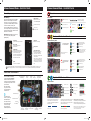
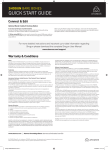
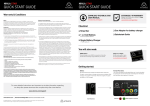
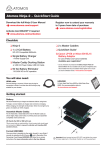
Connect & power-up
Record
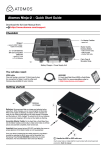
Attach Battery:
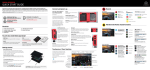
Main Interface:
Battery number 1
Attach the supplied battery to the Samurai Blade.
Make sure to use the battery slot marked with
the number “1” as this is the primary battery. If
you purchase an additional battery, it should be
connected to the other, secondary slot.
Record:
Press to start/stop recording
Gently slide down into battery
slot/s and lock into position.
Push latch to release battery
The Samurai Blade utilises only one battery at a
time. This way a battery can be removed, charged
and replaced during operation. Refer to the User
Manual for more information.
Menu
Power up using
battery slot 1 ONLY
OR
04:08:01:23
Play: Enter playback mode
Waveform Monitoring
Menu: Device settings / options
Monitor Assist
Tally Light
Connect camera using HD/SD-SDI cable
Flashes red when recording.
Connect external device via the
HD/SD-SDI cable
Touch the Waveform Monitoring
icon to reveal WFM functions
Battery Latch
LANC Remote
On/Off & Screen lock
Optionally control the Samurai using
LANC remote control connected here
(use a 2.5mm TRS/ 3-pin plug )
Briefly press the circular button on
the side of the Samurai Blade to
power-up the unit. To shut down,
depress button for at least 4 seconds
(until unit turns off)
Share remote control with other devices
(loop thru ) by connecting them to the
second LANC connector cable
When in operation, a single press of
the power on/off button will lock the
display and controls. A second press
will enable the display and controls
again.
Audio
Stereo Line In or Headphones
TIP: Touch the centre of the screen
to remove all overlays
5
7
9
11
A
Audio Metering
Touch the Monitor Assist icon
to reveal the Monistor Assist
functions
TIP: Each touch of an icon toggles
the controls on/off
Touchscreen / User Interface
Video Input Format and
Pulldown Status
Recording
Format
Recording
Quality
Time
Remaining
Luma Parade
Waveform Monitoring Settings:
Touch to reveal Position/Dynamic
Range/Opacity controls
RGB Parade
Return to main page
Vectorscope
While waveforms or vectorscopes are
active, touch the bottom right hand
side to toggle between 1/4 view, 1/3
view and full screen mode.
Vectorscope Zoom
Monitor Assist Menu:
CAUTION: The Samurai Blade is constructed from aluminium which acts as the unit’s heat sink. In high or extreme temperatures / climates, the metal
chassis may feel slightly warm / hot to touch. This is completely normal and does not in any way effect the overall functionality of the Samurai Blade.
Continuous Power
Battery Indicator
Focus Assist
Monitor Assist Settings: Touch to
reveal Focus Assist Options (Color/
Mono/Outline) and Zebra (%)
Zebra Pattern
Return to main page
False Color
Note: Tagging available while
recording and monitoring
Blue Only Exposure
Safe Areas/Grid Lines
Playback & Edit: One-touch Review
Playback Interface:
Pay special attention
to any items on screen
which are marked by a
small blue arrow.
Waveform Monitoring
Samurai Blade QSG.indd 2
3
Waveform Monitoring Menu:
Video Output
For example, touching
the Video Input Format
or blue arrow at right
will cycle through all
available input formats.
1
Waveform & Monitor Assist Functions
Video Input
Touch these items to
access or cycle through
the available options.
Audio Level
Cut and Tag
IMPORTANT Samurai Blade can only power up /
turn on from the primary battery position.
[Battery Slot #1]
The Samurai Blade is controlled by
a simple user-friendly touchscreen
interface. Pictured left are the main
controls seen when the Samurai Blade
is first powered up and there is a video
input connection.
Record Trigger: set by supported
camera/or rolling timecode trigger
Play: Press to play clip
Loop: Loop playback
Jump to beginning / end
Set Loop In / Out point
Frame by frame RWD/FFWD
Previous / Next Clip
Super RWD/Super FFWD
Monitor Assist Functions
Use transport controls or touch anywhere on the
timeline to scrub to a section for review. Check
recorded shots diuring playback using WFM and
Monitor Assist tools.
Cut and Tag
Favorite/Reject
Headphone
Line Out Volume
Audio Channels
and Levels
Rec / Play / Menu
Timecode and
Record Trigger
Vectorscope
Timeline / scrub bar
Clear Tagging
Favorite
Tag for Favourite: Touch once
to set the IN point. Touch
again to set OUT point.
Reject
Tag for Reject: Touch once to
set the IN point. Touch again to
set OUT point.
Move frame by frame to select cut and tag In and Out
Points, marking them as favorite or reject. Once cut
and tag is complete, export an XML project for instant
timeline assembly and editing.
Playback & Review on large monitor/s:
Recorded footage can also be played from the Samurai
Blade’s HD/SD-SDI Out. This is ideal for large
screen client viewing, feedback and editing on location.
Timeline showing tagged footage
TIP: Touch the centre of the Samurai Blade screen to remove
all overlays. Touch the screen again to restore previous
screen/overlays and playback controls.
21/05/2015 4:36 pm