1
CHAPTER 6. IMPORT/EXPORT OF DATA AND GRAPHICS
76
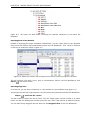
select the folder to export | Export ( ) | choose where to export to | enter name |
Save
You can export multiple files of the same type into formats other than ZIP (.zip). E.g. two DNA
sequences can be exported in GenBank format:
select the two sequences by <Ctrl>-click ( -click on Mac) or <Shift>-click | Export
( ) | choose where to export to | choose GenBank (.gbk) format | enter name the
new file | Save
Export of dependent elements
When exporting e.g. an alignment, CLC Sequence Viewer can export the alignment including all
the sequences that were used to create it. This way, when sending your alignment (with the
dependent sequences), your colleagues can reproduce your findings with adjusted parameters, if
desired. To export with dependent files:
select the element in Navigation Area | File in Menu Bar | Export with Dependent
Elements | enter name of of the new file | choose where to export to | Save
The result is a folder containing the exported file with dependent elements, stored automatically
in a folder on the desired location of your desk.
Export history
To export an element's history:
select the element in Navigation Area Export (
choose where to export to | Save
) | select History PDF(.pdf) |
The entire history of the element is then exported in pdf format.
The CLC format
CLC Sequence Viewer keeps all bioinformatic data in the CLC format. Compared to other formats,
the CLC format contains more information about the object, like its history and comments. The
CLC format is also able to hold several elements of different types (e.g. an alignment, a graph and
a phylogenetic tree). This means that if you are exporting your data to another CLC Workbench,
you can use the CLC format to export several elements in one file, and you will preserve all the
information.
Note! CLC files can be exported from and imported into all the different CLC Workbenches.
Backup
If you wish to secure your data from computer breakdowns, it is advisable to perform regular
backups of your data. Backing up data in the CLC Sequence Viewer is done in two ways:
• Making a backup of each of the folders represented by the locations in the Navigation
Area.
• Selecting all locations in the Navigation Area and export ( ) in .zip format. The resulting
file will contain all the data stored in the Navigation Area and can be imported into CLC