1
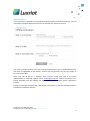
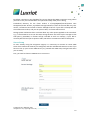
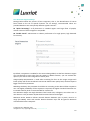
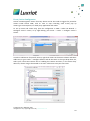
Server: VMS Server computer IP address or hostname.
Port: VMS Server port for Client connections (default is 60554). When connecting to a
remove VMS Server, make sure this port is allowed on all intermediate routers and firewalls.
User and password: VMS Server user account to connect with. Depending on the connection
type, user must have corresponding privileges (connect locally or remotely) and must be
allowed to receive video from FR camera. For full description on VMS security setup, please
refer to Luxriot VMS user manual.
VMS Notification – Title: the name that will appear in VMS as external event source.
VMS Notification – ID: unique LFR server identifier. ID is assigned automatically, so you do
not need to enter anything in this field. The only case when you need to use custom ID is
when you want multiple LFR servers to look like single FR source in VMS Client: in such case,
you need to copy one server’s ID to ‘add-on’ servers’ Identifier field.
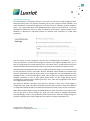
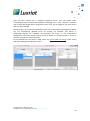
Once you have entered all settings, click Add Server. Connection with VMS will be
established automatically: if VMS Server is online and reachable, you will see server status
saying connected. If VMS Server is offline, LFR will endeavor to connect every few seconds
until it reaches the server. Open Diagnostics section to see the details on unsuccessful
connection attempts.
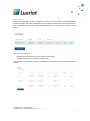
You can add one or more VMS servers to a single Face Recognition server.
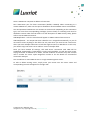
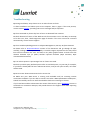
To edit or delete existing server, simply move your mouse over the server name and
corresponding controls will appear on the right side.
P: (888) LUX-RIOT, (888) 589-7468
[email protected], [email protected] | www.luxriot.com
13