1
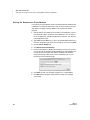
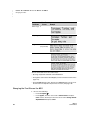
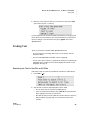
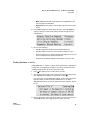
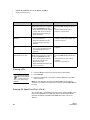
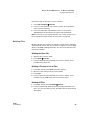
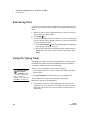
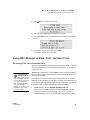
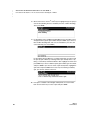
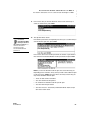
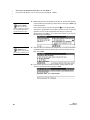
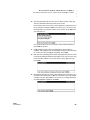
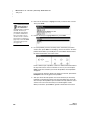
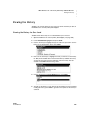
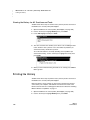
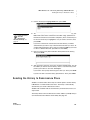
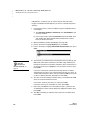
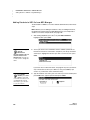
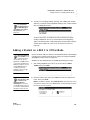
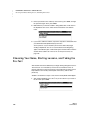
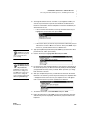
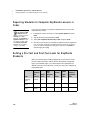
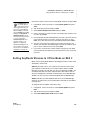
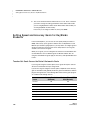
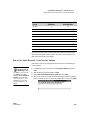
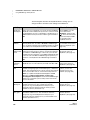
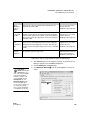
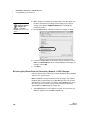
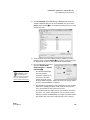
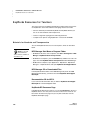
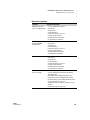
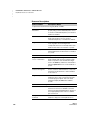
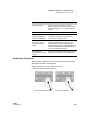
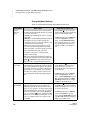
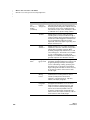
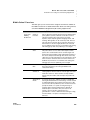
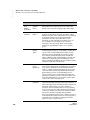
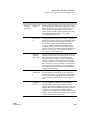
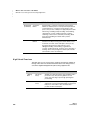
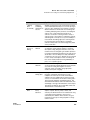
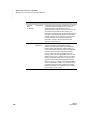
..... C HANGING S ETTINGS FOR N E O AND S MAR TA PPLETS Other Settings You Can Change on the NEO • 4: Fastest. This setting provides the quickest transfers. However, some word processing programs may lose data when files are transferred using this speed, so you might want to experiment to see which speed works best for you. Beaming (IrDA) Transfer Speed 1. Make sure your NEO is not connected to your computer. (You can change the transfer speed only when the NEO is not connected.) 2. Press ctrl-option--S and type the number for one of these options: • 1: Fastest speed. This setting provides the quickest IR transfers. However, some programs may lose data when files are transferred using this speed, so you might want to experiment to see which speed works best for you. • 2: Compatibility speed. This setting is compatible with all computers and most programs. Changing the NEO Idle Ti me To change how long the NEO must be idle before it shuts down automatically, follow the steps below. Note that this does not change the idle time when the Accelerated Reader or Responder SmartApplets are open. The Accelerated Reader idle time is 10 minutes, and the Responder idle time is 30 minutes. To change idle time on NEOs using NEO Manager, use the System settings. See page 182. 1. Press option--T. 2. Press the up arrow key to increase the number of minutes, or press the down arrow key to decrease the number of minutes. You can choose any number from 4–59 minutes. 3. Press esc to leave the idle time screen. 180 NEO 2 User Manual