1
General Information:
•
•
•
30 Days Money Back Guarantee, 6 Month Warranty and Trade In Policy
Approximately 3.5" x 3.375" x 1.125" (9cm x 8.5cm x 3cm)
0°C to 70°C operating temperature range
3. Software Download and Upgrade
The iUSBDAQ device driver, LabVIEW interface, LabVIEW examples, C/C++
examples, dot net examples, iDAQTest&Log software and this document can be found
and downloaded from http://www.hytekautomation.com/iDAQDownload.html
4. Software and Hardware Installation
For iUSBDAQ to work, windows 2000 or higher OS is required and computer should
have usb 1.1 or usb 2.0 ports. Recommendation: WinXP or higher OS, 2.4GHZ with
512M RAM computer. If you are using an usb hub, please make sure the hub is selfpowered, not bus-powered because bus-powered hub will limit power to max
100mA.
Following are the steps to install iUSBDAQ:
• Do not connect the iUSBDAQ to PC yet. If you have connected, please
disconnect the device.
• Install the iUSBDAQ full installation program or at least iUSBDAQ device driver
if you haven’t done so. iUSBDAQ device driver is included in the full
installation. It’s the low level driver used for computer to recognize and
enumerate the iUSBDAQ devices. This installation will also copy the
iUSBDAQ.dll - the programming APIs that your software calls into computer
system’s directory.
• Now connect the iUSBDAQ to computer usb port with a USB cable (if you have
U1208LOG, please make sure you switch to PC/Stop mode first before
connecting the cable, or else computer will not recognize this device). The
computer will automatically detect the new hardware if this is the first time
iUSBDAQ is installed on a USB port, every time you change to a different USB
port for the first time, the PC will prompt and saying new hardware detected,
follow the instruction to install the driver. If windows popup saying that the driver
for this hardware is not window’s logo certified, please just ignore this message
and hit “Install anyway”. If it’s looking for “mchpusb.sys” file, it’s under the
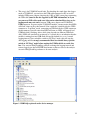
"..\system32\drivers”. After successful installation, you should see “HYTEK
iUSBDAQ” under your device manager in the category “HytekUSBDAQ”. The
LED beside the USB connector head should be green by now.
• Now you have the choice to run the standalone ready-to-run iDAQTest&Log
software to see how device works or start right now programming with your
favorite language with our programming API (DLL).
11