1
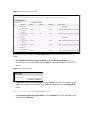
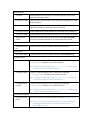
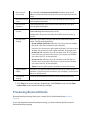
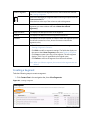
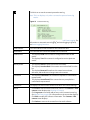
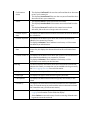
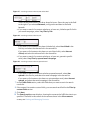
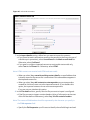
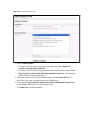
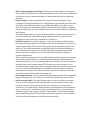
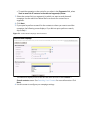
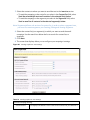
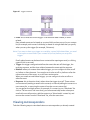
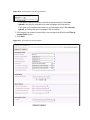
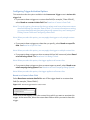
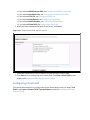
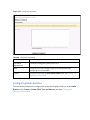
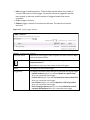
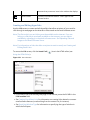
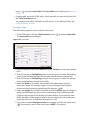
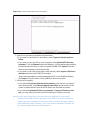
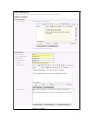
• In the text field, enter the information you want to search for.
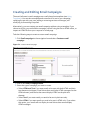
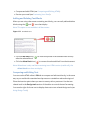
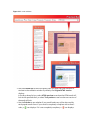
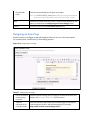
Note: Click the add icon ( ) to insert another rule to the list, or click a rule’s delete icon
( ) to delete the rule from the list.
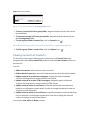
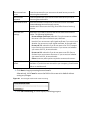
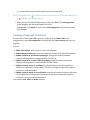
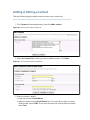
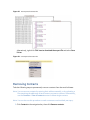
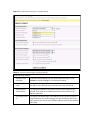
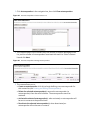
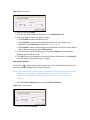
7 When you have finished configuring your rules, click Save. The View segments
screen displays, with the new segment in the list.
Alternatively click Cancel to return to the View segments screen without saving
your changes.
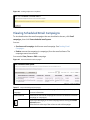
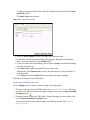
Viewing a Segment’s Contacts
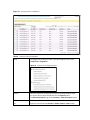
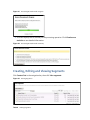
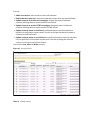
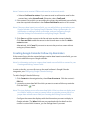
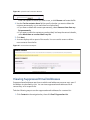
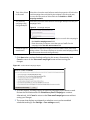
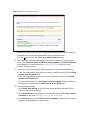
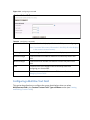
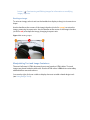
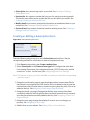
To view a list of the contacts belonging to a segment, click Contact lists in the
navigation bar, select View segments, and then click the View contacts link next to a
segment.
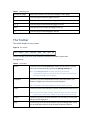
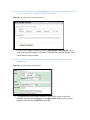
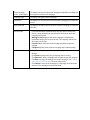
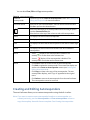
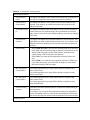
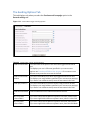
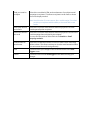
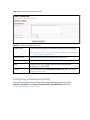
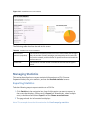
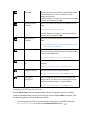
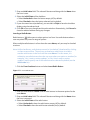
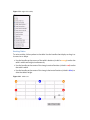
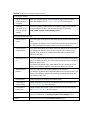
You can:
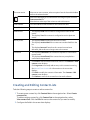
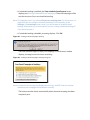
• Add a new contact: add a contact to the email software.
• Delete selected contact(s): remove the selected contacts from the email software.
• Update contacts to receive text campaigns: change the status of selected
contacts, allowing them to receive emails in text format.
• Update contacts to receive HTML campaigns: change the status of selected
contacts, allowing them to receive emails in HTML format.
• Update contacts status to confirmed: confirmed contacts are those who have
replied to a confirmation request email. Use this to change the selected contact or
contacts to confirmed status.
• Update contacts status to unconfirmed: unconfirmed contacts are those who have
not yet replied to a confirmation request email. Use this to change the selected
contact or contacts to unconfirmed status.
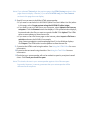
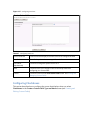
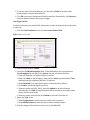
You can also view, edit and delete contacts.