1
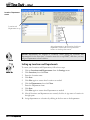
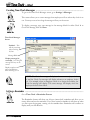
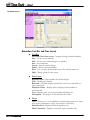
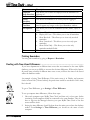
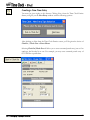
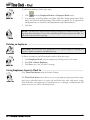
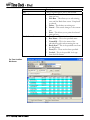
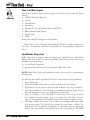
To add a new employee, follow these steps:
1.
2.
3.
from the Employee Browse or Employee Detail screen.
Click
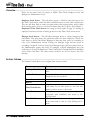
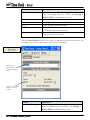
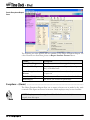
As a minimum, enter First Name, Last Name, Hire Date, Employment Status, Work
Status, and Location and Department. These fields are required. (To set up locations
and departments, see Locations and Departments under Administration.)
Click Save.
NOTE: The SSN is not required when entering an employee in MyBiz. However, when
exporting time card entries, if one of the selected payroll formats requires the SSN, you
will need to enter it before exporting.
Deleting an Employee .............................................................................................
CAUTION: This will delete ALL information on the current employee including any
records in MyBiz Attendance and MyBiz Records.
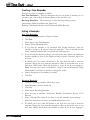
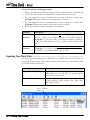
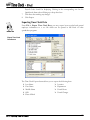
To delete an employee, and all associated records, follow these steps:
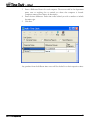
1. From Employee Detail, select an employee by clicking on his or her name.
2. Select File > Delete Employee.
3. Click Yes to the “Are You Sure?” message.
Giving Employees Access to Clock In .....................................................................
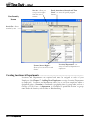
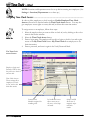
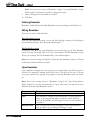
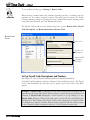
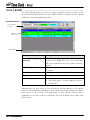
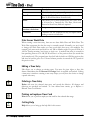
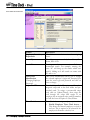
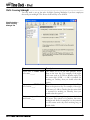
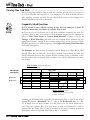
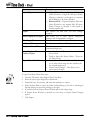
Click Time Clock Access from the Feature Column.
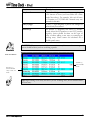
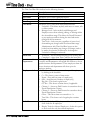
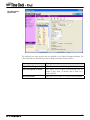
The Time Clock Access screen allows you to set up employee logins/passwords, swipe
card access, individual access to create, edit and delete their time card entries, assign
Work Schedules, and employee In/Out Board access. A manager or administrator will
always have access to the In/Out Board screen.
Ch 7: Managing Employee Records
79