1
WIND User Guide
manage them carefully to avoid the unwanted publication of unfinished work.
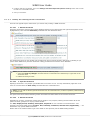
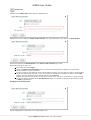
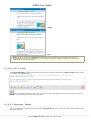
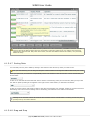
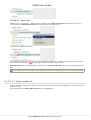
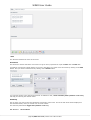
Delete
a
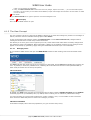
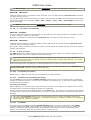
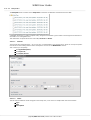
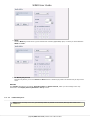
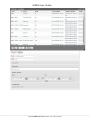
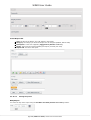
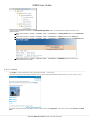
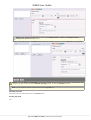
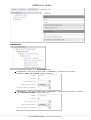
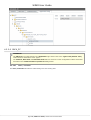
View: select the desired view to remove from the drop down list and click on the Delete
button. NOTE: Failing to Create and Set a view before opening documents for edition will not prevent the operation.
A new session will be automatically created and set for you, and named after your username appended with a
time stamp (example: testUser_2011_02_15_18_07_07). It is however recommended to create your own,
with a meaningful naming convention reflecting its purpose.
The
Transfer
Command
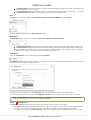
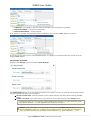
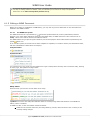
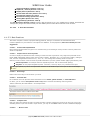
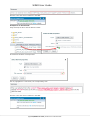
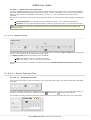
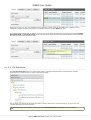
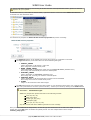
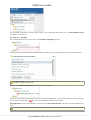
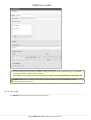
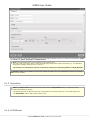
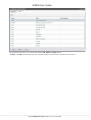
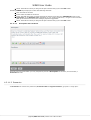
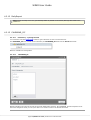
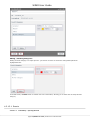
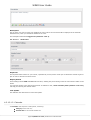
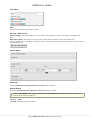
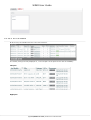
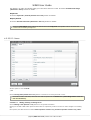
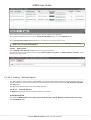
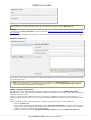
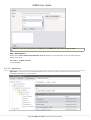
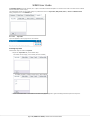
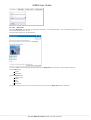
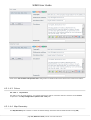
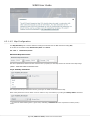
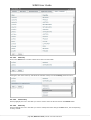
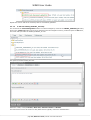
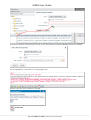
This enables you to select and Transfer
a
View from a given owner (the user with which the view was created) to
another user.
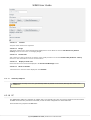
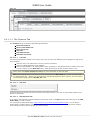
The field labels are self-explanatory - simply fill in the form and click on the Ok button to execute the command.
Transferring a view can be very useful, as it allows you to:
pass unfinished work to a colleague to resume,
send your work for validation to a supervisor,
unblock a situation where an absent user has left locked items which another user urgently needs to
access.
Note: You will need special privileges to transfer a view owned by another user than yourself.
4.1.3.2 Displaying
Views
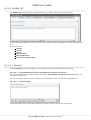
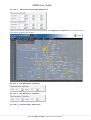
You may wish to monitor the progress on your work and check how your changes will look like in the Portal.
As a good practice, you will also want to give your changes a last look before publishing your work.
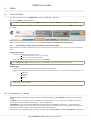
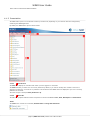
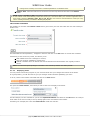
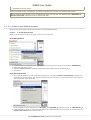
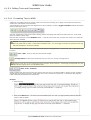
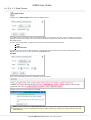
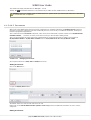
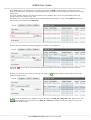
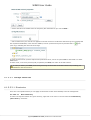
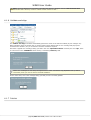
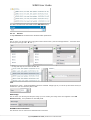
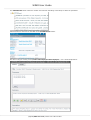
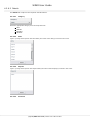
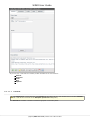
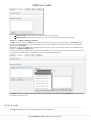
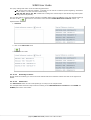
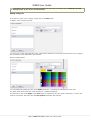
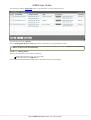
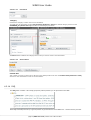
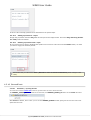
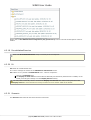
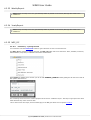
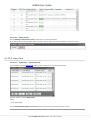
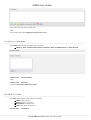
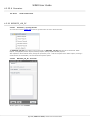
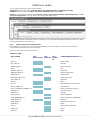
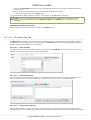
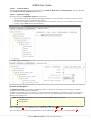
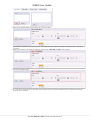
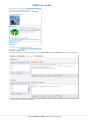
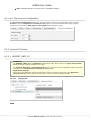
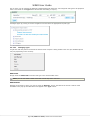
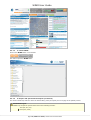
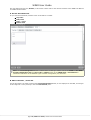
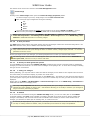
To do so, return to the header of the NOP and click on the View button:
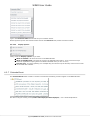
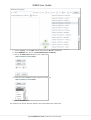
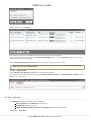
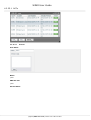
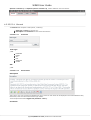
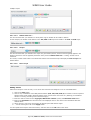
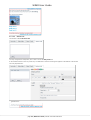
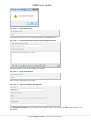
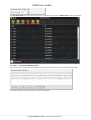
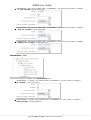
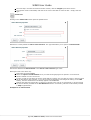
This opens the View
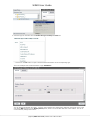
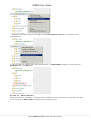
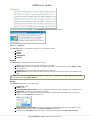
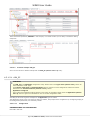
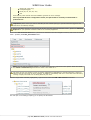
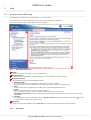
selector, from which you will set the view to display in the Portal:
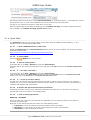
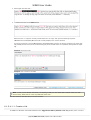
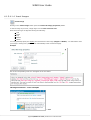
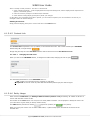
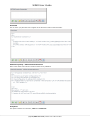
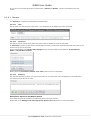
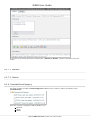
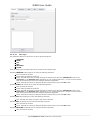
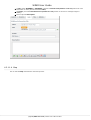
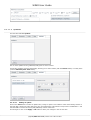
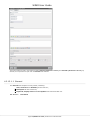
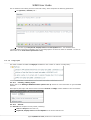
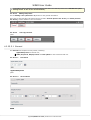
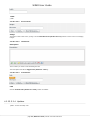
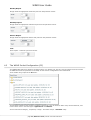
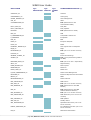
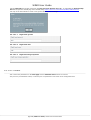
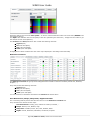
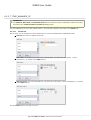
For this example, we have selected for you the view MyFirstSavedView and clicked on the Set button. It is easy to
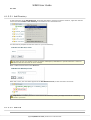
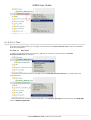
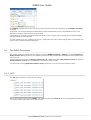
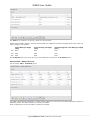
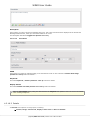
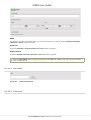
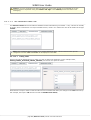
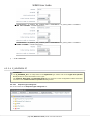
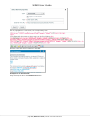
check which is the view currently in use by clicking again on the View button in the header.
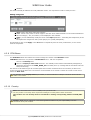
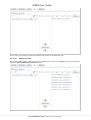
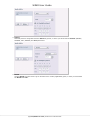
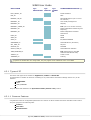
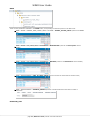
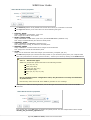
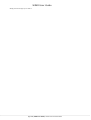
Continuing our example, this is how the View
selector would now look like:
page 15 | WIND User Guide | Version 2.27 of 26 June 2015