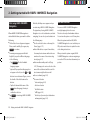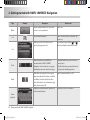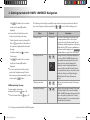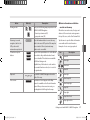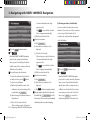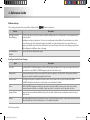
1
DIGITAL AVN SYSTEM User's Manual K_HM_[영어]_COVER.indd 2 2008-12-23 오전 10:47:14 Copyright note The product and the information contained herein is subject to change without prior notification. This manual may not, in whole or in part, be reproduced or transmitted in any form either electronically or mechanically, including photocopying and recording, without the express written consent of Hyundai Autonet., Ltd. © 2008 - Hyundai Autonet., Ltd. Data Source © 2007 Navteq K_HM_[영어]_COVER.indd 3 2008-12-19 오후 2:51:48 PREFACE Thank you for purchasing this AVN System. This user manual explains how to use HAVN-100 Series. Before using the product, read the contents of this user manual carefully and use this product safely. DOLBY Manufactured under license from Dolby Laboratories "Dolby" and the double-D symbol are trademarks of Dolby Laboratories iPod The screens shown in this manual may differ with the actual screens of the product. The design and specification of this product may change without prior notification for product improvement. When transferring the vehicle to another individual, include this user manual so that the next driver can continue its use. iPod is a registered trademark of Apple, Inc. DTS Manufactured under license under U.S. Patent #'s : 5,451,942; 5,956,674; 5,974,380;5,978,762; 6,487,535 & other U.S. and worldwide patents issued & pending. DTS is a registered trademark and the DTS logos, Symbol and DTS 2.0 Channel are trademarks of DTS, Inc. ⓒ 1996-2007 DTS, Inc. All Rights Reserved. TABLE OF CONTENTS 1. PRE-OVERVIEW 4. REAR VIEW CAMERA Introduction …………………………1-3 About Rear View Camera ………… 1- 20 AVN SYSTEM Controls and functions ………………………… 1- 4 Sound setting ……………………… 1- 6 Display setting …………………… 1- 6 2. AV SYSTEM Operating the FM/AM radio ……… 1- 7 Operating the RDS radio ………… 1- 7 Operating the CD ………………… 1-8 Operating the MP3, USB ………… 1-9 Operating the DVD ……………… 1-11 Operating the iPod ……………… 1-12 3. BLUETOOTH Operating the Bluetooth Hands-free………………………… 1-14 1-2 PRE-OVERVIEW 5. APPENDIX ………… 1- 21 ………… 1- 22 DVD region code and language code ……………………………… 1- 26 Important information Troubleshooting guide 1. PRE-OVERVIEW Introduction ■ Precaution for safe usage In case of product malfunction, please manual WARNING ! When cleaning the touch screen, make sure to Do not operate the AV/AVN system while turn off the device and use a dry and smooth driving. cloth. Never use abrasive materials, chemical This user manual contains instructions related Do not dismantle, assemble, or modify the cloths, or solvents (alcohol, ammonia, to safety. Closely observe and comply with all AV/AVN system. benzene, thinners, etc.) as such materials may of the safety instructions found within this Do not watch the screen for prolonged damage the device panel or cause colour and manual. periods of time while driving. quality deterioration. Set the volume to a level which allows the WARNING ! driver to be aware of external conditions. This indicates a button on the control panel. Disobeying the warnings listed within this user manual may cause fatal or serious CAUTION! injuries. Warnings indicate matters which may Do not operate the AV/AVN system for directly lead to accidents. prolonged periods of time with the vehicle ignition in ACC. Such operations may lead CAUTION! to battery discharge. Disobeying the cautions listed within this user Be careful not to spill water or insert foreign manual may lead to accidents or cause injury. objects into the device. Cautions indicate matters which may lead to Do not cause severe shock to the device. vehicle damage or malfunction. Direct pressure onto the front side of the monitor may cause damage to the LCD or i INFORMATION touch panel. Information which the user must be aware or allows for more convenient use of the device. PRE-OVERVIEW 1-3 PRE-OVERVIEW contact your place of sale or service centre. ■ Important information about this 1. PRE-OVERVIEW AVN SYSTEM Controls and functions 4 DARK button Each press will change the modes in the ■ Control panel following order: Day Mode → Night Mode → LCD Off → Day Mode … 5 SEEK/TRACK Up/Down button SHORT KEY(less than 0.8 second) 2 - FM/AM Mode : Automatically searches for 3 the previous or next broadcast frequency 4 and starts playing. - RADIO(RDS) Mode : receives the previous 5 or next channel. - CD Mode : Plays the previous or next 1 6 track. - MP3, USB Mode : Plays the previous or next file. - DVD Mode : Plays the previous or next 1 Power / Volume control knob 2 FM/AM button Push knob (over 0.8 second) : Turns the Each press will change the modes in the power off. following order: FM1 → FM2 → AM Push knob (under 0.8 second) : Each time the knob is pressed, the Audio is turned on 3 MEDIA button and off. Each press will change the modes in the Tune knob : The range of volume following order: DVD(CD/MP3/DVD) → AUX adjustment is between 0 ~ 35. → USB(iPod) 1-4 PRE-OVERVIEW chapter. - iPod Mode : Plays the previous or next song. LONG KEY(over 0.8 second) frequencies while the button is pressed. Once released, automatically searches for broadcasts which can be received. - RADIO(RDS) Mode : search for the desired PRE-OVERVIEW - FM/AM Mode : Quickly moves through the Press the knob to play the selected file. - iPod Mode : Turn the knob to search for the desired song. Press the knob to play the selected song. - Map Mode : Turn the knob to Zoom In/ Out. frequency. - CD Mode : REW/FF the current playing track. - MP3, USB Mode : REW/FF the current playing file. - DVD Mode : REW/FF the current playing WARNING ! Always give your full attention to driving. Avoid operating your system in ways that could distract you from driving your vehicle. chapter. - iPod Mode : REW/FF the current playing song. 6 TUNE/Search knob - FM/AM Mode : Turn the knob to search for the desired frequency. Press the knob to receive the selected frequency. - CD Mode : Turn the knob to search for the desired track. Press the knob to play the selected track. - MP3, USB Mode : Turn the knob to search for the desired file. PRE-OVERVIEW 1-5 1. PRE-OVERVIEW Sound setting ■ Auto volume control ON/OFF Each time the Auto Vol Display setting button is pressed, ■ Displays the Sound setup screen the Auto Volume Control function is turned Press the SETUP button on the main screen on or off. ■ Displays the Display setup screen. of each AV mode (FM/AM, CD, MP3, DVD, USB, iPod) to display the Sound setting screen. ■ Touch screen Beep ON/OFF Each time the Beep button is pressed, the beeping sound that follows each press on the screen will turn on. ■ Brightness / saturation / hue / contrast Use the left/right buttons ( ◀ , ▶ ■ FAD/BAL each control to make adjustments. The position of the sound can be adjusted by using the up-down and left-right ( ▲ , ▼ , ■ Ratio ▶ , ◀ ) buttons on the left side of the screen. Press the Ratio ) for button. Press the desired aspect ratio. The current selected aspect ratio is ■ BAS/MID/TRE The BAS/MID/TRE can be adjusted by using the left/right buttons ( ◀ , ▶ ) of each control. 1-6 PRE-OVERVIEW highlighted. 1. AV SYSTEM Operating the FM/AM radio ■ Selecting broadcast frequency Operating the RDS radio (a) Selecting a Broadcast frequency through SEEK Press the SEEK ∧ or TRACK ∨ buttons on ■ Listening to the Traffic Announcement the control panel for less than 0.8 second. Once the SEEK function is operating (SEEK indicator blinking), the following or previous broadcast frequency with superior reception will be searched automatically. (b) Selecting a broadcast frequency through Press the BAND or MODE button on the manual search Turn the TUNE knob on the control panel in Press the most recently selected will be displayed. clockwise or anticlockwise direction. Each click on the TUNE knob will increase or announcement station will then be activated. Press the BAND or MODE button to decrease the frequency by 1 step (FM : 0.05 change the desired radio band. Each press MHz, MW : 9 kHz, LW : 1kHz). ■ Selecting Radio Station through the ■ Storing preset (a) Pressing the (a) Manual Storing Press the control panel. The FM/AM radio band of the Select the desired broadcast frequency. button on the control panel. The TA radio broadcasting from the traffic The TA indicator will become displayed. Station List will change the bands in the following order: FM1 → FM2 → AM TA Select the desired frequency. LIST LIST button button on the control panel. Among the channels, select your preferred channel. Press the preset button to store for over 0.8 second. The frequency will then be stored along with a beep sound. AV SYSTEM 1-7 AV SYSTEM ■ Listening to the FM/AM radio 2. AV SYSTEM (b) Pressing the Update station list button Operating the CD ■ Listening to CD music (b) Selecting through search track Turn the TUNE knob on the control panel in clockwise or anticlockwise direction. Each click on the TUNE knob will display the information of the following or previous track. The current playing track will continue to be played. Press the Update station list Press the TUNE knob until the desired button on the Track is found. The track will then begin control panel. Updating station list will take Press the DVD or MODE button on the a few minutes. playing. control panel while inserting the CD DISC (c) Pressing the Cancel button or with the disc already inserted. ■ REW/FF tracks Select the desired track. ■ Selecting the CD track (a) Selecting through Track Up / Down Press the SEEK ∧ or TRACK ∨ buttons on the control panel for less than 0.8 second. The following or previous track will begin Press the Cancel button of the update playing. Press and hold the SEEK ∧ or TRACK ∨ progress popup window on the control panel buttons on the control panel for over 0.8 and updating of the station list will be canceled. second. 1-8 AV SYSTEM Press the holding the button and return to normal listening to the track. playing speed when the button is released. The scan will be terminated and the current Scan button again to continue Operating the MP3, USB ■ Listening to MP3 music AV SYSTEM The track will play 20 times faster while track will continue to be played. ■ Setting Repeat function Press the Repeat button. Each press will change the function in the following order : REPEAT → REPEAT OFF → REPEAT * REPEAT : repeats the current playing track. ■ Setting Random function Press the DVD or MODE button on the Press the control panel while inserting the MP3 DISC Random button. Each press will change the function in the or with the disc already inserted. following order: RANDOM → RANDOM OFF Select the desired file. → RANDOM * RANDOM : plays all tracks in the disc in random order. ■ Scanning tracks Press the Scan button. ■ Selecting a file (a) Selecting through search files Turn the TUNE knob on the control panel in clockwise or anticlockwise direction. Each click on the TUNE knob will display Each press will change the function in the the information of the following or following order: SCAN → SCAN OFF → SCAN. previous file. The current playing file will * SCAN : scans all tracks in the disc for 10 continue to be played. seconds each. AV SYSTEM 1-9 2. AV SYSTEM Press the TUNE knob at the desired file. The searched file will begin playing. ■ Viewing detail information for MP3 (b) Selecting through MP3 List List Press the button. The file list of the folder for the current Press the file Press the ■ Setting Random function Info button. Random button. Each press changes the setting as follows : The detailed information (Title, Artist, Album, RANDOM → FOLDER RANDOM → RANDOM Genre) for the current playing MP3 will be OFF → RANDOM displayed. * FOLDER RANDOM : plays the files in the current folder in random order. playing file will be displayed. * RANDOM : plays all files in the disc in random order. ■ Scanning files Press the Scan button. Each press will change the function in the following order: SCAN → FOLDER SCAN → SCAN OFF → SCAN Press the desired menu to return to the ■ Setting Repeat function main screen and play the selected file. Press the Repeat button. Each press will change the function in the ■ REW/FF files following order : REPEAT → FOLDER REPEAT → Press and hold the SEEK ∧ or TRACK ∨ REPEAT OFF → REPEAT buttons on the control panel for over 0.8 * REPEAT : repeats the current playing file. * FOLDER REPEAT : repeats the files in the second. The file will play 20 times faster while holding the button and return to normal play when the button is released. 1-10 AV SYSTEM current folder. * FOLDER SCAN : plays all files in the current folder for 10 seconds each. * SCAN : scans all files in the disc for 10 seconds each. Press the Scan button again to continue listening to the file. The scan will be terminated and the current file will continue to be played. Operating the DVD (b) Selecting through directly searching the title and chapter number Select the desired menu by using the 4direction button. Press the DONE button. The corresponding screen will be displayed. ■ Changing voice, caption or angle while playing the DVD Each time the Press the Search button. Voice , Caption , or Angle is pressed, the video will be played with the new settings applied. Press the DVD or MODE button on the control panel while inserting a DVD DISC or ■ REW/FF DVD movie with the disc already inserted. Press and hold the SEEK ∧ or TRACK ∨ buttons on the control panel for over 0.8 second. Select the desired Title and Chapter. The DVD will play 16 times faster while the ■ Selecting a chapter of DVD movie (a) Selecting through Chapter Up / Down Press the TRACK∧ or TRACK ∨ button on the control panel for less than 0.8 second. The following or the previous chapter will begin playing. button is held and return to normal playing speed when the button is released. Press the TITLE or CHAPTER button. Input the desired title or chapter number. Press the DONE button. ■ Hiding DVD menu buttons The start of the corresponding title or chapter will begin playing. The menu button and display information will Press the Hide buttons button. be hidden from the screen and only display the DVD video. AV SYSTEM 1-11 AV SYSTEM ■ Watching a DVD movie (c) Selecting through DVD title menu Press the Title button. 2. AV SYSTEM Operating the iPod WARNING ! iPod is a registered trademark of Apple, Inc. Always give your full attention to driving. Avoid operating your system in ways that ■ Listening to iPod music could distracted you from driving your vehicle . (b) Selecting a song using sequential search Turn the TUNE knob on the control panel in clockwise or anticlockwise direction. Each click on the TUNE knob will display the information of the following or i INFORMATION previous song. DVDs can be displayed or played on the The current playing song will continue to navigation screen only when the transmission is in Park. be played. Press the TUNE knob at the desired song. The searched song will begin playing. Press the MEDIA or MODE button on the control panel if the iPod is already connected. (c) Selecting song via the Menu Press the Menu button. The iPod menu screen will be displayed. Press the button for the desired search Select the desired song. method. ■ Selecting an iPod music ■ REW/FF song (a) Selecting a song using Up / Down Press and hold the SEEK ∧ or TRACK ∨ Press the TRACK∧ or TRACK ∨ button on buttons on the control panel or S/Wheel the for less than 0.8 second. Remote controller for over 0.8 second. The following or previous song will begin The song will be play faster while the button playing. is held down and returns to normal play when the button is released. 1-12 AV SYSTEM ■ Setting repeat function Press the Repeat button. AV SYSTEM Each press will change the function in the following order: REPEAT → REPEAT OFF → REPEAT * REPEAT : repeats the song currently playing. ■ Setting random function Press the Random button. Each press will change the function in the following order: RANDOM → ALBUM RANDOM → RANDOM OFF → RANDOM * ALBUM RANDOM : plays the songs in the current playing list randomly in Album units. * RANDOM : plays all files in the current playing list in random order. AV SYSTEM 1-13 3. BLUETOOTH Operating the Bluetooth Handsfree Once the "Search Bluetooth Phone screen" becomes displayed, Bluetooth phones (devices) in the vicinity will Connecting through the device become searched. ■ When there is no phone registered Press the CALL or PHONE button on the Input the "Pass key" in the Bluetooth phone and press the OK button to control panel. connect with the system. Once the message window appears on the screen, press the YES button. The following message window will Pressing the become displayed if the Pass key was NO button on the control panel will restore the screen displayed prior to pressing the CALL or PHONE button on the control panel. 1-14 BLUETOOTH Select the list desired for connection from the Search Results screen. If search results do not become displayed press the Search button. inputted too late or if registration has failed. Press the YES button to try pairing again. ■ When a phone is already registered Select the Bluetooth phone you wish to connect and press the Connect button. ■ Answering a call Once connection becomes complete, the Bluetooth icon will change into blue BLUETOOTH to signify that the connection has been properly completed. ■ Making a call If there is a Bluetooth phone already registered, press the CALL or PHONE The right side of the screen will become displayed when there is an incoming call. Press the CALL or PHONE button button on the control panel to display the screen shown on the right. Press the YES button to connect the on the control panel or the phone. answer the call. Call button on the screen if you wish to The call will become connected. Use the dial pad positioned on the right side of the PHONE mode screen and input the desired phone number. Press Call button or press the CALL or PHONE button on the control panel to The currently registered phone list will connect the call. become displayed. BLUETOOTH 1-15 3. BLUETOOTH ■ Converting call to the Bluetooth ■ Converting call to the Hands-free ■ Activating Call waiting phone To convert a call from the Bluetooth Hands- To convert a call from the Bluetooth If another person calls while on a call, a phone to the Bluetooth Hands-free, press the CALL or PHONE button on the notification window will become displayed control panel for over 0.8 seconds. Pressing the Transferred to Handsfree button as shown above. To answer the second call, press the CALL or PHONE button on the control panel for displayed on the notification window will less than 0.8 seconds or press the also convert the call to the hands-free. button on the notification window. call has been converted to the Bluetooth Converting the call to the hands-free will The call will convert to the second call. phone will become displayed. make it possible to take the call through free to the Bluetooth phone, press the CALL or PHONE button on the control panel for over 0.8 seconds or press the Call Transfer button on the PHONE screen. Call A notification window alerting that the the device. 1-16 BLUETOOTH ■ Viewing Recent Calls ■ Connecting Bluetooth Once connection becomes complete, the Bluetooth icon will change into blue to Press the Call button on the PHONE signify that the connection has been screen or press the CALL or PHONE properly completed. button on the control panel. Press the Connection Setup button on the PHONE screen. The recent calls list will become displayed. Press the Connection Setup button on the If there is no recent calls list, the Call PHONE screen. button on the screen will become inactive. The Connection Setup screen is displayed. Select the Bluetooth phone you wish to connect and press the Connect button. BLUETOOTH 1-17 BLUETOOTH ■ Setting auto connect 3. BLUETOOTH ■ Changing Passkey Press the Set Auto Connect button on the Input the desired number and press the Done button. Only 4-digit numbers Connection Setup screen. Press the Device Setup button on the can be used as the Passkey. PHONE screen. ■ Setting Hands-free volume Once the Auto Connection Setting screen becomes displayed, press the button for the desired setting. Press the Change Passkey button. Press the Device Setup button on the Press the Done value. 1-18 BLUETOOTH button to save the set The Change Passkey screen will become displayed. PHONE screen. ■ Initialising Bluetooth While in Data Initialization screen, press the Bluetooth Initialization button. Device Setup screen. Press the Device Setup button on the PHONE screen. Use the + , - buttons to set the Press the Yes button on the notification desired volume. window to initialized the Bluetooth settings. Press the Data Initialization button on the Device Setup screen. BLUETOOTH 1-19 BLUETOOTH Press the Volume Setting button on the 4. REAR VIEW CAMERA About Rear View Camera For user safety, this device is connected to a rear view camera which activates when driving in reverse. Even if the power of the device has been turned off, changing the gear to Reverse (R) will automatically turn on and activate the rear view camera. Changing to a different gear will turn off the power and deactivate the rear view camera. Place the gear in Reverse (R). The rear view camera mode will activate. WARNING ! The rear view camera is equipped with an optical lens necessary to acquire a wider field of vision and may result in displaying a distance different from the actual distance. Always check the rear and left/right direction when driving in reverse. 1-20 Rear View Camera 5. APPENDIX Important information ■ Bluetooth Frequency Range 2402 ~ 2480MHz Bluetooth standard 2.0 Profile Headset(1.0), Hands-free(1.5), A2DP(1.0), AVRCP(1.0) Transmission output 0.02mW F1D No. of channels 79 channels Operating temperature -20℃ ~ +65℃ APPENDIX Radio Emissin CAUTION! The wireless device may be the cause of radio interference. The manufacturer and installation provider will not be responsible to provide services related to human safety. ■ Common Name Car TFT LCD Display AVN Unit Power supply DC 14.4V Operation Power DC 10V ~ DC 16V Voltage 2.5A Dark current 4mA(Head Unit Only) Operating temperature range -20℃ ~ +65℃ Storage temperature -30℃ ~ +75℃ Dimensions 217.2mm(W)×113.2mm(H)×204.3mm(D) Weight 3.1kg APPENDIX 1-21 5. APPENDIX Troubleshooting guide ■ Before thinking the product has malfunctioned Errors which occur during the operation or installation of the device may be mistaken as a malfunction of the actual device. If you are having problems with the device, try the suggestions listed below. If the problems persist, contact your point of sale or the nearest service centre Problem Function There are small red, blue, or green dots on the screen. Because the LCD is manufactured with technology requiring high point density, a pixel deficiency or lighting may occur within 0.01% of total pixels. The sound or image is not working. Has the Switch for the vehicle been turned to [ACC] or [ON]? Has the SYSTEM been turned OFF? The video is being displayed but the sound is not working. Has the volume been set to a low level? Has the volume been set on mute? When the power is turned on, the corners of the screen are dark. The display looking somewhat darker after prolonged periods of use is a normal phenomenon with LCD panels. It is not a malfunction. If the screen is very dark, contact your point of sale or the nearest after service centre. Sound is working from only one speaker. Is the position of FAL/BAL sound controls or volume adjusted to only side? Sound and video does not work in AUX mode. Is the audio and video connector jacks fully inserted into the AUX terminal? The external device is not working. Is the external device connected with a standard connector cable? 1-22 APPENDIX ■ Troubleshooting Problem The power does not switch on. The image colour or tone quality is low. The video does not work. Solution The fuse is disconnected. Replace with a suitable fuse. If the fuse is disconnected again, please contact your point of sale or service centre. Device is not properly connected. Check to see that the device has been properly connected. The DISC has not been inserted or has been inserted upside down. Insert the disc properly so that the sides are facing the correct direction. The DISC has been contaminated. Wipe clean dirt and other foreign substances from the DISC. The vehicle battery is low. Charge the battery. If the problem persists, please contact your point of sale or service centre. A disc which is not supported by the device has been inserted. Insert a disc which is supported for play by the device. A disc which has a region code not supported by the device has been inserted. The region code for the device is code“1”. Use a DVD which has the region code of“1”or“ALL”. The DVD cannot be played because the parental guidance level is operating. Check the parental guidance level in the initial setup screen. The brightness, saturation, hue, and contrast levels are not properly set. Adjust the brightness, saturation, hue, and contrast levels through the display setting. The brightness level has been set to the lowest level. The device is not properly connected. Adjust the brightness to a higher level. Check to see that the device has been properly connected. APPENDIX 1-23 APPENDIX The DVD does not play. Possible Cause 5. APPENDIX Problem The sound does not work. The sound or video quality is low. Possible Cause The volume level is set at the lowest level. Adjust the volume level. The connector is not properly connected. Check the connection state. The device is currently fast-forwarding, rewinding, scanning, or playing in slow mode. The sound will not work when the device is fast-forwarding, rewinding, scanning, or playing in slow mode. The DISC is dirty or scratched. Wipe off water or dirt from the DISC. Do not use a disc which has been scratched. The sound may be short-circuited and the image distorted if the device begins to vibrate. The device will return to normal operation once the vibration has stopped. Aging of the video display and deterioration in performance may cause certain degradations in quality. Vibration is occurring from the position in which the conversion switch has been installed. The color and tone quality of the image is low. Subtitles do not work. Solution Subtitles are not included in the current playing DVD. The subtitle language has been set to "OFF". The subtitles cannot be played. Subtitles do not turn off. The DVD currently being played has disabled the hide subtitle function. The subtitle cannot be turned off. The sound or subtitle language does not change. Only one language is included in the current playing DVD. The current playing DVD only supports one language. The language cannot be changed if the DISC does not support multi-languages. The language cannot be changed. The selected sound or subtitle language cannot be used. A language which is not supported by the current playing DVD has been selected. A language not supported by the DVD cannot be played. 1-24 APPENDIX Set the subtitle language on the desired language. Problem Possible Cause The aspect ratio selected An aspect ratio which is not supported by the DVD in the initial setting currently being played has been selected. phase cannot be used. The angle cannot be adjusted. The current playing DVD only supports one angle setting or only some of the DVD scenes support multi-angles. The current playing DVD only supports one angle. The angle cannot be changed if the DISC does not support multi-angles or when playing a scene with only one angle. USB memory is damaged. USB memory has been contaminated. Please use after formatting the USB into FAT 12/16/32 format. Remove any foreign substances on the contact surface of the USB memory and multimedia terminal. Directly connect the USB memory with the multimedia terminal in the vehicle. Directly connect the USB memory with the multimedia terminal in the vehicle. Use a standard USB Memory. A separately purchased USB HUB is being used. A USB extension cable is being used. A USB which is not a Metal Cover Type USB Memory is being used. A HDD type, CF, SD Memory is being used. There are no music files which can be played. The iPod is not recognized even though it has been connected. An aspect ratio not supported by the DVD cannot be played. There are no titles which can be played. The iPod firmware version has not been properly updated. The iPod device does not recognize downloads. APPENDIX The USB does not work. Solution The angle cannot be changed. Use a standard USB Memory. Only MP3, WMA file formats are supported. Please use only the supported music file formats. Use iTunes to download and save MP3 files into the iPod. Use iTunes to update the firmware version and reconnect the iPod with the device. Reset the iPod and reconnect with the device. APPENDIX 1-25 5. APPENDIX DVD region code and language Code ■ Region code Region Code ■ Language code Code Countries Country Code Country 0101 Afar 0315 Corsican 0102 Abkhazian 0319 Czech 0 No Region Coding 0106 Afrikaans 0325 Welsh 1 United States of America, Canada 0113 Amharic 0401 Danish 2 Europe, including France, Greece, Turkey, Egypt, Arabia, Middle East, Japan and South Africa 0118 Arabic 0405 German 3 Korea, Thailand, Vietnam, Borneo and Indonesia 0119 Assamese 0426 Bhutani 4 Australia and New Zealand, Mexico, the Caribbean, and South America 0125 Aymara 0512 Greek 5 India, Africa, Russia and former USSR countries 0126 Azerbaijani 0514 English 6 Peoples Republic of China 0201 Bashkir 0515 Esperanto 7 Unused 8 Airlines/Cruise Ships 0205 Belarusian 0519 Spanish 9 Expansion (often used as region free) 0207 Bulgarian 0520 Estonian 0208 Bihari 0521 Basque 0209 Bislama 0601 Persian 0214 Bengali 0609 Finnish 0215 Tibetan 0610 Fijian 0218 Breton 0615 Faroese 0301 Catalan 061 French 1-26 APPENDIX Code Country Code Country Code Country Code Country Code Country Code Country Frisian 0923 Hebrew 1222 Latvian 1518 Oriya 1912 Slovenian 2012 Tagalog 0701 Irish 1009 Yiddish 1307 Malagasy 1601 Punjabi 1913 Samoan 2014 Tswana 0704 Scots 1001 Japanese 1309 Maori 1612 Polish 1914 Shona 2015 Tonga 0712 Gallegan 1022 Javanese 1311 Macedonian 1619 Pushto 1915 Somal 2018 Turkish 0714 Guarani 1101 Georgian 1312 Malayalam 1620 Portuguese 1917 Albanian 2019 Tsonga 0721 Gujarati 1111 Kazakh 1314 Mongolian 1721 Quechua 1918 Serbian 2020 Tatar 0801 Hausa 1112 Greenlandic 1315 Moldavian 1813 Romance 1919 Swati 2023 Twi 0809 Hindi 1113 Cambodian 1318 Marathi 1814 Kirundi 1920 Sesotho 2111 Ukrainian 0818 Croatian 1114 Kannada 1319 Malay 1815 Romanian 1921 Sundanese 2118 Urdu 0821 Hungarian 1115 Korean 1320 Maltese 1821 Russian 1922 Swedish 2126 Uzbek 0825 Armenian 1119 Kashmiri 1325 Burmese 1823 Kinyarwan 1923 Swahili 2209 Vietnamese 0901 Interlingua 1121 Kurdish 1401 Nauru 1901 da Sanskrit 2001 Tamil 2215 Volapuk 0905 Interlingue 1125 Kirghiz 1405 Nepali 1904 Sindhi 2005 Telugu 2315 Wolo 0911 Inupiak 1201 Latin 1412 Dutch 1907 Sangho 2007 Tajik 2408 Xhosa 0914 Indonesian 1214 Lingala 1415 Norwegian 1908 Croation 2008 Thai 2515 Yoruba 0919 Icelandic 1215 Laotian 1503 Occitan 1909 Sinhalese 2009 Tigrinya 2608 Chinese 0920 Italian 1220 Lithuanian 1513 Oromo 1911 Slovak 2011 Turkmen 2621 Zulu APPENDIX 1-27 APPENDIX 0625 MEMO K_HM_[영어]_NAVI0.indd 1 2008-12-19 오후 3:43:14 Table of contents 1. Warnings and Safety iHMormation 2. Getting started with HAVN-100HMCIS Navigation Start using HAVN-100HMCIS Navigation… ……………………… 2-6 HAVN-100HMCIS Navigation concepts………………………… 2-14 Smart Zoom… ……………………… 2-14 Position markers……………………… 2-14 Selecting the destination from the POIs…………………………………… 2-22 Daytime and night colour schemes……………………………… 2-15 Selecting the destination with saved POI search criteria… ………………… 2-23 Colour scheme in tunnels… ………… 2-15 Selecting the destination from the History………………………………… 2-23 Route calculation and recalculation……… 2-15 Itinerary… …………………………… 2-15 Route demonstration………………… 2-16 Hardware buttons… ……………… 2-6 Using keyboards………………………… 2-9 Using the map……………………… 2-9 Checking the details of a map location… ……………………………… 2-9 Selecting the destination by entering its coordinates… …………………… 2-23 POI (Points of Interest)… …………… 2-16 Speed limit warning… ……………… 2-16 Buttons and other controls on the screen… ……………………… 2-7 Selecting Home or Work as the destination…………………………… 2-22 3. Navigating with HAVN100HMCIS Navigation Selecting the destination of a route … ……………………… 2-17 Manipulating the map… …………… 2-10 Selecting the Cursor as the destination…………………………… 2-17 Status iHMormation and hidden controls on the map… ……………… 2-11 ntering an address or part of an E address… …………………………… 2-17 Using the Cursor (the selected map location)……………………………… 2-13 Selecting the destination from your Favourites… ………………………… 2-22 Creating a multi-point route (inserting a via point) ……………………… 2-24 Creating a multi-point route (appending a new destination)…… 2-25 Editing the route … …………… 2-25 Viewing the entire route on the map (Fit-to-Screen) … ………… 2-26 Watching the simulation of the route … ………………………… 2-26 2-2 HAVN-100HMCIS K_HM_[영어]_NAVI0.indd 2 2008-12-19 오후 3:43:14 Pausing the active route………… 2-26 Map Screen settings… ……………… 2-38 Regional settings… ………………… 2-39 Deleting the next via point from the route………………………… 2-26 6. End User Licence Agreement Route settings………………………… 2-40 Sound settings… …………………… 2-41 The contracting parties……………… 2-46 My Data settings……………………… 2-42 Conclusion of the Agreement… …… 2-46 2-26 Warning settings… ………………… 2-42 Applicable law… …………………… 2-46 Saving a route…………………… 2-26 5. Glossary Loading a saved route…………… 2-27 2D/3D GPS reception………………… 2-44 Limitations of use… ………………… 2-47 Active route… ……………………… 2-44 City Centre…………………………… 2-44 Non-warranty, limitation of responsibility………………………… 2-48 Map…………………………………… 2-44 Sanctions… ………………………… 2-48 Deleting the active route… …… The object of the Agreement………… 2-46 Owner of copyrights… ……………… 2-46 Rights of the User… ………………… 2-47 4. Reference Guide Map screen… …………………… 2-28 North-up map orientation…………… 2-44 Icons on the map… ………………… 2-30 Overview mode……………………… 2-44 Objects on the map… ……………… 2-31 Route………………………………… 2-44 Cursor menu… ……………………… 2-33 Scheme… …………………………… 2-45 Route IHMormation screen… ……… 2-34 Track-up map orientation… ……… 2-45 GPS data screen……………………… 2-35 Destination menu ……………… 2-36 Route menu… ………………… 2-36 Setup menu… ………………… 2-37 HAVN-100HMCIS 2-3 K_HM_[영어]_NAVI0.indd 3 2008-12-19 오후 3:43:14 1. Warnings and Safety information HAVN-100HMCIS Navigation is a navigation system that helps you find your way to your destination with its built-in GPS receiver. HAVN-100HMCIS Navigation does not transmit your GPS position; others cannot track you. It is important that you look at the display only when it is safe to do so. If you are the driver of the vehicle, we recommend that you operate HAVN100HMCIS Navigation before you start your journey. Plan the route before your departure and stop if you need to change something in the route. You must obey the traffic signs and follow the road geometry. If you deviate from the route that HAVN-100HMCIS Navigation recommended, HAVN-100HMCIS Navigation changes the instructions accordingly. For more information, consult the End User Licence Agreement. 2-4 Warnings and Safety information HM_[영어]_Part2.indd 4 2008-12-19 오후 3:34:54 2. Getting started with HAVN-100HMCIS Navigation Tasks in-car use. You can use it easily by tapping the Using a stylus You do not need a stylus to use HAVN-100HMCIS Navigation. Tap the buttons and the map with your fingertips. Double tapping the screen You do not need to tap the screen twice for any action. With buttons and controls, a single tap is enough. Tapping and holding the screen You do not need this to access the basic navigation functions. Tap and keep pressing the following buttons to reach extra functions: • Tap and hold or on the Map screen to enter 3D View Settings mode where you can change the current view of the 3D map and the zoom/tilt levels of the map view presets. • Tap and hold any of the Preset buttons in 3D View Settings: you can set or reset the zoom value of the button. • Tap and hold any of the , , , , , and buttons on the Map screen or in 3D View Settings: you can rotate, tilt or scale the map continuously. • Tap and hold on keyboard screens: you can delete all the entered characters quickly. • Tap and hold any point of the map to move the map in that direction Gestures (drag&drop) You do not need gestures to access the basic navigation features. You can drag and drop the screen only for moving the handle on a slider (on list screens). screen buttons and the map with your fingertips. HAVN-100HMCIS Navigation can plan routes throughout the whole installed map set; you do not need to change maps or switch to a poorly detailed general map to navigate between map segments or countries. Instructions Getting started with HAVN-100HMCIS Navigation HAVN-100HMCIS Navigation is optimised for Getting started with HAVN-100HMCIS Navigation 2-5 HM_[영어]_Part2.indd 5 2008-12-19 오후 3:34:55 2. Getting started with HAVN-100HMCIS Navigation Start using HAVN-100HMCIS Navigation After this, the Map screen appears and you Hardware buttons can start using HAVN-100HMCIS Navigation. You can use HAVN-100HMCIS Navigation The typical way of using HAVN-100HMCIS mostly by tapping the touch screen. When HAVN-100HMCIS Navigation is Navigation is to select a destination, and start The device has only a few hardware buttons. started the first time, you need to do the navigating. You can select your destination in You can turn the system on or off at any time. following ● The End User License Agreement appears. the following ways: ● Use the selected location on the map (the When the system is switched off, HAVN- Please, read it carefully. If you agree, tap Accept to continue. Cursor) (page 2-17). ● Enter a full address or a part of an address, GPS position and it does not update the route ● 100HMCIS Navigation does not calculate your or the driving instructions. A warning message appears in British for example a street name without a house When you turn the system on again, HAVN- English. If you prefer a different language, number or the names of two intersecting 100HMCIS Navigation continues navigating as do the following: ● Tap Language . The list of available streets (page 2-17). ● Enter an address with postal code (Page soon as the GPS receiver has determined your position. 2-21). This way you do not need to select the languages appear. ●(optional) If your preferred language does not appear on the list, use the and name of the settlement and the search for buttons to move between Pages, or move ● the handle of the slider between the ● buttons. Tap the list item with the name of the Done desired language, then tap to ● confirm the selection. ● Tap Accept to start using HAVN-100HMCIS Navigation. street names might be faster as well. Use a coordinate (page 2-23) Use a saved location: ● a Favourite (page 2-22) ● the Home location ● the Work location ● a POI (page 2-22) ● the History of previously set destinations and waypoints (page 2-23) 2-6 Getting started with HAVN-100HMCIS Navigation HM_[영어]_Part2.indd 6 2008-12-19 오후 3:34:56 Buttons and other controls on the screen The functions of the hardware buttons are the following: When you are using HAVN-100HMCIS Navigation, you usually tap buttons on the 4 5 6 7 2 touch screen. You only need to confirm selections or changes in HAVN-100HMCIS Navigation if the application needs to restart, it needs to 1 perform a major reconfiguration, or you are 3 Otherwise, HAVN-100HMCIS Navigation saves Button Action 1 Adjusts the sound volume level 2 Cycles through the following modes: • Daytime colours • Night colours • Screen turned off 3 Scales the map 4 Opens the Map screen. If the Map screen is open, moves the map back to the current GPS position. 5 Opens the Destination menu. 6 Opens the Route menu. 7 Opens the Setup menu. Screen button equivalent your selections and applies the new settings without confirmation as soon as you use the controls. and Getting started with HAVN-100HMCIS Navigation about to lose some of your data or settings. Getting started with HAVN-100HMCIS Navigation 2-7 HM_[영어]_Part2.indd 7 2008-12-19 오후 3:34:56 2. Getting started with HAVN-100HMCIS Navigation Type Example Description How to use it Tap it to initiate a function, to open a new screen, or to set a parameter. Tap it once. Shows status information. Some icons also function as a button. Tap them once. When you need to select from several options, they appear in a list. Move between ages with the and buttons and tap the value that you want. Slider When a feature has several different unnamed values, HAVN-100HMCIS Navigation shows an indicator on a gauge that displays and sets a value from a range. • Drag the handle to move the slider to its new position. • Tap the slider where you want the handle to appear; the thumb jumps there. Tap it to turn the switch on or off. Switch When there are only two choices, a green lamp shows whether the feature is enabled. In addition, the whole switch turns blue when the feature is selected, and turns grey if the switch is turned off. Alphabetic and alphanumeric keyboards to enter text and numbers. Each key is a touch screen button. Button Icon List Virtual keyboard 2-8 Getting started with HAVN-100HMCIS Navigation HM_[영어]_Part2.indd 8 2008-12-19 오후 3:34:56 Using the map ■ Using keyboards You only need to enter letters or numbers in HAVN-100HMCIS Navigation when you cannot avoid it. You can type with your fingertips on the full-screen keyboards and you can switch between various keyboard layouts, for example ABC, QWERTY, or numerical. Task Details Tap Keys , and select from the list of available keyboard types. Correcting your entry on the keyboard Remove the unneeded character(s): tap . Tap and hold the button to delete the entire input string. Entering a space, for example between a first name and a family name or in multi-word street names Tap Entering lowercase or capital letters Tap aA to cycle through entering lowercase letters, initial capitals or all capitals. Entering symbols Tap @/! to switch to a keyboard offering symbol characters. HAVN-100HMCIS Navigation remembers your last keyboard choice and offers it the next time you need to enter data. Tap . Space Done . For further information about the map screen, see Page 2-28. ■ Checking the details of a map location ● If you are interested in the details of your current position during navigation: Check the bottom line of the map. It shows ● the current street and house number ● information. For further details, tap Getting started with HAVN-100HMCIS Navigation Switching to another keyboard layout, for example from an English QWERTY keyboard to a Greek keyboard Finalising the keyboard entry The map screen is the most frequently used screen of HAVN-100HMCIS Navigation. It can be accessed by pressing the MAP VOICE hardware button. to open the Cursor menu. Getting started with HAVN-100HMCIS Navigation 2-9 HM_[영어]_Part2.indd 9 2008-12-19 오후 3:34:57 2. Getting started with HAVN-100HMCIS Navigation ● Tap Info . The address, the coordinate and the list of nearby POIs will be ● The following controls help you modify the map view to best suit your actual needs. Most of these controls appear only if you tap and hold or to enter 3D View Settings mode. displayed. You can check the details of any other location by selecting it on the map:. ● Tap the desired location on the map. The Cursor ( ) appears there. The address of Action Button(s) Description No buttons You can move the map into any direction: tap the map anywhere, and the selected point becomes the centre of the map view. Tap and hold the map, and the map moves continuously in that direction. If GPS position is available and you have moved the map, press the MAP VOICE hardware button to return to the GPS position. Zooming in and out , Changes how much of the map is displayed on the screen. HAVN-100HMCIS Navigation uses high-quality vector maps that let you see the map at various zoom levels, always with optimised content. It always displays street names and other text with the same font size, never upsidedown, and you only see the streets and objects that you need. Map scaling has different limits in 2D and in 3D map view modes. Tilting up and down , Changes the vertical view angle of the map in 3D mode. Rotating left and right , Changes the horizontal view angle of the map in 3D mode. When GPS position is available, HAVN-100HMCIS Navigation always rotates the map so its top faces your direction of travel (Track-Up orientation). You can turn away from Track-Up with these buttons. Moving the map the location is displayed at the bottom of ● ● the map. For further details, tap to open the Cursor menu. Info . The address, the coordinate Tap and the list of nearby POIs will be ● displayed. It is even easier if you select the desired point in the Destination menu. Then the Cursor menu opens automatically. You only Info button. need to tap the ■ Manipulating the map Position markers on the map: ● Current GPS position: (page 2-14) ● Selected location (Cursor): (page 2-14) 2-10 Getting started with HAVN-100HMCIS Navigation HM_[영어]_Part2.indd 10 2008-12-19 오후 3:34:57 Action Viewing modes Returning to normal navigation (back to the GPS position with automatic map rotation) , MAP VOICE Preset 1 Preset 2 Preset 3 , ■Status information and hidden Gives you the following map perspectives in the HAVN-100HMCIS Navigation: • classic top-down view (2D) • perspective view (3D) Press this hardware button to move the map back to the current GPS position. If the map has been rotated in 3D mode, automatic map rotation is also re-enabled. Tap one of the preset buttons to set the tilt and zoom levels to fix, predefined values. Smart Zoom is disabled. These buttons are available in 3D View Settings mode. Tap&hold any of the buttons to set its value to the current tilt and zoom levels, or to reset it to its original value. Fit to Screen controls on the map When there is an active route, the type and distance of the next route event appears in the top left corner, in the Turn Preview field. Tap this area to open the Route Information screen with useful route information. Examples of route even type symbols: Icon Description Turn left. Turn right. , Turn back. Bear left. Bear right. The HAVN-100HMCIS Navigation shows the scale of the map. Map scale Fit-to-screen Description Getting started with HAVN-100HMCIS Navigation Tilt and zoom preset buttons Button(s) This button does not appear on the Map screen. It is available on the Route Information screen: When you have an active route, you can display it in its full length on the map. Turn sharp left. Turn sharp right. Keep left. Keep right. Keep left in fork. Keep right in fork. Getting started with HAVN-100HMCIS Navigation 2-11 HM_[영어]_Part2.indd 11 2008-12-19 오후 3:34:57 2. Getting started with HAVN-100HMCIS Navigation Icon Description Icon Type More information Continue straight in the intersection. 4 : 06 Time information Current GPS time Enter roundabout. 414 km Distance Information Distance remaining to reach the destination 9 : 20 Arrival Time Information Estimated arrival time at the destination Enter motorway. Exit motorway. Board ferry. Leave ferry. Approaching the next via point. Approaching the destination. The following information can be seen in the three data fields shown on the map screen. Tap this area to open the Trip Information screen where you can select which values to be shown in these three fields. When there is no active route, these fields show the following information: current speed, compass and the current time of day. 2-12 Getting started with HAVN-100HMCIS Navigation HM_[영어]_Part2.indd 12 2008-12-19 오후 3:34:57 If you have enabled Highway Drive Mode in Map ■ Using the Cursor (the selected map location) Settings, additional information may appear on the left: You can perform the following actions: Button First, place the Cursor at the desired map location with one of the following options: ● Use the Find menu to select a location. The In the active route, uses the Cursor as the destination by replacing the previous destination Insert Waypoint In the active route, uses the Cursor as a via point (an intermediate destination) preceding the destination Continue In the active route, uses the Cursor as the destination while keeping the previous destination as a via point Cursor) in the middle, and the Cursor menu appears with the available options. Tap the map to place the Cursor at the to open the desired location. Now tap Cursor menu. If you have enabled Intersection Zoom in Map Settings, when approaching a route event, a Save as POI Saves the Cursor as a POI top down view of the intersection appears on the left: Add to Favourites Saves the Cursor as a Favourite location Info Opens a screen with the name, address and coordinate information of the Cursor, and the list of POIs near it Getting started with HAVN-100HMCIS Navigation Set as Destination map returns with the selected point (the ● Action Getting started with HAVN-100HMCIS Navigation 2-13 HM_[영어]_Part2.indd 13 2008-12-19 오후 3:34:58 2. Getting started with HAVN-100HMCIS Navigation HAVN-100HMCIS Navigation concepts To use the current GPS position, tap . The Cursor menu appears and you can ● Selected location (Cursor) If you select a location in the Find menu, or ■ Smart Zoom save the GPS position as one of the you tap the map, the Cursor appears at the Smart Zoom is a lot more than just a usual following: ● a Favourite selected point on the map. HAVN-100HMCIS automatic zoom feature: ● While following a route calculated by HAVN-100HMCIS Navigation: when approaching a turn, it will zoom in and raise the view angle to let you easily recognise a POI ● When GPS position is available, and you have moved the map (the icon is moving ● all zoom levels. When the Cursor is set, tap . The Cursor menu appears and you can use the Cursor your manoeuvre at the next junction. If the or is not even visible), or you have rotated the map in 3D mode, press the MAP VOICE next turn is at a distance, it will zoom out hardware button to move the map back to ● and lower the view angle to be flat so you the GPS position and re-enable Track-up ● map orientation (automatic map rotation). You can also search for POIs around the can see the road in front of you. ● While driving without an active route in Note ! will zoom in if you drive slowly and zoom out when you drive at high speed. ■ Position markers as one of the following: a via point in a route the destination of a route Cursor. HAVN-100HMCIS Navigation: Smart Zoom ● Navigation displays the Cursor with a radiating red dot ( ) to make it visible at Or you can save the location of the Cursor as: a Favourite Even if you move the map while you are ● driving, HAVN-100HMCIS Navigation ● a POI continues navigating if there is an active Current GPS position and Lock-on-Road route: it plays the voice instructions and When your GPS position is available, HAVN- displays the turn preview icons according to 100HMCIS Navigation marks your current position with the icon on the map. your current GPS position. The icon is aligned to the nearest road to suppress GPS position errors. 2-14 Getting started with HAVN-100HMCIS Navigation HM_[영어]_Part2.indd 14 2008-12-19 오후 3:34:58 ■ Daytime and night colour schemes ■ Route calculation and recalculation ■ Itinerary HAVN-100HMCIS Navigation uses different HAVN-100HMCIS Navigation calculates the The Itinerary is the list of the route events, colour schemes during the day and during the route based on your preferences: ● Route calculation method: that is, the driving instructions. night. ● Daytime colours are similar to paper road maps. ● The night colour schemes use dark colours for large objects to keep the average brightness of the screen low. ● Fast ● Short ● Economical Easy Road types ● ● ● HAVN-100HMCIS Navigation offers different Permit Needed daytime and night colour schemes. ● Toll Roads To manually switch between the daytime and night colour schemes, press the DARK ● Charge Roads You have the following options on the ● Ferries Itinerary screen: hardware button. ● Highways ● U-turns Button ■ Colour scheme in tunnels When entering a tunnel, the colours of the HAVN-100HMCIS Navigation automatically map change. All buildings disappear, the large recalculates the route if you deviate from the objects (such as surface waters or forests) and proposed itinerary. For further information the empty areas between roads become about Route Planning options, see page 2-44. Default Changes the detail level of the Itinerary: only significant intersections (the ones announced in voice guidance) are listed Detail Changes the detail level of the Itinerary: all intersections are listed black. However roads and streets keep their original colours from the daytime or night colour scheme currently used. After leaving the tunnel, the original colours return. Description Opens the map with the Any of the selected manoeuvre in the list items middle. Getting started with HAVN-100HMCIS Navigation Unpaved Roads ● Getting started with HAVN-100HMCIS Navigation 2-15 HM_[영어]_Part2.indd 15 2008-12-19 오후 3:34:58 2. Getting started with HAVN-100HMCIS Navigation Button Road List , Description Changes the detail level of the Itinerary: the list of the roads used while navigating the route Moves between Pages for additional list items. for the route; if you do not want to take that ■ Speed limit warning bridge, you can avoid it. Maps sometimes contain information about the speed limits of the road segments. This To start route demonstration press the ROUTE Simulate . hardware button, and then tap information may not be available for your region (ask your local dealer) or may not be fully correct for all roads on the map. ■ POI (Points of Interest) You can configure HAVN-100HMCIS Navigation When the map is open with a manoeuvre in A point of interest (POI) is a location that the middle: someone might find useful or interesting. The to warn you if you exceed the current limit. Press the SETUP hardware button, then tap the HAVN-100HMCIS Navigation is delivered with following buttons: Button Description Zooms in the map. , Avoid... thousands of POIs and you can also create Warn When Speeding Warnings , . your own POIs in the application. When you exceed the speed limit, the Zooms out the map. POIs are grouped into several levels of Moves the map to show the previous or next manoeuvre. categories and subcategories. The icon of a following happens: ● Visible Warning: A symbol with the speed Opens a screen where you can avoid a part of the route starting from the selected manoeuvre. symbol of the POI category. If you save your POI that comes with the map shows the own POI, you can select an icon for it independently of the POI category you have limit appears in the corner of the map (for ). example: ● Audible Warning: A voice message is played using the selected voice guidance profile. put it in. ■ Route demonstration A simulation drives you through the route at Saving POIs normal driving speed, following the driving To save a POI, place the Cursor ( instructions (page 2-26). desired location, then tap the following Save as POI . , buttons: You can use it, for example, to see which ) at the bridge HAVN-100HMCIS Navigation planned 2-16 Getting started with HAVN-100HMCIS Navigation HM_[영어]_Part2.indd 16 2008-12-19 오후 3:34:59 i INFORMATION! You can set up your route in HAVN-100HMCIS ● a Favourite (page 2-22) Navigation in several ways: ● if you need a simple route (a route with only ● the Home location If you know that you will use a destination later, ● the Work location when the Cursor menu appears, save it as a one destination, without any intermediate ● a POI (page 2-22) POI, or put it on the list of your Favourites first. via points), you can select the destination ● the History of previously set destinations and start navigating to it right away ■ Entering an address or part of an and waypoints (page 2-23) address you can plan a multi-point route i INFORMATION! the quickest way to select the destination of If you are going to use a route later, save it the route. HAVN-100HMCIS Navigation offers you before you start navigating. Press the ROUTE Using the same screen, you can find an several ways of choosing your destination and hardware button, then tap the following address by entering: via points (intermediate destinations): ● Use the selected location on the map (the buttons: ● the exact address, including house number ● the centre of a settlement ● an intersection ● the midpoint of a street ● any of the above, starting the search with ● ● ● , Save Route . Cursor) (page 2-17). Enter a full address or a part of an address, ■ Selecting the Cursor as the for example a street name without a house ● destination number or the names of two intersecting ● Edit Route streets (page 2-17). Enter an address with postal code (page Locate your destination on the map: move the postal code (page 2-21) and scale the map as needed (page 2-10). ● Tap the location that you want to select as your destination. The Cursor ( ) appears. (a) Entering an address (United Arab Emirates) 2-21). This way you do not need to select the ● Tap name of the settlement and the search for ● The map appears with the selected point in In some countries, states are not used in street names might be faster as well. Use a coordinate (page 2-23) the middle. Tap addressing. After selecting the country, the Cursor menu. The route is then automatically next step is to define the settlement. There are Use a saved location: calculated, and you can start navigating. four lines on the screen: to open the Cursor menu. Set as Destination from the Getting started with HAVN-100HMCIS Navigation Selecting the destination of a route If you know at least a part of the address, it is Getting started with HAVN-100HMCIS Navigation 2-17 HM_[영어]_Part2.indd 17 2008-12-19 오후 3:34:59 3. Navigating with HAVN-100HMCIS Navigation the names that match the string (b) Entering an address (Saudi Arabia) appear in a list. In some countries, the state is also used in - Tap Done to open the list of results before it appears automatically. <Street Name> or choose any of them from the list of countries, the country and the state appears (d) Pick the street from the list. Enter the street name: (a) Tap addresses. If you are in one of these countries, on the first button: . (b) Enter the house number on the Press the SETUP hardware button. Address . Tap By default, HAVN-100HMCIS Navigation proposes the country and settlement where you are. If needed, tap the button with the name of the country, and select a different one from the list. If needed, change the settlement: ● To select the settlement from the list of recently used ones, tap the ● To enter a new settlement: button. settlement, or if you have changed the <City Name> - After entering a couple of characters, the names that match the string appear in a list. - Tap Done to open the list of results before it appears automatically. . (b) Start entering the settlement name on the keyboard. (c) Get to the list of search results: Press the DEST hardware button. Tap Address . (d) Pick the street from the list. Enter the house number: By default, HAVN-100HMCIS Navigation (a) Tap proposes the country, state and settlement <House Number> . (b) Enter the house number on the (a) Tap the button with the name of the country/state, tap keyboard. (c) Get to the list of results: (c) Tap Done to finish entering the address. The map appears with the selected point in the middle. Tap where you are. If needed, tap the button with the name of the country, and select keyboard. Set as Destination from the Cursor menu. The route is then automatically a different one from the list. If you select a new country, you also need to select the state, or tap <All states> to search for a settlement regardless of the state it is in. calculated, and you can start navigating. - After entering a couple of characters, 2-18 Navigating with HAVN-100HMCIS Navigation HM_[영어]_Part3.indd 18 2008-12-19 오후 3:37:19 If needed, change the settlement: ● recently used ones, tap the ● before it appears automatically. To select the settlement from the list of button. If needed, change the settlement: To enter a new settlement: (a) Tap (a) Tap the button with the name of the (b) Enter the house number on the keyboard. <House Number> . settlement, or if you have changed the (c) Tap country/state, tap The map appears with the selected point in <City / Town Name> . (b) Start entering the settlement name on the keyboard. Done to finish entering the address. the middle. Tap Set as Destination from the Cursor menu. The route is then automatically (c) Get to the list of search results: calculated, and you can start navigating. - After entering a couple of characters, Done to open the list of results before it appears automatically. To select the settlement from the list of ● To enter a new settlement: recently used ones, tap the button. (a) Tap the button with the name of the settlement, or if you have changed the country/state, tap <City Name> . (b) Start entering the settlement name on the keyboard. (c) Entering an address if house numbering is restarted appear in a list. - Tap ● There are long roads where house numbering is restarted at some point. This way the same (c) Get to the list of search results: - After entering a couple of characters, the names that match the string appear in a list. - Tap (d) Pick the settlement from the list. Enter the street name: house number can appear twice or even more (a) Tap . after entering the house number, you need to (d) Pick the settlement from the list. (b) Start entering the street name on the select the appropriate address by the district/ Enter the street name: suburb information. (a)Tap <Street Name> keyboard. (c) Get to the list of results: times on the same road. If this is the case, Done to open the list of results before it appears automatically. <Street Name> . Press the DEST hardware button. Tap Address . (b) Start entering the street name on the the names that match the string By default, HAVN-100HMCIS Navigation (c) Get to the list of results: appear in a list. proposes the country/state and settlement - After entering a couple of characters, - Tap Done to open the list of results where you are. If needed, tap the button keyboard. Navigating with HAVN-100HMCIS Navigation the names that match the string with the name of the country/state, and select a different one from the list. (d) Pick the street from the list. Enter the house number: - After entering a couple of characters, the names that match the string Navigating with HAVN-100HMCIS Navigation 2-19 HM_[영어]_Part3.indd 19 2008-12-19 오후 3:37:19 3. Navigating with HAVN-100HMCIS Navigation appear in a list. - Tap to open the list of results Done ● before it appears automatically. (d) Pick the street from the list. <House Number> . keyboard. Done Tap the button. A list appears with the matching addresses. of the intersecting street on the keyboard. <City Name> . (c) Get to the list of search results: appear in a list. calculated, and you can start navigating. - Tap Done As you type, if the matching streets can be shown on one screen, their list appears the keyboard. the middle. Tap Cursor menu. The route is then automatically In case of a longer street, a keyboard country/state, tap the names that match the string from the ● screen appears. Start entering the name The map appears with the selected point in Set as Destination If only a few intersecting streets exist, their settlement, or if you have changed the - After entering a couple of characters, Tap the desired one. button. list appears immediately. (b) Start entering the settlement name on to finish entering the address. Intersection ● To enter a new settlement: (a) Tap the button with the name of the (b) Enter the house number on the (c) Tap (d) Pick the street from the list. To select the settlement from the list of recently used ones, tap the ● Enter the house number: (a) Tap If needed, change the settlement: automatically. Tap the desired intersecting street in the list. The map appears with the selected point in the middle. Tap to open the list of results before it appears automatically. Set as Destination from the Cursor menu. The route is then automatically calculated, and you can start navigating. (d) Pick the settlement from the list. (d) Selecting an intersection as the destination Press the DEST hardware button. Tap Address . By default, HAVN-100HMCIS Navigation proposes the country/state and settlement where you are. If needed, tap the button with the name of the country/state, and select a different one from the list. Enter the street name: (e) Selecting a city centre as the destination (a)Tap . The City Centre is not the geometric centre of (b) Start entering the street name on the the settlement but an arbitrary point the map <Street Name> creators have chosen. In towns and villages, it keyboard. (c) Get to the list of results: - After entering a couple of characters, the names that match the string appear in a list. - Tap Done to open the list of results before it appears automatically. is usually the most important intersection; in larger cities, it is an important intersection. Press the DEST hardware button. Address . Tap By default, HAVN-100HMCIS Navigation 2-20 Navigating with HAVN-100HMCIS Navigation HM_[영어]_Part3.indd 20 2008-12-19 오후 3:37:19 proposes the country/state and settlement (f) Entering an address with a postal code where you are. If needed, tap the button All of the above address searching with the name of the country/state, and possibilities can be performed with entering select a different one from the list. the postal code instead of the settlement If needed, change the settlement: name. Find below an example with a full the names that match the string ● To select the settlement from the list of address: appear in a list. ● To enter a new settlement: Tap (a) Tap the button with the name of the recently used ones, tap the button. (b) Start entering the street name on the keyboard. (c) Get to the list of results: - After entering a couple of characters, - Tap Press the DEST hardware button. Address . to open the list of results Done before it appears automatically. By default, HAVN-100HMCIS Navigation (d) Pick the street from the list. settlement, or if you have changed the proposes the country/state and settlement Enter the house number: country/state, tap where you are. If needed, tap the button (a) Tap with the name of the country/state, and (b) Enter the house number on the <City Name> . select a different one from the list. the keyboard. (c) Get to the list of search results: - After entering a couple of characters, the names that match the string appear in a list. - Tap Done before it appears automatically. (d) Pick the settlement from the list. Tap the City Centre keyboard. (c) Tap settlement, and enter the postal code: The map appears with the selected point in (a) Start entering the postal code on the The map appears with the selected point in Done to finish entering the address. the middle. Tap Set as Destination from the Cursor menu. The route is then automatically (b) Get to the list of results: calculated, and you can start navigating. - After entering a couple of numbers, matching results appear in a list. - Tap button. . Tap the button with the name of the keyboard. to open the list of results <House Number> Done to open the list of results before it appears automatically. (g) Tips on entering addresses quickly ● When you are entering the name of a settlement or a street, HAVN-100HMCIS (c) Pick the settlement from the list. Navigation only displays those characters Cursor menu. The route is then automatically Enter the street name: that appear in possible search results. The calculated, and you can start navigating. (a) Tap other characters are greyed out. the middle. Tap Set as Destination from the <Street Name> . Navigating with HAVN-100HMCIS Navigation (b) Start entering the settlement name on Navigating with HAVN-100HMCIS Navigation 2-21 HM_[영어]_Part3.indd 21 2008-12-19 오후 3:37:19 3. Navigating with HAVN-100HMCIS Navigation ● When entering the settlement name or the street name, tap ● Done ■ Selecting the destination from You can select a location that you have You can select your destination from the POIs Navigation lists the items that contain the already saved as a Favourite to be your included with HAVN-100HMCIS Navigation or specified letters. destination. from the ones you have previously created. You can speed up finding an intersection: ● • Search first for the street with a less ● Press the DEST hardware button. Favourites . Tap the Favourite that you Tap want to set as your destination. ● The map appears with the selected point in be searched for: the middle. Tap ● are enough to find it. • If one of the streets is shorter, search for Set as Destination from the that one first. You can then find the second Cursor menu. The route is then automatically one faster. calculated, and you can start navigating. Press the DEST hardware button. POI . Tap ● Select the area around which the POI should ● ● for around a given address. ■ Selecting Home or Work as the tap The first (Home) and the second (Work) obtain the result faster if you enter the first Favourite can be accessed directly. You need letter of the street type: For example, enter to save a location for a Favourite before you Pi A to obtain Pine Avenue and skip all can use it. Pine Streets and Pickwick Roads. Press the DEST hardware button. ● Tap Home or tap Work . ● The map appears with the selected point in it is used in several districts of a city. Around Cursor : The map appears with location of the Cursor if necessary, then destination of streets, roads and avenues, you can useful when a street name is common and : The POI will be searched the Cursor in the middle. Modify the in several names, for example in the name You can also search in postal codes. This is Around Address ● You can search for both the type and the name of a road. If the same word appears ● POIs after a couple of letters; HAVN-100HMCIS common or less usual name; fewer letters ● ■ Selecting the destination from the your Favourites the button ● ● Set as Destination from the . The POI will be searched for Around GPS Position : The POI will be searched for around the current GPS position. Around Destination : The POI will be searched for around the destination of the active ● the middle. Tap OK around the given location. route. Along Route ● : The POI will be searched for not around a given point, but by the Cursor menu. The route is then automatically size of the detour it means from the active calculated, and you can start navigating. route. 2-22 Navigating with HAVN-100HMCIS Navigation HM_[영어]_Part3.indd 22 2008-12-19 오후 3:37:20 The map appears with the selected point in ■ Selecting the destination from the History stopover that causes only a minimal the middle. The destinations that you have set earlier detour, for example upcoming petrol Tap stations or restaurants. menu. The route is then automatically ● calculated, and you can start navigating. ● This can be useful if you search for a later ● ● You can narrow the search with the Set as Destination from the Cursor following: ● Select the POI group (e.g. Accommodation), subgroup (e.g. Hotel or Motel). saved POI search criteria ● The map appears with the selected point in , and use the keyboard to enter a part of 100HMCIS Navigation is already shipped with Cursor menu. The route is then automatically the name. some saved criteria you can use instantly calculated, and you can start navigating. To list all POIs in a given POI group, Tap when searching for a POI. , Done . appear, you can sort the list: ● Order by Name : sort the list alphabetically ● Order by Distance : sort the list by the distance Press the DEST hardware button. ● Tap POI . ● Tap Saved Search Criteria . ● ● ● Tap ● Tap the desired POI in the list. The map appears with the selected point in the middle. Tap search along the active route) Tap the desired POI in the list. entering its coordinates of matching POIs appears. ● the needed detour (available when you ■ Selecting the destination by Address , Press the DEST hardware button. ● : sort the list by the size of from the ● (available when you search around a single By Detour Set as Destination Select one of the saved criteria, and the list from your current position in a straight line location) ● Tap the desired item. the middle. Tap Search [optional] When finally the list of results ● to see earlier destinations. ● section of the Manage menu, but HAVN- To find the POI by its name, tap Search ● POI search criteria can be saved in the POI Set as Destination from the ● Coordinate [optional] Tap Coordinate . . Coordinate Display Format to change the format of the displayed coordinates. ● Cursor menu. The route is then automatically calculated, and you can start navigating. Tap the following buttons: Tap the latitude or longitude value to change the coordinates. ● Enter the coordinate values in WGS84 Navigating with HAVN-100HMCIS Navigation ● Press the DEST hardware button. Favourites . Tap ● If necessary, move between Pages with ■ Selecting the destination with and after that, if needed, select the POI ● appear in the History. format on the keyboard: the latitude (N or S) and the longitude (E or W). Navigating with HAVN-100HMCIS Navigation 2-23 HM_[영어]_Part3.indd 23 2008-12-19 오후 3:37:20 3. Navigating with HAVN-100HMCIS Navigation If you insert a via point in a route that is already a multi-point route, you will automatically be ● Tap ● The map appears with the selected point in taken to the Edit Route screen where you can determine the position of the intermediate route the middle. Tap point. When you enter the screen, the new via point is placed as the last via point before the final Done . Set as Destination from the Cursor menu. The route is then automatically destination. The new point is the selected point in the list. calculated, and you can start navigating. You have the following options: Creating a multi-point route (inserting a via point) Multi-point routes are created from simple Button The selected point moves up in the list (becomes a via point to be reached earlier). Tap this button repeatedly, and the point becomes the start point of the route. The selected point moves down in the list (becomes a via point to be reached later). Tap this button repeatedly, and the point becomes the final destination of the route. routes, so a route must be active first. One of the ways of expanding the route is to keep the destination, and to add via points (intermediate destinations). ● ● in the middle, and the Cursor menu opens automatically. ● Tap Insert Waypoint Remove The selected point is removed from the route. Optimise The route is optimised. The start point and the destination remain at their position, but the via points are reordered to make the shortest possible route. to add the point as an intermediate destination preceding the final destination of the route. ● The route is reversed. The start point becomes the destination, the destination becomes the start point, and all via points are to be reached in the opposite order than before. Select a new location as you did in the previous sections. This will be the additional destination in the route. The map appears with the selected point [optional] To add more points to the route, Action Load Route Tap this button to replace the active route with a previously saved route. Save Route Tap this button to save this route for later use. repeat the above steps as many times as Every time a new point is added, the route is recalculated automatically, and you can start you like. navigating right away. 2-24 Navigating with HAVN-100HMCIS Navigation HM_[영어]_Part3.indd 24 2008-12-19 오후 3:37:20 Creating a multi-point route (appending a new destination) Editing the route Press the ROUTE hardware button, and then tap Edit Route . Multi-point routes are created from simple The list of route points appear with the start point at the top of the list and the final destination routes, so a route must be active first. One at the bottom. If several via points exist, you might need to scroll between Pages. of the ways of expanding the route is to add Tap one of the route points in the list. You have the following options: a new destination. The previous destination becomes the last via point of the route. ● Select a new location as you did in the previous sections. This will be the additional Button The selected point moves up in the list (becomes a via point to be reached earlier). Tap this button repeatedly, and the point becomes the start point of the route. The map appears with the selected point The selected point moves down in the list (becomes a via point to be reached later). Tap this button repeatedly, and the point becomes the final destination of the route. in the middle, and the Cursor menu opens automatically. ● Tap Continue The route is reversed. The start point becomes the destination, the destination becomes the start point, and all via points are to be reached in the opposite order than before. to add the point as a new final destination demoting the previous one to the last intermediate destination. ● [optional] To add more points to the route, Optimise The route is optimised. The start point and the destination remain at their position, but the via points are reordered to make the shortest possible route. Remove The selected point is removed from the route. repeat the above steps as many times as you like. Every time a new point is added, the route is recalculated automatically, and you can start navigating right away. Load Route Tap this button to replace the active route with a previously saved route. Save Route Tap this button to save this route for later use. Navigating with HAVN-100HMCIS Navigation destination in the route. ● Action As soon as you leave this screen, the route is recalculated automatically, and you can start navigating right away. Navigating with HAVN-100HMCIS Navigation 2-25 HM_[영어]_Part3.indd 25 2008-12-19 오후 3:37:21 3. Navigating with HAVN-100HMCIS Navigation iewing the entire route on the V map (Fit-to-Screen) Pausing the active route Saving a route You do not need to pause the active route: The map can be moved and scaled to show when you start driving again, HAVN- the whole line of the route. You do not need 100HMCIS to manipulate the map manually. The Fit-to- Navigation restarts the voice instructions from Screen feature does it for you. your position. Route Info , Fit to Screen Press the ROUTE hardware button. ● Tap the following buttons: Watching the simulation of the route You can start a route simulation at normal speed and with voice guidance instructions announced. This option is for demonstration purposes, or for checking difficult parts of the Press the ROUTE hardware button. ● Tap Simulate . ● Done . When you save a route, HAVN-100HMCIS Deleting the next via point from the route Navigation not only saves the route points but the whole itinerary: The easiest way to delete the upcoming route point (the next via point) is to open the Route Information screen by pressing the ROUTE hardware button, and then tapping Skip Next Via . Route Info ● If you updated your map since you first saved the route, HAVN-100HMCIS , Navigation recognises the change, and recalculates the driving instructions route in advance. ● , Enter a name for the saved route, and then tap . Edit Route . Save Route ● Press the ROUTE hardware button, then tap the following buttons: ● according to the latest available map Deleting the active route information. ● HAVN-100HMCIS Navigation deletes from The simulation can be aborted any time by You can delete the active route by pressing the route any via points that you already tapping the ROUTE hardware button, and then Remove Route . tapping left behind during navigation together Stop . with the road segments used to reach it. To avoid this, if you want to save the route, you need to save it before you start navigating. 2-26 Navigating with HAVN-100HMCIS Navigation HM_[영어]_Part3.indd 26 2008-12-19 오후 3:37:21 Loading a saved route ● Press the ROUTE hardware button. Edit Route , T ap the following buttons: ● Tap the route you wish to navigate. ● In the very likely case when the start ● Load Route . position of the saved route is different from the current GPS position, the start point will be replaced with your current GPS position. ● The map appears, and you can start navigating. Navigating with HAVN-100HMCIS Navigation Navigating with HAVN-100HMCIS Navigation 2-27 HM_[영어]_Part3.indd 27 2008-12-19 오후 3:37:21 4. Reference Guide On the following Pages you will find the description of the Map screen and the different menu screens of HAVN-100HMCIS Navigation. These screens can be opened with hardware buttons. Map screen Press the MAP VOICE hardware button to open this screen. HAVN-100HMCIS Navigation is primarily During navigation, the screen shows route information and trip data (left screenshot), but when you tap and hold or , additional buttons and controls appear (right screenshot). Most parts of the screen behave as buttons. Symbol Name intended for land navigation. That is why maps in HAVN-100HMCIS Navigation look similar to paper road maps. However, HAVN100HMCIS Navigation provides much more Action Turn Preview, that is, the next route event Opens the Route Information screen Trip data Display trip information. Next street or Next settlement n/a Current street and house numbers on left and right n/a Map view modes Switches between 2D and 3D map modes Tap and hold to open the 3D View Settings with additional map control buttons. GPS reception quality Opens the GPS Data screen. than regular paper maps: you can customise the look and the content of the map. The most important and most often used Top row Bottom row screen of HAVN-100HMCIS Navigation is the Map screen. , , , 2-28 Reference Guide HM_[영어]_Part4-6.indd 28 2008-12-19 오후 3:38:13 Symbol , , , , Name Sounds enabled/muted Mutes or enables sounds. Menu Opens the Cursor menu Rotate left, rotate right Rotates the 3D map left or right Tilt up, tilt down Tilts the 3D map Zoom in, zoom out Scales the map Tilt preset buttons Tap one of the preset buttons to set the tilt and zoom levels to fix, predefined values. Smart Zoom is disabled. These buttons are available in 3D View Settings mode. Tap&hold any of the buttons to set its value to the current tilt and zoom evels, or to reset it to its original value. If you have enabled Highway Drive Mode in Map Settings, additional information may appear on the left: Preset 1 Preset 3 Current GPS position (on nearest road) n/a Cursor (selected map location) n/a Lane information n/a Active route n/a Map scale (2D map only) n/a If you have enabled Intersection Zoom Intersection Zoom in Map Settings, when approaching a route event, a top down view of the intersection appears on the left: Reference Guide Preset 2 Orange line Action Reference Guide 2-29 HM_[영어]_Part4-6.indd 29 2008-12-19 오후 3:38:14 PART 4 : Reference Guide ■ Icons on the map Icon There are several status icons on the map. Most of them also function as a button. The information they provide is as follows: ● GPS position quality ● Vehicle type used for route calculation ● Sound status (muted or enabled) ● Bluetooth connection and communication status (a) Next route event (Turn Preview field) There is a field reserved on the Map screen to display the next manoeuvre (route event that is listed in the Itinerary). Both the type of the event (turn, roundabout, exiting motorway, , Description Icon Description Turn left. Approaching the next via point. Turn right. Approaching the destination. Turn back. Bear left. Bear right. Turn sharp left. Turn sharp right. Keep left. Keep right. Keep left in fork. etc.) and its distance from the current GPS Keep right in fork. position is displayed. Most of these icons are very intuitive. The Continue straight in the intersection. following table lists some of the frequently Enter roundabout. shown route events: Enter motorway. Exit motorway. Board ferry. Leave ferry. 2-30 Reference Guide HM_[영어]_Part4-6.indd 30 2008-12-19 오후 3:38:14 ■ Objects on the map Type Elevation model Hills and mountains are shown in the background of the 3D map view, and illustrated by colour on the 2D map. Elevated roads Complex intersections and vertically isolated roads (such as overpasses or underground tunnels) are displayed in 3D. (a) Streets and roads HAVN-100HMCIS Navigation shows the streets in a way that is similar to how the paper road Description maps show them. Their width and colours correspond to their importance: you can easily tell a motorway from a small street. i INFORMATION! If you prefer not to see street names during Reference Guide navigation, turn them off (Page 2-39). (b) 3D object types To enable or disable 3D visualisation on the map, press the SETUP button, and then tap Visual , 3D Settings . the following buttons: HAVN-100HMCIS Navigation supports the following 3D object types: Reference Guide 2-31 HM_[영어]_Part4-6.indd 31 2008-12-19 오후 3:38:14 4. Reference Guide (c) Elements of the active route HAVN-100HMCIS Navigation shows the route in the following way: Symbol Name Description Current GPS position Your current position displayed on the map. The arrow is put on the nearest road. Cursor (selected map location) The location selected in the Find menu, or a map point selected by tapping the map. Via point A via point is an intermediate destination. You can place as many via points as you want. Destination (end point) The last point of the route, the final destination. Route colour The route always stands out with its colour on the map, both in daytime and in night colour mode. The active leg of the route is always displayed in a brighter shade than the inactive (upcoming) legs. Active leg of the route The section of the route on which you are driving. If you have not added any via points (only a destination), the entire route is the active leg. If you have added via points, the active leg is the part of the route from your current location to the next route point (the next via point, or the destination if there are no more via points to reach). Inactive legs of the route The future sections of the route; each of them becomes active when you reach the via point at its beginning. Streets and roads that are excluded from the navigation You can choose whether you want to use or avoid certain road types (Page 4-14). However, when HAVN-100HMCIS Navigation cannot avoid such roads, the route will include them and it will show them in a colour that is different from the route colour. 2-32 Reference Guide HM_[영어]_Part4-6.indd 32 2008-12-19 오후 3:38:15 ■ Cursor menu As soon as you select one point in the Destination menu, the map appears with the Cursor menu, a menu with possible actions for the selected point. Alternatively, you can tap to open the Cursor menu. Button Description Closes the Cursor menu, and returns to the previous screen. Displayed at the Cursor. A new route is calculated with the Cursor as the destination. The previous route is deleted. Remove Destination If the Cursor is at or near the destination, this button replaces the previous one, and deletes the current destination from the route. The last via point is promoted as destination, or if there are no via points, the route is deleted. Insert Waypoint The Cursor is added to the active route as an intermediate route point, a point to be reached before the destination. If there is already a via point in the route, the Edit Route screen opens to let you decide where the new via point is to appear in the route. Remove Waypoint If the Cursor is at or near one of the via points, this button replaces the previous one, and deletes the selected via point from the route. The route is recalculated without the deleted point. Continue The Cursor is appended at the end of the route as the new destination. The previous destination is demoted, and becomes the last via point. Save as POI The Cursor is saved as a user POI. Select the POI group and give a name for the POI, then select a suitable icon, enter a phone number, and additional information if you like. Add to Favourites The location of the Cursor is added to the list of frequently visited destinations, the so called Favourites. You can give a name for the Favourite. Info Opens a new screen with the address and coordinate of the Cursor, and the list of nearby POIs. Reference Guide Set as Destination Reference Guide 2-33 HM_[영어]_Part4-6.indd 33 2008-12-19 오후 3:38:15 4. Reference Guide ■ Route Information screen In the top section of the screen you see information about the current route. The fields on this The Route Information screen has all the data screen are continuously updated while you keep the screen open. and some of the functions you need while you When you open the screen, all fields contain information about reaching your final destination. navigate. There are two ways to open this Tap any of the fields to see data on the via points starting from the first one through the final screen: destination again. • It can be opened directly from the Map You have the following data and functions on this screen: screen by tapping the Turn Preview field ( ). •P ress the ROUTE hardware button, and then Route Info . tap Name Description Function Route line The upper part of this screen shows your planned route as a horizontal line. Its leftmost point is the start of the route, the rightmost one is the final destination, and you can see your via point flags along the line, spaced in proportion to their distance. Tap this field to change the content of all data fields to via point information. Estimated Arrival Shows the estimated arrival time at the final destination of the route based on information available for the remaining segments of the route. The calculation cannot take into account traffic jams and other possible delays. Tap this field to change the content of all data fields to via point information. Distance Left Shows the distance you need to travel on the route before reaching your final destination. Tap this field to change the content of all data fields to via point information. 2-34 Reference Guide HM_[영어]_Part4-6.indd 34 2008-12-19 오후 3:38:15 Name Time Left Description Shows the time needed to reach the final destination of the route based on information available for the remaining segments of the route. The calculation cannot take into account traffic jams and other possible delays. Function Tap this field to change the content of all data fields to via point information. to open the GPS Data screen and to see the status of GPS reception. The virtual sky shows the visible part of the centre. Warning icons In these square fields graphical symbols are displayed in case warnings are attached to the planned route. These are warnings, so icons always show information for the whole route, even if the data fields display values from your current position to a via point only. Tap any of the icons for an explanation. Appears only if at least one via point exists. Deletes the next via point from the route. Opens the map screen scaled to show the entire route. The satellites are shown at their current positions. The GPS receives data from both the Reference Guide This field shows how the route was calculated. It Tap this field to change the displays the Route Calculation Method (Fast, content of all data fields to hort, Easy or Economical). via point information. Fit to Screen Tap sky above you, with your position as the Method Skip Next Via ■ GPS data screen green and yellow satellites. Signals from the yellow satellites are only received, while green ones are used by the GPS receiver to calculate your current location. Reference Guide 2-35 HM_[영어]_Part4-6.indd 35 2008-12-19 오후 3:38:15 4. Reference Guide Destination menu Route menu Press the DEST hardware button to open this screen. Press the ROUTE hardware button to open this screen. Select the destination of your route. Save, load and edit your routes. Type Description Reference Type Description Reference If you know at least a part of the address, this is the quickest way to find the location. Page 2-17 You can select your destination from the thousands of POIs included with HAVN100HMCIS Navigation or from the ones you have previously created. Page 2-22 The destinations that you have already entered in HAVN-100HMCIS Navigation are available in the History list. Page 2-23 You can select your destination by entering its coordinates. Page 2-23 You can modify the route: remove route Page 2-25 points or change their order. You can save the active route, or you can overwrite the active route with a previously saved route. You can select as your destination a location that you have already saved as a Favourite. Page 2-22 If you want to bypass a part of the route starting from the next intersection, tap this button, and select a distance to bypass. The first (Home) and second (Work) Favourite can be accessed directly. Page 2-22 You can browse the driving instructions that HAVN-100HMCIS Navigation follows during navigation. You can exclude manoeuvres or streets to adjust the route to your preferences. Page 2-15 Opens a screen with useful route data. Page 2-34 Tap this button and HAVN-100HMCIS Navigation recalculates the route with the given route preferences. The Map screen returns. Erase the active route with all its route points (start point, via points and destination). If you later decide that you need the same route, you will have to rebuild it from scratch. Page 2-26 You can run a demonstration of the route at normal speed. Page 2-26 2-36 Reference Guide HM_[영어]_Part4-6.indd 36 2008-12-19 오후 3:38:16 Setup menu Press the SETUP hardware button to open this screen. You can configure the program settings, and modify the behaviour of HAVN-100HMCIS Navigation. Type Description Reference You can fine-tune the appearance and content of the Map screen. Page 2-38 These settings allow you to customise the Page 2-39 application for your local language, measurement units, time and date settings and formats, as well as to choose the voice guidance profile you prefer. These settings determine how routes will be calculated.. Page 2-40 You can adjust the sounds of HAVN100HMCIS Navigation. Page 2-41 You can enable some useful warnings. Page 2-42 Reference Guide You can manage your saved data, see the map versions in your HAVN-100HMCIS Navigation and you can reset the program settings to their factory default values. Reference Guide 2-37 HM_[영어]_Part4-6.indd 37 2008-12-19 오후 3:38:17 4. Reference Guide ■ Map Screen settings You can fine-tune the appearance and content of the Map screen. Select Button Visual from the Setup menu. Description 3D Settings • 3D View Settings: Opens the map screen with map control buttons to adjust the 3D map view. Map Settings • Colour Profiles: HAVN-100HMCIS Navigation is able to show the map and the menus in different colours during the day and during the night. Select the colour profiles to be used in each mode, and select the automatic or manual switching between the daytime and night colour profiles. • Show Street Names: Street names can be disturbing on the map during navigation. With this switch you can suppress street names when HAVN-100HMCIS Navigation is following your position on the map. If you move the map, street names reappear immediately. • Highway Drive Mode: Turn this feature on to receive extra trip information on the left side of the Map screen. • Intersection Zoom: Turn this feature on to see the schematic top down view of the next intersection when you approach. Smart Zoom Smart Zoom is a lot more than just a usual automatic zoom feature: While following a route calculated by HAVN-100HMCIS Navigation: when approaching a turn, it will zoom in and raise the view angle to let you easily recognise your manoeuvre at the next junction. If the next turn is at a distance, it will zoom out and lower the view angle to be flat so you can see the road in front of you. While driving without an active route in HAVN-100HMCIS Navigation: Smart Zoom will zoom in if you drive slowly and zoom out when you drive at high speed. Automatic Overview This feature switches the map view to Overview mode when the next route event is at a distance. Overview is a zoomed out 2D view to let you see the surrounding area. 2-38 Reference Guide HM_[영어]_Part4-6.indd 38 2008-12-19 오후 3:38:17 ■ Regional settings These settings allow you to customise the application for your local language, measurement units, time and date settings and formats, as well as to choose the voice guidance profile you prefer. Select Button Regional from the Setup menu. Description This button displays the current written language of the HAVN-100HMCIS Navigation user interface. By tapping the button, you can select a new language from the list of available languages. The application will restart if you change this setting; you are asked to confirm this. Voice Profile This button shows the current voice guidance profile. By tapping the button, you can select a new profile from the list of available languages and speakers. Tap any of these to hear a sample voice prompt. Just tap Done when you have selected the new spoken language. Units You can set the distance units to be used by the program. HAVN-100HMCIS Navigation may not support all the listed units in some voice guidance languages. Set Date & Time Format You can set the date and time format. Various international formats are available. Time and Time Zone Settings You can access time and time zone settings. HAVN-100HMCIS Navigation helps you with correcting the device time to the ever accurate GPS time. HAVN-100HMCIS Navigation can also help you set the time zone based on your current GPS position. Time and Time Zone Settings: Button Reference Guide Program Language Description Auto Time Correction to GPS Use this feature to synchronise the clock of your device to the highly accurate time provided by the GPS receiver. Use Auto Time Zone Use this feature to synchronise the time zone of the clock of your device to the time zone based on your current GPS position. This is useful if you travel abroad. Set Time Zone Set time zone manually if you do not want to synchronise the time zone automatically. This allows you to use Auto Time Correction and apply a time zone offset to obtain the desired time. Compare GPS and device The current time of the GPS receiver and the device clock are displayed. Please note that the GPS clock is only times available with GPS reception. This allows you to check whether any correction is needed. Reference Guide 2-39 HM_[영어]_Part4-6.indd 39 2008-12-19 오후 3:38:17 4. Reference Guide ■ Route settings These settings determine how routes will be calculated. Select Route Button from the Setup menu. Description Road Types Used for Route Planning To let the route fit your needs, you can also set which road types are to be considered for or to be excluded from the route, if possible. Excluding a road type is a preference. It does not necessarily mean total prohibition. If your destination can only be accessed using some of the excluded road types, they will be used, but only as much as necessary. In this case a warning icon will be shown on the Route Information screen, and the part of the route not matching your preference will be displayed in a different colour on the map. Route Calculation Method You can choose from different route types. Road Types Used for Route Planning: Type Description Toll roads By default HAVN-100HMCIS Navigation includes toll roads (pay roads where there is a per-use charge) in the routes. If you disable toll roads, HAVN-100HMCIS Navigation plans the best toll-free route. Charge roads Charge roads are pay roads where you can purchase a pass or vignette to use the road for a longer period of time. They can be enabled or disabled separately from toll roads. Permit needed You might need a permit or permission from the owners to use certain roads or to enter certain areas. HAVN100HMCIS Navigation excludes these roads from the route calculation by default. Ferries HAVN-100HMCIS Navigation includes ferries in a planned route by default. However, a map does not necessarily contain information about the accessibility of temporary ferries. You might also need to pay a fare on ferries. Unpaved Roads Unpaved roads are excluded by default, as they can be in a bad condition and you usually cannot reach the speed limit on them. U-turns Although displayed amongst road types, this is a type of action, Most drivers prefer to replace them with a few normal left and/or right turns in the next few junctions, so it is disabled by default. 2-40 Reference Guide HM_[영어]_Part4-6.indd 40 2008-12-19 오후 3:38:17 Route Calculation Method types: Option Description Fast Gives the quickest possible route if you can travel at or near the speed limit on all roads. Usually the best selection for fast and normal cars. Short Gives a route that has the smallest total distance of all possible routes between the route points. Economical Combines the benefits of Fast and Short: HAVN-100HMCIS Navigation calculates as if it were calculating the Fast route, but it takes other roads as well to save fuel. Easy Results in a route with fewer turns. With this option, you can make HAVN-100HMCIS Navigation to take, for example, the motorway instead of series of smaller roads or streets. ■ Sound settings Button Sound from the Setup menu. Reference Guide You can adjust the sounds of HAVN-100HMCIS Navigation. Select Description Voice Guidance Volume The slider adjusts the loudness of voice prompts. In its leftmost position, the voice guidance is suppressed. Key Sounds Key sounds provide audible confirmation of either pressing hardware buttons or tapping the touch screen. The switch turns key sounds on or off. Reference Guide 2-41 HM_[영어]_Part4-6.indd 41 2008-12-19 오후 3:38:17 4. Reference Guide ■ My Data settings You can manage your saved data, see the map versions in your HAVN-100HMCIS Navigation and you can reset the program settings to their factory default values. Select My Data from the Setup menu. Button Description POI You can manage your saved POIs, and set POI visibility. Map Version This screen provides information about the maps included with your navigation system Factory Reset All settings will return to their factory defaults, but no user data will be deleted. SW Version Navigation software version will be displayed. ■ Warning settings You can enable some useful warnings, and disable the touch screen in a moving vehicle with Safety Mode. Select Button Warn When Speeding Warnings from the Setup menu. Description Maps may contain information about the speed limits of the road segments. HAVN-100HMCIS Navigation is able to warn you if you exceed the current limit. This information may not be available for your region (ask your local dealer), or may not be fully correct for all roads in the map. This setting lets you decide whether you wish to receive the warnings. You can set the relative speeding level at which the application warns you (100% represents the current speed limit). There are two types of warnings. You can turn them on or off independently: • Audible Warning: A voice message is played using the selected voice guidance profile. • Visible Warning: A symbol with the speed limit appears in the corner of the map (for example: ). 2-42 Reference Guide HM_[영어]_Part4-6.indd 42 2008-12-19 오후 3:38:17 5. Glossary ■ 2D/3D GPS reception ■ City Centre displayed. The GPS receiver uses satellite signals to The City Centre is not the geometric centre of You can use digital maps interactively: you calculate its (your) position and needs at least the settlement but an arbitrary point the map can zoom in and out (increase or decrease the four signals to give a three-dimensional creators have chosen. In towns and villages, it scale), you can tilt them up and down, and position, including elevation. Because the is usually the most important intersection; in turn them left and right. In GPS-supported satellites are moving and because objects can larger cities, it is an important intersection. navigation, digital maps facilitate route block the signals, your GPS device might not GPS accuracy Several factors have impact on planning. receive four signals. If three satellites are the deviation between your real position and available, the receiver can calculate the the one given by the GPS device. For example, ■ North-up map orientation horizontal GPS position but the accuracy is signal delay in the ionosphere or reflecting In North-up mode the map is rotated so its lower and the GPS device does not give you objects near the GPS device have a different top always faces North. This is the orientation elevation data: only 2D reception is possible. and varying impact on how accurately the in 2D map view mode and in Overview mode. GPS device can calculate your position. See also: Track-up map orientation. The currently navigated route. You can save ■ Map ■ Overview mode and load routes in HAVN-100HMCIS HAVN-100HMCIS Navigation works with You can instruct HAVN-100HMCIS Navigation Navigation, but only one route can be active digital maps which are not simply the to automatically switch to Overview mode if at any given time, and it is always active until computerised versions of traditional paper the next route event is in a distance. In you delete it, reach your destination or you maps. Similarly to the paper road maps, the Overview mode the map is shown in 2D but quit HAVN-100HMCIS Navigation. See also: 2D mode of digital maps show you streets, scaled down to a predefined zoom level. Route. roads, and elevation is also shown by colours. When you approach the next route event, the In 3D mode, you can see the altitude previous 2D or 3D map view returns differences, for example valleys and automatically. ■ Active route Glossary mountains, elevated roads, and in selected cities 3D landmarks and 3D buildings are also Glossary 2-43 HM_[영어]_Part4-6.indd 43 2008-12-19 오후 3:38:17 5. Glossary ■ Route ■ Track-up map orientation A series of destinations to be reached one In Track-up mode the map is rotated so its top after the other. A simple route contains one always points in the current driving direction. start point and only one destination. Multi- This is the default orientation in 3D map view point routes contain one or more via points mode. See also: North-up map orientation. (intermediate destinations). The last route point is the final destination and the route is cut into different legs (from one destination to the next). ■ Scheme HAVN-100HMCIS Navigation comes with different colour schemes for the map for daytime or night use. Schemes are custom graphic settings for the map and they can have different colours for streets, blocks or surface waters in 2D and 3D modes, and they display shades or shadows in different ways in 3D mode. One daytime scheme and one night scheme is always selected. HAVN-100HMCIS Navigation uses them when it switches from day to night and back. 2-44 Glossary HM_[영어]_Part4-6.indd 44 2008-12-19 오후 3:38:17 6. End User Licence Agreement ■ The contracting parties ● Actions of Use) shall be deemed as implicit ■ The object of the Agreement Contracting parties to this Agreement are, conduct resulting in the conclusion of the ● on the one hand: Agreement between the User and the Nav N Go Kft. (23 Bérc utca, H-1016 Budapest, Hungary; Hungarian reg.no.: 03-09-111944) The object of this Agreement shall be the navigation guidance software product of Licensor. ● This Agreement shall by no means entitle Licensor (hereinafter referred to as Software Product). The Software Product shall include the as Licensor and the legal user (as defined in persons who unlawfully acquire, use, install Section 2) of the object of this Agreement on a computer, install in a vehicle or utilise operating computer program, its complete according to Section 4, hereinafter referred to in any manner whatsoever the Software documentation, and the map database as User on the other hand (hereinafter jointly Product. ● The End User Licence Agreement between referred to as Parties). ● ● the Parties shall be concluded with terms ■ Conclusion of the Agreement ● belonging thereto. Any form of display, storage, coding, including printed, electronic or graphic The Parties hereby acknowledge that this set forth in this Agreement. ● The time of conclusion of this Agreement is Agreement shall be concluded by implicit the time of executing the first Action of Use undefined form of display, storage, or conduct of the Parties, without a signature (commencement of use). coding, or any medium thereof shall be ■ Applicable law the Software Product, or any other as yet ● deemed as part of the Software Product. Error corrections, additions, updates used In issues not regulated by this Agreement, by the User as defined in Section 2 following software product constituting the object of the jurisdiction of the Republic of Hungary the conclusion of this Agreement shall also this Agreement (Section 4), any degree of shall be applicable, with specific reference be deemed as part of the Software Product. use, installation to a computer or other to the Act No. 4 of 1959 on the Civil Code hardware, installation of such hardware into (CC) and to Act No 76 of 1999 on Copyrights ■ Owner of copyrights (CA). This agreement is issued in English and ● following the lawful acquisition of the ● a vehicle, pressing of the “Accept” button displayed by the software during installation or use (hereinafter referred to as ● Hungarian. The Licensor - unless contractual or legal regulations state otherwise - is the exclusive End User Licence Agreement of the Parties. ● The User hereby acknowledges that display, storage, source or object code of owner of all material copyrights vested in End User Licence Agreement 2-45 HM_[영어]_Part4-6.indd 45 2008-12-19 오후 3:38:17 6. End User Licence Agreement ● ● the Software Product. C opyrights extend to the whole Software ■ Rights of the User ● The User is entitled to install the Software ● Product and its parts separately as well. The owner(s) of the copyrights of the map Product on one hardware device (desktop, database forming part of the Software device) at a time, and to run and use one ● copy thereof. The User is entitled to make one security ● corporate entity(ies) as listed in the (including translation (compilation) to handheld, portable computer, navigation Product is (are) natural person(s) or ● consideration; t o translate the Software Product other programming languages); to decompile the Software Product; to modify, extend, transform the Software Product (in whole or in part), to separate it Appendix to this Agreement or in the copy of the Software Product. However, if into parts, compose it with other products, “About/Map” menu item of the operating the Software Product is operational after install it in other products, utilise it in other computer program (hereinafter referred to installation without the use of the original products, not even with the aim of as Database Owner). Licensor hereby states media copy, then the original media copy is achieving interoperability with other that Licensor has obtained sufficient usage deemed to be a security copy. In all other and representation rights from the Database cases, the User is only entitled to use the Owner in order to utilise and give into security copy if the original media copy of to obtain information from the map further utilisation the map database as set the Software Product has become database included in the Software unsuitable for proper and legal use without Product, to decompile the map database, any doubt, such state thereof being to use, copy, modify, extend, transform the supported by acceptable proof. map database in whole or in part or the forth in this Agreement. ● In the conclusion and execution of this Agreement the Database Owner is shall withhold all rights vested in the ■ Limitations of use in other products, utilise it in other The User is not entitled products, not even with the aim of ● ● Software Product, except for those that the User is entitled to according to explicit legal regulations or that of this Agreement. products; apart from using the computer program, group of data stored therein, or to install it represented by Licensor in relations to the User. ● By concluding this Agreement, Licensor ● ● to duplicate the Software Product (to achieving interoperability with other make a copy thereof ); to lease, rent, lend, distribute, transfer it to products; a third person with or without a 2-46 End User Licence Agreement HM_[영어]_Part4-6.indd 46 2008-12-19 오후 3:38:19 ■ Non-warranty, limitation of ● responsibility ● The Licensor does not assume any ■ Sanctions responsibility for damages incurred due to ● The Licensor hereby informs the User that Licensor hereby informs the User that the Software Product not being applicable according to regulations of the CA, should although the greatest care was taken in for any defined purpose, or the error or lack the Licensor find its rights to be breached, producing the Software Product, yet with of interoperability thereof with any other respect to the essence of the Software system, device or product (e.g. software or Product and the technical limitations, the Licensor does not warrant for the Software ● hardware). The Licensor shall hereby also draw the the Licensor may claim the acknowledgement of such ● ● breach by court; claim ceasing the breach and ordering the Product being completely error-free, and attention of the User with great emphasis to the Licensor is not bound by any the fact that while utilising the Software contractual obligation by which the Product in any form of transportation, Software Product obtained by the User observing the traffic regulations and rules proper compensation (even by way of (e.g. use of obligatory and/or reasonable publicity, to the expense of the person should be completely error-free. ● The Licensor does not warrant that the person under breach from continuing ● and suitable security measures, proper and such; claim that the person under breach give under breach); claim the return of the increase of assets generally expected care and attention in the defined either by the Licensor or the User, given situation, and special care and and does not warrant that the Software attention required due to utilising the Product is capable of interoperating with Software Product) is the exclusive restitution of the state before the breach, any other system, device or product (e.g. responsibility of the User; the Licensor shall to the expense of the person in breach, not assume any responsibility for any and may claim the destruction of damages occurred in relation to utilising the instruments and materials used for the software or hardware). ● The Licensor does not assume any responsibility for damages incurred due to an error in the Software Product (including ● Software Product during transportation. ● By concluding this Agreement, the User errors of the computer program, the shall especially acknowledge the documentation and the map database). information stated in Section 8 above. due to the breach; claim ceasing the breaching situation, the breach, and that of the objects created by ● the breach; claim damages. End User Licence Agreement Software Product is suitable for any purpose ● End User Licence Agreement 2-47 HM_[영어]_Part4-6.indd 47 2008-12-19 오후 3:38:19 6. End User Licence Agreement ● The Licensor hereby also informs the User A/S CENTER that the breach of copyrights and related rights is a crime according to Act IV of 1978 ■ MOTREX on the Hungarian Criminal Code, which may draw as a sanction a sentence of two years Bolshaya Yushunskaya, D.1a, K.1, office 410 in prison in basic cases and up to eight years ● in prison in qualified cases. For disputes arising from this Agreement, Tel : +7 495 318 1527 Mobile : 8-916-980-65-55 the parties hereby agree on the exclusive E-Mail : [email protected] competence of - depending on value and title disputed - either the Central Court of Budapest Districts (Pesti Központi Kerületi Bíróság) or the Municipal Court of Budapest (Fıvárosi Bíróság). 2-48 End User Licence Agreement HM_[영어]_Part4-6.indd 48 2008-12-19 오후 3:38:19 LIMITED WARRANTY ORIGINAL NAVIGATION HEAD UNIT SUPPLIED BY VEHICLE DEALER Product : Product No. : WHAT THIS WARRANTY COVERS 1. Vehicle Dealer Shop ("Dealer") warrants to you that the Hardware will be free from defects in workmanship and materials under normal use ("Defects") for a period of three (3) years/60,000KM from the date that the Hardware was first installed by DEALER ("Warranty Period"). During the Warranty Period the Hardware will be repaired or replaced at DEALER's choice ("Limited Warranty") without charge to you for either parts or labor. This Limited Warranty covers the replacement of the head unit including of the Hardware only. WHAT THIS WARRANTY DOES NOT COVER 2. The Limited Warranty does not apply to normal wear and tear, does not apply when the Hardware is opened or repaired by someone not authorized by DEALER and does not cover repair or replacement of any Hardware or part thereof damaged by: misuse, moisture, liquids, proximity or exposure to heat and accident, abuse, non-compliance with the instructions supplied with the Hardware, neglect or misapplication. The Limited Warranty does not cover physical damage to the surface of the Hardware. This Limited Warranty does not cover any software that may accompany or be installed on the Hardware. The Limited Warranty does not cover the installation, removal or maintenance of the Hardware or any costs related herewith. HM_[영어]_Part4-6.indd 49 2008-12-19 오후 3:38:19 HOW TO MAKE A WARRANTY CLAIM 3. In order to make a claim of a Defect, you must contact DEALER during the Warranty Period via www.motrex.com to explain the Defect and to obtain an RMA number (Return Materials Authorization) if necessary. You must return the Hardware during the Warranty Period, along with the RMA number provided by DEALER and an explanation of the Defect, to the address provided to you by DEALER. If a defect arises and a valid claim under this Limited Warranty is received by DEALER after the first 3yrs/60,000KM of the Warranty Period, DEALER is entitled to charge you for any reasonable shipping and handling costs made in connection with the repair or replacement of the Hardware. You must comply with any other return procedures stipulated by DEALER, if any. DEALER LIMITED WARRANTY YOUR LEGAL RIGHTS 4. Some countries may not allow the exclusion or limitation of damages. If any part of this Limited Warranty is held to be invalid or unenforceable, the remainder of the Limited Warranty shall nonetheless remain in full force and effect. 5. This Limited Warranty is the only express warranty made to you and is provided in place of any other express warranties or similar obligations (if any) created by any advertising, documentation, packaging, or other communications. 6. Except for the Limited Warranty and to the maximum extent permitted by applicable law, DEALER and its suppliers provide the Hardware "AS IS AND WITH ALL FAULTS", and hereby disclaim all other warranties and conditions, whether express, implied or statutory, including, but not limited to, any (if any) implied warranties, duties or conditions of satisfactory quality, of fitness for a particular purpose, of reliability or availability, of accuracy or completeness of responses, of results, of workmanlike effort, of lack of viruses, and of reasonable care and skill, all with regard to the Hardware, and the provision of or failure to provide support or other services, information, software, and related content through the Hardware or otherwise arising out of the use of the Hardware. Also, there is no warranty or condition of quiet enjoyment, quiet possession, or non-infringement with regard to the Hardware. 7. This Limited Warranty does not affect any legal rights under applicable national legislation governing the sale of consumer goods. 8. This Limited Warranty cannot be transferred to any other person. HM_[영어]_Part4-6.indd 50 2008-12-19 오후 3:38:19 LIMITATION OF LIABILITY 9. Neither DEALER nor its suppliers shall be liable to you or to any third party for any damages either direct, indirect, incidental, consequential or otherwise (including in each case, but not limited to, damages for the inability to use the equipment or access data, loss of data, loss of business, loss of profits, business interruption or the like) arising out of the use of or inability to use the Hardware even if DEALER has been advised of the possibility of such damages. 10. Notwithstanding any damages that you might incur for any reason whatsoever, the entire liability of DEALER and any of its suppliers shall be limited to the amount actually paid by you for the Hardware. 11. DEALER shall not be liable for (I) any fraud on the part of its employees and/or agents; or (I) any fraudulent misrepresentation on the part of its employees and/or agents. 12. Notwithstanding the above, neither party's liability for death or personal injury resulting from its own negligence shall be limited. K_HM_[영어]_NAVI4.indd 51 2008-12-24 오전 8:39:29 MEMO HM_[영어]_Part4-6.indd 52 2008-12-19 오후 3:38:19 Dealer Warranty Card Product Information Model/Language Serial Number Date of Purchase Owner Information Name Telephone No. Address E-Mail Problem Description K_HM_[영어]_COVER.indd 4 2008-12-19 오후 2:51:48 K_HM_[영어]_COVER.indd 1 2008-12-19 오후 2:51:48