1
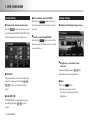
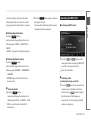
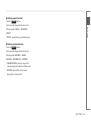
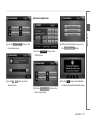
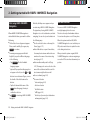
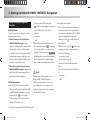
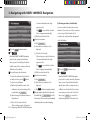
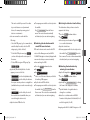
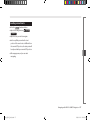
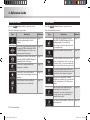
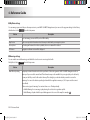
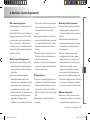
If you have enabled
Highway Drive Mode
in Map
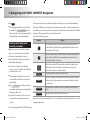
■ Using the Cursor (the selected map
location)
Settings, additional information may appear
on the left:
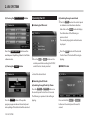
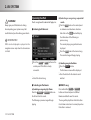
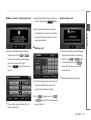
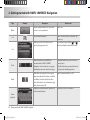
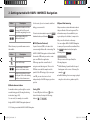
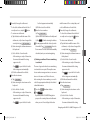
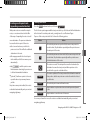
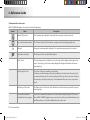
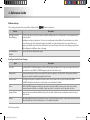
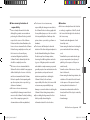
You can perform the following actions:
Button
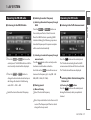
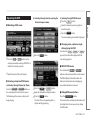
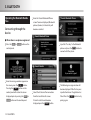
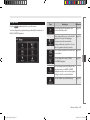
First, place the Cursor at the desired map
location with one of the following options:
● Use the Find menu to select a location. The
In the active route, uses the
Cursor as the destination by
replacing the previous
destination
Insert
Waypoint
In the active route, uses the
Cursor as a via point (an
intermediate destination)
preceding the destination
Continue
In the active route, uses the
Cursor as the destination
while keeping the previous
destination as a via point
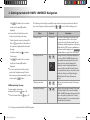
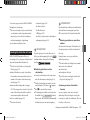
Cursor) in the middle, and the Cursor menu
appears with the available options.
Tap the map to place the Cursor at the
to open the
desired location. Now tap
Cursor menu.
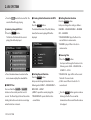
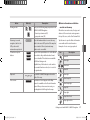
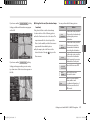
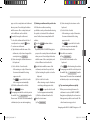
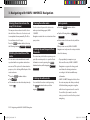
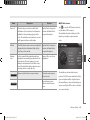
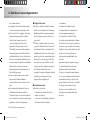
If you have enabled
Intersection Zoom
in Map
Settings, when approaching a route event, a
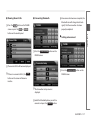
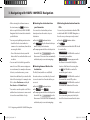
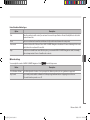
Save as POI
Saves the Cursor as a POI
top down view of the intersection appears on
the left:
Add to
Favourites
Saves the Cursor as a
Favourite location
Info
Opens a screen with the
name, address and
coordinate information of
the Cursor, and the list of
POIs near it
Getting started with HAVN-100HMCIS Navigation
Set as
Destination
map returns with the selected point (the
●
Action
Getting started with HAVN-100HMCIS Navigation 2-13
HM_[영어]_Part2.indd 13
2008-12-19 오후 3:34:58