1
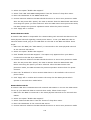
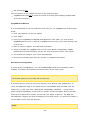
You must configure your myQNAPcloud account using the myQNAPcloud App before
logging into the myQNAPcloud portal.
Ma na ging a nd C onfiguring y our m y Q NAPc loud Ac c ount
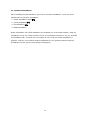
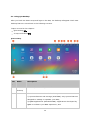
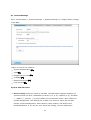
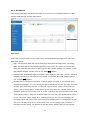
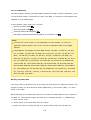
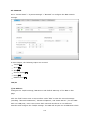
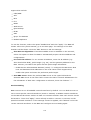
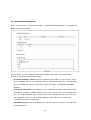
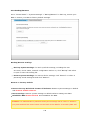
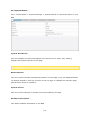
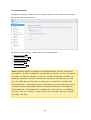
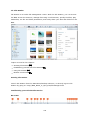
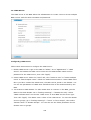
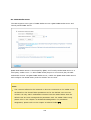
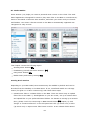
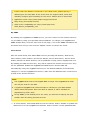
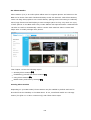
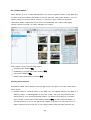
After launching myQNAPcloud or logging into your account on the myQNAPcloud
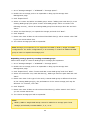
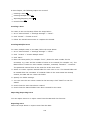
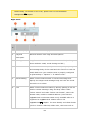
website, click on your nickname (next to the notification icon in the top-right corner) >
"User Profile". On this page, you can:
Update your profile
Change your myQNAPcloud login password
Add or edit your contact list
Check application logs
Monitor myQNAPcloud activities
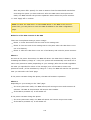
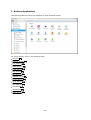
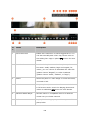
Ac c e ssing NAS Se rv e rs v ia m y Q NAPc loud We bsite
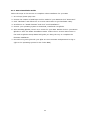
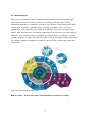
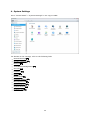
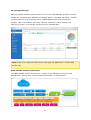
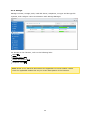
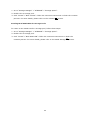
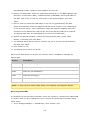
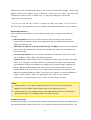
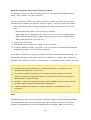
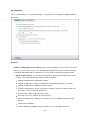
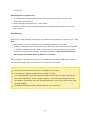
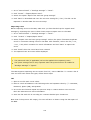
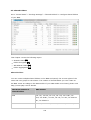
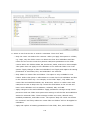
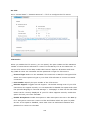
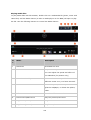
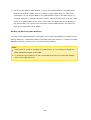
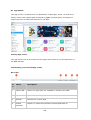
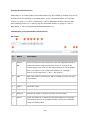
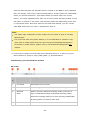
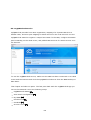
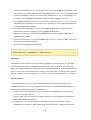
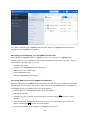
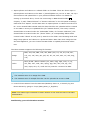
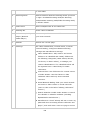
After you log into the myQNAPcloud web portal, you will see a list of NAS servers under
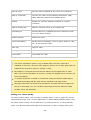
"My Devices" on the left of the screen. Click on any of the NAS and there will be a list
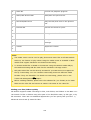
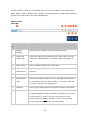
of available actions to perform and you will be able to:
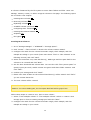
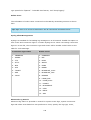
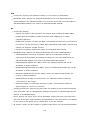
Perform basic file management tasks as in File Station
Manage share links
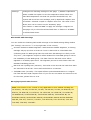
Configure access controls (check the above Access Control 328 section for more
details)
View and access published and private services (for private services, check the
above Cloud Portal 327 section for more details)
Review and refresh device details or unregister the device
331