1
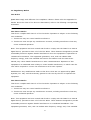
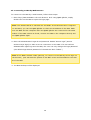
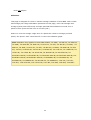
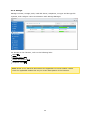
Use r a c c ount m a na ge m e nt
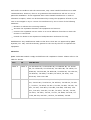
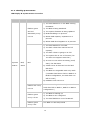
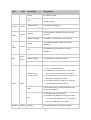
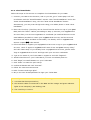
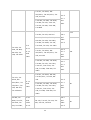
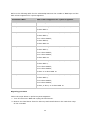
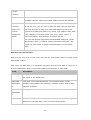
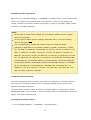
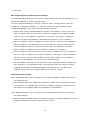
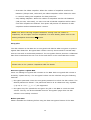
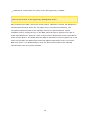
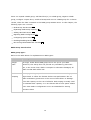
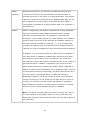
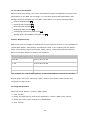
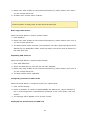
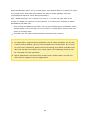
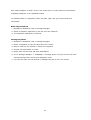
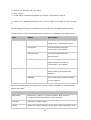
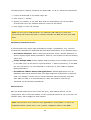
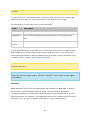
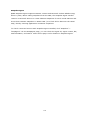
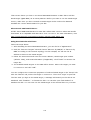
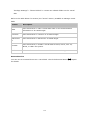
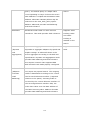
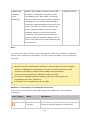
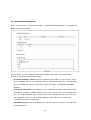
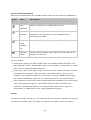
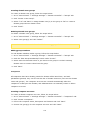
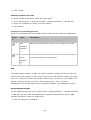
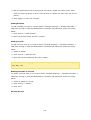
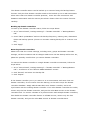
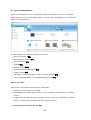
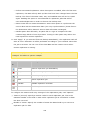
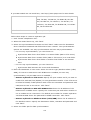
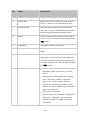
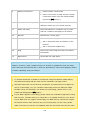
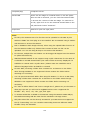
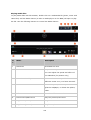
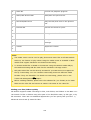
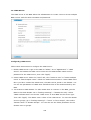
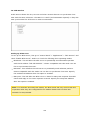
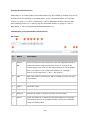
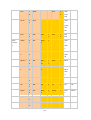
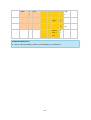
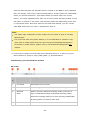
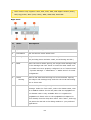
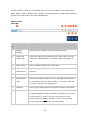
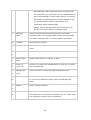
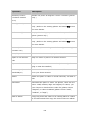
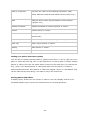
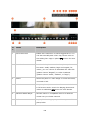
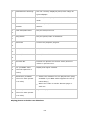
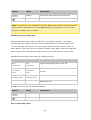
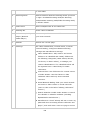
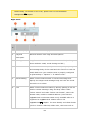
Refer to the following table for available buttons under "Action" and their explanations:
B utto
Na m e
De sc ription
Edit
Edit the password of a domain user account.
n
Password
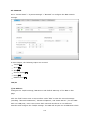
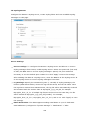
Edit User
Specify whether the domain user must change the
Propertie
password at the first login, account expiration date,
s
description and email.
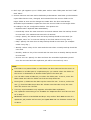
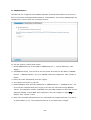
Edit
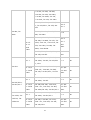
Choose which domain group(s) the domain user belongs to.
Group
Members
hip
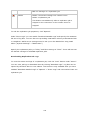
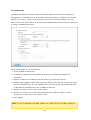
Edit User
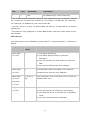
Specify the profile path, login script, and home folder of an
Profile
domain user account.
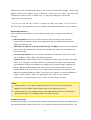
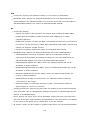
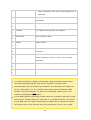
For user profiles:
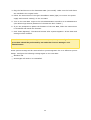
Profile path: Specify the shared folder where the roaming profiles are stored. The
path specified can be a shared folder name such as /home or /user1profile, or a UNC
path such as \\nas.mydomain.local\home.
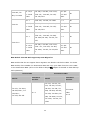
Login script: Specify the logon script to execute when a domain user logs on from a
PC member of the domain. Copy the script to the shared folder (sysvol) in the
subfolder {your_domain}\scripts by connecting to the share \\NAS\netlogon with
the domain administrator, and then you can directly specify the script filename.
Home: Specify the drive letter and a shared folder that is mapped to the drive letter
when the domain user logs on to the domain with the domain username and
password. The path specified can be a shared folder name such as /home or /
user1profile, or a UNC path such as \\nas.mydomain.local\home.
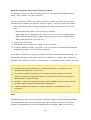
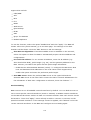
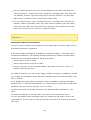
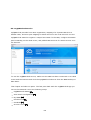
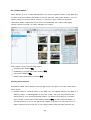
Groups
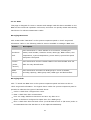
To enhance security control, you can create domain user groups. A domain user group is
a collection of domain users who share the same access rights to files and folders.
190