1
CHAPTER 2
Working with SMART Table Toolkit
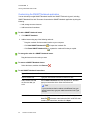
Customizing Hot Spaces
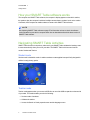
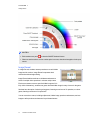
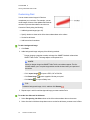
You can create custom activities in Hot Spaces to complement your curriculum. For example, if your
class is studying the four seasons, you can create areas or spaces on the table to represent each
season and have students identify labels or images that are associated with each season.
Add touch-to-hear audio to labels or images so that students can press objects on the table and hear
text read or spelled or sound files played. For example, when they press an image or text label of a
cat, students hear “cat,” “C-A-T” or the sound “meow.”
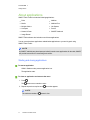
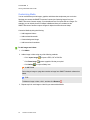
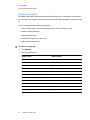
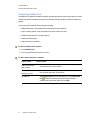
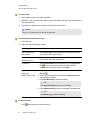
You can customize Hot Spaces by doing the following:
l
Add a background image
l
Define the Hot Spaces
l
Add text labels and images
l
Add touch-and-hear audio
l
Set the start and end positions of text labels and images
l
Add instructions for students
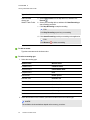
To create an activity
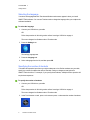
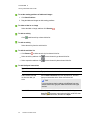
1. Click Hot Spaces.
2. Type a name for the activity in the Activity title box.
To add a background image
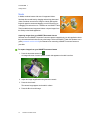
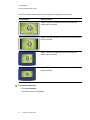
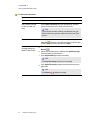
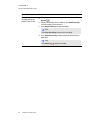
1. Add a background image using any of the following methods:
o
Drag an image or a page that contains an image from SMART Notebook software into
SMART Table Toolkit. The image adjusts to the optimal size.
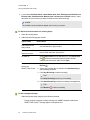
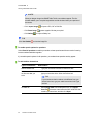
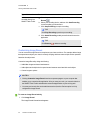
N OTE
When you drag an image into SMART Table Toolkit, two windows appear. The first
window enables you to crop the image and the second window shows you a preview of
the results.
56
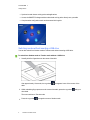
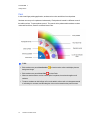
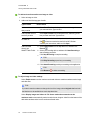
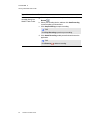
o
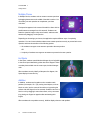
Click Import image
o
Click Paste image
o
Click Gallery
to import a JPEG, GIF or PNG file.
to paste a graphics file that you copied.
to import a Gallery item.
smarttech.com/kb/170414