1
STOCK ORDERS
Chapter 9
Converting an Order to a Packing Slip
If you are using purchase orders, you can convert the order to a packing slip. This will eliminate the
need to re-enter the items you have ordered.
1. Click on the ‘Creditors’ button.
2. Click on ‘Packing Slip’ and ‘Convert Order to Invoice’.
3. The Order Search window will appear.
4. Search for the order and select it.
5. The packing slip form should now appear on the screen for you to edit.
New Packing Slips
If you are not using purchase orders but wish to adjust only your stock levels when the goods arrive
and not the pricing, you can just create a new packing slip.
1. Click on ‘Creditors’ button.
2. Click on the ‘Packing Slip’ button and then select ‘New Packing Slip’.
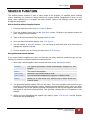
3. This form will list all the packing slips and orders that are open for that supplier. Each order
or packing slip will show the supplier reference so you can tell if someone has already
started entering a packing slip for this supplier.
4. If your new packing slip is not one of the ones listed, click ‘F7 New’.
5. The packing slip form should now appear on the screen to edit.
Unfinished Packing Slips
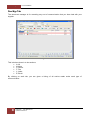
Use this menu item to find a packing slip that you have opened but not yet finished.
1. Click on ‘Creditors’.
2. Click on ‘Packing Slip’ and ‘Unfinished Packing Slip’.
3. Because the packing slip number is the same as the number used in an inwards goods
invoice, the inwards goods search window will appear.
4. Search for the packing slip.
5. The packing slip form should now appear on the screen to edit.
HAIRLINKSQL User Manual v4.5
Updated 01/05/2012
21