1
Chapter 7
Importing a
Roster
PRS Web Registration App – The Admin Module 133
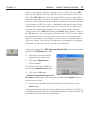
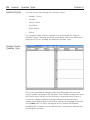
The Import Class Roster option provides the facility to import a Roster
from your computer to the Manage Rosters page.
1
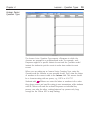
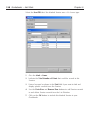
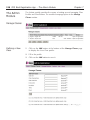
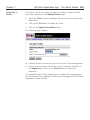
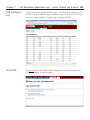
Select the Class from the drop-down list that you want to import the
Roster into.
2
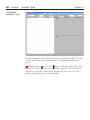
Click on the GO button to display the Class.
3
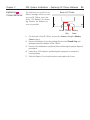
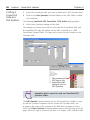
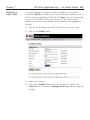
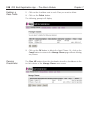
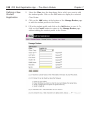
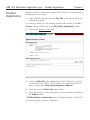
Click on the Import Class Roster button.
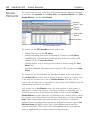
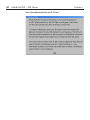
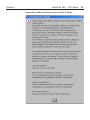
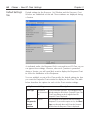
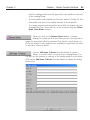
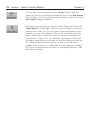
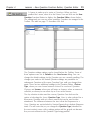
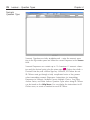
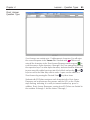
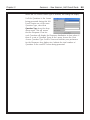
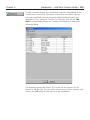
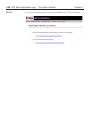
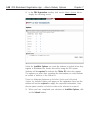
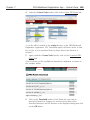
The following page displays.
4
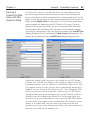
Indicate whether you want to Append or Replace the existing Roster.
5
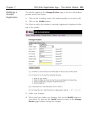
Browse to the location of the Roster on the computer, and click on
the Import button. Click on the Cancel button to cancel the
operation.
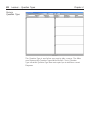
The imported Roster will be appended to or replace the existing Roster
for the selected Class, making it available to be managed in the PRS Web
Registration Admin Module.