1
72
Lessons – Lesson Function Buttons
Chapter 4
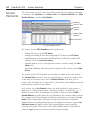
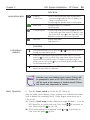
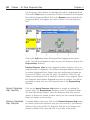
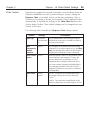
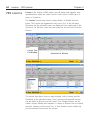
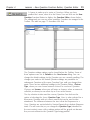
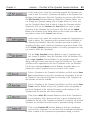
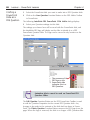
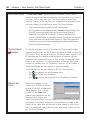
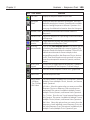
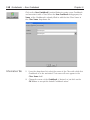
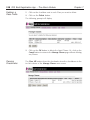
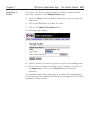
You can start a Session directly from the Lessons Section. Select the
Lesson you want to use during the Session and click on the New Session
Function Button. Fill in the remaining Session options (Chapter Five) in the
New Session dialog that displays.
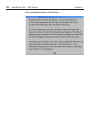
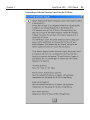
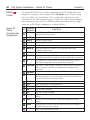
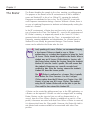
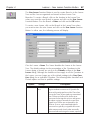
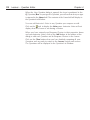
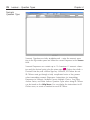
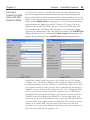
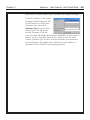
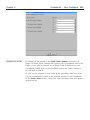
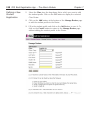
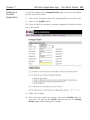
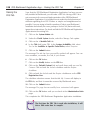
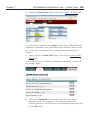
Select the Lesson for which you want to create a Report and click on the
Create Report Function Button. Choose the type of Report you want to
create for this Lesson. The Text Only option means that graphics in the
Question or in any of the Response Choices will not be included in the
Report. This function is often used when an instructor is running a Self
Paced Session (Chapter Five). The Questions and Response Choices do
not display during this type of Session, so using this function to print out
the Questions and Response Choices is an easy way to make them
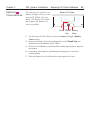
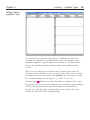
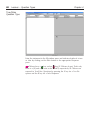
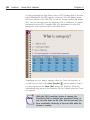
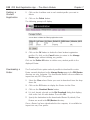
available to the students. You will be able to choose between creating a
PDF file of the Report format you select, or viewing the Report in a PRS
Print Preview window.