1
-
Poor quality connectors
-
Cross threaded connector on wintercom and cable
-
Bad cable assembly practices
-
Cable assemblies not tested / rated for frequency of operation
-
Bad antenna model selection for the site in question
-
Questionable radio line of sight to master wintercom
-
Interference in the same frequency used by the wintercom system
-
A bad radio in the wintercom unit
The best way to diagnose a radio path problem is to dial the master from each wintercom unit. If you
can maintain a phone call for longer than one minute consistently between any unit and the master, you
can assume that the master working properly, and continue diagnosing the radio path for each
additional unit. Additionally, there is a radio signal strength tool for field use called TUtil wintercom 58,
which can be downloaded from the Teletics website.
TUtil wintercom 58 can be run on a laptop connected to the wintercom system master unit, and it will
display the signal strength for each wintercom unit on the system.
It is also important to understand that once one wintercom can call another wintercom, the data
portion of the wintercom is operating. Telephone calls use exactly the same radio path and
programming that the Ethernet port on the wintercom uses. In essence, the phones are just an
extension to the data network.
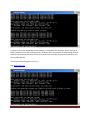
However, if you are experiencing problems accessing the internet try pinging one of the other
computers or routers on the wintercom system first. To do this, go to a computer on the wintercom
system, and open up a command prompt window. (Usually under Start, Programs, Accessories,
Command Prompt.)
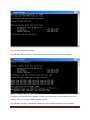
Type this command: ipconfig
You should see some basic network addresses, and more importantly, something called a default
gateway address:
Teletics wintercom Installation and User Guide V1.2 July 18 2012
Page 18