1
Using EduWeb 2004
What's the EduWeb “My Work” Shortcut Creator?:
If your EduWeb was created with EduWebsetup v3 or later, you'll find some extra files in the
EduWeb folder, all with the filename EWShrtct. These files are only for Windows users,
(unfortunately an Apple Mac version is not yet available). The school’s Network Administrator
should have placed a shortcut on the Desktop to the EWShrtct.exe program (the one with the
icon that looks like an eye). Running this program will display a list (in alphabetical order) of
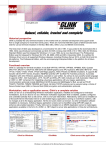
all the students in your school that have an EduWeb folder – as shown below:
The screen shown here is
displayed and it is a simple
matter for students to find
their own name then click OK
(or simply double-click their
name). To make it easier with
a large number of student
names, users can type the first
letter of their surname to jump
straight to the first surname
with that letter. When the OK
button is clicked, a Shortcut
will automatically appear on
the
desktop
called
"My
Work". If there already was
such
a shortcut on
the
desktop, it will be updated to
point to the new user name.
When finished, the EduWeb
Shortcut program will close.
Double-clicking the "My Work"
shortcut on the desktop will
open the selected user's folder,
and the Work and Images
folders will be visible. But the
biggest benefit of having this
shortcut is when students use
Word,
FrontPage,
Excel,
Publisher or any other program
that allows you to save in a
selected folder. When the user
wants to save their Word document, for example, and the normal "Save" folder is shown as
"My Documents", it is a simple matter to change the folder to "Desktop" and then select the
"My Work" shortcut to immediately open that student's EduWeb folder.
By having all students' work saved in their EduWeb folder, creating their EduWeb content is
made very easy. If you are a Windows school, you are doing your students a disservice
by not using this utility. When creating the shortcut to the utility on each desktop, it is
recommended you rename the shortcut to “Login to EduWeb” or something similar as shown
at right. Instruct your students to “Login to EduWeb” when they first sit down at
the PC, and they will be assured of having easy access to their EduWeb folder.
Using The EduWeb Shortcut Creator with Individual Logins:
This section applies to schools that did not use my Individual Login Wizards for
Netware or Windows 2000 servers. This process is automatically performed for
you when you use the Wizard and the extra utility included for marrying logon account names
with individual EduWeb folders.
by Stuart Hasic – http://www.stgeorged.det.nsw.edu.au/eduweb
Page 20