1
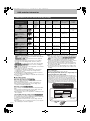
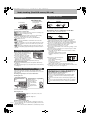
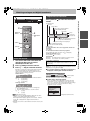
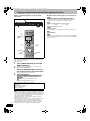
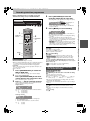
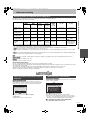
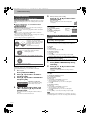
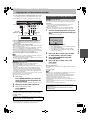
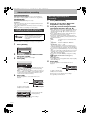
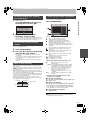
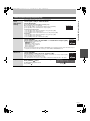
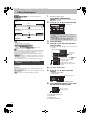
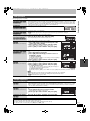
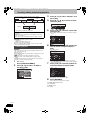
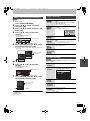
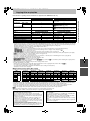
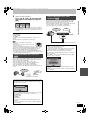
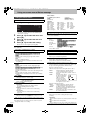
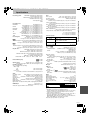
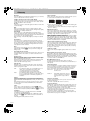
DMREX78&88GN-RQT9088-L_eng.book 21 ページ 2008年4月1日 火曜日 午後6時38分 Advanced recording Recording modes and approximate recording times Recording Mode HDD DVD-R DL§3 (8.5 GB) +R DL§3 (8.5 GB) [EX78] (250 GB) [EX88] (400 GB) Singlesided (4.7 GB) Doublesided§1 (9.4 GB) DVD-R DVD-RW +R +RW (4.7 GB) XP (High picture quality recording mode) 55 hours 89 hours 1 hour 2 hours 1 hour 1 hour 45 min. 1 hour 45 min. SP (Standard recording mode) 110 hours 178 hours 2 hours 4 hours 2 hours 3 hours 35 min. 3 hours 35 min. LP (Long recording mode) 221 hours 357 hours 4 hours 8 hours 4 hours 7 hours 10 min. 7 hours 10 min. 441 hours (331hours§2) 712 hours (534hours§2) 8 hours (6 hours§2) 16 hours (12 hours§2) 8 hours (6 hours§2) 14 hours 20 min. (10 hours 45 min.§2) 441 hours maximum 712 hours maximum 8 hours maximum 8 hours maximum for one side 8 hours maximum 14 hours 20 min. EP (Extra long recording mode)§4 FR (Flexible Recording Mode)§4 DVD-RAM Approximately 9 hours with video quality equivalent to LP mode. §1 It is not possible to record or play continuously from one side of a double sided disc to the other. When “Recording time in EP mode” is set to “EP (6 Hours)” in the Setup menu (➡ 61). The sound quality is better when using “EP (6 Hours)” than when using “EP (8 Hours)”. §3 You cannot record directly to DVD-R DL and +R DL discs with this unit. The table shows the recording time when copying. [+R]DL] You cannot copy in “EP” or “FR (recordings 5 hours or longer)” mode. §4 When recording to the HDD in “EP” or “FR (recordings 5 hours or longer)” mode, you cannot perform high-speed copy to +R, +R DL or +RW discs. §2 Important notes for recording/Advanced recording Depending on the content being recorded, the recording times may become shorter than indicated. (The times provided on this chart are an estimate.) ≥[RAM] When recording to DVD-RAM using “EP (8 Hours)” mode, play may not be possible on DVD players that are compatible with DVD-RAM. Use “EP (6 Hours)” mode if playback may be on other equipment. [HDD] ≥You can record up to 499 titles on HDD. (When continuously recording for long durations, titles are automatically divided every 8 hours.) [RAM] [-R] [-RW‹V›] ≥You can record up to 99 titles on one disc. [+R] [+RW] ≥You can record up to 49 titles on one disc. FR (Flexible Recording Mode) You can set FR (Flexible Recording) mode when copying or programming timer recordings. The unit automatically selects a recording rate between XP and EP (8 Hours) that will enable the recordings to fit in the remaining disc space with the best possible recording quality. For example with a 90 minute recording to an unused DVD-RAM, the picture quality is adjusted to between “XP” and “SP”. ≥When recording to the HDD, picture quality is automatically adjusted to precisely fit a copied title on a 4.7 GB disc. ≥All the recording modes from XP to EP appear in the display. REC When the format confirmation screen is displayed [RAM] [-RW‹V›] [+R] [+R]DL] [+RW] When you insert a new disc or a disc recorded on a computer or other equipment, a format confirmation screen is displayed. Format the disc to use it. However, all the recorded contents are deleted. Format This disc is not formatted properly. Do you want to format the disc now ? Yes No When removing a recorded disc [-R] [-R]DL] [-RW‹V›] [+R] [+R]DL] The following screen appears when you have not processed the disc for play on other equipment. Finalise Finalise the disc so that it can be played on other DVD players. Note: Recording or Editing is not possible after finalising. This may take up to min. Press the REC button to start finalise. Press the OPEN/CLOSE button to exit. The disc cannot be played on other DVD players without finalising. SELECT OK RETURN Press [2, 1] to select “Yes” and press [OK]. To format a disc “Deleting all the contents—Format” (➡ 57) ∫ To finalise the disc Press [¥ REC] on the main unit. ≥You cannot stop this process once you have started it. ≥If you want to set the background, play menu select or provide a disc name, select “Top Menu” (➡ 58), “Auto-Play Select” (➡ 58) or “Disc Name” (➡ 56) in “DVD Management” before finalising. ∫ To open the tray without disc finalisation Press [< OPEN/CLOSE] on the main unit. RQT9088 21