1
69 ページ 2008年4月1日 火曜日 午後6時38分
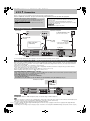
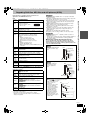
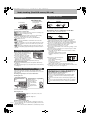
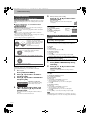
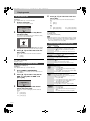
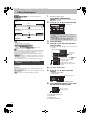
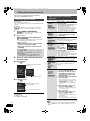
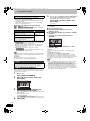
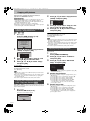
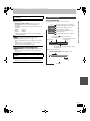
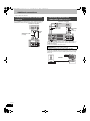
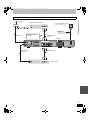
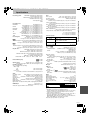
Connecting an amplifier with a digital
input terminal
Connecting a stereo amplifier
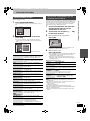
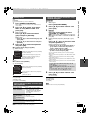
≥To enjoy multi-channel surround sound DVD-Video, connect an
amplifier with Dolby Digital, DTS and MPEG decoders.
[Required]setting]
“Digital Audio Output” in the Setup menu (➡ 62)
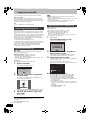
≥When this unit is connected to an amplifier with an optical digital
audio cable and connected to a television with an HDMI cable, you
can enjoy the highest quality of audio from the disc by setting
“Digital Audio Output” to “Optical Only” in the Setup menu (➡ 64).
In this case audio is only output from the amplifier not the
television.
≥Before purchasing an optical digital audio cable (not included),
check the terminal shape of the connected equipment.
≥You cannot use DTS Digital Surround decoders not suited to DVD.
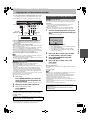
Amplifier’s rear panel
Additional connections
DMREX78&88GN-RQT9088-L_eng.book
Amplifier’s rear panel
AUDIO IN
R L
Red White
OPTICAL IN
Audio cable
Insert fully, with
this side facing
up.
Optical digital audio cable
Do not bend sharply when
connecting.
Red White
DIGI AL AUDIO
DIGITAL
UDIO OU
OUT COMPONENT
(PCM/BITSTREAM)
VIDEO OUT
OUT
OPTICAL
AV4
V4 IIN
OUT
This unit’s rear panel
AV1
(TV)
OUT
PB
PR
AV4
V4 IIN
Y
AV2 (EXT)
R-AUDIO-L
VIDEO
S VIDEO
This unit’s rear panel
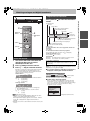
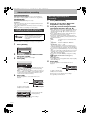
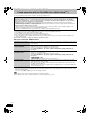
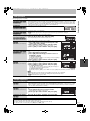
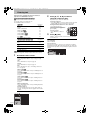
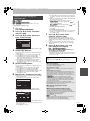
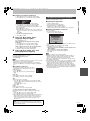
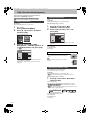
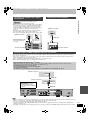
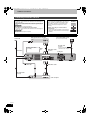
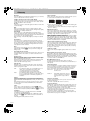
Connecting with an HDMI compatible television and receiver
When connected to an HDMI compatible unit, an uncompressed digital audio and video signal is transmitted. You can enjoy high quality, digital
video and audio with just one cord. When connecting to an HDMI-compatible HDTV (High Definition Television), the output can be switched to
1080p, 1080i or 720p HD video.
≥Video sources converted to 1920k1080 resolution, while of high quality, will exhibit somewhat lower subjective image resolution than true,
native 1080p full-HD sources. See dealer for details.
≥Please use High Speed HDMI Cables that have the HDMI logo (as shown on the cover).
≥When outputting 1080p signal, please use HDMI Cables 5.0 meters or less.
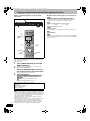
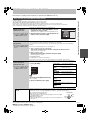
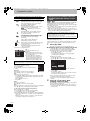
Regarding VIERA Link “HDAVI ControlTM” function
When connecting with a Panasonic TV (VIERA) or a receiver equipped with the “HDAVI Control” function, linked operations would be
possible. [➡ 36, Linked operations with the TV (VIERA Link “HDAVI ControlTM”)]
≥Non-HDMI-compliant cables cannot be utilised.
≥It is recommended that you use Panasonic’s HDMI cable.
Recommended part number:
RP-CDHG10 (1.0 m), RP-CDHG15 (1.5 m), RP-CDHG20 (2.0 m), RP-CDHG30 (3.0 m), RP-CDHG50 (5.0 m), etc.
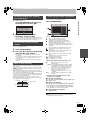
Television’s rear panel
HDMI IN
HDMI cable
Receiver’s rear panel
HDMI IN
[Required]setting]
≥Set “Digital Audio Output” to
“HDMI and Optical” (➡ 64).
(The default setting is “HDMI and
Optical”.)
RF
IN
HDMI cable
Y
OPTICAL
PR
DIGITAL AUDIO OUT COMPONENT
(PCM/BITSTREAM)
VIDEO OUT
HDMI AV OUT
OUT
AV1
(TV)
AV4
V4 IIN
N
PB
RF
OUT
HDMI OUT
AV2 ( EXT )
AC IN
R-AUDIO-L
VIDEO
S VIDEO
AV OUT
This unit’s rear panel
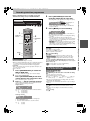
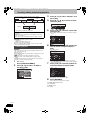
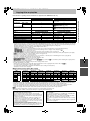
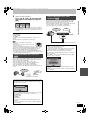
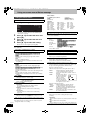
[Note]
≥If you are connecting to a TV that is only compatible with 2 channel audio output, audio with 3 channels or more will be down mixed (➡ 84) and
output as 2 channels, even if connecting with an HDMI cable. (Some discs cannot be down mixed.)
≥You cannot connect this unit to DVI devices that are incompatible with HDCP.
For units compatible with HDCP (High-Bandwidth Digital Content Protection) copyright protection that are equipped with a digital DVI input
terminal (PC monitors, etc.):
Depending on the unit, images may not display properly or at all when connecting with a DVI/HDMI switching cable. (Audio cannot be output.)
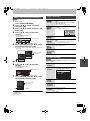
RQT9088
69