1
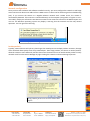
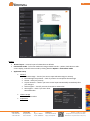
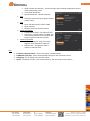
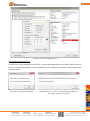
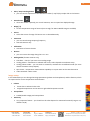
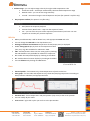
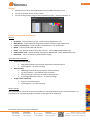
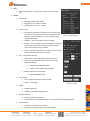
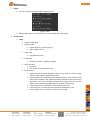
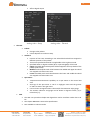
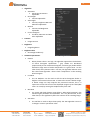
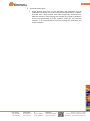
16 Reflected temperature Insert ambient temperature to correct reflection of incident radiation Advanced settings (important only for detailed temperature measurement) Atmospheric temperature Humidity (%) of ambient environment Distance (m) of the measured object from camera Ext. optics transmission Live/Saved thermo image window You can see the live or opened image or sequence in this window. Also you can insert measuring ROI (line, rectangle, point) into image, zoom the image and adjust temperature range of color palette. ROI (Region of Interest) tools - measuring tools; for thermal cameras only Select ROI – you can resize/move selected ROI by dragging on its corner (line & rectangle) or ROI itself (point) Temperature – show current temperature on cursor position Point – click to image to place the point Line – click&drag to place the line Polyline – click&drag&double click to place the broken line Rectangle – click&drag to place the rectangle ZOOM tools every mouse click on the image zoom the image twice adjustable zoom scale Fill – fill thermo image window with the image 100% - full image size you can zoom-in or zoom-out with mouse scrolling too Thermo image Image capture - right click on the image and you can save the image as Radiometric JPEG, PNG or CSV Radiometric JPEG native FLIR image format standard JPEG with radiometric data included image can be shown in every common image viewer full radiometric support in FLIR Tools PNG lossless data compression temperature scale inluded (thermal cameras only) CSV comma separated temperature matrix Phone numbers +420 739 428 433 +420 725 955 464 E-mail and Web [email protected] www.workswell.cz ID Reg. No.: 29048575 VAT No. CZ29048575 Headquarters Libocká 653/51b, 16100 Prague, Czech republic Revision 1.4 EN, 7. 4. 2015 All pictures are only for illustration Real values and parameters may vary