1
3.2. REGISTRATION
9
Scapple again in the future. (Remember that you may need to re-register at a later date—
for instance when installing Scapple on a new system, or re-installing after wiping your
hard drive for some reason—so it is important to store this information safely.)
If you have lost your serial number, clicking on “Retrieve Lost Serial. . . ” in the registration window will take you to our vendor’s self-service support site, where you can
request to have the information re-sent to you. If you do not have the necessary information available to fill out that form, please contact us via our support e-mail address1 , and
we will be happy to look up the information for you.
3.2.2 Registering Scapple
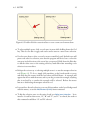
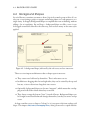
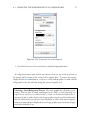
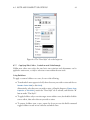
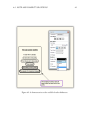
After purchasing a licence and receiving your unique serial number, you can register Scapple by clicking on the “Enter License. . . ” button in the “Scapple is unregistered!” box
that appears whenever you launch Scapple. Alternatively, you can choose “Register. . . ”
from the Help menu .
In the “Serial Number Name” box of the registration window, enter the exact name
under which you registered Scapple. Enter your unique serial number in the “Serial
Number” box, then click the “Register” button. You must make sure that both the user
name and serial number are exactly as they appear in the registration email you received,
or registration will fail.
If you receive a message stating that the name or serial number is invalid:
G
Check and make sure they are in the right order. The name of the software owner
should be in the top field, and the serial number in the second field.
G
Try using Copy and Paste to transfer the information from the email to this form
and make sure that when you select the text in the email, the selection range does
not extend beyond the first or last letter or number in the name or serial number.
G
If all else fails, quit and relaunch Scapple. This can sometimes clear out pesky
gremlins in registration procedures.
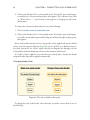
After clicking the “Register” button, Scapple will authenticate your copy over the internet. No personal information is relayed during this process. If for some reason the
internet is not available, you will receive a warning message with instructions on how to
activate the software manually. A URL will be provided which you can use on another
machine to access the activation code you’ll need to complete the registration process on
the original computer. Scapple will continue to work in the interim—you will just see a
1
mailto:[email protected]