1
84
APPENDIX B. MENUS AND KEYBOARD SHORTCUTS
Zoom To Selection (Ctrl+Shift+8) Works in a fashion similar to View Zoom to Fit, save
that only those notes that are selected will be fitted into the view.
Zoom To Random (Ctrl+Shift+R) Zooms the view to a random note anywhere on the
board.
QuickZoom (Z) On account of how this feature works, it cannot be listed in a menu as
it only works while the keyboard shortcut is depressed. However it is listed here
as it deserves mention with these other features. QuickZoom will act a bit like
View Zoom to Fit, but only while the shortcut key is held down. When the key
is released, the zoom will snap back to its original level, with the location you are
pointing at with your mouse scrolled into view.
B.4
Notes Menu
Provides commands for creating, manipulating and organising notes and shapes within
the active board, or the current selection.
New (Stacked) Note (Ctrl+Enter) When no notes are selected, this will be labelled, “New
Note”, and it will create a note roughly in the middle of the current view.
If a shape is selected, it will act likewise, but the new note will be placed overlapping
the shape.
When a note is selected, this command will create a new stacked note beneath the
selected one. In cases where the selected note is somewhere in the middle of an
existing stack, room will be made for the new note after it, and before the one
following it.
Read Creating Notes (subsection 4.2.1) for more information on how to make new
notes, and Stacks (section 4.5).
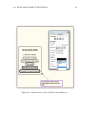
New Background Shape (Around Selection) When nothing is selected, this command will create a new shape roughly in the middle of the view. If anything is
selected (including other shapes), the shape will be pre-sized to fit around the entire
selection, and the menu label will read, “New Background Shape Around Selection”.
New Connected Note This sub-menu provides convenience commands for creating
new notes pre-connected to the currently selected notes. These commands are directional, and their keyboard shortcuts can be combined with the arrow keys on
your keyboard in a logical fashion. Read more about Connections (section 4.3).