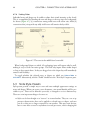
1
6.3. NOTE STYLE PRESETS
49
style itself will automatically change everything in the document assigned to it, it
is worth mentioning. Changing a style after it has been used will never go through
and change the appearance of pre-existing notes. It will only change how it functions going forward.
G
Styles are document specific. Each document you create will likely have its own
specific formatting needs. You can freely change and delete styles from this menu
without fear of changing other documents. If you would like to import styles from
another document you’ve already created, a convenient tool has been provided for
doing so: Format Note Style Import Note Styles. . . .
You can change these default styles in “General” Options (Appendix A), by opening a document with the styles you want to use henceforth, and clicking the Set
From Current Document button.
G
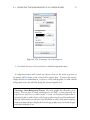
As you might have already picked up, styles are applicable to both notes and background shapes. If you use a style that contains characteristics specific only to shapes
(like magnetism), it will simply be ignored by notes. Likewise, shapes will ignore
all settings pertaining to text formatting.
6.3.1 Using Styles
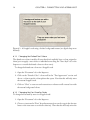
To apply styles to notes or shapes, simply select the items you wish to apply the style to
using whatever method you prefer. Next, either use the Format Note Style Apply Note
Style sub-menu to choose the style, or right-click on any of the selected items to bring
up the contextual menu (in most cases this will be most convenient as the sub-menu is
provided at the top-level of the contextual menu).
6.3.2 Deleting Styles
Styles can be deleted from the Format Note Styles Delete Note Style sub-menu. As
mentioned before, this will not impact any notes you’ve already created. It will only
remove the style from the list. If you’ve used that style before, you can always get it back
by selecting a note that used that style in the past, and creating a new style from it.
6.3.3 Creating Styles
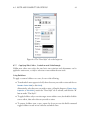
Styles are created by selecting the single note or shape you wish to use as a prototype for
the appearance, and then using the Format Note Styles New Note Style from Selection
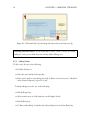
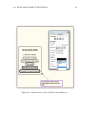
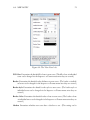
menu command. This will bring up an option panel (Figure 6.8).
Name The name that you provide will be used in all of the menus.