1
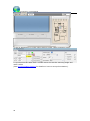
Using Tourweaver 7
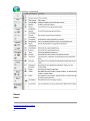
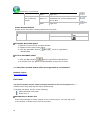
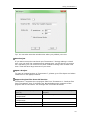
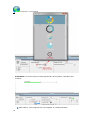
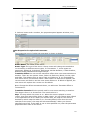
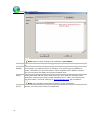
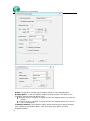
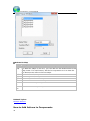
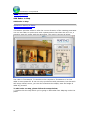
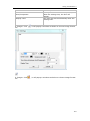
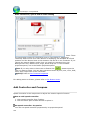
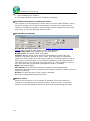
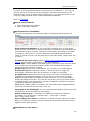
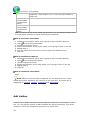
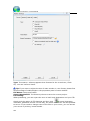
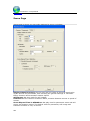
: To set the shape and size of scanning area. The scanning area is the scope
where the radar scanning can reach. You can define the area as a rectangular or
a round.
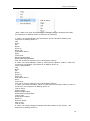
: Set scene parameters and hotspot area of radar.
Note: In old version of Tourweaver, only synchronization with panorama is
supported while in Tourweaver 4.00, 5.00 ,6.00 and 7 , synchronization with still
image is featured.
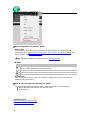
Synchronize with Panorama
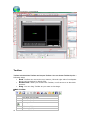
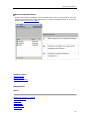
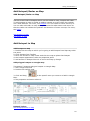
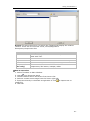
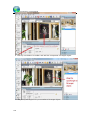
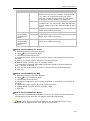
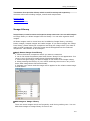
1. Choose the panoramas which you want to make synchronization from the
scene list
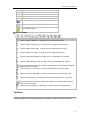
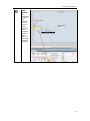
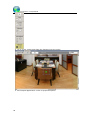
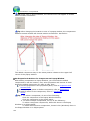
2. Press
and drag the scene to a certain position in left window; drag the
indicating direction of radar to let it synchronize with the scene.
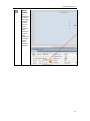
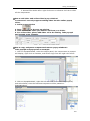
3. Press
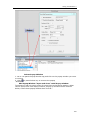
to set the shape and size of scanning area
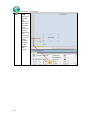
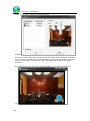
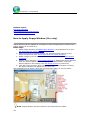
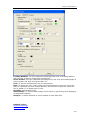
4. Press
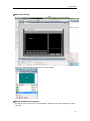
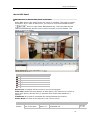
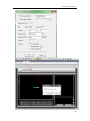
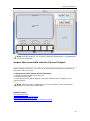
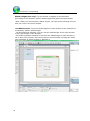
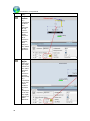
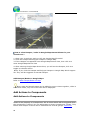
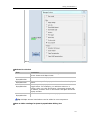
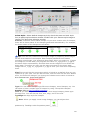
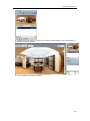
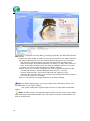
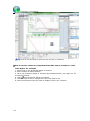
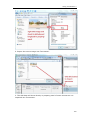
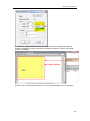
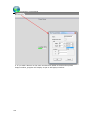
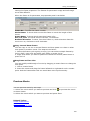
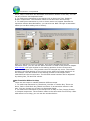
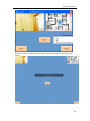
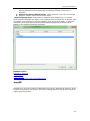
to set scene parameters and hotspot area of radar. Drag the scene
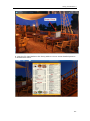
to a certain position and set its FOV so that when the radar is clicked, you will
see the scene with this FOV. Set hotspot area for radar at right side. The area
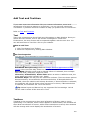
inside the blue broken line is the hotspot area which is shown below. When the
mouse clicks in this area, radar will be triggered to link to specified scene.
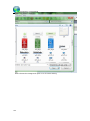
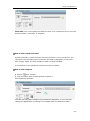
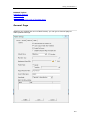
Synchronize with Still Image
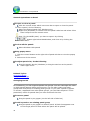
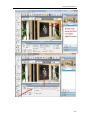
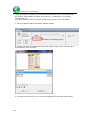
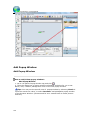
1. Choose the still image which you want to make synchronization from the
scene list
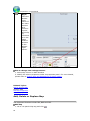
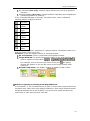
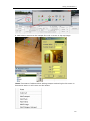
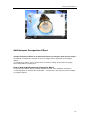
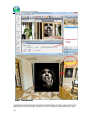
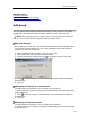
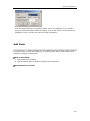
2. Press
and drag the radar sector to make it refer to the direction where
the still image is; and type the angle value for the scanning sector.
99