1
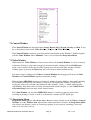
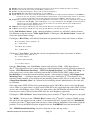
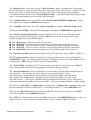
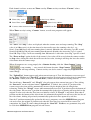
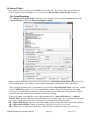
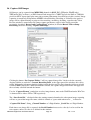
There are also buttons that operate on all existing Overlay Items:
Clear Screen: Erase all overlays on the video frame but do not delete them.
Redraw All: Redraw all existing overlay items.
Disable Overlay: Tick to hide all overlays, clear to make them to reappear instantly.
When this button is ticked it disables the MPEGIO2 channel’s capability to display any overlay: all
overlay items will disappear but remain undeleted. This option can be used as a quick way to turn
on/off the defined overlay items instantly. Note the Drop-down menu also has this option.
Reset Overlay IC: Hardware reset the OSD (Overlay) IC and redraw all overlays, this will
reload the OSD IC’s default register values: current overlay items will be redrawn, but all Video I/O
setup will revert to their default settings, e.g., the Video Sub Windows’ placement will return to the
default 4-SubWindow Equal Split.
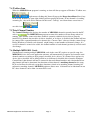
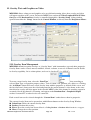
12.2 Overlay Item Types
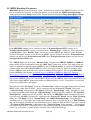
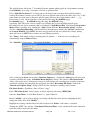
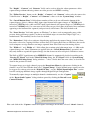
Each Overlay Item has an Item Type, the currently supported Overlay Item Types include:
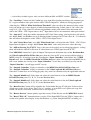
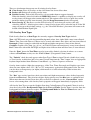
Text: ASCII/Unicode text with foreground/background colour, font, alpha, blink: many items allowed.
Timer: Time, Date with Time or Counter can be created with colour, font, alpha, only one item allowed.
Rectangle: Colour rectangles with width and height and alpha transparency, many items allowed.
Graphics: Graphics files(.bmp, jpg, gif, etc.) of 8-bit/256 colour and transparency, many items allowed.
Box: Colour box with width and height and alpha values different from non-box items, 4 items allowed.
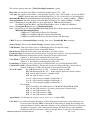
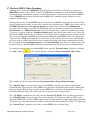
Note the “Font” button for Text/Timer overlay items offers limited selection of colours: to set more
colours to Text/Timer overlays use the “FrGr Colour” (Foreground Colour) button.
The “Unicode” check box only appears when Item Type is Text: to input Unicode (double-byte) string
as Text Overlay, tick this box and select some Unicode font from the “Font” button, also use appropriate
keyboard input method from Windows ControlPanel, e.g. Chinese, Japanese or Korean.
Overlay items can have Alpha for transparency: all the Text, Timer, Rectangle and Graphics type items
share the same Alpha values: 25%, 50% or 75% transparency against their background video. An item
can also have no transparency (no Alpha) which means it is solid colour fully visible in front of its
background video.
The “Box” type overlay items have their own colour and Alpha transparency values defined separately
from the non-Box items. They also have higher display priority over non-Box items as explained later.
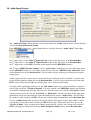
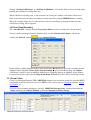
When more than one Overlay Items have been created for a channel, use the “Current Item” combo
box to select among them: each Overlay Item’s properties will appear immediately in property fields.
All Overlay Item Types except the Graphics Item have Colour Property: Foreground Colour is used to
draw the overlay items, Background Colour for the Text and Timer Overlay Items is used to show the
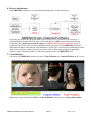
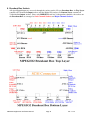
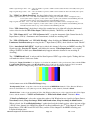
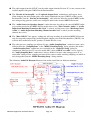
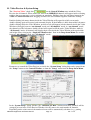
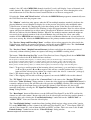
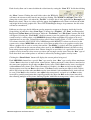
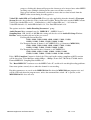
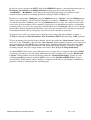
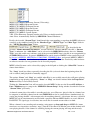
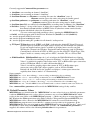
background in between character strokes. The Background Mode for Text and Timer Items can be
either Transparent or Opaque, as illustrated here:
.
MPEGIO2 Application Software Manual
Page 21
Ver. 1.0.2