1
2. Package Contents
1XPCI-Express Card, full Software with SDK, video/audio Breakout Box and Connection Cable.
3. Minimum System Requirement
Hardware: Intel/AMD CPU PC with 1XPCI-Express Slot, 2GB RAM, 512MB Graphics card and audio.
Software: MS Windows7 or XP SP2, DirectX9 on Windows XP, Direct3D9 on Windows 7 or above.
Note 1: PC’s Graphics Card must install its latest device driver, otherwise Video Preview might fail.
Note 2: Only 32-bit Windows XP, Windows7/8 are supported, 64-bit Windows are not supported.
4. Hardware Installation
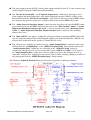
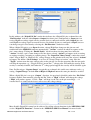
With PC power off, plug MPEGIO2 PCIe card into a PCI-Express slot, screw the back metal bracket
onto PC’s rear rack. Connect the 68-pin SCSI cable between the back-socket on the MPEGIO2 card
and the Breakout Box, connect external video/audio device’s video/audio output sockets to the input
sockets on the Breakout Box. If needed, VCR or TV can be connected to the TV Output sockets on the
Breakout Box to real-time display input video with colour overlay like a video overlay device, or to
real-time output multiple input video window placements like a video multiplexer device.
5. Software Installation
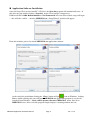
Software installation includes Device Driver and MPEGIO2.exe application, either one can install first.
Device Driver Software Installation
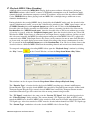
When PC is powered on with the MPEGIO2 card plugged in, MS Windows will inform new device is
found and ask for the location of device driver: indicate to Windows the device driver software is
located either at the installed application software folder (C:\Program Files\Inventa\MPEGIO2) or on
the Setup CD, ignore Windows’ warning messages claiming the driver has not passed Windows’ Logo
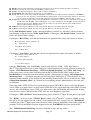
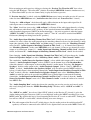
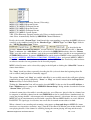
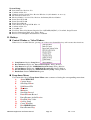
testing etc., proceed to install the device driver until 4 device drivers -- 2XInventa MPEG2 SAA7134
and 2XInventa MPEGIO2 VW2010 -- appear under the “ControlPanel->System->Hardware>DeviceManager->Sound, video and game controllers” category without “?” and “!” next to them:
Note 1. For multiple MPEGIO2 cards, each will have two pairs of “Inventa MPEGIO2 SAA7134”
and “Inventa MPEGIO2 VW2010” device drivers: one pair for each channel, two channels per card.
Note 2. If a channel lost a driver a warning dialog will appear and that channel will not be functional.
Note 3. Peripheral devices with the same hardware IDs as MPEGIO2, e.g. Inventa’s “MPEGIO” or
“MPEGIOPro” PCI cards, should not be used simultaneously with MPEGIO2 on the same PC.
Note 4. “All Programs->Inventa->MPEGIO2->SetupDrv.exe” can also install / reinstall drivers. (Note
on Windows 7 / 8, “SetupDrv.exe” needs to be run “as administrator” by right-mouse clicking the file
name then selecting “Run as administrator”).
Note 5: If PC boot up with MPEGIO2 card inserted but no device driver installed, each card will have
4 unknown devices under the “ControlPanel->System->Hardware->DeviceManager” window: these
must be upgraded to MPEGIO2 device drivers manually or by running the program “Start->All
Programs->Inventa->MPEGIO2->SetupDrv.exe”.
Note 6: Some PC motherboards might not shut down the PC properly after installing MPEGIO2 device
drivers: in this case putting the “ResetDrv.exe” from the MPEGIO2 Program Group into Windows’
“Startup” folder (“All Programs->Startup”) to reset the drivers usually can fix the shutdown problem.
MPEGIO2 Application Software Manual
Page 3
Ver. 1.0.2