1
Fixed Assets & Depreciation System (FADS) User Manual
Introduction
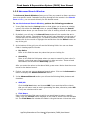
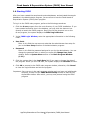
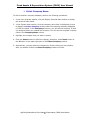
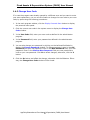
With the CharterHouse/AppFinity FADS, you can easily manage your fixed assets and
meet the US IRS and non-US reporting requirements. You can streamline the
different fixed asset management functions such as depreciation calculation, sale,
disposal and exchange of asset and any asset-related expenditures. This system
allows you to have forecasted information on depreciation costs of all fixed assets or
a specific asset record in the system that will help you in making important decisions.
You can also monitor any expenditure that you will incur for your fixed assets. You
can set a budget for these expenditures to ensure that everything is within a
reasonable limit.
Below are the key features of the Fixed Assets & Depreciation System (FADS)
software:
User-friendly Interface
FADS is designed so that users will not have any difficulty using the software.
Functions of a similar nature are grouped together for your convenience. All
functions related to master files are grouped under the Systems menu; the
processes required to create various transactions are grouped under the Process
menu; generating reports are grouped under the Reports menu and all
administrative functions are grouped under the Admin menu. You have the option to
create your personal menu where you can create shortcuts to the common functions
that you use in your everyday transactions.
Own System Manager
With the main FADS program comes the system manager. Thus, after following the
proper procedures in installing the software, you can run the software right away.
You don’t need a separate module to run the FADS program.
Different Books
FADS allows you to maintain up to five books, namely, financial, federal, state and
two user defined books. You can use the two user defined books to comply with
special industry regulations, insurance valuations, additional state books and other
purposes that may warrant the use of additional books.
Adherence to Different Tax Regulations
CharterHouse/AppFinity FADS supports the following fixed assets tax filing
requirements: filing of form 4562, Investment Tax Credit (ITC), 179 Option, midquarter convention and luxury and electric vehicle cap.
Built-in Depreciation Methods
You can choose from among multiple depreciation methods that are built into the
system. These depreciation methods include the Straight Line method, Modified
Straight Line methods, Modified Accelerated Cost Recovery System (MACRS)
methods, Accelerated Cost Recovery System (ACRS) methods, Declining Balance
methods and the Sum-of-the-Years Digits methods.
AppFinity/CharterHouse Fixed Assets & Depreciation (FADS) User Manual
1
Fixed Assets & Depreciation System (FADS) User Manual
Asset Book Overrides
You can enter manual calculations of depreciation for fixed assets that do not use the
standard depreciation method (Asset Book Overrides). When you run the
Depreciation function, the system will use the amounts saved as asset book
overrides in place of the system-generated calculation. You can use this feature for
fixed assets that do not use the standard depreciation methods.
Forecast Depreciation Costs for All Fixed Assets
With the Depreciation budget function, you can calculate the following year’s monthly
depreciation for all the fixed assets in the system. This will give you a better insight
on the depreciation expenses that will be incurred in the subsequent year(s). You
can forecast to up to three years.
Unlimited Number of Fixed Asset Card Files
In FADS, there is no limit on the number of fixed asset cards and asset book override
records that you can create. For asset cards that had been closed for sometime, you
have the option to purge these records. But extra care must be exercised before
purging these records.
Keep Track of Valuable Information
In the FADS Asset Card Register function, you can enter and view very important
information about the asset file. You can enter information of generic nature like the
department and location to where the asset belongs, the asset custodian,
specifications of the asset, related purchase information, inspection and warranty
information and any assets that are associated to a particular asset file. You can also
view historical information right in the Asset Card Register information without
having to generate a report. Furthermore, you can enter information regarding the
financing obtained and insurance acquired for the asset file.
Attach Related Image and Other Files
In FADS, you can attach an image of the fixed asset or any other relevant files, like
screenshot or softcopy of the warranty card, financing contract or insurance policy.
Monitor Asset Expenditure
As the fixed asset is placed in service, you may incur necessary expenses to keep the
fixed asset from becoming obsolete or to make it fully functional. To ensure that
expenses are kept within reasonable limits, you can create an asset expenditure
budget. You can further generate reports that will show the difference between the
budgeted amount and the actual expenses incurred.
Sale, Disposal or Exchange
FADS allows you to closely monitor the movement of your fixed assets, from the
acquisition to sale, exchange or disposal. The system allows you to record the
exchange, sale or disposal and any related gain or loss resulting from such
transactions. With the Asset Change History report, you can view the different
transactions affecting your fixed assets. You can also generate the Disposal Report
and Asset Exchange Report.
Change in Depreciation Method, Location, Department or Asset Class
Under exceptional circumstances, a fixed asset’s attributes that normally would not
need changing may need to be changed. FADS allows you to perform these functions
by choosing from among the four options in the Asset Adjustment function.
AppFinity/CharterHouse Fixed Assets & Depreciation (FADS) User Manual
2
Fixed Assets & Depreciation System (FADS) User Manual
Integrate to VAM or Run as Stand Alone
If you are running AccountMate for SQL, you may integrate FADS with VAM.
Although you have to access FADS separately from FADS, you can transfer GL
entries from FADS with just one click of a button. In FADS, you can also generate a
GL Transfer report that you can use before you transfer the entries to AccountMate
or to other GL software for that matter. If you are using other GL modules, you can
export the GL entries to a CSV file and import the file to your GL software.
Void Transactions
In some cases, you may need to void transactions related to the depreciation that
you calculated for an asset, a sale, exchange or disposal of an asset, or the last
finance update that you performed for a specific asset record. FADS provides you
with separate void functions for the cases mentioned above.
Print Fixed Asset Tags
To keep track of the physical existence of your fixed assets, you may need to
conduct regular physical count. With the Print Label in FADS, you can print asset
tags and stick these tags to the fixed assets for proper identification.
Different Reports including Form 4562 worksheet
To aid you in making efficient management decisions, you can use FADS different
reports. In addition, you can run a Form 4562 worksheet that you can use in filing
the Form 4562 with IRS.
AppFinity/CharterHouse Fixed Assets & Depreciation (FADS) User Manual
3
Fixed Assets & Depreciation System (FADS) User Manual
1.1
Installation
It is important that you familiarize yourself with the pre-installation requirements, as
well as, the procedures on how to install CharterHouse/AppFinity FADS to ensure
that the software is properly installed. Before you can run the software, you need to
initialize it to ensure that you can fully utilize the FADS software. These topics are all
covered in this section. After initializing your FADS, you are now ready to use it for
your Fixed Assets & Depreciation management transactions.
Refer to the following subtopics for detailed discussions:
1.1.1
1.1.2
1.1.3
Minimum Hardware and Software Requirements
Installation Instructions
Initialize the FADS
AppFinity/CharterHouse Fixed Assets & Depreciation (FADS) User Manual
4
Fixed Assets & Depreciation System (FADS) User Manual
1.1.1
Minimum Hardware and Software Requirements
Before installing the Fixed Assets & Depreciation System software, determine the
different hardware and system requirements depending on what type of installation
you want to run, whether a demo copy or a live copy. Refer below for the minimum
hardware and software requirements:
Regardless of the installation type, verify that you have the following programs
installed in your computer before installing the program:
Internet Explorer 5.5 or later
Note: MDAC 2.7 and .net framework come with the FADS installer.
Presentation Installation
If you are using a presentation installation, you are limited only to the sample
company. Before running the presentation copy, verify that the stand-alone
computer that is used both as a database and file server has the following minimum
requirements:
CPU: Pentium III
Memory: 128 MB
Hard Drive: 1.0 GB Free Space
Operating System:
o Windows XP Professional or
o Windows 2003 Server
o Windows 2000 Professional/Server (SP 2) or
o Windows NT 4.0 (SP 6)
Software: Microsoft SQL Server 2000 (SP 2 or later)
Live Installation
If you are running a live installation, verify that the computer that is used as the
database server meets the following requirements:
CPU: Pentium III 700MHZ
Memory: 256 MB
Hard Drive: 1.0 GB Free Space
Operating System:
o Windows XP Professional or
o Windows 2003 Server
o Windows 2000 Server/Advanced Server (SP 2) or
o Windows NT 4.0 Server (SP 6)
Software: Microsoft SQL Server 2000 (SP 2 or later)
AppFinity/CharterHouse Fixed Assets & Depreciation (FADS) User Manual
5
Fixed Assets & Depreciation System (FADS) User Manual
A File Server is optional but recommended for increased performance. You can
install the CharterHouse/AppFinity Fixed Assets & Depreciation System application to
a file server and have all workstations connect to it, leaving the database server to
perform optimally on data processing.
For File Server, you must meet the following requirements:
CPU: Pentium III 700MHZ
Memory: 256 MB
Hard Drive: 500 MB Free Space
Minimum Operating System:
o Windows 2000 Professional (SP 2) or
o Windows NT 4.0 Workstation (SP 6)
Recommended O/S:
o Windows 2000 Server/Advanced Server (SP 2) or
o Windows NT 4.0 Server (SP 6)
Note: With this option you do not need to install CharterHouse/AppFinity Fixed
Assets & Depreciation System 2.0 application to each workstation. You only need to
install the runtime library on each workstation. Select the "Compact" installation
option during the setup process.
Workstation Requirements:
CPU: Pentium II
Memory: 128 MB
Hard Drive: 200 MB Free Space
Operating System:
o Windows XP Professional or
o Windows 2000 Professional (SP 2) or
o Windows NT 4.0 workstation (SP 6) or
Important: For an updated list of system requirements, please contact us at
[email protected]
AppFinity/CharterHouse Fixed Assets & Depreciation (FADS) User Manual
6
Fixed Assets & Depreciation System (FADS) User Manual
1.1.2 Installation Instructions
Before running the FADS installer, make sure that you have already installed the
following:
Microsoft SQL Server
Follow Microsoft guidelines to complete the installation.
AccountMate Version 6.x and 5.x for SQL
Install this program if you intend to integrate the FADS to AccountMate’s
General Ledger module.
To install FADS software, perform the following procedures:
1. Insert the CharterHouse/AppFinity Fixed Assets & Depreciation System CD into
the CD-ROM drive. If your computer does not display a CharterHouse/AppFinity
Fixed Assets & Depreciation System Setup screen, click the Start bar and select
Run. Type e:\setup.exe in the open text box where "e" is the drive letter. If your
CD-ROM drive is designated with another letter, substitute the appropriate letter
for the drive.
2. Follow the instructions on the setup screen and when you are prompted to
choose an installation option, select one of the following options:
Typical
Select this option if you are installing a presentation copy or installing the live
FADS application WITHOUT the CHARTERHOUSE/APPFINITY ADMINISTRATOR
program. Typical installation will install the FADS application, and run time
files.
Compact
Select this option if you want to install the runtime files only.
Custom
Select this option if you want to choose which files you want to install. In the
subsequent window, check the boxes corresponding to files that you want to
install. You may choose from the CHARTERHOUSE/APPFINITY
ADMINISTRATOR program, FADS Application, necessary runtime (system)
files, and MSDE.
3. Proceed with the installation. Just follow the instructions in the InstallShield. The
instructions are very straightforward.
4. After following the install shield instructions, click Finish to complete the
installation.
5. Before you can run the FADS main program, you need to create the sample and
system databases and initialize the program. Proceed to 1.1.3 Initialize the
FADS for a detailed discussion.
AppFinity/CharterHouse Fixed Assets & Depreciation (FADS) User Manual
7
Fixed Assets & Depreciation System (FADS) User Manual
1.2 Administrator Program
Every CharterHouse/AppFinity product comes with its own system manager program.
You don’t have to purchase a separate module just to have your software up and
running. When you install the Fixed Assets & Depreciation System, you automatically
install the administrator program. Before you can start using the Fixed Assets &
Depreciation System program, you must first run the administrator program.
User/Group Setup
You can assign different access rights to different users. In addition, you can create a
group and assign access rights to this group; then, assign to this group, users who
share the same tasks or access the same functions. You can use this function to
expedite granting of access rights to user belonging to the same department. With
this feature, you don’t need to assign each user with the same access rights all over
again. You just create the user account; then assign the user account to the group.
Company Manager
With the Administrator program, you can create more than one sample databases
that you can use in familiarizing yourself with FADS. If you have more than one
company, you can use the FADS for all of your companies. You just have to create
multiple live companies. You can define different parameters for each company.
System Setup
Before you can run even a demo copy of the program, you need to enter the product
key provided to you by CharterHouse/AppFinity. If you need to run a live version of
the software, you also need to enter the registration key. You can enter this
information in the administrator program.
Change SQL Server
In the administrator program, you can connect to another SQL as long as you specify
the product and registration key of the server where you want to connect.
Reinstall Sample Database
After you have entered numerous transactions in the FADS, you may want to start
anew with a fresh sample database. It is either you create another sample company
or reinstall your existing company by using Reinstall Sample Database function in
the Administrator program.
AppFinity/CharterHouse Fixed Assets & Depreciation (FADS) User Manual
8
Fixed Assets & Depreciation System (FADS) User Manual
1.2.1 User/Group Setup
For control purposes, it is imperative that you grant different access rights to
different persons or users depending on the type of tasks assigned to him. You may
also create a group and define the access rights that each user in the group may be
able to access. Then, assign the users that you want to belong in the group. In that
way, you don’t need to define access rights for each user with the same tasks or
responsibilities. You will just need to create a group, assign access rights to the
group and then assign the users that should belong to the group.
FADS allows you for perform either of the two mentioned above. This section
discusses the procedures to be performed to add, amend or delete a user or a group
of users. For a detailed discussion, refer to the following topics.
1.2.1.1 User
1.2.1.2 Group
AppFinity/CharterHouse Fixed Assets & Depreciation (FADS) User Manual
9
Fixed Assets & Depreciation System (FADS) User Manual
1.2.1.1 User
It is important to define different access rights to different user to safeguard the
company against illegal transactions entered into by unauthorized users. Thus, you
need to create a different user name for each user and assign each user the
appropriate access rights to the different functions and features that suit the type of
task that the user handles.
To access the User/Group Setup function, perform the following procedures:
1. Launch the administrator program by clicking the FADSM.exe file in the FADS
root directory. In the left panel, you will see the User/Group Setup function.
2. Click on either the “+” button or the “>” button to the left of the User/Group
Setup function to display the two functions belonging to the User/Group Setup
function, namely:
User
Group
3. Click the User function. Notice that at the right panel, you will see the different
user names created in the system.
4. To change the viewing option in the right panel, right click on the User function;
click View and select from among the following viewing options: Large icon,
small icon, list or details.
ADD NEW USER
To add new user, perform the following procedures:
1. Right click on the User function in the User/Group Setup function in the left
panel of the Administrator program.
2. Click on New User to display the Properties window.
3. Provide the appropriate values in the following fields:
User Name
Enter in this field the desired username that you will assign to the person whom
you will grant access to the FADS. You can enter up to 20 alphanumeric
characters in this field.
Full Name
Enter in this field the complete name of the user whom you want to grant access
to the FADS. You can enter up to 30 alphanumeric characters in this field.
Description
Enter in this field an appropriate description of the user. The description can be
the position or designation of the user.
Password
Enter in this field the password that the user can use in accessing the FADS.
AppFinity/CharterHouse Fixed Assets & Depreciation (FADS) User Manual
10
Fixed Assets & Depreciation System (FADS) User Manual
Confirm Password
Enter in this field the same value that you entered in the Password field for
confirmation. You will not be able to proceed if the two values in the Password
and Confirm Password fields don’t match.
Language
Select from the list of languages available in the system. At present, FADS can
only support the English language.
4. Mark the appropriate checkboxes in the lower panel.
User is locked out
Mark this option if you want to disallow access to the FADS for this user.
Although permissions have been defined in the Assign Access Right window,
marking this option will override the access rights granted to the user. You can
use this option to temporarily bar the user from entering the FADS. Later when
you decide to allow the user to use FADS, you just have to unmark this option
and no need for you to redefine his access rights in the Assign Access Right
window.
Tab to Lookup Button
Mark this option if you want to lookup the details of an amount field. For example,
in the Asset Disposal function, after you enter the Asset #, the cursor moves
to the disposal date then to the disposal expenses. When this option is marked,
when you press on the Tab key, the cursor moves to the Lookup button
adjacent to the amount field in the YTD Depreciation and ATD Depreciation fields.
When the cursor is in the Lookup button, you need to press the Enter key to
display the amount drill down window. If this option is unmarked, the cursor will
not at any point move to the lookup button. You need to manually click the
Lookup button to display the drill down window.
Different Border Color for Key Field
Mark this option box if you want the key fields in the FADS different functions to
have a different border color to emphasize the importance of these fields. Once
this option is marked, the border color is changed from gray to orange.
Confirm Before Adding New Record
Mark this option if you want the system to confirm first with the user if he wants
to add a new record when he enters a value in any of the process functions that
will allow him to create a new record. For example: Asset Card Register, Asset
Class, Asset Book Override and Asset Expenditure Budget functions.
User Access Log
Mark this option if you want to enable the User Access Log option, wherein the
system will log all the functions and transaction accessed by the user and the
corresponding time and date when the user accessed the functions. To view the
User Access Log window, click the View button. In the User Access Log you
will see the time, date and functions accessed by the user. To clear the User
Access Log, click the Clear button. To simply close the window, click the Close
button.
AppFinity/CharterHouse Fixed Assets & Depreciation (FADS) User Manual
11
Fixed Assets & Depreciation System (FADS) User Manual
Member of
In this section you will see the different user groups created in the system. If you
want this use to belong to a certain group, mark the checkbox of the
corresponding user group name. When you assign a user to a particular group,
whatever access right the group has will be given to the user even if when the
user account was setup, the user was not granted such right. For example, user
is not allowed to approve asset card. But user was assigned to Group B who is
given the right to approve asset cards. In effect, user now is given an access
right to approve asset card.
5. Click the Permission button to display the Assign Access Right window. Define
the access rights that you want to grant to this user. Refer to 1.2.1.3 Assign
Access Right Window.
6. Click OK button to save the defined access rights; otherwise, click Cancel button.
Clicking the Cancel button will close the Properties window.
AMEND USER ACCESS RIGHTS
To amend an existing user’s access rights, perform the following procedures:
1. From the User/Group Setup function in the administrator program, click the
User function. Notice that at the right panel, the list of existing users is displayed.
2. Click the User Name, Full Name or Description of the user whose access rights
you want to amend. When you click on the specific user, the system displays the
Properties window. Alternatively, you can right click on the specific user and
click on Properties to display the Properties window.
3. Make the necessary changes in the Properties window.
4. Click the Permission button to display the Assign Access Right window. Make
the necessary changes. Click OK to save the changes; otherwise, click Close.
5. In the Properties window, click OK to save the changes; otherwise click Cancel.
DELETE USER
To delete an existing user account, perform the following procedures:
1. From the User/Group Setup function in the administrator program, click the
User function. Notice that at the right panel, the list of existing users is displayed.
2. Right click on the user account that you want to delete. Click on Delete.
3. The system displays a message informing you of the consequence when you
delete the user account. Click Yes to confirm deletion; otherwise, click No.
AppFinity/CharterHouse Fixed Assets & Depreciation (FADS) User Manual
12
Fixed Assets & Depreciation System (FADS) User Manual
1.2.1.2 Group
In the FADS, you have the option to create a user group in which you can assign
different users that more or less performs the same tasks or functions. By doing so,
you can assign access rights to the user group, then later on add the users to the
group. You no longer need to define access rights for each user because by default,
the user will assume the access rights granted to the user group.
If in case, the user has existing access rights which are not present in the user group,
the user can still access those functions or features on top of the access rights
defined for the user group.
ADD USER GROUP
To create a User Group, perform the following procedures:
1. From the User/Group Setup function in the administrator program, access the
Group function. Notice that in the right panel, the list of user groups is displayed.
By default, an administrator group name is already created.
2. Right click on the Group function. Click View to choose from other view options,
namely: large icon, small icon, list and details. Click New Group to display the
Properties window for User Groups.
3. Enter the desired group name in the Group Name field. You can enter up to 20
alphanumeric characters in this field.
4. Enter a brief description of the user group in the Description field.
5. In the lower section, you will see the From and To areas.
From
This section displays the different user accounts created in the FADS.
To
This section displays the members of the group. If you are creating a new user
group, this section is blank.
6. Select the users that you want to become members of the user group that you
are creating. Highlight the user name in the From section, then click the Add
button. If you want to remove a user from the group, highlight the user account
in the To section and click the Remove button.
7. Click the Permission button to display the Assign Access Rights window
where you can define the access rights that you want to grant to this user group.
Refer to 1.2.1.3 Assign Access Right Window for a detailed discussion.
8. Click OK to save the defined settings; otherwise, click the Cancel button.
AppFinity/CharterHouse Fixed Assets & Depreciation (FADS) User Manual
13
Fixed Assets & Depreciation System (FADS) User Manual
AMEND USER GROUP
To amend an existing user group account, perform the following procedures:
1. Click the Group function from the User/Group Setup function to display the
existing user groups in the right panel.
2. Double click on the Group Name or description to display the Properties window.
Alternatively, you can right click on the Group Name and click Properties.
3. In the Properties and Assign Access Right window, make the necessary
changes.
4. Click OK to save the changes; otherwise, click Cancel.
DELETE USER GROUP
1. Click the Group function from the User/Group Setup function to display the
existing user groups in the right panel.
2. Right click on the user group that you want to delete. Choose Delete. The system
displays a message informing you of the consequence when you delete the user
group. Click Yes to confirm deletion; otherwise, click No.
AppFinity/CharterHouse Fixed Assets & Depreciation (FADS) User Manual
14
Fixed Assets & Depreciation System (FADS) User Manual
1.2.1.3 Assign Access Right Window
In this window, you can define the specific functions and features that you want your
user or group to access. To display this window, click the Permission button in the
Properties window of the User or Group setup function.
To define the access rights of the user or group, choose the appropriate
options in the following field and areas:
User Name/Group Name
This field is for reference only. If you access the Assign Access Right Window from
the User’s Properties window, the label will display User Name. If you access the
Assign Access Right window from the Group’s Properties window, the label will be
Group Name.
Select Company
Click the List box button to select the company wherein you want the user to have
rights to access the different functions and features.
Select Security Category
Access Rights to Functions
When you click this category, the Assign Access Rights area in the right panel
displays the different major functions and function under each major function.
Mark the checkboxes corresponding to the function to which you would want the
user to have access.
Access Rights to Features
When you click this category, the Assign Access Rights area in the right panel
displays the different features in FADS. Mark the desired checkboxes of the
features that you want the user to access.
o
Approve/Unapprove Asset Card in Asset Card Register function
Mark this checkbox if you want the user to have access right to this feature.
User can then approve or unapprove an asset card from the Asset Card
Register function. If user doesn’t have access to this feature, when user
views the Asset Card Register function, the Approve checkbox is disabled.
o
Update/Delete Asset Card in Asset Card Register function
Mark this checkbox if you want the user to have access right to amend or
delete an asset card from the Asset Card Register function. If user has no
access to this feature, the Delete and Save buttons are disabled.
o
Update Mid-quarter option in Asset Card
Mark this checkbox if you want the user to have access right to amend the
mid-quarter option in the Asset Card Register function. Once user save the
asset card with a mid quarter option, user can still update the mid-quarter
option. If user doesn’t have access to this feature, once user save the asset
card, the mid-quarter option is disabled.
o
Update Short Year Information
AppFinity/CharterHouse Fixed Assets & Depreciation (FADS) User Manual
15
Fixed Assets & Depreciation System (FADS) User Manual
Mark this checkbox if you want the user to have access right to change or
amend the short year setting in the FADS Module Setup function; otherwise,
leave this checkbox blank.
Note: In both categories, you can mark each checkbox one by one or click the Mark
All button to mark all checkboxes. To unmark the checkboxes, you can click the
Unmark All button or unmark the checkboxes one by one.
Click the OK button to save the defined access rights; otherwise click the Cancel
button. When you click the Cancel window, the Assign Access Right window closes.
AppFinity/CharterHouse Fixed Assets & Depreciation (FADS) User Manual
16
Fixed Assets & Depreciation System (FADS) User Manual
1.2.2 Company Manager
This section will discuss the procedures in creating a new company; activating the
company database; setting the required parameters when you integrate the FADS
with AccountMate for SQL or when you run FADS as a stand-alone program and
amending or deleting existing company databases.
This section is supposed to cover also the procedures involved in upgrading from one
version of the FADS to a higher version. However, this feature is not available at the
moment.
Refer to the following subsections for detailed discussions:
1.2.2.1 Company Setup
1.2.2.1.1 Company Info
1.2.2.1.2 GL
1.2.2.1.3 Fiscal Period
1.2.2.1.4 Integration
1.2.2.2 Company Upgrade [Not Available at the Moment]
AppFinity/CharterHouse Fixed Assets & Depreciation (FADS) User Manual
17
Fixed Assets & Depreciation System (FADS) User Manual
1.2.2 Company Manager
This section will discuss the procedures in creating a new company; activating the
company database; setting the required parameters when you integrate the FADS
with AccountMate for SQL or when you run FADS as a stand-alone program and
amending or deleting existing company databases.
This section is supposed to cover also the procedures involved in upgrading from one
version of the FADS to a higher version. However, this feature is not available at the
moment.
Refer to the following subsections for detailed discussions:
1.2.2.1 Company Setup
1.2.2.1.1 Company Info
1.2.2.1.2 GL
1.2.2.1.3 Fiscal Period
1.2.2.1.4 Integration
1.2.2.2 Company Upgrade [Not Available at the Moment]
AppFinity/CharterHouse Fixed Assets & Depreciation (FADS) User Manual
18
Fixed Assets & Depreciation System (FADS) User Manual
1.2.2.1.1 Company Info Tab
In this tab, you can define the general information related to the company that you
are creating. Enter in the appropriate fields, the following information:
Company ID
This field is for reference only. The value in this field comes from the Company ID
that you specified in the Create New Company window.
Company Name
Enter in this field the complete name of the company that you want to activate.
Address/City/State or Province/Zip/Country
Enter in these fields the location information of the company that you want to
activate.
Phone/Fax
Enter in these fields the contact information of the company that you want to
activate.
Status
From the list box button, select Active if you want to make this company available
in the FADS program; otherwise, select Inactive. When you access an inactive
company in the FADS program, you will receive a message informing you of such
and will be advised to contact the administrator.
Date Format
From the list box, select the desired date format. This will be the date format that
will be used by the system in all date fields in the different functions and in the
reports.
Home Currency
Currently, the only available currency code in the system is the US currency.
Logo
FADS allows you to attach your company logo. Note however, that currently, this
logo is not printed on any of the reports in the FADS.
Add
Click this button to attach the company’s logo. After you click the Add button, the
system displays the Open window for you to select the logo that you want to attach.
Change
After you have attached a logo, the Add button changes to Change button. Click the
Change button if you want to change the logo.
Delete
Click this button if you want to delete the existing logo.
OK
If you are performing an initial company setup, do NOT click this button unless you
have defined the different settings in the GL, Fiscal Period and Integration tabs. If
AppFinity/CharterHouse Fixed Assets & Depreciation (FADS) User Manual
19
Fixed Assets & Depreciation System (FADS) User Manual
you are editing an existing company, click this button if you are finished specifying
the needed information in this tab.
Cancel
Click this button if you do not want to save the changes or the settings. Clicking this
button closes the Properties window.
Amend Company Info
To amend the information in the Company Info tab, perform the following steps.
1. Access the Company Setup function from the administrator program.
2. In the right panel of the administrator window, click on the company whose
information you want to amend. Alternatively, you may right click on the
company and select Properties to display the Properties window opened to the
Company Info tab.
3. Make the necessary changes in the Company Info tab. Note, however, that you
cannot change the information in the Company ID and Home Currency fields.
4. Click the OK button to accept changes; otherwise, click the Cancel button.
AppFinity/CharterHouse Fixed Assets & Depreciation (FADS) User Manual
20
Fixed Assets & Depreciation System (FADS) User Manual
1.2.2.1.2 GL Tab
During initial company setup, it is important to define the segments for the GL
Account IDs that you will create either in FADS or in AccountMate for SQL,
depending on the integration option that you will select later on. Refer to 1.2.2.1.4
Integration Tab for a detailed discussion on integration options.
To define the GL Account Segment for the company that you want to activate,
perform the following procedures:
1. Access the Company Setup function from the administrator program.
2. In the right panel of the administrator window, right click on the company that
you want to activate. Click on Activate. The system displays a message asking
for confirmation if you want to activate the company. Click Yes to confirm;
otherwise, click No. When you select Yes, the system displays the Properties
window opened to the Company Info tab.
Note: Even if you don’t want to activate the company yet, you can define the
company properties by double clicking on the company to display the Properties
window. You can activate the company later on.
3. In the Separator section, select either Dash or Dot as the separator of your GL
Account IDs. Mark the desired option.
4. In the Description field, enter a description of the GL account segment that you
are creating. You can enter up to 20 alphanumeric characters.
5. In the Type area, select the type of the segment values that you are creating.
Choose either Numeric or Character. Select Numeric if you would enter only
numbers for the segment that you are creating. Select Character if you would
enter numbers, alphabets and other characters for the segment that you are
creating. Mark the desired type.
6. By default, the Segment ID has a value of 1. This means that the segment that
you are creating is the first segment. After you create the first segment, click the
spinner button to move to the next segment.
7. In the Length field, enter the size of the segment that you are creating. You can
choose from 1-50. You can directly enter the number or use the spinner button.
8. Mark the Major Segment checkbox if the segment that you are creating is the
segment that defines the GL account ID according to the GL Accounts
classification, for example, asset, liabilities, equity, expenses or income. You can
select only one segment as your major segment; the rest of the segments are
called the minor segments.
Note: Note that after you create one segment, the Example area displays the
segment type, size and separator that you had chosen. “!!!”represents character
type; whereas, “999” represents numeric type.
AppFinity/CharterHouse Fixed Assets & Depreciation (FADS) User Manual
21
Fixed Assets & Depreciation System (FADS) User Manual
9. To add another segment, click the spinner button in the Segment ID field to
move to the next segment. Click the up arrow to increase the number or the
down arrow to decrease the number in the Segment ID field.
10. Then perform again steps 3 to 8 to define the new segment.
11. During initial setup, the Import button is disabled because this button is for
importing GL Account IDs from AccountMate for SQL to FADS. You can only click
this button after you have defined to integrate the FADS to AccountMate and
have saved the whole initial company settings.
Note: To import the GL Account IDs from AccoutMate, verify that you have chosen
the Integrate with Visual AccountMate option in the Integration tab and the GL
account segment definitions in the GL Tab are the same with the definitions in
AccountMate for SQL; otherwise, the import will not be completed, although, there is
no warning message to inform you that import was unsuccessful. When import is
successful, the system will display a message informing you of such. Once import is
successful, you can lookup the GL Account IDs that you created in AccountMate in
the different GL Account ID fields in the FADS.
12. If this is the initial company setup, proceed to the Fiscal Period tab and
Integration tab. Define the appropriate settings in those two tabs.
Amend Information in the GL Tab
Once initial company setup is completed, the only information that you can amend in
this tab is the description for each GL account segment. You can also click the
Import button, should you need to import the GL Account IDs from AccountMate, if
FADS is integrated to AccountMate. All the rest of the fields are for reference only.
To move from one segment to another, you can click the spinner button and the
corresponding segment definitions will be displayed in the different fields.
Click OK button to save your changes; otherwise, click Cancel button.
AppFinity/CharterHouse Fixed Assets & Depreciation (FADS) User Manual
22
Fixed Assets & Depreciation System (FADS) User Manual
1.2.2.1.3 Fiscal Period Tab
You need to access this tab during the initial company setup only to define the
company’s current fiscal year and the periods that consist the entire year. Although
as you go along with your fiscal year, the prior, current and next year will not change
since the FADS module doesn’t have the period end closing function that will move
the period to the next period and eventually the current year to the next year.
To define the fiscal year and the periods within that year during initial company
setup, perform the following procedures:
1. Enter in the Number of Fiscal Periods field, a number of periods in the fiscal
year for the company that you want to activate. The default value in this field is
12. However you can change the value in this field depending on the basis of
your fiscal year. For example, if your fiscal year is based on 13 periods of four
weeks each, enter 13. You can enter directly the value in the field or use the
spinner button
to increase or decrease the value.
2. Enter in the Current Fiscal Year, the year in which you will first enter a
transaction in the FADS.
3. By default the value in the Default Period field is 1. Disregard this field as this
can be used only in CharterHouse/AppFinity’s other product lines.
4. Enter in the First Day of the Fiscal Year field, the first day of your current
fiscal year. By default, this fields displays the first day of the current year at the
time you set up this company, based on the calendar year. Edit the value
accordingly.
Note: Notice that when you change the values in the Number of Fiscal Periods
and Current Fiscal Year fields, the values in the Period Name and Begin Date
columns of the Fiscal Period Table grid change accordingly.
5. In the Fiscal Period Table, change the period name and the begin date of each
period, as applicable.
6. To view the prior, current or the next fiscal year, click the scroll button on top of
the Fiscal Period Table grid. Notice that the values in the grid change
accordingly. But please be reminded that since FADS doesn’t a function that
closes the period and eventually the year, the values in the prior, current and
next years will not change.
7. If you have entered the needed information in the other tabs, click the OK button
to save the information in this tab and in the other tabs. Click the Cancel button
to disregard your settings and close the Properties window.
8. If you have not completed defining the settings in the other tabs, complete the
other tabs first.
AppFinity/CharterHouse Fixed Assets & Depreciation (FADS) User Manual
23
Fixed Assets & Depreciation System (FADS) User Manual
1.2.2.1.4 Integration Tab
The FADS can be run as a stand-alone program or can be integrated with
AccountMate for SQL versions 6.x or 5.x. You can choose this option even before you
activate a company or after you have activated a company.
To select the desired options, perform the following:
1. Access the Company Setup function in the administrator program. When you
click the Company Setup function, the different companies that you created in
FADS are displayed in the right panel.
2. Right-click on the company that you want to activate or the company whose
integration option you want to define. Choose either Properties or Activate. If the
company is not yet activated and you choose Activate, the system displays the
Properties window. If the company has already been activated, select
Properties to display the Properties window.
3. Click the Integration Tab to display the Integration tab window.
4. In the Integration area, mark Integrate with Visual AccountMate (SQL) if
you want to integrate FADS with AccountMate for SQL or Integrate with Other
System, if you want to run FADS as a stand-alone program.
5. When you select the Integrate with other System option, proceed to step 8.
6. When you select the Integrate with Visual AccountMate (SQL) option, the
Server/Company field is displayed and enabled. Click the ellipsis button to
display the Select Company window where you can specify the location or path
of the AccountMate company database that you want to integrate with FADS is
located.
7. After choosing the location, click OK; otherwise, click Cancel button.
8. If this is the initial company setup and you have specified the needed parameters
in other tabs, click OK to save your entries; otherwise enter the needed
information in the other tabs before you complete the company setup.
Important Reminders related to the Integrate with AccountMate (SQL) option:
The GL Account ID segment definition that you setup in FADS must be the same
with the GL Account ID segment definition that you setup in AccountMate,
otherwise, you cannot import AccountMate’s GL Account IDs.
After you save the integration option, go to the GL Tab and click Import to
import AccountMate’s GL Account IDs to the FADS. After doing so, you can
lookup in FADS, the GL Account IDs that you created in AccountMate.
You cannot create the GL Account IDs in FADS; you must create them in
AccountMate.
AppFinity/CharterHouse Fixed Assets & Depreciation (FADS) User Manual
24
Fixed Assets & Depreciation System (FADS) User Manual
1.2.3 System Setup
This section discusses the different functions involved in setting up the FADS system.
Before you can run the FADS program, you need to enter the product key of the
software regardless of whether you have a demo or live copy of the software. This
section also covers the procedures involve in adding a language in the system.
For a detailed discussion of these two functions, refer to the following subtopics:
1.2.3.1 Product Registration
1.2.3.2 Multi-lingual Setup
AppFinity/CharterHouse Fixed Assets & Depreciation (FADS) User Manual
25
Fixed Assets & Depreciation System (FADS) User Manual
1.2.3.1 Product Registration
Before you can run FADS you need to enter the product registration information in
the Product Registration Information window. If you enter the product
registration number for a demo copy, you can run the program for 60 days from date
of installation. If you entered a product key for a live company but have not
registered with CharterHouse/AppFinity, you can access the software for only 60
days after the date of installation. Be sure to register with CharterHouse/AppFinity
before the expiration date.
To complete registration of the FADS with CharterHouse/AppFinity, perform the
following procedures:
1. Launch the Administrator program by clicking the FADSM.exe from the FADS root
directory.
2. Click System Setup to display Product Registration Information Setup and
Multilingual Setup in the right panel.
3. Click on the Product Registration Information Setup icon to display the
related window.
4. Enter in the Product Key field, the product key that you received from
CharterHouse/AppFinity.
If you received a product key for a demo copy, you don’t need to enter any
information in the Registration Key field, as you will be using only a demo
copy. Click on OK button to close the Product Registration Information
window.
If you received a product key for a live copy, enter the key in the Product
Key field. You can choose to skip the Registration Key in the designated
field but you can run the program only for 60 days after installation date.
Click the Register Later button.
To register the software with CharterHouse/AppFinity, enter in the
Registration Key field, the registration key number provided to you by
CharterHouse/AppFinity. Then click the OK button to complete the
registration.
5. Click the Cancel button if you wish not to save the entries that you entered in
this window.
Notes:
The Registration key will work only on the computer where you installed
the software. Should you need to install the software to another computer,
contact CharterHouse for another Registration Key.
If you want to connect to another SQL Server where FADS is also installed, you
need to change first the product key and registration key in your computer’s
Product Registration Information window. Use the keys that were specified when
AppFinity/CharterHouse Fixed Assets & Depreciation (FADS) User Manual
26
Fixed Assets & Depreciation System (FADS) User Manual
the software was installed in the other computer; otherwise, you cannot connect
successfully to the other backend.
You can use the Renew button when renewing your license with
CharterHouse/AppFinity. CharterHouse/AppFinity will provide you with new
product key and registration key. After you enter the information in those fields,
click the Renew button to allow the keys to take effect.
AppFinity/CharterHouse Fixed Assets & Depreciation (FADS) User Manual
27
Fixed Assets & Depreciation System (FADS) User Manual
1.2.3.2 Multi-Lingual Setup
To change the language used in the system to another language that the program
supports, perform the following procedures:
1. Click the FASm.exe program from the FADS root directory to launch the
Administrator program.
2. Access the System Setup function to display the functions that belong to the
System Setup function.
3. Click the Multi-lingual Setup icon to display the Multi-Lingual Setup window. In
this window, you can see the following columns:
Master
Mark this checkbox if you want the system to use the language as the default
language every time a user that was assigned to use this language logs in to
the system.
ID
This is system-generated value. The system assigns an ID in increment of 1
for every language added to the software. The default language is English
that is assigned with an ID of 1. You can add up to 4 language versions in the
system.
Language
This column displays the description of the language that is added/stored in the
system.
4. If you have installed other languages and you want to change the default
language, click the checkbox corresponding to the language that you want to be
used by default by the system.
5. Click Add to display the Add New Language window. Enter in the Language
field the language name that you want to add. Mark the Master Language
checkbox if you want this language to be the default language. Click OK to add
the new language; otherwise, click the Cancel button. When you click the
Cancel button, the system closes the Add New Language window and reverts
to the Multi-Lingual Setup window.
6. Click OK to close the Multi-lingual Setup window and save the added language.
7. Click Cancel to close the window and disregard the changes.
Note: Verify with CharterHouse/AppFinity the languages supported by the system.
AppFinity/CharterHouse Fixed Assets & Depreciation (FADS) User Manual
28
Fixed Assets & Depreciation System (FADS) User Manual
1.2.4 Reinstall Sample Database
We recommend that to familiarize yourself with the FADS, you use the sample
company. In some cases, after you have created several transactions in the sample
company, you would want to start over again with a fresh sample company. To do so,
you can use the Reinstall Sample Company Database function in the
Administrator program.
To reinstall sample company database, perform the following procedures:
1. Launch the Administrator program.
2. Click the Reinstall Sample Database in the left panel of the Administrator
window. In the right panel, the Reinstall Sample Company Database function
is displayed.
3. Click the Reinstall Sample Company Database in the right panel of the
administrator window to display the Reinstall Sample Company Databases
window.
4. From the window, select the sample companies that you want to reinstall. Mark
the appropriate checkboxes.
5. Click Reinstall button to start reinstallation; otherwise, click Cancel.
6. Once the reinstallation process is completed, the system displays a message
informing user of such.
7. You need to access the FADS Module Setup to load the IRS depreciation tables
for the sample company that you reinstalled; otherwise, you cannot access any
function.
You may now enter new transactions in the sample company and familiarize yourself
more with the FADS.
AppFinity/CharterHouse Fixed Assets & Depreciation (FADS) User Manual
29
Fixed Assets & Depreciation System (FADS) User Manual
1.3 Interface and Program Features
CharterHouse/AppFinity product lines has windows based interface that make them
very user friendly. With the different program features you can easily navigate
through the program. This section will discuss the usage of the menu bar, icons,
personal menu in the administrator program window, main program window,
function toolbars and how to navigate without the use of a mouse.
For a discussion on the report toolbars, refer to 1.5.1 Report Toolbars.
AppFinity/CharterHouse Fixed Assets & Depreciation (FADS) User Manual
30
Fixed Assets & Depreciation System (FADS) User Manual
1.3.1 Administrator Program Window
There are three ways in accessing the different functions in the FADS administrator
program. These are as follows:
Click the Setup function in the topmost of the administrator window
to display the following functions underneath it:
Company
When you click this function, you will see further two functions under it. These are
the following:
o
New Company
Clicking this function displays the Create New Company window. As the
window where you can create a new company database.
o
Reinstall Company
Clicking this function displays the Reinstall Sample Company Database
where you can reinstall the sample database to start anew with new
transactions.
New User
When you click this function, the system displays the user’s Properties window. It is
in this window where you can create a new user for FADS.
New Group
When you click this function, the system displays the group’s Properties window. It
is in this window where you can create a new group to which you can assign
members performing similar tasks or access the same functions in the system.
Change Server
You can use this function to connect to another SQL server. Click this function to
display the Select SQL Server window. Enter in the SQL Server authentication area
the needed information. Verify the Login ID and Password being used in the SQL
server where you want to connect.
Important: When connecting to another SQL Server, change first the product key
and registration key in your computer to the product key and registration key used in
the computer where you want to connect. These keys are exclusive to the computer
where the software is installed.
Exit
Click this function if you want to close the Administrator Program.
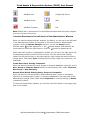
Use the icons in the menu toolbar
On top of the left and right panel of the Administrator window, you will see colorful
icons that represent the different functions in the Administrator program. When you
point the cursor to each icon, the system displays a message tip indicating the
corresponding functions.
AppFinity/CharterHouse Fixed Assets & Depreciation (FADS) User Manual
31
Fixed Assets & Depreciation System (FADS) User Manual
Add New User
Change SQL Server
Add New Group
Help
Add New Company
Exit
Note: Please refer in discussion A for the different windows that the system displays
once you click any of the icons.
Function Shortcuts in the Left Panel of the Administrator Window
When you launch the Administrator program, by default, you will see in the left panel
of the Administrator window, the shortcut to the main function in Administrator
program. Under the System Manager shortcut, you will see Setup function
symbol adjacent to it. The
symbol denotes that the there are
shortcut with a
more functions under the main function. Click the
symbol to expand the list.
When each main function is highlighted or clicked, you will see in the right panel, the
corresponding functions under the main function. You can also choose viewing
options for the sub-functions in the right panel by right-clicking the main function in
the left panel. Then select View. Viewing options include Large icon, Small icon, List
and Detail.
Create New Users, Groups, Companies
When you want to create new users, groups or company databases, right click on the
User, Group or Company Setup function in the left panel; then, select New User,
New Group or New Company.
Amend/View/Delete Existing Users, Groups or Companies
When you want to view properties or delete existing users, groups or companies,
right click on existing users, groups, or company databases in the right panel of the
administrator window. Then, select either Properties to view the settings or Delete
to delete the record.
To close the Administrator Window, you can also click the x button in the upper right
part of the window.
AppFinity/CharterHouse Fixed Assets & Depreciation (FADS) User Manual
32
Fixed Assets & Depreciation System (FADS) User Manual
1.3.2 Main Program Window
Once you have finished the installation of FADS and you have initialized the
companies that you will use in FADS main program, you can now launch the main
FADS program. But first you must familiarize yourself with how to use the different
menu toolbars and the personal menu feature.
Licensed to/Demo Version/Evaluation Version
On the left topmost part of the main menu window, you will see the name of the
licensee if you have installed a live copy version. The name of the licensee is the
company name that you specified in the Setup Company Name window when you
installed the FADS software. If you installed a demo or evaluation copy, the system
will display Demo Version or Evaluation Version.
Expiration Date
Expiration date is the last day that you can use the FADS program. If you are using a
demo or an evaluation version, you can access the program up to 60 days from the
date of installation. If you are using a live copy but have not registered it yet with
CharterHouse/AppFinity, the maximum number of days that you can use the
software is also 60 days. You need to register with AccountMate so that you can
continue using the software.
Menu Bar
Right below the Licensed To\Demo Version\Evaluation Version and the Expiration
Date, you will see the Menu bar that shows the different menu in the FADS, namely,
Systems, Process, Reports, Admin and Help. To view the different functions
under each main function, you may click on the main function to see the list of
functions under it; then, click the specific function that you want to access. You may
also access the menu bar without the use of the mouse. Press Alt key, then, press
the underlined letter in the function that you want to access. Refer to 1.3.4
Navigation without a Mouse.
Miscellaneous Menu Bar
Right below the Menu Bar, you will see shortcut icons to Microsoft Word
, Excel
and Internet Explorer
. You don’t need to close the main program window just
to access these programs. As you will notice, to the right of the miscellaneous menu
bar you will see a space. In that space, you will see the different minimized function
windows. Therefore, you don’t need to close a window just to open another window.
Once a window is overlapped, you will see the minimized button in the miscellaneous
menu bar. You can click on the minimized button when you want to access it again.
Personal Menu
Aside from accessing the different functions from the menu bar as discussed above,
you can also access the different functions from the personal menu panel that is
displayed in the left side of the main menu window. When you launch the FADS
program, by default, the personal menu is displayed in the left side of the main
window.
symbol. The personal menu
You can close the personal menu by clicking the
feature has four sections, namely, the System Menu, Personal Menu, Main Menu
and the Utilities. On top of the main menu, you will see two buttons represented by
AppFinity/CharterHouse Fixed Assets & Depreciation (FADS) User Manual
33
Fixed Assets & Depreciation System (FADS) User Manual
and
. Click the
button if you want to expand all the functions under each
symbol
menu. Alternatively, you can click either the green arrow symbol or the
beside each function to expand the list. Click the
button to minimize the list.
button to minimize the section window and
For each section, you can click the
to maximize the section window. However, in the Personal Menu section, you can
button to maximize the personal menu window but still provide enough
click the
space so that you can still view the functions under the Main Menu and Utilities
section.
1. System Menu Section
The system menu is the area where you can see the company database being
accessed, current user, system date, module name and language used. Notice that
this information is in blue color. In the system menu, you can select the company
that you want to access in FADS, change the current user logged in the system,
change the system date and change the language used by the system. Refer to the
following related topics for detailed discussion:
Select Company (1.4.1)
Change User Code (1.4.2)
Change Login Date (1.4.3)
Module Name field
As the field name suggests, this field displays the module name that is currently
accessed.
Language (1.4.4)
2. Personal Menu
The Personal Menu section is composed of the Favorites and Tools section. There
may be functions that you frequently access as you perform your tasks each day. For
your convenience, you can create shortcuts to these functions. You just have to click
on a specific function, drag it, and then drop it to either Favorites or Tools section.
So the next time that you log in, you don’t have to go through to all the functions in
the Main Menu section.
3. Main Menu
The Main Menu section displays all the menus that you normally see on the menu
bar. When you click the green arrow (>) or the (+) button, the system expands the
list and displays all the other functions that belong to each menu or function.
4. Utilities
This section displays the miscellaneous functions that you may find very useful in
recording transactions. This section includes the functions mentioned below. For
detailed discussion of each function, refer to the related topics adjacent to each
function.
Data Utility (1.6.1)
o Table Browser (1.6.1.1)
Other Utility (1.6.2)
o Calendar (1.6.2.1)
o Calculator (1.6.2.2)
To close the main program window, click either the X button in the upper right part
of the main window or the Exit icon
beside the Close Personal Menu
AppFinity/CharterHouse Fixed Assets & Depreciation (FADS) User Manual
34
icon.
Fixed Assets & Depreciation System (FADS) User Manual
1.3.3 Function Windows Toolbars and Buttons
In the different function windows, you will see different function toolbars and buttons
that will help you when you lookup existing records, create new records, amend or
delete existing transactions. Majority of these toolbars and buttons are shared across
all function windows. For the different toolbars in the Reports menu, refer to a
separate discussion 1.5.1 Report Toolbars.
Function Toolbars
These are the different buttons that you see on the top portion of each function
window. With these function toolbars you can save a new transaction or any changes
that you made to an existing record, delete an existing record or clear out the form if
in case you decide to lookup another record or not to save a transaction that you are
creating or any amendments to an existing record.
The following buttons are present in all function windows. We will no longer explain
here how each button works, as their names are self-explanatory.
Save
Delete
Clear
These two buttons are present only in the Asset Expenditure Budget
Maintenance function window.
Export
When you click this button, you can export an existing expenditure budget
record to different file formats. Refer to 4.5.1.1 Export/Import Budget
Data.
Import
When you click this button, you can import a budget record to your FADS
program. If you have an existing budget record that was created outside
FADS, you can import it to FADS by using this button. Refer to 4.5.1.1
Export/Import Budget Data.
The Void button is available only in all void-related functions. This button allows you
to void a previously created transaction.
Function Buttons
In each function window, you will see various buttons that will guide you when you
look up existing records, move from one record to another record, choose from a list,
or drill down details of a particular amount or drill down to a maintenance function
window to allow you to create a new record or view existing record.
Lookup Button
One way of looking up an existing record is by clicking the Lookup button. When
you click this button, the system displays the Search Form window that displays all
the existing records from which you can choose the record that you want to view.
AppFinity/CharterHouse Fixed Assets & Depreciation (FADS) User Manual
35
Fixed Assets & Depreciation System (FADS) User Manual
Scroll Buttons
Alternatively, you can view existing records in the system by using the scroll buttons
adjacent to the Lookup buttons. You may scroll to the first or last page or move
from previous record to the next record.
o
First Record
o
Previous Record
o
Next Record
o
Last Record
List Box
The List Box button allows you to choose from a list of different options. For
example, in the Vehicles Depreciation Cap Maintenance function, you can click
the listbox button to choose from the three categories of vehicle depreciation limits.
Drilldown
The Drilldown button allows you to drill to the details of a value in a particular field.
For example in the YTD Depreciation field of the Asset Card Register function
window, you can click the drill down button to display the details that composed the
amount in that field.
Leading Button
When you click this button, the system leads you to another window where you can
choose a specific record, like in the Choose Asset Class window, or to another
window where you can specify related information needed to complete the
transaction, as in the case of the GL JE button in the GL Account –Asset # window
in the Asset Card Register function or to window where you can select the location
or directory of a file in the Attachment Directory field in the FADS Module Setup
function or the Attachment – Asset # [xxx] window of the Asset Card Register
function
Calendar Button
When you click the Calendar button, the system displays the Calendar Window
where you can choose the date corresponding to the date
AppFinity/CharterHouse Fixed Assets & Depreciation (FADS) User Manual
36
Fixed Assets & Depreciation System (FADS) User Manual
1.3.4 Navigation without a Mouse
CharterHouse/AppFinity Fixed Assets & Depreciation System [FADS] allows you to
navigate the program without using a mouse. Below are the different keys that you
can use in lieu of the computer mouse:
Alt
Press this key to highlight the menu bar. After you press this key, press the
underlined letter of the menu that you want to access. For example S for Systems
menu.
Alt + X
While in a function window, press simultaneously the Alt key and the underlined
letter of the button that you want to access the desired sub-window or perform the
desired action like in saving a transaction. For example, in the Asset Card Register
function window, after you enter the needed information, press Alt and S to save
the transaction or to display the General Information –Asset # [xxx] window,
you may press Alt and G.
Alt + 1
Press these keys simultaneously to access the First Record scroll button to display
the first record.
Alt + 2
Press these keys simultaneously to access the Previous Record scroll button to
display the previous record.
Alt + 3
Press these keys simultaneously to access the Next Record scroll button to display
the next record.
Alt + 4
Press these keys simultaneously to access the Last Record scroll button to display
the last record.
F1
Press this key to display the online help.
F4
While you are in a field with a Lookup button adjacent to it, enter a value in the
field and press the F4 key to display the Leading Search window. If you leave the
filed blank, the system will display the Leading Search window that contains all the
existing records. Follow the shortcut keys enumerated on the top portion of the
window.
F7
While you are in a field with a Lookup button adjacent to it, press the F7 key to
display the Search Form window or the Advanced Search window where you can
select from the list of existing records.
F9
Press this key to display the Calendar window. This key is accessible in a date field.
AppFinity/CharterHouse Fixed Assets & Depreciation (FADS) User Manual
37
Fixed Assets & Depreciation System (FADS) User Manual
Tab
Press this key to move the cursor from field to another field.
Shift + Tab
Press these keys simultaneously to move the cursor back to the previous field.
Ctrl +Tab
Press these keys simultaneously if you want to leave a grid and proceed to the next
field.
Right, Left, Up or Down Arrow
Press any of these keys to move between fields and between tabs.
Esc
Press this key if you want to close a window.
AppFinity/CharterHouse Fixed Assets & Depreciation (FADS) User Manual
38
Fixed Assets & Depreciation System (FADS) User Manual
1.3.5 Advanced Search Window
The Advanced Search Window allows you to filter your search to fewer records or
even to a specific record. Instead of scrolling through all the records in the Search
Form window, you can search directly for the desired record.
To use the Advanced Search Window, perform the following procedures:
1. In any field that has the look up button or that allows you to enter an existing
record, click either the look up button or press F7 key to display the Search
Form window where you can choose from a list of existing records in the system.
2. By default, you will see in the Search Form window all the records that are in
stored in the system. The columns in the grid will vary depending on the type of
records that you are searching for. To select a particular record, you can either
double click on the record or highlight the record then click the Select button on
top of the grid.
3. At the bottom of the grid, you will see the following fields. You can use these
fields in locating specific records.
Key Value
Enter in this field the exact key value that you are looking for.
Search By
Enter in this field the field name where you want to search for that value. In
the grid, notice that some field names are in blue text color. These colored
field names are the different Search By options.
After you enter the values in the above fields, press enter. Notice that the cursor
moves to the desired record.
4. Further, you can use a more advanced search option. Click on the Advanced>>
button to display the Advanced Search section.
5. In the Advanced Search section you will see the following fields, buttons and
checkbox.
AND/OR
Click the List box button and choose AND if you want that all the criteria
that you will enter must be met in generating the data; otherwise, select OR
if only one criteria must be met.
Field Name
Enter in this field the field name to which you would want to enter a specific
value. Click the List box button adjacent to this field to select from the available
list. The Field Name list includes the fields in the grid that are in blue text color.
AppFinity/CharterHouse Fixed Assets & Depreciation (FADS) User Manual
39
Fixed Assets & Depreciation System (FADS) User Manual
Logic
Enter in this field the mathematical function that applies to the value that you
will enter in the Value field. Alternatively, you can click the List box button
to choose from the list.
Value
Enter in this field the value to which you want to apply the function specified
in the Logic field.
6. Click the Add button to accept the filter that you had specified. Once you click
the Add button, the filter is listed in the notepad right below the fields mentioned
above and in the notepad below the Edit SQL Statement checkbox. Click the
Clear button if you want to clear the fields in the Filter section.
7. If you want to search for the specific records that you identified in the SQL
statement that you created, click the Search button. Notice that the system
displays the records that meet the filters displayed in the notepad.
8. If you want to delete a filter that you had created, highlight the filter in the
notepad, then click the Delete button.
9. If you want to edit a filter that you had created, mark the Edit SQL Statement
checkbox to enable the notepad below the checkbox. The notepad contains the
saved filters. Once the notepad is enabled, you can amend the filter. Notice also
that after you mark the Edit SQL Statement checkbox, the checkbox name is
changed to Undo Edit SQL Statement.
10. If you want to undo the changes that you made to the filter, unmark the Undo
Edit SQL Statement checkbox to revert to the original SQL statement that you
created.
11. Click the X button at the upper right part of the window to close the Search
Form window.
AppFinity/CharterHouse Fixed Assets & Depreciation (FADS) User Manual
40
Fixed Assets & Depreciation System (FADS) User Manual
1.4 Starting FADS
After you have created the sample and system databases, and activated the sample
database in the Administrator program, you are all set to use the Fixed Assets &
Depreciation System (FADS) main program.
To log in to the FADS main program, perform the following procedures:
1. Click the fa.exe program from the root directory of your FADS installation. If you
have created a shortcut icon in the desktop, you may click the shortcut icon
directly to launch the FADS program. Once you click the shortcut icon or the
fa.exe program, the system displays the FADS Login Window.
2. In the FADS Login Window, enter the appropriate information in the following
fields:
User Code
Enter in this field the user account code that the administrator has setup for
you in the User Setup function of the Administrator program.
Password
Enter in this field the password assigned to you by the administrator. You can
change the password later on when you access the Change User Code
window. Refer to System Menu section of the Main Program Window
(1.3.2).
3. Click the system date in the Login Date field if you want to change the date of
the program. When you click the date, the system displays the Calendar window.
4. Click OK to proceed to the FADS main program window; otherwise, click Cancel
to close the Login Window and exit the program.
Important: Once you are in the main program window and you have not initialize the
company, access first the FADS Module Setup window to load the IRS
depreciation tables. After which, you may now proceed using the FADS
program.
AppFinity/CharterHouse Fixed Assets & Depreciation (FADS) User Manual
41
Fixed Assets & Depreciation System (FADS) User Manual
i. Select Company Name
To shift to another company database, perform the following procedures:
1. In the main program window, click the Display Personal Menu button to display
the personal menu panel.
2. In the System Menu section, click the company name that is highlighted in blue
to display the Select Company window where the existing company databases
in FADS are listed. In the Company # column, you will see the company ID that
you assigned when you created the company. You will see the complete company
name in the Company Name column.
3. Highlight the company that you want to access.
4. Click the Select button to effect the change; otherwise, click Cancel button or
the X button in the upper right part of the Select Company window.
5. Alternatively, you can select the company by double clicking on the company.
After you double clicked, the Select Company window will close.
AppFinity/CharterHouse Fixed Assets & Depreciation (FADS) User Manual
42
Fixed Assets & Depreciation System (FADS) User Manual
1.4.2 Change User Code
If in case the program was already opened by a different user and you want to enter
your own transactions, you can use this feature to change the user code to your user
code, by performing the following procedures:
1. In the main program window, click the Display Personal Menu button to display
the personal menu panel.
2. Click the current user code in the system menu to display the Change User
Code window.
3. In the User Code field, enter your user code as defined in the administrator
program.
4. In the Password field, enter your password as defined in the administrator
program.
5. You can also change your password by clicking on the italicized field label to
display the Change Password window. To change password, enter in the Old
Password field your old password. Enter in the New Password field, your new
password. Enter in the Confirm New Password field your new password to
confirm your new password. Click Go to effect changes; otherwise, click the X
button.
6. Click the Go button and effect the change; otherwise click the X button. Either
way, the Change User Code window will be closed.
AppFinity/CharterHouse Fixed Assets & Depreciation (FADS) User Manual
43
Fixed Assets & Depreciation System (FADS) User Manual
1.4.3
Change Login Date
To change the current system date, perform the following procedures:
1. Click the Close/Display Personal Menu to display the Personal Menu window if
in case the menu is closed.
2. In the System Menu section of the Personal Menu panel, click the current system
date to display the Change Login Date window. The Current Date field
displays the current system date. This field is for reference only.
3. Enter the new date in the New Date field.
4. Click the Go button to effect the change; otherwise, click X button. Either way,
the Change Login Date window will be closed.
AppFinity/CharterHouse Fixed Assets & Depreciation (FADS) User Manual
44
Fixed Assets & Depreciation System (FADS) User Manual
1.4.4 Change Language
If you have defined other languages in the Multi-lingual Setup, you may switch to
another language, by performing the following procedures:
1. Click the Close/Display Personal Menu to display the Personal Menu window if
in case the menu is closed.
2. Click the language currently displayed in the system menu to display the Change
Language window. In the Current Language field you will see the current
language used by the system.
3. If you have defined other languages in the Multi-lingual Setup (refer to
1.2.3.2) function, when you click the List box button in the New Language
field, you will see the available languages. Click on the desired language.
4. Mark Save as Default Language checkbox if you want the new language to be
the default language every time you log in to FADS; otherwise, leave the
checkbox blank.
5. Click the Go button to effect the change; otherwise, click the X button in the
upper right part of the window.
AppFinity/CharterHouse Fixed Assets & Depreciation (FADS) User Manual
45
Fixed Assets & Depreciation System (FADS) User Manual
1.5 Reports Menu
This section discusses the different toolbars available in the report interface and in
the report’s preview screen. Once you familiarize yourself with this section, you will
be able to fully utilize the Reports menu.
AppFinity/CharterHouse Fixed Assets & Depreciation (FADS) User Manual
46
Fixed Assets & Depreciation System (FADS) User Manual
1.5.1 Report Toolbar
In both the report interface and in the report preview window, you will see the
different buttons in the report toolbar. These buttons enables you to generate the
report using the desired criteria.
Report Interface
In the report interface, you will see report buttons in the toolbar. These are the
following:
Preview
After you have specified the desired criteria, click the Preview button to
display the report on the screen. Once you click the Preview button, the
system displays the Preview window.
Print
Click this button to print the report. Verify that you had specified the correct
printer to which you would want to generate the report. Refer to the next
discussion.
Printer
Click this button if you want to redirect the printing of the report to another
printer. Once you click this button, the system displays the Printer window.
To specify the desired printer, perform the following procedures:
1. Click the List box button to display the available printers
2. Select the desired printer name by clicking on the printer name.
3. If you want to connect to a printer that is not in the list but is available in the
network where you are connected, click the Network… button to display the
Connect to Printer window.
3.1
Enter in the Printer field, the name of the printer where you want to
print the report. If you are not sure about the exact printer name,
proceed to the Shared Printers area.
3.2
By default, the Shared Printers area will show the minimized
Microsoft Windows Network.
3.3
Double click on the Microsoft Windows Network to expand the list.
Click further to see the detailed list of printers in the network.
3.4
Click the desired printer name.
3.5
Mark the Expand by Default checkbox if you want to see the
expanded shared printers list the next time you access this window.
3.6
Click the OK button to go back to the Printer window. Notice that the
printer name now shows the selected printer in the network. Click
Cancel if you don’t want to continue changing the printer name.
3.7
Click the OK button to proceed printing; otherwise, click the Cancel
button.
Report Preview Window
To access the preview window, click on the Preview button in the report interface.
In the preview window, you will see on top of the preview pane, the different toolbar
buttons. From left to right facing the screen, you will see the following buttons:
AppFinity/CharterHouse Fixed Assets & Depreciation (FADS) User Manual
47
Fixed Assets & Depreciation System (FADS) User Manual
Exit
Click this button to close the preview window.
Go to First Page
If you are not in the first page of the reports, this button is enabled. Click this
button if you want to move to the first page of the report.
Go to Previous Page
Click this button if you want to move to the previous page.
X of Y
X represents the page number currently displayed in the window. Y represents
the total number of report pages.
Go to Next Page
Click this button if you want to move to the next report page.
Go to Last Page
Click this button if you want to move to the last report page.
Cancel Reading Records
At times a report is consist of numerous pages. Sometimes, it may take awhile
for the system to process or generate the report. Click this button if you want to
cancel reading of the records.
Print
This is represented by a printer icon. Click this icon if you want to print the report.
This is similar to the printer button in the report interface.
Printer Setup Button
Click the button to the right of the Printer icon to display the Print Setup window
where you can enter the desired parameters.
Refresh Report Data
This button allows you to refresh the data in the report. There may be instances
wherein another user is entering transactions that have an effect in this report.
When you click this button, the system refreshes the report with the current data.
Export
This button is represented by an opened mail envelope. Click this button if you
want to export the report to various file format. You can also specify the
destination where you want to export the report.
Toggle Group Tree
By default, when you preview a report, the system shows in the left panel of the
window, the contents of the report. Click the Toggle Group Tree to hide the left
panel. Click the button again and the left panel resurfaces.
AppFinity/CharterHouse Fixed Assets & Depreciation (FADS) User Manual
48
Fixed Assets & Depreciation System (FADS) User Manual
Magnify
Click the List Box button and select from the available viewing size option.
Search
The Search button is represented by a binocular. To locate a particular record,
enter the character string in the blank field to the left of the button then click the
button.
Beside the Search button you will see the total number of report pages. Adjacent to
the number of pages, you will see the current report viewing size.
AppFinity/CharterHouse Fixed Assets & Depreciation (FADS) User Manual
49
Fixed Assets & Depreciation System (FADS) User Manual
1.6 Utilities Menu
The Utilities Menu allows you to locate specific records with the use of the Table
Browser function. Users can easily access the different tables in FADS without
inadvertently altering any information in those tables. Should you want to check any
dates in the calendar, you can do so from this menu. You can easily access a
calculator too for any computations you need while entering a transaction.
You can access the Utilities menu from the Personal Menu panel in the left side of
the main program window. Click the > or + button beside each function to display
the functions that belong to the main utilities function.
AppFinity/CharterHouse Fixed Assets & Depreciation (FADS) User Manual
50
Fixed Assets & Depreciation System (FADS) User Manual
1.6.1 Data Utility
In the Data Utility function, you will see the Table Browser function that allows
you to browse through all the tables in the FADS program. Sometimes, you may
want to view a specific table to get more information or to solve a corruption
problem. With the Table Browser function, you can access right away the tables
that contain the desired information without worrying that you will inadvertently
change the data.
You can trim down your selection by marking the fields that you want to be included
in the information that you are browsing. Furthermore, you can specify a parameter
in the SQL Statement area.
You can export the information you generated to a text file or an excel file. When
you transport the data, the system will only copy the data and not change the data
from the source file.
Refer below for more detailed discussion:
1.6.1.1
1.6.1.1.1
1.6.1.1.2
Table Browser
Browse Data Window
Export Window
AppFinity/CharterHouse Fixed Assets & Depreciation (FADS) User Manual
51
Fixed Assets & Depreciation System (FADS) User Manual
1.6.1.1 Table Browser
This section discusses the procedures on how to browse and export information from
the different tables in the FADS program. With the Table Browser function, you can
generate information that may aide you in trouble shooting data corruption problem
or simply to give you information that you need as you go with your everyday tasks.
To generate data from the Table Browser function, perform the following
procedures:
1. If Personal Menu panel in the main FADS program window is not displayed,
click the Display/Close Personal Menu button to display the Personal Menu
panel.
2. In the Personal Menu panel, access the Table Browser function from the Data
Utility function in the Utilities menu.
Once you clicked the Table Browser function, the system displays a window that
requires you to enter the admin password. This function is generally for users
with administrator rights.
After you enter the password, the system displays the Table Browser window
where you can see the following information:
Table Names section
You will see this section in the left panel of the Table Browser function window.
In this section, you will see the different tables in the FADS program. These
include the current and history tables.
Filter section
You will see this section in the right panel of the Table Browser function.
You can specify parameters that will further reduce the information that you
browse in this function to the desired data that you want to generate.
3. In the Tables section, mark the checkbox of the table name from where you
would want to browse data. Once the checkbox is marked, the system expands
that table and lists down the different fields in that table.
4. By default, all the field names checkboxes are marked. Unmark the fields that
you don’t want to browse; otherwise, leave the checkboxes marked.
5. If you want to generate the data using the fields that you had marked in the
Table section, go directly to step # 10. If you want to further filter the data,
enter in Filter section the relevant information in the following fields:
AND/OR
Click the List box button and choose AND if you want that all the criteria
that you will enter must be met in generating the data; otherwise, select OR
if only one criteria must be met.
AppFinity/CharterHouse Fixed Assets & Depreciation (FADS) User Manual
52
Fixed Assets & Depreciation System (FADS) User Manual
Field Name
Enter in this field the field name to which you would want to enter a specific
value. Click the List box button adjacent to this field to select from the available
list. The Field Name list includes the fields that are enumerated in the Tables
section of the Table Browser window regardless of whether you have marked
the checkboxes.
Logic
Enter in this field the mathematical function that applies to the value that you
will enter in the Value field. Alternatively, you can click the List box button
to choose from the list.
Value
Enter in this field the value to which you want to apply the function specified
in the Logic field.
6. Click the Add button to accept the filter that you had specified. Once you click
the Add button, the filter is listed in the notepad right below the fields mentioned
above and in the notepad below the Edit SQL Statement checkbox. Click the
Clear button if you want to clear the fields in the Filter section.
7. If you want to delete a filter that you had created, highlight the filter in the
notepad, then click the Delete button.
8. If you want to edit a filter that you had created, mark the Edit SQL Statement
checkbox to enable the notepad below the checkbox. The notepad contains the
saved filters. Once the notepad is enabled, you can amend the filter. Notice also
that after you mark the Edit SQL Statement checkbox, the checkbox name is
changed to Undo Edit SQL Statement.
9. If you want to undo the changes that you made to the filter, unmark the Undo
Edit SQL Statement checkbox to revert to the original SQL statement that you
created.
10. Click the Browse button to display the desired information in the Browse Data
window. Refer to 1.6.1.1.1 Browse Data Window for a detailed discussion.
11. Click the Export button in the Browse Data window to display the Export
window. Refer to 1.6.1.1.2 Export Window for detailed discussion.
12. After you have browsed or exported the needed information, repeat the above
procedures to generate another set of data from another table or from the same
table but with different criteria.
13. Click the X button in the upper right part of the window to close the Table
Browser function window.
AppFinity/CharterHouse Fixed Assets & Depreciation (FADS) User Manual
53
Fixed Assets & Depreciation System (FADS) User Manual
1.6.1.1.1 Browse Data Window
After you click the Browse button in the Table Browser function window, the
system displays the Browse Data window. In the Browse Data window, you will
see the different columns corresponding to the field names that you included in the
criteria that you set. The information listed in each row corresponds to the filter that
you specified in the Table Browser window.
You can expand the column width by clicking and dragging the column borderline. To
view the rest of the data in the Browse Data window, scroll using the scroll buttons
at the bottom of the grid.
Click the Export button to display the Export window where you can specify the file
format and location where you want the exported data be saved. Refer to 1.6.1.1.2
Export Window for a detailed discussion.
Click the X button at the right uppermost part of the window to close the Browse
Data window.
AppFinity/CharterHouse Fixed Assets & Depreciation (FADS) User Manual
54
Fixed Assets & Depreciation System (FADS) User Manual
1.6.1.1.2 Export Window
In this window, you can specify the file format of the data that you want to export
and the location where you want to save the exported data. To export the data,
perform the following procedures:
1. Enter in the File Type field, the file format that you want to use for your
exported data. You may choose from the List box button to display the file type
options, namely: Microsoft Excel and Text file.
2. In the Export To field, specify the directory where you want to save the
exported data. Click the Ellipsis […] button adjacent to the Export To field to
display the Open window where you can select the location where you want to
export the data and the file name that you want to assign to the exported data.
3. Click the Export button to export the data to the specified location. Verify that
the same file name and format doesn’t exist in the location that you specified;
otherwise, the system will inform you that file already exist.
4. After you click Export button, the system closes the Export window. If you don’t
wish to proceed exporting the data, click the X button at the upper rightmost part
of the window to close the window.
AppFinity/CharterHouse Fixed Assets & Depreciation (FADS) User Manual
55
Fixed Assets & Depreciation System (FADS) User Manual
1.6.2 Other Utility
While you are using the FADS program, at times you want to verify a particular date
or may need a calculator to validate an amount calculated by the system. This is
when the Other Utilities menu comes in handy. The FADS provides you with the
Calendar and Calculator functions. You can access these utilities from the
Personal Menu panel under the Utilities Menu section.
AppFinity/CharterHouse Fixed Assets & Depreciation (FADS) User Manual
56
Fixed Assets & Depreciation System (FADS) User Manual
1.6.2.1 Calendar
To access the calendar window, perform the following procedures:
1. Display the Personal Menu panel by clicking the Close/Display Personal Menu
icon beside the Exit icon in the main FADS program window.
2. Click the > button beside the Other Utility function to display the subfunctions,
namely, Calendar and Calculator.
3. Click the Calendar function to display the Calendar window opened to the
current system date.
4. To scroll from one month to another month, use the scroll buttons. Use < to
scroll to the previous month and the > to scroll to the next month.
5. Alternatively, you can click the month displayed on the window to display the
complete months of the entire year. Click on the desired month to change the
month.
6. To change the year, click on the year currently displayed on the window. You will
see a spinner button v. Click tbutton to move to the next year and the u
button to move to the previous year.
7. Click the Close button to close the window.
AppFinity/CharterHouse Fixed Assets & Depreciation (FADS) User Manual
57
Fixed Assets & Depreciation System (FADS) User Manual
1.6.2.2 Calculator
While you enter transactions in the FADS, you may need a calculator to validate
some figures. In FADS, you can easily access the calculator. You just have to
perform the following procedures:
8. Display the Personal Menu panel by clicking the Close/Display Personal Menu
icon beside the Exit icon in the main FADS program window.
9. Click the > button beside the Other Utility function to display the sub-functions,
namely, Calendar and Calculator.
10. Click the Calculator function to display the Calculator window.
11. You can now begin using the calculator. Click the X button to close the window.
AppFinity/CharterHouse Fixed Assets & Depreciation (FADS) User Manual
58
Fixed Assets & Depreciation System (FADS) User Manual
2.1 FADS Module Setup
In the FADS Module Setup function, you can tailor FADS to the specific needs of
your company. You can define the different parameters that will serve as guidelines
in setting up maintenance accounts and recording transactions.
Important: After installing FADS, before you can run any function in the system,
you need to access the FADS Module Setup function to load the
Internal Revenue Services (IRS) tables.
Short Year Setting
In this area you will find your company’s short year setting. A short year occurs
when there is an accounting period of less than 12 months that often happens in the
first or last year of a company’s life.
Year
The default value in this field comes from the current fiscal year that you defined
in the Fiscal Period tab when you created the company. To define a short year
that does not fall in the current fiscal year, you need to manually change the year
in this field.
Date Range in Full Year
The default value in this field comes from the current fiscal year that you defined
in the Fiscal Period tab in the Properties of the Company that you are
accessing. When you change the value in the Year field, this field is updated
accordingly.
Date Range (if Short Year)
Enter in this field the short year date range of your company. This is important in
calculating depreciation of Fixed Assets & Depreciation & Depreciations in a short
year period.
Attachment Directory
Enter in this field the location of the files that you intend to attach to the asset cards
that you will create. The value that you enter in this field will be the default value in
the Default Directory field in the Attachment link of the Asset Card Register
function. Refer to 4.1.5 Attachment Link for a discussion on how to attach files to
asset cards.
GL Accounts
Define in the GL Accounts Window, the GL Account IDs to which you want all your
Fixed Assets & Depreciation & Depreciation management transactions be posted.
Refer to 2.1.1 GL Accounts Window for a discussion on the needed GL Account IDs
and 2.1.2 GL Accounts Maintenance Window for a discussion on how to create
GL Account IDs in a stand-alone FADS installation.
Load IRS Tables
If there are any changes in the IRS depreciation rates, CharterHouse/AppFinity
will provide you with the updated tables either through a diskette or CD. You just
need to insert the medium in the disk drive and click the Load IRS button to update
the IRS depreciation rates tables.
AppFinity/CharterHouse Fixed Assets & Depreciation (FADS) User Manual
59
Fixed Assets & Depreciation System (FADS) User Manual
Current Period
This field displays the month and year in which the system is currently setup. The
value in this field moves to the next period after a final GL transfer is performed.
Transfer to GL JE Option
When creating an asset card or recording transactions, you have the option to
specify whether to record the addition of asset to the General Ledger and/or review
GL entries before saving by marking the appropriate checkboxes:
Transfer Addition of Asset to GL JE
When you mark this option box, the Transfer to GL on Approval checkbox in
the GL Account window of the Asset Card Register function is marked by
default. This option will determine whether addition of asset will be recorded or
transferred to the General Ledger module. Refer to 4.1.4 GL Account Link.
Review GL JE Before Saving
Mark this option box if you want the system to display the Journal Entry
Window when you save a sale, exchange or disposal of a Fixed Assets &
Depreciation & Depreciation. This will allow you to review the GL entries before
saving the transaction.
User Defined Book
The FADS allows you to maintain two user-defined books other than the standard
books. Mark the checkboxes and specify in the corresponding field the book name
that you want to assign to these user-defined books.
Use Barcode Scanner
Mark this option if you want to use a barcode scanner when entering an asset card
into the system; otherwise, leave this option blank. When you mark this option box,
the Barcode field in the Asset Card Register function is enabled.
OK
Click this button to save the defined parameters.
Cancel
Click this button if you do not want to save the settings.
AppFinity/CharterHouse Fixed Assets & Depreciation (FADS) User Manual
60
Fixed Assets & Depreciation System (FADS) User Manual
2.1.1 GL Accounts Window
You can define in this window the different GL Account IDs to which the transactions
that you create in the FADS will be posted.
To set up the needed GL Account IDs, access the GL Accounts Maintenance
window by clicking on any of the italicized field label. Refer to 2.1.2 GL Accounts
Maintenance Window for the discussion on how to set up GL Account IDs using
FADS as a stand-alone program.
When you integrate FADS with AccountMate for SQL, you need to set up GL Account
IDs from the General Ledger module of AccountMate for SQL.
To choose from the list of GL Account IDs, click either the Lookup button or F7 key
to display the Search Form window. Alternatively, you can press F4 to display the
Leading Search window.
Asset
Enter in this field the default GL Account ID for new asset class records. This will be
the default GL Account ID in the Asset field of the GL Accounts Window. You can
overwrite this GL Account ID when you create an asset class or even when you
assign the asset class to a specific asset card.
Depreciation
Accumulated Depreciation
Enter in this field the default Accumulated Depreciation account for a new Asset
Class record. You can overwrite this value when you create an asset class record.
This is the GL account ID that the system will use to record the amount of
depreciation taken on an asset. This value includes current year to date
depreciation, from the date the asset was placed in service to the date when
depreciation was last calculated.
Depreciation Expense
Enter in this field the default Depreciation Expense account for new Asset Classes.
This is the GL Account ID that the system will use to record the allocated cost of
an asset spread over its useful life.
Gains/Losses
Gain/Loss on Sale
Enter in this field the default GL Account ID that the system will use to record the
gains or losses resulting from the sale of a Fixed Assets & Depreciation &
Depreciation. You can overwrite this GL Account ID in the Journal Entry screen
when you record the sale of a Fixed Assets & Depreciation & Depreciation.
Gain/Loss on Exchange
Enter in this field the default Gain/Loss GL account ID for gains or losses
resulting from the exchange of one asset for another asset. This account can be
overwritten on the journal entry screen when you record asset exchange.
Loss on Disposal
AppFinity/CharterHouse Fixed Assets & Depreciation (FADS) User Manual
61
Fixed Assets & Depreciation System (FADS) User Manual
Enter in this field the default GL Account ID that the system will use to record
losses resulting from the disposal of an asset. This account can be overwritten on
the journal entry screen when you record an asset disposal.
Other
Disposal Expense
Enter in this field the default GL Account ID that the system will use to record
expenses incurred during the disposal of an asset. You can overwrite this GL
Account ID in the journal entry screen when you record an asset disposal.
Maintenance Expense
Enter in this field the default GL Account ID that the system will use in recording
any minor expenditure incurred for a particular asset. You can overwrite this GL
Account ID in journal entry screen when you record minor asset expenditure.
Cash/Liability Account
Enter in this field the default GL Account ID that the system will use to record the
cash given up or liability incurred in relation to acquisition, exchange or sale of an
asset. You may specify a bank account or a liability account in this field. You can
overwrite this GL Account ID in the journal entry screen when you record sale,
acquisition or exchange of an asset.
Non-Cash Proceeds from Sale
Enter in this field the default GL Account ID that the system will use to record
non-cash proceeds from the sale of an asset. You can overwrite this GL Account
ID in the journal entry screen when you record sale of an asset.
Click the Close button to save the GL Account IDs that you specified in the fields
mentioned above.
AppFinity/CharterHouse Fixed Assets & Depreciation (FADS) User Manual
62
Fixed Assets & Depreciation System (FADS) User Manual
2.1.2 GL Accounts Maintenance Window
In this window you can create the GL Account IDs to which you will post the different
transactions in the FADS.
If your FADS is integrated with the AccountMate for SQL program, you need to set
up the GL Account IDs from the Chart of Accounts Maintenance function of the
General Ledger module. Refer to your AccountMate General Ledger Module Manual
for a discussion on how to create GL Account IDs.
If you have a stand-alone installation of the FADS, you need to create the GL
Accounts ID in the GL Accounts Maintenance window. Verify that the GL Account
IDs that you created in your FADS exist in the General Ledger software where you
will export the Fixed Assets & Depreciation & Depreciation related transaction journal
entries to ensure that when you export the GL Distribution CSV file the export will be
successful.
To create, edit or delete GL Account IDs, perform the following:
Click on the italicized field label name in the GL Accounts window or any of the
italicized GL Account ID field label in other functions to display the GL Accounts
Maintenance window.
Add a GL Account ID
1. Click the Add button to add a new GL Account ID.
2. Enter in the Account ID column, the Account ID number that you want to assign
to the GL Account ID that you are creating. The GL account segments were
defined in the GL Tab of the Properties of the Company Setup in the
Company Manager function of the Administrator program.
3. Enter in the Account Description column, the description of the GL Account ID
that you are creating.
4. In the Debit column, mark the checkbox if the GL Account ID is normally debited
when recording a transaction; otherwise, leave the checkbox blank. Examples for
this are asset and expenses GL accounts.
5. Click the Save button to save the GL Account IDs that you created; otherwise
click the Cancel button.
Edit a GL Account ID
1. Click on the GL Account ID that you want to edit.
2. Edit the Account Description. Click Save button to save your revision; otherwise
click on Cancel.
Note: If you want to change the Account ID, you need to delete the entire GL
Account
ID and click Add to enter a new GL Account ID.
Delete a GL Account ID
1. Click on the GL Account ID that you want to delete.
2. Click the Delete button.
3. Click the Save button to save your changes; otherwise click the Cancel button.
Note: You cannot delete a GL Account ID that is already in use.
AppFinity/CharterHouse Fixed Assets & Depreciation (FADS) User Manual
63
Fixed Assets & Depreciation System (FADS) User Manual
2.2 Generate GL Distribution
The Generate GL Distribution function allows you to transfer the GL Journal
Entries to your General Ledger software. Depending on the integration option chosen
in the FADS Administrator program, you can generate a GL Distribution in CSV
(Comma Separated Value) file or directly transfer your entries to the AccountMate GL
module.
To verify the GL entries to be transferred to the GL module or to be generated to
CSV file, access the Generate GL Report function and generate the GL Transfer
Report. Refer to 5.9 GL Transfer Report.
Integrated with AccountMate for SQL
When the FADS is linked to AccountMate for SQL, function window name is
Generate GL Distribution to VAM.
To transfer the GL journal entries to AccountMate for SQL, perform the following:
1. Access the Generate GL Distribution function from the Admin menu to display
the Generate GL Distribution to VAM window.
2. In the Period field, choose from the drop down list, the Year and the Period
when the transactions that you want to transfer to the GL module were created.
The Date Range fields display the dates covered in the period that you specified
in the Period field. The Date Range is disabled.
3. Mark the Final Transfer checkbox if you want to perform the final transfer to the
General Ledger module; otherwise leave the checkbox blank. When you mark this
box, the period shown in the Period field is the current period. You cannot select
any other period from the list down box. However, if you leave the Final Transfer
checkbox blank, the system will allow you to choose the period from wherein
transactions are to be transferred to the General ledger.
4. Click the Transfer button if you want to transfer the GL entries to AccountMate
related tables; otherwise, click the Close button. When you click the Transfer
button, the current period in the FADS Module Setup function is moved to the
next period.
Important:
Before running this function, verify that nobody else is accessing any functions in
FADS.
You can transfer your FADS data to the GL module anytime and as many times
as you want as long as you have not marked the Final Transfer checkbox.
If the Final Transfer checkbox is blank, every time you run this function,
previous transfer to GL will be overwritten.
Note: GL journal entries are transferred to AccountMate for SQL in detail.
AppFinity/CharterHouse Fixed Assets & Depreciation (FADS) User Manual
64
Fixed Assets & Depreciation System (FADS) User Manual
FADS as a Stand Alone Installation
When you ran FADS as a stand-alone program, the function window name is
Generate GL Distribution to CSV.
To generate CSV file that you can use to export your GL journal entries to your
General Ledger software, perform the following procedures:
1. Access the Generate GL Distribution function from the Admin menu to display
the Generate GL Distribution to CSV File window.
2. In the Date Range fields, mark the All checkbox to generate GL distribution file
for all periods; otherwise, enter a specific period in the From and To fields.
3. Mark the Include Previously Exported Entries checkbox if you want to
regenerate previously exported GL journal entries. If this checkbox is unmark, GL
entries that were previously exported will not be included in the CSV file.
4. Mark the Summary checkbox if you want to transfer the GL entries in summary;
otherwise leave it blank to transfer the GL entries in detail.
5. Specify a location and file name in the File Name field for the CSV file. Click the
Lookup button to specify the path where you want the CSV file to be saved.
Note: You will get an “Invalid file name.” message when you leave the File Name
field blank. When you specify a filename that already exists in the directory that
you specified, you will get a message that file already exists. Confirm if you want
to overwrite the file or not. You will also get an “Invalid file name.” message when
you enter only a file name without a location or directory path.
6. Click the Generate button if you want to generate the csv file; otherwise, click
the
Cancel button.
Note: After you click Generate, the system displays the CSV file for your review.
AppFinity/CharterHouse Fixed Assets & Depreciation (FADS) User Manual
65
Fixed Assets & Depreciation System (FADS) User Manual
2.3 Purge Asset Card
Generally, purging of asset cards is not advisable as these records will no longer be
available in the different reports and functions in the FADS. But for some users, they
may need to purge very old asset records to free up the tables. To address this need,
FADS came up with the Purge Asset Card function.
You can only purge closed and transferred asset cards and its related transactions
whose closed dates fall before the date specified in the purge date field. Once purged,
you can no longer view the asset cards and its related transactions from the reports
and process functions.
Important:
Back up your company database before running this function.
Verify that no one else is accessing any function in the system.
To purge asset cards from the system, perform the following procedures:
1. Access the Purge Asset Card function from the Admin menu. After which, the
system displays a very important message that will warn the users of the
consequences in purging asset records.
2. Click OK button to display the Purge Asset Card window.
3. Enter in the Purge Asset Card with Date before field the cut off date for
purging asset cards.
4. Click OK button if you want to proceed with purging the asset cards; otherwise,
click Cancel button.
AppFinity/CharterHouse Fixed Assets & Depreciation (FADS) User Manual
66
Fixed Assets & Depreciation System (FADS) User Manual
3.1 Asset Class Maintenance
Fixed assets are generally grouped according to their common characteristics and
usage. Creation of new asset card records is made easier by choosing from a list of
asset classes because you don’t need to enter information in the asset card that are
provided already by the asset class record. This reduces keystroke errors and saves
data entry time. All you have to do is review the relevant information provided
already by the asset class record and change the information as needed.
You can set up as many asset classes as you need. Information that is generally
applicable to most fixed assets of a particular class is entered in the related asset
class record and appears as default information in the same fields in the fixed asset
card register.
In FADS you can create asset classes by which fixed asset cards will be grouped by
the system. You can also generate reports according to asset class.
Create Asset Class Record
To create an asset class record, perform the following procedures:
1. Access the Asset Class Maintenance function from the Systems menu to
display the Asset Class Maintenance window.
2. Enter in the Class # field the code of the Asset Class record that you want to
create. This field accepts ten (10) alphanumeric characters.
3. Enter in the Class Name field, a brief description of the asset class that you are
creating.
4. The 4562 Option section will determine the special information that will be
included in the Form 4562 (Depreciation and Amortization). Choose the
appropriate options from this section.
Property Type
From the list box, choose the property type applicable to the asset class that you
are creating. The property type that you choose for the asset that you enter into
the system will determine the depreciation method and the averaging convention
that you may use. In CharterHouse/AppFinity FADS, fixed assets are broken
down to 5 property types, namely:
Personal Property
Personal property refers to properties that are tangible and movable and
not classified as real property. Examples for this type of property are
furniture, equipment and machineries.
Real Property
Real property refers to land and anything permanently affixed to the land like
building and other improvements on the land. Use this type of property even for
low-income housing placed in service after 1986 because low-income housing
placed in service after 1986 uses the midmonth convention that is also used by
AppFinity/CharterHouse Fixed Assets & Depreciation (FADS) User Manual
67
Fixed Assets & Depreciation System (FADS) User Manual
other residential property. A half-month’s depreciation is provided during the
months of acquisition and disposal.
Note, however, since you don’t normally depreciate land, you must use Not
Depreciable instead of Real Property type.
Low Income Housing
This type of property is used for low-income housing that is placed in
service before 1987. This property type includes those housing projects
insured under the National Housing Act. Special ACRS allowances are
available for this type of property. For Low Income Housing placed in
service before 1987, a special full month’s depreciation is provided for the
months of acquisition and disposal. This type of property is also assigned
a 15-year recovery period with 200% declining balance depreciation.
Note: As in the case of other real property, the short-tax-year rule does
not apply to low-income housing in the year of acquisition or disposition.
The deduction is based on the number of months wherein the property
was placed in service during the short tax year.
Amortizable
Use this type of property for assets that cannot be depreciated but must be
spread over certain time periods in a process called amortization. You can use
this property type for intangible assets like organization costs, trademarks,
goodwill, and patents, to name a few. Intangible assets are amortized using a
straight-line calculation over a specified period of time.
Not Depreciable
Use this type of property for assets that must not be depreciated, for example,
land.
Listed Property
From the list box, choose whether the asset class is listed or not listed. If listed,
choose further if it pertains to automobile or non-automobile. A listed property
refers to any passenger automobile, any other property used for transportation,
any property type generally used for entertainment, recreation or amusement,
any computer and related peripheral and any cellular telephone placed in service
or leases in a tax year beginning after 1989. Refer to publications 534 and 946
for more information on listed properties.
If property is a listed property and is not used predominantly (more than 50%) in
a qualified business use, you are not allowed to use section 179 and the property
must be depreciated using straight line method.
Listed (non-automobile)
Listed (Automobile)
Nonlisted
Mark the 179 Option box if you are entitled to claim section 179 deduction
on the fixed assets that will be assigned with this class. Section 179 provides
that you can recover all or part of the cost of certain qualifying property, up
to a limit, by deducting it in the year that you placed the property in service.
AppFinity/CharterHouse Fixed Assets & Depreciation (FADS) User Manual
68
Fixed Assets & Depreciation System (FADS) User Manual
You can use this option instead of recovering the cost by taking depreciation
deductions. Refer to Publication 946 for more details on this option.
5. Mark the Inspection Required checkbox if you want to subject the fixed assets
that will be assigned with this class record to regular inspection. Once the
checkbox is marked, the Inspection Cycle field is enabled. Choose from the list
box the inspection cycle applicable to this asset class.
6. Mark the Warranty checkbox if the fixed assets that will be assigned with this
class record are entitled to warranty from the vendor. Once Warranty checkbox
is marked, the Warranty Period (Month) field is enabled. Enter the number of
warranty months in this field.
7. Mark the Distribute to Department checkbox, if you want to assign distribution
percentages to the fixed asset that will be assigned with this asset class. When
this checkbox is marked, when you click the GL Accounts button, the
Depreciation section will not be shown. This is because you will be asked to
assign distribution percentages when you create an asset card assigned with this
class.
Note: For a fixed asset that is assigned 100% to one department to appear in
the Department Depreciation report, you need to mark this option box.
8. Click the GL Accounts button to display the GL Accounts window. Refer to
3.1.1 Asset Class - GL Accounts for a detailed discussion.
9. Click the Save button to save the Asset Class record; otherwise, click either the
Delete or Clear button to clear the form. System will display a message asking
whether you want to save the changes. Choose the desired action.
Amend Asset Class Record
To amend an asset class record, perform the following procedures:
1. Access the Asset Class Maintenance function from the Systems menu to
display the Asset Class Maintenance window.
2. Enter in the Class # field the code of the Asset Class record that you want to
amend. Alternatively, you may click the lookup button or press the F4 key to
display the search window where you can select from the list.
3. Make the necessary changes in the different fields of this function window.
4. Click Save button to save your changes; otherwise, click Clear to empty the
form and disregard your changes.
Note: Your changes will affect only asset cards assigned with this asset class after
the changes have been made.
AppFinity/CharterHouse Fixed Assets & Depreciation (FADS) User Manual
69
Fixed Assets & Depreciation System (FADS) User Manual
Delete Asset Class Record
NOTE: You are allowed to delete an asset class record only when the class record is
not yet assigned to any asset card; otherwise, you cannot delete the asset class
record.
To delete an asset class record, perform the following procedures:
1. Access the Asset Class Maintenance function from the Systems menu to
display the Asset Class Maintenance window.
2. Enter in the Class # field the code of the Asset Class record that you want to
delete. Alternatively, you may click the lookup button or press the F4 key to
display the search window where you can select from the list.
3. Click the Delete button to delete the record. The system displays a message
asking for confirmation whether you want to delete the record. Click Yes to
delete the record; otherwise, click No.
AppFinity/CharterHouse Fixed Assets & Depreciation (FADS) User Manual
70
Fixed Assets & Depreciation System (FADS) User Manual
3.1.1 Asset Class - GL Accounts
When creating an asset class record, you need to specify the pertinent GL Account
IDs that the system will use in recording fixed asset management transactions.
These GL Account IDs will be the default GL Account IDs in the asset records that
you will assign with this class type.
To specify the related GL Account IDs, perform the following procedures:
1. Access the Asset Class Maintenance function from the Systems menu to
display the Asset Class Maintenance function window.
2. Click the GL Accounts button to display the GL Accounts window.
3. In the following fields, specify the appropriate GL Account IDs:
Asset
Enter in this field the default GL Account ID for new asset class records. This
will be the default GL Account ID in the Asset field of the GL Accounts
Window. You can overwrite this GL Account ID when you create an asset
class or even when you assign the asset class to a specific asset card.
Accumulated Depreciation
Enter in this field the default Accumulated Depreciation account for a new Asset
Class record. You can overwrite this value when you create an asset class record.
This is the GL account ID that the system will use to record the amount of
depreciation taken on an asset. This value includes current year to date
depreciation, from the date the asset was placed in service to the date when
depreciation was last calculated.
Depreciation Expense
Enter in this field the default Depreciation Expense account for new Asset
Classes. This is the GL Account ID that the system will use to record the
allocated cost of an asset spread over its useful life.
Note: The last two GL Account ID fields will not be shown if you
have unmarked the Distribute to Department checkbox. You need
to complete all the GL Account ID fields; otherwise, the system
will not allow you to save the Asset Class record.
To choose from the list of GL Account IDs, click F4 to display the Leading
Search Window or F7/ Lookup button to display the Search Form window.
Alternatively, if the FADS is not integrated to AccountMate for SQL, you can click
the italicized fieldnames to display the GL Accounts Maintenance Window.
Refer to 2.1.2 GL Accounts Maintenance Window for a discussion on how to
set up GL Account IDs. If the FADS is integrated to AccountMate, then you need
to create the GL Account IDs from AccountMate’s GL Module.
4. Click the Close button to save your entries.
AppFinity/CharterHouse Fixed Assets & Depreciation (FADS) User Manual
71
Fixed Assets & Depreciation System (FADS) User Manual
3.2 Depreciation Method Maintenance
FADS has multiple depreciation methods built into the system. These are the
methods by which the system bases the calculation of depreciation for each asset.
These methods range from the commonly used depreciation methods, namely,
Straight Line, Sum of the Years, Remaining Book Value and Double Declining Balance
methods, to the methods mandated by the Internal Revenue Services (IRS). These
include the Accelerated Cost Recovery System (ACRS) and the Modified Accelerated
Cost Recovery System (MACRS) methods.
The ACRS methods are to be used in depreciating fixed assets that are placed in
service before 1987. Whereas, the MACRS methods are to be used in depreciating
fixed assets that are placed in service after 1986. For more information on IRS
regulations as related to MACRS and ACRS methods, refer to Publication 946 and
534, respectively.
Note: The Depreciation Method Maintenance function is for reference only. You are
not allowed to delete or create a new depreciation method. FADS will provide you
with new Depreciation rate percentages every time IRS implement some changes.
Depreciation method codes’ prefixes are used to determine the depreciation type
being used.
Depreciation Code Prefix Meaning
A
ACRS methods
M
MACRS methods
ALH
ACRS Low-Income Housing
D
Double Declining method,
ND
No Depreciation
RV
Remaining Value over Remaining Life
SL
Straight line methods
SYD
Sum-of-the-Years Digits methods
For double declining methods, the depreciation code also includes the corresponding
double declining rate. Other codes also include the standard life of the fixed asset.
For example, A18-1 stands for ACRS method for 18-year real property and 1 stands
for the first depreciation table per IRS publication. The next table has A18-2 as the
depreciation code.
To view the existing depreciation methods in the system, perform the following
procedures:
1. Access the Depreciation Method Maintenance function from the Systems
menu to display the Depreciation Method Maintenance window.
2. Enter the exact depreciation method code in the Method # field. Alternatively,
you can click the Lookup button or the F7 key to display the Search Form
window or click the F4 key to display the Leading Search window.
Below are the fields in the Depreciation Method Maintenance window that are for
reference only:
AppFinity/CharterHouse Fixed Assets & Depreciation (FADS) User Manual
72
Fixed Assets & Depreciation System (FADS) User Manual
System Reserved
By default, this checkbox is marked and disabled because depreciation tables
are maintained and updated by CharterHouse/AppFinity.
Description
This field displays the brief description of the depreciation method that you are
currently viewing.
Notepad
In this section, user will see a more detailed description of the depreciation
method, the reference table names and numbers from where the ACRS and
MACRS tables were taken. You will also see the conventions used whether
midquarter, half year or midmonth. Refer to Publication 946 and 534 for
more detailed discussion on these depreciation methods and conventions.
3. To scroll from one method to another method, use the scroll buttons adjacent to
the Method # field.
4. Click the Clear button to clear the form and query another method number.
5. Click the X button in the upper rightmost part of the Depreciation Method
Maintenance window to close the form.
AppFinity/CharterHouse Fixed Assets & Depreciation (FADS) User Manual
73
Fixed Assets & Depreciation System (FADS) User Manual
3.3 Vehicles Depreciation Cap Maintenance
The Internal Revenue Services (IRS) placed a limit on the yearly depreciation
allowance that a company may claim for vehicles placed in service after June 18,
1984. The depreciation limits vary, depending on whether the automobile is a car,
truck or van, or electric car. The section 179 deduction is treated as depreciation for
purposes of the limits. The maximum depreciation deduction for each year depends
on the year the automobile is placed in service and the type of vehicle to be
depreciated. Refer to IRS Publication 946 for more details on the limits.
In the Vehicles Depreciation Cap Maintenance function, you can view the
different placed in service dates that are covered by the depreciation cap limits. By
default, the limits are applicable to the Federal books. But you have the option to
apply the limits to your other books or specify different limits for your other books.
Refer to Publication 946 for more information on the vehicle depreciation limits
mandated by IRS.
The vehicle depreciation limits currently built into the system is based on a 12-month
tax year and 100% business use of the property. The system will reduce the limits
accordingly when the percentage of business use is not equal to 100%.
To view the vehicle cap for your Federal book perform the following procedures:
1. Access the Vehicles Depreciation Cap Maintenance function from the
Systems menu to display the Vehicles Depreciation Cap Maintenance
function window.
2. In the field above the Placed in Service grid, select the vehicle car cap category
that you want to view. Click the list box to select from the Normal Gas Driven
Vehicle, Electric Vehicle and Trucks and Vans.
3. Depending on the category that you choose, the Placed in Service grid will
display the corresponding date range covered by the limit.
4. To view the corresponding limits for each date range, highlight the Begin Date
and End Date of your choice.
5. Mark the FD checkbox below the grid. In the Year 1, Year 2, Year 3 and Later
columns, you can view the corresponding limits for the chosen date range.
6. To view other categories, click the list box button in the category field. System
will ask you if you want to save your changes since you marked the FD checkbox
in step 5. Choose the appropriate action. If you click Yes, the system will check
for limits in the books which FD checkbox you marked.
Note: By default, there are no limits set for Financial, State and the two-user
defined books. But you have the option to set limits for each book type.
To set vehicle limits for other books, perform the following procedures:
1. Perform step 1 to 3 as mentioned above.
AppFinity/CharterHouse Fixed Assets & Depreciation (FADS) User Manual
74
Fixed Assets & Depreciation System (FADS) User Manual
2. From the Placed in Service grid, select the date range that you want to
setup with vehicle depreciation limits. Notice that the begin and end
dates currently highlighted in this grid will be displayed in the Current
section right below the Place in Service grid. The information in the
Current section is for reference only.
3. In the grid below the Placed in Service grid, select the desired book
that you want to setup with limits. If you want to use the IRS limits,
mark the FD checkbox.
4. If you want to specify limits different from the limits specified by IRS,
leave the FD checkbox blank. Then, specify the limits in the
corresponding year column.
Note: Year 1, 2, and 3 columns pertain to the first, second and third years,
respectively, when the fixed asset was placed in service. Later column
pertains to the years after the third year.
5. Click Clear button if you don’t want to save the parameters. Doing so
will refresh the function window. Click Save button to save your
parameters. After you click the Save button, the system refreshes the
window. The Delete button is disabled.
6. Repeat the above steps to setup limits for the other date range.
7. To exit the function window, click the X button in the right uppermost
section of the function window.
AppFinity/CharterHouse Fixed Assets & Depreciation (FADS) User Manual
75
Fixed Assets & Depreciation System (FADS) User Manual
4.1 Asset Card Register
In order to properly account for your fixed assets, you need to create an asset card
where you can enter the basic information about your fixed assets. Basic information
includes the asset class, property type, whether section 179 option is chosen, which
ITC option is selected, depreciation method assigned to the fixed asset, acquisition
cost and date placed in service, to name a few. The system uses this basic
information in calculating depreciation for the fixed asset.
You can also include other relevant information such as financing and insurance
information, if any, GL account IDs to be used in recording acquisition,
improvements, repairs and depreciation of the fixed asset, and other important files
that you want to attach to the asset card. Before you can create any transaction
related to a particular fixed asset, you need to approve the asset card.
Add a new Asset Card
To create an asset card, perform the following procedures:
1. Access the Asset Card Register function from the Process menu to display the
corresponding Asset Card Register function window.
2. Enter in the Asset # field, up to 20 alphanumeric code that you want to assign to
the fixed asset that you want to create. Once you entered the asset number, the
system displays the Choose Asset Class window where you can choose the
class to which the asset will be grouped. Notice that adjacent to the Clear button,
the system displays a “Adding New…” status. This is because you are creating
a new asset card.
In the Choose Asset Class window, you can view the following information:
Asset #
This information comes from the code that you entered in the main Asset
Card Register function window.
Asset Class #
Enter in this field, the asset class number that you want to assign to this fixed
asset. Alternatively, you may press F4, F7 or the look up button to display
the search window where you can select from the list.
Once you have chosen an asset class type, you may click the Asset Class #
field name to display the Asset Class Maintenance function window. Refer
to 3.1 Asset Class Maintenance for a detailed discussion.
Class Description
Once you entered the asset class number, the system displays the corresponding
description in the class description field.
Click OK button to accept the desired class type; otherwise, click the Cancel
button. Even though you click the Cancel button, before you can save the asset
card, you must specify first an asset class; otherwise, you cannot save the asset
card.
AppFinity/CharterHouse Fixed Assets & Depreciation (FADS) User Manual
76
Fixed Assets & Depreciation System (FADS) User Manual
Once you have chosen the asset class number, the system displays the asset
class number in the Asset Class # field in the main Asset Card Register
function window and the other information attached to the asset class that you
have chosen.
Notice that in the Card # field, the value is **NEW** while you are still creating
the asset card. Once you save the asset card, the system displays the system
generated card number. You can use this card number when locating a specific
asset record in the data files using the Table Browser function. Asset numbers
may not be in a particular order as one company may have a different asset
numbering scheme compared with another company. Thus, to know the exact
order by which an asset card was entered in the system, you may use the card
number.
3. Press the Tab key to move to the Date Placed in Service field. Enter in this
field the date when the asset was first used by the company or was first placed in
service. The Date Placed in Service should be equal or earlier than the Create
Date value in the General >>link.
For example, a fixed asset was first purchased on August 1, 2002 and was
depreciated through December 31, 2002 but was entered into the system on May
3, 2003. The Create Date should be May 3, 2003 and the Date Placed in Service
should be December 31, 2002. System will begin computing the depreciation
from January 01, 2003 onwards.
4. Choose the appropriate Investment Tax Credit method by clicking the list box
button in the ITC Method field. The Investment Tax Credit was formulated to
encourage companies to purchase machineries and equipments. Although the ITC
method had been repealed in 1986, there are still some specialized assets that
would qualify for ITC option. Refer to IRS instructions for Form 3468 for more
details on ITC.
Once you determine that the asset card that you want to create qualifies for ITC,
you may choose from the following options:
Full Regular Investment Tax Credit
When you choose this option, the system reduces the fixed asset’s
depreciable basis by 50% of the amount that you specify in the ITC Amount.
You can then claim full ITC when you file for Form 3468.
Reduced Regular Investment Tax Credit
When you choose this option, the system will not adjust the depreciable basis.
You will then need to take a reduced ITC amount in your form 3468. Currently,
FADS doesn’t support Form 3468.
NA (Not Applicable)
Choose this option if you don’t want to apply any investment tax credit to your
fixed asset.
5. Depending on the ITC method chosen, enter in the ITC Amount field the amount
corresponding to the ITC credit that you want the system to use in calculating the
depreciable basis of the fixed asset. Note that when you choose NA option, the
AppFinity/CharterHouse Fixed Assets & Depreciation (FADS) User Manual
77
Fixed Assets & Depreciation System (FADS) User Manual
ITC Amount field is disabled. If you wish to override the amount in this field,
you can create an asset book override for non-depreciation amount. Refer to 4.3
Asset Book Override.
6. In the 4562 area, the system displays the 4562 options that are attached to the
asset class that you have chosen. Refer to 3.1 Asset Class Maintenance for a
detailed discussion of each field. You may change the options accordingly in the
following fields or checkbox:
Property Type
Personal Property
Real Property
Low Income Housing
Amortizable
Not Depreciable
Property
Listed (non-automobile)
Listed (automobile)
Non-listed
179 Option
7. The Mid-Quarter field is a for reference field only. This field remains blank
unless the fixed asset qualifies for the mid-quarter convention. At which time, the
number that corresponds to the quarter in which it was placed in service is
displayed in this field.
The Mid-Quarter convention provides that personal properties that qualify for
this convention are treated as though these were placed in service in the middle
of the quarter in which it was purchased. You can use this special averaging
convention when more than 40 % of your MACRS personal properties are placed
in service in the last three months of the tax year.
8. Enter in the Barcode field, the barcode number assigned to the fixed asset that
you want to create. You can enter the barcode number manually or by using a
barcode scanner. The barcode field is enabled when you have marked the Use
Barcode Scanner checkbox in the FADS Module Setup function.
9. Below the Mid-Quarter field, you will see a grid that displays the different books
that you maintain for your fixed assets. If you have marked to use the User
Defined Book in the FADS Module Setup function, the system will show five
books in the grid, namely, Financial, Federal, State, and the two user-defined
books. The column names for the two user defined books will display the names
that you specified in the FADS Module Setup.
Financial
The Financial Book is for internal accounting used in monitoring the fixed asset’s
depreciation. This book follows the Generally Accepted Accounting Principles.
AppFinity/CharterHouse Fixed Assets & Depreciation (FADS) User Manual
78
Fixed Assets & Depreciation System (FADS) User Manual
Federal
The Federal Book is for monitoring fixed asset depreciation information that
will be reported to the IRS on the company’s federal tax return for regular tax
purposes.
State
The State Book is for monitoring fixed asset depreciation information that will
be reported on the company’s state tax return.
Book 1 and 2
These are the books that the company may use in compliance with special
industry regulations, insurance valuations, additional state books and other
purposes that may warrant the use of additional books.
10. For all books that you maintain, enter the appropriate information in the
following fields in the grid:
Acquisition Cost
Enter in this field the cost of acquiring the fixed asset and the costs related to
preparing the fixed asset to be ready for use in the business. This is the starting
point of computing the depreciable basis of a fixed asset.
179/Other Deductions
Enter in this field the amount of section 179 deduction that you may claim on the
fixed asset card that you are creating. Section 179 provides that you may treat a
cost of a fixed asset as an expense in the year the asset was placed in service,
instead of treating the cost as a capital expenditure and allocating the amount
over a specific period. Refer to IRS Publication 179 on the maximum amount of
179 deductions that you may claim on all of your fixed assets.
The maximum section 179 expense that you can elect to deduct for property that
you placed in service in tax years beginning in 2003 has increased from $24,000
to $100,000. Refer to IRS Publication 946 for more information.
The amount that you entered here will be deducted from the fixed assets’
acquisition cost to determine the depreciable basis of the fixed asset. Depreciable
basis is the basis by which depreciation cost will be calculated.
Depreciation Method
Enter in this field the depreciation method that you would want to assign to
the asset card that you are creating. Alternatively, you may click the Lookup
button or press F4 or F7 to display the list where you can select the
appropriate depreciation method. Refer to 3.2 Depreciation Method
Maintenance for detailed discussion of the different methods in the system.
Life (Months)
Enter in this field the useful life of the asset. This refers to the number of months
by which you can fully utilize the fixed asset.
Beginning Depr. Date
Enter in this field the date when you last calculated the fixed asset’s depreciation.
AppFinity/CharterHouse Fixed Assets & Depreciation (FADS) User Manual
79
Fixed Assets & Depreciation System (FADS) User Manual
Illustration:
You want to enter a fixed asset into the system. The asset has been acquired in
October 14, 2002 and was depreciated until January 31, 2003. You entered the
asset on Jan. 15, 2003. Your beginning depreciation date is January 31, 2003 and
the create date of the fixed asset is Jan. 15, 2003. The date placed in service is
October 14, 2002.
Note, however, that sometimes the acquisition date is different from the date
when you placed the asset in service. You can find the create date in the
General>> link window.
Beginning YTD Depr.
Enter in this field the amount of your beginning year to date depreciation. In the
illustration mentioned above, granting that your current year is 2003, your
beginning YTD Depr is the depreciation amount for January, 2003.
Beginning ATD Depr.
Enter in this field the amount of your beginning accumulated to date depreciation.
In the above example, the beginning ATD Depreciation is the amount of
depreciation from October, 2002 to January 31, 2003.
Note: You need to enter only information in the Beginning Depr. Date, Beginning
YTD Depr. and Beginning ATD Depr. fields when you are creating an asset card
for a fixed asset for which you had already computed depreciation.
Non-Business Use %
Enter in this field the percentage by which the fixed asset is not being used in
your business. The system will use the value in this field to determine the
predominant use test of a fixed asset. For example, for listed property, if the non
business use is more than 50 %, meaning, it is not predominantly used in the
business, then you cannot use section 179 and you must depreciate the asset
using straight line method.
The system will also use the value in this field in reducing the amount of vehicle
depreciation cap accordingly. The vehicle depreciation limits currently built into
the system is based on a 12-month tax year and 100% business use of the
property.
Salvage Value
Enter in this field the value of the fixed asset that you expect to recover at the
end of the fixed asset’s useful life. The system deducts this amount in computing
the depreciable basis of an asset when the depreciation method used is straight
line and sum of the year’s digit methods. Double declining balance, ACRS and
MACRS methods do not use the salvage value in calculating the depreciable basis.
Vehicle Car Cap
Click the list box button and choose from the vehicle car cap categories the
appropriate category for the fixed asset card that you are creating. If you are
creating an asset card that is non-automobile, choose NA for not applicable.
The different categories are Normal Gas Driven, Electric, and Trucks &
Vans.
AppFinity/CharterHouse Fixed Assets & Depreciation (FADS) User Manual
80
Fixed Assets & Depreciation System (FADS) User Manual
11. You need to access the GL Account >> link to verify the GL Journal entries
related to the creation of this asset card. Refer to 4.1.4 GL Account Link. You
cannot save the transaction unless you access that link.
12. You may save the asset card without accessing and entering the needed
information in the other links. But if you want to complete the other links before
you save the asset card, proceed to the following subtopics. You will also find in
these discussions the different fields that can be amended in the different links.
4.1.1
4.1.2
4.1.3
4.1.5
4.1.6
4.1.7
General Link
Finance Link
History Link
Attachment Link
Remark Link
View Link
13. After you have completed the different links mentioned above, click the Save
button to save the transaction; Otherwise, click the Clear button to clear the
form and create another asset card. You may also click the X button in the upper
right part of the window.
Approve Asset Card
If you have access right to approve asset card from the Asset Card Register
function window, the Approve checkbox will be enabled. Refer to 1.2.1.3 Assign
Access Right Window for detailed discussion on access rights to features. To
approve the asset card, mark the Approve checkbox. If you don’t have access right
to this approve feature, the Approve checkbox is disabled. Refer to 4.2 Approve
Asset Card for detailed discussion on how to approve using that function.
Amend Asset Card
The FADS allows you to edit or delete an asset card as long as you are given an
access right to this feature. Refer to 1.2.1.3 Assign Access Right Window.
To amend an asset card, perform the following procedures:
1. Access the Asset Card Register function from the Process menu to display the
corresponding Asset Card Register function window.
2. Enter in the Asset #field, the number of the asset card that you want to amend.
You may click the look up button or press F7 to display the search window
where you can select the asset number. Notice that after you enter the asset
number, the status will display “ Amending…”
3. Make the appropriate changes in the main Asset Card Register function window.
You can amend the asset card under the following conditions:
If asset card is not yet approved, there is no limitation in the information that
you can amend.
AppFinity/CharterHouse Fixed Assets & Depreciation (FADS) User Manual
81
Fixed Assets & Depreciation System (FADS) User Manual
If asset card is already approved but depreciation has not been calculated,
you can amend the description of the asset card and barcode number, when
applicable. You can also unapproved the asset card by unmarking the
Approve checkbox. Once you unapproved the asset card, you can amend any
information in the asset card.
If asset card is already approved and depreciation has been calculated, you
can only amend the description of the asset card and the barcode number,
when applicable.
You cannot amend a closed asset card.
4. After you make the necessary changes, click the Save button to save the
changes; otherwise, click Clear to clear the form without saving the changes.
Delete Asset Card
To delete an asset card, perform the following procedures:
1. Access the Asset Card Register function from the Process menu to display
the corresponding Asset Card Register function window.
2. Enter in the Asset #field, the number of the asset card that you want to
delete. You may click the look up button or press F7 to display the search
window where you can select the asset number. Notice that after you enter the
asset number, the status will display “ Amending…”
3. You can delete an asset card only when the asset card is unapproved. If asset
card is already approved, you need to unapproved it first, provided that no
depreciation has been calculated yet on the fixed asset.
4. Click the Delete button to delete the record. The system displays a message
asking for confirmation if you want to delete the record. Click Yes to delete;
otherwise, click No.
AppFinity/CharterHouse Fixed Assets & Depreciation (FADS) User Manual
82
Fixed Assets & Depreciation System (FADS) User Manual
4.1.1 General Link
Aside from the information that you entered in the main Asset Card Register
function window, you can enter other basic information about the fixed asset that
you want to create. You can specify the department to which you have assigned the
fixed asset, the location, custodian and specifications of the asset. What’s more you
can associate the fixed asset to other assets that may share the same usage.
You can enter this information in the General Information – Asset #[xxx]
window.
To complete the General Information – Asset # [xxx] window, perform the
following procedures:
1. Access the Asset Card Register function from the Process menu to display the
Asset Card Register function window.
2. Click the General Link>> link to display the General Information – Asset #
[xxx] window.
3. Enter the appropriate information in the following fields:
Department
Enter in this field the code of the department where the fixed asset will be
assigned. You may click the lookup button or press F7 or F4 to display the
list where you can choose the code.
If you have not set up department codes, perform the following procedures:
1. Click the Department italicized field name to display the Department
Maintenance window.
2. Click the Add button to add a department code.
3. Enter in the Code column, the desired department code. You can enter up
to ten (10) alphanumeric code.
4. Enter in the Description column a brief description of the department
code.
5. Click the Delete button if you want to delete a line item.
6. Click the X button in the upper right part of the window to save your
entries. The system will display a confirmation if you want to save your
entries. Click Yes to save and No discard your entries.
Note: Once you have approved the asset card, the Department field will be
disabled. You can only change the department code through the Asset
Adjustment function. Refer to 4.10 Asset Adjustment for detailed
discussion.
Location
Enter in the Location field, the location where the fixed asset will be
physically assigned. You may click the lookup button or press the F4 or F7 to
display the search window and choose from the list.
AppFinity/CharterHouse Fixed Assets & Depreciation (FADS) User Manual
83
Fixed Assets & Depreciation System (FADS) User Manual
If you want to create a Location code, refer to the procedures mentioned
under Department. The steps are the same except for the window name.
The window name when you click the Location italicized field name will be
Location Maintenance window.
Note: Once you have approved the asset card, the Location field will be
disabled. You can only change the location code through the Asset
Adjustment function. Refer to 4.10 Asset Adjustment for detailed
discussion.
Custodian
Enter in this field the name of the person to whom the fixed asset will be
assigned. After approving the asset card, you may still change the name in this
field.
Specification
Enter in this field the specifications of the fixed asset. Since this field has very
limited size, you may enter additional information in the Remark>> link.
Refer to 4.1.6 Remark Link.
PO#/Vendor/Order Date
Enter in these fields relevant purchase information about the fixed asset.
Enter the purchase number, the vendor from whom you bought the fixed
asset and the date of the purchase order in the PO#, Vendor and Order
Date fields, respectively.
Manufacturer/Manufacture Date/Serial #
Enter the name of the company who manufactured the asset, the date when
the asset was manufactured and the serial number, if there is any, in the
Manufacturer, Manufacture Date and Serial # fields, respectively.
Create Date
Enter in this field the date when you created the asset card. By default, the
system displays the system date. After you save the asset card, you can no
longer change the value in this field.
Entered By
This field displays the name of the user currently logged in the system. In effect,
this is the same user who is creating the asset card. This is a for-reference field
only.
4. Enter in the Inspection area, the following information:
Company/Contract #
Enter in the Company field, the name of the company who will conduct a
regular inspection of the asset. Enter in the Contract # field, the contract
number, if there is any.
If you have chosen an asset class in which the Inspection Required and
Warranty options in the Asset Class Maintenance function window are marked,
then the Inspections Required and Warranty checkboxes in the General
Information – Asset # [xxx] window will also be marked by default.
AppFinity/CharterHouse Fixed Assets & Depreciation (FADS) User Manual
84
Fixed Assets & Depreciation System (FADS) User Manual
Enter the needed information in the following fields:
Inspection Cycle
Click the list box button and choose from the list of inspection cycle, the
intervals by which the inspection will be conducted.
Last Date
Enter in this field, the date when an inspection was last conducted.
Next Date
This field is for reference only. Depending on the cycle that you have chosen, and
the date that you entered in the Inspection Cycle and Last Date fields, the
system will display in the Next Date field, the date when the next inspection will
be conducted.
Warranty Period (Months)
Enter the number of months in which the asset is covered by a warranty.
Start Date
Enter in this field the date when the warranty takes effect.
Expiration Date
Enter in this field the date when the warranty expires.
5. In the Associates grid, you can enter other asset cards that you would like to
associate with the asset card that you are creating. Enter the following
information in the grid by performing the following procedures:
1. Click the Add button below the grid to add an asset card as one of the
associates of the card that you are creating.
2. In the Asset # column, click the Look up button or press F4 or F7 key to
display the search window where you can select from the list.
3. If you have chosen an asset card that is already part of another group,
the system will display a message informing you of such and will ask a
confirmation if you want the asset card that you are creating to join the
group.
4. Click Yes to confirm. The system will automatically make the asset card
that you are creating as the parent item of the group.
5. Click No if you don’t want the asset card to be included in the group.
6. Once you have chosen asset cards to which you would want to associate
the card that you are creating, click the checkbox in the Parent column
for the asset card that you would want to become the parent item.
7. Click the Delete button to remove an asset # from the grid.
Note: You cannot associate an asset card to more than one group. You
cannot delete from the Associates grid a parent item. If you want to remove a
child item from the group, access the parent item asset card and remove the
desired child item.
6. Click the Close button to close the General Information –Asset # [xxx]
window.
7. Click the Save button in the Asset Card Register function window to save your
entries in the General >> link.
AppFinity/CharterHouse Fixed Assets & Depreciation (FADS) User Manual
85
Fixed Assets & Depreciation System (FADS) User Manual
4.1.2 Finance Link
AppFinity/CharterHouse FADS allows you to monitor your payments for any financing
scheme that you entered into to purchase the fixed asset. In addition, FADS allows
you to monitor your insurance premium payments. The information in this window is
update once you run the Record Finance Update function. Refer to 4.4 Record
Finance Update for details. Note, however, that your accounting records are not
updated when you ran the said function. The information in this window is for
reference only.
To complete the Finance>> link window, perform the following procedures:
1. Access the Asset Card Register function from the Process menu to display the
Asset Card Register function window.
2. Click the Finance>> link to display the Finance – Asset #[xxx] window. There
are two sections in this window, namely, Acquisition and Insurance.
3. In the Acquisition section, you can enter information related to the financing
scheme that you entered into in order to purchase the fixed asset. Complete the
this section by providing the appropriate information in the following fields:
Provider
Enter in this field, the name of the company from where you obtained the
finances to purchase the fixed asset.
Finance Amount
Enter in this field the amount of the financing contract that you obtained.
Date Acquired
Enter in this field the date acquired the financing structure. This is the date
stipulated on the contract.
Approved By
Enter in this field the name of the person who approved this transaction. This
could be the name of the person representing your company in this contract.
First Installment Date
Enter in this field the date when the first installment is due.
Total # of Installments
Enter in this field the total number of installments that you have to pay to
complete consummate the contract.
Adjacent to this field is another field that is updated by the system each time you
make an installment payment through the Record Finance Update function.
The value in this field refers to the number of installments already paid.
Installment Cycle
Click the list box and choose from the list of installment cycles. The system
will use this as the basis in updating the finance record when you ran the
Record Finance Update function. This pertains to the frequency by which
you need to pay the installment dues.
AppFinity/CharterHouse Fixed Assets & Depreciation (FADS) User Manual
86
Fixed Assets & Depreciation System (FADS) User Manual
Installment Amount
Enter in this field the amount that you have to pay for each installment period.
The system updates the following for-reference fields every time you ran the
Record Finance Update function:
a.
Last Installment Date
This field displays the date when you last made an installment payment.
b.
Next Installment Date
This field displays the date when the next installment will be due.
c.
Paid to Date
This field displays the total amount of installment payments made as of
the last installment date.
Acquisition Remark
Enter in this notepad any information relevant to the financing scheme that you
acquired to purchase the fixed asset.
4. In the Insurance section, you can enter information related to the insurance
that you acquired for the fixed asset. Complete this section by providing the
appropriate information in the following fields:
Provider
Enter in this field the name of the insurance company from where you acquired
the insurance policy for the fixed asset.
Policy #
Enter in this field the number of the insurance policy. You can find this number
on the policy itself.
Policy Value
Enter in this field the amount of the insurance policy. This refers to the insured
value of the fixed asset.
Commence Date
Enter in this field the date when the policy will take effect.
Expiration Date
Enter in this field the date when the policy will expire.
First Pay Date
Enter in this field the date when the first insurance premium is due.
Premium Cycle
Enter in this field the frequency by which you have to pay the insurance premium.
Premium Amount
Enter in this field the amount of periodic premium that you have to pay.
The system updates the following for-reference fields every time you ran the
Record Finance Update function:
AppFinity/CharterHouse Fixed Assets & Depreciation (FADS) User Manual
87
Fixed Assets & Depreciation System (FADS) User Manual
a.
Last Pay Date
This field displays the date when you last made a premium payment.
b.
Next Pay Date
This field displays the date when the next premium payment is due.
c.
Paid to Date
This field displays the total amount of insurance premiums paid as of the last pay
date.
Insurance Remark
Enter in this notepad any information relevant to the insurance policy that you
acquired for the fixed asset. You may include in this field any riders included in
the policy or any special stipulation on the policy.
5. Click the Close button to close the Finance – Asset # [xxx] window.
6. Click the Save button in the Asset Card Register function to save the entries
that you made in the different links including the Finance >> link and in the
main Asset Card Register function window.
Amend Finance – Asset # [xxx] Window
To amend the information in the Finance>> link window, perform the following
procedures:
1. Access the Asset Card Register function to display the Asset Card
Register function window.
2. Click the Finance>> link to display the Finance – Asset #[xxx] window.
There are two sections in this window, namely, Acquisition and Insurance.
3. Make the necessary changes in the fields mentioned above. Note, whoever,
that once you have run the Record Finance Update function, you can no
longer amend the following fields:
First Installment Date
Installment Cycle
Installment Amount
First Pay Date
Premium Cycle
Premium Amount
4. Click the Close button to close the Finance – Asset # [xxx] window.
5. Click the Save button in the Asset Card Register function to save the
entries that you made in the different links including the Finance >> link and
in the main Asset Card Register function window.
AppFinity/CharterHouse Fixed Assets & Depreciation (FADS) User Manual
88
Fixed Assets & Depreciation System (FADS) User Manual
4.1.3 History Link
AppFinity/CharterHouse FADS allows you to view the history of transactions affecting
a particular fixed asset. You can view this information from the History Link of the
Asset Card Register function. Alternatively, you can generate the same information
by previewing or printing the Asset Change History Report. Refer to 5.1.5 for a
detailed discussion.
To view the history of changes that affect a particular fixed asset record, perform the
following procedures:
1. Access the Asset Card Register function from the Process menu to display the
Asset Card Register function window.
2. Click the History >> link to display the History – Asset # [xxx] window.
3. In this window you can view the information in the following fields:
Book
In this column, you will see the type of book that is affected by the transaction
type entered in the same row.
Transaction Type
This column displays the type of transaction that affects the fixed asset.
Transactions could range from addition of asset, depreciation calculation, finance
update, to name a few.
Date
This column displays the date when the transaction occurred.
Entered By
This column displays the user code of the person who created the transaction.
Values
This column displays the transaction amount and additional description of the
transaction.
4. Click the Close button to close the History – Asset # [xx] window.
AppFinity/CharterHouse Fixed Assets & Depreciation (FADS) User Manual
89
Fixed Assets & Depreciation System (FADS) User Manual
4.1.4 GL Account Link
When creating an asset card, you have the option to record the related journal
entries and later on transfer the entries to your GL module. However, if you have
recorded the acquisition in your other module outside FADS, for example, the
Accounts Payable module, then you should not record the addition of the asset card
into the FADS system. But since you need to calculate the depreciation of the fixed
asset later on, you may create the asset card but not record the journal entries upon
approval to avoid double posting of the acquisition of the asset.
Before you can save an asset card, you need to access the GL Account Link to
verify the accuracy of the journal entries created by the system. This will also allow
you to change the default GL Account IDs to more appropriate GL Account IDs.
To verify the accuracy of the GL journal entries, perform the following
procedures:
1. Access the Asset Card Register function from the Process menu to display the
Asset Card Register function window.
2. Click the GL Account>> link to display the GL Account – Asset # [xxx]
window.
3. In the GL Account – Asset #[xxx] window, you will see the following GL
account ID fields with values that came from either the FADS Module Setup
function or from the asset class that you have chosen for this asset card:
Asset/Accumulated Depreciation/Depreciation Expense
The GL account IDs in these fields come from the asset class that you
assigned to this fixed asset. Refer to 3.1.1 Asset Class – GL Accounts for a
detailed discussion of each GL account ID. You may change the GL account
IDs to more appropriate GL account IDs. Click the Look up button or press
either the F4 or F7 key to display the search window where you can select
from the list.
Note: If in the asset class that you selected for this asset card, you have
marked the Distribute to Departments checkbox, when you view the GL
Account –Asset # window, the Accumulated Depreciation and
Depreciation Expense fields will not be displayed because you will be
required to enter the percentage of distribution to the different departments.
Maintenance Expense/Reference Account
The values in these fields come from the same GL account fields in the FADS
Module Setup function. Refer to 2.1.1 GL Accounts Window for detailed
discussion of these accounts. However, you may change the values in these
fields to more appropriate GL account IDs. Click the Look up button or press
either the F4 or F7 key to display the search window where you can select
from the list.
4. Mark the Distribute to Departments checkbox if you want to distribute the
acquisition cost and the depreciation amounts to different departments. You must
also use this option even if you assign the asset to only one department. This is
AppFinity/CharterHouse Fixed Assets & Depreciation (FADS) User Manual
90
Fixed Assets & Depreciation System (FADS) User Manual
to include the asset card in the Department Depreciation Expense Report.
Once you mark this checkbox, the system hides the Accumulated Depreciation
and Depreciation Expense GL account IDs and displays a grid where you can
assign distribution percentages.
If you opt to distribute the cost and depreciation amounts to different
departments, perform the following procedures:
1. Click the Add button to add a line item in the grid. Enter the needed
information in the following fields:
Dept. #/Dept. Description
Enter a department code in the Dept. # column. You may click the
lookup button or press the F4 or F7 key to display the search window
where you can select from the list. Once you specified a department code,
the system displays in the Dept. Description column the corresponding
description.
Accumulated Depreciation Account/Depreciation Expense Account
Enter in these columns, the appropriate GL account IDs. You may click the
lookup button or press the F4 or F7 key to display the search window
where you can select from the list.
Distribution %
Enter in this column the percentage of share on the cost and depreciation
amount for the department that you specified in the same row.
2. If you want to delete a line item in the grid, highlight the line item and click
the Delete button.
3. The Accumulated Depreciation and Depreciation Expense fields display
the relevant GL Account IDs for the department that is currently highlighted
in the grid.
5. The total field displays the total distribution percentage. The value should be
equal to 100%; otherwise, you cannot save your entries in this window.
6. Mark the Transfer Data to GL on Approval checkbox if you want to create
journal entries to record the addition of fixed asset upon approval of the asset
card. Once you mark the Transfer Data to GL on Approval checkbox, the
system enables the GL JE… button. Refer to 4.1.4.1 Journal Entry – Addition
of Asset Window for detailed discussion.
7. Click the Close button to close the GL Account – Asset # [xxx] window.
8. Click the Save button in the Asset Card Register function window to save your
entries.
Amend/Delete Information in the GL Account – Asset # [xxx] Window
To amend or delete information, perform the following procedures:
AppFinity/CharterHouse Fixed Assets & Depreciation (FADS) User Manual
91
Fixed Assets & Depreciation System (FADS) User Manual
1. Access the Asset Card Register function from the Process menu to display the
Asset Card Register function window.
2. Click the GL Account>> link to display the GL Account – Asset # [xxx]
window.
3. Make the appropriate changes in the said window. Take note of the following:
For approved asset cards, you can only change the GL Account IDs in the
different fields of the GL Account-Asset # [xxx] window. The system will
use the amended GL account IDs only to transactions created after the
change has been saved. You cannot amend information in the distribution grid
nor in the Journal Entry window.
For closed asset cards, you are not allowed to amend or delete any
information in the GL Account – Asset # [xxx] window, GL Distribution
Grid nor in the Journal Entry Window
You can only amend information of an unapproved asset card. Refer to the
discussion above on what information to enter in the different fields of the GL
Account – Asset # window.
4. Click the Close button to close the GL Account – Asset # [xxx] window.
5. Click the Save button in the Asset Card Register function window to save your
changes.
AppFinity/CharterHouse Fixed Assets & Depreciation (FADS) User Manual
92
Fixed Assets & Depreciation System (FADS) User Manual
4.1.4.1 Journal Entry – Addition of Asset Window
If you have not recorded in any module outside FADS, the acquisition of the fixed
asset for which you are creating an asset card, you may record the acquisition or
addition of fixed asset in the FADS.
To record addition of fixed asset in the FADS, perform the following
procedures:
1. Access the Asset Card Register function from the Process menu to display the
Asset Card Register function window.
2. Click the GL Account>> link to display the GL Account – Asset# [xxx]
window. Complete the needed information in that window. Refer to 4.1.4 GL
Account Link for detailed discussion.
3. Mark the Transfer Data to GL on Approval checkbox to enable the GL JE…
button.
4. Click the GL JE… button to display the Journal Entry – Addition of Asset
Window.
5. You will see the following for reference fields above the grid:
Asset #/ Asset Description
These fields display the number and the description of the asset card that you
are creating. The information in these fields comes from the main Asset Card
Register function window.
Total Amount
This field displays the acquisition cost of the fixed asset.
Transaction Date
By default, the system displays the system date in this field. Change the date
accordingly to display the acquisition date of the fixed asset.
6. Review the information in the grid. Make the necessary changes to the
information in the grid.
7. Click the Add Line button to add another line item in the grid. Conversely, click
the Delete Line to delete a line item in the grid.
8. Enter in the Account ID field the appropriate GL Account ID. Alternatively, you
may click the Look up button or press the F4 or F7 key to display the search
window where you can select from the list. Once you entered the GL account ID,
the system displays the corresponding description in the Account Description
column.
9. You may change the value in the reference field. By default, the value specified in
that field is “Addition of Asset”.
AppFinity/CharterHouse Fixed Assets & Depreciation (FADS) User Manual
93
Fixed Assets & Depreciation System (FADS) User Manual
10. Verify the amount in the debit and credit columns. Make sure that the two
columns have the same total amount. The total amount of each column should
also equal the amount in the Total Amount field; otherwise, you cannot save
your transaction.
11. Once you have made changes to the GL account ID and to the amounts, you may
click the Auto Dist button to revert the entries to the original entries when you
first accessed the Journal Entry – Addition of Asset window. In the same way,
that after you save the entries in this window, you changed the acquisition
amount in the main Asset Card Register function window, you need to reaccess the Journal Entry – Addition of Asset window and click the auto
distribute button to refresh the debit and credit amounts with the new transaction
amount.
12. Click the OK button to accept the journal entries and close this window.
13. Click the Close button in the GL Account – Asset # [xxx] window and click the
Save button in the Asset Card Register function window to save your journal
entries.
Amend/Delete Journal Entries Related to Addition of Asset
You can only amend the journal entries in this window before you approve the asset
card. Once an asset card is approved, you can no longer amend the entries in this
window. You can only access this window for reference.
AppFinity/CharterHouse Fixed Assets & Depreciation (FADS) User Manual
94
Fixed Assets & Depreciation System (FADS) User Manual
4.1.5 Attachment Link
AppFinity/CharterHouse FADS allows you to attach important files to an asset card
file. You may want to make insurance policy, financing contract easily accessible by
those viewing the fixed asset card file. Thus, you can attach those files and more to
your asset card file. You can also attach an image of the fixed asset.
To attach important files to the asset card file, perform the following
procedures:
1. Access the Asset Card Register function from the Process menu to display the
corresponding Asset Card Register function window.
2. Click the Attachment >> link to display the Attachment –Asset #[xxx]
window.
3. In the Default Directory field, you will see a directory path if you have entered
a default directory in the Attachment Directory field in the FADS Module
Setup function window. If there is no default value in the Default Directory
field, you may click the Leading button to display the Select Directory window
where you can select the directory where you normally save the files that you
intend to attach to the asset card. You may also leave this field blank if you have
stored the different files in different locations.
4. To attach the desired files, click the Add button below the grid to display the
Open window where you can select the location of the files that you want to
attach to the asset card. Select the location of the file.
IMPORTANT: If you want other users to view the files that are stored in your
local computer and attached to the asset card, you need to access the network,
select your computer name and specify the shared folder in the Attachment
column. For example: \\computer name\shared folder\file name.
The attachment grid contains the following column labels:
Description
Enter in this column a description of the attachment that you added to the grid.
Attachment
The system displays in this column the directory where you stored the
attached file.
Date
By default, the system displays the system date in this column. However, you
may change the date in this column to a more appropriate date.
5. To delete an attached file, highlight the file that you want to delete and click the
Delete button below the grid. System will display a message asking for
confirmation whether you want to delete the file or not. Choose Yes to confirm
deletion; otherwise, choose No.
6. To view a specific attachment, highlight the file in the grid then click the View
button.
AppFinity/CharterHouse Fixed Assets & Depreciation (FADS) User Manual
95
Fixed Assets & Depreciation System (FADS) User Manual
7. Click the Close button to close the Attachment – Asset # [xxx] window.
8. Click the Save button in the Asset Card Register function window to save your
attached files.
Amend/Delete Attached Files in the Asset Card File
You can amend or delete any files attached to an approved, unapproved or even
closed asset card. To do so, just perform the steps mentioned above.
AppFinity/CharterHouse Fixed Assets & Depreciation (FADS) User Manual
96
Fixed Assets & Depreciation System (FADS) User Manual
4.1.6 Remark Link
There may be some information that you want to include in the asset record but
could not be entered in any field of the Asset Card Register function window. FADS
provides you with the Remark notepad where you can enter the additional
information.
To enter additional remarks to the asset card file, perform the following procedures:
1. Access the Asset Card Register function from the Process menu to display the
Asset Card Register function window.
2. Click the Remark>> link to display the Remark – Asset # [xxx] window.
3. Enter in the notepad any additional information about the fixed asset card. The
information that you entered in this window, however, cannot be viewed in any
reports or in any function. This information is only for your reference or for other
user’s reference when viewing the asset card file.
4. Click the Close button to close the Remark – Asset # [xxx] window.
5. Click the Save button in the Asset Card Register function window to save your
remarks. Click the X button in the upper right part of the Asset Card Register
function window to close the function window.
AppFinity/CharterHouse Fixed Assets & Depreciation (FADS) User Manual
97
Fixed Assets & Depreciation System (FADS) User Manual
4.1.7 View Link
When you view an asset card file through the Asset Card Register function window,
by default, the lower portion of the function window that displays the read only fields
is minimized.
To view the information in that portion, click the View>> link. After you click the
View >> link, notice that it changes to <<View.
In the view link section, you will see the following read only fields:
Net Book Value
In this field you will see the net book value of the fixed asset. Net book value is
computed by adding to the acquisition cost any improvements on the asset and
deducting the section 179 expense deduction and the accumulated depreciation.
Total Improvements
This field displays the total major expenditures made on the fixed asset. Click the
drill down button to display the drill down window where you can see the details
of the amount in this field. Refer to 4.1.8 Total Improvements Drill Down
window for a detailed discussion.
Last Depr. Date
This field displays the date when depreciation was last calculated on the fixed
asset. If you have just created the asset card, this field is empty.
Next Depr. Date
This field displays the next date when you need to calculate the depreciation of
the fixed asset.
YTD Non-Business Depr.
Non-business depreciation cost refers to the non-business portion of the
depreciation cost calculated by the system. It is equivalent to the non-business
use percentage multiplied by the total depreciation cost calculated by the system.
This field displays the non-business depreciation cost calculated from the start of
the current year to the last depreciation date in the Last Depr. Date field.
Click the drill down button to display the details of the amount in this field.
Refer to 4.1.9 YTD Non Business Depreciation Drill Down Window for a
detailed discussion.
ATD Non-Business Depr.
This field displays the non-business portion of the depreciation cost from the time
when depreciation was first calculated on the fixed asset to the last depreciation
date. You may click the drill down button to display the details of the amount in
this field. Refer to 4.1.10 ATD Non-Business Depreciation Drill Down
Window for a detailed discussion.
YTD Depreciation
This field displays the amount of depreciation calculated on the fixed asset at the
beginning of the current year to the last depreciation date. The amount in this
field corresponds to the percentage of business use multiplied by the total
AppFinity/CharterHouse Fixed Assets & Depreciation (FADS) User Manual
98
Fixed Assets & Depreciation System (FADS) User Manual
depreciation amount calculated by the system for the current year. Click the drill
down button to view the details in this field. Refer to 4.1.11 YTD Depreciation
Drill Down Window for a detailed discussion.
ATD Depreciation
This field displays the business use portion of the total amount of depreciation
calculated from the first time that depreciation was calculated on the fixed asset
to the last depreciation date displayed in the Last Depr. Date field. Click the
drill down button to display the details of the amount. Refer to 4.1.12 ATD
Depreciation Drill Down Window for a detailed discussion.
To minimize the lower portion of the Asset Card Register function window, click the
<<View link.
AppFinity/CharterHouse Fixed Assets & Depreciation (FADS) User Manual
99
Fixed Assets & Depreciation System (FADS) User Manual
4.1.8 Total Improvements Drill Down Window
In this window, you will see the details of the total improvement expenditures made
on the fixed asset. These are the amounts entered in the Asset Expenditure
function window assigned with Expenditure for Improvement type. The amount in
this field is added to the acquisition cost to calculate for the current cost of the fixed
asset.
To display the Total Improvements Drill Down Window, perform the following
procedures:
1. Access the Asset Card Register function from the Process menu to display the
Asset Card Register function window.
2. Click the drill down button in the Total Improvements field to display the
Total Improvements Drill for Asset # [xxx] window.
3. In this window you will see the following information:
Enter By
This field displays the user code of the person who created the transaction.
Trs. Date
This field displays the date when the transaction occurred.
Cost
This field displays the acquisition cost of the fixed asset.
Net Book Value
This field displays the net book value of the fixed asset as shown in the Net
Book Value field in the main Asset Card Register function window, after
considering the improvements and accumulated depreciation amount.
Trs. Amount
This field displays the total cost of the expenditure as entered in the
Expenditure Amount in the Asset Expenditure function window.
4. Click the Export button to display the Export window where you can specify
the file format and the destination to where you want to save the exported file.
5. After exporting the data, click the X button in the upper right part of the Export
Window to close the window.
6. Click the X button in the upper right part of the Total Improvements Drill for
Asset # [xxx] window to close this window.
AppFinity/CharterHouse Fixed Assets & Depreciation (FADS) User Manual
100
Fixed Assets & Depreciation System (FADS) User Manual
4.1.9 YTD Non-Business Depreciation Drill Down Window
In this window you will see the details of the amount reflected in the YTD NonBusiness Depreciation field in the Asset Card Register function window. This
amount refers to the non-business portion of the depreciation cost calculated by the
system from the start of the current year to the date when depreciation was last
calculated. Non-business portion is equivalent to the non-business use percentage
multiplied by the total depreciation cost calculated by the system.
To display the YTD Non-Business Depreciation Drill Down Window, perform the
following procedures:
7. Access the Asset Card Register function from the Process menu to display the
Asset Card Register function window.
8. Click the drill down button in the YTD Non-Business Depreciation field to
display the YTD Non-Business Depreciation Drill for Asset # [xxx] window.
9. In this window you will see the following information:
Trs. Date
This field displays the date when the transaction occurred.
Depr. Date
This field displays the last day of the period for which depreciation was
calculated.
Depr. Amount
This field displays the amount of depreciation calculated for the period specified
in the same row.
Reference
This field displays the description of the transaction.
10. Click the Export button to display the Export window where you can specify
the file format and the destination to where you want to save the exported file.
11. After exporting the data, click the X button in the upper right part of the Export
Window to close the window.
12. Click the X button in the upper right part of the YTD Non-Business
Depreciation Drill for Asset # [xxx] window to close this window.
AppFinity/CharterHouse Fixed Assets & Depreciation (FADS) User Manual
101
Fixed Assets & Depreciation System (FADS) User Manual
4.1.10 ATD Non-Business Depreciation Drill Down Window
In this window you will see the details of the amount reflected in the ATD NonBusiness Depreciation field in the Asset Card Register function window. This
amount refers to the non-business portion of the depreciation cost calculated by the
system from the time when the asset was placed in service to the date when
depreciation was last calculated. Non-business portion is equivalent to the nonbusiness use percentage multiplied by the total depreciation cost calculated by the
system.
To display the ATD Non-Business Depreciation Drill Down Window, perform the
following procedures:
13. Access the Asset Card Register function from the Process menu to display the
Asset Card Register function window.
14. Click the drill down button in the ATD Non-Business Depreciation field to
display the ATD Non-Business Depreciation Drill for Asset # [xxx] window.
15. In this window you will see the following information:
Trs. Date
This field displays the date when the transaction occurred.
Depr. Date
This field displays the last day of the period for which depreciation was
calculated.
Depr. Amount
This field displays the amount of depreciation calculated for the period specified
in the same row.
Reference
This field displays the description of the transaction.
16. Click the Export button to display the Export window where you can specify
the file format and the destination to where you want to save the exported file.
17. After exporting the data, click the X button in the upper right part of the Export
Window to close the window.
18. Click the X button in the upper right part of the ATD Non-Business
Depreciation Drill for Asset # [xxx] window to close this window.
AppFinity/CharterHouse Fixed Assets & Depreciation (FADS) User Manual
102
Fixed Assets & Depreciation System (FADS) User Manual
4.1.11 YTD Depreciation Drill Down Window
In this window you will see the details of the amount reflected in the YTD
Depreciation field in the Asset Card Register function window. This amount refers
to the business portion of the depreciation cost calculated by the system from the
start of the current year to the date when depreciation was last calculated. Business
portion refers to the percentage by which the fixed asset is used in business. It is
100% minus the non-business percentage use.
To display the YTD Depreciation Drill Down Window, perform the following
procedures:
19. Access the Asset Card Register function from the Process menu to display the
Asset Card Register function window.
20. Click the drill down button in the YTD Depreciation field to display the YTD
Depreciation Drill for Asset # [xxx] window.
21. In this window you will see the following information:
Trs. Date
This field displays the date when the transaction occurred.
Depr. Date
This field displays the last day of the period for which depreciation was
calculated.
Depr. Amount
This field displays the amount of depreciation calculated for the period specified
in the same row.
Reference
This field displays the description of the transaction.
22. Click the Export button to display the Export window where you can specify
the file format and the destination to where you want to save the exported file.
23. After exporting the data, click the X button in the upper right part of the Export
Window to close the window.
24. Click the X button in the upper right part of the YTD Depreciation Drill for
Asset # [xxx] window to close this window.
AppFinity/CharterHouse Fixed Assets & Depreciation (FADS) User Manual
103
Fixed Assets & Depreciation System (FADS) User Manual
4.1.10 ATD Depreciation Drill Down Window
In this window you will see the details of the amount reflected in the ATD
Depreciation field in the Asset Card Register function window. This amount refers
to the business portion of the depreciation cost calculated by the system from the
time when the asset was placed in service to the date when depreciation was last
calculated. Business portion is equivalent to the 100% minus the non-business use
percentage multiplied by the total depreciation cost calculated by the system.
To display the ATD Depreciation Drill Down Window, perform the following
procedures:
25. Access the Asset Card Register function from the Process menu to display the
Asset Card Register function window.
26. Click the drill down button in the ATD Depreciation field to display the ATD
Depreciation Drill for Asset # [xxx] window.
27. In this window you will see the following information:
Trs. Date
This field displays the date when the transaction occurred.
Depr. Date
This field displays the last day of the period for which depreciation was
calculated.
Depr. Amount
This field displays the amount of depreciation calculated for the period specified
in the same row.
Reference
This field displays the description of the transaction.
28. Click the Export button to display the Export window where you can specify
the file format and the destination to where you want to save the exported file.
29. After exporting the data, click the X button in the upper right part of the Export
Window to close the window.
30. Click the X button in the upper right part of the ATD Depreciation Drill for
Asset # [xxx] window to close this window.
AppFinity/CharterHouse Fixed Assets & Depreciation (FADS) User Manual
104
Fixed Assets & Depreciation System (FADS) User Manual
4.2 Approve Asset Card
Before you can use an asset card in any of the functions in the FADS, you must
approve the asset card. Without approving the asset card, you cannot depreciate it;
record its acquisition; nor can you use it as the new asset card in the Asset
Exchange function. Unapproved asset cards are not available for look-up in the
different functions except in the Asset Card Register function.
To approve an asset card, perform the following procedures:
1. Access the Approve Asset Card from the Process menu to display the
Approve Asset Card function window.
2. From the grid, you will see the following columns:
Asset #
In this column, you will see the different unapproved asset cards that you
have created. The asset numbers are arranged in ascending order. To look up
the related asset record, highlight the desired asset number then click the
lookup button beside the Asset # column name.
Asset Description/Asset Class #
In this column, you will see the descriptions and the asset class numbers
assigned to the different unapproved assets. The description and asset class
number come from the Description and Asset Class fields of the Asset
Card Register function.
Create Date
This column shows the date when the asset card was created. You can find this
information from the Create Date field in the General Link of the Asset Card
Register function.
Note: The values in the above columns are all for reference
only. To view the details of
an asset card, highlight the desired asset card and then click the Lookup
button that is adjacent to the Asset # column label.
Approval checkboxes
To approve an asset card, mark the checkbox of the asset card that you want
to approve. Leave the checkbox blank if you don’t want to approve the asset
card. Mark the All checkbox if you want to approve all unapproved asset
cards.
3. You have the option to view the journal entries related to the acquisition of the
asset. Click the View GL JE… button to display the Journal Entry – Addition
of Asset window. Refer to 4.1.3.1 Journal Entry –Addition of Asset window
for a detailed discussion.
4. Review the information displayed in the different books below the unapproved
asset cards. The information displayed in those fields relate to the asset card
currently highlighted in the grid. The information is taken from the different fields
in the Asset Card Register function. If you want to make any changes in any of
AppFinity/CharterHouse Fixed Assets & Depreciation (FADS) User Manual
105
Fixed Assets & Depreciation System (FADS) User Manual
the fields, access the corresponding asset card record by highlighting the asset
card number in the unapproved asset grid to display the Asset Card Register
function. Alternatively you can go directly to the Asset Card Register function
and edit the unapproved asset card. Refer 4.1 Asset Card Register for a
detailed discussion.
5. To view the details of the amount in the YTD Depreciation and ATD
Depreciation fields, you may click the Lookup button adjacent to the respective
fields.
6. Depending on the desired action, click any of the buttons at the bottom of the
function window.
Refresh
There are instances that a new asset card is being created or an existing
asset card is being amended while somebody is accessing the Approve Asset
Card function. To verify that all newly created assets cards or any revision in
existing asset cards are displayed in this function, click the Refresh button.
After you click the Refresh button, cursor goes back to the first asset card.
Approve
Click the Approve button to save the approval of the asset cards.
Cancel
When you click this button, the system closes the Approve Asset Card
function window without saving the approval of the asset cards. Alternatively,
click the X button at the upper-rightmost section of the function window. If
you have marked any checkboxes, the system will ask you if you want to save
the changes. Choose the desired action.
Note: You can also approve an asset card from the Asset Card Register function
by marking the Approve checkbox in the Asset Card Register function window.
Refer to 4.1 Asset Card Register for detailed discussion.
AppFinity/CharterHouse Fixed Assets & Depreciation (FADS) User Manual
106
Fixed Assets & Depreciation System (FADS) User Manual
4.3 Asset Book Override
The Asset Book Override function allows you to enter manual calculations of
depreciation for fixed assets that do not use the standard depreciation or the
depreciation rates built into the system. When you run the Depreciation function, the
system will use the amounts saved as asset book overrides in place of the system-generated
calculation. You can use this feature for fixed assets that do not use the standard depreciation
methods.
To create an asset book override, perform the following procedures:
1. Access the Asset Book Override function from the Process menu to display the
Asset Book Override function window.
2. Enter in the Override # field, the override code or number that you want to
assign to this record. You can enter ten (10) alphanumeric codes in this field.
3. In the Asset # field, enter the asset number depreciation calculation you want to
override. You may also click the Lookup button or F7 key to display the Search
Form window. Alternatively, you may click the F4 key to display the Leading
Search window.
4. In the Range section, you can specify the range of period in which you want the
override to take effect. Enter in the Year and Period fields the year and period
the effectivity dates of the override.
5. In the grid below, specify the appropriate values:
SYS
Mark this checkbox if you want to use the built in depreciation rates. You
have the flexibility to use either built in depreciation rates or the override
amount by marking or unmarking the Sys checkbox for each book type. Once,
this checkbox is marked, the Depreciation Amount and Non-Depreciation
Amount fields are disabled.
Depreciation Amount
Enter in this field the amount of depreciation that you would want the system to
use in lieu of the system calculated depreciation amount.
Non-Depreciation Amount
Enter in this field the amount of non-depreciation that you would want the
system to use in lieu of the system calculated non-business use amount
calculated by the system using the non-business use percentage.
6. Click the Save button to save the asset book override; otherwise, click the Clear
button or the X button in the upper-rightmost section of the function window.
When you click either the X button or the Clear button, the system will ask you if
you want to save the changes. Choose the desired action.
AppFinity/CharterHouse Fixed Assets & Depreciation (FADS) User Manual
107
Fixed Assets & Depreciation System (FADS) User Manual
To delete or amend an existing override record, perform the following
procedures:
1. Enter in the Override # field, the override record that you want to amend or
delete. Alternatively, you may click the Lookup button or F7 key to display
the Search Form window where you can select from the list of override
records. You may also click F4 key to display the Search window. You can
also use the scroll buttons to scroll from one override record to another.
2. After you enter the override record, the system displays the related
information. The system will not allow you to delete nor amend an override
record that is in use. You can only view the related information.
3. For override records that are not yet used by the system, make the necessary
changes in the depreciation amount, non-depreciation amount and/or sys
checkbox.
4. Click the Save button to save your changes; otherwise click either Cancel
button.
5. If you want to delete the record, click the Delete button.
AppFinity/CharterHouse Fixed Assets & Depreciation (FADS) User Manual
108
Fixed Assets & Depreciation System (FADS) User Manual
4.4 Record Finance Update
The Record Finance Update function allows you to record payments related to
financing contract and insurance premium dues. However, the payments will not
have the corresponding journal entries. This feature is just to allow you to keep track
of the financing loan dues and insurance premiums that you have or have not paid.
When you run the Record Finance Update function, the system updates the
following fields in the Finance Link window:
Acquisition:
Insurance:
Last Installment Date, Next Installment Date, Paid to Date.
Last Pay Date, Next Pay Date, Paid to Date.
To update the financing and insurance related information in the Finance
Link of the Asset Card Register function, perform the following procedures:
1. Access the Record Finance Update function from the Process menu to display
the Record Finance Update function window.
2. Specify in the following fields the relevant information:
Finance Type
Choose which type of information you want to update. Click the list box
button and choose between acquisition and insurance.
Date
Enter in this field a date which the system will use in verifying which finance
records to update. Any asset card that has finance information with a Next
Installment/Pay Date that is earlier than the date specified in this Date
field will be subjected to finance update. The updated amount is based on the
installment/premium amount that you specified in the Finance Link of the
Asset Card Register function.
3. Further you can filter the records that you want to update, by specifying the
needed information in the criteria section.
Asset #
Enter in the Asset # range fields the desired asset records whose finance
information you want to update. Mark the All checkbox to include all records.
You may also specify a range of records by specifying values in the From and
To fields.
Asset Class
Enter in the Asset Class range fields the desired asset class assigned to
asset cards whose finance information you want to update. Mark the All
checkbox to include all records. You may also specify a range of records by
specifying values in the From and To fields.
4. Click the Record button to start the update of the finance information; otherwise
click the Cancel button.
AppFinity/CharterHouse Fixed Assets & Depreciation (FADS) User Manual
109
Fixed Assets & Depreciation System (FADS) User Manual
5. Once update is completed, the system displays a message informing you of the
number of assets updated and the total finance amount paid to date. Click the
Ok button and system displays a Finance Update List window, outlining the
asset records updated. In the Finance Update List, you will see the following
information: Asset #, Net Book Value, Date when the update was run,
Transaction type, Amount and Paid to Date amount.
6. Click the Close button in the Finance Update List window to close the Finance
Update List and Record Finance Update windows.
AppFinity/CharterHouse Fixed Assets & Depreciation (FADS) User Manual
110
Fixed Assets & Depreciation System (FADS) User Manual
4.5 Asset Expenditure
AppFinity/CharterHouse Fixed Asset System (FADS) allows you to record
different expenditures related to your fixed assets. Expenditures may include repair,
painting and other improvements on an asset. These expenditures are classified
further into major and minor expenditures. Expenditure is considered as major if the
expenditure extends the useful life of a property or add to its value. These are called
capital improvements and must be depreciated. An expenditure that does not extend
the life of the asset is considered as a minor expenditure. Other companies
sometimes gauge whether expenditure is major or minor based on the amount
involved.
AppFinity/CharterHouse FADS allows you to record the expenses that you incurred in
relation to your fixed assets. In addition you can monitor your expenditures by
creating a budget for each fixed asset every year. The system then monitors the
variance and allows you to generate the Asset Expenditure Report and Asset
Expenditure Variance Report.
Refer to the following subtopics for more information:
4.5.1
4.5.1.1
4.5.2
Asset Expenditure Budget
Export/Import Budget Data
Asset Expenditure
AppFinity/CharterHouse Fixed Assets & Depreciation (FADS) User Manual
111
Fixed Assets & Depreciation System (FADS) User Manual
4.5.1 Asset Expenditure Budget Maintenance
AppFinity/CharterHouse FADS allows you to create budgets with which actual
expenditures related to your fixed assets will be matched. With this feature, you can
efficiently monitor and manage your fixed asset-related expenditures.
In addition, you can import your budget data into the system. In the same way that
you can export the budget data that you created in AppFinity/CharterHouse to a file
outside FADS for your future reference. Below are the discussions on how to create,
amend, or delete a budget data.
To CREATE an asset expenditure budget, perform the following procedures:
1. Access the Asset Expenditure function from the Process menu. Under the
Asset Expenditure function, you will see two sub-functions, namely, Asset
Expenditure Budget and Asset Expenditure.
2. Click the Asset Expenditure Budget to display the Asset Expenditure Budget
Maintenance window.
3. In the Asset Expenditure Budget Maintenance window, enter the following
information:
Budget ID
Enter an ID that you want to assign to the budget that you are creating. If you
want to view an existing budget, you may directly enter the budget ID in this
field or click the Lookup button adjacent to the Budget ID field to display the
Search form window where you can choose from the list of budget IDs created
in the system.
Budget ID Description field
Enter in this field a brief description of the budget that you want to create.
Budget Year
Enter in this field the fiscal year for which you want to create the budget.
Book
Click the List Box button to display the list of book types from which you can
select the book type where the budget will be recorded. The expenditures that
will be matched to this budget are the expenditures that will be recorded in the
book that has the same type that you specified in the Book field.
Asset #
Enter in this field the number of the asset to which the budget will be applied.
Alternatively, you may click the Lookup button and select from the list of asset
cards in the system. You may also click F4 to display the leading search window.
You may also click the italicized Asset # field to display the corresponding Asset
Card Register window where you can view the details of the asset card that you
entered in this field.
At the right side of the function window above the grid, you will see the following
for reference fields related to the asset specified in the Asset # field:
AppFinity/CharterHouse Fixed Assets & Depreciation (FADS) User Manual
112
Fixed Assets & Depreciation System (FADS) User Manual
o
Net Book Value
This information comes from the asset card file.
o
ATD Depr. Amount (Accumulated to Date Depreciation Amount)
This information comes from the asset card file. Click the drilldown
button to display the ATD Depreciation Drill for Asset # [xxx]
window. Refer to 4.1.12 for a detailed discussion.
o Expenditure to Date
This field will display an amount if you are viewing an existing budget data to
which expenditures were already recorded; otherwise, this field is blank. Click the
drilldown button to display the Expenditure to Date Drill for Asset # [xxxx]
window. Refer to 4.5.1.2 for a detailed discussion of the information contained in
that window.
o Salvage Value
The amount displayed in this field is from the asset card file.
Annual Budget
In this field you will see the aggregate budget amount for the fiscal year specified
in the Budget Year field. If you want to distribute the annual budget evenly over
the entire year, enter in this field the amount of the annual expenditure budget;
then click the Average button; otherwise, leave this field blank. When you enter
amounts in the Budget Amount column in the grid, the system updates this
field accordingly.
4. Click the Average button if you want to distribute the annual budget amount
that you specified in the Budget Year field equally over the periods in the fiscal
year that you specified in the Budget Year field.
5. Enter the needed information in the grid, if applicable:
Period
This column displays the different periods belonging to the fiscal year that you
specified in the Budget Year field. The values in this column come from the
periods that you defined in the Fiscal Period tab of the Company Setup
function. This field is for reference only.
Budget Amount
Enter in this column the budget amount that you want to specify for the period in
the same row. If you clicked the Average button, this column will have uniform
amounts in all periods.
Budget Balance
This column displays the running balance of the budget that you specified for
each period. This column is for reference only.
6. Click the Analysis Graph button to display the Graph window where you can
see a graphical analysis of the budgeted amount as against the actual
expenditures. Refer to 4.5.1.3 Analysis Graph Window for a detailed
discussion.
AppFinity/CharterHouse Fixed Assets & Depreciation (FADS) User Manual
113
Fixed Assets & Depreciation System (FADS) User Manual
7. Click the Save button to save the budget data that you created; otherwise, click
Clear to clear the form and start with a new data.
To AMEND, DELETE or VIEW an existing budget data, perform the following
procedures:
1.
Access the Asset Expenditure function from the Process menu.
Under the Asset Expenditure function, you will see two sub-functions, namely,
Asset Expenditure Budget and Asset Expenditure.
2.
Click the Asset Expenditure Budget to display the Asset
Expenditure Budget Maintenance window.
3.
Enter in the Budget ID field the Budget ID that you want to
amend, view or delete. Alternatively, you may click the Lookup button or press
the F4 key to display the search window from where you can select from the list.
After you enter the Budget ID, the system displays the adjacent description field.
All the information related to the budget is also displayed in the different fields.
4.
If you have not recorded any expenditure for this budget data,
you may amend the budget year, book type, and the budget amount. However,
once you have recorded expenditures for this asset, you should refrain from
amending the information to avoid misleading information unless you have
entered wrong information when you initially created the budget data.
5.
If you have made any change in the data, click the Save button
to save the changes. If you want to delete this budget data, click the Delete
button. Click the Clear button if you want to clear the form and retrieve another
budget data.
6.
Click the X button to close the Asset Expenditure Budget
Maintenance window.
AppFinity/CharterHouse Fixed Assets & Depreciation (FADS) User Manual
114
Fixed Assets & Depreciation System (FADS) User Manual
4.5.1.1 Export/Import Budget Data
With this feature, you can import your existing budget data to the FADS program
instead of keying in the entire data. You also have an option to export your existing
budget data for you to print it out or merely for reference. This section discusses
both features.
To EXPORT a budget data, perform the following procedures:
1. Access the Asset Expenditure Budget Maintenance function from the
Process menu to display the Asset Expenditure Budget Maintenance window.
2. Enter in the Budget ID field, the budget data that you want to export.
3. Click the Export button to display the Export/Import Budget Data window.
4. Click the List box button in the File Type field to display the list of file formats
that you can use in exporting the data. Click the desired format. File formats
available are Microsoft Excel, Lotus and Text formats.
5. Enter in the Export To field the location where you want to save the exported
file. Alternatively, you may click the ellipsis button in that field to display the
Open window where you can select a location.
6. After you enter the needed information in the above fields, click the Export
button to export the data; otherwise click the Close button. You may also click
the X button in the upper right part of the window to close the Export/Import
Budget Data window.
To IMPORT a budget data to create a new budget data or override an
existing budget data, perform the following procedures:
1.
Access the Asset Expenditure Budget Maintenance function from the
Process menu to display the Asset Expenditure Budget Maintenance window.
2.
Enter in the Budget ID field, the budget data that you want to override with
the budget data that you want to import. You may also create a new Budget ID
and then import a budget data to the FADS program.
3.
4.
Enter in the description field the budget data description.
Click the Budget Year List box button to choose from the available fiscal
years.
5.
Click the Book List box to display and select from the available book types.
6.
Click the Import button to display the Export/Import Budget Data window.
7.
Click the File Type List box button and select from the available file formats.
8.
Enter in the Import From field the location of the data to be imported.
Alternatively, you may click the Ellipsis button to select the directory path.
AppFinity/CharterHouse Fixed Assets & Depreciation (FADS) User Manual
115
Fixed Assets & Depreciation System (FADS) User Manual
9.
Click the Import button to import the data; otherwise, click the Close button.
Alternatively, you may click the X button in the upper right part of the window to
close the window.
AppFinity/CharterHouse Fixed Assets & Depreciation (FADS) User Manual
116
Fixed Assets & Depreciation System (FADS) User Manual
4.5.1.2 Expenditure to Date Drill for Asset # [xxx] Window
The Expenditure to Date Drill for Asset # [xxx] window will be displayed when
you click the Drill Down button in the Expenditure to Date field in the Asset
Expenditure Budget Maintenance function window. This field displays a value if
you have recorded transactions related to the expenditures incurred for the asset
displayed in the Asset# field.
To access the Expenditure to Date Drill for Asset # [xxx] window, perform the
following procedures:
1. Access the Asset Expenditure Budget function from the Process menu to
display the Asset Expenditure Budget Maintenance window.
2. Enter in the Budget ID field an existing budget record. Alternatively you may
click the Lookup button or the F4 key to display the search window where you
can select from the list.
3. Click the drilldown button in the Expenditure to Date field to display the
Expenditure to Date Drill for Asset #[xxx] window.
4. In the said window, you will see the following columns:
Type
This column displays the category of the expenditure incurred for the asset. R
stands for Repair while I stand for Improvement.
Trs. Date
This column displays the date when the expenditure was incurred.
Expd. Amt.
This column displays the amount of expenditure.
5. You may export the figures in this window. Click the Export button right above
the grid to display the Export window.
6. In the Export window, specify the needed information:
File Type
Click the List box button to display the two options for the file format,
namely: Microsoft excel and text file. Select from the two options.
Export To
Enter in this field the location where you want to save the exported file. Click
the Ellipsis button to display the Open window where you can select the
directory path.
7. Click the Export button to export the file; otherwise, click the X button in the
upper right part of the window to close the Export window.
8. To close the Expenditure to Date Drill for Asset # [xxx] window, click the X
button at the upper right part of the window.
AppFinity/CharterHouse Fixed Assets & Depreciation (FADS) User Manual
117
Fixed Assets & Depreciation System (FADS) User Manual
4.5.1.3 Analysis Graph Window
The Analysis Graph window allows you to view in graphical form the comparison of
the budgeted expenditure amount and the actual expenditures of a particular asset.
To access the Analysis Graph window, perform the following procedures:
9. Access the Asset Expenditure Budget function from the Process menu to
display the Asset Expenditure Budget Maintenance window.
10. Enter in the Budget ID field an existing budget record. Alternatively you may
click the Lookup button or the F4 key to display the search window where you
can select from the list.
11. Click the Analysis Graph button below the grid to display the Graph window
where you can see the following information:
Type
Select the type of graphical presentation that you want to use for your analysis
graph. There are four options, namely, 2D bar, 3D bar, Line and Area.
Asset Expenditure Variance Graph
In the left part of the Graph window, you will see the graphical presentation of
the variance between the budgeted amounts against the actual amount incurred.
The type will depend on the type you choose in the Type area.
Copy
Click Copy button if you want to copy the graph to another file. After you
click the button, retrieve a new word document file; right click on the
document then choose paste.
Print
Click the Print button if you want to print the graph.
Close
Click the Close button to close the Graph window.
12. To close the Asset Expenditure Budget Maintenance window, click the X
button at the upper right part of the window.
AppFinity/CharterHouse Fixed Assets & Depreciation (FADS) User Manual
118
Fixed Assets & Depreciation System (FADS) User Manual
4.5.2 Asset Expenditure
In the ordinary course of business, you may incur expenditures for your fixed assets.
Expenditures may range from the ordinary repairs and maintenance to keep your
fixed asset working to increasing the useful life of the asset or improving the
performance of the fixed asset. As such, there is a need to categorize your expenses
as to ordinary expenditures or capital expenditures. Ordinary expenditures are to be
recorded as expenses; whereas, capital expenditures are to be capitalized and be
spread over the remaining useful life of the asset.
AppFinity/CharterHouse FADS allows you to record your fixed asset-related
expenditures and further categorize them into Expenditure for Repair or Expenditure
for Improvement.
To record the expenditures related to your fixed assets, perform the following
procedures:
1. Access the Asset Expenditure function from the Process menu to display
the Asset Expenditure window. The main window is for recording the
expenditures to your financial books. You may also record the expenditure in
your other books by accessing the Other Books link. Refer to 4.5.2.1 Other
Books for a detailed discussion.
2. Enter in the Asset # field the number of the asset card for which you want to
record an expenditure. Alternatively, you may click the Lookup button or
press F4 to display the search window where you can select from a list. After
you enter the Asset #, the system displays the corresponding description in
the field below the asset number field.
3. Enter in the Expenditure Date field, the date when the expenditure was
incurred. Alternatively, you may click the Calendar button to display the
calendar where you can choose the transaction date.
4. Enter in the Expenditure Type field, the type of expenditure for your fixed
asset. You may click the lookup button or press F4 to display the search
form where you can select from a list of types.
If you have not created any expenditure type record, perform the following
procedures to create an expenditure type:
1. Click the italicized field label to display the EXPDTYPE Maintenance
window.
2. Click the Add button to add a new expenditure type. Enter the code in the
Code column and the corresponding description in the Description column.
3. Click the X button at the upper right part of the window to close the
window.
5. Enter in the Expenditure Amount field the amount of expenditure incurred.
You must provide a value to this field; otherwise, you cannot save the
transaction.
AppFinity/CharterHouse Fixed Assets & Depreciation (FADS) User Manual
119
Fixed Assets & Depreciation System (FADS) User Manual
6. Enter in the Service Company field the name of the company who renders
the service on the fixed asset.
7. Enter in the Contract # field the contract number related to the service
rendered or on which the expenditure was based, if applicable.
8. The following fields are for reference only. Except for the Entered By field, all
of the following fields come from the asset card file. Refer to 4.1 Asset Card
Register function for detailed discussion of these fields:
Salvage Value
This field, right below the Expenditure Amount field, by default displays the
salvage value from the asset card file. If the expenditure that you record is an
expenditure for Improvement, this field is enabled to allow you to enter the
new salvage value due to the change in the asset cost.
Entered By
This field displays the user who records the expenditure. This is the user
currently logged in the system.
Depreciation Method
Asset Life (Month)
Current Cost
Net Book Value
ATD Depreciation
Click the Drilldown button to display the ATD Depreciation Drill Down
Window where you can view the details of the accumulated to date
depreciation amount for this asset card. Refer to 4.1.12 ATD Depreciation
Drill Down Window for a detailed discussion.
Salvage Value
Last Depr. Date
Next Depr. Date
9. In the grid, enter the parts used or service charges incurred related to the
expenditure. Click the Add button to add a line item in the grid. To remove a
line item in the grid, click the Delete button. The total value of parts must be
equal to the expenditure amount. If you don’t enter any item in the grid, the
system will not validate the total expenditure amount against the grid items.
10.
Mark the desired expenditure category, namely:
Expenditure for Repair
Mark this option if the expenditure involves only regular repairs and
maintenance of the fixed asset or the expenditure doesn’t increase the useful
life of the asset. The corresponding journal entry will debit the expenditure to
an expense account that you specified in the Maintenance Expense field of
the asset card.
Expenditure for Improvement.
Mark this option if the expenditure increases the useful life of the asset. In
some companies, one factor that they consider is the materiality of the amount
involved. If you choose this option, the corresponding journal entry will be a
debit to the asset account to capitalize the amount of expenditure incurred.
AppFinity/CharterHouse Fixed Assets & Depreciation (FADS) User Manual
120
Fixed Assets & Depreciation System (FADS) User Manual
11.
Mark the Transfer Data to GL checkbox if you want to transfer the related
journal entries to the GL module. Once this option is marked, the journal entries
will be included in the GL entries that can be exported to a file, in case where FADS
is ran as a stand alone program, or transferred directly to VAM, if FADS is
integrated with VAM.
Note: If expenditure category chosen is Repairs, you have the option not to transfer
the GL entries to GL by unmarking the checkbox. This is because if you have a
separate AP module, it would be better to record the expenditure in the AP module to
properly record the related liability and payment. This type of expenditure doesn’t
have an effect in the fixed asset.
If expenditure category chosen is Improvement, the checkbox is marked by default
and disabled to ensure that the related expenditure is capitalized.
12. Once the Transfer Data to GL checkbox is marked, the GL JE button is enable.
Click the button to display the Journal Entry window. Refer to 4.5.2.3 Journal
Entry – Repair/Improvement for a detailed discussion. Verify the journal entries
in that window.
13.
Click the Other Books>> link to display the Asset Expenditure –Other Books
window where you can record the expenditure amount in the other books. Refer to
4.5.2.1 Asset Expenditure – Other Books for a detailed discussion.
14.
Click the Remarks>> link to display the Remarks window where you can enter
any important information or description related to the expenditure. Refer to
4.5.2.2 for a detailed discussion of the Remarks window.
15.
Click the Save button to save the transaction; otherwise, click the Clear button
to clear the form and start anew with another transaction. The Delete button is
disable as there is no option to amend/delete an expenditure that was previously
recorded.
16.
Click the X button at the upper right part of the window to close the Asset
Expenditure function window.
AppFinity/CharterHouse Fixed Assets & Depreciation (FADS) User Manual
121
Fixed Assets & Depreciation System (FADS) User Manual
4.5.2.1 Asset Expenditure –Other Books
Generally, expenditures incurred for an asset are recorded in the financial book. If
the expenditure is related to a major expenditure, you have the option to record the
expenditure in the other books, as well, to properly reflect the new book value of the
asset. If the expenditure is a minor expenditure, there is no need to record it in the
your other books as this will not affect the cost of the fixed asset.
To record Major Expenditure in the other books, perform the following
procedures:
1. Access the Asset Expenditure function from the Process menu to display the
Asset Expenditure function window.
2. Enter the needed information in the main Asset Expenditure function window.
3. Click the Other Books>> link to display the Asset Expenditure –Other Books
window. In this window, you will see the different columns for each book type.
4. Enter in the Expenditure Amount field the amount of expenditure incurred for
the fixed asset.
5. Enter the new salvage value in the Salvage Value field. If the expenditure is a
major expenditure, the salvage value of the asset may be changed. Thus, the
Salvage Value field is enabled when you choose Expenditure for
Improvement in the main window.
6. The fields below the Salvage Value field are from the asset card file. Refer to
4.1 for a detailed discussion.
7. You may click the drilldown button in the ATD Depreciation field to display the
ATD Depreciation Drill Down Window where you can view the details of the
amount in this field. Refer to 4.1.12 ATD Depreciation Drill Down Window for
detailed discussion.
8. Click the X button to close the Asset Expenditure –Other Books window.
AppFinity/CharterHouse Fixed Assets & Depreciation (FADS) User Manual
122
Fixed Assets & Depreciation System (FADS) User Manual
4.5.2.2 Asset Expenditure - Remark Window
To enter remarks in the Remark window of the Asset Expenditure function,
perform the following procedures:
9. Access the Asset Expenditure function from the Process menu to display the
Asset Expenditure function window.
10. Enter the needed information in the main Asset Expenditure function window.
11. Click the Remark>> link to display the Remark –Asset # [xxxx] window.
12. Enter in the remark notepad all the pertinent information related to the
expenditure.
13. Click the Close button in the upper right part of the window to save the remarks
and close the Remark window. If you do not wish to save the remarks that you
entered in the notepad, delete the remarks manually.
AppFinity/CharterHouse Fixed Assets & Depreciation (FADS) User Manual
123
Fixed Assets & Depreciation System (FADS) User Manual
4.5.2.3 Journal Entry – Repair/Improvement Window
Depending on the expenditure category that you selected in the Asset Expenditure
function window, when you click the GL JE button, the system displays either the
Journal Entry- Repair window or the Journal Entry – Improvement window.
In this window, you can validate the accuracy of the GL entries related to the
expenditure.
To complete the Journal Entry – Repair/Improvement window, perform the following
procedures:
1. Access the Asset Expenditure function from the Process menu to display the
Asset Expenditure function window.
2. Enter in the Asset Expenditure function window the needed information. Refer
to 4.5.2 Asset Expenditure for detailed discussion.
3. Click the GL JE button to display the Journal Entry window. If you choose
Expenditure for Repair and you didn’t mark the Transfer Data to GL checkbox,
the GL JE button is disabled. If you marked the checkbox, the GL JE button is
enabled. If you choose Expenditure for Improvement, the checkbox is marked by
default.
4. In the Journal Entry – Improvement window you will in the fields above the
grid the following fields for reference only:
Asset #/Asset Description
These fields show the number and description of the asset, respectively, for
which you are recording the expenditure.
Total Amount
This field displays the amount from the Expenditure Amount field of the
Asset Expenditure function window.
5. Enter in the Transaction Date field, the date when the expenditure is incurred.
Alternatively, you may click the Calendar button in this field.
6. The grid displays the following columns:
Account ID/ Account Description
The Account ID column displays the default GL Account ID that you specified
in the GL Account window of the asset card file. If you choose expenditure
for repair category, the system displays a debit to the expense GL account
that you specified in the asset card file. If you choose improvement category,
the system displays a debit to the asset GL account in the asset card file. The
GL Account ID credited is the GL Account ID that you specified in the
Reference field of the asset card file. The Account Description, on the
other hand, displays the corresponding description for the GL Account IDs
specified in the Account ID column.
AppFinity/CharterHouse Fixed Assets & Depreciation (FADS) User Manual
124
Fixed Assets & Depreciation System (FADS) User Manual
If the FADS is not integrated with VAM, you may click the drilldown button in
the Account ID field to display the GL Account Maintenance window. Refer
to 3.1.1 GL Accounts Window for detailed discussion. If the FADS is
integrated with VAM, the system displays a message informing you of such.
You can only create GL Account IDs from VAM.
You may change the Account ID value to a more appropriate GL Account ID
by entering the GL Account ID directly in the Account ID column to replace
the default GL Account ID or clicking the Lookup button to select from the
list.
Reference
Depending on the category that you choose in the main Asset Expenditure
function window, the Reference column will display either Improvement or
Repair. You can change the value in this column.
Debit/Credit
These columns display the dollar amount debited and credited to record the
expenditure transaction.
7. Click the Add button if you want to add a new line item. Click the Delete button
if you want to delete a line item. Make sure that the total amount in the debit and
in the credit columns is equal to the amount in the Total Amount field of this
window or the Expenditure Amount field in the Asset Expenditure function
window; otherwise, you cannot save the transaction.
8. Click the Auto Distribute button if you want to revert back to the default GL
journal entries before you made any change in the grid. Or, if you changed the
amount in the Expenditure Amount field, you need to click the Auto
Distribute button to update the GL Account Entries with the correct amount.
9. Click OK to accept the journal entries in the grid and close the Journal Entry
window.
AppFinity/CharterHouse Fixed Assets & Depreciation (FADS) User Manual
125
Fixed Assets & Depreciation System (FADS) User Manual
4.6 Depreciation
FADS allows you to calculate depreciation for a range of fixed assets whose next
depreciation date falls before the date entered in the Depreciation Date field. With
this feature, you can depreciate one time a range of asset cards or all asset cards
belonging to a specific book type.
To depreciate asset card records, perform the following procedures:
1. Access the Depreciation function from the Process menu to display the
Depreciation function window.
2. Choose the book type that you want to depreciate. Click the list box button and
choose from the list of book types, namely: All, Financial, Federal, State and
the two user defined books, if applicable. When you choose All option, the
system will calculate depreciation for the specified fixed assets in all books in the
system.
3. Enter in the Depreciation Date field, the date through which depreciation will be
calculated for the assets specified in the criteria section. Asset records that
qualify in the criteria and whose next depreciation date falls before the date
specified in the Depreciation Date field will be included in the calculation of
depreciation.
Note: The system calculates depreciation from the Next Depreciation date of the
asset record to the Depreciation date entered in the Depreciation Date field.
Thus, if asset record’s next depreciation date is September 2003 and you
entered November 12, 2003, system will compute depreciation for September
to November 30, 2003. Notice that even if the depreciation date that you
entered is not the last day of the period, system will compute depreciation for
the entire month.
4. You can further filter the asset records that you want to depreciate by performing
the following:
Asset #
In the Asset # fields, either mark the All button or specify a range of asset
records by entering a range in the From and To fields.
Asset Class #
In the Asset Class # fields, either mark the All button or specify a range of
asset class assigned to the asset records that you want to depreciate by
entering a range in the From and To fields.
5. Click the Calculate button to start the calculation of depreciation for the selected
asset records; otherwise, click Cancel to disregard the criteria and close the
Depreciation function window. When you click the Calculate button, the system
will automatically perform convention switching for fixed assets in the federal
books, when applicable.
6. When the system completes the calculation of depreciation, a message is
displayed informing you the number of asset records depreciated and the total
depreciation expense calculated.
AppFinity/CharterHouse Fixed Assets & Depreciation (FADS) User Manual
126
Fixed Assets & Depreciation System (FADS) User Manual
7. After which, system displays the Depreciation List window that lists the asset
records depreciated by the system. You will see the following information in the
Depreciation List:
Asset #
BK (Book Type)
Last Depr. (Last Depreciation Date)
Depr. Date (Current Depreciation Date)
Method (Depreciation method used)
MQ (the quarter in which assets that qualified for mid quarter convention are
placed in service)
Current Cost
YTD Depr. (Year to Date Depreciation)
ATD Depr. (Accumulated to Date Depreciation)
Net Book (Net Book Value)
Depr. Amt (Depreciation amount)
8. Click the Export button to export the information in the Depreciation List
window to a .csv file. After you click the Export button, the system displays the
Export window. Specify in the File Name field, the location or directory where
you want to save the exported file. The columns mentioned in #7 will be shown
in the exported file with the following column names: cassetno, cbook,
cmidquarter, dlast, ddepr, cshowmeth, norgcost, nytddepr, natddepr, nnetbook
and ndepramt, respectively.
9. Click the Close button in the Depreciation List window to close the depreciation
list window and the Depreciation function window.
AppFinity/CharterHouse Fixed Assets & Depreciation (FADS) User Manual
127
Fixed Assets & Depreciation System (FADS) User Manual
4.7 Asset Disposal
Some fixed assets who have not reached the end of their useful life may have to be
disposed of due to obsolescence, deterioration or damage. Disposal may come in the
form of retirement or abandonment. Thus, you need to take out from the books the
fixed asset’s acquisition cost and the related accumulated depreciation. You also
need to record the loss incurred due to the disposal of the asset.
To record the disposal of fixed asset in the system, perform the following
procedures:
1. Access the Asset Disposal function from the Process menu to display the
Asset Disposal function window. By default, the information in the main Asset
Disposal function window comes from the Financial book.
2. Enter in the Asset # field, the number of the asset that you would want to
dispose. Alternatively, you may click the Lookup button or press the F4 key to
display the search window where you can select from the list.
3. You may click the italicized Asset # label to display the corresponding asset card.
Once you have selected the asset, the system displays the description in the field
below the Asset # field.
4. Once you enter the asset card number, the system displays the following relevant
information that is taken from the asset card file. Refer to 4.1 Asset Card
Register, for a detailed discussion of these fields.
Current Cost
This field displays the amount of acquisition cost plus any capitalized
improvements/expenditures made on the fixed asset.
Net Book Value
YTD Depreciation/ATD Depreciation
You may click the Drill Down button in these fields to display the
corresponding drill down window.
Salvage Value
Last Depr. Date
Next Depr. Date
5. Enter in the Disposal Date field, the date when you dispose the fixed asset.
Alternatively, you may click the Calendar button to display the Calendar
window where you can select the disposal date. Disposal date must not be
earlier than the last depreciation date.
6. Enter in the Disposal Expenses field the expenses that you incurred to dispose
the fixed asset.
7. After you enter the asset number, the system automatically displays the
information in the following for-reference fields:
AppFinity/CharterHouse Fixed Assets & Depreciation (FADS) User Manual
128
Fixed Assets & Depreciation System (FADS) User Manual
Disposal Loss
Disposal of an asset normally results to a loss that is equivalent to the net
book value of the fixed asset that is being disposed. This is because no
consideration is received for the disposed fixed asset.
Entered By
This field displays the user code of the user who is creating the disposal
transaction.
8. Click the Other Books>>link to display the Asset Disposal –Other Books
window where you can enter the disposal expenses and disposal loss incurred for
disposing the fixed asset. Refer to discussion 4.7.1 Asset Disposal –Other
Books for a detailed discussion.
9. Verify the accuracy of the journal entries and the GL account ID used to record
the disposal by clicking the GL JE…>> link to display the Journal Entry –Asset
Disposal window. Refer to 4.7.2 for a detailed discussion of that window.
10. Click the Remark>>link to display the Remark –Asset # [xxx] window where
you can enter any important descriptive information related to the disposal of the
fixed asset. Refer to 4.7.3 Asset Disposal –Remark for detailed discussion.
11. Click the Save button to save the transaction; otherwise click the Clear button to
clear the form without saving the transaction.
12. To close the Asset Disposal function window, click the X button in the upper
right part of the function window.
AppFinity/CharterHouse Fixed Assets & Depreciation (FADS) User Manual
129
Fixed Assets & Depreciation System (FADS) User Manual
4.7.1 Asset Disposal – Other Books
When you dispose a fixed asset, you need to close out the total costs and
accumulated depreciation of the fixed assets and record the related loss on disposal.
Once the asset card is tagged by the system as closed, the system will no longer
compute depreciation on the fixed asset. Generally, you record disposal expenses in
the financial books. But, FADS provides you the flexibility to record disposal
expenses in your other books. However, even if you don’t record disposal expenses
in the other books, the system still closes the corresponding costs, accumulated
depreciation and records loss on disposal in your other books.
To record disposal expenses in your other books, perform the following
functions:
1. Access the Asset Disposal function from the Process menu to display the
Asset Disposal function window. Enter the needed information in the main
Asset Disposal function window. Refer to 4.7 Asset Disposal for detailed
discussion.
2. Click the Other Books>>link to display the Asset Disposal –Other Books
window where you can record the disposal expenses in your other books.
3. In this window, you will see your Federal, State and the two user defined books.
Even if you have not defined the two other books, system will still display two
columns but will display zero values.
4. Enter in the Disposal Expenses field the expenses that you incurred for
disposing the asset.
5. In the Disposal Loss field, you will see the amount, which is equivalent to the
net book value of the asset being disposed.
6. In the second part of the grid, you will see the relevant information that comes
from the asset card file. Refer to 4.1 Asset Card Register for a detailed
discussion of these fields.
Current Cost
This refers to the acquisition cost and any improvements incurred thereon.
Net Book Value
YTD Depreciation/ATD Depreciation
You may click the drill down button in these fields to display the
corresponding drill down windows. Refer to 4.1.11 YTD Depreciation Drill
Down Window and 4.1.12 ATD Depreciation Drill Down Window.
Salvage Value
7. In the third part of the grid, you will see the following for reference fields. Refer
to 4.1 Asset Card Register for a detailed discussion of these fields.
Last Depr. Date
Verify that the disposal date is not earlier than the date in this field. The fixed
asset in all books should have the same last depreciation date, as well as next
depreciation date.
AppFinity/CharterHouse Fixed Assets & Depreciation (FADS) User Manual
130
Fixed Assets & Depreciation System (FADS) User Manual
Next Depr. Date
8. Close this window by clicking either the X button in the upper right part of the
window or the Close button below the grid.
AppFinity/CharterHouse Fixed Assets & Depreciation (FADS) User Manual
131
Fixed Assets & Depreciation System (FADS) User Manual
4.7.2 Journal Entry - Asset Disposal
To verify the accuracy of the journal entries related to the disposal of your
fixed asset, perform the following functions:
9. Access the Asset Disposal function from the Process menu to display the
Asset Disposal function window. Enter the needed information in the main
Asset Disposal function window. Refer to 4.7 Asset Disposal for detailed
discussion.
10. Click the GL JE…>> link to display the Journal Entry – Asset Disposal window.
11. In the fields above the grid, you will see the following for reference fields:
Asset # /Asset Description
These fields were taken from the asset card file.
Total Amount
The amount in this field refers to the total transaction amount. This is the amount
to which the total debit or credit amount should tally; otherwise, you cannot save
the journal entries. This amount comes from the main Asset Disposal function
window. This amount totals to the current cost and any disposal expense.
Transaction Date
This field displays the date when the disposal of the asset was made. The date in
this field is equivalent to the disposal date in the main Asset Disposal window.
12. In the grid, you will see the following columns:
Account ID /Account Description
By default, the system displays in these columns the GL Account IDs that were
specified in the GL Account…link when you created the asset card. The system
closes out the accumulated depreciation and the current cost of the fixed asset
and recognizes the loss on disposal that is equivalent to the net book value of the
fixed asset. System also recognizes the expenses incurred for disposing the asset.
You can change the GL account ID in the Account ID column to a more
appropriate GL account ID. Click the Look up button to display the list of GL
account IDs where you can select the desired GL account ID. Once you entered
the account ID, the system displays the corresponding account description in the
adjacent field.
Reference
By default, the system displays “Asset Disposal” as the description in the
Reference column. You may however, change this value. Enter in this column a
more appropriate description.
Debit/Credit
You will see in these columns the corresponding dollar amount for the journal
entries created in the system.
AppFinity/CharterHouse Fixed Assets & Depreciation (FADS) User Manual
132
Fixed Assets & Depreciation System (FADS) User Manual
13. Click Add Line button if you want to add an additional line item in the grid. Click
Delete Line button if you want to delete a line item. Verify that the total debit
and credit amounts match; otherwise, you cannot save the transaction.
14. Click the Auto Dist (auto distribute) button if you want to revert to the original
entries created by the system. In the same way, that after you accessed the
Journal Entry – Asset Disposal window, you changed an amount in the main
Asset Disposal window; when you access again the Journal Entry window and
you click the Auto Dist button, the system will refresh the transactions in the
grid with the new transaction amount.
15. Click the Ok button to accept the journal entries and close the Journal Entry –
Asset Disposal function window.
AppFinity/CharterHouse Fixed Assets & Depreciation (FADS) User Manual
133
Fixed Assets & Depreciation System (FADS) User Manual
4.7.3 Asset Disposal - Remark
There may be some important information that you want to attach to the disposal
transaction. But since the information that the Reference column in the Journal
Entry - Asset Disposal window can accommodate is limited, you can use the Asset
Disposal – Remark window for this purpose.
To enter remarks for the disposal transaction, perform the following
functions:
16. Access the Asset Disposal function from the Process menu to display the
Asset Disposal function window. Enter the needed information in the main
Asset Disposal function window. Refer to 4.7 Asset Disposal for detailed
discussion.
17. Click the Remark…>> link button to display the Asset Disposal – Remark
window.
18. Enter in the remark space, the relevant descriptive information about the disposal
transaction.
19. Click the Close button to close the Remark – Asset # [xxx] window.
AppFinity/CharterHouse Fixed Assets & Depreciation (FADS) User Manual
134
Fixed Assets & Depreciation System (FADS) User Manual
4.8 Sale of Asset
In some point of your business, you may find that some of your fixed assets are no
longer functioning as expected or you may no longer need them. Thus, instead of
letting the fixed asset deteriorate in one corner, you decide to sell them. In the
process, you have minimized the loss that you would have incurred. There could also
be a possibility that the sale could result to a gain.
AppFinity/CharterHouse FADS allows you to record disposal of fixed assets for which
a consideration is received. This is considered as a sale of the fixed asset.
To record the sale of fixed asset in the system, perform the following
procedures:
13. Access the Sale of Asset function from the Process menu to display the Sale of
Asset function window. By default, the information in the main Sale of Asset
function window comes from the Financial book.
14. Enter in the Asset # field, the number of the asset that you would want to sell.
Alternatively, you may click the Lookup button or press the F4 key to display
the search window where you can select from the list.
15. You may click the italicized Asset # label to display the corresponding asset card.
Once you have selected the asset, the system displays the description in the field
below the Asset # field.
16. Once you enter the asset card number, the system displays the following relevant
information that is taken from the asset card file. Refer to 4.1 Asset Card
Register, for a detailed discussion of these fields.
Current Cost
This field displays the amount of acquisition cost plus any capitalized
improvements/expenditures made on the fixed asset.
Net Book Value
YTD Depreciation/ATD Depreciation
You may click the Drill Down button in these fields to display the
corresponding drill down window.
Salvage Value
Last Depr. Date
Next Depr. Date
17. Enter in the Date of Sale field, the date when you sold the fixed asset.
Alternatively, you may click the Calendar button to display the Calendar
window where you can select the date of sale. Date of sale must not be earlier
than the last depreciation date.
18. Enter in the following fields, the appropriate information relevant to the sale of
asset:
Cash Proceeds
Enter in this field the dollar amount of any cash or cash equivalent that you
received as a consideration of the sale of the fixed asset.
AppFinity/CharterHouse Fixed Assets & Depreciation (FADS) User Manual
135
Fixed Assets & Depreciation System (FADS) User Manual
Non-Cash Proceeds
Enter in this field the dollar amount of a non-cash consideration for the sale of
the fixed asset.
Sale-Related Expenses
Enter in this field the dollar amount of the expenses incurred for the sale of
the fixed asset.
19. After you enter the asset number, the system automatically displays the
information in the following for-reference fields:
Gain/Loss on Sale
This field displays the gain or loss calculated by the system based the net
book value of the asset sold, proceeds receive and expenses incurred for the
sale of the fixed asset.
Entered By
This field displays the code of the user who is creating the sale of asset
transaction.
20. Click the Other Books>>link to display the Sale of Asset –Other Books
window where you can enter the sale of asset related information for the other
books that you maintained. Refer to discussion 4.8.1 Sale of Asset –Other
Books for a detailed discussion.
21. Verify the accuracy of the journal entries and the GL account ID used to record
the sale of asset by clicking the GL JE…>> link to display the Journal Entry –
Sale of Asset window. Refer to 4.8.2 for a detailed discussion of that window.
22. Click the Remark>>link to display the Remark –Asset # [xxx] window where
you can enter any important descriptive information related to the sale of the
fixed asset. Refer to 4.8.3 Asset Disposal –Remark for detailed discussion.
23. Click the Save button to save the transaction; otherwise click the Clear button to
clear the form without saving the transaction.
24. To close the Sale of Asset function window, click the X button in the upper right
part of the function window.
AppFinity/CharterHouse Fixed Assets & Depreciation (FADS) User Manual
136
Fixed Assets & Depreciation System (FADS) User Manual
4.8.1 Sale of Asset – Other Books
When you sell a fixed asset, you need to close out the total costs and accumulated
depreciation of the fixed asset and record the related loss/gain resulting from the
sale and the related expenses that you incurred to complete the sale. Once the asset
card is tagged by the system as closed, the system will no longer compute
depreciation on the fixed asset. Generally, you record sale related expenses and
proceeds received from the sale in your financial books. But, FADS provides you the
flexibility to record sale related expenses and the proceeds that you received in your
other books. However, even if you don’t record the sale expenses and proceeds in
the other books, the system still closes the corresponding costs, accumulated
depreciation and records loss/gain on sale in your other books.
To record sale related expenses and the proceeds received from sale in your
other books, perform the following functions:
20. Access the Sale of Asset function from the Process menu to display the Sale of
Asset function window. Enter the needed information in the main Sale of Asset
function window. Refer to 4.8 Sale of Asset for detailed discussion.
21. Click the Other Books>>link to display the Sale of Asset –Other Books
window where you can record in your other books the sale expenses and
proceeds received from the sale.
22. In this window, you will see your Federal, State and the two user defined books.
Even if you have not defined the two other books, system will still display two
columns but will display zero values.
23. Enter in the following fields, the information relevant to the sale of your fixed
asset:
Cash Proceeds
Enter in this field the cash or cash equivalent consideration received for the sale
of the fixed asset.
Non-Cash Proceeds
Enter in this field the non-cash consideration received for the sale of the fixed
asset.
Sale Expense
Enter in this field the expense that you incurred to complete the sale of the fixed
asset.
24. In the Sale Gain/Loss field, you will see the gain or loss calculated by the
system based on the proceeds received, expenses incurred, and the net book
value of the fixed asset sold.
25. In the second part of the grid, you will see the relevant information that comes
from the asset card file. Refer to 4.1 Asset Card Register for a detailed
discussion of these fields.
AppFinity/CharterHouse Fixed Assets & Depreciation (FADS) User Manual
137
Fixed Assets & Depreciation System (FADS) User Manual
Current Cost
This refers to the acquisition cost and any improvements incurred thereon.
Net Book Value
YTD Depreciation/ATD Depreciation
You may click the drill down button in these fields to display the
corresponding drill down windows. Refer to 4.1.11 YTD Depreciation Drill
Down Window and 4.1.12 ATD Depreciation Drill Down Window.
Salvage Value
26. In the third part of the grid, you will see the following for reference fields. Refer
to 4.1 Asset Card Register for a detailed discussion of these fields.
Last Depr. Date
Verify that the date of sale is not earlier than the date in this field. The fixed
asset in all books should have the same last depreciation date, as well as next
depreciation date.
Next Depr. Date
This field displays the date when the fixed asset will be next depreciated.
27. Close this window by clicking either the X button in the upper right part of the
window or the Close button below the grid.
AppFinity/CharterHouse Fixed Assets & Depreciation (FADS) User Manual
138
Fixed Assets & Depreciation System (FADS) User Manual
4.8.2 Journal Entry – Sale of Asset
To verify the accuracy of the journal entries related to the sale of your fixed
asset, perform the following functions:
28. Access the Sale of Asset function from the Process menu to display the Sale of
Asset function window. Enter the needed information in the main Sale of Asset
function window. Refer to 4.8 Sale of Asset for detailed discussion.
29. Click the GL JE…>> link to display the Journal Entry – Sale of Asset window.
30. In the fields above the grid, you will see the following for reference fields:
Asset # /Asset Description
These fields were taken from the asset card file.
Total Amount
The amount in this field refers to the total transaction amount. This is the amount
to which the total debit or credit amount should tally; otherwise, you cannot save
the journal entries. This amount comes from the main Sale of Asset function
window.
Transaction Date
This field displays the date when the sale of asset was consummated. The date in
this field is equivalent to the date of sale in the main Sale of Asset window.
31. In the grid, you will see the following columns:
Account ID /Account Description
By default, the system displays in these columns the GL Account IDs that were
specified in the GL Account…link when you created the asset card. The system
closes out the accumulated depreciation and the current cost of the fixed asset
and recognizes the gain/loss on sale and the expenses incurred for selling the
asset.
You can change the GL account ID in the Account ID column to a more
appropriate GL account ID. Click the Look up button to display the list of GL
account IDs where you can select the desired GL account ID. Once you entered
the account ID, the system displays the corresponding account description in the
adjacent field.
Reference
By default, the system displays “Sale of Assetl” as the description in the
Reference column. You may however, change this value. Enter in this column a
more appropriate description.
Debit/Credit
You will see in these columns the corresponding dollar amount for the journal
entries created in the system.
AppFinity/CharterHouse Fixed Assets & Depreciation (FADS) User Manual
139
Fixed Assets & Depreciation System (FADS) User Manual
32. Click Add Line button if you want to add an additional line item in the grid. Click
Delete Line button if you want to delete a line item. Verify that the total debit
and credit amounts match; otherwise, you cannot save the transaction.
33. Click the Auto Dist (auto distribute) button if you want to revert to the original
entries created by the system. In the same way, that after you accessed the
Journal Entry – Sale of Asset window, you changed an amount in the main
Sale of Asset window; when you access again the Journal Entry window and you
click the Auto Dist button, the system will refresh the transactions in the grid
with the new transaction amount.
34. Click the Ok button to accept the journal entries and close the Journal Entry –
Sale of Asset function window.
AppFinity/CharterHouse Fixed Assets & Depreciation (FADS) User Manual
140
Fixed Assets & Depreciation System (FADS) User Manual
4.8.3 Sale of Asset - Remark
There may be some important information that you want to attach to the sale
transaction. But since the information that the Reference column in the Journal
Entry – Sale of Asset window can accommodate is limited, you can use the Sale of
Asset – Remark window for this purpose.
To enter remarks for the sale transaction, perform the following functions:
35. Access the Sale of Asset function from the Process menu to display the Sale of
Asset function window. Enter the needed information in the main Sale of Asset
function window. Refer to 4.8 Sale of Asset for detailed discussion.
36. Click the Remark…>> link to display the Sale of Asset – Remark window.
37. Enter in the remark space, the relevant descriptive information about the sale of
fixed asset transaction.
38. Click the Close button to close the Remark – Asset # [xxx] window.
AppFinity/CharterHouse Fixed Assets & Depreciation (FADS) User Manual
141
Fixed Assets & Depreciation System (FADS) User Manual
4.9 Asset Exchange
As fixed assets are continually used, there may come a time that you may need to
give them up for a better but similar kind; or, you may exchange them for another
fixed asset that you think will be of more use than your old fixed asset.
AppFinity/CharterHouse FADS allows you to record this exchange of fixed assets.
To record the exchange of fixed assets, perform the following procedures:
25. Access the Asset Exchange function from the Process menu to display the
Asset Exchange function window. By default, the information in the main Asset
Exchange function window will be recorded in the Financial book.
26. Enter in the Asset # field, the number of the unapproved asset card that
represents the new asset that you receive in exchange of an old asset. Once you
enter the asset number, the system displays automatically in the two fields below
the Asset # field, the asset description and the asset’s acquisition cost as shown
in the asset card.
27. You may click the italicized Asset # field name to display the corresponding
asset card.
28. Once you have chosen the asset card, the system displays the new asset’s
description in the field right below the Asset # field. You will also see the
corresponding acquisition cost of the fixed asset in the Cost field.
29. Enter in the Exchange Date field, the date when the old asset is given up for a
new asset. The system will use this date in posting the journal entry to the GL
module. Alternatively, you may click the Calendar button to display the
Calendar window where you can select the exchange date.
30. Enter in the Old Asset # field, the number of the asset card representing the
asset given up in exchange for the new asset. Alternatively, you may click the
lookup button or press the F4 key to display the search window where you can
choose the asset number.
31. After you enter the asset number, the system displays the asset description in
the field adjacent to the Old Asset # field. In addition, system also displays the
following relevant information from the asset card record. Refer to 4.1 Asset
Card Register, for a detailed discussion of these fields.
Current Cost
This field displays the amount of acquisition cost plus any capitalized
improvements/expenditures made on the fixed asset.
Net Book Value
YTD Depreciation/ATD Depreciation
You may click the Drill Down button in these fields to display the
corresponding drill down window.
Salvage Value
Last Depr. Date
Next Depr. Date
AppFinity/CharterHouse Fixed Assets & Depreciation (FADS) User Manual
142
Fixed Assets & Depreciation System (FADS) User Manual
32. Enter in the Trade-in Value field, the dollar amount of the credit given by the
vendor of the new asset for the trade-in of the old asset.
33. In the Gain/Loss on Exchange field, you will find the gain or loss calculated by
the system based on the current costs of the two fixed assets and the trade in
value of the old asset.
34. In the Entered By field, you will see the user who is creating the asset exchange
transaction.
35. Click the Other Books>>link to display the Asset Exchange –Other Books
window where you can enter the trade in value of the old assets in the other
books that you are maintaining. Refer to discussion 4.9.1 Asset Exchange –
Other Books for a detailed discussion.
36. Verify the accuracy of the journal entries and the GL account ID used to record
the exchange of asset by clicking the GL JE…>> link to display the Journal
Entry –Asset Exchange window. Refer to 4.9.2 for a detailed discussion of that
window.
37. Click the Remark>>link to display the Remark –Asset # [xxx] window where
you can enter any important descriptive information related to the exchange of
fixed assets. Refer to 4.9.3 Asset Exchange –Remark for detailed discussion.
38. Click the Save button to save the transaction; otherwise click the Clear button to
clear the form without saving the transaction. When you save the exchange
transaction, the new asset card is considered as approved.
39. To close the Asset Exchange function window, click the X button in the upper
right part of the function window.
AppFinity/CharterHouse Fixed Assets & Depreciation (FADS) User Manual
143
Fixed Assets & Depreciation System (FADS) User Manual
4.9.1 Asset Exchange – Other Books
When you exchange an old asset with a new asset, you need to close out the total
costs and accumulated depreciation of the old fixed asset and record the related
loss/gain resulting from the exchange. You also need to record the trade-in
allowance that the system will use to calculate the gain/loss on exchange. Once the
asset card is tagged by the system as closed, the system will no longer compute
depreciation on the fixed asset. The new asset card on the other hand will be
considered as approved.
Generally, you record exchange transactions in the Financial books; however, FADS
provides you the flexibility to record the exchange in your other books.
To record asset exchange in your other books, perform the following
functions:
39. Access the Asset Exchange function from the Process menu to display the
Asset Exchange function window. Enter the needed information in the main
Asset Exchange function window. Refer to 4.9 Asset Exchange for detailed
discussion.
40. Click the Other Books>>link to display the Asset Exchange –Other Books
window where you can record in your other books the trade in value of the old
asset.
41. In this window, you will see your Federal, State and the two user defined books.
Even if you have not defined the two other books, system will still display two
columns but will display zero values.
42. Enter in the Trade in Value fields the trade in value of the old asset. Trade in
value is the credit given by the vendor of the new asset for the old asset that is
given up.
43. In the Gain/Loss Exchange field you will see the system calculated gain or loss
on exchange.
44. In the second part of the grid, you will see the relevant information that comes
from the asset card file. Refer to 4.1 Asset Card Register for a detailed
discussion of these fields.
Current Cost
This refers to the acquisition cost and any improvements incurred thereon.
Net Book Value
YTD Depreciation/ATD Depreciation
You may click the drill down button in these fields to display the
corresponding drill down windows. Refer to 4.1.11 YTD Depreciation Drill
Down Window and 4.1.12 ATD Depreciation Drill Down Window.
Salvage Value
45. In the third part of the grid, you will see the following for reference fields. Refer
to 4.1 Asset Card Register for a detailed discussion of these fields.
AppFinity/CharterHouse Fixed Assets & Depreciation (FADS) User Manual
144
Fixed Assets & Depreciation System (FADS) User Manual
Last Depr. Date
Verify that the date of sale is not earlier than the date in this field. The fixed
asset in all books should have the same last depreciation date, as well as next
depreciation date.
Next Depr. Date
This field displays the date when the fixed asset will be next depreciated.
46. Close this window by clicking either the X button in the upper right part of the
window or the Close button below the grid.
AppFinity/CharterHouse Fixed Assets & Depreciation (FADS) User Manual
145
Fixed Assets & Depreciation System (FADS) User Manual
4.9.2 Journal Entry –Asset Exchange
To verify the accuracy of the journal entries related to the asset exchange,
perform the following functions:
47. Access the Asset Exchange function from the Process menu to display the
Asset Exchange function window. Enter the needed information in the main
Asset Exchange function window. Refer to 4.9 Asset Exchange for detailed
discussion.
48. Click the GL JE…>> link to display the Journal Entry –Asset Exchange
window.
49. In the fields above the grid, you will see the following for reference fields:
Asset # /Asset Description
These fields were taken from the asset card file.
Total Amount
The amount in this field refers to the total transaction amount. This is the amount
to which the total debit or credit amount should tally; otherwise, you cannot save
the journal entries. This amount comes from the main Asset Exchange function
window.
Transaction Date
This field displays the date when the asset exchange occured. The date in this
field is equivalent to the exchange date in the main Asset Exchange window.
50. In the grid, you will see the following columns:
Account ID /Account Description
By default, the system displays in these columns the GL Account IDs that were
specified in the GL Account…link when you created the asset card. The system
closes out the accumulated depreciation and the current cost of the old fixed
asset and recognizes the gain/loss on exchange and the cost of the new fixed
asset.
You can change the GL account ID in the Account ID column to a more
appropriate GL account ID. Click the Look up button to display the list of GL
account IDs where you can select the desired GL account ID. Once you entered
the account ID, the system displays the corresponding account description in the
adjacent field.
Reference
By default, the system displays “Asset Exchange” as the description in the
Reference column. You may, however, change this value. Enter in this column a
more appropriate description.
Debit/Credit
You will see in these columns the corresponding dollar amount for the journal
entries created in the system.
AppFinity/CharterHouse Fixed Assets & Depreciation (FADS) User Manual
146
Fixed Assets & Depreciation System (FADS) User Manual
51. Click Add Line button if you want to add an additional line item in the grid. Click
Delete Line button if you want to delete a line item. Verify that the total debit
and credit amounts match; otherwise, you cannot save the transaction.
52. Click the Auto Dist (auto distribute) button if you want to revert to the original
entries created by the system. In the same way, that after you accessed the
Journal Entry – Asset Exchange window, you changed an amount in the main
Sale of Asset window; when you access again the Journal Entry window and you
click the Auto Dist button, the system will refresh the transactions in the grid
with the new transaction amount.
53. Click the Ok button to accept the journal entries and close the Journal Entry –
Asset Exchange window.
AppFinity/CharterHouse Fixed Assets & Depreciation (FADS) User Manual
147
Fixed Assets & Depreciation System (FADS) User Manual
4.9.3 Asset Exchange - Remark
There may be some important information that you want to attach to the asset
exchange transaction. But since the information that the Reference column in the
Journal Entry –Asset Exchange window can accommodate is limited, you can use
the Asset Exchange – Remark window for this purpose.
To enter remarks for the asset exchange transaction, perform the following
functions:
54. Access the Asset Exchange function from the Process menu to display the
Asset Exchange function window. Enter the needed information in the main
Asset Exchange function window. Refer to 4.9 Asset Exchange for detailed
discussion.
55. Click the Remark…>> link to display the Asset Exchange – Remark window.
56. Enter in the remark space, the relevant descriptive information about the
exchange of fixed asset transaction.
57. Click the Close button to close the Remark – Asset # [xxx] window.
AppFinity/CharterHouse Fixed Assets & Depreciation (FADS) User Manual
148
Fixed Assets & Depreciation System (FADS) User Manual
4.10 Asset Adjustment
There are instances where an adjustment maybe needed for a particular asset. When
you have assigned an erroneous asset class when you first created the asset card,
you may need to reclassify the asset card. When the fixed asset is reassigned from
one department to another department, you may need to change the department
code for proper monitoring. Sometimes, assets are moved from one location to
another location, thus the need to change too the Location code. The FADS also
allows change in depreciation method; however, you must evaluate carefully if there
is a need to change the method as the calculation of depreciation amount will change
after the change in depreciation method is made. For changes in depreciation
method, consult your CPA for proper advise.
To complete the Adjustment of Asset function, perform the following procedures:
1. Access from the Process menu, the Asset Adjustment function to display the
Asset Adjustment function window.
2. In the Book field, select the book type by clicking the list box button to display
the available book types. Click the desired book type where you want the
adjustment to be recorded.
3. Enter in the Asset # field the number of the asset card for which you want to
make an adjustment. You may click the Lookup button or press F4 to display
the search window where you can select from the existing records.
4. Click the list box button in the Adjustment of field and select from the list of
adjustment types, namely: Change Depreciation Method, Change Department,
Change Location and Change Asset Class.
5. After you select the desired adjustment type, the system enables the
corresponding field. For example, if you select Change Asset Class, the system
enables the Asset Class # field.
6. Depending on the type of change, click the lookup button of the appropriate field
to select from a list of existing records.
7. Enter a description in the Remark field. You cannot save the change unless you
enter a description in this field. As asset adjustments are sensitive in nature, you
are required to enter remarks to ensure there will be proper description about the
change for better audit trail.
8. Click the Save button to save the changes; otherwise, click the Clear button.
Click the X button in the upper right part of the window to close the window.
Note: All adjustments made from this function will be displayed in the Asset Change
History Report.
AppFinity/CharterHouse Fixed Assets & Depreciation (FADS) User Manual
149
Fixed Assets & Depreciation System (FADS) User Manual
4.11 Void Last Depreciation
The FADS allows you to void the latest depreciation calculated for a fixed asset.
However, before you void the last depreciation, you must be extra cautious as
voiding the last depreciation results to the following:
Resets the last depreciation date and next depreciation date to their value prior
to the last depreciation.
Affects the accumulated depreciation and therefore the net book value of the
fixed asset
Reverses the GL journal entries created when the depreciation was calculated.
To complete the Void Last Depreciation function, perform the following procedures:
1. Access the Void Last Depreciation function from the Process menu to display
the Void Last Depreciation function window.
2. Select the book type where the original depreciation calculation that you want to
void was recorded. Click the list box button to display the list. Click the desired
type. You may also choose ALL option to undo depreciation for the specified
asset in all books.
3. Enter in the Asset # field the number of the asset card whose last depreciation
you want to void. Alternatively, you may click the lookup button or press F4 to
display the search form where you can select the asset record.
4. After you enter the asset number, the system displays the related information in
the various for reference fields. The following information is taken from the asset
card file. Refer to 4.1 Asset Card Register for a detailed discussion.
Depreciation Method
Click the italicized field label to display the Depreciation Method
Maintenance function window.
Date Placed in Service
Asset Life
Current Cost
Net Book Value
YTD Depreciation/ATD Depreciation
You may click the drilldown button in these fields to display the YTD
Depreciation and ATD Depreciation Drill Down Windows. Refer to
4.1.11 and 4.1.12 for more detailed discussion of these windows.
Salvage Value
Last Depr. Amount
Last Depreciation Date
Next Depreciation Date
5. Enter in the Void Date field the date when you want the voiding of last
depreciation be posted. The Void Date should not be earlier than the last
depreciation date; otherwise, you cannot save the transaction.
6. Click the Void button to void the last depreciation; otherwise, click the Clear
button to clear the form.
AppFinity/CharterHouse Fixed Assets & Depreciation (FADS) User Manual
150
Fixed Assets & Depreciation System (FADS) User Manual
7. After you click the Void button, the system clears the form and allows you to
enter another void transaction.
8. Click the X button to close the Void Last Depreciation function window.
AppFinity/CharterHouse Fixed Assets & Depreciation (FADS) User Manual
151
Fixed Assets & Depreciation System (FADS) User Manual
4.12 Void Asset Disposal
The FADS allows you to void the entries related to the disposal of a fixed asset.
To complete the Void Asset Disposal function, perform the following procedures:
1. Access the Void Asset Disposal function from the Process menu to display the
Void Asset Disposal function window.
2. Enter in the Asset # field, the number of the asset card whose disposal
transaction you want to void. Alternatively, you may click the look up button or
press F4 to display the search form where you can select the desired asset card
file.
3. After you enter the asset number, the system displays the asset description in
the adjacent field and the date when the asset was disposed in the Disposal
Date field.
4. Enter in the Void Date field the date when you want the voiding to be posted to
the GL. Void Date should not be earlier than the disposal date, otherwise, you
cannot save the transaction.
5. In the grid you will see the different books where the disposal was recorded. You
will see the following for reference fields:
Disposal Expenses/Disposal Loss
The values in these fields come from the values that you entered in the Asset
Disposal function when you recorded the disposal of the fixed asset.
The following fields come from the asset card file. Refer to 4.1 Asset Card
Register for a detailed discussion:
o Current Cost
o Net Book Value
o YTD Depreciation/ATD Depreciation
Click the drill down button in these fields to display the corresponding
drill down windows. Refer to 4.1.11 YTD Depreciation Drill Down
Window and 4.1.12 ATD Depreciation Drill Down Window for
detailed discussion.
o Salvage Value
Remarks Section
Right below the grid, you will the remarks section. In this section, you will see
the remarks that you entered in the Remarks window of the Asset Disposal
function.
6. Click the Void button to void the disposal transaction; otherwise, click the Clear
button to start with a new void transaction. After you void the disposal, system
clears the form and allows you to enter another void transaction.
7. Click the X button to close the function window.
AppFinity/CharterHouse Fixed Assets & Depreciation (FADS) User Manual
152
Fixed Assets & Depreciation System (FADS) User Manual
4.13 Void Sale of Asset
To complete the Void Sale of Asset function window, perform the following
procedures:
1. Enter in the Asset # field, the asset card number whose sale transaction you
want to void. You may also click the lookup button or press F4 key to display
the search form where you can select from the asset card records that has been
recorded as sold. After you enter the asset number, the system displays the
corresponding description in the adjacent field.
2. Enter in the Void Date field, the date when the sale transaction will be recorded
as voided. The void date should not be earlier than the Sale Date; otherwise,
you will not be able to save the transaction.
3. In the grid you will see the different books maintained for the asset card whose
sale you want to void. The values in the grid are for reference only. In the first
part of the grid, you will see the following fields that are taken from the original
sale transaction:
Cash Proceeds
This field displays the amount of cash or cash equivalent proceeds received for
the sale of asset.
Non Cash Proceeds
This field displays the amount of non-cash proceeds received for the sale of the
asset.
Sale Expenses
This field displays the amount of expenses incurred to complete the sale of your
fixed asset.
Gain/Loss on Sale
This field displays the system-calculated amount of gain or loss on the sale of the
fixed asset.
In the second part of the grid, you will see the following fields that come from the
asset card file:
Current Cost
Net Book Value
YTD Depreciation/ATD Depreciation
You may click the drilldown button to display the corresponding drill down
window. Refer to 4.1.11 YTD Depreciation Drill Down Window and 4.1.12
ATD Depreciation Drill Down Window for detailed discussion.
Salvage Value
4. Click the Void button to void transaction; otherwise, click the Clear button to
clear the form and enter a new void transaction. Click the X button in the upper
right part of the window to close the Void Sale of Asset window.
AppFinity/CharterHouse Fixed Assets & Depreciation (FADS) User Manual
153
Fixed Assets & Depreciation System (FADS) User Manual
4.14 Void Finance Update
When you void the latest finance update for a fixed asset, the system restores all
details related to the finance cycle, as if the latest finance update was never made.
This function affects the Last Installment Date/Last Pay Date, Next
Installment Date/Next Pay Date and Paid to Date Information fields in the
Finance window of the asset card file.
To complete the Void Finance Update function, perform the following procedures:
1. Access the Void Finance Update function from the Process menu to display the
Void Finance Update window.
2. Select the Finance Type by clicking the list box button. Select either
Acquisition or Insurance.
3. Enter in the Asset # field the number of the asset whose finance update you
want to void. Alternatively, you may click the look up button or press the F4 key
to display the search window where you can select from a list of fixed asset
records. After you enter the asset number, the system displays in the adjacent
field the description of the asset.
4. In the following fields you will see the for-reference information:
Last Installment Date/Last Pay Date
This field displays the date when the latest update was made. Depending on
the finance type chosen, this field displays Last Installment Date when type
chosen is Acquisition and Last Pay Date when finance type chosen is
Insurance.
Installment Amount/Premium Amount
This field displays the amount to be voided. If you chose Acquisition, this
field displays the Installment Amount. If you chose Insurance, this field
displays Premium Amount.
5. Click the Void button to void the transaction; otherwise, click the Clear button to
clear the form and enter a new void transaction. After you click the Void button,
system also clears the form.
6. Click the X button in the upper right part of the window to close the Void
Finance Update window.
AppFinity/CharterHouse Fixed Assets & Depreciation (FADS) User Manual
154
Fixed Assets & Depreciation System (FADS) User Manual
4.15 Void Asset Exchange
To complete the Void Asset Exchange function, perform the following procedures:
1. Access the Void Asset Exchange function from the Process menu to display
the Void Asset Exchange function window.
2. Enter in the Asset # field the number of the asset card whose exchange
transaction you want to delete. Note however, if you have already calculated
depreciation for the new asset that was exchanged for the old asset, you can no
longer void the exchange.
3. Enter in the Void Date field the date when you want the exchange transaction be
voided. Alternatively, you may click the Calendar button to display the calendar
where you can choose the void date. This is the date that the system will use in
posting the void transaction to the GL. Void Date should not be earlier than the
exchange date.
4. In the New Asset # field, you will see the asset number of new asset and the
corresponding description. These fields are for reference only.
5. In the grid you will see the different books maintained for the old asset. In the
first part of the grid, you will see the following for-reference only fields. These
fields were taken from the original exchange transaction. Refer to 4.9 Asset
Exchange for detailed discussion of these fields.
Trade In Amount
Gain/Loss on Exchange
6. In the second part of the grid, you will see the for-reference fields taken from the
asset card file of the old asset. Refer to 4.1 Asset Card Register for a detailed
discussion.
Current Cost
Net Book Value
YTD Depreciation/ATD Depreciation
In this fields, you can click the Lookup button to display the corresponding
drill down windows where you can see the details of the amounts displayed in
these fields. Refer to 4.1.11 YTD Depreciation Drill Down Window and
4.1.12 ATD Depreciation Drill Down Window.
Salvage Value
7. In the bottom part of this function window, you will see the remarks section. The
values in this section come from the remarks that you entered when you created
the asset exchange transaction.
8. Click the Void button to void the asset exchange transaction. Otherwise, click the
Clear button to empty the fields without saving the void transaction. After you
click the void button, system clears the screen and allows you to enter new void
transaction.
9. Click the X button to close this function window.
AppFinity/CharterHouse Fixed Assets & Depreciation (FADS) User Manual
155
Fixed Assets & Depreciation System (FADS) User Manual
4.16 Forecasting
In AppFinity/CharterHouse you can view the future depreciation amounts of each
fixed asset. With this feature, you can verify the accuracy of the depreciation amount
calculated by the system for each period using the depreciation method that you
assigned to the fixed asset. You can forecast depreciation amounts even for the
unapproved asset cards.
To generate a forecasting of depreciation amounts for a particular fixed asset,
perform the following:
1. Access the Forecasting function from the Process menu to display the
Forecasting function window.
2. Select the book type for which you want to forecast the depreciation of a fixed
asset. Click the list box button to display the list of book types.
3. Enter in the Asset # field the number of the asset whose depreciation you want
to forecast. Alternatively, you may click the lookup button or press F4 key to
display the search form where you want to select the asset #.
4. After you enter the asset number, the system displays the related information in
the various for-reference fields. This information comes from the asset card file.
Refer to 4.1 Asset Card Register for detailed discussion.
Asset Life (Month)
Depreciation methods
You may click the italicized field label to display the Depreciation Method
Maintenance function window where you can view the description of the
method used.
Date Placed in Service
Begin Date
Last Depr. Date
Next Depr. Date
Current Cost
Net Book Value
YTD Depreciation/ATD Depreciation
You may click the drill down button to display the drill down windows where
you can view the details of the amount. Refer to 4.1.11 YTD Depreciation
Drill Down Window and 4.1.12 ATD Depreciation Drill Down Window.
Salvage Value
5. In the grid, you will see the following columns:
As of
This column displays the period wherein depreciation amount is calculated for
the fixed asset specified in the Asset # field. The dates displayed in this
column are the end date of each period.
AppFinity/CharterHouse Fixed Assets & Depreciation (FADS) User Manual
156
Fixed Assets & Depreciation System (FADS) User Manual
Beg. ATD Depr.
In the first row of this column, you will see the amount that you specified in
the Beg. ATD Depr. (Beginning Accumulated to Date Depreciation) field in
the Asset Card Register function, if any. The succeeding rows display the
amount in the Curr. ATD Depr. column of the previous As of date.
Curr. ATD Depr.
This column displays the running balance of the depreciation amounts
calculated for each period including the amount that you specified in the Beg.
ATD Depr. field of the Asset Card Register.
Curr. Depr.
This column displays the depreciation calculated for each period.
6. Below the grid, you will see the Number of Periods Calculated field. In this
field, you will see the number of period for which forecasted depreciation was
calculated. If you forecast an asset card that has already been depreciated for
several periods, you will see in this field the number of periods remaining in the
asset’s useful life.
7. Click the Report button to generate the Forecasting Report that displays the
following information about the specified asset: Periods, ATD Depr (accumulated
to date depreciation) and Curr Depr (Currrent Depreciation). From the
Forecasting Report interface, you have the option to print the report or export
the report.
8. You may also export the information shown in the Forecasting function window
by clicking the Export button. After which, you can specify in the File Name
field the location or directory where you want to save the .csv file.
9. Click the X button at the upper right part of the Forecasting function window to
close this window.
AppFinity/CharterHouse Fixed Assets & Depreciation (FADS) User Manual
157
Fixed Assets & Depreciation System (FADS) User Manual
4.17 Depreciation Budget
The Depreciation Budget function allows you to forecast future depreciation costs
for all of your fixed assets for a specified number of years. Unlike the Forecasting
function that calculates future depreciation only for a specific asset, the
Depreciation Budget function calculates future depreciation costs of all your fixed
assets for a maximum of 3 years; thus giving you an aggregate view of the
depreciation costs that your company will incur for future periods.
To calculate future depreciation costs of your fixed assets, perform the following
procedures:
1. Access the Depreciation Budget function from the Process menu to display the
Depreciation Budget Criteria function window.
2. Enter in the following fields the needed information:
Book
Click the list box button to display the list of book types. Select the book
type for which you want to calculate future depreciation costs of your fixed
assets.
Starting Date
Enter in this field the date when you want the system to start calculating the
depreciation costs. Alternatively, you may press F9 key to display the
Calendar window where you can select the starting date.
Number of Years
Enter in this field the number of years for which you want to calculate
depreciation cost of your fixed assets. You can enter only from 1 to 3 years.
Include Unapproved Asset Card
Mark this checkbox if you want to include the unapproved fixed assets in the
calculation; otherwise, leave this checkbox blank.
3. Click the Calculate button to start the calculation of depreciation costs for the
specified criteria; otherwise, click Cancel button to close the Depreciation
Budget Criteria window. Alternatively, you may click the X button to close the
window.
Once, calculation is completed, the system displays the Depreciation Budget
Summary Information window. Refer to 4.17.1 for a detailed discussion.
AppFinity/CharterHouse Fixed Assets & Depreciation (FADS) User Manual
158
Fixed Assets & Depreciation System (FADS) User Manual
4.17.1 Depreciation Budget Summary Information
In this window, you will view the details of the depreciation costs calculation made
by the system for your fixed assets using the criteria that you specified in the
Depreciation Budget Criteria function window.
To view the details of the window, perform the following procedures:
1. Access the Depreciation Budget function from the Process menu to display the
Depreciation Budget Criteria window.
2. Enter in the appropriate fields the needed information. Refer to 4.17
Depreciation Budget for detailed discussion of each field.
3. Click the Calculate button. Once calculation is completed, system displays the
Depreciation Budget Summary Information window.
4. In the Depreciation Budget Summary Information window, you will see the
following for-reference fields:
Total Depr. Amount
This field displays the total depreciation amount calculated by the system for
the number of years that you specified in the Depreciation Budget Criteria
window.
Numbers of Asset Cards Counted
This field displays the total number of asset cards included in the calculation.
5. In the Depreciation Budget Summary Information window, you will see two
grid sections.
Left Section Grid
The left section grid displays the total depreciation costs for each period. In
this section you will see the following columns:
o Period
This column displays the periods in the years for which future depreciation costs
of fixed assets were calculated. You will only see the year and month in this
column.
o Depr. Amt.
This column displays the depreciation costs of all fixed assets in that you included
in the criteria. Each row displays the depreciation costs for each period.
Right Section Grid
The right section grid displays the asset cards included in the calculation and
the total depreciation amount of each asset card for the number of years that
you specified in the criteria. This section consists of two columns, namely:
AppFinity/CharterHouse Fixed Assets & Depreciation (FADS) User Manual
159
Fixed Assets & Depreciation System (FADS) User Manual
o Asset #
In this column you will see the different asset card numbers included in the
calculation.
o Depr. Amt.
In this column you will see the total depreciation amount for each fixed asset for
the total number of years you specified in the criteria window.
6. If you want to view the details of the depreciation amount for a particular period,
highlight the period in the left section grid, then click the View Detail by Date
button to display the Depreciation Budget Detail Information by Date
window. Refer to 4.17.1.1 for detailed discussion.
7. If you want to view the details of the total depreciation amount of a specific asset
card, highlight the asset # in the right grid section and click the View Detail by
Asset# button to display the Depreciation Budget Detail Information by
Asset window. Refer to 4.17.1.2 for detailed discussion.
8. Click the Close button to close the Depreciation Budget Summary
Information window. Alternatively, you may close this window by clicking the X
button in the upper right part of the window. Once you closed this window, the
Depreciation Budget Criteria window automatically closes.
AppFinity/CharterHouse Fixed Assets & Depreciation (FADS) User Manual
160
Fixed Assets & Depreciation System (FADS) User Manual
4.17.1.1 Depreciation Budget Detail Information by Date
To view the details of the budgeted depreciation amount for each period,
perform the following procedures:
1. Access the Depreciation Budget function from the Process menu to display the
Depreciation Budget Criteria function window. Refer to 4.17 for detailed
discussion on how to complete this window.
2. Click the Calculate button in the criteria window to display the Depreciation
Budget Summary Information window. Refer to 4.17.1 for detailed discussion.
3. In the left section grid, highlight the period whose details you want to view. Then
click the View Detail by Date button to display the Depreciation Budget
Detail Information by Date window. In this window, you will see the following
information that will help you in analyzing the depreciation cost for the period:
Budgeting Period
This field displays the period that you selected in the Depreciation Budget
Summary Information window. This is the budgeting period to which the
details in the grid apply.
Asset #/Description
These columns displays the asset card number and description that are included
in the calculation of depreciation costs for this specific period.
Beg. ATD Depr. (Beginning Accumulated to Date Depreciation)
This column displays the ending accumulated depreciation for the previous
period. If the period that you are viewing is the first period when the asset
was placed in service, the amount that you will see here is the amount in the
Beg. ATD Depr. field in the asset card register file. If you are viewing a
period other than the beginning period of the asset, the amount that will be
displayed here is the Curr. ATD Depr. of the previous period or the ending
accumulated depreciation balance of the previous period.
Curr. ATD Depr. (Current Accumulated to Date Depreciation)
This column displays the running balance of the depreciation amounts
calculated for each period including the amount that you specified in the Beg.
ATD Depr. field of the Asset Card Register. This is the ending accumulated
depreciation for the budget period that you are viewing. This is equivalent to
the amounts in the Beg. ATD Depr. and the Curr. Depr. columns.
Curr. Depr. (Current Depreciation)
This column displays the depreciation calculated for this budget period.
Total
The amount in this field is the total depreciation costs for assets enumerated
in the grid for the budget period. This is equivalent to the depreciation
amount in the left grid section of the Depreciation Budget Summary
Information window.
4. Click the Close button to close this window.
AppFinity/CharterHouse Fixed Assets & Depreciation (FADS) User Manual
161
Fixed Assets & Depreciation System (FADS) User Manual
4.17.1.2 Depreciation Budget Detail Information by Asset
To view the details of the total budgeted depreciation amount of a specific
asset for the number of years specified in the criteria window, perform the
following procedures:
5. Access the Depreciation Budget function from the Process menu to display the
Depreciation Budget Criteria function window. Refer to 4.17 for detailed
discussion on how to complete this window.
6. Click the Calculate button in the criteria window to display the Depreciation
Budget Summary Information window. Refer to 4.17.1 for detailed discussion.
7. In the right section grid, highlight the asset number whose details you want to
view. Then click the View Detail by Asset button to display the Depreciation
Budget Detail Information by Asset window.
In this window, you will see the following information that will help you in
analyzing the depreciation cost for the period:
Asset #/Description
These fields display the asset number and the corresponding description of
the asset card whose detailed budgeted depreciation amount you want to
view.
As of
In this column, you will see the different periods in which forecasted depreciation
amounts are computed for this specific asset record.
Beg. ATD Depr. (Beginning Accumulated to Date Depreciation)
This column displays the ending accumulated depreciation for the previous
period. If the period that you are viewing is the first period when the asset
was placed in service, the amount that you will see here is the amount in the
Beg. ATD Depr. field in the asset card register file. If you are viewing a
period other than the beginning period of the asset, the amount that will be
displayed here is the amount from the Curr. ATD Depr. field of the previous
period or the ending accumulated depreciation balance of the previous period.
The depreciation calculated for the current period is not included in this
column.
Curr. ATD Depr. (Current Accumulated to Date Depreciation)
This column displays the running balance of the depreciation amounts
calculated for each period including the amount that you specified in the Beg.
ATD Depr. field of the Asset Card Register. This is the ending accumulated
depreciation for the budget period that you are viewing. This is equivalent to
the amounts in the Beg. ATD Depr. and the Curr. Depr. columns.
Curr. Depr. (Current Depreciation)
This column displays the depreciation calculated for this budget period.
AppFinity/CharterHouse Fixed Assets & Depreciation (FADS) User Manual
162
Fixed Assets & Depreciation System (FADS) User Manual
Total
The amount in this field is the total depreciation costs for the asset specified
in the Asset # field for the number of years specified in the criteria window.
8. Click the Close button to close this window.
AppFinity/CharterHouse Fixed Assets & Depreciation (FADS) User Manual
163
Fixed Assets & Depreciation System (FADS) User Manual
5.1 Asset Reports
CharterHouse/AppFinity FADS allows you to generate different reports that are
related to the asset cards that you created in this program. You can use these
reports in viewing the different asset-related information that you entered in the
Asset Card Register function.
You can also generate reports that show the distribution of the depreciation costs to
different departments, the basis by which depreciation was computed, and historical
changes affecting the asset card, such depreciation calculation, finance update,
change in department, asset class, location or depreciation method.
You can further generate reports that show the association among different assets
that somehow share similar usage; a worksheet that shows you how a fixed assets
current book value is computed and a list of override files that you created in the
system.
In the Asset Reports section you will know how to print asset labels that you can use
to tag your fixed assets for easy identification. You can also generate a report that
will help you determine whether mid-quarter convention applies to your MACRS
personal properties or not.
You can choose to print these reports or merely preview them on your screen. You
can also export these reports to other file formats. You can specify criteria by which
the system will base the generation of the report.
For more information on the usage of the different buttons on the report toolbar in
the report interface as well as in the preview screen, refer to 1.5.1 Report Toolbar
For details of descriptions of these reports and criteria that you may use to generate
these reports, refer to the succeeding topics.
AppFinity/CharterHouse Fixed Assets & Depreciation (FADS) User Manual
164
Fixed Assets & Depreciation System (FADS) User Manual
5.1.1 Asset Card Listing
The Asset Card Listing report covers the information that you entered in the main
Asset Card Register function window. This information include the asset card #,
asset class, depreciation method used, property type, date when the asset is placed
in service, acquisition cost, useful life of the asset, salvage value, the different books
where the asset is recorded, and whether certain IRS rulings apply to these assets.
To generate this report, perform the following procedures:
1. From the Reports menu, access the Asset Card Listing function from the main
Asset Reports function to display the Asset Card Listing report interface.
2. In the criteria section, specify the range of records to be included in the report by
entering the range in the From and To fields of the different fields in the report
interface. If you want to include all records, mark the All checkbox of the
following fields:
Asset #
Asset Class#
Date Placed in Service
3. In the Include section, mark the button corresponding to the type of records
that you want to include in the report. You may choose from the following options:
All Asset Cards
Approved Asset Cards Only
Unapproved Asset Cards Only
Fully Depreciated Asset Cards Only
4. Click the Preview button to preview the report or the Print button to print the
report.
Refer to 1.5.1 Report Toolbar on the detailed discussion on how to use the
different buttons in the report interface and in the preview screen.
AppFinity/CharterHouse Fixed Assets & Depreciation (FADS) User Manual
165
Fixed Assets & Depreciation System (FADS) User Manual
5.1.2 Asset Distribution Report
The Asset Distribution Report gives you information on the percentage of
distribution of the acquisition cost to one or more departments. The distribution
percentage is also the basis by which system will prorate the depreciation cost to the
concerned departments.
In this report, you will see the departments to which the acquisition cost is
distributed, the department name, percentage of distribution, asset class number,
the date when the asset is placed in service and the amount of acquisition cost
distributed to each department.
This report will include asset records whose Distribute to Departments option in
the GL Account –Asset # [xxx] window of the Asset Card Register function
window is marked.
In the Asset Distribution Reports function, you can choose to generate the report
sorted by Asset # or by Department #.
To generate this report, perform the following procedures:
5. From the Reports menu, access the Asset Distribution Reports function from
the main Asset Reports function to display the Asset Distribution Report
Sort by Asset #/Department # report interface.
Note: You can only generate this report for the Financial book type.
6. In the criteria section, specify the range of records to be included in the report by
entering the range in the From and To fields of the different fields in the report
interface. If you want to include all records, mark the All checkbox of the
following fields:
Asset #
Department #
Asset Class #
Date Placed in Service
7. In the Include section, mark the button corresponding to the type of records
that you want to include in the report. You may choose from the following options:
All Asset Cards
Approved Asset Cards Only
Unapproved Asset Cards Only
8. Click the Preview button to preview the report or the Print button to print the
report.
Refer to 1.5.1 Report Toolbar on the detailed discussion on how to use the
different buttons in the report interface and in the preview screen.
AppFinity/CharterHouse Fixed Assets & Depreciation (FADS) User Manual
166
Fixed Assets & Depreciation System (FADS) User Manual
5.1.3 Asset Basis Report
The Asset Basis Report provides information on the basis by which depreciation is
calculated by the system. This information includes the asset #, class#, date placed
in service, last depreciation calculated by the system, original cost or acquisition cost,
salvage value, 1st year write off, percentage of business use, depreciable basis and
the accumulated to date depreciation amount.
To generate this report, perform the following procedures:
9. From the Reports menu, access the Asset Basis Report function from the main
Asset Reports function to display the Asset Basis Report interface.
10. Mark the Book Type option corresponding to the book from where you want to
generate the asset basis report.
11. In the criteria section, specify the range of records to be included in the report by
entering the range in the From and To fields of the different fields in the report
interface. If you want to include all records, mark the All checkbox of the
following fields:
Asset #
Asset Class #
Date Placed in Service
12. In the Include section, mark the button corresponding to the type of records
that you want to include in the report. You may choose from the following options:
All Asset Cards
Approved Asset Cards Only
Unapproved Asset Cards Only
13. Click the Preview button to preview the report or the Print button to print the
report.
Refer to 1.5.1 Report Toolbar on the detailed discussion on how to use the
different buttons in the report interface and in the preview screen.
AppFinity/CharterHouse Fixed Assets & Depreciation (FADS) User Manual
167
Fixed Assets & Depreciation System (FADS) User Manual
5.1.4 Print Asset Label
CharterHouse/AppFinity FADS allows you to print asset labels or tag that you can
attach to the fixed asset for easy identification especially during the physical count.
The Print Asset Label report provides you with the following information: asset#,
serial #, vendor #, order date, manufacturer, warranty expiration date, insurance
policy number, insurance policy expiration date, inspection contract #, and the
inspection contractor name.
You may generate this report sorted either by Asset # or Asset Class #. To select
the sorting option, select from the Print Asset Label function the desired sorting
option.
To generate this report, perform the following procedures:
14. From the Reports menu, access the Print Asset Label function from the main
Asset Reports function to display the Print Asset Label Sort by Asset
#/Asset Class # report interface.
15. In the criteria section, specify the range of records to be included in the report by
entering the range in the From and To fields of the different fields in the report
interface. If you want to include all records, mark the All checkbox of the
following fields:
Class #
Asset #
16. Click the Preview button to preview the report or the Print button to print the
report.
Refer to 1.5.1 Report Toolbar on the detailed discussion on how to use the
different buttons in the report interface and in the preview screen.
AppFinity/CharterHouse Fixed Assets & Depreciation (FADS) User Manual
168
Fixed Assets & Depreciation System (FADS) User Manual
5.1.5 Asset Change History Report
The Asset Change History Report provides you information on the history of
transactions that affect a fixed asset record. The information in this report is similar
to the information in the History link of the Asset Card Register.
In this report, you will see the depreciation calculated for the asset, its acquisition
cost and the update in its finance records. This report also includes information on
change of depreciation method, location, department code and asset class number.
You may generate this report sorted either by Asset # or Location. To select the
sorting option, select from the Asset Change History function the desired sorting
option.
To generate this report, perform the following procedures:
17. From the Reports menu, access the Asset Change History Report function
from the main Asset Reports function to display the Asset Change History
Report Sort by Asset #/Location report interface.
18. Mark the button corresponding to the book type from where you want to view the
history of asset transactions. You also have the option to generate report from
All Book Types.
19. In the criteria section, specify the range of records to be included in the report by
entering the range in the From and To fields of the different fields in the report
interface. If you want to include all records, mark the All checkbox of the
following fields:
Asset#
Asset Class #
Location
Transaction Date
20. Click the Preview button to preview the report or the Print button to print the
report.
Refer to 1.5.1 Report Toolbar on the detailed discussion on how to use the
different buttons in the report interface and in the preview screen.
AppFinity/CharterHouse Fixed Assets & Depreciation (FADS) User Manual
169
Fixed Assets & Depreciation System (FADS) User Manual
5.1.6 Asset Association Report
The Asset Association Report provides you information on the different fixed
assets that are grouped together for different reasons. You may want to group some
assets that have the same usage, or are being used by persons belonging to the
same department.
In this report, you will see the parent and child assets, the asset numbers and
description, the accumulated to date depreciation amount and the net book value of
each asset.
To generate this report, perform the following procedures:
21. From the Reports menu, access the Asset Association Report function from
the main Asset Reports function to display the Asset Association Report
interface.
Note: This option is available only for financial book type.
22. In the criteria section, specify the range of records to be included in the report by
entering the range in the From and To fields of the Parent Asset # field. Mark
All checkbox if you want to include all records.
23. Click the Preview button to preview the report or the Print button to print the
report.
Refer to 1.5.1 Report Toolbar on the detailed discussion on how to use the
different buttons in the report interface and in the preview screen.
AppFinity/CharterHouse Fixed Assets & Depreciation (FADS) User Manual
170
Fixed Assets & Depreciation System (FADS) User Manual
5.1.7 Asset Balance Worksheet
The Asset Balance Worksheet provides you with information on the different
factors that affect the fixed asset net book value. These factors include the
acquisition cost, improvements, and the accumulated depreciation.
This report also includes the following information: Asset #, Class#, Asset’s useful
life, and closed date (if any).
You may generate this report sorted either by Asset # or Asset Class #. To select
the sorting option, select from the Asset Balance Worksheet function the desired
sorting option.
To generate this report, perform the following procedures:
24. From the Reports menu, access the Asset Balance Worksheet function from
the main Asset Reports function to display the Asset Balance Worksheet
Sort by Asset #/Asset Class # report interface.
25. Mark the button corresponding to the book type from where you want to
generate the report.
26. In the criteria section, specify the range of records to be included in the report by
entering the range in the From and To fields of the different fields in the report
interface. If you want to include all records, mark the All checkbox of the
following fields:
Asset#
Asset Class #
27. Click the Preview button to preview the report or the Print button to print the
report.
Refer to 1.5.1 Report Toolbar on the detailed discussion on how to use the
different buttons in the report interface and in the preview screen.
AppFinity/CharterHouse Fixed Assets & Depreciation (FADS) User Manual
171
Fixed Assets & Depreciation System (FADS) User Manual
5.1.8 Asset Book Override Listing
The Asset Book Override Listing report provides you with information on the
override records created for some fixed assets. At times, you may want the system
to use a depreciation amount that is different from the amount calculated by the
asset; or there are depreciation methods that are not available in the system, thus
the need to create an override record for a specific period.
This report provides you with information on the override number, asset #, year and
period for which the override will take effect, book type, option chosen whether
system calculated depreciation be used for some book type and override depreciation
and non-business amounts.
You may generate this report sorted either by Override# or Asset#. To select the
sorting option, select from the Asset Book Override Listing function the desired
sorting option.
To generate this report, perform the following procedures:
28. From the Reports menu, access the Asset Book Override Listing function
from the main Asset Reports function to display the Asset Book Override
Listing Sort by Override #/Asset # report interface.
29. In the criteria section, specify the range of records to be included in the report by
entering the range in the From and To fields of the different fields in the report
interface. If you want to include all records, mark the All checkbox of the
following fields:
Override #
Asset #
Year
30. Click the Preview button to preview the report or the Print button to print the
report.
Refer to 1.5.1 Report Toolbar on the detailed discussion on how to use the
different buttons in the report interface and in the preview screen.
AppFinity/CharterHouse Fixed Assets & Depreciation (FADS) User Manual
172
Fixed Assets & Depreciation System (FADS) User Manual
5.1.9 Mid-quarter Applicability Report
To determine whether you need to use the mid-quarter convention for your MACRS
personal properties, you should run the Mid-quarter Applicability Report at the
end of each tax year.
This report includes only the depreciable basis of MACRS personal properties that are
placed in service in the selected year. You should add all newly acquired personal
properties that were placed in service during your company’s fiscal year into the
system to ensure that the report will show accurate information.
To generate this report, perform the following procedures:
31. From the Reports menu, access the Mid-quarter Applicability Report function
from the main Asset Reports function to display the Mid-quarter Applicability
Report interface.
Note: This report can only be generated for your fixed assets in the Federal Book.
32. Enter in the Fiscal Year field the fiscal year in which you would like to determine
if the mid-quarter convention applies or not.
33. Mark the Show Detailed Line Items checkbox if you want the report to include
the details of each fixed assets; otherwise, leave the checkbox blank.
34. Click the Preview button to preview the report or the Print button to print the
report.
Refer to 1.5.1 Report Toolbar on the detailed discussion on how to use the
different buttons in the report interface and in the preview screen.
AppFinity/CharterHouse Fixed Assets & Depreciation (FADS) User Manual
173
Fixed Assets & Depreciation System (FADS) User Manual
5.2 Asset Class Reports
These reports provide you information about the different asset classes setup in the
system. You will also get information about the movement of the assets belonging to
a class as a whole. These transactions include acquisition for the period that you
selected, disposals, sales, exchanges and the accumulated to date depreciation
amount. These reports will give you a better view of which asset class has changed
the most during the period.
For more information on the usage of the different buttons on the report toolbar in
the report interface as well as in the preview screen, refer to 1.5.1 Report Toolbar
For details of descriptions of these reports and criteria that you may use to generate
these reports, refer to the succeeding topics.
AppFinity/CharterHouse Fixed Assets & Depreciation (FADS) User Manual
174
Fixed Assets & Depreciation System (FADS) User Manual
5.2.1 Asset Class Listing
The Asset Class Listing report provides you with information on the different asset
classes setup in the system. This report includes information on the asset class
number, asset class description, property type, whether the class is a listed property
or not, and whether the class uses the 179 option.
To generate this report, perform the following procedures:
35. From the Reports menu, access the Asset Class Listing report function from
the main Asset Class Reports function to display the Asset Class Listing
report interface.
36. Enter in the range fields the range of asset class # records that you want to be
included in the report. Click the All checkbox if you want to include all records.
37. Click the Preview button to preview the report or the Print button to print the
report.
Refer to 1.5.1 Report Toolbar on the detailed discussion on how to use the
different buttons in the report interface and in the preview screen.
AppFinity/CharterHouse Fixed Assets & Depreciation (FADS) User Manual
175
Fixed Assets & Depreciation System (FADS) User Manual
5.2.2 Asset Class Worksheet
The Asset Class Worksheet Report provides you with information on the different
transactions that has affected the assets belonging to a specific class. In this report
you will see the beginning balance, acquisitions, disposals, sales, exchanges, and the
accumulated to date depreciation of the asset. You will see the net book value of
each asset record. If you sort the report by asset class, you will see clearly which
asset class has the most transactions /changes for the period that you specified.
Other sorting options available are by Asset # and location.
To generate this report, perform the following procedures:
38. From the Reports menu, access the Asset Class Worksheet report function
from the main Asset Class Reports function to display the Asset Class
Worksheet report interface.
39. Select the book type from where you would want to generate the report. Mark
the button of the desired book type.
40. Enter in the range fields the range of records that you would want to be included
in this report. Click the All checkbox if you want to include all records for the
following fields:
Asset #
Class #
Location
41. Enter in the Period Range field the period that you would like to be covered for
this report.
42. Mark the Show Assets with Zero Amount checkbox if you would want to
include asset records that has no transactions for the period.
43. Click the Preview button to preview the report or the Print button to print the
report.
Refer to 1.5.1 Report Toolbar on the detailed discussion on how to use the
different buttons in the report interface and in the preview screen.
AppFinity/CharterHouse Fixed Assets & Depreciation (FADS) User Manual
176
Fixed Assets & Depreciation System (FADS) User Manual
5.3 Depreciation Reports
These reports will provide you information on the depreciation amounts calculated
for each asset record. You can also generate reports to analyze the distribution of
depreciation amount whose acquisition cost was distributed to the different
departments.
For more information on the usage of the different buttons on the report toolbar in
the report interface as well as in the preview screen, refer to 1.5.1 Report Toolbar
For details of descriptions of these reports and criteria that you may use to generate
these reports, refer to the succeeding topics.
AppFinity/CharterHouse Fixed Assets & Depreciation (FADS) User Manual
177
Fixed Assets & Depreciation System (FADS) User Manual
5.3.1. Depreciation Expense Report
This report will provide you with information on the latest depreciation calculated on
each fixed asset and the date when the depreciation was calculated. Other
information includes the different factors that affect the depreciable basis of each
fixed asset. These factors include the date when the asset was placed in service,
depreciation method used, whether ITC methods was used and which ITC method
was used, the ITC amount, 179 option and other deduction, the useful life of the
asset in months, acquisition cost and salvage value. This report also shows the asset
number, asset class number, depreciable basis amount and the accumulated to date
depreciation.
You can choose different sorting options for this report, namely: by asset #, asset
class, date placed in service, and by location. To select the desired sort option,
access the Depreciation Expense Report function from the Reports menu. Under
that function you will see the different sorting options.
To generate the report, perform the following procedures:
1. Access the Depreciation Expense Report function from the Reports menu to
display the Depreciation Expense Report interface.
2. Choose the book type from which you would want to generate the report.
3. Enter in the different range fields, the desired range of records that you want to
include in this report. You may also mark the All checkbox for the following fields:
Asset #
Asset Class#
Depreciation Date
4. Click the Preview button to preview the report or the Print button to print the
report.
Refer to 1.5.1 Report Toolbar on the detailed discussion on how to use the
different buttons in the report interface and in the preview screen.
AppFinity/CharterHouse Fixed Assets & Depreciation (FADS) User Manual
178
Fixed Assets & Depreciation System (FADS) User Manual
5.3.2 Department Depreciation Expense Report
The Department Depreciation Expense Report provides you with information on
the latest depreciation costs distributed to different departments. This is determined
by the percentages that you assigned to the concerned departments when you
created the asset card. This report shows the following information: department #,
department name, class#, last date when depreciation was computed, percentage of
distribution, depreciable basis and the latest depreciation amount.
You can choose different sorting options for this report, namely: by asset # and
department number. To select the desired sort option, access the Department
Depreciation Expense Report function from the Reports menu. Under that
function you will see the different sorting options.
To generate the report, perform the following procedures:
5. Access the Department Depreciation Expense Report function from the
Reports menu to display the Department Depreciation Expense Report
interface.
6. Choose the book type from which you would want to generate the report.
7. Enter in the different range fields, the desired range of records that you want to
include in this report. You may also mark the All checkbox for the following fields:
Asset #
Department #
Asset Class #
8. Click the Preview button to preview the report or the Print button to print the
report.
Refer to 1.5.1 Report Toolbar on the detailed discussion on how to use the
different buttons in the report interface and in the preview screen.
AppFinity/CharterHouse Fixed Assets & Depreciation (FADS) User Manual
179
Fixed Assets & Depreciation System (FADS) User Manual
5.3.3 Depreciation Detail Listing
The Depreciation Detail Listing Report provides you detailed information of the
depreciation costs calculated for the asset records from the time when the asset was
placed in service. You can use this report in reviewing the depreciation costs
calculated for each asset. This report provides you with information on the
depreciation method used, the depreciation date, if the depreciation was voided or
not and the corresponding void date (if applicable), acquisition cost of the asset,
salvage value, prior accumulated to date depreciation amount and the current
depreciation amount for each period.
You can choose different sorting options for this report, namely: by asset #,
depreciation date, asset class and by location. To select the desired sort option,
access the Depreciation Detail Listing Report function from the Reports menu.
Under that function you will see the different sorting options.
To generate the report, perform the following procedures:
9. Access the Depreciation Detail Listing Report function from the Reports
menu to display the Depreciation Detail Listing Report interface.
10. Choose the book type from which you would want to generate the report.
11. Enter in the different range fields, the desired range of records that you want to
include in this report. You may also mark the All checkbox for the following fields:
Asset #
Depreciation Date
12. In the Include section, mark the buttons for the type of information that you
want to include in the report. These options include:
All Depreciation
Valid Depreciation
Voided Depreciation
13. Click the Preview button to preview the report or the Print button to print the
report.
Refer to 1.5.1 Report Toolbar on the detailed discussion on how to use the
different buttons in the report interface and in the preview screen.
AppFinity/CharterHouse Fixed Assets & Depreciation (FADS) User Manual
180
Fixed Assets & Depreciation System (FADS) User Manual
5.4 Expenditure Reports
You can use the Expenditure Reports to monitor the different expenditures
incurred for your fixed assets. These expenditures could range from the minor
repairs and maintenance expenses to the capital expenditures that could increase
the useful life of your fixed assets.
You can also monitor whether you have exceeded the budgeted expenditure amount
for the period. There are different sorting options that you can choose from.
For more information on the usage of the different buttons on the report toolbar in
the report interface as well as in the preview screen, refer to 1.5.1 Report Toolbar
For details of descriptions of these reports and criteria that you may use to generate
these reports, refer to the succeeding topics.
AppFinity/CharterHouse Fixed Assets & Depreciation (FADS) User Manual
181
Fixed Assets & Depreciation System (FADS) User Manual
5.4.1 Asset Expenditure Report
The Asset Expenditure Report provides you with information on the different
expenditures that you incurred for your asset records. In this report you can see the
date when you incurred the expenditure, the service company who rendered the
service, the related contract (if any), the type of expenditure, the expenditure
category if repairs or improvement and the expenditure amount.
You can choose different sorting options for this report, namely: by asset #, location
and expenditure type. To select the desired sort option, access the Expenditure
Reports function from the Reports menu. Under that function you will see the
different sorting options.
To generate the report, perform the following procedures:
14. Access the Asset Expenditure Report function from the Reports menu to
display the Asset Expenditure Report interface.
15. Choose the book type from which you would want to generate the report.
16. Enter in the different range fields, the desired range of records that you want to
include in this report. You may also mark the All checkbox for the following fields:
Asset #
Asset Class #
Location
Expenditure Type
Expenditure Date
17. Click the Preview button to preview the report or the Print button to print the
report.
Refer to 1.5.1 Report Toolbar on the detailed discussion on how to use the
different buttons in the report interface and in the preview screen.
AppFinity/CharterHouse Fixed Assets & Depreciation (FADS) User Manual
182
Fixed Assets & Depreciation System (FADS) User Manual
5.4.2 Asset Expenditure Variance Report
You can use the Asset Expenditure Variance Report to monitor the actual asset
related expenditures against the budgeted amount for the period. With this report,
you will see if there is any variance between the actual against the budgeted amount.
You can see the difference for each period.
To generate the report, perform the following procedures:
18. Access the Asset Expenditure Variance Report function from the Reports
menu to display the Asset Expenditure Variance Report interface.
19. Choose the book type from which you would want to generate the report.
20. Enter in the different range fields, the desired range of records that you want to
include in this report. You may also mark the All checkbox for the following fields:
Budget ID
Asset #
21. Enter in the Year field the budget year in which you would want to generate the
report.
22. Click the Preview button to preview the report or the Print button to print the
report.
Refer to 1.5.1 Report Toolbar on the detailed discussion on how to use the
different buttons in the report interface and in the preview screen.
AppFinity/CharterHouse Fixed Assets & Depreciation (FADS) User Manual
183
Fixed Assets & Depreciation System (FADS) User Manual
5.5 Disposal Report
The Disposal Report gives you information on the different fixed assets disposed of
in a particular period. The information in this report includes the asset number and
description, asset class number, date placed in service, date when asset was
disposed, the acquisition cost, accumulated to date depreciation, net book value, the
disposal expenses and the disposal loss.
You can generate a report sorted either by asset number or disposal date. To select
the sorting option, access the Disposal Report function from the Reports menu
and select from the available sorting options.
To generate this report, perform the following procedures:
1. Access the Disposal Report function from the Reports menu to display the
Disposal Report Sort by Asset#/Disposal Date report interface.
2. Select from the Book Type section the type of book from which you would want
to generate this report.
3. In the criteria section, either mark All checkboxes to include all records in the
report or specify the range of records in the From and To range fields of the
following field criteria:
Asset#
Asset Class#
Date Placed in Service
Disposal Date
4. Click the Preview button to preview the report or the Print button to print the
report.
Refer to 1.5.1 Report Toolbar on the detailed discussion on how to use the
different buttons in the report interface and in the preview screen.
AppFinity/CharterHouse Fixed Assets & Depreciation (FADS) User Manual
184
Fixed Assets & Depreciation System (FADS) User Manual
5.6 Asset Exchange Report
The Asset Exchange Report provides you with information about the various asset
exchanges done within the specified period. The information include New Asset #,
Old Asset #, exchange date, old asset’s net book value, trade in value, gain/loss on
exchange and the new asset’s book value.
You can generate a report sorted either by old asset # of new asset #. To select the
sorting option, access the Asset Exchange Report function from the Reports
menu and select from the available sorting options.
To generate this report, perform the following procedures:
5. Access the Asset Exchange Report function from the Reports menu to display
the Asset Exchange Report Sort by New Asset#/Old Asset # report
interface.
6. Select from the Book Type section the type of book from which you would want
to generate this report.
7. In the criteria section, either mark All checkboxes to include all records in the
report or specify the range of records in the From and To range fields of the
following field criteria:
New Asset#
Old Asset#
Exchange Date
8. Click the Preview button to preview the report or the Print button to print the
report.
Refer to 1.5.1 Report Toolbar on the detailed discussion on how to use the
different buttons in the report interface and in the preview screen.
AppFinity/CharterHouse Fixed Assets & Depreciation (FADS) User Manual
185
Fixed Assets & Depreciation System (FADS) User Manual
5.7 Asset Finance Update Report
The Asset Finance Update Report provides you with information on the payments
made to your fixed asset related financing obligation and insurance policy premiums.
This report includes information such as the finance type whether acquisition or
insurance, the financing provider, the payment date, amount paid, number of
periods paid, the amount paid as of the date that you specified in the criteria,
remaining periods left unpaid and the remaining unpaid balance.
To generate this report, perform the following procedures:
9. Access the Asset Finance Update Report function from the Reports menu to
display the Asset Finance Update Report interface.
10. In the criteria section, either mark All checkboxes to include all records in the
report or specify the range of records in the From and To range fields of the
following field criteria:
Asset#
Update Date#
11. In the Include section, mark the type of record that you want to include in the
report. Choose from among the following options:
All Finance Type
Acquisition Type Only
Insurance Type Only
12. Click the Preview button to preview the report or the Print button to print the
report.
Refer to 1.5.1 Report Toolbar on the detailed discussion on how to use the
different buttons in the report interface and in the preview screen.
AppFinity/CharterHouse Fixed Assets & Depreciation (FADS) User Manual
186
Fixed Assets & Depreciation System (FADS) User Manual
5.8 Form 4562
CharterHouse/AppFinity FADS allows you to print form 4562 that you can use to file
with your federal income tax returns. FADS form 4562 comes in a format that is
acceptable by IRS.
Form 4562 – Depreciation and Amortization reports your company’s depreciation and
amortization expense for a particular fiscal year.
Before you generate Form 4562, verify that you had performed the following
procedures:
Run the Depreciation function for your Federal book for assets that you want
to include in the report for the fiscal year in which you want to generate the
report.
Use the correct depreciation code, listed property type and property type to
ensure that correct information are entered in the correct section of the
report.
To generate the Form 4562 report, perform the following procedures:
1. Access the Form 4562 report function from the Reports menu to display the
Form 4562 – Miscellaneous Date Definition.
2. Enter in the report interface the following information:
Fiscal Year
Enter in this field the fiscal year for which you want to generate the Form 4562
report.
Identifying Number
Enter in this field your Employer Identification Number. If you are an individual,
enter your social security number.
Business or Activity
Enter in this field the business type or activity to which this form relates.
3. In the Miscellaneous Data section, enter the needed information that will be
the system’s basis in generating the report. Refer to the IRS Instructions for
Form 4562 for detailed discussion of each field.
Section 179 deduction limited by taxable income
Mark this checkbox if you want your section 179 expense deduction to be
subjected to a maximum business income limitation. Once, this checkbox is
marked, the system enables the Business Income Limitation field.
Business Income Limitation
Carryover of disallowed deduction from prior years
Section 168 (f) (1) election
Other Depreciation
Section 263A Costs
4. Click Preview button to preview the Form 4562 report.
AppFinity/CharterHouse Fixed Assets & Depreciation (FADS) User Manual
187
Fixed Assets & Depreciation System (FADS) User Manual
5. Click Print button to print the report directly to the default printer.
6. Click the Printer button to change the printer to which you would like to print
the report.
Refer to 1.5.1 Report Toolbar on the detailed discussion on how to use the
different buttons in the report interface and in the preview screen.
AppFinity/CharterHouse Fixed Assets & Depreciation (FADS) User Manual
188
Fixed Assets & Depreciation System (FADS) User Manual
5.8 Reference Code Listing
The Reference Code Listing Report provides you with information on the different
miscellaneous codes that you set up in the system. These miscellaneous or reference
codes include department, location and expenditure types. In the report you will see
the reference code and the corresponding descriptions.
To generate this report, perform the following procedures:
13. Access the Reference Code Listing function from the Reports menu to display
the Reference Code Listing Report interface.
14. In the Reference Code Type fields, either mark All checkboxes to include all
records in the report or specify the range of records in the From and To range
fields.
15. Click the Preview button to preview the report or the Print button to print the
report.
Refer to 1.5.1 Report Toolbar on the detailed discussion on how to use the
different buttons in the report interface and in the preview screen.
AppFinity/CharterHouse Fixed Assets & Depreciation (FADS) User Manual
189
Fixed Assets & Depreciation System (FADS) User Manual
5.9 Reference Code Listing
The Reference Code Listing Report provides you with information on the different
miscellaneous codes that you set up in the system. These miscellaneous or reference
codes include department, location and expenditure types. In the report you will see
the reference code and the corresponding descriptions.
To generate this report, perform the following procedures:
16. Access the Reference Code Listing function from the Reports menu to display
the Reference Code Listing Report interface.
17. In the Reference Code Type fields, either mark All checkboxes to include all
records in the report or specify the range of records in the From and To range
fields.
18. Click the Preview button to preview the report or the Print button to print the
report.
Refer to 1.5.1 Report Toolbar on the detailed discussion on how to use the
different buttons in the report interface and in the preview screen.
AppFinity/CharterHouse Fixed Assets & Depreciation (FADS) User Manual
190
Fixed Assets & Depreciation System (FADS) User Manual
5.10 GL Transfer Report
The GL Transfer Report provides you with information on the journal entries
created in the system as a result of the different transactions that you entered.
You can use this report in reviewing the accuracy of the figures and GL Account IDs
used before transferring them to VAM or exporting them to another GL software.
This report includes the following information: transaction date, asset number and
description, GL Account ID, description of the transaction, and the transaction
amount.
You can generate this report using the following sorting options: GL Account ID,
transaction date and asset number.
To generate this report, perform the following procedures:
19. Access the GL Transfer Report function from the Reports menu to display the
GL Transfer Report Sort by GL Account ID/Transaction Date/Asset #
report interface.
20. Mark the All checkboxes if you want to include all records or specify a range of
records in the From and To fields to limit the records that you want to include in
the report. Criteria selection includes the following:
GL Account ID
Asset #
Transaction Date
21. Click the Preview button to preview the report or the Print button to print the
report.
Refer to 1.5.1 Report Toolbar on the detailed discussion on how to use the
different buttons in the report interface and in the preview screen.
AppFinity/CharterHouse Fixed Assets & Depreciation (FADS) User Manual
191