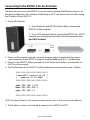
1
8. Open a web browser and navigate to the IP address
that is indicated. You will be prompted to enter a
username and password.
9. The default login (case sensitive) is as follows:
User ID: Admin
Password: Pass
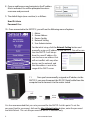
10. Once connected to the SMTCP-2, you will see the following menu of options:
1.
2.
3.
4.
5.
Matrix
Frame Address
Device Config
Network Setting
User Administration
For the initial setup, click the Network Setting button and
manually assign an IP address to the SMTCP-2. This will assure
that the SMTCP-2 will always
have the same IP address. Be
sure to choose an address that
will not conflict with any other
devices on the network, and
that the address is not in the
range of the DHCP server.
11.
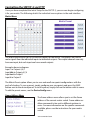
Once you have manually assigned an IP address to the
SMTCP-2, you may disconnect the RS-232 (Serial) cable from the
computer and to connect it to the matrix switch.
CAT5
RS-232
SERIAL
CAT5
COMPUTER
IP ROUTER
SMTCP-2
MATRIX SWITCH
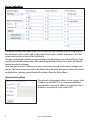
It is also recommended that you set a password for the SMTCP-2 at this point. To set the
password (and/or username), click on the User Administration button, enter the password
and click Submit. This sets the password for the HTTP interface only.
4
www.smartavi.com