1
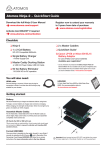
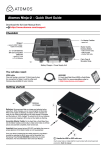
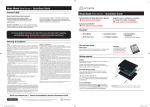
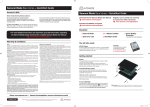
Atomos Ninja-2 ~ QuickStart Guide
Atomos Ninja-2 ~ QuickStart Guide
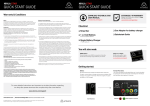
Connect & power-up
Record
Attach Battery:
Main Interface:
Attach the supplied battery to the Ninja-2. Make
sure to use the battery slot marked with the
number “1” as this is the primary battery. If you
purchase an additional battery, it should be
connected to the other, secondary slot.
Battery number 1
Gently slide down into battery
slot/s and lock into position.
Record:
Press to start/stop recording
Play: Enter playback mode
Push latch to release battery
The Ninja-2 utilises only one battery at a time.
This way a battery can be removed, charged and
replaced during operation. Refer to the User
Manual for more information.
Monitor: Enter monitor mode
Menu: Device settings / options
Ninja-2 Must power up
using battery slot 1 ONLY
IMPORTANT Ninja-2 can only power up / turn on
from the primary battery position. [Battery Slot #1]
CONNECT:
Eject Button: HDD / SSD
To eject the Master Caddy, slide the
latch on the side of the Ninja-2 and
pull out Master Caddy from the slot.
The Master Caddy is hot-swappable
so you can do this at any time...
except while actively recording.
Video Input
Connect camera or other
source device to the Ninja-2
using a HDMI cable.
Video Output
POWER:
Media Storage:
On/Off
Insert Master Caddy into the
Ninja-2 until it clicks into
position.
Stereo Line In
Stereo Line Out
or Headphones
Monitor & Record while monitoring
Monitor & Record: Configurations
Smart Monitor Interface
Record while Monitoring
Press to Record in Monitor Mode
Focus Assist: Peaking
Smart Log: Smart Log Mode
Exposure Assist: Zebra
Back: Takes user back to the
main control screen
False Colour Twin Mode
Smart monitor
Loop or Play out to an
external HDMI TV/Monitor
Audio
Audio Indicator
The Audio Levels associated with the current Recording
Briefly press the circular button on
the side of the Ninja-2 to power-up
the unit.
To shut down, depress button for at
least 4 seconds (until unit turns off)
Mount
Smart Log: Tagging Interface
chassis may feel slightly warm / hot to touch. This is completely normal and does not in any way effect the overall functionality of the Ninja-2.
Pay special attention to any items on
screen which are marked by a small blue
arrow. Touch these items to access or
cycle thru related options.
A larger blue arrow in the top right
corner of the screen will return you
from other menus to the main controls.
Play: Press to play clip
Smart Monitor Mode
Jump to beginning / end
Loop IN Point
Frame by Frame: RWD/FFWD
Loop: Loop Playback
SmartLog:
Clear all smartlog tags
Tagged Clips: Areas of the video clip can be tagged & highlighted
Codec used for recording
Timecode Display Indicator: Video clip playback information
Battery power
remaining
Rolling
timecode
trigger
Easy to use
Touchscreen
Interface
Audio input
level meters
Recording time
remaining
Timecode Display
Tag for Favourite: Touch once to set the IN point. Touch again to set OUT point.
Tag for Reject: Touch once to set the IN point. Touch again to set OUT point.
Connect & Edit
Currently
active battery
1 or 2
Headphone Line
Out volume
Smart Log
Loop OUT Point
Main Controls: One-touch Operation (Simple Touchscreen Interface)
Please find herewith a brief description
of the main controls seen when the
Ninja-2 is first powered up. Please refer
to the User Manual for more details.
Playback: Play, Loop & Scrub
Super RWD/Super FFWD
CAUTION: The Ninja-2 is constructed from aluminium which acts as the unit’s heat sink. In high or extreme temperatures / climates, the metal
Current video input
format and status
Monitor Assist: Control
adjustments for individual filters
Playback & Edit: One-touch Review
Mount the Ninja-2 on or between the camera or tripod
using the standard 1/4” inch tripod screw mounts top and bottom.
The Ninja-2 is controlled by a simple
user-friendly touchscreen interface.
Blue Only: Exposure Check
Headphones: Volume adjustment
Master Caddy Docking Station
To access and edit your recorded material:
Ready to edit:
Connect the Master Caddy Docking Station to a Mac® or Windows®
editing workstation via USB 2.0 and/or USB 3.0 compatible port/s.
Next, eject the Master Caddy from the Ninja-2 and insert it into the
Docking Station. After a short wait your recorded video will become
accessible as a standard external disk (Native ExFAT / FAT32 formatted
drive/s also supported).
When using USB, you may also need to connect power to the
Docking Station using the included USB power cable and connecting it
to a USB 2.0 port. Try this if you encounter problems.
For more detailed instructions and important up-to-date information regarding
the Ninja-2 please consult the Ninja-2 User Manual available for download from
www.atomos.com/support