1
1. Tap on the option “Pattern”
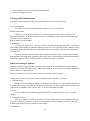
A pattern introduction screen appears, as shown below.
<<screenshot>>
2. Tap the “Next” button
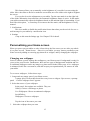
A pattern tracing screen appears, as shown below.
3. Draw an unlock pattern.
Trace the over the dots in any order. The linitation here is that you can trace a same dot
only once and have to trace at least four dots on the grids. Upon success, a message saying
“Pattern recorded appears.
If you don’t satisfy with the pattern you just drew, click the “Retry” button and draw a
new one.
4. Tap the “Continue” button.
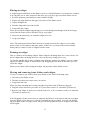
5. Retrace the pattern.
You have to redraw the pattern you just did to confirm that the pattern is exactly the one
you want.
6. Tap the “Confirm” button
The pattern lock is all set.
If you want to cancel this pattern lock feature, select either “None” or “Slide” in the “Choose
screen lock” tap as described in the beginning of this Chapter.
Setting a PIN
A PIN is a personal identification number. If you activate the PIN locking feature, you have to
enter a numerical code between 4 and 16 digits that can contain only the numbers 0 through 9.
To set a PIN lock, follow the seteps described below to set your PIN.
1. Run the Setting app and open the Choose Screen Lock tab.
For details on how to reach this tab, see the beginning of this Chapter.
2. Tap to select “PIN” from the list.
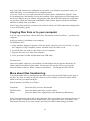
3. Use the onscreen ten-keys to enter your PIN.
4. Tap the “Continue” button.
5. Type again the PIN that you just entered.
6. Tap OK.
The next time you power on or wake your tablet, you need to type that PIN to unlock your
tablet.
To disable the PIN, select either “None” or “Slide” in the “Choose screen lock” tap as described
in the first two sections of this Chapter.
21