1
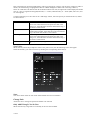
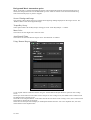
Background Music Automation option
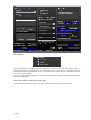
When ‘Auto Fade’ is selected the background music will automatically fade out when the karaoke player is
started, the background music will be faded back up to the ‘Fade To Volume’ level when the karaoke song
ends or the karaoke player is pause or stopped.
Screen 2 Background Image
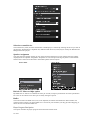
The ‘Change’ button allows the user to change the backgroung immage displayed on the singers screen. The
‘Default’ button resets the background image.
Tempo/Key Set up
These option buttons set the Key/Tempo ‘change per click’ of the Key/Tempo +/- buttons.
Menu Color
This control sets the ‘Right click’ menu text color.
Auto Karaoki Timer
This control sets the time between singers when ‘Auto Karaoki’ is enabled.
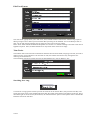
Using ‘Remote Request Stations
To use request stations enable the stations using the ‘Enable Remote Request Stations’ option on the ‘Config’
screen.
Set the port on the stations to the same value as the port on the ‘Config’screen, the default value is 6000 but can
be changed if this is already in use.
Set the IP on the ‘Request Station’ to the same value as the one shown on the ‘Config’ screen, this is a fixed value
and cannot be changed by the program.
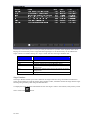
Select the Case that you wish to display on the Request Stations from the ‘Use Case’ dropdown box, All cases
will be shown on the dropdown box.
21 of 23