1
DVR4x4Instal.book Page 3 Tuesday, February 15, 2005 9:25 AM
DVR4C | Installation Manual | Table of Contents
SAFETY PRECAUTIONS ..............................................................................................................................5
1.
2.
3.
4.
5.
INTRODUCTION .........................................................................................................................................................................7
1.1
DIGITAL VIDEO RECORDER FOR SECURITY APPLICATIONS ......................................................7
1.2
FEATURES ........................................................................................................................................................7
1.3
UNPACKING ....................................................................................................................................................7
1.3.1 Package contents ...............................................................................................................................7
INSTALLATION ............................................................................................................................................................................ 8
2.1
CONNECTIONS ..............................................................................................................................................8
2.2
FIRST-TIME USE .............................................................................................................................................9
2.2.1 Quick Install Menu ..............................................................................................................................9
OPERATING INSTRUCTIONS ........................................................................................................................................... 11
3.1
FRONT PANEL CONTROLS .................................................................................................................... 11
3.2
VIEWING PICTURES .................................................................................................................................. 12
3.2.1 Quad screen ..................................................................................................................................... 12
3.2.2 Full screen ......................................................................................................................................... 12
3.2.3 Sequence ........................................................................................................................................... 12
3.2.4 Image freeze ...................................................................................................................................... 12
3.2.5 Zoom ................................................................................................................................................... 12
3.3
LIVE, PLAYBACK, COPY AND SEARCH MODES ............................................................................. 13
3.3.1 Live mode ........................................................................................................................................... 13
3.3.2 Playback mode ................................................................................................................................. 13
3.3.3 Copy mode ........................................................................................................................................ 13
3.3.4 Search mode ..................................................................................................................................... 13
MENU SYSTEM ........................................................................................................................................................................ 14
4.1
OVERVIEW OF THE MENU SYSTEM .................................................................................................... 14
4.1.1 Accessing the menu from the unit ............................................................................................... 14
4.2
QUICK INSTALL > ....................................................................................................................................... 14
4.3
CAMERA SETUP > ..................................................................................................................................... 14
4.4
RECORDING > ............................................................................................................................................ 15
4.5
EVENT SETUP > .......................................................................................................................................... 15
4.6
SYSTEM SETTINGS > ............................................................................................................................... 16
4.7
PROFILES > .................................................................................................................................................. 20
4.8
DISK MANAGER > ...................................................................................................................................... 21
USING THE CONFIGURATION TOOL .......................................................................................................................... 22
5.1
GETTING STARTED .................................................................................................................................... 22
5.1.1 System requirements ...................................................................................................................... 22
5.2
INSTALLING THE CONFIGURATION TOOL ....................................................................................... 22
Bosch Security Systems
EN | 3
DVR4x4Instal.book Page 4 Tuesday, February 15, 2005 9:25 AM
DVR4C | Installation Manual | Table of Contents
6.
5.3
STARTING THE CONFIGURATION TOOL .......................................................................................... 22
5.4
HOW TO LOG IN ........................................................................................................................................ 22
TECHNICAL SPECIFICATIONS ........................................................................................................................................ 24
Bosch Security Systems
EN | 4
DVR4x4Instal.book Page 5 Tuesday, February 15, 2005 9:25 AM
DVR4C | Installation Manual |
SAFETY PRECAUTIONS
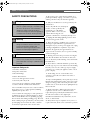
Danger
The lightning flash with arrowhead symbol,
within an equilateral triangle, is intended to alert
the user to the presence of an uninsulated
“dangerous voltage” within the product's
enclosure that may be of sufficient magnitude to
constitute a risk of electric shock to persons.
Warning
The exclamation mark within an equilateral
triangle is intended to alert the user to the
presence of important operating and
maintenance (servicing) instructions in the
literature accompanying the appliance.
Caution
To reduce the risk of electric shock, do not
remove cover (or back). No user-serviceable
parts inside. Refer servicing to qualified service
personnel.
Important Safeguards
1. Read these instructions.
2. Keep these instructions.
3. Heed all warnings.
4. Follow all instructions.
5. Do not use this apparatus near water.
6. Clean only with a dry cloth.
7. Do not block any ventilation openings. Install in
accordance with the manufacturer's instructions.
8. Do not install near any heat sources such as radiators,
heat registers, stoves, or other apparatus (including
amplifiers) that produce heat.
9. Do not defeat the safety purpose of the polarized or
grounding-type plug. A polarized plug has two blades
with one wider that the other. A grounding-type plug
has two blades and a third grounding prong. The wide
blade or third prong are provided for your safety. If the
provided plug does not fit into the outlet, consult an
electrician for replacement of the obsolete outlet.
Bosch Security Systems
EN | 5
10. Protect the power cord from being walked on or
pinched particularly at plugs, convenience receptacles,
and the point where they exit from the apparatus.
11. Only use attachments/accessories specified by the
manufacturer.
12. Use only with the cart, stand, tripod,
bracket, or table specified by the
manufacturer, or sold with the
apparatus. When a cart is used, use
caution when moving the cart/
apparatus combination to avoid injury from tip-over.
13. Unplug this unit during lightning storms or when
unused for long periods of time.
14. Refer all servicing to qualified service personnel.
Servicing is required when the apparatus has been
damaged in any way, such as power-supply cord or plug
is damaged, liquid has been spilled or objects have
fallen into the apparatus, the apparatus has been
exposed to rain or moistue, does not operate normally,
or has been dropped.
15. Moving - Disconnect the power before moving the
unit. The unit should be moved with care. Excessive
force or shock may result in damage to the unit and the
hard disk drives.
16. Power Sources - This unit should be operated only
from the type of power source indicated on the marking
label. If you are not sure of the type of power supply
you plan to use, consult your appliance dealer or local
power company.
17. Overloading - Do not overload outlets and
extension cords as this can result in a risk of fire or
electric shock.
18. Object and Liquid Entry - Never push objects of any
kind into this unit through openings, as they may touch
dangerous voltage points or short out parts that could
result in a fire or electric shock. Never spill liquid of any
kind on the unit.
19. Replacement Parts - When replacement parts are
required, be sure the service technician has used
replacement parts specified by the manufacturer or have
the same characteristics as the original part.
Unauthorized substitutions may result in fire, electric
shock, or other hazards.
20. Safety Check - Upon completion of any service or
repairs to this unit, ask the service technician to perform
DVR4x4Instal.book Page 6 Tuesday, February 15, 2005 9:25 AM
DVR4C | Installation Manual |
safety checks to determine that the unit is in proper
operating condition.
21. Coax Grounding - If an outside cable system is
connected to the unit, be sure the cable system is
grounded. U.S.A. models only--Section 810 of the
National Electrical Code, ANSI/NFPA No.70-1981,
provides information with respect to proper grounding
of the mount and supporting structure, grounding of the
coax to a discharge unit, size of grounding conductors,
location of discharge unit, connection to grounding
electrodes, and requirements for the grounding
electrode.
22. To reduce the risk of fire or electric shock, this
apparatus should not be exposed to rain or moisture
and objects filled with liquids, such as vases, should not
be placed on this apparatus.
23. Danger of explosion if battery is incorrectly
replaced. A lithium battery is located inside the
enclosure of this recorder. Replace only with the same
or equivalent type. Dispose of the replaced battery in an
environmentally friendly way.
Cleaning
You can clean the unit with a moist fluff-free cloth or
shammy leather cloth.
Remark
Bosch has a strong commitment towards the
environment. This unit has been designed to respect the
environment as much as possible.
Warning
This device is intended for use in public areas only.
Surreptitious recording of oral communications is
strictly prohibited by U.S. Federal law.
Note
Any change or modification not expressly approved by
Bosch of the equipment authorization could void the
user's authority to operate the equipment. For additional
information or to speak to a representative, please
contact the Bosch Security Systems location nearest you
or visit our web site at www.boschsecuritysystems.com
Bosch Security Systems
EN | 6
FCC INFORMATION
This equipment has been tested and found to comply
with the limits for a Class B digital device, pursuant to
part 15 of the FCC Rules. These limits are designed to
provide reasonable protection against harmful
interference in a residential installation. This equipment
generates, uses and can radiate radio frequency energy
and, if not installed and used in accordance with the
instructions, may cause harmful interference to radio
communications. However, there is no guarantee that
interference will not occur in a particular installation. If
this equipment does cause harmful interference to radio
or television reception, which can be determined by
turning the equipment off and on, the user is
encouraged to try to correct the interference by one or
more of the following measures:
•
•
•
•
Reorient or relocate the receiving antenna.
Increase the separation between the equipment and
receiver.
Connect the equipment into an outlet on a circuit
different from that to which the receiver is
connected.
Consult the dealer or an experienced radio/ TV
technician for help.
Reference
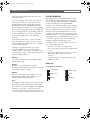
Icons shown on the screen
Play forward
Pause, Freeze
Play reverse
Zoom
Sound
Sequence
DVR4x4Instal.book Page 7 Tuesday, February 15, 2005 9:25 AM
DVR4C | Installation Manual | Introduction
EN | 7
1
Introduction
•
•
1.1
Digital video recorder for security
applications
1.3
The DVR4C is a video recording system that can record
up to four camera signals with associated audio signals
while simultaneously providing live multiscreen viewing
and playback. The unit has comprehensive search and
playback facilities for viewing stored video. Once set up,
all recording takes place in the background without
requiring operator intervention. The maximum
recording rate is 120 (NTSC) and 100 (PAL) images per
second in total.
The unit also has extensive alarm handling functions,
including motion detection in user-definable areas of the
image on any camera input. Input alarms and videoloss
are also treated as alarm signals.
The unit can be easily operated and programmed via
the front panel control keys and on-screen display menu
system. A monitor output provides full-screen and quad
screen viewing. USB supports easy archiving of video.
Via a network, PC-based applications can be used for
live viewing, playback and configuration. The DVR4C
includes an archive player for stand-alone PC playback.
Authenticity can be checked with the remote PC
software.
Looping video inputs with termination switches, a video
output, alarm inputs and outputs, and an Ethernet
connector are on the rear panel. The monitor output
provides a CVBS video signal in either NTSC or PAL.
1.2
Features
The DVR4C has the following features:
•
•
•
•
•
•
•
•
•
Small file sizes using MPEG-4-based compression.
Four video and four audio inputs.
Simultaneous recording and playback.
Real-time recording on all channels.
Easy archiving of video with USB.
Remote access and control via LAN, WAN, PSTN or
DSL.
Full-screen and quad display capabilities in live and
playback modes.
Motion detection.
Four switching (alarm) inputs and four alarm
outputs.
Bosch Security Systems
Video loss and fan failure detection.
Audible alarm.
Unpacking
Check the package for visible damage. If any items
appear to have been damaged in shipment, notify the
shipping company. Unpack carefully. This is electronic
equipment and should be handled with care to prevent
damage to the unit. Do not attempt to use the unit if any
components are damaged. If any items are missing,
notify your Customer Service Representative or Bosch
Sales Representative.
The shipping carton is the safest container in which to
transport the unit. Save it and all packing materials for
future use. If the unit must be returned, use the original
packing materials.
1.3.1
Package contents
Check for the following items:
•
•
•
•
•
•
Digital Video Recorder
Remote Viewer and Archive Player user manual
Installation manual (this manual)
Power supply cord
Network cross-over cable
A CD-ROM with the software and the manuals.
DVR4x4Instal.book Page 8 Tuesday, February 15, 2005 9:25 AM
DVR4C | Installation Manual | Installation
2
EN | 8
Installation
detectors, smoke detectors and similar devices. You can
configure the alarm inputs as N/O or N/C in the menu
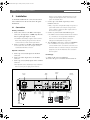
To install the DVR make the connections described
below and then enter the relevant data in the quick
install menu.
system. The default is N/O.
6. Connect up to four alarm output relays via the
terminal connector.
> Relay 1 responds to an input alarm, Relay 2 responds to a
2.1
Connections
system failure and the other relays are assigned to the
remote software. Configure the alarm outputs as N/O or
Primary connections
N/C in the menu system.
1. Connect the cameras to the BNC camera input
connectors. (Set impedence to Hi-Z only when the
video loop-through outputs are used.)
7. Connect to your network via the Ethernet port.
> The DVR4C is delivered with the DHCP function switched
on, so IP addresses are assigned automatically if the
> The DVR4C automatically configures itself as a PAL or
network server uses DHCP. (Refer to the System
NTSC unit by detecting the signal format of the first
settings/Connectivity/Network setup menu.)
connected camera (lowest camera input number).
8. Use the RS232 connector to connect to a PSTN line.
2. Connect a monitor to the BNC output MON Out.
> The serial RS232 console port connector is used to
> Connect the unit to the monitor using 75-ohm video
connect a PSTN modem or a text device to the unit. Use a
coaxial cables with BNC connectors.
null-modem cable to connect the serial port of the external
equipment to the unit. The Baud rate can be selected in
Optional connections
the menu system.
3. Connect up to four audio inputs via the RCA
connectors.
4. Connect an audio output device via the RCA
connector.
5. Connect up to four (alarm) inputs via the terminal
connector.
Powering up
9. Switch on all connected equipment.
10. Connect the power cord to the unit and switch on.
> Each input line can be switched by a relay contact from
devices such as pressure pads, passive infra-red
Camera
inputs
Audio
inputs
Power
switch
Alarm
input
Network
connector
Monitor
output
Relay
output
RS232
connector
PC
Audio
output
100-240 Vac
Bosch Security Systems
LAN / WAN
DVR4x4Instal.book Page 9 Tuesday, February 15, 2005 9:25 AM
DVR4C | Installation Manual | Installation
EN | 9
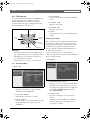
2.2 First-time use
To open the quick install menu, press the MENU key on
the front panel and select the Quick install
submenu. Fill in the basic settings to get the unit
operational. The unit begins recording automatically.
Press the ESC key to close the menu.
>>> TIME FORMAT
• Select between 24 Hour and 12 Hour (AM/PM)
format.
>>> CURRENT TIME
• Fill in the current time.
>>> CURRENT DATE
• Fill in the current date.
Pause (Up)
>>> APPLY
• Select this item to save your current time and date
settings.
Fast Forward
(Right)
Reverse
(Left)
Esc
(escape/exit)
Stop (Down)
Play (Select)
Navigating
• Use the Reverse (left), Fast forward (right), Pause
(up) and Stop (down) keys to move through a menu.
• The Play key selects a submenu or menu item, or
saves selections made in menus.
• Use the ESC key to go back or to exit the menu.
2.2.1
Changing time settings
All recorded video is time stamped for authentication. A
linear timescale, with no gaps or overlaps, is used for
searching and archiving. If you change the time, there is
a mismatch between the time stamp and the linear
timescale. This offset is displayed during playback on
the right of the time stamp.
To prevent mismatches, we recommend that you
archive any important video and reformat the hard disk
when you change the time.
>> RECORDING
Quick Install Menu
>> DATE/TIME
>>> TIME ZONE
• Select the correct time zone from a list. The
default time zone is GMT 00:00.
>>> DAYLIGHT SAVING
• Select if DST is used (On) or not (Off).
>>> DATE FORMAT
• Select from three date formats which show either
the month (MM), the day (DD) or the year
(YYYY) first.
Bosch Security Systems
>>> CONFIGURATION STATUS
• This shows the current setting of the DVR. When
the DVR is still configured in the same way as it
was during the last quick install, the configuration
status displays Original setup. Otherwise it
shows Custom setup.
>>> SPEED (IPS)
• Select the recording speed to be used for all
cameras.
• The Images Per Second (IPS) rates available for
PAL range from 0, 0.75 (one image every 1.3
seconds), up to 25 IPS.
DVR4x4Instal.book Page 10 Tuesday, February 15, 2005 9:25 AM
DVR4C | Installation Manual | Installation
•
The IPS rates available for NTSC range from 0, 1
(one image every second), up to 30 IPS.
>>> QUALITY
• Select either Low, Standard, Medium, High or
Superior for the image quality level.
EN | 10
>>> APPLY
• Select this item to save your settings.
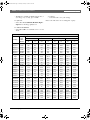
Refer to the table below for recording time capacity.
>>> AUDIO RECORDING
• Select On or Off to record Audio or not to record
Audio.
Recording time capacity
Quality
Superior
Superior
Superior
Superior
Superior
Superior
High
High
High
High
High
High
Medium
Medium
Medium
Medium
Medium
Medium
Standard
Standard
Standard
Standard
Standard
Standard
Low
Low
Low
Low
Low
Low
IPS
Rate
PAL/
NTSC
0.75/1
1.5/2
3/3.5
6/7.5
12.5/15
25/30
0.75/1
1.5/2
3/3.5
6/7.5
12.5/15
25/30
0.75/1
1.5/2
3/3.5
6/7.5
12.5/15
25/30
0.75/1
1.5/2
3/3.5
6/7.5
12.5/15
25/30
0.75/1
1.5/2
3/3.5
6/7.5
12.5/15
25/30
Bosch Security Systems
80GB
Audio
off
13.2
9.8
6.5
3.9
2.5
1.2
19.6
14.7
9.8
5.9
3.7
1.8
26.2
19.6
13.0
7.8
4.9
2.4
39.2
29.3
19.5
11.7
7.3
3.6
78.0
58.3
38.7
23.1
14.4
7.2
Total days on hard disk (when recording 4 channels)
160GB
320GB
600GB
Audio
Audio
Audio
Audio
Audio
Audio
on
off
on
off
on
off
10.7
26.3
21.4
52.6
42.9
98.7
8.4
19.7
16.8
39.4
33.6
73.8
5.9
13.1
11.8
26.2
23.5
49.1
3.7
7.9
7.4
15.7
14.7
29.5
2.4
4.9
4.7
9.8
9.4
18.4
1.2
2.5
2.4
4.9
4.8
9.2
14.6
39.3
29.3
78.5
58.6
147.3
11.7
29.4
23.4
58.8
46.9
110.3
8.4
19.6
16.7
39.2
33.5
73.5
5.3
11.7
10.7
23.5
21.3
44.0
3.4
7.3
6.9
14.7
13.8
27.5
1.8
3.7
3.6
7.3
7.1
13.7
18.0
52.3
36.0
104.6
72.0
196.2
14.6
39.2
29.2
78.4
58.5
147.0
10.6
26.1
21.3
52.2
42.5
97.8
6.9
15.6
13.8
31.3
27.5
58.6
4.5
9.8
9.0
19.5
18.0
36.6
2.3
4.9
4.7
9.8
9.4
18.3
23.3
78.4
46.7
156.7
93.3
293.9
19.4
58.7
38.9
117.3
77.8
220.0
14.6
39.0
29.2
78.0
58.3
146.3
9.7
23.4
19.4
46.7
38.9
87.6
6.5
14.6
12.9
29.1
25.9
54.6
3.4
7.3
6.9
14.6
13.7
27.3
33.1
156.0
66.3
312.0
132.6
585.0
29.0
116.6
58.0
233.1
115.9
437.1
23.2
77.4
46.3
154.8
92.6
290.2
16.5
46.3
33.0
92.6
66.0
173.5
11.5
28.8
23.0
57.6
46.1
107.9
6.4
14.4
12.8
28.8
25.6
54.0
Audio
on
80.3
63.1
44.1
27.6
17.6
9.0
109.8
87.9
62.8
40.0
25.9
13.3
135.0
109.7
79.8
51.6
33.7
17.5
175.0
145.8
109.3
72.9
48.5
25.7
248.6
217.4
173.6
123.8
86.4
48.0
DVR4x4Instal.book Page 11 Tuesday, February 15, 2005 9:25 AM
DVR4C | Installation Manual | Operating instructions
3
EN | 11
Operating instructions
In menu mode, press to move the current selected
position to the left.
In zoom mode, press to move the zoomed area to
the left.
The purpose of the front panel keys is explained here.
The functions available can be limited by setting
passwords. An administrator has access to many more
functions in the menu. Refer to Menu System for a full
list of available menu items.
3.1
1
8
Pause key:
In live mode, press to freeze a camera picture.
In playback mode press to pause playback.
In menu mode, press to move the current selected
position upwards.
In zoom mode, press to move the zoomed area
upwards.
9
Fast forward:
In full screen live mode, press to start playback
from 1 minute earlier.
In playback mode, press to speed up the playback
rate.
In pause mode, press to step forward one frame.
In menu mode, press to move the current selected
position to the right.
In zoom mode, press to move the zoomed area to
the right.
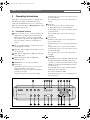
Front panel controls
Keys 1 to 4: Press to select a camera for full screen
display in live or playback mode. The indicators
light in green when a camera is selected in full
screen mode or quad mode. They light in red when
there is an alarm or video loss for that input or
camera.
2
The power indicator lights to indicate that power is
being supplied to the unit.
3
NET: The indicator lights when the unit is accessed
via the network.
4
REC: The recording indicator lights when the unit
is recording video.
5
PLAY: The playback indicator lights when
playback is active.
6
SEARCH: Press to enter the search menu.
7
Reverse key:
In the full screen live mode, press to start reverse
playback from the current position.
In playback mode, press to play backward and to
speed up reverse play.
In pause mode, press to step back one image.
1
10 OSD/Help
By default the On-Screen Display (OSD) shows all
information during live and playback mode. If a
text device is connected, text data is shown only in
the full screen mode. Event information is shown
only in live mode.
Press the OSD button to show only the channel
number, the time and the date.
Press twice to disable the OSD.
In the menu mode, press to see an explanation of
the selected item.
2 3 4 5
NET
1
2
3
4
QUAD
ZOOM
SEQ
20
19
18
REC
6
7
8
PLAY
9 10
OSD/HELP
Digital Video Recorder
Bosch Security Systems
17
USB
COPY
16
15
ESC
14 13 12
11
DVR4x4Instal.book Page 12 Tuesday, February 15, 2005 9:25 AM
DVR4C | Installation Manual | Operating instructions
11 ESC: Escape from the current menu level. If in Edit
mode, changes are not saved.
In playback mode, press to stop playback and to go
back to live mode.
In pause mode, press to go back to live mode.
If the beeper sounds, press ESC to silence it.
12 Stop key:
In playback mode, press to stop playback and to go
back to live mode.
In pause mode, press to go back to live mode.
In menu mode, press to move the current selected
position downwards.
In zoom mode, press to move the zoomed area
downwards.
13 Play key:
In live mode, press to start playback from the
previous playback point or, if no point exists, from
one minute earlier than the current position.
In menu mode, selects a submenu or menu item or
saves selections made in menus.
In pause mode, press to resume playback mode.
14 MENU: Press to activate the setup menu for
configuration of the DVR on the local monitor (in
live mode only).
EN | 12
3.2 Viewing pictures
The unit has one monitor output. The monitor picture
display depends on how the system has been set up. It
shows full screen or quad live or playback camera
pictures. Alarms, motion, and video loss warnings are
also displayed on the monitor. When the menu system
is activated, it is displayed on the monitor.
3.2.1
Quad screen
To view a Quad screen display on the monitor, press
the QUAD key.
3.2.2
Full screen
To view a full screen shot of a camera, press a camera
key. The camera key of the selected camera lights
(green).
3.2.3
Sequence
To view a sequence of live camera pictures in full
screen, press the SEQ key. The sequence icon is
displayed on the monitor. A sequence of camera
pictures appears, each for a pre-programmed dwell
time. Pressing the sequence key again or selecting a
single camera stops sequencing.
15 COPY: Press to open the copy menu for copying
video to a USB stick in playback mode.
16 USB slot: Insert a USB stick into this slot.
17 The USB indicator lights for 10 seconds when the
USB stick is inserted into the USB port or when the
USB stick is being accessed for Read/Write in
playback mode.
3.2.4
Image freeze
To freeze a camera shot on the monitor, press the pause
key. To return to live viewing, press the ESC key. This
function can be activated in full screen mode only. The
zoom function can also be used on a frozen picture. If
you change viewing mode, any frozen pictures are
released.
18 SEQ: View cameras in sequence on full screen.
19 ZOOM: Zooms in on the active camera display.
3.2.5
20 QUAD: Press to display a quad screen in live or
To zoom in on a camera picture:
playback mode.
Zoom
1. Press the ZOOM key.
> The zoom icon is displayed on the monitor.
> The picture is enlarged by a factor of 2.
2. Use the Up, Down, Left and Right keys to select the
area of the picture you want to see.
3. Press the ZOOM key again to return to a full picture
and leave the zoom mode.
> The zoom icon disappears on the monitor.
Bosch Security Systems
DVR4x4Instal.book Page 13 Tuesday, February 15, 2005 9:25 AM
DVR4C | Installation Manual | Operating instructions
EN | 13
3.3 Live, playback, copy and search
modes
6. If you do not have enough space on your memory
stick, reformat it using the format button.
3.3.1
7. Select Start to start copying.
8. Press the ESC key to return to the playback mode.
> Reformatting deletes all data on the memory stick.
Live mode
The live mode is the normal operating mode of the unit
where you watch live pictures from the cameras. From
the live mode you can switch to the search mode, the
playback mode or to the system menu. Access to system
menu, search and playback functions may require a
password. Discuss this with your administrator. To
switch back to live viewing from another mode, close
the activated mode by pressing the ESC key.
3.3.2
Playback mode
To enter the playback mode, press the play key. Use the
Reverse, Pause, Fast Forward and Stop keys to change
the direction and speed of the recording being played.
3.3.3
Copy mode
When in playback mode, press the copy key to open the
copy menu when a USB memory stick is inserted.
(Ensure that the USB memory stick is formatted
according to the FAT system.)
1. Select the copy file format either dv4, AVI or JPEG.
> The dv4 format is the proprietary file format of BOSCH
and can only be played back with the supplied viewer
software (Archive Player). The Archive Player is copied
automatically when the recorded images are copied to the
USB stick.
> To play the Bosch AVI format you can use a normal
Windows compatible MPEG-4 player such as Media
Player but you must ensure that an XVID codec is
installed. (Check the internet for this codec.)
> Still images are copied in JPEG format. Only the single
image displayed on the monitor is copied to the USB stick.
The copied image does not contain time/date or channel
number information.
2. Fill in the start time.
3. Fill in the duration of the copy.
4. If you selected the .dv4 format, you can now select
the channel to copy. (For AVI or JPEG the active
playback channel is automatically selected.)
5. If you have more than one memory stick connected,
select disk. The available free space and the
approximate space required are shown.
Bosch Security Systems
3.3.4
Search mode
Press the SEARCH key to open the search menu. Use
the search menu to search for stored video recordings.
>> SEARCH CRITERIA
• Fill in a time and date from where to start the search.
• Fill in the end time and date for the search.
• To search for a specifc type of event, select a filter
option: Input Alarm, Motion, Text or All.
• Select Start Search to start the search.
• A full screen playback starts and the search results
are displayed from the selected time and date.
• Press the ESC key to exit the search mode and
return to the playback mode.
>> EVENT LIST
• Use the up/down arrow keys to select an event in the
list of search results.
• Press the play key for a full screen playback of
selected event.
• Press the ESC key to close the search menu and
return to the playback mode at the selected time and
date or at the selected event.
DVR4x4Instal.book Page 14 Tuesday, February 15, 2005 9:25 AM
DVR4C | Installation Manual | Menu system
4
Menu system
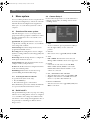
You access all the parameters used to set up the unit via
the menu system using the keys on the front of the unit
itself. The PC-based Configuration Tool application
allows you to access the menu system from a remote
computer.
4.1
EN | 14
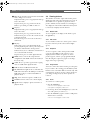
4.3 Camera Setup >
Use the Camera Setup menu to access the submenus for
setting the camera names, for locking cameras and for
controlling cameras.
Overview of the menu system
The main menu gives access to seven major menu
groups. Each of these groups has a submenu tree where
the values and functions can be selected. The seven
menu groups are:
Quick Install. The Quick Install is the easiest way to
set-up the unit, activating all cameras to record with the
same settings and conditions.
Camera Setup. The Camera Setup menu is used to
program the individual cameras.
Recording. The Recording menu is used to configure
dynamic recording conditions such as image quality and
recording rate.
Event Setup. The Event Setup menu is to configure the
alarm inputs and motion detection.
System Settings. The System Settings menu is used to
configure various system parameters.
Profiles. The Profiles menu is for setting the time frame
for the four available profiles.
Disk Manager. This menu is used for the storage
system including internal hard disk settings.
4.1.1
Accessing the menu from the unit
To open the menu (in live mode only):
1. Press the MENU key.
2. The main menu appears on the monitor.
If the administrator password is enabled, the DVR asks
for a password when the main menu is activated.
4.2 Quick Install >
The quick install menu provides easy setup of recording
and time. For recording, all four cameras are configured
to record with the same settings and conditions. If the
current time or date is changed and applied, the time of
the previously recorded images is shifted so that no
images are lost.
Bosch Security Systems
>> NAME
• To select a character, press up and down scroll keys.
Press the right scroll key to move to the next
position.
>> STATUS
• Each camera can be toggled On (default) and Off.
>> TYPE
• PAL or NTSC. The TV format is auto-detected.
Mixing of PAL and NTSC cameras is not supported.
>> COLOR
• Color mode of each camera is selectable B/W,
Color or Auto (default). If Auto is selected, the
DVR itself determines if black and white or color
cameras are connected.
>> AGC, BRIGHTNESS AND CONTRAST
• AGC (automatic gain control) is toggled On or Off.
• Brightness and Contrast is controllable in 19 levels
(from -9 to +9) with a slider. Default is 0.
>> DETECT VIDEOLOSS
• Videoloss detection can be toggled On (default) and
Off for each camera.
DVR4x4Instal.book Page 15 Tuesday, February 15, 2005 9:25 AM
DVR4C | Installation Manual | Menu system
EN | 15
4.4 Recording >
4.5 Event Setup >
The overall schedule consists of 4 periods: Weekday
Day, Weekday Night, Weekend Day and Weekend
Night. The start and end time of each period is set in
the Profiles menu. Recording conditions can be
configured for each of the four periods.
•
•
•
•
>> RECORDING
• Set the normal recording rate and quality to be used
for all cameras.
• Set the recording rate and quality that are used when
an input alarm is triggered. All cameras then record
at these values when an input alarm is triggered.
• For each camera separately, set the conditions for
recording:
• Always - camera is always recorded at the set
recording rate and quality.
• Motion only - camera is recorded at the normal
rate and quality only when motion is detected (no
images are recorded when there is no motion).
• Motion + auto snapshot - camera is recorded at
the normal rate and quality when motion is
detected. The rest of the time a snapshot of the
camera picture is recorded (I-frame images only).
• Event Recording time can be configured to a
maximum of 120 seconds or to follow the event
duration.
• Pre-event recording time can be configured to a
maximum of 30 seconds. Pre-event recording takes
place:
a. on an alarm input if the normal recording rate is
0 IPS,
b. on a motion event (if a motion mode is selected).
Bosch Security Systems
•
The sensitivity of the motion detection has three
levels, Low, Medium and High or set to Off for no
detection.
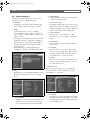
To setup the motion detect area for the whole screen,
select Select All.
To clear the existing motion detect area setting, select
Clear All.
To edit the motion area, select Custom Area. A
16x12 grid is displayed on the monitor. With the
scroll keys, move around the grid. Press the play key
to select a specific area. A blue square indicates a
selected area. To unselect a selected area, move on to
it and press the play key. When area selection is
completed, press ESC to close the area selection
mode. When motion is detected in a selected square,
it turns red.
Four different alarm inputs (Input 1, Input 2,
Input 3, Input 4) can be connected. Each alarm
input can be configured On (default) or Off. An
activated input alarm starts alarm recording on all
cameras.
DVR4x4Instal.book Page 16 Tuesday, February 15, 2005 9:25 AM
DVR4C | Installation Manual | Menu system
4.6 System Settings >
Use the System Settings menu to get access to those
items that are used to configure the system.
>> LANGUAGE
• A language is selectable from the list with the up/
down scroll keys. Press the play key to confirm.
>> AUDIO
• An audio input can be set to record with its
corresponding video input. Audio 1 is mapped to
video 1, audio 2 to video 2, audio 3 to video 3 and
audio 4 to video 4.
• For a Quad screen display in live mode, the 4 audio
channels are mixed. For a Quad screen display in
playback mode, no audio is played back. Audio is
only played back in forward, real-time and full
screen playback.
• Audio monitoring, recording and gain can be
configured per profile for each channel in the table.
EN | 16
>>> MONITORING
• Set On to display live text data on a monitor. Text
is overlayed on the live image.
>>> SYNC TEXT WITH
• Select All to display (and record) text data on all
channels (in a quad screen display, text appears in
the upper-left channel.) Text can also be displayed
(and recorded) with a specific channel only.
>>> SEEK HEADER
• If the text device sends a header, set to On.
• If a header is sent, select a single or a double line
header.
>>> DELIMITER
• If the text device sends an end-of-line delimiter,
enter its value.
>>> TIMEOUT
• If the text device does not send a delimiter, the
text is recorded as a single block. Enter the time
(in milliseconds) that must expire after the last
received character to separate text blocks.
>>> LINES
• If the text device does not send a delimiter or use
a timeout, enter the number of lines to be used
for a single block of text.
>> CONNECTIVITY
>> TEXT
• The DVR can record and display ASCII data on the
monitor. The external device can be a text input
device.
>>> RECORDING
• Set On to record text data on the hard disk of the
DVR. Text is recorded separately from images,
but is synchronized based on time information.
Bosch Security Systems
The Connectivity menu gives access to settings that
control the behavior of the unit with respect to all
external devices or a network.
>>> NETWORK
• Select the type of connection; Ethernet or xDSL.
• Set DHCP to On to have IP address, subnet mask
and default gateway assigned automatically by the
network DHCP server.
DVR4x4Instal.book Page 17 Tuesday, February 15, 2005 9:25 AM
DVR4C | Installation Manual | Menu system
•
•
•
•
Fill in the IP, subnet mask and default gateway
addresses when DHCP is set to Off.
Fill in the DNS in order to use an e-mail address.
At least one DNS should be specified.
Set Auto-Detect to On to allow the Remote
viewer software to automatically detect the DVR
in a network.
Set the Bandwidth limit throttle to restrict the
network bandwidth used.
>>> XDSL
• Specify the Username and Password for an xDSL
connection if required.
• When connected, the status shows Connected.
>>> HTTP PORT
• The DVR provides flexible network
communication port configuration. If the DVR is
on a special network, the HTTP port can be
changed to the appropriate number. For network
communication port information, ask your
network administrator.
• The default is 80.
>>> COM PORT
• Configure the single RS-232 serial port for use
with either a text device or a PSTN modem.
• Select Device with the up/down keys.
• If a modem is selected, an initialisation command
can be entered.
• Select appropriate values for serial
communication for Baud rate, Parity, Stop bits
and Data bits.
>>> PSTN DIAL-IN
• Remote users who have a PSTN connection via a
modem can access the DVR.
• If you select Use default IP, the DVR
automatically provides a pre-defined IP address
(10.0.0.10) for the client PC and 10.0.0.9 as its
own.
• Select Custom to specify exact IP addresses for
both the DVR itself and the client PC.
>>> E-MAIL SETUP
The DVR can send an e-mail on a specified event.
• If Status is set to On, an e-mail is sent to the
specified address on an input alarm, videoloss or
system failure.
• Specify a recipient address and an e-mail sending
server (SMTP) address.
Bosch Security Systems
EN | 17
•
Select the number of images to be sent attached
to the e-mail (3 JPEG images by default). The
DVR attaches 1 image per second. With a
videoloss the images just before the videoloss are
attached. No images are attached when a system
failure occurs.
>> INPUTS AND OUTPUTS
Inputs and outputs can be configured in this menu as
Normally Closed (NC) or Normally Open (NO).
•
•
•
Select either NC or NO with the up/down scroll
keys. Press the play key to confirm.
Outputs have the following fixed purpose:
Item
Purpose
Remote access
Output 1
Activated only on
Input Alarm
Not allowed
Output 2
Activated only on
System failures
Not allowed
Output 3
Not assigned for local
control
Allowed
Output 4
Not assigned for local
control
Allowed
Select Relay Dwell time ranging from 0 to 60
seconds on the selection slider with Left/Right scroll
keys and press the play key to confirm. When
Follows is selected, the output relay is active until
the event causing it ceases to be active.
DVR4x4Instal.book Page 18 Tuesday, February 15, 2005 9:25 AM
DVR4C | Installation Manual | Menu system
>> MONITOR SETUP
>>> DISPLAY CAMERA WITH MOTION
• Select if the DVR switches automatically to a full
screen image of the camera when motion is
detected on that camera.
• With multiple motion detections shortly after
each other, the last camera where motion was
detected is used for display.
>>> DISPLAY CAMERA WITH INPUT ALARM
• Select if the DVR switches automatically to a full
screen image of the camera when an input alarm
becomes active for that camera.
• In case of multiple input alarms shortly after each
other, the last input alarm is used for display.
>>> DISPLAY DWELL TIME
• Specify the dwell time for displaying the camera
with an input alarm or motion. The interval can
be configured with a slider from 5 to 10 seconds.
• If Follows is selected, the camera of the channel
in alarm or with motion is shown for as long as
the alarm is present or motion is detected.
>>> SEQUENCE DWELL TIME
• Specify the sequence dwell time that is used when
the SEQ key is pressed.
• The interval can be configured with a slider from
Off (disable) to 60 seconds (default 10 seconds).
>>> EXIT PLAYBACK ON EVENT
• When set to On, the DVR exits playback to
display a live event.
Bosch Security Systems
EN | 18
>> SECURITY
>>> LOCAL PASSWORDS
• Set a local user password to allow a user limited
access rights only for monitoring, monitoring
control (Auto Seq., digital zoom), copy and
playback control. Configuration is not allowed.
• A password consists of 1 to 4 digits (0-9), entered
by using the up and down keys.
• To confirm the input, the user has to enter the
same password again.
• The configured password is only valid for local
users. The password is shown in the menu using *
characters.
• If a password is set, a user without the correct
password can only view live video and switch
between full screen or quad views.
•
•
•
•
•
Set a local administrator password. An
administrator is allowed to enter all menus and
configure all settings.
A password consists of 1 to 4 digits (0-9), entered
by using the up and down keys.
To confirm the input, the administrator has to
enter the same password again.
The configured password is only valid for the
local administrator. The password is shown in the
menu using * characters.
To lock the keys on the front of the DVR, set
keylock to On and enter a four-digit password.
(To unlock all the keys on the front panel, use
Keys 1 to 4 to enter the password.)
DVR4x4Instal.book Page 19 Tuesday, February 15, 2005 9:25 AM
DVR4C | Installation Manual | Menu system
EN | 19
>>> REMOTE USERS
•
•
•
•
•
•
•
Login names and passwords for the remote users
(4) and administrator can be specified here.
The administrator login name is always "admin"
and cannot be changed.
The remote user login name can be upto 16
characters long. The remote user password can
be up to 12 characters long.
Access to playback (PB) and relay control (RL) is
set for each remote user by placing a Y (allowed)
or a N (not allowed).
Even if remote relay is enabled, relays 1 and 2
cannot be controlled via the remote software as
they are already used for input alarms, motion
and system failures.
Set Remote Setup to Enable (default) or Disable.
When set to Disable, configuration is possible
only via the front panel. PC users cannot
configure the DVR with the remote configuration
software. When set to Enable, both local and
remote users can configure the DVR.
Set IP Filtering to On to restrict access to the IP
address list set up by the Configuration Tool
application.
>> TIME SYNC
This setting is used for time synchronization over the
network. DVRs can be synchronized by setting them up
as a client for an SNTP server. The DVR can also be set
up to act as a local time server, when it is configured in
SNTP server mode.
Bosch Security Systems
>>> NETWORK TIME SERVER
• Select On to allow the DVR to synchronize time
either as a client or as a master.
>>> SERVICE MODE
• Select Client to allow the DVR time setting to be
synchronized by a network time server.
• Select Master to allow the DVR to act as a
network time server and send its time to other
DVRs to synchronize them.
>>> SERVER IP ADDRESS
• Enter the IP address of the network time server.
• This network time server can be either a different
DVR, a computer or a server in the network. The
time is checked and synchronized with the
network time server once every hour.
>>> SYNCHRONIZE
• When this button is pressed, the time is
synchronized with the network time server and
other DVRs immediately.
>> BEEPER
Select whether the beeper should sound when videoloss
is detected or an input alarm is activated. Select On
(default) or Off. When an input alarm or videoloss
occurs, it sounds for as long as the specified relay dwell
time.
DVR4x4Instal.book Page 20 Tuesday, February 15, 2005 9:25 AM
DVR4C | Installation Manual | Menu system
EN | 20
>>> CURRENT PROFILE
• Shows the profile (Weekday - Day, Weekday Night, Weekend - Day, Weekend - Night) that is
currently active.
>> MISCELLANEOUS
The DVR firmware version is shown here. Select
Factory defaults to set all parameters, except IP
address, subnet mask, default gateway and disk setup, to
their default values.
>>> WEEK START AND WEEK END
• Any day from Monday to Sunday can be used as
a start date or end date of a week.
>>> DAY START AND DAY END
• Any time from 00:00 to 23:59 can be used as a
start time or end time of a day.
• If the begin time is later than the end time, then
the profile is active from the end time until the
begin time on the next day.
>> EXCEPTION DAYS
>>> SAVE SETTINGS
• Select Save Settings to save the current settings to
a USB memory stick.
>>> LOAD SETTINGS
• Select Load Settings to load previously saved
settings from a USB memory stick into the DVR.
>>> UPDATE FIRMWARE
• For authorized personnel only!
Select Update Firmware to load new firmware
from a USB memory stick into the DVR. The
new firmware overwrites the current firmware.
Exception days can be set, apart from the four standard
periods, e.g. Christmas. Start time and date, and
duration of the Exception days can be configured.
4.7 Profiles >
•
The recording schedule is divided by weekday day,
weekday night, weekend day and weekend night. Users
can configure start and end time of each schedule.
•
>> PROFILES
Bosch Security Systems
Up to 30 exception days can be set that override the
calendar list.
Use the up/down keys to move to an exception entry
and press the select key to start editing.
DVR4x4Instal.book Page 21 Tuesday, February 15, 2005 9:25 AM
DVR4C | Installation Manual | Menu system
4.8 Disk Manager >
The Disk Manager menu gives access to information on
the internal hard disk(s). The status of the recorded
video and associated data is also accessed via this menu.
>> HISTORY
• All system events are listed on a History log which
cannot be deleted or changed.
• Select a time frame to search by entering the start
and end time.
• To search for a specifc type of event, select a filter
option: All, Input Alarm, Motion, Text, Error or
Status.
• Select Start to start the search.
• The history log includes remote login/logout, record
start/stop, time/date change, hard disk format,
Videoloss, Fan fail, Disk full, Disk fail, Power On/
Off.
>> RECORDING SETUP
>>> RECORDING MODE
• When set to Continuous (default), the DVR
overwrites older images when the hard disk is
full.
• When set to Linear, the DVR stops recording
when the hard disk is full and the administrator
has to delete video manually.
>>> DISK FULL ALARM WARNING
• A warning message is generated when the used
disk space exceeds the disk full warning
percentage set.
• Select from 1 to 100% (default 95%).
>> BLOCK PLAYBACK
• Block playback of video that is older than a certain
time.
• Select from "No block" (default), "24 hours", "2
days", "3 days", "4 days", "5 days", "6 days", "7 days",
"14 days", "21 days", "28 days" or "31 days".
Bosch Security Systems
EN | 21
>> DELETE
• Data can be deleted from a designated time frame.
This can be set from the beginning of the recorded
data (fixed) to a user defined time.
• Select the date and time up to which the recorded
data is to be deleted and then select Delete.
>> STORAGE SETUP
• The storage setup menu provides a way to enable or
disable internal hard disks and to view the status of
connected hard disks.
• Disk shows the internal disk that has been detected.
• Size indicates the disk size of each disk in GB.
• Set Enabled to either Yes and No to enable or
disable a disk. If a disk is disabled, a message warns
you that disabling a disk causes data loss. A new
hard disk can be formatted if Enabled is set to Yes.
• Status indicates the status of the disk. OK indicates
that the disk is operating correctly and can be used
for recording; Fail indicates a problem.
>> STATUS OVERVIEW
• The status overview menu provides information on
the status of the connected hard disks.
• Earliest/Latest Recording indicates the times of
the earliest and latest recordings on the disk.
• Disk capacity indicates the total hard disk size in
GB.
• Used space indicates the hard disk space that has
been used by recordings.
DVR4x4Instal.book Page 22 Tuesday, February 15, 2005 9:25 AM
DVR4C | Installation Manual | Using the Configuration Tool
5
Using the Configuration
Tool
The Configuration Tool is a software application that
makes the installation and configuration of a unit faster
and easier. The Configuration Tool runs on a PC that is
connected to the DVR via an Ethernet network
connection. Although all settings can also be configured
with the on-screen display menu of the DVR itself, the
Configuration Tool offers a very user-friendly
alternative. Refer to the Remote Viewer user manual for
more information on the PC software.
5.1
EN | 22
5.3 Starting the Configuration Tool
To start the Configuration Tool, double click the
Configuration Tool icon on your desktop window to
start the program. Alternatively, select the
Configuration Tool program via the Start button on the
task bar and the Programs menu item. Follow the login
procedure.
5.4 How to Log in
When you start the Configuration Tool as a stand-alone
application via a network, the Login window appears.
(Click Exit to discontinue login and exit the
application.)
Getting Started
To use the Configuration Tool to change settings, the
unit must be physically connected to a PC via a network
connection. The Configuration Tool application must
be installed on the PC.
5.1.1
System requirements
Operating platform: A PC or compatible running
Windows 2000 or Windows XP.
For the Configuration Tool application, the minimum
PC requirements are:
•
•
•
•
•
Processor: 600 MHz Pentium III
Memory: 128 MB
Hard disk space: 10 MB free
Video system: 16 MB video memory; 1024x768
resolution
Connectivity: 10/100-BaseT network interface
5.2 Installing the Configuration Tool
The Configuration Tool is automatically installed on the
PC when you install the DVR4C Manager application.
To install Configuration Tool:
1. Insert the CD-ROM into the CD-ROM drive on
your PC.
> The installation program starts automatically.
2. If installation does not start automatically, locate the
Setup.exe file on the CD and double click it.
3. Follow the instructions on the screen and select to
install the Configuration Tool when asked to
complete the installation.
Bosch Security Systems
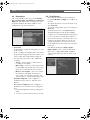
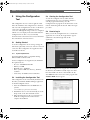
When the Configuration Tool application is started for
the first time, the DVR list is usually empty. You must
first add a DVR to the list. To add a DVR to the list,
click Add in the left bottom corner of the program. The
Add New DVR window appears.
DVR4x4Instal.book Page 23 Tuesday, February 15, 2005 9:25 AM
DVR4C | Installation Manual | Using the Configuration Tool
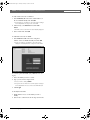
To add a DVR to the list via Ethernet:
1. Select Ethernet, fill in the name and IP address of
the new DVR manually and click OK.
> The IP address to be filled-in is set in the System settings/
Connectivity/Network setup menu of the DVR.
2. Alternatively, select Ethernet and click Autodetect.
> All DVRs on the local network are automatically displayed.
3. Select a DVR and click OK.
To add DVR to the list via PSTN:
1. Select Dial-in and fill in the name and phone
number of the new DVR manually and click OK.
> The phone number to be filled-in is set in the System
settings/Connectivity/Network setup menu of the DVR.
To control a particular DVR (only administrators can
log in):
1. Select the DVR you want to control.
2. Type your user name and password.
> The user name is always admin.
> The password to be filled-in is set in the System settings/
Connectivity/Network access menu of the DVR4C itself.
3. Click Login.
To modify the DVR list:
1. Right-click the mouse on the DVR you want to
modify.
2. Select Delete or Rename from the drop-down menu.
Bosch Security Systems
EN | 23
DVR4x4Instal.book Page 24 Tuesday, February 15, 2005 9:25 AM
DVR4C | Installation Manual | Technical specifications
6
Technical specifications
The following are the technical specifications of the unit.
Rated Voltage and Power
100-240 VAC; 0.7-0.3A, 50/60Hz
PAL/NTSC auto-detect
720x576 (PAL) / 720x484 (NTSC)
2 times
MPEG4-based
Composite video 0.5-2 Vpp, 75 Ohm
1 Vpp, 75 Ohm
Audio
Inputs:
Output:
Mono RCA, 1 Vpp, 10 kOhm
Mono RCA, 1 Vpp, 10 kOhm
Alarm Handling
Inputs:
Outputs:
4 inputs configurable NO/NC, max.
input voltage 40 Vdc
4 relay outputs, configurable NO/NC,
max. rated 30 Vac - 40 Vac - 0.5A
Control
RS232:
Output signals according EIA/TIA232-F, max. input voltage ±25V
Connectors
Video inputs:
Monitor:
Audio inputs:
Audio output:
Ethernet:
RS232:
USB:
Alarm I/O:
4 looping BNC, manual termination
1 BNC
4 Cinch
1 Cinch
RJ45S modular jack 8 pins shielded:
10/100 BaseT according IEEE 802.3
DB9 Male
Type A connector
Screw terminal
Storage
Hard disks:
PAL:
100 total, configurable:
25, 12.5, 6, 3, 1.5, 0.75, 0
Recording resolution: 352 x 288 (PAL) / 352 x 240 (NTSC)
Display modes
Monitor:
Full, full sequence, quad, alarm call-up
Recording Modes
Video
Video standard:
Live resolution:
Digital Zoom:
Compression:
Inputs:
Outputs:
EN | 24
80 - 160 - 320 - 600 GB
Linear, Continuous
Audio recording
Compression:
Quality:
USB
USB version:
Supported Media:
Dimensions:
Weight approx.:
Temperature
- Operating:
- Storage:
Humidity
- Operating:
- Storage:
<93% non-condensing
<95% non-condensing
EMC requirements
- USA:
FCC Part 15, Class B
- EU:
EMC directive 89/336/EEC
Immunity: EN50130-4
Emission: EN55022 Class B
Harmonics: EN61000-3-2
Voltage fluctuations: EN61000-3-3
Safety
- USA:
UL60950 3nd edition
- EU:
CE, EN60950 2000 3nd edition
- Can.:
CAN/CSA-E60065-00
Remote software
Operating System
Processor
Bosch Security Systems
+5°C to +40°C (+41°F to +104°F )
-25°C to +70°C (-13°F to +158°F )
Electromagnetic Compatibility
PC requirements
Recording Rate (IPS)
NTSC:
120 total, configurable:
30, 15, 7.5, 4, 2, 1, 0
369x270x83 mm (14.5x10.6x3.3 inch)
with 1 HDD 4.5kg (9.9 lbs)
with 2 HDDs 5kg (11 lbs)
Environmental
Low:
Standard:
Medium:
High:
Superior:
Video Recording
1.1
USB Memory Stick
Mechanical
Bitrates (at 25/30 IPS)
250 kbps
500 kbps
750 kbps
1 Mbps
1.5 Mbps
ADPCM
32 Kbps, 9 KHz sampling
RAM memory
Free disk space
Video system
Connection
Windows 2000 Professional, XP
PIII 600MHz (PIV 2GHz
recommended)
128MB (256MB recommended)
10MB
16MB Memory, 1024x768 resolution
(64MB Memory recommended)
10/100 Base-T network interface