1
Maxgaming Qld
Card Accounts User Guide
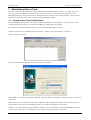
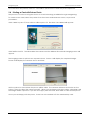
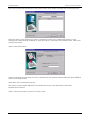
You will be prompted to confirm that the card was embossed correctly. Click the YES button to
confirm, or NO to repeat the embossing procedure.
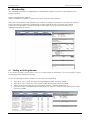
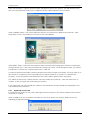
If you select YES, the card details are added to the database and the details are displayed in the
Card Maintenance window. The card WILL NOT work until you click YES.
9.1.1 Reprinting a Lost/Damaged Card
The process for reprinting patron cards is identical to the new card process. It is recommended to
suspended or cancel any active card records found in the card record screen before printing the
new card.
9.2 Creating a New Card Using the Card Swipe (Pre-Encoded Cards)
The following information is for venues who DO NOT have a card printer but have PRE-ENCODED
Cards.
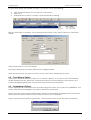
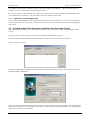
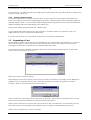
To create a new card, select a patron on the Patron Maintenance screen.
Find the patron as per normal search processes. Click on the Cards button or press F7.
Click on New or press F3.
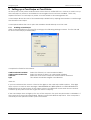
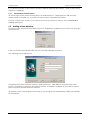
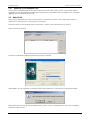
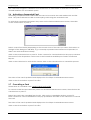
The New Card Wizard will appear with the patron’s details. Ensure a tick is placed in the USE FULLY
PRE-ENCODED CARDS box.
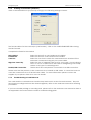
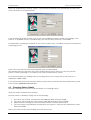
Swipe the next available card through the card swipe attached to the computer. This will read the
encoded number on the black strip of the card. Type in the membership number that is printed on
the front of the card. Click FINISH.
20