1
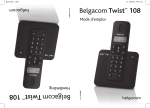
Belgacom Twist 108
TM
User manual
Gebrauchsanleitung
Belgacom Twist 108
TM
471_Cover_Twist108 3-4
7/5/07 12:36:22 PM
4
Table of contents
Table of contents
1
1
1.1
1.2
3
3
1.3
1.4
2
2.1
2.2
2.3
2.4
2.5
2.6
3
3.1
3.2
3.3
3.4
Important
Power requirements
Using GAP standard
compliance
Recycling and disposal
Environmental
information
4
4
5
Your Twist 108
Digital Cordless
Telephone
7
What’s in the box?
7
What you will
also need
7
Overview
of the handset
8
Handset display
10
Overview of the base 11
Settings navigation
12
Getting started
Position the base
Connect the base
Install and charge the
handset batteries
Using multipacks
Table of contents
12
12
12
4.1
4.2
4.3
4.4
4.5
4.6
4.7
4.8
4.9
5
5.1
5.1.1
5.1.2
5.1.3
5.2
5.2.1
5.3
5.3.1
5.3.2
13
14
Using your
Twist 108
15
Make a call
15
Pre-dial
15
Dial one-touch
numbers 1 and 2
15
Call from
the phonebook
15
Call from the call log 15
Answer a call
16
Adjust earpiece
volume
16
Mute
16
End a call
16
Use more of your
phone
17
Intercom
17
Call another handset 17
Transfer an external call
to another handset
17
Three-party conference
call
17
PhoneMail
18
Dial your PhoneMail
service
18
Phonebook
18
View and dial
phonebook entries
18
Store a number in the
phonebook
19
1
5.3.3 Enter a pause in a
phonebook number
19
5.3.4 Edit a number in the
phonebook
19
5.3.5 Delete a phonebook
entry
20
5.4 One-touch keys
20
5.4.1 Dial a one-touch
number
20
5.4.2 Assign one-touch keys
to an entry in your
phonebook
20
5.5 Caller ID and Call log 20
5.5.1 Call log
21
5.5.2 View and dial from
call log
21
5.5.3 Copy a number from
the call log to the
phonebook
21
5.5.4 Delete a call log entry 22
5.5.5 Delete entire call log 22
5.6 Redial
22
5.6.1 Redial the last number 22
5.6.2 View and dial a number
in the redial list
22
5.6.3 Copy a redial number
to the phonebook
22
5.6.4 Delete a redial list
entry
23
5.6.5 Delete entire redial list 23
2
6
6.1
6.2
6.3
6.4
6.5
6.6
6.7
6.8
Personal settings 23
Change the ringer
volume and ringtone 23
Set date and time
24
Switch beeps on/off 24
Recall mode
24
Change System PIN 25
Reset handset
25
Lock the keypad
26
Unlock the keypad
26
7
7.1
7.2
Registration
26
Register a handset
26
Unregister a handset 27
8
Maintenance and
replacement
Cleaning
How to replace the
battery
8.1
8.2
28
28
28
9
Technical data
29
10
Frequently asked
questions
30
Declaration of
conformity
32
12
Guarantee terms
33
13
Index
35
11
Table of contents
1
Important
Take time to read this user
manual before you use your
telephone. It contains important
information and notes regarding
operating your telephone.
1.1 Power requirements
• This product requires
an electrical supply of
220–240 volts, alternating
monophased power,
excluding IT installations
defined in standard
EN 60-950. In case of power
failure, the communication
can be lost.
• The electrical network
is classified as hazardous
according to criteria in the
standard EN 60-950. The
only way to power down
this product is to unplug the
power supply unit from the
electrical outlet. Ensure the
electrical outlet is located
close to the apparatus and is
always easily accessible.
Important
• The voltage on the
network is classified as
TNV-3 (Telecommunication
Network Voltages), as defined
in the standard EN 60-950.
Warning
• This equipment is not
designed to make emergency
calls in the event of a power
failure. An alternative has to
be made available to allow
emergency calls.
• High voltage. Never open
the product or attempt any
repair.
• Keep the product away from
liquid.
• Never use any battery type
other than the one supplied.
There is a risk of explosion if
the batteries are replaced by
an incorrect type.
• When the phone is ringing
avoid holding the earpiece
too close to your ear as it
may damage your hearing.
• Do not use the product
in places where there are
explosive hazards.
3
• Do not let small metal
objects come into contact
with the product. This can
deteriorate audio quality and
damage the product.
• Handsfree activation could
suddenly increase the volume
in the earpiece to a very high
level : make sure the handset
is not too close to your ear.
• Refer also to the Cautions
in chapters and subchapter
sections.
1.2 Using GAP standard
compliance
The GAP standard guarantees
that all DECT GAP handsets
and base stations comply with
a minimum operating standard
irrespective of their make.Your
handset and base station are
GAP compliant, which means
the minimum guaranteed
functions are : register a
handset, take the line, receive a
call and dial.
The advanced features may not
be available if you use another
handset than a Twist 108 with
4
your base station. To register
and use your Twist 108 handset
with a GAP standard base
station of a different make,
first follow the procedure
described in the manufacturer’s
instructions, then follow
the procedure described on
page 26.
To register a handset of
another make to the Twist 108
base station, place the base
station into registration mode,
then follow the procedure in
the manufacturer’s instructions.
1.3 Recycling and disposal
Disposal instructions for
old products
The WEEE directive (Waste
Electrical and Electronic
Equipment; 2002/96/EC) has
been put in place to ensure
that products are recycled
using best available treatment,
recovery and recycling
techniques to ensure human
health and high environmental
protection.
Important
Your product is designed and
manufactured with high quality
materials and components,
which can be recycled and
reused. Do not dispose of your
old product in your general
household waste bin.
Inform yourself about the local
separate collection system
for electrical and electronic
products marked by this
symbol :
Use one of the following
disposal options :
1 Dispose of the complete
product (including its cables,
plugs and accessories) in the
designated WEEE collection
facilities.
2 If you purchase a
replacement product, hand
your complete old product
back to the retailer. He
should accept it as required
by the WEEE directive.
Important
Disposal instructions
for batteries
Batteries should not be
disposed of with general
household waste.
Packaging information
Belgacom has marked the
packaging with standard
symbols designed to promote
the recycling and appropriate
disposal of your eventual waste.
A financial contribution
has been paid to the
associated national
recovery and recycling
system.
The labelled packaging
material is recyclable.
1.4 Environmental
information
• The equipment that you
bought has required the
extraction and use of natural
resources for its production.
It may content hazardous
substances for the health and
the environment.
5
• In order to avoid the
dissemination of those
substances in our
environment and to diminish
the pressure on the natural
resources, we encourage you
to use the appropriate takeback systems. Those systems
will reuse or recycle most of
the materials of your end life
equipment in a sound way.
• The crossed-bin symbol
invites you to use those
systems.
• If you need more information
on the collection, reuse and
recycling systems, please
contact your local or regional
waste administration.
• You can also contact us for
more information on the
environmental performances
of our products.
6
Important
2
Your Twist 108 Digital Cordless Telephone
2.1 What’s in the box?
Twist 108 handset
Power adaptor
Battery door
Line cord*
Belgium plug
2x AAA
rechargeable
batteries
Twist 108 base
User manual
2.2 What you will also
need
• For the call log to function,
subscribe to Belgacom’s
Caller Line Identification
service.
• For PhoneMail to function,
subscribe to Belgacom
PhoneMail service.
Your Twist 108 Digital Cordless Telephone
Note
* The line adaptor may not be
attached to the line cord. If this
is the case, please connect the
line cord to the line adaptor
before plugging it into the line
socket.
Warning
Always use the cables and
batteries supplied.
7
2.3 Overview of the
handset
1
2
3
4
13
12
5
6
11
7
10
8
9
8
1 Earpiece
2 Display
See page 10 for an overview of
the display icons.
3 Clear/Mute
In the entry mode, press to
delete digits; When viewing
the call log/redial list, press to
delete displayed entry or press
and hold to delete all entries.
Switch the microphone off or
on during a call.
4 Call log/Scroll up/
Volume up
Open the calls log.
Scroll up through lists and
settings.
Increase the earpiece volume.
5 Talk/Recall
Make or answer a call.
Use recall (R) functions.
6 One-touch dialling keys
Press and hold for One-touch
dialling of pre-set numbers.
7
/ Keypad lock
Press and hold to lock/unlock
the keypad.
Dial a star, displayed as * .
*
Your Twist 108 Digital Cordless Telephone
8 Programming key
Enter the main menu.
Confirm a menu option.
Go to next menu.
Confirm an entry in the
phonebook.
9 Intercom (at least
2 handsets needed)
In standby mode, use to make
an internal call.
During a call, use to transfer
an external call to another
handset.
10 # / Ringer
Press and hold to switch
handset ringer on or off.
When dialling or storing a
number, press and hold to enter
a pause (P).
Dial a #, displayed as o.
11 End/Exit/Handset on-off
End a call.
In settings mode, go back to
standby mode.
Press and hold to switch handset off (when in standby) or on.
12 Phonebook/Scroll down/
Volume down
Open the phonebook.
Scroll down through lists and
menus.
Decrease the earpiece volume.
Your Twist 108 Digital Cordless Telephone
13 Redial/Scroll right
Open the redial list (last dialed
numbers).
Scroll to the right.
9
2.4 Handset display
1
2
1
10
3
Status and reminder
icons
Shows handset battery
status.
Scrolls when the handset is
charging in the base.
On when the line is in use.
Flashes when there is an
incoming call.
Flashes when you have new
PhoneMail messages
Off when you have no
PhoneMail messages.
On when you have missed
calls and new number(s) in
the call log.
Phonebook is open.
Handset is in program
mode.
The keypad is locked.
Handset microphone has
been muted.
Handset ringer is off.
Steady when the handset is
registered and within range
of the base.
Flashes when the handset
is out of range or searching
for base.
2
Handset number
3
Current time
Your Twist 108 Digital Cordless Telephone
2.5 Overview of the base
1
1 Paging key
Paging is a useful way of finding
lost handsets.
1 Press
on the base.
All handsets ring.
2 Press
again to cancel
the paging call or press any
key on the handset to stop
the paging call.
Your Twist 108 Digital Cordless Telephone
11
2.6 Settings navigation
The basic steps of navigating
through the setting and
onscreen options.
1 From the standby screen,
press
.
The settings are open.
If you wish to go to next
setting, press
again.
2 Use
or
to scroll
through the options and
press
to save the
option displayed.
The next program setting is
opened.
3 Press
to return to
standby.
Standby mode
If you do not press any button
on the handset for 15 seconds
the display will automatically
return to standby. It will also
return to standby when the
handset is placed on the base
or charger.
12
3
Getting started
3.1 Position the base
Place the base within reach
of the telephone line and
electricity sockets.
Tip
The position in which you place
the base can have an effect on
the range and performance of
your product. Avoid placing
the base too close to large
metal objects such as filing
cabinets, radiators or electrical
appliances. This can impair
the range and sound quality.
Buildings with thick internal
and external walls may impair
transmission of signals to and
from the base.
3.2 Connect the base
Warning
• Make sure you connect
the power adaptor and
telephone line cord correctly
as incorrect connection
could damage the product.
Getting started
• Always use the telephone
line cord supplied with the
unit. Otherwise you may not
get a dial tone.
2
Plug the other ends of the
line cord and power cable
into the telephone socket
and mains power socket.
Note
The line adaptor may not be
attached to the line cord. If this
is the case, please connect the
line cord to the line adaptor
before plugging it into the line
socket.
1
Plug the line cord and
the power cable into the
sockets at the back of the
base.
3.3 Install and charge the
handset batteries
Warning
• The handset must be charged
for at least 24 hours before
using it for the first time.
• Never use any battery type
other than the one supplied.
There is a risk of explosion if
the batteries are replaced by
an incorrect type.
Your Twist 108 is supplied with
two rechargeable batteries.
1
Getting started
Slide off the battery door (if
fitted).
13
2
3
4
5
14
Insert the batteries as
indicated and slide the door
back on.
Place the handset face up
on the base to charge.
A beep confirms the handset
is placed correctly and
charging will begin.
When there is enough
power in the batteries, the
handset will automatically
register with the base.
The standby screen is
displayed.
Leave the handset until the
batteries are fully charged
(at least 24 hours).
The handset batteries are
fully charged when the
charging animation stops and
the
(battery charged) icon
is displayed.
Warning
If you insert alkaline batteries
instead of the NiMH batteries
all elements of the display will
appear. Replace immediately
with the batteries supplied.
3.4 Using multipacks
If you have purchased a
multipack you will have
additional handsets, chargers,
power adaptors and AAA
rechargeable batteries.
1 Plug the chargers into a
power socket.
2 Install the batteries supplied
into the other handsets.
3 Place the handsets on the
chargers to fully charge
the batteries for at least
24 hours.
Getting started
4
Using your
Twist 108
4.1 Make a call
1 Press
.
2 Dial the telephone number.
4.2 Pre-dial
1 Enter the phone number
(maximum 24 digits). If you
make a mistake press
to delete incorrect digits.
2 Press
to dial.
4.3 Dial one-touch
numbers 1 and 2
1 Press and hold
or
until the number is
displayed and dialled. If no
number is stored, you hear
a beep.
Using your Twist 108
4.4 Call from the
phonebook
1 Press
.
The first entry in the
phonebook is displayed.
2 Scroll
or
to the
entry you want.
3 Press
to dial the
number.
Note
Blank entries are not displayed
when scrolling through the
phonebook.
4.5 Call from the call log
1 Press
.
The first entry in the call log is
displayed.
2 Scroll
or
to the
entry you want.
3 Press
to dial the
number.
Note
You need to subscribe to
Belgacom’s Caller Line
Identification service to be able
to see the caller’s number in the
call log. See ‘Caller ID and call
log’ on page 20 for more details.
15
4.6 Answer a call
1 When the phone rings,
press
.
Warning
When the phone is ringing,
avoid holding the earpiece too
close to your ear as it may
damage your hearing.
Note
An incoming call has priority
over other events. Whenever
there is an incoming call, other
operations in progress such as
phone settings, menu navigation,
etc. will be ended.
2
The microphone is muted and
the display shows .
Press
again to turn the
microphone back on.
4.9 End a call
1 Press
or replace the
handset in the base.
The call duration is displayed
on the handset screen for
about 5 seconds.
4.7 Adjust earpiece
volume
1 During a call, press
or
to adjust the volume.
The current level is displayed.
4.8 Mute
You can mute the microphone
so that you can talk to
someone else in the room
without your caller hearing you.
1 During a call, press
.
16
Using your Twist 108
5
Use more of
your phone
5.1 Intercom
This feature is only available
when there are at least two
registered handsets. It allows
you to make internal calls,
transfer external calls from one
handset to another and use the
conference option.
5.1.1 Call another handset
1 Press
.
• If there are only two
handsets, the other handset
is called automatically.
• Or, if there are more
than two handsets press
the number of the other
handset.
2 Press
to hang up.
Note
If the handset does not belong
to Twist 108 range, this function
may not be available.
Use more of your phone
5.1.2 Transfer an external
call to another
handset
1 During an external call,
press
.
Your caller is put on hold.
2 Enter the number of the
handset you want to call.
If there are only two handsets,
the other handset is called
automatically.
3 When the other handset
answers, announce the
caller then press
to
transfer the call. If the other
handset does not answer,
press
to talk to your
caller again.
Note
Before transferring the call, the
user is able to switch between
both internal and external calls
by the
key.
5.1.3 Three-party
conference call
1 During an external call,
press
.
Your caller is put on hold.
17
2
3
4
Enter the number of the
handset you want to call.
If there are only two handsets,
the other handset is called
automatically.
When the other handset
answers announce the call
to
then press and hold
connect both calls.
If the other handset does
not answer, press
to
talk to your caller again.
Press
to hang up.
5.2 PhoneMail
If you have subscribed to
Belgacom PhoneMail service,
your Twist 108 displays
when you have new messages.
5.2.1 Dial your PhoneMail
service
1 Press and hold
.
The number is displayed
and dialled. Follow the voice
prompts to play, save and
delete your messages.
18
5.3 Phonebook
The Twist 108 handset
phonebook can store 20 phone
numbers each up to 24 digits
long.
Note
Phonebook entries are ordered
01–20.
5.3.1 View and dial
phonebook entries
1 Press
.
Display shows the first entry
and
.
2 Scroll
or
to the
entry you want.
3 Press
to dial or
to
return to standby.
Tip
The display shows the first nine
digits of each phone number.
If the number is longer, the
last digit flashes. Press
to
display the rest of the number.
Use more of your phone
5.3.2 Store a number in the
phonebook
1 Press
then press
.
The screen displays the first
available position in the
phonebook (01–20).
2 Enter 2 digit phonebook
entry number, e.g. 01.
3 Enter the phone number
you want to store. If you
make a mistake press
.
4 Press
to confirm.
The next available entry is
displayed.
5 Enter the next number you
want to store or press
to return to standby.
Note
• When the phonebook is
empty, the display flashes 01[blank].
• If the phonebook is full, the
display flashes 20- [and
current number stored].
• Cancel storing an entry by
pressing
at any time
during the process.
Use more of your phone
5.3.3 Enter a pause in a
phonebook number
If your Twist 108 is connected
to a PABX, you may need
to enter a pause in a stored
number. This gives the PABX
time to get an outside line.
1 When storing a number,
press and hold
until
the display shows P. Then
continue storing the
number.
5.3.4 Edit a number in
the phonebook
1 Press
then press
.
2 Scroll
or
to the
number you want.
3 Enter the two digit
phonebook number, e.g. 07.
4 Enter the new phone
number.
Tip
• Press
to delete digits.
5 Press
to confirm.
The next available entry is
displayed.
6 Press
to return to
standby.
19
5.3.5 Delete a phonebook
entry
1 Press
then press
.
2 Scroll
or
to the
number you want.
3 Enter the two digit
phonebook number, e.g. 07.
4 Press
repeatedly to
delete the number until you
hear a confirmation beep.
5 Press
to confirm.
6 Press
to return to
standby.
5.4.2 Assign one-touch keys
to an entry in your
phonebook
1 Press
.
2 Scroll
or
to the
entry you want.
3 Press and hold
or
until you hear a beep.
The phonebook entry is now
also stored in the one-touch
key.
4 Press
to return to
standby.
5.4 One-touch keys
The
or
keys can be
assigned to a phone number
entry for one-touch dialling.
5.5 Caller ID and Call log
If you have subscribed to
Caller Line Identification (CLI),
and provided the identity of
the caller is not withheld, the
number of the caller will be
displayed.
1 To toggle between caller ID
and time/date press
.
5.4.1 Dial a one-touch
number
1 Press and hold
or
until you hear a beep.
The number is displayed and
dialled.
2 Press
to return to
standby.
20
Note
• If the telephone number is
not available for incoming
calls, the handset will display
----.
Use more of your phone
5.5.1 Call log
The call log contains details of
missed and received call. Entries
are displayed in chronological
order with the most recent call
at the top of the list.
Note
• The calls log holds details of
up to 10 calls.
• When the call log is full, a
new call replaces the oldest
in the list.
• When viewing the call log, to
see the date and time of the
call, press
.
When you have missed calls
(incoming calls that you haven’t
answered) the
icon will flash
in the display on all handsets
registered to the base. If one
handset is used to view the
calls log, the icon on the other
handsets continue to flash
(multipack users only).
Use more of your phone
5.5.2 View and dial from
call log
1 Press
.
• The most recent call is
displayed.
• While viewing the call list
the
icon is steady. This
will blink while viewing
entries which have been
unanswered.
2 Scroll
or
through
the call log.
3 Press
to dial the
number displayed or
to
return to standby.
5.5.3 Copy a number from
the call log to the
phonebook
1 Press
.
2 Scroll
or
to the
number you want to copy.
3 Press
.
The next available phonebook
entry (01–20) is displayed.
Note
• When you scroll through
the phonebook, any
entries already stored, are
displayed.
21
• If the phonebook is full, the
display flashes 20- and the
number stored.
4 Enter two-digit phonebook
entry number 01–20.
The phone number is
displayed.
5 Press
to confirm.
6 Press
to return to
standby.
5.6 Redial
You can redial any of the last
five numbers called. Numbers
can be up to 24 digits long.
5.5.4 Delete a call log entry
1 Press
.
2 Scroll
or
to the
number you want to delete.
3 Press
.
You hear a confirmation
beep and the next entry is
displayed or ---- if the list
is empty.
4 Press
to return to
standby.
5.6.2 View and dial a
number in the redial
list
1 Press
.
The last number dialled is
displayed.
2 If required, scroll
or
to display the number
you want.
3 Press
to dial the
number or
to return to
standby.
5.5.5 Delete entire call log
1 Press
.
2 Press and hold
until
you hear a beep.
The display shows ----.
3 Press
to return to
standby.
22
5.6.1 Redial the last number
1 Press
then
.
The last number dialled is
displayed and dialled.
5.6.3 Copy a redial number
to the phonebook
1 Press
and scroll
or
to the entry you want
to copy.
2 Press
.
Use more of your phone
3
4
The first available phonebook
entry number is displayed.
Enter the phonebook entry
number 01–20.
The phone number is
displayed.
Press
to confirm,
then press
to return to
standby.
5.6.4 Delete a redial list
entry
1 Press
and scroll
or
to the number you
want to delete.
2 Press
.
You hear a confirmation
beep and the next entry is
displayed or ---- if the list
is empty.
3 Press
to return to
standby.
6
Use the
button to open
the menu and adjust the
settings on your phone to suit
your preferences.
6.1 Change the ringer
volume and ringtone
Warning
When the phone is ringing,
avoid holding the earpiece too
close to your ear as it may
damage your hearing.
Choose from :
• Six volume levels 0–5
(0 = off, 5 = max).
• 10 ringtones
1
2
5.6.5 Delete entire redial
list
1 Press
.
2 Press and hold
until
you hear a beep.
The display shows ----.
3 Press
to return to
standby.
Use more of your phone
Personal settings
3
4
Press
.
Press
or
to adjust
the ringer volume level.
Press a keypad number
from 0–9 to select the
ringtone.
A sample ringtone is played.
Press
to save the
settings.
23
5
You can now adjust the
date and time setting or
press
to return to
standby.
If no button is pressed for
15 seconds, the handset
returns to standby.
6.2 Set date and time
If you have subscribed to
Belgacom’s Caller Identification
service, the time is set
automatically when you receive
your first call.
1 Press
twice.
The display shows : 01-01
00:00.
2 Enter the date and time
using the format :
DD – Day
MM – Month
HH – Hour
MM – Minute
For example 21 06 09 30
for 21st June, 9.30am.
2
3
4
6.4 Recall mode
The
button is used with
certain network services and
PABX*/switchboard services.
You will not normally need
to change this setting unless
advised to do so.
Note
The use of your Twist 108
cannot be guaranteed on all
PABX.
1
2
6.3 Switch beeps on/off
You can switch handset key
tones on or off.
1 Press
three times.
24
The display shows B@ @P 1.
Press
or
to switch
between 1 = on and 0 = off.
Press
to save the
settings.
You can now adjust the
to return
recall or press
to standby.
Press
four times.
The display shows FLASH
and the current setting
Press
or
to switch
between
1 (Flash 1 = 120 ms) or
2 (Flash 2 = 270 ms).
Personal settings
3
4
Press
to save the
settings.
You can now change the
system PIN or press
to
return to standby.
6.5 Change System PIN
The system PIN is a 4-digit
code which is used as a security
check when changing certain
settings. The default system PIN
is 0000. This can be changed to
a number of your preference.
1 Press
five times.
The display shows
COD@-----.
2 Enter the current PIN and
press
.
3 Enter the new PIN and
press
to confirm and
return to standby.
Note
Please make a note of your
PIN. If you forget your PIN
you will need to reset your
handset.
Personal settings
6.6 Reset handset
You can restore a handset to its
default settings.
1 Remove the batteries from
the handset.
2 Press and hold
while
reinserting the batteries.
The display shows
888888888888.
3 Press
.
The handset default settings
are:
•
•
•
•
•
•
•
•
•
Ringtone
Ringer Volume
Earpiece volume
Phonebook
Call log
Redial list
Keypad lock
Clock
System PIN
1
2
3
Unchanged
Empty
Empty
Off
00:00
0000
25
6.7 Lock the keypad
Prevent accidental dialling while
carrying the handset by locking
the keypad.
1 Press and hold
.
The keypad is locked and the
display shows
.
Note
You can still answer a call
by pressing
when the
keypad is locked. At the end
of the call, the keypad will
still be locked.
If you press a key while
the keypad is locked, the
handset displays oooo for
3 seconds.
6.8 Unlock the keypad
1 To unlock the keypad, press
and hold
again.
7
Registration
Up to 5 handsets can be
registered to one base.
Additional handsets must be
registered to the base before
you can use them.
Note
• The instructions described
below apply specifically to
your Twist 108 handset.
If you wish to register
another manufacturer’s
handset, the instructions
may vary. In this case, please
refer to the manufacturer
of the additional handset.
• The System PIN is required
before you can register or
unregister handsets. The
default PIN is 0000.
7.1 Register a handset
1 At the base, press and hold
for about 3 seconds.
Note
The base is able to accept
registration from a handset
within 90 seconds.
26
Registration
2
3
If
is pressed, registration
is cancelled.
At the handset, press and
hold
.
COd@ -____- is displayed.
Enter the system PIN
(default setting 0000) and
press
.
If the base is found and the
PIN is correct, the handset
is registered and assigned
the next available handset
number. This number is
displayed on the handset
along with the time setting.
Note
• The Twist 108 handset can
only be registered with one
base at a time. If you want
to register the handset with
another base, you must
repeat the registration
process.
• If you try to add another
handset to a base on which
5 handsets are already
registered, the display
shows a scrolling dash
until it returns to the not
registered screen.
Registration
7.2 Unregister a handset
You can use one handset to
unregister another.You cannot
unregister the handset you are
using.
1 Remove the batteries then
press and hold
while
inserting the batteries again.
The
and
icons flash.
2 Release the
button.
The handset searches for the
base and then displays all
other handsets registered to it,
e.g. 2-3-4-5.
3 Enter the number of the
handset you want to
unregister.
4 Enter the system PIN
(default setting 0000).
5 Press
to confirm.
The handset selected will be
unregistered.
27
8
Maintenance and
2
Remove the old batteries.
3
Place the new batteries in
the handset.
4
Replace the battery cover.
replacement
8.1 Cleaning
• Simply clean the handset and
base with a damp (not wet)
cloth, or an anti-static wipe.
• Never use household polish
as this will damage the
product.
• Never use a dry cloth as this
may cause a static shock.
8.2 How to replace the
battery
Warning
Always use AAA rechargeable
batteries
1 Slide off the battery cover.
28
Maintenance and replacement
9
Technical data
Battery life and range
Talk time and stand-by time
When the battery is fully
charged, the talk time of your
Twist 108 is approximately
10 hours and the stand-by time
is approximately 150 hours.
Low battery warning
The battery level is shown
in the top left of the handset
display.
When the battery level
becomes low, you hear a beep
once every minute (during a
call) and the
icon flashes.
If the battery level becomes
exceedingly low, the phone
automatically switches off
shortly after the alert.
The approximate power levels
of your battery are :
Fully charged.
Partially charged.
Running low.
Flashing – almost empty.
Technical data
Battery type
The batteries that are used on
your Twist 108 are AAA NiMh
550mAh.
Out of range warning
In ideal conditions the range of
the phone is up to 50 metres
indoors and 300 metres
outdoors. When you are getting
close to being out of range
during a call, the handset gives a
warning beep.
If the handset moves outside
this range, the handset gives
and error beep, the call is lost
and some other functions will
not be available.You will hear
an error beep if you try to use
them, provided the error beep
is switched on.
When you come back in range
of the base, the handset gives
another beep.
Note
For the error beep to work,
it must be switched on (see
page 24 ‘6.3 Switch beeps
on/off’).
29
10 Frequently asked
questions
• Wrong line cable – use the
line cable provided.
• Line adaptor is not
connected to the line cord
– connect the line adaptor to
the line cord.
Charging
The
icon is not blinking
when the handset is placed
on the base
• Bad battery contact – move
the handset slightly.
• Dirty contact – Clean the
battery contact with a cloth
moistened with alcohol.
• Battery is full – no need to
charge.
Calls
No dialling tone
• No power – check the
connections. Reset the
phone : unplug and plug back
in the mains.
• Batteries are empty – charge
the batteries for at least
24 hours.
• You are too far from the base
– move closer to the base.
30
Poor audio quality
The base is too close to
electrical appliances, reinforced
concrete walls or metal
doorframes – move the base at
least one metre away from any
electrical appliances.
The
icon is blinking
• Handset is not registered
to the base – register the
handset to the base.
• You are too far from the base
– move closer to the base.
No ring tone
The ring tone is deactivated.
Increase the volume.
Caller Line Identification
(CLI) service does not work
Check your subscription with
Belgacom.
Frequently asked questions
Phonebook
Interference
A phonebook entry cannot
be stored
The phonebook is full. Delete
an entry to free memory.
Noise interference on your
radio or television
Your base or charger may be
too close. Move it as far away
as possible.
Display
No display
• Try recharging or replacing
the batteries.
• Try disconnecting and
connecting the base power
supply.
Unable to register another
handset
Maximum number of
5 handsets has been reached.
The display shows a scrolling
dash.You must unregister a
handset in order to register a
new one.
Frequently asked questions
31
11 Declaration of conformity
We,
PCE
9, rue Maurice Trintignant
72081 Le Mans Cedex 9
France
Declare that the products Twist™108 is in compliance with
ANNEX IV of the R&TTE-Directive 1999/5/EC and then with the
following essential requirements :
• Article 3.1 a : (protection of the health & the safety of the user)
Safety : EN 60950-1 (2001) / A11 (2004)
• Article 3.1 b : (protection requirements with respect to
electromagnetic compatibility)
EMC : ETSI EN 301 489-6 V1.2.1 (2002) &
ETSI EN 301 489-1 V1.6.1 (2005)
• Article 3.2 : (effective use of the radio spectrum)
Radio : EN 301 406 V1.5.1 (2003)
The presumption of conformity with the essential requirements
regarding Council Directive 1999/5/EC is ensured.
Date : 27/10/2006
Le Mans
0168
Product Quality Manager
Home Communication
32
Declaration of conformity
12 Guarantee terms
The Equipment you have
bought has been carefully
selected by Belgacom and is
covered by a two-year warranty
on spare parts and labor in
the event of any material or
manufacturing defect, unless
otherwise specified. The
warranty shall be valid from the
date on which the equipment
is collected or delivered.
If you have any problems with
the equipment, you should take
it to a Teleboutique or to one
of our authorized agents, in
its entirety and in its original
packaging, or in packaging
providing the same degree of
protection, together with the
original receipt. The addresses
for our Teleboutiques and
authorized agents are given in
the Information Section of the
White Pages.
Your equipment will be repaired
or replaced free of charge, on
presentation of the receipt, in
the event of any material or
manufacturing defect.
Guarantee terms
Belgacom alone shall
determine what repairs and/or
replacements are necessary.
The warranty on the repaired
or replaced equipment shall
end on the date on which
the original warranty on the
purchased equipment expires,
but shall not be less than
3 months.
The warranty shall not cover :
- damage of any kind that does
not predate the sale;
- any damage, faults or defects
attributable to the Customer
or to causes unrelated to the
Equipment : lightning, power
surges, humidity, accidental
damage, improper use or
poor maintenance, failure to
comply with the instructions
in the user manual, and force
majeure;
33
- the repair or replacement of
movable parts (cords, wires,
plugs, aerials, etc.),
consumables (cells, batteries,
paper, ink, etc.) needing
regular replacement and the
supply of cleaning products.
The General Terms and
Conditions for the Sale of
Terminal Equipment can be
obtained on request from any
Belgacom service available to
the public or at
www.belgacom.be.
The warranty shall not apply :
- to any changes or repairs to
the terminal Equipment
undertaken by the Customer
himself/herself or through
the services of persons not
designated by Belgacom;
- if the Customer removes or
tampers with the
manufacturer’s serial
numbers and/or brand names
on the terminal Equipment.
Belgacom shall not be liable for
any indirect or immaterial loss
sustained by the Customer as a
result of the malfunctioning of
the terminal Equipment, such as
any loss of production, revenue
or contracts.
Belgacom SA under public law,
Bd. du Roi Albert II 27,
B-1030 Brussels
VAT BE 0202.239.951, Brussels
Register of Legal Entities
34
Guarantee terms
13 Index
A
Access the redial list 9, 22
Add entry to phonebook 19
Adjust earpiece volume 16
Answer a call 8, 16
D
Declaration of conformity 32
Delete an entry in the call
log 22
Delete a call log entry 22
Delete a phonebook entry 20
Delete a redial list number 23
Display icons and symbols 10
E
B
Base overview 11
Box contents 7
C
Caller identification 20
Call another handset 17
Call a number from the
call log 15
Call from the phonebook 15
Call network PhoneMail 18
Change handset ringtone 23
Change one-touch phone
numbers 20
Change ringer volume 23
Change system PIN 25
Charge batteries 13
Conference call 17
Conformity 32
Connect the base 12
Earpiece volume 8, 9, 16
Edit a one-touch button
number 20
Edit a phonebook entry 19
End a call 9, 16
F
Frequently asked questions 30
G
Guarantee 33
H
Handset keys 8
Handset overview 8
I
Identify your caller 20
Install batteries 13
L
Lock the keypad 26
Index
35
M
Make a call 15
Menu navigation 12
N
Navigate the menu 12
Set ringer volume 23
Set ringtone 23
Switch between internal and
external calls 17
Switch handset on/off 9
Switch key beeps on/off 24
Switch secrecy on/off 16
O
One-touch keys 20
T
P
Transfer an external call to
another handset 17
Page a handset 11
PhoneMail 18
Pre-dial a call 15
Put a caller on hold to answer
a second caller 17
U
Unregister a handset 27
V
R
View a call log 21
View phonebook entries 18
Recycle your phone 4
Register a handset to a base 26
Reset handset 25
Warranty 33
W
S
Safety information 3
Save a call log number to the
phonebook 21
Save a redial number to the
phonebook 22
Secrecy 16
Set date and time 24
Set dialling mode 24
Set recall (flash) mode 24
36
Index