1
Mac User Manual
Last edited on March 15, 2011.
All content is current as of version 4.2.3.
ProPresenter 4 for Mac User Manual
Copyright ©2011 Renewed Vision, Inc. All rights reserved.
ProPresenter is owned by Renewed Vision, Inc.
6720 Jamestown Drive
Alpharetta, GA 30005
Licensing Information
There are two types of licenses available for ProPresenter. Both forms of the license
refer to a single geographical location. If your church or organization wants to use
ProPresenter in multiple geographical locations, each location is required to own its
own license.
A SINGLE USER LICENSE grants permission for one (1) computer to be used as the
presentation computer at a given time. The license may be installed on an unlimited
number of computers for editing purposes or for CONCURRENT (non-simultaneous)
presentation use. A SINGLE USER LICENSE removes the watermark from one
presentation computer at a time. A SINGLE USER LICENSE is platform specific to Mac
or Windows.
A SITE LICENSE grants permission for an unlimited number of computers to be used
as the presentation computer simultaneously. Any computer with an active SITE
LICENSE may be used as an editing or presentation computer at any time. The
watermark is removed from all computers with a SITE LICENSE. A SITE LICENSE may
be activated on both Mac and Windows computers simultaneously.
© 2011 Renewed Vision, Inc.!
2
ProPresenter 4 for Mac User Manual
Table of Contents
Welcome to ProPresenter
7
New Features in ProPresenter 4
ProPresenter: Mac vs Windows
Installation
User Interface Overview
Free Media Content
8
10
11
14
15
Upgrading from ProPresenter 3
16
Pro3 is Installed Before Upgrading
Pro3 is Not Installed Before Upgrading
Method 1
Method 2
Configuring your computer for first use
Types of Connectors
Display Settings
Setting System Display Preferences on a Mac
Setting Display Preferences in ProPresenter
Enabling the Output and Stage Display Output
Getting Started with ProPresenter
Configuring Preferences
General
Display
Label
DVD
Live
Sync
Advanced
Toolbar
17
18
18
18
19
19
20
20
21
23
24
25
25
26
27
28
29
30
31
32
Copyright settings
Working with the Library
34
37
Adding new presentations
Creating multiple libraries
37
37
Presentation Layers
Working with Templates
Cues
Working with Media
Presentation File Formats
39
41
42
43
44
Working with Presentations
45
Working with the Library
Working with Playlists
Slide and Table View
© 2011 Renewed Vision, Inc.!
46
47
48
3
ProPresenter 4 for Mac User Manual
Working with Slides and Media
Transitions
Basic Presentation Editing
49
51
52
Global Formatting
Quick Edit
Editor
Go to Next Timer
Hot Keys
Importing and Exporting Files
Import Files
Import Video/Image
Import Copied Text
Import PowerPoint
Import ProPresenter3
Export as Plain Text
Export as Pro4 Bundle
Export Playlist
Printing
52
53
54
55
57
58
58
59
59
59
60
60
60
61
62
Using the Editor
Toolbar
Palette
Editor Settings
Working with Videos and Images
63
64
65
67
69
Default Import Settings
Video/Image Bin
Media types
Adding and Organizing Media
Missing Media
70
71
71
72
74
Adding Media to Presentations
Purchasing Media
Media Properties
75
76
77
Media Cue Inspector
78
Live Video
81
Song Select
82
Accessing SongSelect
Exporting from SongSelect
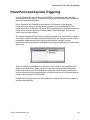
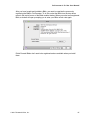
PowerPoint and Keynote Triggering
Adding Bibles
Downloading Bibles from the web
Downloading Bibles within ProPresenter
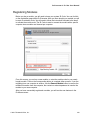
Registering Bibles
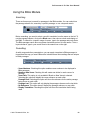
Using the Bible Module
Searching
Formatting
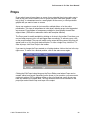
Bible Presentations
© 2011 Renewed Vision, Inc.!
83
84
85
86
86
86
86
88
88
88
89
4
ProPresenter 4 for Mac User Manual
Props
Messages
Clocks
Mask Layer
Audio Bin
Timeline
Using DVDs
90
91
93
94
96
97
99
Creating DVD Clips
Showing a DVD
100
101
Displaying Web Pages
Stage Display
102
103
Enabling Stage Display
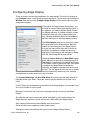
Configuring Stage Display
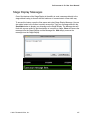
Stage Display Messages
Modules
Registering Modules
Advanced Module
104
105
107
108
109
110
PVP Networking
MultiScreen
Output Device Settings
110
111
115
Edge Blending Module
Alpha Keyer Module
117
119
ProPresenter Remote
Display Patterns
Backing Up and Transferring Files
Keyboard Shortcuts
Troubleshooting
Software Update
Reset Preferences
Licensing Issues (Mac only)
Additional Resources
Tutorial Videos
FAQ
Forums
Phone and E-mail
Twitter
© 2011 Renewed Vision, Inc.!
120
122
123
124
126
126
126
127
128
128
128
128
128
128
5
ProPresenter 4 for Mac User Manual
© 2011 Renewed Vision, Inc.!
6
ProPresenter 4 for Mac User Manual
Welcome to ProPresenter
ProPresenter is a cross-platform lyric and media presentation program built from the
ground up to help make powerful worship productions easy. Taking full advantage of the
latest technologies, ProPresenter allows an operator to control a presentation on one
screen, while dynamically affecting the visuals and lyrics experienced by an audience on
one or more screens.
ProPresenter isnʼt just for the house of worship market. You will find Fortune 500
companies, schools, casinos, hospitals, colleges and many other types of non-church
businesses using ProPresenter on a daily basis.
© 2011 Renewed Vision, Inc.!
7
ProPresenter 4 for Mac User Manual
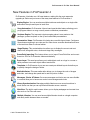
New Features in ProPresenter 4
ProPresenter 4 includes over 100 new features, making this the most expansive
upgrade yet. Below are just some of the many new features in ProPresenter 4.
Display Engine: You can now have multiple text boxes and objects on a single slide
and control the style and layout of each item.
Song Automation: ProPresenter 4 has a brand new timeline feature allowing you to
pre-program slides to a song or easily create a slideshow presentation.
Scripture Engine: The improved scripture engine makes it even easier to find
passages, present scripture on the fly and create Bible presentations.
Presentation Views: ProPresenter 4 includes two new slide layout views. Contiguous
View shows everything in one view and List View shows a smaller thumbnail and more
of the text from slides in a linear fashion.
Stage Display: This customizable view allows you to display the current and next
slideʼs text, along with notes, clocks and stage-only messages.
PowerPoint Importing: This feature allows you to import PowerPoint files and convert
them into JPGs or ProPresenter slides automatically.
Props Layer: This new layer allows you to add objects such as a logo in a corner or
other persistent on-screen object without much effort.
Templates: In ProPresenter 4 you can now create pre-defined layouts that allow you
to quickly change the design of slides.
Media Attributes: This new media editor allows you to change the color of images
and video, and change the speed and In and Out points of video.
Messages, Clocks & Tokens: On-screen messages and clocks are now more flexible
to use and allow you to have more control over messages and clocks.
Library Synchronization: Managing multiple libraries across several machines is
much easier now that you can synchronize libraries across a network.
Web View: The built-in web browser allows you to display webpages and content from
sites such as YouTube with ease.
Multiple Libraries: You can now have multiple libraries stored on a single computer
and easily switch between them as needed.
© 2011 Renewed Vision, Inc.!
8
ProPresenter 4 for Mac User Manual
Document Based: ProPresenter 4 stores Library items as individual documents
making it easier to manage the Library and playlists.
Resource Center: The new Resource Center provides you with quick access to
tutorials, help files and other useful links that you may need.
Bundled Media: When you buy ProPresenter 4 you get access to a free bundle of 50
video clips from five different top content producers.
DVD Playback: Itʼs now even easier to create clips from DVDs for playback in a
presentation or to play clips directly from the DVD Player menu.
Live Video: ProPresenter allows you to bring in a live video source through Firewire,
SDI or USB. This is convenient for a low-budget overflow room.
ProPresenter Remote: The remote app for iPhone, iPod Touch and iPad allows you
to control ProPresenter from iOS device via a wi-fi connection.
© 2011 Renewed Vision, Inc.!
9
ProPresenter 4 for Mac User Manual
ProPresenter: Mac vs Windows
For the last 10 years, ProPresenter has been exclusively a Mac program. In early 2010 it
was announced that ProPresenter was coming to Windows and in September 2010 the
first version of ProPresenter was released for Windows users.
Visually the two programs are nearly identical. The icons are the same, the design is the
same, and the basic functionality is the same. The primary difference is that the Mac
version includes an Advanced Module for multi-screen formatting; networking with
ProVideoPlayer (PVP) and SDI output; an Edge Blending Module for blending two or
three projectors on one screen; and Alpha Key Module for creating cleanly keyed text
over video; and the ability to be controlled by Apple iOS devices (iPhone, iPod Touch,
iPad).
Because there is some variation in the controls and terminology between Mac OS X and
Windows, we have published two versions of this user guide, so make sure you
downloaded the correct one.
The best news for churches that use both Macs and Windows computers is that the files
are cross-compatible. This means that you can sync your libraries between platforms
and move presentations between computers as necessary. There are a few items that
can be included in presentations and playlists that arenʼt compatible and these will be
explained later in the manual.
© 2011 Renewed Vision, Inc.!
10
ProPresenter 4 for Mac User Manual
Installation
When you are ready to download and install ProPresenter, go to the Renewed Vision
website. Under Download in the menu bar, select ProPresenter. You will then click on
the Download Now option for the Mac version.
When you click on Download Now, the disk image (.dmg) will begin downloading
automatically. “Disk Image” is the term used to describe the file used to package
installation files for Mac OS X.
After the download completes, double-click on the file name in the Downloads list to
automatically open the disk image.
After you open the downloaded file, you will be shown the licensing agreement. Read
and make sure that you understand the license terms and then click Agree to continue
with the installation.
© 2011 Renewed Vision, Inc.!
11
ProPresenter 4 for Mac User Manual
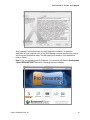
After agreeing to the license terms, the disk image will be opened. To install the
application on your computer, click on the ProPresenter icon and drag it across the gray
arrow onto the Applications folder. This will install ProPresenter in your Applications
folder in Finder.
Note: If you are upgrading from ProPresenter 3, be sure that you read the ProPresenter
3 Users READ ME FIRST file before continuing with the installation.
© 2011 Renewed Vision, Inc.!
12
ProPresenter 4 for Mac User Manual
Copy the Sample Images folder to your computer if you want the free graphics. This file
does not include the free videos.
After you have installed ProPresenter into your Applications folder, close the disk image.
To open the program, open a new Finder window and navigate to your Applications
folder. Double-click on ProPresenter to launch the program.
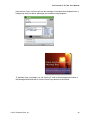
You will see the message shown below the first time you launch the program, click Open
to continue.
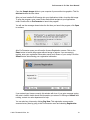
After ProPresenter opens you will see the License Registration screen. Click on the
Demo button to launch the program without having to register. If you are ready to
register, enter your registration information exactly as it shown on your receipt. Click the
Submit button after entering your registration information.
If you entered your license correctly, this window will close. If you get a message saying
the code is invalid, double-check the information you entered. If clicking on Submit does
nothing, contact our sales department for help.
You can also buy a license by clicking Buy Now. This registration screen can be
accessed at any time by going to the ProPresenter menu and selecting Registration.
© 2011 Renewed Vision, Inc.!
13
ProPresenter 4 for Mac User Manual
User Interface Overview
ProPresenter is designed with an intuitive layout that makes powerful presentation
capabilities approachable and easy to use. This comes from years of experience
working with beginners and professional operators.
Each part of the user interface will be covered in more detail in the rest of the user guide.
The image below identifies the seven components of the interface.
•
•
•
•
•
•
•
Toolbar
Preview Window
Library
Playlist
Slide Viewer
Video/Image Bin
Audio Bin
© 2011 Renewed Vision, Inc.!
14
ProPresenter 4 for Mac User Manual
Free Media Content
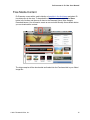
ProPresenter comes with a small collection of graphics in the disk image and about 50
free video clips in the store. To download the free video content, click on the Store
button in the toolbar and then scroll down to the Renewed Vision Video Sampler
Download banner. You will need to create an account with Worship House Media before
you can download the content.
The video sampler will be downloaded and loaded into the Purchased bin in your Video/
Image Bin.
© 2011 Renewed Vision, Inc.!
15
ProPresenter 4 for Mac User Manual
Upgrading from ProPresenter 3
If you are upgrading to ProPresenter 4 from ProPresenter 3 on the same computer,
transferring your files is simple. ProPresenter 4 has a built in option to import your
ProPresenter 3 files, including your media. If youʼre installing ProPresenter 4 on a new
computer, the process is a little more complicated.
If you are switching to ProPresenter 4 from another presentation application, converting
your files isnʼt quite as easy. Please visit the FAQ section of our website for more
information on how to import your Library from a different program into ProPresenter.
© 2011 Renewed Vision, Inc.!
16
ProPresenter 4 for Mac User Manual
Pro3 is Installed Before Upgrading
If you are upgrading from ProPresenter 3 to ProPresenter 4 on the same computer,
importing your files is easy. To do this, click on File > Import >Import ProPresenter 3.
This will open up a window that allows you to select what information you want to import
from ProPresenter 3.
Basic is the easiest method. Select any, or all, of the three options, then click Import to
copy the data into ProPresenter 4.
Advanced allows you to select more options for importing such as specific files or
playlists if you only want parts of your ProPresenter 3 content. Select the options you
want to use, then click Import.
© 2011 Renewed Vision, Inc.!
17
ProPresenter 4 for Mac User Manual
Pro3 is Not Installed Before Upgrading
If you are installing ProPresenter 4 on a computer that doesnʼt havenʼt ProPresenter 3
already on it, there are two different methods of getting your files to the new computer.
Method 1
The easiest option is to install ProPresenter 4 on the older computer and migrate your
Library into ProPresent 4 using the instructions on the previous page. You will only want
to select the option to import your Library. After you do this, open a new Finder window,
go to your Documents folder, and copy the ProPresenter 4 folder. You will need to move
this folder to the new computer and replace the empty default copy of the same folder.
This method, and the more complicated one below, both require you to manually move
all of your media files to the new computer and rebuild your Video/Image Bin.
Method 2
If you have ProPresenter 3 installed on a computer that wonʼt support ProPresenter 4
(such as one with OS X 10.4) you will need to manually transfer some files.
This method doesnʼt require installing ProPresenter 3 on the new computer, all that is
required is to copy the files to the correct locations on the new computer.
The first thing you will need to copy is the folder containing all of your user information.
This can be found in the following location in Finder.
Open a new Finder window, click on the Go menu in the toolbar and choose Home from
the options.
File path: Home > Library > ApplicationSupport > RenewedVision
• Copy ProPresenter. You will need to place this folder in the same path on the new
computer.
You also need to copy your ProPresenter 3 preferences file to your new computer.
File Path: Home > Library > Preferences
• Copy com.renewedvision.ProPresenter3.plist. You will need to copy this file to
the same location on your new computer.
After you have copied the folder and the preferences file to your new computer you can
then follow the steps above to import your files into ProPresenter 4.
© 2011 Renewed Vision, Inc.!
18
ProPresenter 4 for Mac User Manual
Configuring your computer for first use
Types of Connectors
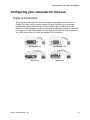
There are two primary types of connectors being used by Apple: mini DVI and mini
Display Port. Each of these convert to either DVI and VGA with the correct adapter
(shown below). Newer Mac Minis also have an HDMI output in addition to the mini
Display Port. These adapters can be selected while configuring a purchase on the Apple
store page or purchased individually. Be sure that you purchase the correct adapter for
your video system. Mac Pros have two standard DVI connections.
© 2011 Renewed Vision, Inc.!
19
ProPresenter 4 for Mac User Manual
Display Settings
Setting System Display Preferences on a Mac
The first step to getting your displays configured correctly is making sure that your
system display preferences are set up properly. Before you begin, connect your primary
output to your computer. Setting up the Stage Display will be discussed later in this
manual.
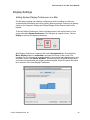
To access Display Preferences, click on the Apple menu in the top-left corner of your
screen and select System Preferences. This will open up a panel of icons. Click on
Display to open up the display preferences.
After Display Preferences is opened, click on the Arrangement tab. Ensure that the
Mirror Displays option is unchecked in the lower-left corner of this screen. The
resolution for your projector is set automatically. If you need to make adjustments to your
secondary screen, click Gather Windows. This will bring over the preference panel for
your second screen behind your primary preference panel. Select this panel and adjust
your resolution, then close Display Preferences.
© 2011 Renewed Vision, Inc.!
20
ProPresenter 4 for Mac User Manual
Setting Display Preferences in ProPresenter
After you have set the system display preferences you need to make sure that the
settings are correct in ProPresenter.
To access the Display settings, click on ProPresenter in the menu and select
Preferences from the list. After the Preference menu is open, click on the Display tab.
Display at Top Most Window Layer will force the Output window to display above all
other screens on your output screen. This way, no other application will appear on the
output screen. Disable this feature to allow quick switching between other presentation
applications like Keynote or Power Point, or to show full screen YouTube videos with the
built in web browser.
Scale to Fit Output Display will automatically scale presentations from their specified
resolutions to the active display resolution.
Enable Stage Display will enable the stage display on the selected screen. Configuring
the Stage Display will be covered later in this manual.
© 2011 Renewed Vision, Inc.!
21
ProPresenter 4 for Mac User Manual
Output Screen is where you set the desired pixel dimensions for your output screen.
You can set this automatically to the resolution of your output screen by selecting Full
Screen. If you need to display to a custom size, enter the resolution values and select
Update.
Screen Color setting specifies the background color for your output display. This is to
say that if there is no background selected for a given document or slide, this is the color
that will be seen on the output display. Usually, this is black.
Screen Position allows you to adjust the position of your ProPresenter presentation if
the Output Screen resolution is less than or greater than your output resolution. This
setting specifies how you want the ProPresenter output to be positioned within your
larger output display resolution.
The Output (Out) and Stage Display (SD) outputs can be set within the Display
preferences by dragging their respective boxes to the boxes within the display layout
corresponding to the individual displays.
© 2011 Renewed Vision, Inc.!
22
ProPresenter 4 for Mac User Manual
Enabling the Output and Stage Display Output
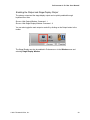
The primary output and the stage display output can be quickly enabled through
keyboard short cuts.
Show or Hide Output Window: Command - 1
Show or Hide Stage Display Window: Command - 2
You can also toggle the main output on and off by clicking on the Output button in the
toolbar.
The Stage Display can also be enabled in Preferences or in the Window menu and
selecting Stage Display Window.
© 2011 Renewed Vision, Inc.!
23
ProPresenter 4 for Mac User Manual
Getting Started with ProPresenter
This section will cover the basics of using ProPresenter. In conjunction with the online
video tutorials, this section will help you and other ProPresenter operators learn the
basics of the software and become familiar with its the primary functions.
Network, MultiScreen and Blend are all covered later in this manual as well as certain
settings in the Advanced preferences. These sections will be covered later in the
manual since they require more detail.
© 2011 Renewed Vision, Inc.!
24
ProPresenter 4 for Mac User Manual
Configuring Preferences
General
Itʼs important to make sure that Check for updates at startup is enabled. This will
ensure you are always aware of the latest ProPresenter updates.
Default Logo is where you can set a custom logo. This is the logo that is triggered by
the Logo button in the toolbar.
The Library Folder menu shows you the currently selected Library or select from
multiple libraries.
Media File Search Paths allows you to add custom search paths to your media storage
directories. This is especially useful if you move entire folders of media to a new location
and want to make sure that ProPresenter can find the folder.
The Copyright section allows you to configure how copyright information is displayed.
© 2011 Renewed Vision, Inc.!
25
ProPresenter 4 for Mac User Manual
Display
The Display preferences were covered in detail in the earlier section: Setting Display
Preferences in ProPresenter.
© 2011 Renewed Vision, Inc.!
26
ProPresenter 4 for Mac User Manual
Label
Library Categories are used in the Library to distinguish between types of presentations.
By default, all new documents in the Library are set as Presentation. This includes songs
imported from other sources such as text files or SongSelect.
The Slide Label preferences section allows you to create custom slide labels and assign
colors to those labels. Labels are generally used to define sections of songs (Verse 1,
Chorus, Verse 2, etc) and the colors help to quickly distinguish between the stanzas.
© 2011 Renewed Vision, Inc.!
27
ProPresenter 4 for Mac User Manual
DVD
Since DVDs are not always the most reliable because of damage, scratches, or
improperly authored discs, some users prefer to select Disable DVD playback
feature so that this feature cannot be used.
The other option is Prevent DVD spin down. Spin down is a default behavior of
computer DVD drives to reduce the resource usage on the computer. Enabling
this features keeps the disc spinning constantly so that you will not experience a
delay when playing a DVD clip while the drive spins up.
© 2011 Renewed Vision, Inc.!
28
ProPresenter 4 for Mac User Manual
Live
ProPresenter supports a live video feed over FireWire, SDI, or USB input. While this
feature is convenient, it does have some drawbacks with regards to latency (delay) when
using FireWire. It's best suited for overflow rooms or small services where you may have
a single camera and cost is more important than latency. It's not recommended for
larger, multi-camera venues that are served best by a multi-port switcher.
The Video Source menu is where you select your camera feed.
You can also select an Audio Source if you need to bring audio in with the camera.
Preserve Aspect Ratio prevents your camera input from being stretched full-screen if
your output resolution and the camera resolution donʼt match.
Disable Video Input is useful if you donʼt have any attached cameras or if your only
camera is the built in iSight. Disabling this feature prevents someone from accidentally
enabling the iSight camera and having their face on the screen in front of everyone. This
does not disable Live Video objects directly on slides.
© 2011 Renewed Vision, Inc.!
29
ProPresenter 4 for Mac User Manual
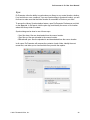
Sync
ProPresenter offers the ability to synchronize your library to any central location, whether
itʼs a local drive or over a network. If you are synchronizing to a network location, you will
first have to make sure that the folder location is accessible in Finder on your Mac.
To access the Library Synchronization feature, open ProPresenter Preferences and click
on the Sync tab. In this panel, click the plus sign, and identify the server or file location
where the Library folder is located.
Synchronizing can be done in one of three ways.
• Sync files down: files are downloaded from the source location
• Sync files up: files are uploaded to the source location
• Bidirectional sync: files are uploaded to and downloaded from the source location
In all cases, ProPresenter will compare the contents of each folder, identify the most
recent files, and allow you to choose which files you wish the replace.
© 2011 Renewed Vision, Inc.!
30
ProPresenter 4 for Mac User Manual
Advanced
The Import Video/Image Scale Behavior settings apply to how backgrounds and
foregrounds are formatted when you import them into ProPresenter. Generally you will
want to set Background to Stretch to Fill so that backgrounds fill your entire screen.
Foreground will usually be Scale to Fit so that the aspect ratio of the video remains the
same when displayed on your screens.
The Video Playback settings are usually left unchecked. High Quality can be used if
you are showing videos that have small-point text embedded in the video. Deinterlace
and Play Every Frame are only needed if you are using files that are encoded using a
DV codec.
Render Output Behavior settings are used for troubleshooting rather than general
performance. Render Output as Anamorphic allows you to use 16x9 content in a 4x3
environment without distorting the original video. Fast Transition Rendering
implements a slide transition method that is better suited for older or lower-powered
Macs. Do not use FBO forces ProPresenter to use a different video rendering process.
(This disables use of the Edge Blending Module.) Turn off Preview disables the preview
screen in ProPresenter.
Output Device Settings and Alpha Key Settings will be covered later.
© 2011 Renewed Vision, Inc.!
31
ProPresenter 4 for Mac User Manual
Toolbar
The default toolbar comes set up with all the primary tools and features in ProPresenter
already added to the toolbar.
The first five icons are the Clear Commands. All clears everything on screen. Slides
removes text and other slide objects from the screen while leaving the background live
on screen. BKGs clears the background content but leaves the slide content on screen.
Props removes only items that are active in the Props or Messages modules. Audio
stops any audio that is playing except for audio embedded in videos.
The Logo button shows the logo that you set in the General Preferences. By default this
is the ProPresenter logo.
The New button creates a new presentation document in your Library.
The Template button allows you to set a default template that is used by all new
presentations.
The Editor button opens the slide editor to the current slide or presentation.
The Video/Image button opens the Video/Image Bin at the bottom of the screen.
The Audio button opens the Audio bin on the right side of the screen.
Messages, Props, and Clocks open the module to make changes to each of these.
© 2011 Renewed Vision, Inc.!
32
ProPresenter 4 for Mac User Manual
Clicking on Store will open up the Renewed Vision media store page.
SongSelect is a subscription-based service that allows you easy access to most
Christian songs. Clicking on this button opens SongSelect inside the main ProPresenter
window.
Clicking on Bibles opens the Bible module and allows you to access purchased Bibles
to quickly create presentations of Bible passages or shown Bible passages on-the-fly
when needed.
DVD opens the DVD Player window where you can play DVDs or set clips from DVDs to
use in a presentation.
Clicking on the Live button starts the live camera input that you set in Preferences.
The Web button opens a web browser directly inside ProPresenter allowing you to show
a full-screen websites without leaving ProPresenter.
The Output button toggles the primary output on and off.
Clicking on Volume shows a volume slider that controls the program volume.
Clicking on the ProPresenter logo opens the Info Center.
You can add or remove icons by right-clicking on the toolbar and selecting Customize
Toolbar.
© 2011 Renewed Vision, Inc.!
33
ProPresenter 4 for Mac User Manual
Copyright settings
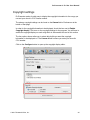
ProPresenter makes it really easy to display the copyright information for the songs you
use and your churchʼs CCLI license number.
The primary copyright settings can be found on the General tab in Preferences at the
bottom of that page.
In order for the copyright information to be displayed, check the box next to Enable
Copyright display. This turns on the copyright settings for the program. You still have to
enable the copyright display on each song which is discussed at the end of this section.
The four options shown allow you to select which slide you want the copyright
information to be displayed on. The License # field is where you enter your churchʼs
CCLI number.
Click on the Configure button to open up the copyright display editor.
© 2011 Renewed Vision, Inc.!
34
ProPresenter 4 for Mac User Manual
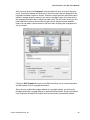
After you have clicked on Configure a second window will open over the Preference
menu. This second window will allow you to select the tokens that are displayed in the
copyright information section on screen. Tokens are simply auto-text items that make it
easier to manage dynamic content. In the case of copyright tokens, this information is
the copyright information that is pulled from each song. The left column shows you the
tokens that will be actively used, while the right column displays unused available
tokens.You can add or remove tokens in the left column changing the arrangement to
suit your needs.
Clicking on Edit Template will open up the Editor and allow you to format the position
and text settings for your copyright information.
After you have enabled the program defaults for copyright settings, you will need to
manually enable the copyright settings on individual presentations. Songs downloaded
from SongSelect through ProPresenter will have this option automatically enabled.
© 2011 Renewed Vision, Inc.!
35
ProPresenter 4 for Mac User Manual
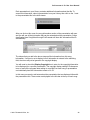
Each presentation in your Library contains additional information about that file. To
access this information, select a presentation from your Library, then click on the ʻiʼ next
to the presentation title in the slide viewer.
After you click on this arrow, the song information section of the presentation will open
and you will see all the information that can be entered about the presentation. Songs
downloaded from SongSelect through ProPresenter will have this information filled in
automatically.
The tokens that you add in the above steps pull the information from this song
information. If a token is set to display, but no information is entered in the matching
field, the token will just be ignored in the copyright display.
You will need to check the Display Copyright box in order for the copyright information
to be displayed for a specific presentation. The copyright display setting in Preferences
turns on and off the program-wide setting for copyright, but each song or presentation
can individually have this information turned on or off.
In this area you can also add notes about the presentation that are displayed inline with
the presentation title. These notes are displayed in the title bar at the top of each song.
© 2011 Renewed Vision, Inc.!
36
ProPresenter 4 for Mac User Manual
Working with the Library
Adding new presentations
ProPresenter 4 uses individual documents to store song information in the Library
instead of a single database file. This allows more information to be stored about each
presentation and eliminates the risk of a corrupt file damaging the entire Library.
Clicking on the icon in the lower-left corner of the Library will create a new document in
the Library titled “Untitled”. After you create a new document, it will be automatically
selected and you have a new presentation with a single slide in the slide viewer. By
right-clicking on a presentation name, you can change the Category name for the
presentation.
Creating multiple libraries
The biggest change to the Library is the ability to easily manage multiple libraries.
Multiple libraries allow you to have individual libraries for different groups who use the
same computer. This helps prevent someone from changing all the formatting of the
songs youʼve spent hours working on.
To create multiple libraries, go into Preferences and then click on the General tab. When
you click on the drop down menu next to Library Folder you will see all the libraries that
are connected to ProPresenter on your computer. Initially you will only see Default in
this list. When you click on Manage Library, it will open up a new window that allows
you to browse your computer to select a folder to use as a Library.
To get started with multiple libraries you will need to create a new folder on your
computer for the new Library. This can either be done in Finder or directly in the new
window that opens in the next step.
© 2011 Renewed Vision, Inc.!
37
ProPresenter 4 for Mac User Manual
The actual location of the folder doesnʼt matter, but itʼs common to keep this folder in the
Documents folder. The folder can either be empty, allowing you to start from scratch, or a
copy of your current Library if you want to have a starting point. Be sure the names of
the libraries are different so you can distinguish between them.
Click on the plus (+) button to add a new Library and on the minus (-) to remove a
Library from the list. After you have added the additional libraries, click Save and then
select the Library you want to use from the Library Folder menu list.
You can easily switch libraries by clicking on File in the menu bar, highlighting Select
Library and clicking on the Library you want to use. You can access the above settings
by clicking on Mange Library from this menu.
© 2011 Renewed Vision, Inc.!
38
ProPresenter 4 for Mac User Manual
Presentation Layers
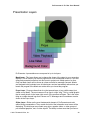
ProPresenter 4 presentations are composed of up to six layers.
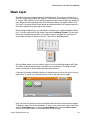
Mask Layer - This layer allows you to change the shape of the output to your secondary
displays. This is useful if you need to project onto a non-rectangular screen or if you are
doing environmental projection, but donʼt want to project onto certain parts of a room.
Only one Mask Layer can be shown at a time and must be manually removed. Masks
are designed to be persistent over all other layers and are immediately active when you
launch the program if the Mask was active when you closed the program.
Props Layer - Props are items that sit on the topmost-layer of your visible output (not
visible over a Mask). The most common Prop type is a logo “bug.” This is a small graphic
that is usually shown in the lower right corner of the screen at all times. This is the same
thing as a cable channel logo that is shown on TV. Messages and Countdowns are also
shown in the Props Layer.
Slides Layer - Slides are the most fundamental element of ProPresenter and exist
within Library presentations. They contain the bulk of the information most users will be
displaying. The slide layer may contain song lyrics, speaker slides, or other groups of
pre-formatted graphics, text, or video objects. The ability to show more than just text on
© 2011 Renewed Vision, Inc.!
39
ProPresenter 4 for Mac User Manual
the slide layer is one of the key new features in ProPresenter 4. Multiple text boxes and
objects can be shown on a single slide.
Video Playback - This layer is used for any full-screen video or image playback. There
are two different types of full-screen videos and graphics used in ProPresenter.
• Backgrounds are videos or graphics played underneath the Slide Layer. They
persist across multiple slides and continue to display until cleared or another
background is triggered. Background videos are automatically set to loop, but this
can be changed in the settings for each file or in Preferences. Backgrounds can be
assigned directly to slides or selected from the Video/Image Bin.
• Foregrounds are generally any video or image that you would notate on a cue
sheet, such as sermon illustration videos, announcement videos, or any other video
or image that is intended to be shown by itself. They will clear the output when
triggered and be cleared when another slide is triggered. Foreground videos are set
to play just once, but this can be changed in the settings for each file. They can be
added directly to presentations or played directly from the Video/Image Bin.
Live Video - The Live Video function in ProPresenter takes a live camera feed from any
QuickTime-compatible video interface and shows it full screen underneath the other
layers mentioned above.
Background Color - This layer contains the default color you want to show when
absolutely nothing else is shown on the screen (usually black). In addition to the default
global screen color defined in Preferences, a default background color can be defined
for each presentation as well as individual slides within a presentation.
© 2011 Renewed Vision, Inc.!
40
ProPresenter 4 for Mac User Manual
Working with Templates
One of the biggest change in ProPresenter 4 is its ability to show multiple objects on the
screen at one time. Earlier versions of ProPresenter were limited to a single block of text
on the screen, but now you can have multiple graphics, text boxes, and even video
elements on any slide.
Templates are simply pre-designed slides. Any slide you design can be saved as a
template. To save a slide as a template, right-click on the slide, select Templates > Save
selected slide(s) as Template and name your new template.
Templates can be applied to new presentations or applied to existing slides through a
process that we call refactoring. Several different templates are pre-built and included in
ProPresenter to help get you started.
For example, letʼs start with the most basic of examples: a song lyric slide with white text
on a black background. This is an easy slide to design as it only has one element.
Once you define the basic text properties for this slide, you can quickly apply this
template to one or more slides, or even entire presentations by using the refactoring
mechanism.
When you refactor an existing slide to a specific template, ProPresenter 4 does the
following:
It matches up the text elements of the template to the text elements of each slide from
front to back. If you have multiple text boxes in your template, text settings are applied in
order of box arrangement. Most templates will only include one text box. If there are
more text boxes on the slide than are in the template, then these text boxes will not be
changed.
Graphic elements that exist in the template are placed into the existing slide. Graphics
that already exist as part of a slide remain untouched unless the graphics were originally
placed there as part of a template, in which case they will be removed. This means that
if you were to refactor a slide that contains just a text box to a template that has a lower
third graphic and a text box above it, then the text of the slide would be placed into the
text box specification of the template, and the lower-third graphic would be placed
underneath it. If you were to then refactor this slide back to a template that just had a
text box, the graphic would be removed.
Templates, like all slide presentations in ProPresenter 4, are made to a specific
resolution and may need to be updated to match your output resolution.
© 2011 Renewed Vision, Inc.!
41
ProPresenter 4 for Mac User Manual
Cues
In ProPresenter, a cue is any slide, video, audio clip, DVD clip or image. Cues can be
triggered manually by clicking on the thumbnail for the item or by creating automatic
triggers that trigger specific cues such as a loop or the timeline. Both of these options
will be discussed later in this manual.
Cues can also have different properties applied to how specific media is played. For
example, media (video or graphics) can have properties applied to them that affect the
colors of the file or the speed the video plays. More details on changing the properties of
specific cue types will be given in the section dedicated to each cue type later in this
manual.
© 2011 Renewed Vision, Inc.!
42
ProPresenter 4 for Mac User Manual
Working with Media
One of the key features of ProPresenter is how simple it is to manage media and to
change content on the fly without having to pre-program backgrounds.
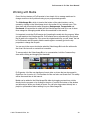
The Video/Image Bin, which is found at the bottom of the main interface, can be
opened by clicking on the Video/Image icon in the toolbar if it isnʼt already open. This
area starts with three default media categories: Backgrounds, Foregrounds and
Purchased. All content that is added into the Video/Image Bin ends up in one of these
three categories. Managing media will be discussed later in this manual.
Itʼs important to note that ProPresenter isnʼt importing the media into the program. When
you add media to the Video/Image Bin, ProPresenter stores a thumbnail for the file and
the file path to the original file. If you move the original media file, you will “break” the link
in ProPresenter and will need to add the media again or manually go into the clip
properties to change the file path.
You can see in the screen shot below what the Video/Image Bin looks like with media
that it canʼt find as well as content that is useable.
To move media in the Video/Image Bin or in a presentation, hold the Command key
down while clicking and dragging the thumbnail.
ProPresenter 4 for Mac can handle any format video or picture that can be opened in
QuickTime. As of version 4.2, ProPresenter for Mac can also use Quartz files. This ability
will be discussed later in this manual.
Media can be added to the Video/Image Bin either by dragging content from a folder
directly into the program or by clicking on the plus (+) mark at the bottom of the window
and browsing to where your media is stored. You can also drag content directly into a
playlist or presentation without adding it to your Video/Image Bin.
© 2011 Renewed Vision, Inc.!
43
ProPresenter 4 for Mac User Manual
Presentation File Formats
ProPresenter has four basic file types used by ProPresenter. These formats are cross
compatible between the Mac and Windows versions.
.pro4 -- This file extension is used on documents found in the Library. If you open up the
folder where your Library is stored, you will see files such as Amazing Grace.pro4.
.pro4x -- This file extension is used when you create a bundle. A bundle is a
compressed folder similar to a .zip folder. Bundles include presentation documents
(.pro4) as well as any media elements associated to the presentations or playlist
selected. This can be a single presentation or a playlist with bundled media.
.pro4plx -- This file extension is used when exporting a playlist without media files
bundled with the document files.
To import any of these three formats, simply double-click on the file on the computer you
want to open the file with and follow the prompts to add the content to the correct
locations. You can also go to File > Import >Import File to locate your file and import it.
© 2011 Renewed Vision, Inc.!
44
ProPresenter 4 for Mac User Manual
Working with Presentations
From the very beginning, ProPresenter was designed to make creating a presentation
simple. ProPresenter 4 makes this process even easier. This section will cover
everything you need to know about making a simple presentation, as well as how to
create more complex presentations and how to control those presentations. As with
previous sections, some features related to creating a presentation will only be briefly
mentioned because they are covered in more detail later in this user manual.
As explained in the Getting Started section, ProPresenter uses several different layers of
display elements to create dynamic presentations. Primarily, your presentations will
consist of slide objects and backgrounds. Slide objects, named because they exist within
individual slides, can be lyrics, videos (with or without audio), audio files, or still graphics
that will float above chosen background elements.
© 2011 Renewed Vision, Inc.!
45
ProPresenter 4 for Mac User Manual
Working with the Library
The Library in ProPresenter is your central storage location for all of your presentations.
These can be song documents, scripture presentations, speaker notes, announcement
loops, or any other custom presentation types.
The Search field is used to search for presentations using keywords. This search is
performed based on the Filter settings. The Filter menu allows you to select a specific
category to search. Selecting Title limits the search to presentation titles only. Selecting
Contents expands the search through the text of presentations. You can select them
individually or together to configure your search boundaries. Having your filter set to All,
and both Title and Contents selected, will return the widest range of results. Changing
the Filter will also automatically sort the presentations in that category regardless of any
search terms or search settings.
Adding new documents to the Library and creating custom Categories were covered
earlier in the Getting Started section of this manual.
Clicking on a presentation name in the Library will immediately open that document in
the slide viewer.
To export a document, right-click and select Export Pro4 Bundle. You can also change
the name or category by right-clicking on the presentation name.
© 2011 Renewed Vision, Inc.!
46
ProPresenter 4 for Mac User Manual
Working with Playlists
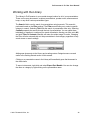
Immediately below the Library is the Playlist manager. Playlists are a way to create an
outline of your service or event and all the elements contained in a single list. A playlist
can have any combination of presentations and stand-alone media elements placed
directly in it. Playlists can be easily exported for use on another computer.
Playlists can be organized in two ways. You can have stand-alone playlists, or you can
create folders and then place playlists inside of the folders. Playlists are created by
clicking on the blue document with the plus mark next to it, and folders are made by
clicking on the yellow folder with the plus mark next to it.
To add items to a playlist, you can drag presentations from the Library or Command-click
on a media element and drag it into the playlist. As of version 4.2, PowerPoint and
Keynote files can be dragged directly from Finder into a playlist to create triggers to
launch the presentation in the correct program.
When you click on a playlist, the items in that playlist are shown to the right. Clicking on
a playlist item will open it up in the slide viewer.
One of the new features in ProPresenter 4 is Contiguous view. Contiguous view shows
all of your playlist items in a single slide view instead of as individual views.
Adjusting the slider in the bottom-right corner of the Playlist area will increase the font
size used throughout the user interface.
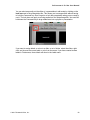
To export a playlist, right-click on the playlist name and select Export Playlist. You can
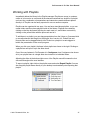
also drag the playlist name directly to your desktop to automatically start exporting that
playlist.
© 2011 Renewed Vision, Inc.!
47
ProPresenter 4 for Mac User Manual
Slide and Table View
ProPresenter 4 offers two ways of viewing slides and media in the Video/Image Bin. The
default view is the Grid View and is what you will be familiar with if youʼve used previous
versions of ProPresenter. In ProPresenter 4, a new version, Table View, was added in
response to users asking for a more linear layout in ProPresenter.
Grid View is designed to show you a large thumbnail of your slide so that you can easily
see the design of the slide. This is referred to as a “what you see is what you get”, or
WYSIWYG, type of layout.
Table View shows you a smaller thumbnail, but shows you a portion of the text from the
slide. This view allows you to see the text in the slides easier, especially if you have a
smaller screen.
You can change the slide view layout as well as the size of the thumbnails using the
options in the bottom right corner of the slide viewer while in either slide view.
© 2011 Renewed Vision, Inc.!
48
ProPresenter 4 for Mac User Manual
Working with Slides and Media
Itʼs important to note that ProPresenter is always “live”. What this means is that when
you click on a slide or media element itʼs going to go to your screens or start playing
through your speakers.
To override this mode at any time, you can hold down the Command key while clicking
on a slide or media element to select that item. To move the item youʼve selected,
continue holding the Command key while you click and drag the item to a new location.
You will notice that when you click on a slide that it is outlined in orange. This indicates
that the selected slide is “live” and on screen. When you hold down the Command key
and then click on a slide, it is outlined in blue, indicating that the slide is selected, but not
live. This coloring also shows up in the Video/Image Bin. When a slide or media
thumbnail is outlined in blue, you can click and drag the slide or media to where you
want it. Media can be added between slides or dropped directly onto a slide.
You can duplicate any slide or media element. Duplicating is similar to copying and then
pasting a slide. In the Mac version of ProPresenter, Command-click on a slide to outline
it in blue, and press then command-shift-D to duplicate the slide or media item.
ProPresenter also allows you to disable specific slides. To disable a slide, right-click on it
and choose Disable Slide from the menu. To re-enable the slide, right-click on the slide
and choose Enable Slide. A disabled slide will be skipped when advancing through a
presentation using the space bar or arrow keys. Directly clicking on a disabled slide will
make it “live” on screen.
© 2011 Renewed Vision, Inc.!
49
ProPresenter 4 for Mac User Manual
You can also temporarily put the slides of a presentation in edit mode by clicking on the
lock icon next to the presentation title. This allows you to arrange slides without having
to hold the Command key. Donʼt forget to re-lock the presentation when you are ready to
use it. The lock does not apply to moving media from the Video/Image Bin. You must still
hold down the Command key to drag media items into a playlist or presentation.
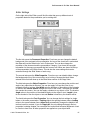
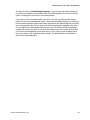
If you want to assign labels or colors to a slide, or set of slides, select the slides, rightclick, and choose the correct label or color from the menu. If you have created custom
labels in Preferences, those labels will show in the Label menu.
© 2011 Renewed Vision, Inc.!
50
ProPresenter 4 for Mac User Manual
Transitions
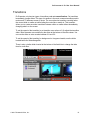
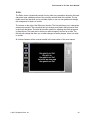
ProPresenter only has two types of transitions: cut and cross dissolve. Cut transitions
immediately change slides. This type of transition is the most common transition used in
movies and TV between scenes or shots. The cross dissolve transition smoothly fades
the current slide or media out while fading the next slide or media in. This transition
allows you to create smoother transitions between slides or media without immediately
changing whatʼs on the screen.
To set the speed of the transition (a cut transition uses a time of 0.0) adjust the transition
slider. Slide elements are controlled by the slider at the bottom of the slide viewer. You
can use the slider or enter a value between 0.0 and 5.0.
To set the speed of the transition for background or foreground media, use the slider
located below the Video/Image Bin.
There is also a similar slider located at the bottom of the Audio bin to change the fade
time for audio files.
© 2011 Renewed Vision, Inc.!
51
ProPresenter 4 for Mac User Manual
Basic Presentation Editing
Global Formatting
ProPresenter 4 makes it even easier to quickly edit the font properties of a song without
ever having to open the full-feature editor. Using the Format bar, you can make changes
to the font type, style, color, alignment, shadow and outline settings.
To access these settings, click on the Format button located to the right of the song title.
This will effect the text that exists in all text boxes of the slides of a given presentation.
To change multiple songs all at once, select each Presentation while holding down the
Command key. You can modify each attribute individually, or click on the Update All
button to apply all attributes to the selected Presentations.
Note that the settings in this global format panel always show the last used settings from
this panel. It does not update based on the currently active song, but on the last settings
chosen.
© 2011 Renewed Vision, Inc.!
52
ProPresenter 4 for Mac User Manual
Quick Edit
The Quick Edit function allows you to make simple changes to individual slides. This is
useful if you find small grammar or spelling mistakes or realize you need to change a
line break or other simple change. The Quick Edit window is a small, floating edit window
that opens when you right-click on a slide and select Quick Edit. You can continue
clicking on other slides while this is open.
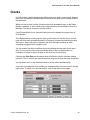
In the image below you will notice that “ancient” is misspelled. By opening Quick Edit, it
only takes a few seconds to correct the spelling. Clicking the ʻXʼ in the top-left corner of
the Quick Edit window applies the change to that slide immediately.
© 2011 Renewed Vision, Inc.!
53
ProPresenter 4 for Mac User Manual
Editor
The Editor shows a thumbnail preview of every slide in a presentation down the left hand
side and a large, editable preview of the currently selected slide in the middle. The top
toolbar has icons that allow you to add slide objects or turn on ruler guides and change
the arrangement of layers on a slide.
The column on the right of the Editor has five tabs. The first tab allows you to change the
document properties. The second tab lets you change some basic slide properties such
as hot keys and labels. The third tab provides options for adjusting the visual properties
of slide objects. The fourth tab is where you make changes to the text on a slide. The
fifth tab has settings that allow you to make changes to media (images, video, live feed)
on a slide.
All of these features will be covered in detail in the next section of this user manual.
© 2011 Renewed Vision, Inc.!
54
ProPresenter 4 for Mac User Manual
Go to Next Timer
A common need in ProPresenter is the ability to create an announcement loop from a
series of graphics or short videos. There are two easy ways to do this. The first is to use
a Go to Next Timer, the second is to use the Timeline. The timeline method will be
covered later in this manual.
A Go to Next Timer can be applied to slides, images or videos in a presentation. A timer
canʼt be applied to media in the Video/Image Bin
While using a Go to Next Time is simple, it does take a little bit of prep work to make
sure it works the way you want it to and the way you expect it to work.
Before creating your timer itʼs important to know the difference in how a Go to Next
Timer works with Foreground video versus Background videos. There is no difference
with slides or graphics.
Backgrounds: If your video is a Background, a Go to Next Timer is based on
time-from-start. This means that if your video is 30 seconds long, but your timer is
set to 10 seconds, then the video will only play for 10 seconds before advancing.
If your video is 30 seconds long and your time is 45 seconds, then the video will play
one complete time and then advance halfway through the second time.
Foregrounds: If your video is a Foreground, a Go to Next Time is based on the
time-from-end. This means that when your video ends, then the timer is triggered.
If you have a 30 second video and a 10 second timer, your video will play
completely one time, then wait 10 seconds before advancing to the next item. If you
want the videos to place one right after the next, set the timer to 0 seconds.
You can set a timer from two different locations. The easiest option is from the toolbar.
Click on Format then on the clock icon. There are only a few options here. Selecting one
of these will apply the time to all the slides in a presentation.
The second, and more flexible, option is to select all the slides that you want to add a
timer to, then right-click on any one slide, and choose Go to Next Timer from the menu.
© 2011 Renewed Vision, Inc.!
55
ProPresenter 4 for Mac User Manual
This will open up a window that allows you to manually enter a value for how long you
want each slide, video or image set.
The Timer Settings options allow you to set a time value of zero (0) so that videos can
advance immediately when done. You can set values individually on slides or media if
you require certain things to stay on screen longer. To do this, right-click on just the slide
you want to set a value for, and donʼt select other slides at the same time. If you want
your presentation to loop continuously, check the box next to Loop to first slide on the
last slide in your presentation. You can also assign a slide a loop cue by right-clicking on
the slide and selecting Loop to first slide without entering the Timer Settings.
The image below points out the location of the timer and loop indicators on a slide
thumbnail.
© 2011 Renewed Vision, Inc.!
56
ProPresenter 4 for Mac User Manual
Hot Keys
Hot Keys allow you to assign specific letters (a through z) to slides. Some users
prefer to assign letters to certain parts of songs to make it easier to quickly jump
between sections. To add alphabetical hot keys to slides, right-click on a slide
and choose Hot Key from the menu. This will open a window that allows you to
assign any lowercase letter to that slide. You can also edit the hot key assigned
to a slide in the Editor from the Slide properties tab.
You can also select slides using a numeric keypad or the number row on your
keyboard. To jump to any slide, type the number and press Enter on your
keyboard. The slide will be selected immediately. The slide number is found in
the lower left corner of the slide thumbnail.
You have two seconds between key strokes to enter another value. After two seconds, if
the enter/return key has not been pressed, the hot key trigger window will automatically
close. Pressing the escape key will also close this slide selection overlay.
© 2011 Renewed Vision, Inc.!
57
ProPresenter 4 for Mac User Manual
Importing and Exporting Files
This section will cover the various import and export options available from the
File menu in ProPresenter 4.
Import Files
ProPresenter is capable of importing several different file formats. For many users who
are switching to ProPresenter, the first step taken is importing the previous song Library
into ProPresenter. To do this, the file needs to be in a plain text (.txt) file. These are the
most basic forms of text files and contain minimal, if any, text formatting other than line
and paragraph breaks. Microsoft Word files (.doc) files can also be imported.
To import a text file, click on File > Import > Import File. This will open the above
window. The first three options allow you to designate where you want the files to go.
You can import the files into just your Library, into your Library and the selected playlist,
or into the Library and a new playlist.
The center options apply to plain text (the text file type mentioned above). Here you
have three options for how you want your slides formatted when the file is imported.
These slide breaks are referred to as delimiters.
Single Line Return: A new slide is created whenever a line break is found.
© 2011 Renewed Vision, Inc.!
58
ProPresenter 4 for Mac User Manual
Paragraph Break: A new slide is created for every paragraph break found.
Other: This option allows you to create a custom delimiter to indicate slide breaks. For
instance, you can create a text file that has some unique key sequence (ie.,
####) that will become the delimiter/separator between slides. You will need to
manually enter these.
Insert blank slides between noted song sections: This option is based off the
CCLI/SongSelect stanza notation. ProPresenter can insert blank slides
automatically when it detects breaks that use variations of stanza terms such as
Verse, Chorus, Bridge, Verse 1, etc.
Template: Select the Template style that you want to have applied to your
imported text.
You can also use this method to import any of the various ProPresenter file
formats outlined below. For ProPresenter files, double-click on the file from its
location on your computer to import it into ProPresenter.
Import Video/Image
This option opens a file browser. Navigate to the video or image that you want to import
and select it. The file will automatically be added to whichever bin or playlist is currently
selected in the Video/Image Bin.
Import Copied Text
This option uses the same import options as Import File, but allows you to copy text
from a website or a file such as a PDF or other file type not supported by ProPresenter
and import it into the Library. The copied text is treated as the source file during this
import method. Normally this requires extra formatting in the Editor after importing.
Import PowerPoint
ProPresenter 4 makes it easy to import PowerPoint files as long as you have
PowerPoint installed on your computer. There are three basic options available if you
need to import a PowerPoint file into ProPresenter.
To import a PowerPoint file, go to File > Import > Import PowerPoint. The window
shown below will then open and allow you to browse to where your file is located.
After you have selected your file you will need to decide how you to import the slides.
The basic options are:
Import All Slides as JPEG Images: This will convert all layers on each slide into a single,
flattened image. No transitions or layer builds are retained.
© 2011 Renewed Vision, Inc.!
59
ProPresenter 4 for Mac User Manual
Import Text Objects as ProPresenter Slide Elements: This will import just the text from
the slides. ProPresenter will attempt to duplicate the text formatting and positioning.
Import Text and Graphic Objects as ProPresenter Slide Elements: This is similar to the
last option, but this one also includes the images that are placed on the PowerPoint slide
and tries to duplicate the layout.
When you convert to ProPresenter slide elements, you can then edit the formatting and
arrangement of text and graphic objects directly in the ProPresenter editor. None of
these three options include the animations that may have been in the original
PowerPoint file. Importing a PowerPoint or Keynote presentation will be covered later in
this manual.
Import ProPresenter3
This option is only available in the Mac version and was covered earlier in this manual.
Export as Plain Text
This option will export the select presentation(s) as a plain text file with a .txt extension.
This export method strips all formatting except line and paragraph breaks
Export as Pro4 Bundle
Pro4 Bundles are used to gather several Library documents into a single file to transfer
them between computers. You can selecting one or more documents from the Library or
from within a Playlist, click on the File menu and choose “Export Pro4 Bundle”. This will
open a Finder window for you to select the file name and where you want to save the file
© 2011 Renewed Vision, Inc.!
60
ProPresenter 4 for Mac User Manual
to. You can then take this file to another computer and open it to use the documents on
that computer. Media files are not transferred using this method. You can also access
this option by right-clicking on a document in the Library and selecting the option to
Export Pro4 Bundle.
Export Playlist
You can use the Export Playlist option to package all of the files (documents and media)
together into a single file that is easy to transfer between computers. Since this method
includes the media files that are used in presentations as well as included directly in the
playlist, you donʼt have to worry about gathering the media files yourself. You can export
a playlist by going to the file File menu and selecting Export Playlist or by right-clicking
on the Playlist name and choosing this option. You can also click-and-drag the playlist
name directly to your desktop or other folder and it will automatically include the media.
This file will have a .pro4pl extension once it is saved. When you save the playlist
through either the File menu or by right-clicking, ensure that the checkbox next to
“Include media within Presentations” is checked; it should be selected by default.
© 2011 Renewed Vision, Inc.!
61
ProPresenter 4 for Mac User Manual
Printing
Each selected presentation is printed as a single document formatted like a standard
song sheet. Each slide in a presentation is given itʼs own paragraph in the printed
document.
© 2011 Renewed Vision, Inc.!
62
ProPresenter 4 for Mac User Manual
Using the Editor
To edit individual slides of a presentation, click Editor in the toolbar, click the Edit button
at the bottom of the window pane, or select Edit Slide from the contextual menu that
appears when you control-click or right-click on a slide.
There are five main components to the editor.
• Down the left side of the editor are thumbnails for each slide in the selected
presentation.
• Across the top is a toolbar that allows you to add slide objects, add a ruler or adjust
the arrangement of objects.
• The center section is your palette where you can design your slides.
• The right side of the editor features five panels that allow you to adjust various
properties of the presentation.
• Down the left of the Editor are thumbnails of each slide; click on these to switch
slides. Use the plus (+) or minus (-) buttons to add or remove slides.
Each of these will be discussed in more detail in this section except for the thumbnails.
© 2011 Renewed Vision, Inc.!
63
ProPresenter 4 for Mac User Manual
Toolbar
Thumbnails for all the slides are shown on the left side of the editor; when you click on a
slide's thumbnail in the Editor, this slide will become active for editing. In this mode, you
can make detailed changes to individual words of a given slide just like a word
processor's text editor. You can also create and move around the various slide objects of
the slide.
Slides can contain the following types of objects:
• Text Boxes
• Rectangles
• Still Images
• Video Files
• Live Video feeds
The options for adding each of these elements are across the top of the Editor.
Clicking on any of these slide object items will create a new item on the slide and in the
case of the image and video files, a Finder will open as well. The Live Video object will
open a window to allow you to select your live video input.
After you add a slide object you can edit the size, position and content as needed.
To the right of the slide objects are four additional icons. The first turns rulers on and off
on the vertical and horizontal axes to help you align objects to specific positions. The
second and third icon allow you to adjust the spatial arrangement of objects by moving
objects forward or backward. The fourth option is only visible if an object on the slide is
selected. You can choose to lock specific objects on a slide to prevent them from being
accidentally edited or deleted.
© 2011 Renewed Vision, Inc.!
64
ProPresenter 4 for Mac User Manual
Palette
The largest section of the editor is the slide palette. This is the area of the program
where you are able to arrange slide objects and preview your layout changes. The
image below shows you how each slide object looks when added to a slide with little or
no additional formatting applied.
When you are aligning objects on the slide, there are basic guides shown when you are
positioned over the center of the slide vertically or horizontally.
© 2011 Renewed Vision, Inc.!
65
ProPresenter 4 for Mac User Manual
The editor palette is referred to as a WYSIWYG (what you see is what you get) editor.
This means that what you are seeing in the editor is exactly what will be shown on your
output screens.
When you click on a slide thumbnail from the left side of the Editor the palette is updated
to show that specific slide. You can also click on any other presentation in the Library or
in a Playlist and the Editor will immediately update to show the new presentation.
In the bottom left corner of the Editor are four buttons. The plus and minus buttons add
and remove slides from the presentation. The Done button will close the Editor and
return you to the Slide Viewer. The Show button will display the currently selected slide
on the Output screen.
You can also change the scale of the palette by clicking on the scale button in the bottom
right corner and choosing a different value.
© 2011 Renewed Vision, Inc.!
66
ProPresenter 4 for Mac User Manual
Editor Settings
On the right side of the Editor you will find five tabs that open up different sets of
properties related to the presentation youʼre working with.
The first tab opens the Document Properties. From here you can change the default
background color assigned to this presentation. As long as the check box is unchecked
the slides will use the default color set in Preferences. You can also change the
resolution of the document and the presentation Category. If you know the copyright
information for the song you can add that info here as well. Notes are shown at the top
of the presentation in the Slide Viewer. This tab has the same settings that can be
accessed through the Slide Viewer of each song.
The second tab opens the Slide Properties. From here you can disable slides, change
the background color of the current slide, set a hot key or change the label. Notes
entered in this field will show up in the Slide Notes section of the Stage View.
The third tab opens the Object Properties. From here you can change the position and
angle of any object that is selected. You can also apply a fill and line color to any
rectangle object or text box. Line Width sets the thickness of the outline of the rectangle
or text box and Corner Radius changes the curve of the corner. The higher the number
the rounder the corners. You can also apply a shadow to any object or text. The shadow
Angle refers to the position of the shadow relative to the object or text. Length is how
far the shadow is from the object or text and Radius is how blurry the shadow will be.
The fourth tab opens the Font Properties. You can change the font settings for single
letters or the entire presentation. Tracking affects the spacing between letters; leading
refers to the space between lines. Adjust to fit automatically changes the height of the
text box based on content. If you click Apply All, the only settings that apply are font
properties, including shadow. You can adjust the vertical and horizontal alignment of text
in a text box from here. All other properties are applied on a per-object basis.
© 2011 Renewed Vision, Inc.!
67
ProPresenter 4 for Mac User Manual
The fifth tab opens the Video/Image Properties. From here you can make changes to
how videos and graphics are handled on the slide. With graphics you will only have the
option to change the source file or the scaling method.
If you have a video file selected when you click on this tab, you will have the scaling
options as well as a few additional options. Videos that are added directly to a slide donʼt
have the same playback controls that videos played from the Video/Image Bin or directly
from a presentation have. This is where you will set the playback settings for the video.
You can adjust the volume and/or speed of the video. The Start and End percentages
change how much of the video is cut off from the start or end of the video. A Start value
of 0% starts at the beginning and an End value of 100% plays to end. Anything high in
the start or lower in the end will shorten the video. The video behavior is the same as
those in the Video/Image Bin.
© 2011 Renewed Vision, Inc.!
68
ProPresenter 4 for Mac User Manual
Working with Videos and Images
ProPresenter 4 offers several options for adding media content. The primary option is
through the Video/Image Bin. This section, located at the bottom of the program, makes
it easy to store your videos or images and keep them organized and get to them quickly.
The second option is to add media directly to a playlist or a presentation. You can drag in
a video or image from Finder and add it into a playlist or drop it into a presentation to
immediately create slides for those files.
There is also a built in media browser that allows you to show pictures or videos without
ever having to add them to ProPresenter.
© 2011 Renewed Vision, Inc.!
69
ProPresenter 4 for Mac User Manual
Default Import Settings
All media imported into the Video/Image Bin, a playlist, or presentation is either a
Background or Foreground. By default, Backgrounds are stretched to fill the entire
output screen if the native resolution of the video is different from the output resolution;
Foreground videos are kept at their native aspect ratio.
© 2011 Renewed Vision, Inc.!
70
ProPresenter 4 for Mac User Manual
Video/Image Bin
Media types
The Video/Image Bin is the primary storage place in ProPresenter for your media files.
Clicking on the Video/Image button in the toolbar will open the Video/Image Bin at the
bottom of the screen below your slides and can be viewed as thumbnails or in a detailed
list view. You can change the view and thumbnail size with the buttons and slider in the
bottom right corner of the Video/Image Bin.
There are three primary directories within the Video/Image Bin: Backgrounds,
Foregrounds and Purchased.
Backgrounds are videos or graphics that will be played beneath text elements. These
are typically backgrounds for presentations.
Foregrounds are videos or graphics that will play as stand alone items on the screen,
removing any existing display elements. There are typically countdowns or special
videos.
Purchased contains videos or graphics purchased through our store (powered by
Worship House Media). Media in this bin is automatically set as a background or
foreground based on the type of media purchased.
© 2011 Renewed Vision, Inc.!
71
ProPresenter 4 for Mac User Manual
Adding and Organizing Media
There are three ways to add media to the Video/Image Bin. The first, and simplest, is to
have a Finder window open on part of the screen and then drag and drop the videos or
images directly into the Video/Image Bin. You can drop the media into a bin or playlist.
The second way is to click on the button at the bottom of the Video/Image Bin with the
plus on it. From here you can choose to add individual files or entire folders of media.
The third option is to click on File and select Import and then select Import Video/Image.
These last two options will add the media to the bin or playlist that is currently selected.
Using either the second or third option will open a new Finder window that allows you to
select the media you want to add.
ProPresenter provides the option to use folders and playlists to organize your media.
Playlists and Folders in the Video/Image Bin work the same way they do in the Library.
Playlists are created by clicking on the blue document with the plus next to it; folders are
made by clicking on the yellow folder with the plus next to it.
Media can only be added to playlists, however, you can store as many playlists in a
folder as you would like. Using playlists inside of folders can make media organization
simpler.
You can organize your media by changing the sort order. There is a search field to find
specific files in your Video/Image Bin. These are both located at the top of the Video/
Image Bin.
You can export a playlist and import it on another computer as a Library playlist by rightclicking on a playlist name and choosing Export Playlist. You can delete or rename a
playlist by right-clicking on it and selecting the option you want. (Backgrounds,
Foregrounds and Purchased canʼt be deleted or renamed.) You can also delete a playlist
or folder by clicking on it and pressing the Delete key on your keyboard. Double-clicking
on a playlist or folder name will allow you to rename it.
© 2011 Renewed Vision, Inc.!
72
ProPresenter 4 for Mac User Manual
To move media from one area of the Video/Image Bin to another, hold down the
Command key while clicking and dragging the thumbnail. Additional options related to
media will be covered later in this section in more detail.
To delete a thumbnail, hold the Command key, click on the thumbnail, and press the
Delete key.
© 2011 Renewed Vision, Inc.!
73
ProPresenter 4 for Mac User Manual
Missing Media
When you add media to the Video/Image Bin, the files arenʼt being copied to a new
location. You are simply creating a link to the original file. If you have your media stored
on an external storage device and you remove that device, the media will still appear in
the Video/Image Bin, but you wonʼt be able to play it and it will have a Missing Media
icon over the thumbnail. You need to reestablish the original link to the file or manually
change the file path if you have moved the original file.
If you have decided to move entire folders of media from one location to another after
adding the content to ProPresenter, itʼs possible to add a Media File Search Path to relink the content without having to manually go through each clip or adding the media
again. You will need to restart ProPresenter after creating a new search path.
© 2011 Renewed Vision, Inc.!
74
ProPresenter 4 for Mac User Manual
Adding Media to Presentations
There are two ways to add media to a presentation.
The first option is by moving a video or image in the Video/Image Bin. While holding
down the Command key, click on the thumbnail and drag it up into the presentation. You
can drop the thumbnail between slides or directly on to a slide. To select multiple videos
or images, click on each thumbnail while continuing to hold the Command key.
The second option is to drag the media in from Finder directly. With a Finder window
open on part of the screen, choose the media element you want to drag into a
presentation and click and drag it to the correct location inside ProPresenter. When you
do this, you will be prompted to designate the media as a Background or Foreground.
This doesnʼt add the media to either bin, but it tells ProPresenter how to treat the file.
This option is especially useful if you are trying to set up a quick slide show and have a
folder of pictures. You can select all the images in the folder and drag them straight into
a presentation and new slides will be created for each file.
When you add media to a presentation, you are creating what is referred to as a media
cue. A media cue is a specific reference to a video that is triggered from within a
presentation rather than on the fly from the video/image bin. When creating media cues
for backgrounds it isnʼt necessary to add the video or image to every slide since a video
or image remains on screen until it is cleared or another background is triggered.
If you have added a media file directly to a slide as a background, you can right-click on
the slide and choose Remove: <file name> from the menu options.
© 2011 Renewed Vision, Inc.!
75
ProPresenter 4 for Mac User Manual
Purchasing Media
Renewed Vision has partnered with Worship House Media to provide access to their
entire collection of media through ProPresenter. To access the store, click on either the
Store or Resources icon in the toolbar. If you installed the sample videos already, you
can right-click on any of the thumbnails and choose the option to Buy More from the
producer of that clip. This Buy More option only appears on media purchased from
Worship House Media.
Once you have accessed the store you can browse the Worship House Media site for
media and purchase and download the files without ever leaving ProPresenter. When
you download the file, it will automatically be added to the Purchased bin in the Video/
Image Bin.
© 2011 Renewed Vision, Inc.!
76
ProPresenter 4 for Mac User Manual
Media Properties
One of the new features in ProPresenter 4 is the ability to modify properties for individual
videos or images inside ProPresenter without having to modify the original video. This
feature allows you to use the same source video but create multiple variations to the
same file within ProPresenter. With the release of ProPresenter 4.2 (Mac only), this
ability has been added for graphics. This section will cover how to manipulate the
different properties available for video and images.
When you make a change to a video or image you are only affecting the properties
within ProPresenter. The original file isnʼt changed since ProPresenter is just referring to
the original file. Because of this, you can create multiple instances of the same
thumbnail in the Video/Image Bin by copying and pasting or by duplicating the
thumbnail. This allows you to have as many variations of a single file as you want and to
preserve an unchanged version for reference or quick access. In ProPresenter 4,
changes to the visual properties must be done before using the video or graphic.
All videos (backgrounds and foregrounds) have the same playback properties. The
options are loop, stop and palindrome. By right-clicking on a video thumbnail, you can
change the basic playback behavior of a specific video.
• Loop - The video continuously loops when the end is reached or between custom In
and Out points.
• Stop - The video plays once and stops at the last frame or at the custom Out point.
• Palindrome - The video continuously plays, but reverses directions at the end of the
video or when a custom Out point is reached. The video then plays backwards until it
reaches the beginning of the clip or a custom In point.
By default, any video designated as a background will be set to loop and any
foreground video will be set to stop. You have to manually change this option on any
video that you need to play differently.
You can also change any video to a foreground or background at any time by rightclicking on the thumbnail and choosing the Set to option. Dragging the thumbnail from
one bin to the other will also convert the video.
© 2011 Renewed Vision, Inc.!
77
ProPresenter 4 for Mac User Manual
Media Cue Inspector
The media cue inspector allows you to edit various properties of a media file. The image
below shows you what the Cue Inspector looks like. Each part of the Cue Inspector will
be covered in more detail in this section. The Cue Inspector can be used for videos and
pictures in ProPresenter 4 for Mac.
The Cue Inspector consists of three components. The left section lists the name of each
media file that has been opened in the Inspector; one or multiple cues can be opened. If
you opened multiple cues, you can click on the name in this column to change which cue
is active in the inspector.
The middle section shows you the preview of your video or image as well as a live
preview of all changes made in the section to the right.
© 2011 Renewed Vision, Inc.!
78
ProPresenter 4 for Mac User Manual
At the top of this section is a volume slider. You can change the volume from 0x (muted)
to 2x (double volume) on videos that have audio.
Below the preview window are several different settings. The options shown in the
previous image show the settings that are available when a video is selected in the Cue
Inspector.
The playback controls immediately below the preview for a video provide the same
controls that you are familiar with in a video player. You can advance through the video
with the timeline slider or with the rewind and fast-forward buttons.
The time code boxes show you the currently set In and Out points.
On either side of the playback controls are buttons that say In (left) and Out (right).
These two buttons allow you to change the in and out points of a video. If you have a
video that is five minutes long but you only need the portion of the video between 1:00
and 2:00, you can advance the video to the correct point, set the In point then advance
to the end of the clip and select Out. When you play this clip again it will only play this
section between the defined In and Out points. To clear the in and out points, click the
Reset In/Out button located below the Play button.
The Set Thumbnail button allows you to define a specific thumbnail for the file from any
point in the video.
The Behavior menu allows you to set the Loop, Stop and Palindrome option for the
video.
You can change the Label at any time. This will change the name displayed below the
thumbnail in the Video/Image Bin.
The Choose Source button allows you to change the actual file being used, but keeping
the other properties in place.
Clicking on the Magnifying Glass icon next to the file path at the bottom will open a
Finder window to the specific location the file is stored. This information is useful if you
have a file that shows as Not Found, and you arenʼt sure where it was originally. You can
open the Cue Inspector for that file, see the original path, and then try to find the file
again.
© 2011 Renewed Vision, Inc.!
79
ProPresenter 4 for Mac User Manual
The section on the right side of the Cue Inspector provides various settings to change
the visual properties of videos and images as well as basic file information about the
selected media clip.
The Scale Behavior options are the same as discussed before. You can also flip images
or videos horizontally or vertically if they arenʼt positioned correctly.
The Position matrix is the same as discussed before.
The Rate control only applies to video. You can change the speed from 0x (stopped) up
to 2 (double) the rate of play.
Hue, Saturation, Contrast and Brightness all affect the color properties of a video or
graphic. You can Reset single parameters by clicking on the Reset button below the
setting or click Reset All to return all of them to their default setting.
The bottom section shows the basic file information.
© 2011 Renewed Vision, Inc.!
80
ProPresenter 4 for Mac User Manual
Live Video
The Live video button will replace the background with a live camera feed. This simply
turns on the live video layer with the video feed specified in the parameters. When you
turn the feed on, the icon will show an "on" indicator as shown here:
If the live video feed is turned on but you are not able to see it, you may have a
background active. Clear your background and you should see the feed.
For advanced users, you can trigger live video and then trigger a background video or
image (a PNG, for example) that contains an alpha channel (transparency), and the live
video will show through the transparent part of the background image. Text will still be
shown on top of both of these layers.
You can set a slide to trigger a live video cue by right-clicking and selecting Set Live
Video Cue. By the same method, the cue can be removed. Live video input settings can
be set in ProPresenter's Preferences.
To turn off the live feed, click on the Live button again. If you are using the built in iSight
camera the light next to the camera will stay on until you close ProPresenter.
© 2011 Renewed Vision, Inc.!
81
ProPresenter 4 for Mac User Manual
Song Select
SongSelect is owned by Christian Copyright Licensing International (CCLI). If you are an
active license holder of a CCLI license for your church or organization then you have the
option of purchasing a subscription to SongSelect.
For more information about CCLI and SongSelect, visit www.ccli.com.
If you have access to SongSelect, ProPresenter can store the registration information for
you and provide direct access to SongSelect through the program. This makes it easy to
get songs from SongSelect without having to leave ProPresenter.
© 2011 Renewed Vision, Inc.!
82
ProPresenter 4 for Mac User Manual
Accessing SongSelect
To access SongSelect, click on the SongSelect icon in the toolbar. This will open a
window in ProPresenter for you to enter your SongSelect registration information. After
you enter your registration info, ProPresenter can store it for you so that you donʼt have
to enter this information every time.
After you have logged in, you can then browse the entire CCLI catalog in SongSelect
and export song files directly to your ProPresenter Library.
© 2011 Renewed Vision, Inc.!
83
ProPresenter 4 for Mac User Manual
Exporting from SongSelect
After you have searched for the song you want to add to your ProPresenter Library, you
can export it directly to your Library. To do this, click on the Lyrics tab and select Copy
or Save (as .txt file) or Export (as .usr file). Either option will open the Import panel in
ProPresenter to allow you to select your import settings. You can repeat this process for
as many songs as you need to in one session.
© 2011 Renewed Vision, Inc.!
84
ProPresenter 4 for Mac User Manual
PowerPoint and Keynote Triggering
Importing PowerPoint and converting it into JPEGs or ProPresenter slides has been
covered earlier in this manual. This section will cover importing PowerPoint and Keynote
files as full-feature presentations.
Due to limitations with PowerPoint and Keynote, ProPresenter is triggering the
presentation and relying on the appropriate program to play the presentation. This
means that while a PowerPoint or Keynote file is being shown, that program controls the
output and any content within ProPresenter (Mask, Props, Messages, etc) canʼt be
shown over the output content.
The process of adding a PowerPoint or Keynote presentation to ProPresenter for Mac is
very simple. Open a new Finder window and drag the file into a playlist. You will see the
presentation name listed the same way any item added to a playlist is shown.
PowerPoint and Keynote files are distinguished by using the application icon associated
with the file.
After you select the presentation that you want to use, a slide for the presentation will
appear in the slide viewer. When you click on this slide, the appropriate presentation
program will open up over ProPresenter and switch the output to either PowerPoint or
Keynote. When you finish the presentation, you will be returned to ProPresenter and the
output control will return to ProPresenter.
PowerPoint and Keynote files can only be added to a playlist and not into the Library or
another presentation file.
© 2011 Renewed Vision, Inc.!
85
ProPresenter 4 for Mac User Manual
Adding Bibles
Downloading Bibles from the web
One way to add Bibles to ProPresenter is to purchase and download directly from our
website. When you buy a Bible, you will be sent an unlock code that allows you to
download your purchased Bibles. Public Domain Bibles donʼt require a code and can be
downloaded at any time from the website.
Once you have received your Bible unlock code, go to our website and enter the code.
When you click Enable, the purchased Bible will then be available for you to download.
When you buy a Bible, you will need to enter your ProPresenter registration information
before completing the purchase. Licensed Bibles are $15 and can only be installed on
one computer. There is no site license for a Bible.
After you have bought and downloaded the Bible installation file, you will need to install
it. After the Bible has been installed you will need to enter the Bible unlock code a
second time in ProPresenter when prompted for it.
Downloading Bibles within ProPresenter
The second way to add Bibles to ProPresenter is through the Bible module. To open the
Bible module, click on the Bibles icon in the toolbar. After the Bible module has opened,
click on the Get Bibles button in the right-hand corner. This will open a new pop-up
window in ProPresenter that allows you to buy licensed Bibles. Public Domain Bibles are
only available from the website.
Registering Bibles
© 2011 Renewed Vision, Inc.!
86
ProPresenter 4 for Mac User Manual
After you have bought and installed a Bible, you need to complete the process by
registering the Bible in ProPresenter. To do this, select the Bible from the drop-down
menu in the top-left corner of the Bible module window. When you select an unregistered
Bible, a window will open prompting you to enter your Bible unlock code again.
Public Domain Bibles donʼt need to be registered and are available when you install
them.
© 2011 Renewed Vision, Inc.!
87
ProPresenter 4 for Mac User Manual
Using the Bible Module
Searching
There are three ways to search for passages in the Bible module. You can select from
the passage selector list, search by a specific passage, or use a keyword search.
Before searching, you need to select a specific translation from the menu on the left. To
use the passage selector, click on the Book menu, then choose a book and chapter of
the Bible. To search for a specific range of verses, type in the passage and press Enter.
The Bible passage search also recognizes shortened versions of book names. To do a
keyword search, type in your search term in the search box on the right.
Formatting
As with songs and other presentations, you can apply a template to Bible passages to
format them the way you need. Bibles also include several extra settings that are unique
to Bible passages.
• Verse Numbers: Checking this option enables verse numbers to be displayed in
Bible passages.
• Break on New Verse: Checking this will create new slides for each verse of a
passage.
• Verse Refs: This option is only available if Break on New Verse is selected.
Selecting this option will display the verse reference on each slide.
• Passage Each: Selecting this option will show the reference for the entire passage
being shown on each slide.
• Passage Last: This option will only display the passage reference on the last slide.
• No Reference: This option doesnʼt display the passage reference on any slide.
• Display Translation: Checking this option will show the translation that is being
used.
© 2011 Renewed Vision, Inc.!
88
ProPresenter 4 for Mac User Manual
Bible Presentations
The Bible module is designed to make it easy for you to quickly pull up scripture on-thefly. However, itʼs likely that you will know all the Bible verses being used ahead of time.
This is why in ProPresenter 4 we have made it easy to create presentations from a Bible
search and to add verses before or after the original search if necessary.
After you have searched for a Bible passage, you can click on the Create Presentation
button below the slides. This will create a new presentation in your Library. The title will
be the passage.
You can easily add the previous or next verse to a passage by clicking on the Previous
Verse or Next Verse buttons. These two buttons are available in the Bible module as
well as on Bible presentations in the Library.
After you have created a presentation for the Bible verses, you can format the slides the
same way you format song presentations.
ProPresenter does not support automatically displaying two translations of the Bible in
the same presentation. To do this, you have to manually add the second translation to
the slides.
When searching for passages, you can only search for continuous passages in the Bible
module.To search for non-continuous passages you need to search for the full length of
the passage and then delete the slides you donʼt need after creating a presentation or
create separate presentations for each set of verses.
© 2011 Renewed Vision, Inc.!
89
ProPresenter 4 for Mac User Manual
Props
Props make it easy to leave items on screen for an extended time, but are also easy to
clear at any time. Some common uses for props may be a lower-third graphic, a logo
bug (a “bug” is a broadcast term for a small graphic in the corner), or other persistent
graphic that you want to leave on screen.
A prop can remain on screen for just one slide, multiple slides, or for the entire
presentation. This layer is independent of other layers allowing props to be triggered at
any moment. Props adhere to transparency settings for those graphic formats that
support them (.PNG stills or animation videos with an alpha channel).
The Props panel is readily available by clicking on its icon in the toolbar. From there, you
can see what props are on or off and trigger them accordingly. To activate a prop, click
on the prop thumbnail. The prop will render on the output and the name of the prop will
appear next to an X in the prop window title bar. To clear a single Prop, click this X. To
clear all props, click Clear Props in the toolbar.
If you want to change the Props module to a floating window, click on the icon in the top
right corner. To return it to a docked position, click on the same corner again.
Clicking the Edit Props button brings up the Props Editor panel where Props can be
created, edited, and saved. Depending on the power of your machine, you can even do
a picture-in-picture (PIP) by playing a video or run a live feed into a prop. A prop can
have any attribute of a regular slide. The only difference here is that it renders on the
props layer and will be the top most layer of the output.
© 2011 Renewed Vision, Inc.!
90
ProPresenter 4 for Mac User Manual
Messages
In ProPresenter 4 it is now possible to have multiple messages formatted and ready to
go on-demand and even display multiple messages on the same screen simultaneously
with different formatting for each message. To open the Messages module, click on the
Messages icon in the toolbar.
There are two views available for the Messages module. The initial, collapsed, view
allows you to easily change the content of a message or a countdown clock. You can
choose various messages from the drop-down menu.
If you want to change the Messages module to a floating window, click on the icon in the
top right corner. To return it to a docked position, click on the same corner again.
From this basic view, you can show and hide the message, or choose a setting for when
to automatically clear the message. Messages containing countdown clocks will
automatically clear when they reach zero unless Over Run is enabled in the Clocks
module.
As you can see in the image above, the selected message is designed to show a
Message and Countdown 1, which is a five minute countdown. The options shown here
vary depending on which message is selected and the layout of the selected message,
which is covered on the next page.
Clicking on the Edit button will expand the Messages module into the full editor. From
here you can create and edit messages. ProPresenter 4 includes dynamic messages
items called tokens. There are several default tokens and you can create any custom
tokens you need.
In the image below, there are two tokens in the message: Child number and Room
number. When tokens are included in a message, they generate text boxes below the
message text. Because tokens are dynamic, you can change the text of the token
without ever having to adjust the actual message. In the nursery call message below, a
portion of the text is static and will never change. The child number and room number
will change with every child whose parents are needed.
When you collapse the Messages module back into the view on the previous page, only
the two fields for Child Number and Room Number will editable. This allows you to open
up the message module and quickly change out information and get it on screen in the
© 2011 Renewed Vision, Inc.!
91
ProPresenter 4 for Mac User Manual
least amount of time. You can see how the message is formatted when displayed over a
background and lyrics below. Messages are formatted using templates.
To manually clear a message, you can click the ʻXʼ next to the message name inside of
the Message Module title bar, or use the Clear Props buttons in the toolbar.
© 2011 Renewed Vision, Inc.!
92
ProPresenter 4 for Mac User Manual
Clocks
In ProPresenter 4 we've added several different types of clocks: system clock, elapsed
time clock, and multiple countdown timers as well as the ability to run multiple clocks at
the same time.
When you start a clock from the Clocks module it will immediately start on the Stage
Display, if enabled. To show clocks on the output screen you must add the clocks to a
Message. This will be covered in the next section.
Clock Format allows you to choose the way you want to display the system clock in
ProPresenter.
Time Elapsed starts counting up from zero from the time you start this clock. You can
have this clock start automatically when ProPresenter is opened by selecting the Auto
Start option. When this option is selected, the clock will begin counting up when
something is triggered from a playlist or bin.
You can rename the three countdown clocks by entering the new name in the name
field. You can set any of the three countdown clocks to be a countdown timer or
countdown to a time of day by clicking on the clock icon for each timer.
Checking the Over Run box following a timer will allow the clock to continue running
past zero. This is useful if you need to show how long youʼve gone over your target time.
You can reset, start, or stop individual clocks or all the clocks simultaneously.
If you want to change the Clock module to a floating window, click on the icon in the top
right corner. To return it to a docked position, click on the same corner again.
© 2011 Renewed Vision, Inc.!
93
ProPresenter 4 for Mac User Manual
Mask Layer
The Mask Layer is the newest feature in ProPresenter 4. The purpose of a Mask is to
allow you to physically change the output of ProPresenter that is shown on your displays
or screens. With a Mask you can quickly change the output to be virtually any shape you
want. Masks are also perpetual items in ProPresenter; when you enable a Mask, until
you clear it, the mask will be visible. Masks are displayed when ProPresenter opens if a
mask was enabled when the program was closed.
Before using the Mask Layer you will need to customize your toolbar and add the Mask
icon. To do this, right-click on the toolbar, and select Customize Toolbar. This will open
the full list of options that can be in your toolbar. Click on the Mask icon and drag it to
your toolbar and place it where you want it. Then click on the Done button.
Once the Mask button is in your toolbar, click on it to open the Mask module and Editor.
The editor for Masks works similar to the Editor for presentations. The Mask module
shows a thumbnail for all the masks that have been created.
If you want to change the Mask module to a floating window, click on the icon in the top
right corner. To return it to a docked position, click on the same corner again.
Only one mask can be active at any time. Masks also have their own transition settings.
To enable a mask, click on the thumbnail. To clear it, you must return to this module and
click the Clear Mask button or select the Clear Mask option from the Actions menu.
There is no shortcut button or key combination to clear a mask.
© 2011 Renewed Vision, Inc.!
94
ProPresenter 4 for Mac User Manual
While you are limited to creating masks using rectangles or other standard objects when
using ProPresenterʼs Editor, you can use programs like Photoshop to create more
complex masks if needed (save files with transparency as a .png for optimal results).
Getting a mask right can take some trial and error in the ProPresenter Editor or in
another external editor.
© 2011 Renewed Vision, Inc.!
95
ProPresenter 4 for Mac User Manual
Audio Bin
The audio bin allows you to control audio playlists directly from inside the program
without having to rely on an outside application to play music or sound effects.
To open the Audio Bin, click on the Audio icon in the toolbar. This will open the Audio Bin
on the right side of the interface.
There are four components of the Audio Bin. At the top are
playback controls. Any audio file played from the Audio Bin or
added directly to a slide are controlled from here.
The top part of the Audio Bin lists the folders and playlists used to
organize audio files. All audio files added to the bin are listed in
Library, but can then be sorted into individual playlists. Adding
folders and playlists is the same in the Audio Bin as it is in the
Library.
The lower section lists all the songs or sound effects in the
selected playlist. Clicking on the name of a file will trigger the
audio to start playlist. You can change the columns shown here
by right-clicking on one of the headers (Title, Artist, Duration) and
unchecking the options you donʼt want.
At the very bottom are two buttons that allow you to add media to
the current playlist or delete the selected files. You can also set
the transition speed for audio files here.
There are two audio types that can be imported into the Audio Bin.
Audio Tracks: These are typically full song files played back one at a time as an Audio
Track. They can be played from the Audio Clips Bin, cued from a Slide, or added to a
presentation for Auto Sequence Playback. When an audio track is triggered, the audio
control panel will display. This is most often used for walk-in music. Only one audio track
can be playing at a time. These files can be stopped with the Stop button in the audio bin
or the Clear Audio control.
Sound Effects: These are short audio files that do not require full audio control. Multiple
sound effects can be played simultaneously. These files can only be stopped with the
Clear Audio control.
The type of audio file is selected by default based on audio length. Longer files are Audio
and shorter files are Sound Effects. Right-click on the file to bring up a contextual menu
to change the audio files type.
Either audio type can be dragged onto a slide to create an Audio Cue in the same
manner as media cues. When a slide with an audio-cue clip is clicked, it will
automatically play the audio clip. These clips are controlled by the playback controls in
the Audio Bin.
© 2011 Renewed Vision, Inc.!
96
ProPresenter 4 for Mac User Manual
Timeline
ProPresenter 4 makes it easy to sequence slides in a timeline with or without an audio
track. This makes it easy for you to create presentations with custom timings between
slides or to record the slides to match a song. The ability to sequence slides with music
is especially useful for worship leaders who donʼt have a band or someone to run lyrics
for them since the song and lyrics can be started with a single click.
To begin this process, click the Timeline button at the top of the slide presenter pane.
This will bring up the timeline.
The timeline shows specific cues in time for slides, backgrounds, and audio cues. Every
object that exists in this timeline is a "cue" to change something.
If youʼre not trying to sequence slides to a soundtrack, you can set the duration for your
timeline in the upper right of the timeline in seconds, minutes, or hours.
If you desire to sequence slides to a specific audio file you can add the audio file to the
track by dragging it to the audio track that exists right above the scroll bar or by clicking
the Audio Track button and selecting Add New Track. Once you attach an audio track
to a timeline the duration is automatically set to the length of the file.
There are two ways to add cues to a timeline. You can press the Command key and
drag the slides of your presentation onto the timeline directly or you can record cues in
real time while the timeline plays. You can also unlock the presentation to make it easier
to move the slides to the timeline.
To record cues in realtime, click the play button and then hit the record button.
ProPresenter will record your slide choices in this mode.
Every time you click on a slide, a sequence cue will be added to the timeline. Click on a
slide containing text to record a cue for that slide. Subsequent clicks on the same slide
will highlight a word from that slide similar to how a karaoke machine displays the words.
© 2011 Renewed Vision, Inc.!
97
ProPresenter 4 for Mac User Manual
You will often find that the audio file plays faster then you can assign cues. While in
"Record mode" you change the audio rate using the Rate slider. This will slow down (or
speed up) the playback rate allowing more accurate cues. You can offset all cues of a
timeline quickly by entering an amount of time (in seconds) in the Offset box. You can
also manually adjust the position of slides by clicking on the slide cue and dragging it to
the correct position.
All the settings made to a timeline are stored with the presentation the same way
changes made to the slides are. Timelines can be useful if you donʼt have someone who
is comfortable running ProPresenter, but is willing to click on the Play button to start the
presentation. You may also find the timeline useful if you are the one leading the music
and the only running ProPresenter. You can time the song to an attached audio file or to
a click track, allowing you to lead the song without needing someone actively running the
slides with the lyrics.
© 2011 Renewed Vision, Inc.!
98
ProPresenter 4 for Mac User Manual
Using DVDs
ProPresenter provides the ability to playback DVD content from a DVD disk directly
within the application itself. There is no need to use a separate DVD player or other DVD
software to playback movies. Furthermore, ProPresenter adds the capability of creating
clips from a DVD by selecting in and out points and saving those settings to the DVD
bin.
DVD playback, whether on a computer or in a stand-alone DVD Player, is inherently less
reliable than media played from a hard disk. We strongly believe the best way to play
back any kind of media is from the hard drive. There are many free tools for ripping
content from a DVD to a video file on your hard drive which speeds up access time and
flexibility.
If you are using a brand new computer and are having trouble accessing the DVD player
in ProPresenter you may need to open the system DVD player and localize the playback
components first. This normally only requires you to open the DVD application and
select your country.
© 2011 Renewed Vision, Inc.!
99
ProPresenter 4 for Mac User Manual
Creating DVD Clips
There are two ways to use DVD content in ProPresenter. The first way is to create clips
from the DVD. When you create a clip, you arenʼt saving the DVD content to your
computer, youʼre simply creating reference points to the DVD. The DVD must be in the
computer in order for a clip to be played.
To create a DVD clip, click on the DVD icon in the toolbar to open up the DVD player.
You can also open the DVD player by selecting it from the View menu. This will open the
window shown below.
DVD images used with permission from New Tribes Mission. www.NTM.org/reach.
Play the DVD as normal using the standard DVD controls at the bottom of this interface.
To create a DVD clip, click the Set buttons on the bottom right of the interface to set the
start and end points of the DVD clip. Next, choose a name for your clip and press the
Save button.
Saved clips are shown in the column on the right. You can view clips for the mounted
disc only or click on the Show All DVD Clips checkbox to show all DVD clips that have
been created in the application. Selecting a clip will load it in the DVD interface.
© 2011 Renewed Vision, Inc.!
100
ProPresenter 4 for Mac User Manual
Showing a DVD
To play DVD clips you can click on the thumbnail of the clip directly in the DVD menu or
you can Command-click on the clip and drag it into a presentation or directly to a playlist
the same way you would any other piece of media in ProPresenter. If you click on a clip
in the DVD player itself the clip will be shown full screen on your display devices or, if
none are connected, it will play in the DVD player window. When you click on a clip in a
presentation or playlist it will play the same way other media clips do.
If you wish to show a large section of the DVD but donʼt want to create an individual clip
for the section, you can cue the portion of the DVD you want to show then click on the
full screen button located next to the eject button in the lower left corner of the DVD
player.
© 2011 Renewed Vision, Inc.!
101
ProPresenter 4 for Mac User Manual
Displaying Web Pages
ProPresenter 4 allows you to easily share a live web page with your audience. The
software provides a web browser within the interface that is mirrored to the output
display without all the extra interface pieces such as address bars, bookmarks, and
other distracting elements, so the focus remains on the content of the page itself.
Click on the Web icon in the toolbar to open the web browser inside of ProPresenter.
Click on the Show button in the top right corner of the browser to immediately display
the webpage for the audience to see. You can then interact with the website within the
browser on your computer and your audience will be able to see what youʼre doing.
The toolbar also contains basic browser functions: Back, Forward, Refresh and Go. The
globe allows you to create a bookmark cue in a playlist by dragging the icon to a playlist.
The square button on the far right allows you to switch the browser window between a
docked screen or a floating window.
To display full-screen Youtube videos, you will need to disable the Display at Top Most
Window Layer setting in Preferences as was covered earlier in this manual.
© 2011 Renewed Vision, Inc.!
102
ProPresenter 4 for Mac User Manual
Stage Display
In ProPresenter 4 we introduced a new feature called Stage Display. This new feature
allows you to send an alternate version of your output to confidence monitors on stage.
The Stage Display allows you show the current and next slides, as well as notes for
each slide, up to three countdown clocks, the current time, total elapsed time, and send
messages just to the people on stage. Stage Display doesnʼt support video playback, but
will show the thumbnail of any video currently showing or coming up.
This feature requires an additional video output. Options for this additional video output
are a secondary graphics card installed in a MacPro, or use a USB to DVI/VGA video
output device which will work with Macs. This USB device is sold separately on the
Renewed Vision website.
Once you have arranged the Stage Display the way you want it, itʼs a set-it-and-forget-it
feature. Because of all the content is dynamically generated from other parts of the
program, you never have to go back into the Stage Display layout to make changes
unless you want to change the design.
© 2011 Renewed Vision, Inc.!
103
ProPresenter 4 for Mac User Manual
Enabling Stage Display
To enable the Stage Display output, open Preferences and select the Display tab. If all
three of your displays are active (primary screen, main output and stage display), you
will see three boxes on the Display preferences screen. Check the box next to Enable
Stage Display. This will activate the Stage Display output.
At this point, a purple box labeled SD will show on display preferences. This box may
become active on the wrong screen (your local monitor or your primary output) when you
enable the stage display. If this happens, click on the stage display box and drag it to the
correct box representing your stage display.
The image below shows you what your display should look like. The arrangement maybe
be different on your screen depending on system settings. The blue box with the white
bar at the top represents your local monitor. The black box that says Out is your primary
output. The purple box with SD is your stage display output.
© 2011 Renewed Vision, Inc.!
104
ProPresenter 4 for Mac User Manual
Configuring Stage Display
There are ways to access the configuration for stage display. The first is by clicking on
the Configure button on the Display preferences screen. The second is by selecting the
Window menu and choosing Configure Stage Display. Both methods open the same
configuration display.
At the top of the Stage Display Option menu, you
are able to create multiple stage display layouts. If,
for example, you wanted different display layouts
for different services, or needed to display a large
countdown clock only on the stage display, you
can. Selecting a different display title immediately
switches the layout on the stage display screens.
The Slide Options allow you to control how slides
are represented on the Stage Display. Because
videos canʼt be displayed on the Stage Display,
only the first frame of the video will be shown on
the slide itʼs assigned to. Images are also only
displayed on the slide they are assigned to. Media
form the Video/Image Bin is never shown.
Selecting Current Slide and/or Next Slide toggles
these elements on and off on the display layout. If
Text Only is unchecked, the formatting and styling
of the slides is used to display the text. If this option
is checked, the Stage Display overrides the
formatting and applies a standard font and color to
the text. You can adjust the text size to your needs;
text also dynamically resizes up to the selected
size and down to smaller sizes as the box is resized.
The Current Slide Notes and Next Slide Notes show any notes that were entered for
individual slides in the Editor. These are shown using the defined size for each set of
notes.
Clocks, Timers and Countdowns are all shown on the Stage Display. You can select any,
all or none of them to fit your needs.
Messages controls the size of the text in messages that are sent just to the Stage
Display.
Show Border and Label removes the outline and labels from the sections when the
Stage Display is activated. You will still see theʼs while editing the Stage Display.
Strip Leading Zeros removes extra leading zeros from clocks.
Reset will return the arrangement to the original layout.
Settings are saved automatically when you close the Stage Display Options.
© 2011 Renewed Vision, Inc.!
105
ProPresenter 4 for Mac User Manual
The image above shows the default layout of the Stage Display. To rearrange any of the
elements, click on the title bar of any of the boxes and move it with the mouse. To resize
elements, click on the orange box in the bottom right corner of an element and drag it to
adjust the size. Text in any box is scaled according to the size of the box its displayed in.
© 2011 Renewed Vision, Inc.!
106
ProPresenter 4 for Mac User Manual
Stage Display Messages
One of the features of the Stage Display is the ability to send a message directly to the
stage without having to share it with the audience or communicate in some other way.
To access this feature, open the View menu and select Stage Display Message. You can
also add a button to the toolbar to quickly access this. Type your message and click the
Send Note button to display your message on the Stage Display. The Message box will
flash with a green outline to get the attention of everyone on stage. Clear will remove the
message from the Stage Display and the Message box. Hide simply removes the
message from the Stage Display.
© 2011 Renewed Vision, Inc.!
107
ProPresenter 4 for Mac User Manual
Modules
ProPresenter 4 for Mac has several additional add-ons referred to as “modules”. These
modules are: Advanced Module, Edge Blending Module, Alpha Keyer Module. Each of
these modules unlock additional features in ProPresenter, expanding the functionality of
the program.
© 2011 Renewed Vision, Inc.!
108
ProPresenter 4 for Mac User Manual
Registering Modules
Before you buy a module, you will need to know your system ID Code. You can find this
on the registration page within ProPresenter. After you have bought your module you will
be sent an activation code. You will need to follow the instructions included in the email
to activate the module code. The ID Code is used to connect the module with a specific
computer since modules are licensed per computer.
From this screen, you can buy a new module, or enter the module code for your newly
bought module. Click on the corresponding button to complete either process. If you are
migrating from one computer to another, use the Remove Module button to remove the
module information from the computer, the contact our sales department to transfer the
module to your new computer.
After you have successfully registered a module, you will see the new features in the
Preference menu.
© 2011 Renewed Vision, Inc.!
109
ProPresenter 4 for Mac User Manual
Advanced Module
The Advanced Module adds several additional features to ProPresenter that expands
the functionality of the program.
PVP Networking
Videos and graphics in the Video/Image Bin in ProPresenter can be remotely played by
one of our other products, ProVideoPlayer. In this setup, ProPresenter acts as a Network
Node of ProVideoPlayer. Network Nodes are triggered by ProVideoPlayer to play a file in
the same playlist location as the master file. For example, if you click on Video 1 in
Playlist 1 on the Master ProVideoPlayer, then Video 1 in Playlist 1 will play on all the
connected Network Nodes.
To configure this, open ProPresenter Preferences and click on the Network tab. Give
ProPresenter a Network Name that is not used by any other Network Node in your
ProVideoPlayer network. Check the Receive Network Commands checkbox.
If you desire for ProPresenter to respond to ProVideoPlayer color changes (i.e. hue,
saturation, etc), then also check the Enable Visual Adjustments checkbox.
ProPresenter will now appear to ProVideoPlayer on your network as a Network Node.
Configuring ProVideoPlayer with Network Nodes is covered in the ProVideoPlayer
instructions.
© 2011 Renewed Vision, Inc.!
110
ProPresenter 4 for Mac User Manual
MultiScreen
The MultiScreen portion of the Advanced Module allows you to configure the placement
of slide elements on two or three screens. The MultiScreen functionality requires a
Matrox TripleHead2Go.
Before you enable the MultiScreen function in ProPresenter, you will need to install the
software for the Matrox DualHead2Go (DH2G) or TripleHead2Go (TH2G). If you are
unable to locate the installation CD, you can find the software on Matroxʼs website.
Analog Edition users: You do not need to access the Matrox GXM Control Panel.
Digital Edition or DP Edition users: After the software is installed, you can access the
Matrox GXM Control Panel from your Apple System Preferences. You will need to select
your desired resolution and number of displays and add them to the Active Resolutions
list.
© 2011 Renewed Vision, Inc.!
111
ProPresenter 4 for Mac User Manual
After you have opened the Matrox GXM Control Panel, click on Matrox Power Desk in
the toolbar and select Open Matrox GXM Control Panel. You will see the window
shown below.
There are a few options you will need to configure:
On the left side of this control panel, select the Number of Displays that are connected
to your DH2G or TH2G as well as the Aspect Ratio. After you selected these two
options, use the drop down menu to select your screen resolution and refresh rate. If you
are using three screens and located in the US, you may use 3*1024x768 60 Hz. If your
screen setting isnʼt in this drop down menu, see if it is in the list on the right. This list
shows all the possible Active Resolutions that your computer will use. Use the arrows
to add items from the menu to the list, or to remove extra options from the list. Click
Apply Changes then click on the Show All button to return to System Preferences.
You are now ready to set the output resolution for your secondary display. In System
Preferences select Displays. When you open this control panel, you will have a separate
control panel for each of your attached displays. Do not change any settings on the
primary display control panel. If you are not able to see the control panel for the
secondary display, press the Gather Windows button to move the secondary display
panel to your primary panel.
At this time, select the resolution you will be using with the Matrox Device. Remember
that the Mac thinks the Matrox device is just one extra wide display, it has no idea this
resolution will be broken down into different outputs by the Matrox device. You will want
an output that is based on a two or three multiplier of the base resolution of each display
(i.e. 1024x768 per screen for a TH2G results in a resolution of 3072x768). Select this
resolution on the secondary display control panel. Your displays will briefly flash, and
then they should be correctly configured.
© 2011 Renewed Vision, Inc.!
112
ProPresenter 4 for Mac User Manual
Below is a list of the most common double-wide and triple-wide resolutions for standard
definition displays (4:3):
Single
Double
Triple
800x600
1600x600
2400x600
1024x768
2048x768
3072x768
1280x1024
2560x1024
3840x1024
Below is a list of the most common double-wide and triple-wide resolutions for high
definition displays (16:9):
Single
Double
Triple
800x480
1600x480
2400x480
1280x720
2560x720
3840x720
1360x768
2720x768
4080x768
Now that your computer is configured, it is time to open ProPresenter. First, open
ProPresenter Preferences and click on the Display tab. Press the Full Screen button,
followed by the Update button. Your ProPresenter output resolution will now match the
resolution you previously selected in System Preferences.
Click the MultiScreen tab in Preferences. Select whether you are using a DualHead2Go
or TripleHead2Go and then check the Enable checkbox.
Your MultiScreen settings are now configured. You can use the checkboxes in the
MultiScreen tab to select which ProPresenter content layers you wish to send to each of
your outputs.
© 2011 Renewed Vision, Inc.!
113
ProPresenter 4 for Mac User Manual
Tips:
• Selecting Tile next to video with extend the same video or graphic all the way
across your attached displays. Leaving this box unchecked will cause your video or
graphic to be shown on each of the three screens.
• DVD clips can only be shown on one screen. Due to how DVDs are played we arenʼt
able to provide any additional control over the positioning of DVD playback.
• Web pages will be shown stretched across all three screens.
• A TH2G can also function as a DH2G, you just have to change the settings in the
GXM Control Panel and the MultiScreen panel.
• You cannot use MultiScreen and Edge Blending simultaneously.
• The MultiScreen module doesnʼt affect the Stage Display and both can be used
simultaneously.
• Live Video follows the settings for the Video/Image layer settings.
• Masks can be used with a MultiScreen set up, but you will need to create a custom
sized Mask layer sized to your dual-wide or triple-wide resolution.
© 2011 Renewed Vision, Inc.!
114
ProPresenter 4 for Mac User Manual
Output Device Settings
The Advanced Module is also capable of sending the ProPresenter output to a video
card for output as SDI, HD-SDI or other video outputs as opposed to the traditional
computer outputs (VGA, DVI, etc).
To configure this, open ProPresenter Preferences and click on the Advanced tab. Select
your desired output device, mode and compression setting.
Click on the Display tab in your ProPresenter Preferences and make sure that your
Output Screen resolution matches the video resolution you have selected (i.e. for 1080p,
your Output Screen resolution should be 1920x1080). You will also need to uncheck
Scale to Fit Output Display on the Display tab in Preferences.
ProPresenterʼs output will now be sent through your video device using the settings you
have selected.
Please note that it is a requirement to have a secondary monitor connected to your
graphics card that is operating at least at the resolution you have selected. For example,
to output 1080p through your output device, you will need to have a secondary monitor
attached to your graphics card with a resolution set to 1920x1080.
© 2011 Renewed Vision, Inc.!
115
ProPresenter 4 for Mac User Manual
There are a few settings that youʼll need to set in the Blackmagic control panel. To
access this, open System Preference, then open the Blackmagic control panel.
At the top of the control panel, you will need to select which type of output you want to
use to connect your video card to your video system.
You will also want to check the box next to Remove field jitter when video is paused
and ensure that Black is selected in the box below that.
If you need to adjust any other settings in the Blackmagic control panel you will need to
contact them directly for support.
© 2011 Renewed Vision, Inc.!
116
ProPresenter 4 for Mac User Manual
Edge Blending Module
The Edge Blending Module for ProPresenter 4 was released in late-2010 in version
4.2.1. This new module allows you to create a seamless blend between two or three
projectors. Due to the complexities of edge blending, if you want a more technical
explanation of how this process works, refer to our page about edge blending on our
website. This section will cover the functionality of the module Preferences, but wonʼt
explain the complexities involved.
At the top of the module preferences you will define the number of screens in your setup;
this will be either 2 or 3. You will need to check Enable Data Doubling. Like any edge
blending solution, you cannot create a projected resolution equal to the total output width
of the DualHead or TripleHead2Go. Because of the data doubling, usually 100-250
pixels, your finished image horizontal resolution will be 10%-20% less than the output of
the computer itself.
The Screen Size can be entered two different ways. You can either enter the number of
projectors involved (as shown) or the physical dimensions of your screens, in inches. A
setup with three 12ʼx9ʼ screens would be entered as 432 for the width and 108 for the
height. This is 36ʼ wide, 9ʼ tall, or 3x1 if you choose to just enter the number of screens.
© 2011 Renewed Vision, Inc.!
117
ProPresenter 4 for Mac User Manual
The lower section of the module is where you fine tune the settings. After you have
checked the box next to Edge Blending you will be able to adjust these settings and see
the results on your screens.
The first box that shows a black and white image defines the way the blend is applied.
The three options are Linear, Cubic and Quadratic. Linear is the coarsest of the settings.
Cubic is the most user-friendly setting. Linear is the most granular setting. There are
several settings that affect which of these will give you the best result, so it may take
some trial and error to get things right.
The four sliders allow you to adjust the values of the blend. You will need to spend some
time working with these to get the best blend you can. Itʼs recommended that you start
with the first two sliders, Blend and Intensity, at 100% to help you establish a good
baseline for adjusting your blend. Gamma adjusts the brightness of the non-blended are
compared to the blended regions. If you find that your blended areas are brighter than
the rest of your screen, you will want to adjust this settings. Black Level adjusts the video
black brightness. Since a projector doesnʼt display black, the brightness between the
blended area and the rest of the screen may vary slightly.
You will want to use the blend grid to help you align your projectors and get them as
perfectly aligned as possible before adjusting the blend settings. Getting the alignment
perfect is critical to being able to achieve the best edge blend possible. If your projectors
are slightly out of alignment, your blended area may be visible.
Due to the wide range of projects and their quality, achieving a “perfect” edge blend is
quite difficult, even for the most skilled person. Due to many factors, such as quality of
the projectors, age of the lamps in the projectors, number of hours each projector has
been used, and even the brand of the lamps in the projector, you may still see a slightly
visible area where the images overlap. This occurs with any edge blending solution.
If you arenʼt familiar with edge blending, you may want to watch the tutorial on our
website first.
© 2011 Renewed Vision, Inc.!
118
ProPresenter 4 for Mac User Manual
Alpha Keyer Module
The Alpha Keyer Module has two functions: (1)Blend ProPresenterʼs content over
incoming video and then send that combined content back to a switcher or projector; (2)
Generate a key and fill signal that is then sent to a broadcast-quality switcher that is able
to accept this type of signal
When using method one, the actual compositing of the incoming video signal and the
content in ProPresenter (text or lower-third graphics normally) is done on the video card
itself and then sent back out to a switcher or projector. Choose this method by selecting
Internal from the drop-down menu.
The second method sends what are referred to as a “key and fill signals” to your
switcher allowing you to have a broadcast-quality signal. Choose this method by
selecting External from the drop-down menu.
The Blend slider allows you to adjust the amount of alpha blending being applied to the
ProPresenter content.
For more detailed information, please visit our website.
© 2011 Renewed Vision, Inc.!
119
ProPresenter 4 for Mac User Manual
ProPresenter Remote
ProPresenter is able to be remotely controlled over a Wi-Fi connection by an Apple
iPhone, iPod Touch or iPad. You can find the ProRemote iOS application in the App
Store.
The Remote can operate in one of two modes. If you are in Observe mode, the
application will follow along with the slides as they are advanced in ProPresenter. If you
are in Control mode, then selecting a slide of any presentation will cause ProPresenter
to switch to that presentation and select that slide immediately.
To configure the Remote settings, open ProPresenterʼs Preferences and select the
Network tab. Enter a different password for the Controller and Observer options, and
check the checkboxes next to the mode or modes you wish to use the Remote in. Now,
check Enable.
Launch the ProPresenter Remote on your iOS device. If the device is correctly
connected to a Wi-Fi network with the computer, you will see the machine name listed.
Select the desired machine and enter either the controller or observer password,
depending on the mode that you want to use. The image below is from an iPad. If you
are using the remote on an iPhone or iPod Touch, the login screen will look slightly
different.
© 2011 Renewed Vision, Inc.!
120
ProPresenter 4 for Mac User Manual
To display the Clear Commands (i.e. clear background, clear text, etc), press the eraser
button in the upper right corner of your device.
© 2011 Renewed Vision, Inc.!
121
ProPresenter 4 for Mac User Manual
Display Patterns
ProPresenter 4 has three different display patterns built into the program to make it
easier for you to adjust projectors. These can be found by clicking on the View menu
and selecting the pattern you want to use from the Display patterns sub-menu.
Color Bars is useful for calibrating the color of your projectors.
Blend Grid makes it easy to configure overlapping projector images.
Focus provides five points of reference for focusing and adjusting key stone.
© 2011 Renewed Vision, Inc.!
122
ProPresenter 4 for Mac User Manual
Backing Up and Transferring Files
If you are transferring to a new computer or adding an additional computer to your
inventory, you may want to create a duplicate copy of ProPresenter on the new
computer. Doing this is fairly simple, but does involve several steps.
To protect yourself against hardware failures or accidental file deletion, you may want to
occasionally create a backup version of your Library folder(s) since this portion of
ProPresenter requires the most work to rebuild.
You will need to copy the following files and folders from your original computer into the
same locations on the new computer. Before you continue, make sure that ProPresenter
has been installed and registered on the new computer, and that ProPresenter is closed
on both computers.
You will need to open a new Finder window to navigate to these locations. The easiest
way to move the files will be to create a new folder on your desktop or external storage
device and copy each of these files to that location. After you move these files to the new
computer, you will be replacing the default versions of each of these. When prompted,
confirm that you want to replace the file or folder.
Library
By default, the Library folder is stored in your Documents folder. Copy the ProPresenter
4 folder. Inside of this folder are all of your Library documents ending in .pro4. If you
have any custom libraries stored in other locations, copy those as well. Place custom
libraries where you want them to be stored; do not place the folder inside the
ProPresenter 4 folder.
Preferences
This file contains user-defined preferences. If you donʼt mind resetting the preferences
on your new computer, you donʼt need to copy this file.
In Finder, click on the Go menu and choose Home. Once Finder has opened this
location, open the following folder in order: Library > Preferences. Scroll down in this list
until you see a file called com.renewedvision.ProPresenter 4.plist. Copy this file to
your temporary folder.
Program Files
This folder contains all the information related to playlists (Library playlists, Video/Image
Bin playlists, and Audio Bin playlists), as well as any Bibles you have created, and
templates, props and masks.
In Finder, click on the Go menu and choose Home. Navigate to Library >
ApplicationSupport > RenewedVision. Copy the ProPresenter 4 folder to your
temporary location.
© 2011 Renewed Vision, Inc.!
123
ProPresenter 4 for Mac User Manual
Keyboard Shortcuts
ProPresenter Menu
•
•
•
•
Open Preferences: Command - ,
Hide ProPresenter: Command - H
Hide Others: Command - Option - H
Quit ProPresenter: Command - Q
File Menu
•
•
•
•
•
New Presentation: Command - N
Save Selected Data: Command - S
Save As: Shift-Command-S
Save All: Option-Command-S
Print: Command-P
Edit Menu
•
•
•
•
•
•
•
•
•
•
•
Undo: Command - Z
Cut: Command - X
Copy: Command - C
Paste: Command - V
Duplicate Slide: Shift-Command-D
Delete: Command-Delete
Select All: Command - A
Deselect: Command - D
Spelling Panel: Command - :
Check Spelling: Command - ;
Special Characters: Command - Option - T
Special Options while Editing Slide
• Create New Slide with Remaining Text: Option - Return
• Send Remaining Text to Next Slide: Option - Shift - Return
Text Format Menu (Only Active in Edit Mode)
•
•
•
•
•
•
Show Fonts: Command - T
Bold (Font Dependent): Command - B
Italic (Font Dependent): Command - I
Underline: Command - U
Bigger: Command - +
Smaller: Command - -
© 2011 Renewed Vision, Inc.!
124
ProPresenter 4 for Mac User Manual
Action Menu
•
•
•
•
•
•
•
•
•
•
•
•
Next Slide: Right Arrow Key
Previous Slide: Left Arrow Key
Next Background: Command-Right Arrow Key
Previous Background: Command-Left Arrow Key
Clear All: F1
Clear Text: F2
Clear Background: F3
Clear Props: F4
Clear Audio: F5
Logo: F6
Live Video: F7
Search Library: Command-F
View Menu
•
•
•
•
•
•
•
•
•
•
•
•
•
Editor: Control-E
Video/Image Bin: Control-B
Props: Control-P
Messages: Control-M
Clocks: Control-T
Media Browser: Control-K
DVD: Control-D
Resources: Control-R
Bibles: Control-V
Web: Control-W
Audio: Control-A
Stage Display Message: Control-S
Mask: Control-Shift-M
Format Window
• Bring to Front: Shift-Command-F
• Send to Back: Shift-Command-B
Window Menu
• Close (Panels Only): Command - W
• Show / Hide Output Window: Command - 1
• Show/Hide Stage Display Window: Command-2
Help Menu
• ProPresenter Help Menu: Command - ?
© 2011 Renewed Vision, Inc.!
125
ProPresenter 4 for Mac User Manual
Troubleshooting
While we hope that you never have any problems with ProPresenter, should something
go wrong, please use this section to resolve any problems that you are having.
Software Update
If you do experience an issue, please first make sure that your software is up-to-date.
You can do this by clicking on Check for Updates in the ProPresenter menu.
Reset Preferences
Mac Users:
The first step to resolving many small problems is to reset the ProPresenter preferences.
To do this, go to the ProPresenter Preferences, and under the General tab, click the
Reset All Preferences button at the bottom of the window. Now, quit the application,
reopen it, and test your issue again.
If you are unable to launch ProPresenter to perform this reset, you can do this manually.
In Finder, click on the Go menu and choose Home. Once Finder has opened this
location, open the following folder in order: Library > Preferences. Scroll down in this
list until you see a file called com.renewedvision.ProPresenter4.plist.
Since this contains the general preferences in ProPresenter, you may want to just move
this file to your desktop while you test to see if this fixes your issues. If your problem
persists, close ProPresenter and place this file back in the above location, replacing the
new copy of this file thatʼs now there. If your problem has been resolved, you can delete
this file from your desktop. You will need to reset the preferences in ProPresenter
manually after this.
If resetting Preferences does resolve the issues youʼre experiencing, please contact our
support team or post a message in our user forum.
© 2011 Renewed Vision, Inc.!
126
ProPresenter 4 for Mac User Manual
Licensing Issues (Mac only)
If you are having trouble entering your license information, please first make sure that
you are copying and pasting your Registration Name and Unlock Code from the email
that we sent you. Also note that the dashes should be included when entering the code.
All ProPresenter unlock codes contain five sets of five characters (a total of 25
characters, not including dashes). If your code is incomplete or you are unable to locate
it, please use the support page on our website to retrieve your code.
If you receive an error message when entering your code, and you are sure you are
entering it correctly, please contact us so that we can help identify the problem.
After entering your Registration Name and Unlock Code, you may be prompted to enter
a username and password. This is the username and password for your user account on
your computer. You will need to enter this to allow the installation of the application.
If you are having trouble registering but are not receiving any error messages, it is
possible that there is a file permissions issue on your computer. To resolve this:
• Quit ProPresenter.
• Open Disk Utility, located in the /Applications/Utilities folder. Choose your hard
drive, then Repair Disk Permissions. After this process is complete, close Disk
Utility.
• Go to the root of your computer (your hard drive). Select: /Library/Application
Support/RenewedVision.
• Open the RenewedVision folder and single-click on the ProPresenter 4 folder. If
there is no such folder, go back up a level and single-click on the RenewedVision
folder.
• Select from the file menu: File > Get Info.
• At the bottom of the info panel is a section named Sharing & Permissions. You may
need to click on the arrow to expand this area. You will need to unlock the panel by
clicking on the lock icon (in the bottom right corner) and enter your username and
password.
• Change the permissions so everyone has Read & Write privileges. Be sure to click
the Apply to enclosed items action in the menu at the bottom of the window.
• Also change the permissions on the RenewedVision folder itself in the same manner.
At this time, you should be able to open ProPresenter and enter your Registration Name
and Unlock Code again.
If you continue to have issues, please contact our support team or post a message in
our support forum.
© 2011 Renewed Vision, Inc.!
127
ProPresenter 4 for Mac User Manual
Additional Resources
Tutorial Videos
We have produced over an hour of tutorial videos specifically for ProPresenter 4 that
cover many of the features in this manual. You can access these videos directly through
ProPresenter by clicking on the Pro icon in the top right corner and then clicking on the
Video Tutorials link in the Information Center. You can also view the tutorial videos on
our website.
FAQ
There is a comprehensive Frequently Asked Questions section on our website. If we
receive questions repeatedly we create a new FAQ on this website so that others can
easily find the answer without needing to contact support. This makes it easy for you to
find answers after-hours and to save yourself some time by not having to call.
Forums
Our user forums are a great place to get help from other users and from our support
staff. You must register for the forums, but this is free.
Phone and E-mail
You can find our direct contact information on our website.
Twitter
You can find us on Twitter using these names: @renewedvision, @propresenter,
@rvsupport.
© 2011 Renewed Vision, Inc.!
128